Web Page Screenshot Design Best Practices
Learn how to capture clear, accessible web page screenshots: choose the right viewport, protect privacy, show responsive states, and automate reliable output.
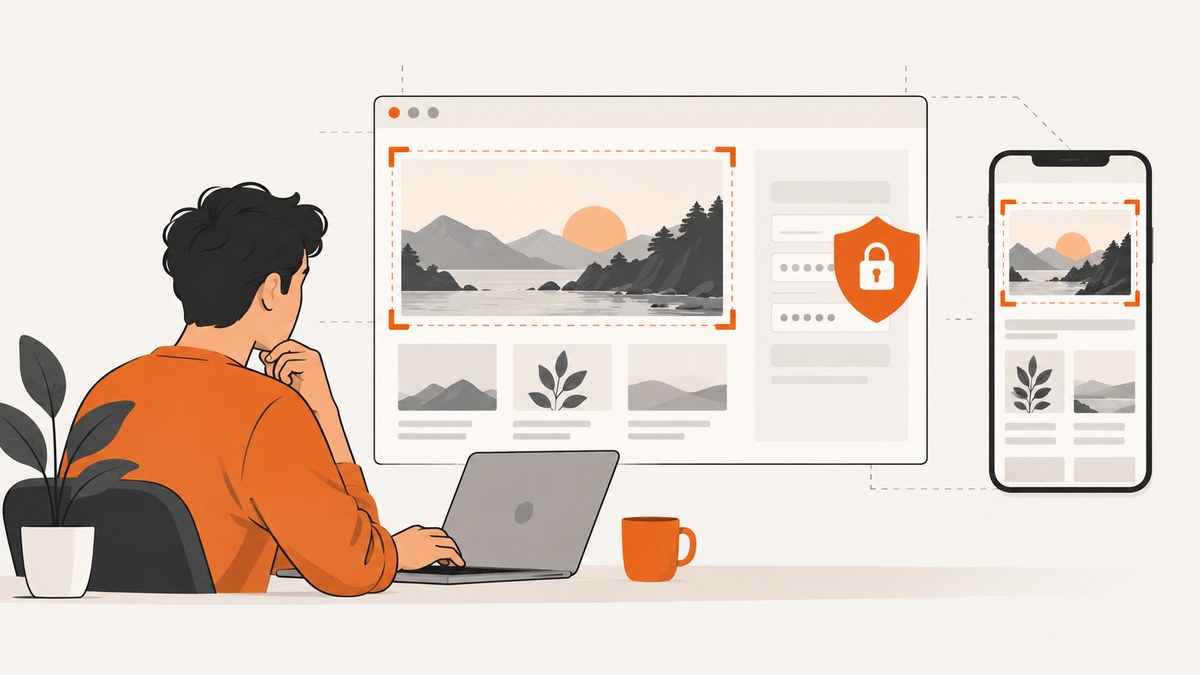
A good web page screenshot proves one thing quickly: the right interface, at the right viewport, with readable detail and no private data. Start by defining the state you need to show, capture at the target desktop and mobile sizes, crop to the relevant region, remove sensitive data irreversibly, and publish an appropriately sized image with useful alternative text.
1. Define what the screenshot must prove
Write the reader question in one sentence before opening a capture tool. Examples: “Where is the export button?”, “Does this layout reflow at a narrow width?”, or “What does a successful checkout look like?” The answer determines the URL, account state, viewport, crop and annotation. A screenshot that includes every panel can be technically complete but harder to understand.
- Use a clean test account and representative sample data.
- Remove names, email addresses, tokens, order numbers and other personally identifying information before capture.
- Record the browser, zoom, viewport, color scheme and data state when a result must be reproducible.
- Capture the same task and state at each viewport when comparing layouts.
2. Choose a viewport and image size
Capture at the size your reader will evaluate. For a desktop article, use the content column as the publishing target and retain a higher-density source when your CMS supports it. Google’s style guidance gives an 856 px content column and a 1712 px 2× asset as an example; those numbers describe that documentation system, not a universal web standard. It also warns that full-resolution screenshots often take too much space and may need resizing.
| Use case | Capture plan | Publishing check |
|---|---|---|
| Documentation step | One focused crop around the control and enough surrounding context to orient the reader. | Text is readable at article width; the caption explains the action. |
| Responsive comparison | Repeat the same state at a wide and narrow viewport. | Label each viewport and keep scale, crop logic and browser treatment consistent. |
| Full-page reference | Capture the complete page, loading lazy content first. | Resize for delivery; provide a link to the larger asset if detail is essential. |
| Web-app manifest | Validate the manifest dimensions and aspect ratio. | Chrome documents 320–3840 px width and height, with the maximum dimension no more than 2.3 times the minimum; keep aspect ratios consistent within a form factor. |
WCAG 2.2’s reflow criterion uses a 320 CSS-pixel width equivalent as a test condition, except where two-dimensional presentation is essential. A screenshot cannot replace testing the live page: use it to show a state, then verify the page remains usable when reflowed.
3. Capture with browser tools
Chrome or Edge DevTools
- Open the page in a clean profile and sign in with the prepared test account.
- Open DevTools, enable the device toolbar, and enter the exact width and height you want to document.
- Set zoom and color scheme deliberately; use the same values for every comparison shot.
- Wait for fonts, images and asynchronous content. Scroll through a long page once so lazy images load.
- Use the DevTools command menu and choose a full-page or node screenshot, or use the system capture tool for a visible region.
- Crop the result to the relevant UI while retaining orientation context.
Hide browser chrome and the cursor unless they are part of the instruction. Keep browser treatment consistent across a document set, as Google recommends.
Repeatable Playwright capture (Node.js)
import { chromium } from 'playwright';

const browser = await chromium.launch();
const page = await browser.newPage({
  viewport: { width: 1440, height: 900 },
  deviceScaleFactor: 2,
  colorScheme: 'light'
});
await page.goto('https://example.com', { waitUntil: 'networkidle' });
await page.screenshot({ path: 'page.png', fullPage: true });
await browser.close();
Install with npm install playwright and download a browser with npx playwright install chromium. For a focused image, replace the last line with await page.locator('[data-testid="primary-panel"]').screenshot({ path: 'panel.png' });. Use a stable selector rather than a generated class.
Repeatable Playwright capture (Python)
from playwright.sync_api import sync_playwright

with sync_playwright() as p:
    browser = p.chromium.launch()
    page = browser.new_page(
        viewport={"width": 1440, "height": 900},
        device_scale_factor=2,
        color_scheme="light",
    )
    page.goto("https://example.com", wait_until="networkidle")
    page.screenshot(path="page.png", full_page=True)
    browser.close()
Install with pip install playwright and playwright install chromium. Add page.locator("[data-testid='primary-panel']").screenshot(path="panel.png") for an element shot.
4. Make the composition consistent
For comparisons, hold the browser chrome, zoom, crop logic, visual scale, task and state constant. Change only the viewport or treatment you are explaining. This prevents incidental differences from becoming the subject of the comparison.
- Use the same scroll position for viewport shots.
- Use the same device pixel ratio and color scheme.
- Keep annotations outside the interface when possible so they do not obscure controls.
- Crop empty margins, but leave enough context to identify the page and task.
5. Protect privacy before publishing
Prepare synthetic data whenever possible. If private information appears, remove it before the image leaves the capture workflow. Google recommends a fully opaque solid-color overlay for PII; blur and mosaics may be reversible. Also inspect browser notifications, account avatars, URL query strings, console overlays and downloaded filenames for secrets.
- Replace real records in the test account with fabricated values.
- Capture a fresh image after cleanup rather than drawing over a copy of the original.
- Open the exported file and inspect every corner at 100% zoom.
- Delete temporary captures that contain secrets and restrict access to the final asset.
6. Make screenshots accessible
W3C recommends concise, descriptive alternative text for informative images and alt="" for decorative images. ADA guidance likewise says text alternatives should convey an image’s purpose. Put essential words in real page text; do not make readers extract them from pixels. A useful alt text states what the image demonstrates, for example: “Billing settings page with the annual plan selector expanded and the Save changes button visible.”
Use a caption or nearby paragraph for details that do not belong in short alt text. If the screenshot contains a chart or dense table, provide the underlying data or a textual summary in the page.
7. Show desktop and mobile states intentionally
Label wide and narrow examples instead of making readers infer the viewport. Capture the same task at both sizes and explain any intentional differences. Check that controls remain usable, content is not clipped and no information disappears at a narrow width. The live page must satisfy reflow requirements; an attractive mobile screenshot alone is not evidence of accessibility.

8. Choose format and delivery settings
- PNG: best for crisp interface text, flat color and transparency.
- JPEG: smaller for photographic content; compression can soften text.
- WebP: a practical compressed choice when your delivery stack supports it.
- PDF: useful for print-like, multi-page references rather than inline UI steps.
Resize to the article column, provide width and height attributes in HTML to reduce layout shift, and use responsive image delivery where available. Keep a higher-density source for future crops. Check the final file at the smallest display size readers will use.
9. Web-app manifest screenshots
When screenshots are declared in a web-app manifest, follow the platform constraints rather than article layout rules. Chrome documentation specifies 320–3840 px width and height limits, a maximum dimension no more than 2.3 times the minimum, and consistent aspect ratios within a form factor. MDN recommends a descriptive label for every manifest screenshot because it supplies an accessible name.
{
  "screenshots": [
    {
      "src": "/screenshots/dashboard-wide.webp",
      "sizes": "1440x900",
      "type": "image/webp",
      "form_factor": "wide",
      "label": "Dashboard with monthly usage summary"
    }
  ]
}
10. Or skip the browser setup
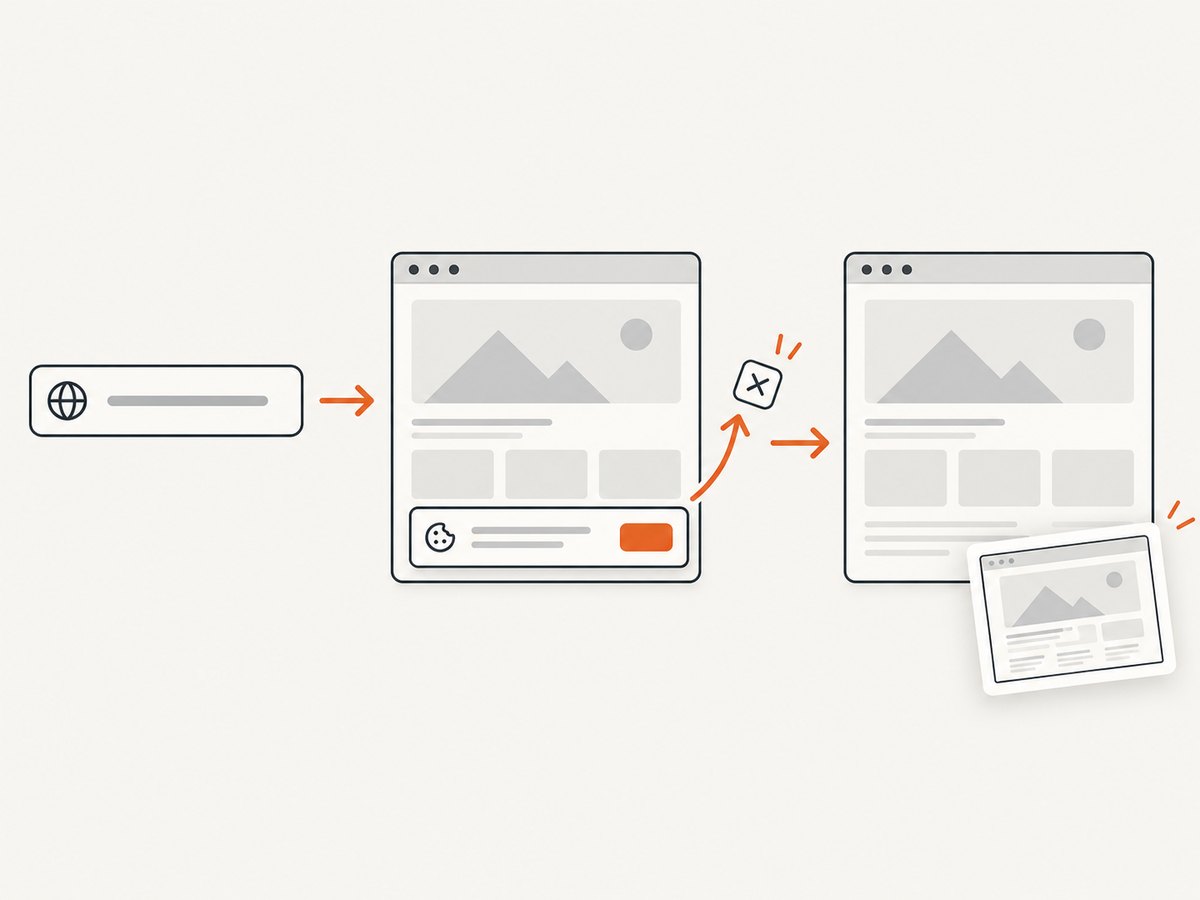
ScreenshotNeo is a website screenshot API and MCP server. It handles the capture service while retaining the controls you need for documentation and testing. Before the shot it accepts cookie and consent banners and removes more than 60 known consent platforms, newsletter popups and chat widgets; each cleanup step can be turned off. Only clean shots are billed: bot checks or CAPTCHAs, blank pages, timeouts, failed loads and cache hits cost nothing, and response headers identify the page verdict and billing result.
See the ScreenshotNeo API documentation for all options. The one-call examples below return the requested image bytes.
cURL
curl -G "https://api.screenshotneo.com/v1/shot" -d access_key=YOUR_API_KEY --data-urlencode url=https://stripe.com -o shot.webpPython
import requests
r = requests.get("https://api.screenshotneo.com/v1/shot", params={"access_key": "YOUR_API_KEY", "url": "https://stripe.com"}, timeout=90)
open("shot.webp", "wb").write(r.content)
Node.js
const q = new URLSearchParams({ access_key: 'YOUR_API_KEY', url: 'https://stripe.com' });
const res = await fetch(`https://api.screenshotneo.com/v1/shot?${q}`);
const bytes = Buffer.from(await res.arrayBuffer());
await import('node:fs/promises').then(fs => fs.writeFile('shot.webp', bytes));
ScreenshotNeo supports full-page capture with lazy images loaded, element capture by CSS selector, dark mode, 12 device presets and custom viewports, retina scale, PDF paper size/margins/landscape/page ranges, HTML/CSS to image, custom CSS and JavaScript, pre-capture clicks, hidden selectors, waits for a selector/delay/network idle, blocking ads/trackers/requests/resource types, custom headers/cookies/user agent/Authorization, timezone and geolocation, transparent backgrounds, resizing, configurable-TTL caching, signed links, asynchronous jobs with signed webhooks, bulk capture of up to 100 URLs per call, a usage API and an OpenAPI specification. Parameter names used by other screenshot APIs also work for easier migration.
An MCP server exposes take_screenshot, get_page_info and capture_pdf to Claude, Cursor and other MCP clients. Plans include 1,000 shots per month free with no card; paid plans start at $5 for 3,000 shots. Create a free ScreenshotNeo account.
11. Troubleshooting checklist
| Symptom | Likely cause | Fix |
|---|---|---|
| Cookie banner or chat bubble covers content | Consent or widget loaded after the initial paint. | Accept consent, wait for the widget to settle, hide its selector, or use ScreenshotNeo cleanup options. |
| Images are blank in a full-page shot | Lazy loading has not been triggered. | Scroll through the page before capture, wait for the image selector, or enable full-page lazy-image loading. |
| Fonts or layout differ between runs | Different viewport, device scale, font availability, zoom or data state. | Pin those values and wait for web fonts and network idle. |
| Screenshot is cut off | Viewport capture was used for a long page or a fixed-height element. | Use full-page capture, an element shot, or a deliberate crop. |
| Text is unreadable in the article | Full-resolution source was scaled without a delivery target. | Export for the article column, retain a 2× source, and test at the rendered size. |
| Private data remains visible | Only the obvious field was checked; URLs, avatars or notifications still contain PII. | Use synthetic data, inspect the complete image and apply an opaque cover before publishing. |
| API response is not a clean image | Target page failed, timed out or triggered a bot check. | Read X-Page-Verdict and X-Billed, then adjust waits, headers or access conditions; ScreenshotNeo does not bill these failed outcomes. |
12. Performance, reliability and cost
- Prefer an element shot for a small UI proof; it transfers and renders less data than a full page.
- Use full-page images when the vertical relationship is part of the explanation, and load lazy content before capture.
- Cache stable pages with a TTL; invalidate when the documented state changes.
- For repeatable builds, pin viewport, device scale, color scheme, browser version and test data.
- Use asynchronous jobs and signed webhooks for slow pages or batches; use bulk capture for up to 100 URLs per call.
- Track verdict and billing headers so failed loads and cache hits are separated from billable clean shots.
With ScreenshotNeo, the Free plan includes 1,000 shots per month without a card. Starter is $5 for 3,000, Growth $15 for 15,000, Pro $39 for 60,000, Scale $99 for 250,000, and Business $249 for 1,000,000; yearly billing gives two months free, and every feature is on every plan.
FAQ
Should I capture the browser chrome?
Only when the browser context is part of the lesson. Otherwise remove it and keep treatment consistent across the set.
Is blur safe for email addresses?
No. Use synthetic data or a fully opaque solid-color overlay; blur and mosaics may be reversible.
How much context should a crop include?
Include the control, its result and enough surrounding UI to establish where the reader is. Remove unrelated panels and empty margins.
Can a screenshot prove accessibility?
No. It can illustrate a state. Verify live reflow, keyboard access, semantics and text alternatives separately.
When is PDF a better output?
Use PDF for a multi-page, print-like reference. Use PNG, JPEG or WebP for inline interface steps and comparisons.


