How to Take a Screenshot of a Web Page with a Keyboard Shortcut
Capture the visible screen or a full webpage with built-in browser and OS shortcuts. Find the right steps for Edge, Firefox, Chrome, Windows, Mac, and Chromebook.

The right shortcut depends on what you need: a picture of the part of the webpage currently on screen, or a full-page capture that includes content below the fold. For a full page, Edge has a direct shortcut into its capture flow, Firefox has a built-in screenshot tool, and Chrome’s practical route uses DevTools. Windows Snipping Tool and Chromebook shortcuts capture the screen or a selected area; do not assume they scroll through an entire webpage.
Quick answer: In Edge, press Ctrl+Shift+S, then select Capture full page. In Firefox, press Ctrl+Shift+S on Windows or Linux, or Command+Shift+S on Mac, then choose Save full page. In Chrome, open DevTools and its Command Menu, search for screenshot, and select the full-size capture command if available. These flows open capture controls; they are not all immediate, one-key saves.
1. Choose the kind of screenshot you need
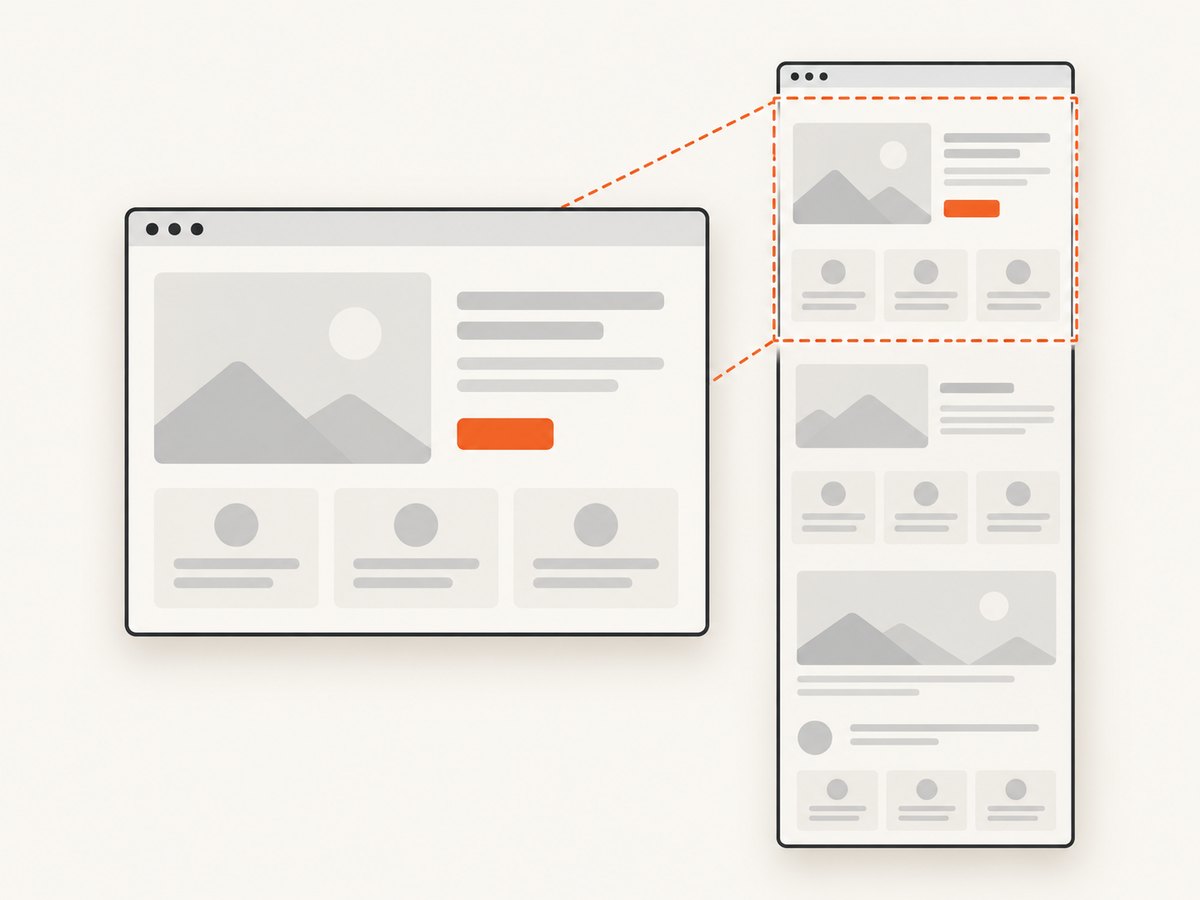
A browser viewport is the rectangle visible in the browser window. A selected-area capture is a rectangle you draw. A full-page screenshot extends down the webpage and includes content outside the current viewport. These are different tasks, and a system-level full-screen shortcut generally captures the display rather than automatically scrolling the page.
| Need | Best starting point | What it captures |
|---|---|---|
| Visible page or desktop | OS screenshot shortcut | The current display, window, or selected region |
| Part of a webpage | Browser capture tool or OS region tool | A selected portion, depending on the tool |
| Whole long webpage | Edge, Firefox, or Chrome DevTools | Page content beyond the visible viewport |
Before capturing, close menus that obscure the content, wait for the page to settle, and scroll to the top if the result should start at the beginning. Full-page captures can be very tall. Review the result for sticky headers repeated during scrolling, lazy-loaded images that did not appear, or sections that only load after interaction.
2. Microsoft Edge: full page with Ctrl+Shift+S
- Open the webpage in Edge.
- Press Ctrl+Shift+S.
- Choose Capture full page to include content beyond the screen, or choose an area if you only need part of the page.
- Use the capture interface to review, mark up, copy, or save the image using the options it presents.
Microsoft documents this as a full-webpage capture without manual scrolling. On a Mac keyboard, try the same shortcut with Command in place of Ctrl if the browser uses the platform-specific equivalent; if it does not open the tool, launch Screenshot from Edge’s menu instead. Shortcut behavior can vary with keyboard layout, browser version, and system-level key bindings.
The shortcut opens Edge’s Screenshot feature rather than silently saving a file. Make sure you choose Capture full page; choosing an area produces a different result. See Microsoft’s Edge Screenshot feature page.
3. Firefox: save the full page with its Screenshot tool
- Open the page you want to capture.
- Press Ctrl+Shift+S on Windows or Linux, or Command+Shift+S on macOS. You can also right-click an empty part of the page and choose Take Screenshot.
- Select Save full page for the entire document. Choose Save visible for the current viewport, or select a region or highlighted page element for a smaller capture.
- Choose Download to save an image, or Copy to put it on the clipboard.
The screenshot interface has separate actions for capture and saving. Once the preview is open, Ctrl+S on Windows/Linux or Command+S on Mac saves the image; Ctrl+C or Command+C copies it. Press Esc to cancel. Mozilla documents the full-page, visible-page, selection, save, and copy options in its Firefox screenshot guide.
If you have trouble using a mouse to place a selection, Firefox’s screenshot UI supports keyboard movement: arrow keys move the crosshair by a pixel, and Shift plus an arrow moves it by ten pixels. This is useful for precise region selection. Mozilla notes that moving the crosshair does not work on Wayland.
4. Chrome: use DevTools for a full-size capture
Chrome’s regular browser shortcut list does not give a dedicated full-page screenshot combination. The practical built-in approach is DevTools’ Command Menu. Google documents the Command Menu shortcut and screenshot-related commands; the exact full-size command label can vary between versions.
- Open the webpage in Chrome.
- Open DevTools: press Ctrl+Shift+I on Windows/Linux, or Command+Option+I on Mac.
- Open the Command Menu: press Ctrl+Shift+P on Windows/Linux, or Command+Shift+P on Mac.
- Type
screenshotand choose the full-size screenshot command if it appears. - Wait for Chrome to create the image; the browser will typically download the resulting screenshot.
Do not confuse Capture area screenshot with a full-size capture: area capture asks you to drag a rectangle over the page. Google’s DevTools Command Menu documentation describes opening the menu and using its area screenshot action. If the full-size option is missing, confirm that DevTools has focus, try searching the menu again, and check Chrome’s version. Command names and availability can change.
5. Windows: capture the visible screen or a region
Press Windows+Shift+S to open the Snipping Tool capture overlay on Windows. Choose a rectangular or freeform area, a window, or the full screen. Select the part of the webpage or display you need; the overlay does not provide an automatic full-page scrolling capture. After taking a snip, it is copied to Snipping Tool, where you can make changes, save, or share it.
For an entire long webpage, use a browser’s full-page feature described above. For an image of only the current visible portion, maximize the browser or arrange the window first, then choose the region or window capture mode. Microsoft’s Snipping Tool guide lists freeform, rectangle, window, and full-screen snips.
6. Mac: distinguish browser capture from system capture
For a full webpage on Mac, use the browser workflow: Firefox’s screenshot shortcut is Command+Shift+S; Chrome’s DevTools shortcut is Command+Option+I, then Command+Shift+P. In Edge, open its Screenshot feature and choose the full-page option if the shortcut differs on your keyboard configuration.
macOS system screenshot shortcuts capture the screen or a chosen portion of the display. They are appropriate for a visible browser window or selected area, but they should not be treated as scrolling webpage capture. If the browser content extends below the fold, use its full-page tool instead. On Mac, replace the Windows/Linux Ctrl modifier with Command only where the browser’s documented shortcut supports that substitution.
7. Chromebook: use Screen Capture for the display
On Chromebook, press Ctrl+Show windows for a screenshot. For a partial screenshot, press Shift+Ctrl+Show windows, then select and drag over the area. Press Ctrl+Shift+Show windows to open additional screenshot features. Some keyboards label the overview key with a rectangle and two vertical lines; on an external keyboard without that key, Google documents Ctrl+Shift+F5 as an alternative route to the capture tool.
These shortcuts provide full-screen, partial, or window capture options; they are not documented as automatic scrolling webpage capture. For a long webpage, use a browser capture flow that explicitly offers full-page capture. Google’s current Chromebook screenshot help describes the screenshot key, selection modes, and where captures are saved.
8. A reliable capture checklist
- Decide the scope: visible screen, selected area, or complete page.
- Choose the right tool: OS shortcuts for the display; browser features for a webpage extending below the fold.
- Wait for content: let fonts, images, and page animations settle before taking the shot.
- Check the start point: scroll to the top when the full page should begin at its first section.
- Review the result: look for missing lazy-loaded media, overlays, repeated sticky elements, or content that requires interaction.
- Save or copy deliberately: a shortcut may open a capture UI rather than save a file immediately.
- Protect private information: close account details, private tabs, or messages before capturing, especially if the image will be shared.
For a one-off image, browser and OS tools have no separate API charge. If you need repeatable captures for documentation, QA, reports, or an automated workflow, manual keyboard steps are harder to standardize. A consistent viewport, wait condition, browser state, and output format matter more than pressing the shortcut quickly.
9. Troubleshooting shortcut problems
| Symptom | Likely cause | What to do |
|---|---|---|
| The shortcut does nothing | The page or browser does not have focus, another application intercepts the keys, or the browser uses a different modifier. | Click the page and retry. Use the browser menu or open DevTools from its menu. On Mac, check whether that browser’s flow uses Command instead of Ctrl. |
| You got only what was visible | You used a display or area snip, or selected the visible-page option. | Return to the browser’s capture flow and explicitly choose full page/full size. |
| Chrome has no full-size command | The command label or availability differs in that Chrome version, or DevTools lacks focus. | Focus DevTools, open its Command Menu, search “screenshot,” and inspect the available commands. Try the current browser version if appropriate. |
| The captured page is partly blank | Content may load later, appear only after scrolling, or require an interaction. | Wait for the page, scroll through it before capturing if appropriate, and retry. For a page with delayed content, the built-in flow may not wait in the way an automated capture can. |
| The image is too tall or hard to share | A full-page screenshot includes all document content at once. | Capture a specific section or visible viewport, or save the full image and crop it in an image editor. |
| A menu or popup covers the content | The overlay was open at capture time. | Dismiss it first, or use an automated capture workflow with controls for waiting and hiding elements. |
| The result is not in the expected folder | The browser downloads to its configured download location, or the image was copied instead of downloaded. | Check the browser’s downloads list, then its download folder. In Firefox, use Download or the documented save shortcut; in Chromebook, check Downloads or the selected save folder. |

10. Or skip the browser setup
If you need screenshots from code, ScreenshotNeo is a website screenshot API and MCP server from Yorker Media. Send one GET request with the target URL and save the returned image. The examples below use the documented endpoint and the same Stripe example URL. See the ScreenshotNeo API documentation for request options.
cURL
curl -G "https://api.screenshotneo.com/v1/shot" -d access_key=YOUR_API_KEY --data-urlencode url=https://stripe.com -o shot.webpPython
import requests

r = requests.get(
    "https://api.screenshotneo.com/v1/shot",
    params={"access_key": "YOUR_API_KEY", "url": "https://stripe.com"},
    timeout=90,
)
open("shot.webp", "wb").write(r.content)
Node.js
const q = new URLSearchParams({ access_key: 'YOUR_API_KEY', url: 'https://stripe.com' });
const res = await fetch(`https://api.screenshotneo.com/v1/shot?${q}`);
ScreenshotNeo removes cookie banners, newsletter popups, and chat widgets before the shot. Bot checks, blank pages, and failed loads are never billed; responses identify page verdict and billing status in headers. An MCP server lets AI agents take screenshots. The Free plan includes 1,000 screenshots a month with no card, and paid plans start at $5 for 3,000.
Sign up for ScreenshotNeo and get 1,000 free screenshots a month with no card.
11. FAQ
What is the shortcut for a full-page screenshot?
There is no universal shortcut across browsers. Edge opens its full-page capture flow with Ctrl+Shift+S; Firefox has its own screenshot flow; Chrome’s full-size route uses the DevTools Command Menu.
Does Ctrl+Shift+S always take a screenshot?
No. Its behavior depends on the browser and operating system. Edge and Firefox use it to open capture controls, but the final action may require choosing full page and saving or copying.
Can I take a full-page screenshot without scrolling?
Yes, Edge and Firefox document built-in full-page capture flows. Chrome’s DevTools command menu offers a practical full-size screenshot route. OS region capture alone does not scroll through a webpage.
Which file format will I get?
The browser capture flow determines the output and download behavior. Firefox saves its screenshot as a PNG image. For a particular format or a repeatable programmatic workflow, use a tool that exposes output settings and check its documentation.
Can I capture a page that requires sign-in?
A manual browser capture can show content available in your signed-in browser session. Avoid sharing images that expose private information. When automating captures, authentication and access should be configured carefully.