How to Take a Web Page Screenshot with PHP or JavaScript
Capture rendered web pages with PHP or JavaScript using Playwright, Puppeteer, and a production-ready ScreenshotNeo API workflow.
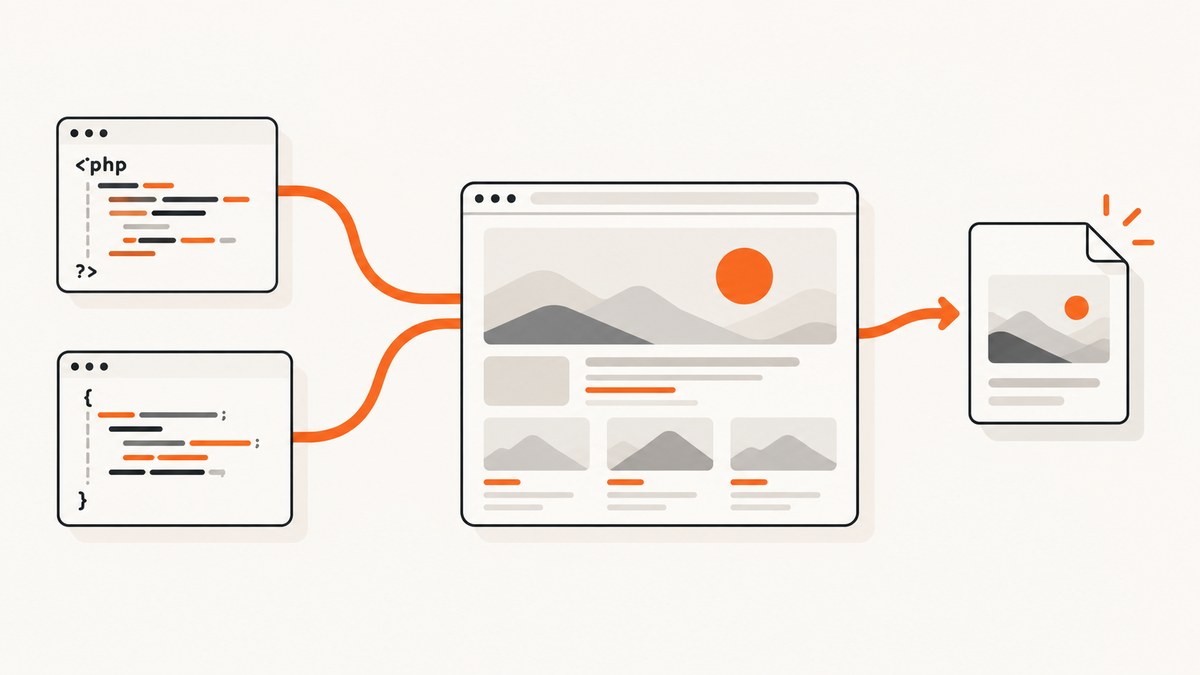
Direct answer: use a browser automation library so the page is rendered before the image is taken. In JavaScript, Playwright and Puppeteer provide screenshot APIs. In PHP, use Playwright PHP or Spatie Browsershot, which drives Puppeteer and headless Chrome. Decide first whether you need the visible viewport, the complete scrollable page, or one element, then wait for the page state you want to preserve.
This guide shows complete PHP and JavaScript implementations, browser setup, capture options, edge cases, troubleshooting, and production considerations. If you do not want to operate a browser, the final section shows how to capture the same page with ScreenshotNeo.
1. Choose the capture scope before writing code
| Scope | Use it when | Main trade-off |
|---|---|---|
| Viewport | You need what a user sees in the current browser window. | Content below the fold is omitted. |
| Full page | You need the entire scrollable document for review or archiving. | Very long pages create large, harder-to-inspect images. |
| Element | One card, chart, form, or component is the evidence. | The surrounding page context is omitted. |
Playwright’s Page API supports ordinary and full-page screenshots, masks, background handling, and animation controls. Its screenshot guide also supports locator screenshots for a specific region (Playwright Page API). Puppeteer’s guide documents page screenshots and element screenshots; an element is scrolled into view when necessary (Puppeteer screenshots).
2. JavaScript with Playwright
Install and run
npm install playwright
npx playwright install chromium
Save this as screenshot-playwright.js:
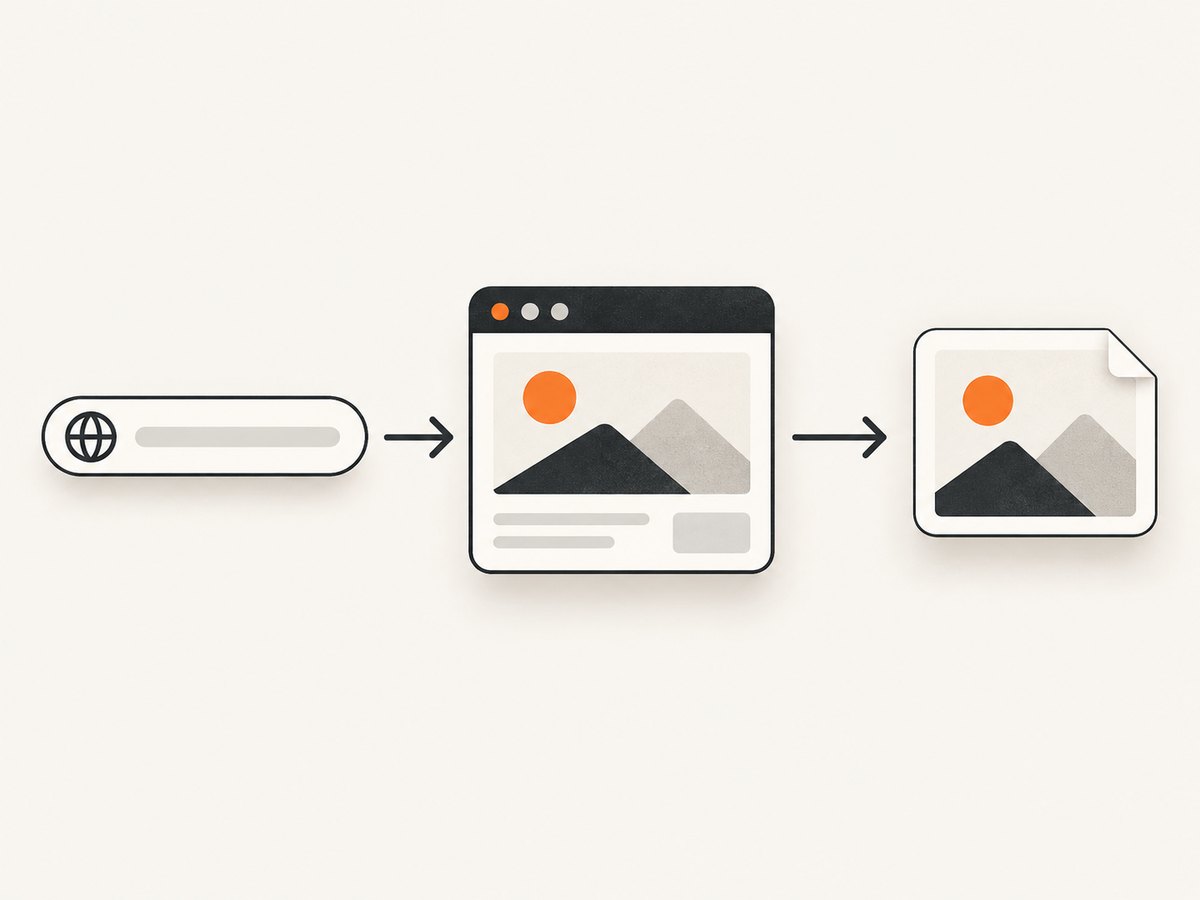
const { chromium } = require('playwright');

(async () => {
  const browser = await chromium.launch();
  const context = await browser.newContext({
    viewport: { width: 1440, height: 900 },
    deviceScaleFactor: 1,
    colorScheme: 'light'
  });
  const page = await context.newPage();

  await page.goto('https://example.com', { waitUntil: 'domcontentloaded' });
  await page.locator('h1').waitFor({ state: 'visible' });
  await page.screenshot({
    path: 'artifacts/example.png',
    fullPage: true,
    animations: 'disabled',
    caret: 'hide'
  });

  await browser.close();
})();
Create the output directory first with mkdir -p artifacts. The important sequence is navigation, readiness, then capture. waitUntil: 'domcontentloaded' only means the initial document was parsed; it does not guarantee that a client-rendered chart or image has appeared. Wait for a meaningful locator, a known application state, or a deliberate delay when the site has no reliable selector.
Viewport, full-page, and element screenshots
// Visible viewport only
await page.screenshot({ path: 'viewport.png' });

// Entire scrollable document
await page.screenshot({ path: 'full-page.png', fullPage: true });

// One component
await page.locator('[data-testid="pricing-card"]').screenshot({
  path: 'pricing-card.png'
});
Use stable selectors such as data-testid or accessible roles. Avoid selectors tied to generated class names. For a screenshot of a state after interaction, perform the interaction first:
await page.getByRole('button', { name: 'Open details' }).click();
await page.getByText('Additional details').waitFor({ state: 'visible' });
await page.screenshot({ path: 'details-open.png' });
Useful Playwright options
fullPage: truecaptures the full scrollable page.pathwrites a file; omit it when you need the returned buffer.type: 'png' | 'jpeg'selects the format. JPEG accepts aqualityvalue.omitBackground: truepreserves transparency where the page supports it.animations: 'disabled'reduces motion-related differences.maskcan cover dynamic locators with a solid color.caret: 'hide'prevents a blinking text caret from entering the image.
Set a deterministic viewport, browser, locale, timezone, and device scale factor when screenshots are compared over time. Fonts, animations, remote data, and browser updates can all change pixels without changing your code.
3. JavaScript with Puppeteer
Install and capture a page
npm install puppeteerconst puppeteer = require('puppeteer');
(async () => {
const browser = await puppeteer.launch();
const page = await browser.newPage();
await page.setViewport({ width: 1440, height: 900, deviceScaleFactor: 1 });
await page.goto('https://example.com', { waitUntil: 'networkidle2' });
await page.screenshot({
path: 'artifacts/example.png',
fullPage: true
});
await browser.close();
})();Puppeteer’s documented example uses networkidle2, which waits until there are no more than two network connections for a short period. That is useful for many pages but can delay forever on applications that poll, stream, or load advertising continuously. In those cases, use domcontentloaded and wait for a selector instead.
Capture one element
const card = await page.$('[data-testid="pricing-card"]');
if (!card) throw new Error('pricing card was not found');
await card.screenshot({ path: 'pricing-card.png' });
For pages that lazy-load images, scroll through the document or wait for the relevant image’s complete property before taking a full-page image. Do not assume that a successful navigation means every image is ready.
4. PHP with Playwright PHP
Install the package and browser
composer require --dev playwright-php/playwright
vendor/bin/playwright-install chromium
The Playwright PHP documentation lists PHP 8.2 or newer and Node.js 20 or newer, and provides --with-deps for a fresh machine or CI runner:
vendor/bin/playwright-install --with-deps chromiumCheck the package documentation for the exact API version you install. The Node server used by Playwright PHP starts automatically.
Basic PHP capture
<?php

require __DIR__ . '/vendor/autoload.php';

use Playwright\Playwright;

$playwright = Playwright::create();
$browser = $playwright->chromium()->launch();
$page = $browser->newPage([
    'viewport' => ['width' => 1440, 'height' => 900],
]);

$page->goto('https://example.com');
$page->locator('h1')->waitFor(['state' => 'visible']);
$page->screenshot(__DIR__ . '/artifacts/example.png', [
    'fullPage' => true,
]);

$browser->close();
Make the expected state explicit before saving the artifact. Waiting for a heading, asserting a status message, or checking that a table has rows makes the screenshot meaningful and exposes failed navigations early.
Element and viewport captures
// Visible viewport
$page->screenshot(__DIR__ . '/artifacts/viewport.png');

// One locator
$page->locator('[data-testid="invoice"]')
     ->screenshot(__DIR__ . '/artifacts/invoice.png');

// Full document
$page->screenshot(__DIR__ . '/artifacts/document.png', [
    'fullPage' => true,
]);
Keep secrets out of screenshots. If the page contains customer data, use a test account, mask sensitive locators, or inject CSS that hides private fields before capture.
5. PHP with Spatie Browsershot
Browsershot provides a PHP-facing API while rendering through Puppeteer and headless Chrome. A minimal capture is:
<?php

use Spatie\Browsershot\Browsershot;

Browsershot::url('https://example.com')
    ->windowSize(1440, 900)
    ->fullPage()
    ->save(__DIR__ . '/artifacts/example.png');
Use Browsershot when your Laravel or other PHP application wants a fluent PHP wrapper and your deployment already supports Node, Puppeteer, and Chrome. Verify current installation and runtime requirements in the Browsershot project documentation.
6. Make page readiness deterministic
- Navigate to the exact URL, including the query parameters that select the desired state.
- Set viewport, locale, timezone, and color scheme before navigation when they affect rendering.
- Dismiss cookie banners or dialogs that obscure content.
- Wait for a stable selector, application event, or known network condition.
- Disable animations and hide timestamps, rotating ads, or other intentionally changing regions.
- Capture and verify that the output file exists and is non-empty.
A screenshot records appearance at one moment; it does not explain why the page reached that state. For functional tests, use locator assertions for text, visibility, enabled state, counts, and accessible names. Use screenshots as visual evidence and traces when the action sequence matters.
7. Configuration patterns and edge cases
Authentication
Use a dedicated test account or a browser context with the required cookies. Never hard-code production credentials in a script or commit them to a repository. Redact authorization headers and avoid uploading screenshots that contain tokens.
Lazy-loaded content
For full-page captures, scroll incrementally to trigger lazy loading, then wait for images to complete. A page can be technically loaded while below-the-fold images remain placeholders.
Long pages
Full-page output can become very tall and memory intensive. Capture the relevant element or split the document into sections when a single image is not useful. JPEG can reduce file size for photographic pages; PNG is preferable for sharp text and transparency.
Responsive layouts
Set the viewport deliberately. A mobile screenshot is not produced reliably by merely shrinking a desktop image; responsive breakpoints, touch controls, and font metrics change the rendered layout.
Downloads, popups, and cross-origin frames
Wait for the frame or modal you intend to show. A popup opened in a new page requires a page listener in your automation code. Cross-origin content may have restrictions that prevent DOM inspection even though it is visible; capture the rendered page or frame rather than depending on inaccessible internals.
8. Troubleshooting
| Symptom | Likely cause | Fix |
|---|---|---|
| Browser executable not found | Chromium was not installed for the package. | Run the relevant Playwright install command or install Puppeteer’s browser in the deployment image. |
| Screenshot is blank | Navigation failed, a bot check appeared, or capture happened before rendering. | Log the response and URL, wait for a meaningful selector, and inspect the page title and body text. |
| Full page misses images | Images are lazy-loaded below the fold. | Scroll the page, wait for image completion, then capture. |
| Script hangs on navigation | The page keeps polling or streaming. | Use a less strict wait condition and an explicit readiness selector with a timeout. |
| Element screenshot fails | The selector matches nothing or the element is detached. | Use a stable selector, wait for visibility, and locate the element again after rerenders. |
| Pixel diffs change every run | Animations, fonts, timestamps, ads, viewport, or browser versions differ. | Freeze those inputs, disable animation, mask dynamic regions, and pin the browser environment. |
| PHP process works locally but fails in CI | Missing system libraries, Node, permissions, or writable artifact paths. | Install dependencies with the documented CI command and upload the configured artifact directory. |
9. Performance, reliability, and cost
Launching a browser for every request is expensive. Reuse a browser process and create isolated contexts or pages per job. Limit concurrency to the CPU and memory available on the runner. Reuse cached browser binaries, but keep the browser version controlled when pixel consistency matters.
Set explicit navigation and selector timeouts. Record the URL, viewport, browser version, wait condition, and failure reason alongside each artifact. Retry transient navigation failures with a limit; retries cannot fix a deterministic selector bug or a page that blocks automation.
Large full-page screenshots consume more memory and storage than viewport or element images. Choose PNG, JPEG, or WebP according to whether text sharpness, transparency, or size matters. Clean up old artifacts and verify that your CI system actually uploads the files you expect.
10. Or skip the browser setup
ScreenshotNeo provides a website screenshot API at https://api.screenshotneo.com/v1/shot. One GET request returns a PNG, JPEG, WebP, or PDF. Cookie and consent banners are accepted before capture, and more than 60 known consent platforms, newsletter popups, and chat widgets are removed; each step can be turned off. Bot checks, CAPTCHAs, blank pages, timeouts, failed loads, and cache hits are not billed, and response headers report the page verdict and billing status.

See the ScreenshotNeo API documentation for all options. The same parameter names used by other screenshot APIs work, which makes migration straightforward.
cURL
curl -G "https://api.screenshotneo.com/v1/shot" \
  -d access_key=YOUR_API_KEY \
  --data-urlencode url=https://stripe.com \
  -o shot.webp
Python
import requests

r = requests.get(
    "https://api.screenshotneo.com/v1/shot",
    params={"access_key": "YOUR_API_KEY", "url": "https://stripe.com"},
    timeout=90,
)
r.raise_for_status()
open("shot.webp", "wb").write(r.content)
Node.js
const q = new URLSearchParams({ access_key: 'YOUR_API_KEY', url: 'https://stripe.com' });
const res = await fetch(`https://api.screenshotneo.com/v1/shot?${q}`);
if (!res.ok) throw new Error(`Screenshot failed: ${res.status}`);
const data = Buffer.from(await res.arrayBuffer());
require('node:fs').writeFileSync('shot.webp', data);
ScreenshotNeo also supports full-page capture with lazy images loaded, element selection by CSS selector, dark mode, 12 device presets or any viewport, retina scale, PDF paper size and page ranges, custom CSS and JavaScript, clicks, selector or network-idle waits, request and resource blocking, custom headers and cookies, user agents, authorization, timezone, geolocation, transparent backgrounds, resizing, TTL caching, signed links, asynchronous jobs with signed webhooks, bulk capture of 100 URLs per call, a usage API, and an OpenAPI specification. An MCP server provides take_screenshot, get_page_info, and capture_pdf for Claude, Cursor, and other MCP clients.
Plans include 1,000 shots per month free with no card, then Starter at $5 for 3,000, Growth at $15 for 15,000, Pro at $39 for 60,000, Scale at $99 for 250,000, and Business at $249 for 1,000,000. Yearly billing gives two months free, and every feature is available on every plan. Create a free ScreenshotNeo account and start with 1,000 screenshots a month at no charge.
11. FAQ
Can JavaScript in the browser take a screenshot of any page?
Normal browser JavaScript is restricted by same-origin and browser security rules. Use Playwright, Puppeteer, or a managed screenshot service from a trusted server instead.
Should I use PNG or JPEG?
PNG keeps text and transparency crisp. JPEG is usually smaller for photographic content and accepts a quality setting. WebP is useful when your delivery pipeline supports it.
Is a screenshot a sufficient end-to-end test assertion?
No. Combine visual artifacts with locator assertions and traces so a failure explains both what appeared and whether the expected behavior occurred.
Why does a full-page screenshot differ from what I can see while scrolling?
Full-page capture may stitch or lay out content differently, and lazy-loaded elements can change as they enter the viewport. Control scrolling, waits, viewport, and page state before capture.


