Web Page to PNG: Complete Developer Guide
Learn how to convert any web page to PNG with Playwright, Puppeteer, Chrome Headless, or ScreenshotNeo—including full-page and element captures.
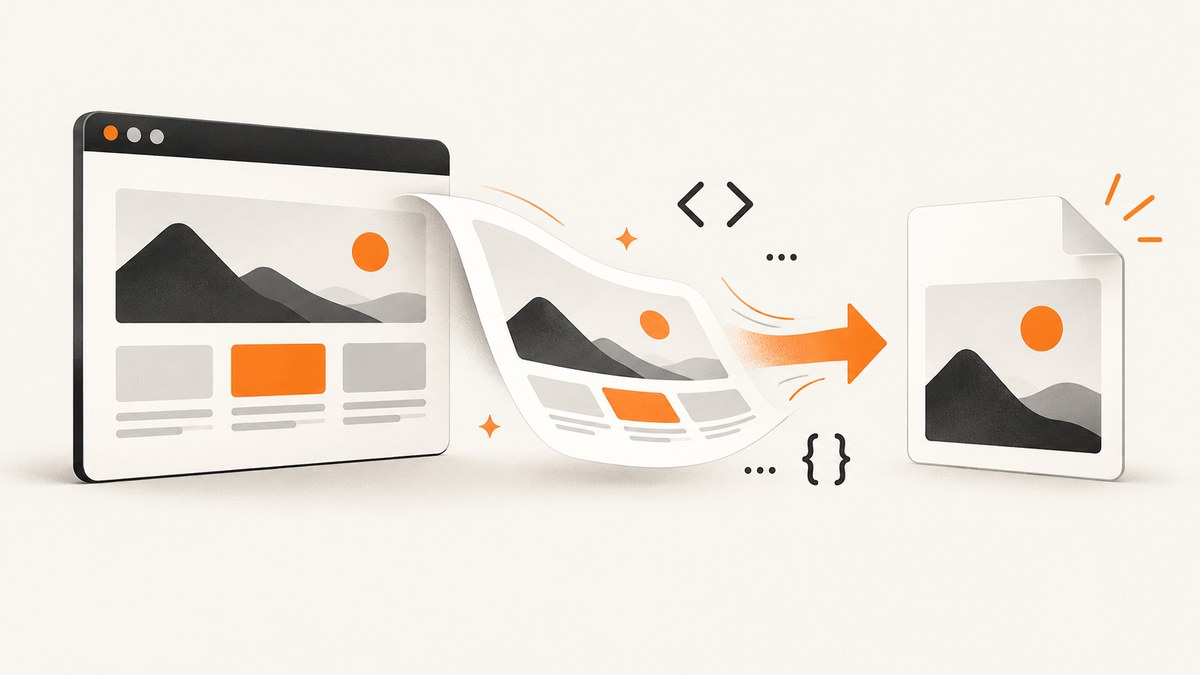
Yes. A browser automation tool can render a web page and save the result as a PNG. Use a viewport screenshot when you need only the visible browser area, or enable full-page capture when you need the entire scrollable document. Playwright and Puppeteer provide programmable APIs; Chrome Headless provides a command-line option.
This guide covers complete examples, element and clipped captures, output scale, lazy-loaded content, transparent backgrounds, troubleshooting, and a hosted alternative with ScreenshotNeo.
1. Choose the right capture method
| Need | Recommended method | Why |
|---|---|---|
| Automated screenshots in an application | Playwright | Supports viewport, full-page, locator, and byte-buffer captures. |
| Existing Chromium automation code | Puppeteer | Supports full-page screenshots, clipping, PNG, JPEG, WebP, and buffers. |
| A one-off command | Chrome Headless | The --screenshot flag writes a PNG from the shell. |
| No browser installation or maintenance | ScreenshotNeo | A single HTTP request returns a rendered PNG, JPEG, WebP, or PDF. |
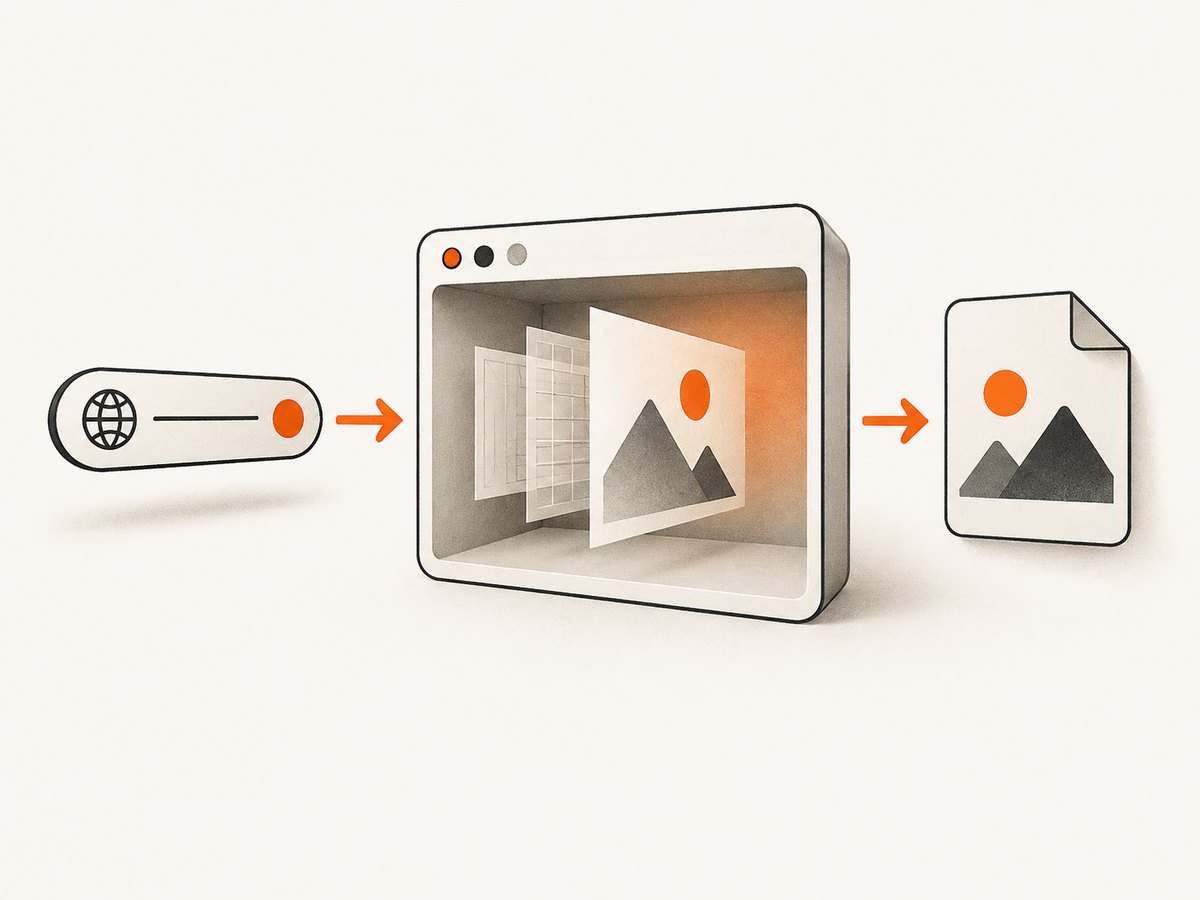
2. Convert a web page to PNG with Playwright
Install Playwright and its browser binaries:
npm install -D playwright
npx playwright install chromium
Create screenshot.mjs:
import { chromium } from 'playwright';

const browser = await chromium.launch();
const page = await browser.newPage({ viewport: { width: 1440, height: 900 } });
await page.goto('https://example.com', { waitUntil: 'networkidle' });
await page.screenshot({ path: 'page.png', type: 'png' });
await browser.close();
Run it with node screenshot.mjs. The documented Playwright example uses page.screenshot({ path: 'screenshot.png' }); PNG is selected by the .png path and the explicit type above. See the Playwright screenshots documentation.
Capture the entire scrollable page
await page.screenshot({
  path: 'full-page.png',
  fullPage: true,
  type: 'png'
});
fullPage: true captures the full scrollable page instead of only the current viewport. Long pages may be tall and consume substantial memory.
Capture one element
const article = page.locator('main article');
await article.screenshot({ path: 'article.png', type: 'png' });
Use a stable selector. If the locator matches multiple elements, Playwright will require you to narrow it to one.
Return PNG bytes instead of writing a file
const png = await page.screenshot({ type: 'png' });
// png is a Buffer that can be uploaded, hashed, or processed.
Control output scale
const browser = await chromium.launch();
const cssPixels = await browser.newPage({ deviceScaleFactor: 1 });
const retina = await browser.newPage({ deviceScaleFactor: 2 });
Playwright documents scale: "css" as one image pixel per CSS pixel and scale: "device" as one pixel per device pixel. Device-scale output can be twice as large or larger on high-DPI displays; choose it when you need retina density and CSS scale when predictable dimensions matter. See the Page API.
3. Convert a web page to PNG with Puppeteer
Install Puppeteer:
npm install puppeteerCreate puppeteer-shot.mjs:
import puppeteer from 'puppeteer';

const browser = await puppeteer.launch();
const page = await browser.newPage();
await page.setViewport({ width: 1440, height: 900, deviceScaleFactor: 1 });
await page.goto('https://example.com', { waitUntil: 'networkidle2' });
await page.screenshot({ path: 'page.png', type: 'png' });
await browser.close();
Puppeteer documents PNG as the default image type. When a path is supplied, the extension can infer the format. JPEG and WebP quality settings do not apply to PNG. See Page.screenshot() and the ScreenshotOptions reference.
Full-page, clipped, and transparent captures
await page.screenshot({ path: 'full.png', fullPage: true, type: 'png' });

await page.screenshot({
  path: 'region.png',
  type: 'png',
  clip: { x: 100, y: 200, width: 800, height: 600 }
});

await page.screenshot({ path: 'transparent.png', type: 'png', omitBackground: true });
Use fullPage for the whole document, clip for a pixel rectangle, and omitBackground when the page supports a transparent background.
4. Convert a web page to PNG with Chrome Headless
For a shell-only workflow, Chrome’s Headless reference documents --screenshot. Pair it with --window-size to control the viewport:
google-chrome --headless --disable-gpu \
  --window-size=1440,900 \
  --screenshot=page.png \
  https://example.com
The command writes page.png in the current directory (or to the path supplied to the flag, depending on the installed Chrome version). Read the Chrome Headless command-line reference for the flags available in your version.
5. Make captures reliable
Wait for the content you need
networkidle helps with pages that load data after navigation, but it is not a guarantee that every image or animation is ready. For a known component, wait for its selector:
await page.goto('https://example.com/dashboard', { waitUntil: 'domcontentloaded' });
await page.waitForSelector('[data-ready="true"]');
await page.screenshot({ path: 'dashboard.png', type: 'png' });
For infinite scroll or lazy images, scroll progressively before taking a full-page screenshot:
await page.evaluate(async () => {
  await new Promise((resolve) => {
    let y = 0;
    const step = 600;
    const timer = setInterval(() => {
      window.scrollBy(0, step);
      y += step;
      if (y >= document.body.scrollHeight) {
        clearInterval(timer);
        resolve();
      }
    }, 100);
  });
});
await page.screenshot({ path: 'lazy-loaded.png', fullPage: true, type: 'png' });
Freeze layout-changing effects
await page.addStyleTag({ content: `
  *, *::before, *::after {
    animation: none !important;
    transition: none !important;
    caret-color: transparent !important;
  }
` });
Fonts, responsive breakpoints, consent dialogs, ads, and personalization can change pixels between runs. Set the same viewport, locale, timezone, cookies, and user agent when reproducibility matters.
Viewport versus full-page dimensions
A viewport screenshot has the exact width and height you configure. A full-page screenshot can be thousands of pixels tall. If a downstream system has a maximum image dimension, capture sections or use a PDF workflow instead.
6. Troubleshooting
| Symptom | Likely cause | Fix |
|---|---|---|
| Only the visible screen is saved | Full-page mode is disabled. | Set fullPage: true in Playwright or Puppeteer. |
| PNG is blank or mostly white | The page has not rendered, requires JavaScript, or returned an error page. | Wait for a meaningful selector, inspect the response status, and capture after application data is present. |
| Images are missing | Lazy loading has not been triggered, or image requests failed. | Scroll the document, wait for image selectors, and check network errors. |
| Text differs between runs | Fonts, animations, locale, time, or personalized content changed. | Disable animations and fix viewport, locale, timezone, cookies, and user agent. |
| Element screenshot throws a locator error | The selector matches zero or multiple elements. | Wait for the element and use a unique selector. |
| Capture is too large | Device scale or a very tall full-page document multiplies pixels. | Use CSS scale, a smaller viewport, element captures, or split the page. |
| Chrome command fails | The executable name or headless flags differ by platform/version. | Run the installed Chrome binary directly and check its --help output. |
7. Performance, reliability, and cost
- Reuse browsers: launch one Playwright or Puppeteer browser and create pages for multiple URLs. Browser startup is expensive compared with a new page.
- Limit concurrency: too many simultaneous pages increase CPU, memory, and site load. Use a queue and a small worker pool.
- Choose the smallest output: viewport or element PNGs are faster and smaller than very tall full-page images. CSS scale reduces pixel count.
- Set timeouts: fail clearly when a site never finishes loading, and record the URL and stage that timed out.
- Cache deterministic captures: if the page and rendering inputs have not changed, avoid repeating work. Never cache private pages without an appropriate access policy.
- PNG size: PNG is lossless. For photographic pages, JPEG or WebP may be smaller, but PNG is preferable for text, diagrams, and transparency.
8. Or skip the browser setup
ScreenshotNeo is a website screenshot API and MCP server. One GET request returns a PNG, JPEG, WebP, or PDF, so your application does not need to install or maintain a browser.

See the ScreenshotNeo API documentation for the complete option list. Basic PNG request:
curl -G "https://api.screenshotneo.com/v1/shot" -d access_key=YOUR_API_KEY --data-urlencode url=https://stripe.com -o shot.webpimport requests
r = requests.get("https://api.screenshotneo.com/v1/shot", params={"access_key": "YOUR_API_KEY", "url": "https://stripe.com"}, timeout=90)
open("shot.webp", "wb").write(r.content)const fs = require('node:fs');
const q = new URLSearchParams({ access_key: 'YOUR_API_KEY', url: 'https://stripe.com' });
const res = await fetch(`https://api.screenshotneo.com/v1/shot?${q}`);
if (!res.ok) throw new Error(`HTTP ${res.status}`);
fs.writeFileSync('shot.webp', Buffer.from(await res.arrayBuffer()));ScreenshotNeo can capture full pages with lazy images loaded, one CSS-selected element, dark mode, device presets or custom viewports, retina scale, PDFs, custom CSS and JavaScript, clicks, selector or network-idle waits, blocked ads and trackers, custom headers and cookies, user agents and Authorization, timezone and geolocation, transparent backgrounds, resizing, caching with a chosen TTL, signed links, asynchronous jobs with signed webhooks, bulk capture for up to 100 URLs per call, usage data, and an OpenAPI specification.
Cookie banners, newsletter popups, and chat widgets are removed before the shot. Bot checks, blank pages, failed loads, timeouts, and cache hits are not billed; response headers identify the page verdict and whether the request was billed. Its MCP server provides take_screenshot, get_page_info, and capture_pdf tools for Claude, Cursor, and other MCP clients. The Free plan includes 1,000 screenshots per month with no card; paid plans start at $5 for 3,000 shots. Create a free ScreenshotNeo account.
9. FAQ
Can I convert a page to PNG without JavaScript?
Yes, Chrome Headless can capture a URL from the command line. Pages that depend on client-side rendering usually need Playwright, Puppeteer, or a rendering API.
How do I save only the visible browser area?
Omit fullPage and set the viewport dimensions. In Puppeteer, do not provide fullPage: true.
How do I capture a specific component?
Use a Playwright locator screenshot or Puppeteer’s clip rectangle. A locator follows the element’s rendered bounds; a clip uses fixed page coordinates.
Why is my PNG different on a server?
Fonts, device scale, viewport width, timezone, locale, cookies, animations, and personalized responses can all change rendered pixels. Make those inputs explicit.
Should I use PNG, JPEG, or WebP?
Use PNG for lossless text, interfaces, diagrams, and transparency. Use JPEG or WebP when smaller photographic output matters and transparency is unnecessary.


