Web Scraping with Playwright and JavaScript
Scrape JavaScript-rendered pages with Playwright: reliable waits, selectors, API responses, sessions, routing, troubleshooting, and runnable code.
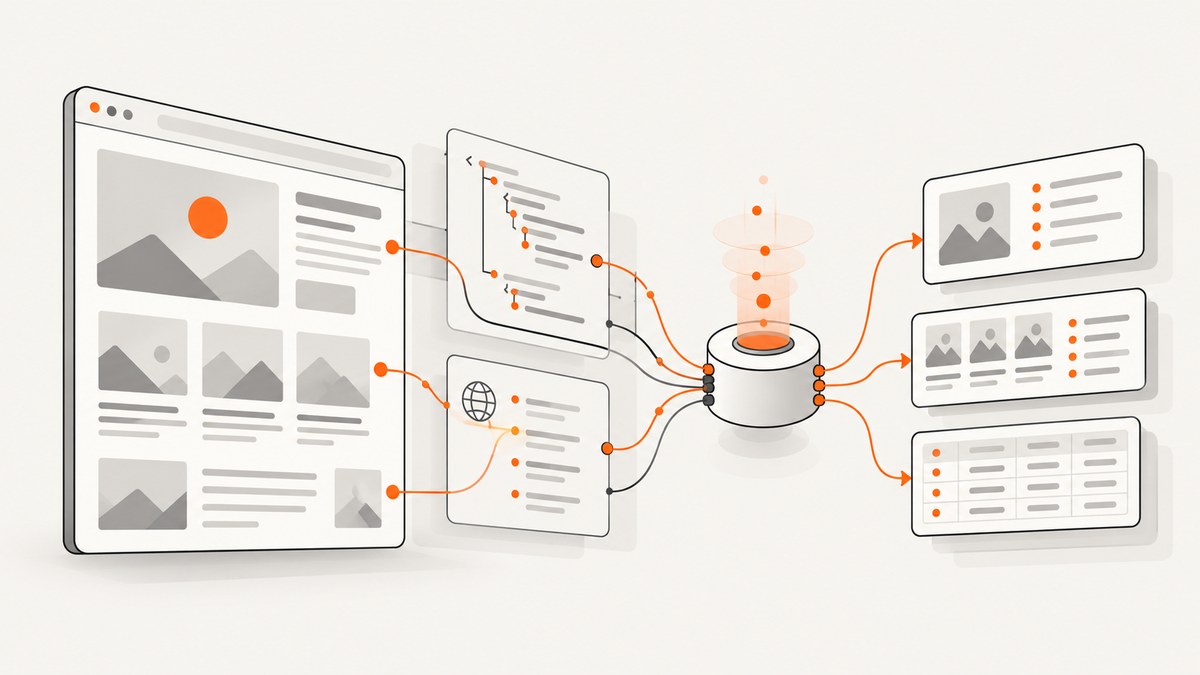
Direct answer: use Playwright to launch a real browser, navigate with page.goto(), wait for a meaningful locator or API response, then extract data with resilient locators. For pages that load data through XHR or fetch, capture the response with page.waitForResponse() instead of scraping incomplete HTML. Keep each job isolated in its own browser context, close resources in a finally block, and use routing to reduce unnecessary downloads.
This guide shows a complete JavaScript workflow for scraping client-rendered sites. It covers setup, dynamic content, API payloads, selectors, pagination, sessions, network control, WebSockets, reliability, performance, costs, and common failures. Check the target’s robots.txt, terms, authentication rules, rate limits, copyright requirements, privacy obligations, and applicable law before collecting data.
1. Install Playwright and launch a browser
Install the Node.js package and its browser binaries:
npm init -y
npm install playwright
npx playwright install chromium
The official workflow is to launch a browser, create a BrowserContext, create a page, perform the work, and close both context and browser. A non-persistent context keeps cookies and browsing data isolated from other jobs. See the Playwright library guide and browser context documentation.
2. Minimal rendered-DOM scraper
Save this as scrape.js and run it with node scrape.js:
import { chromium } from 'playwright';

const browser = await chromium.launch({ headless: true });
const context = await browser.newContext({
  viewport: { width: 1440, height: 900 },
  locale: 'en-US'
});
const page = await context.newPage();

try {
  await page.goto('https://example.com/products', {
    waitUntil: 'domcontentloaded',
    timeout: 45_000
  });

  const products = await page.getByRole('article').evaluateAll(cards =>
    cards.map(card => ({
      name: card.querySelector('h2, h3')?.textContent?.trim() ?? null,
      price: card.querySelector('[data-price]')?.textContent?.trim() ?? null,
      url: card.querySelector('a')?.href ?? null
    }))
  );

  console.log(JSON.stringify(products, null, 2));
} finally {
  await context.close();
  await browser.close();
}
page.goto() waits for the page’s load event by default. Using domcontentloaded can return sooner when you plan to wait for a specific element yourself. Playwright interactions auto-wait for actionability checks, so a click waits until the target is usable. See the navigation API.
3. Wait for dynamic content correctly
Single-page applications often render an empty shell first. Wait for the condition that proves the data you need exists. Locator assertions are explicit and retry until they pass:
import { expect } from '@playwright/test';

await page.goto('https://example.com/catalog');
const cards = page.getByRole('article');
await expect(cards.first()).toBeVisible({ timeout: 30_000 });
const count = await cards.count();
If you are using the library without the test runner, use locator methods with a timeout or poll a count:
await page.getByRole('heading', { name: 'Products' }).waitFor({ state: 'visible' });
await page.locator('[data-product-card]').first().waitFor({ state: 'attached' });
Prefer a meaningful element, a known loading indicator disappearing, or a response promise over arbitrary sleeps. Generic networkidle waiting and broad page.waitForSelector() usage are discouraged in Playwright’s testing guidance because pages can keep background connections open. A fixed delay can also be too short on a slow run and wasteful on a fast one. See auto-waiting and selector waiting.
4. Capture the API response behind the page
When a page is backed by JSON endpoints, response capture usually produces cleaner, structured data than reading formatted text from the DOM. Create the wait promise before the action that triggers the request:
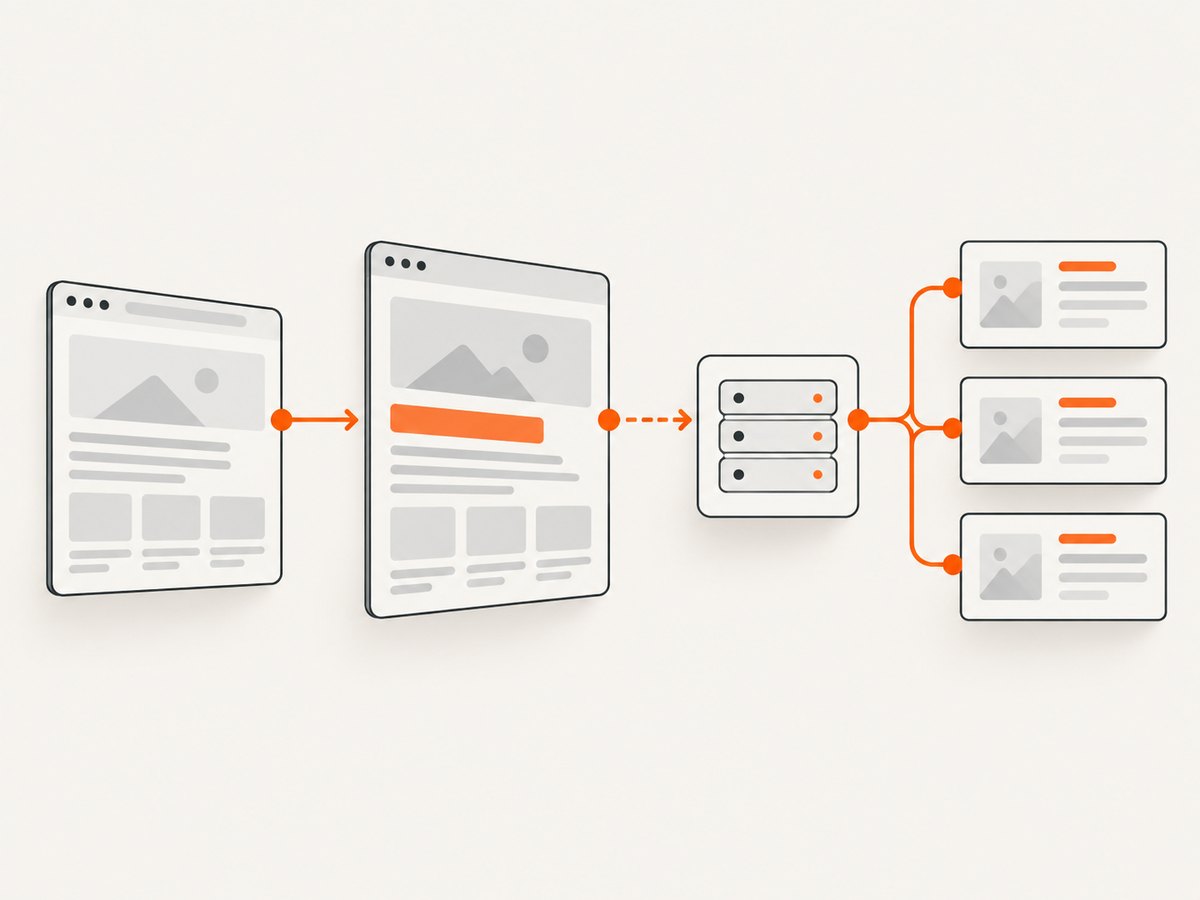
const responsePromise = page.waitForResponse(response =>
  response.url().includes('/api/products') &&
  response.request().method() === 'GET' &&
  response.status() === 200
);

await page.getByRole('button', { name: 'Load products' }).click();
const response = await responsePromise;
const data = await response.json();
console.log(data.items);
You can monitor all traffic when you do not yet know the endpoint:
page.on('request', request => {
  if (request.resourceType() === 'xhr' || request.resourceType() === 'fetch') {
    console.log('REQUEST', request.method(), request.url());
  }
});

page.on('response', async response => {
  if (response.request().resourceType() === 'xhr') {
    console.log('RESPONSE', response.status(), response.url());
  }
});
Do not assume every response is JSON. Check the content type, status, and payload shape before parsing. Handle pagination fields such as nextCursor or hasMore, and stop when the server returns no further records.
5. Choose selectors that survive redesigns
Playwright calls locators the central piece of its auto-waiting and retry behavior. Prefer user-facing or intentionally stable contracts:
| Preferred locator | Example | Use when |
|---|---|---|
| Role | getByRole('button', {name: 'Next'}) |
The element has an accessible role and name |
| Label | getByLabel('Email') |
A form control has a label |
| Text | getByText('In stock') |
Visible copy is a stable contract |
| Test id | getByTestId('product-card') |
The application exposes a dedicated test attribute |
| CSS | locator('[data-sku]') |
You have a stable data attribute |
| XPath | locator('//article[1]') |
Only when no better stable contract exists |
Structural selectors such as div:nth-child(4) > span break when layout changes. If you control the site, add stable data-testid or domain attributes. If you do not, combine a semantic locator with a narrow filter:
const card = page.getByRole('article').filter({ hasText: 'Acme' });
const sku = await card.locator('[data-sku]').getAttribute('data-sku');
6. Click, scroll, and paginate
For “load more” interfaces, wait for the count to increase after each click:
const cards = page.getByRole('article');
for (;;) {
  const before = await cards.count();
  const next = page.getByRole('button', { name: /load more/i });
  if (await next.count() === 0 || !(await next.isEnabled())) break;

  await next.click();
  await page.waitForFunction(previous =>
    document.querySelectorAll('[data-product-card]').length > previous,
    before
  );
}

const rows = await cards.evaluateAll(elements =>
  elements.map(el => el.textContent?.trim()).filter(Boolean)
);
For infinite scroll, scroll in bounded increments and stop when a sentinel appears or the item count stops changing. Add a maximum page or item limit so a faulty page cannot run forever.
7. Control requests with routing
Routing lets you inspect, modify, fulfill, or abort matching requests. Abort large assets when they are irrelevant to extraction:
await context.route('**/*', async route => {
  const type = route.request().resourceType();
  if (['image', 'media', 'font'].includes(type)) {
    await route.abort();
  } else {
    await route.continue();
  }
});
Register routes before navigation. You can also modify headers, mock a response, or fulfill a request with a fixture. Be careful: blocking scripts, fonts, or images can change application behavior and produce different content. Keep routing rules narrow and log the URL and resource type when debugging.
8. Sessions, cookies, authentication, and isolation
Create a new context for each independent account, locale, or permission set. Contexts are isolated and non-persistent by default:
const context = await browser.newContext({
  storageState: 'state.json',
  userAgent: 'MyResearchBot/1.0',
  timezoneId: 'America/New_York',
  locale: 'en-US'
});

await context.addCookies([{
  name: 'region', value: 'us', domain: 'example.com', path: '/'
}]);
Only reuse storageState when you are authorized to use that account. Keep credentials outside source control. For a fresh anonymous run, omit storage state and close the context after extraction.
9. WebSockets and client-side state
Some dashboards receive updates over WebSockets instead of fetch:
page.on('websocket', socket => {
  console.log('WS', socket.url());
  socket.on('framereceived', frame => console.log('IN', frame));
  socket.on('framesent', frame => console.log('OUT', frame));
});
Prefer a documented HTTP endpoint when one exists. WebSocket frames may be compressed, multiplexed, or application-specific, so validate their format before parsing.
10. Reliability checklist
- Set navigation and response timeouts appropriate to the target.
- Retry transient navigation failures with exponential backoff and a maximum attempt count.
- Record URL, status, response timing, selector waited for, and item count.
- Detect bot checks, login redirects, empty states, and consent dialogs explicitly.
- Use a fresh context for each tenant or permission boundary.
- Close pages, contexts, and browsers in
finallyblocks. - Deduplicate records by a stable ID and checkpoint long crawls.
- Respect server rate limits; bound concurrency instead of opening unlimited pages.
11. Performance and cost considerations
Browser startup is expensive, so reuse one browser process while creating short-lived contexts. Limit concurrency to what the target and your machine can handle. Abort irrelevant resources, extract only required fields, and prefer the JSON response over rendering every card. Cache results when the source permits it. A screenshot or browser run can also be replaced by a direct, authorized API request when the site publishes one.
Playwright itself has no per-request scraping fee, but you pay for compute, bandwidth, proxies, storage, and maintenance. More retries and longer waits increase those costs. Measure page duration, bytes downloaded, records per run, and failure rate in your own environment rather than assuming a universal benchmark.
12. Troubleshooting common errors
| Symptom | Likely cause | Fix |
|---|---|---|
Executable doesn't exist |
Browser binaries were not installed | Run npx playwright install chromium or the browser you launch. |
| Timeout waiting for locator | Wrong selector, slow data, consent dialog, or bot check | Inspect the page, wait for a meaningful state, handle consent, and increase timeout only after verifying the condition. |
| Empty DOM but visible data in a browser | Data is rendered after an API call | Wait for a locator or capture the endpoint with page.waitForResponse(). |
| Response promise never resolves | Promise was created after the click, URL pattern is wrong, or request uses another method | Create the promise before the action and log requests to confirm URL, method, and resource type. |
| Click intercepted | Overlay, cookie banner, or animation covers the target | Handle the overlay, wait for it to disappear, or use a more specific locator. Avoid force clicks unless you understand the consequence. |
| Works locally, fails in CI | Different viewport, fonts, timing, sandbox, or missing dependencies | Pin browser installation, set an explicit viewport, collect traces, and log the URL and page title on failure. |
| Repeated 403 or CAPTCHA | Access controls or bot detection | Stop and review authorization and site terms; do not attempt to bypass controls. |
13. Or skip the browser setup
If your goal is a clean image or PDF of a rendered page rather than structured records, ScreenshotNeo provides a website screenshot API and MCP server. It accepts a URL in one GET request and returns PNG, JPEG, WebP, or PDF. Cookie and consent banners, newsletter popups, and chat widgets are removed before capture. Bot checks, blank pages, timeouts, failed loads, and cache hits are not billed, and response headers identify the page verdict and billing result.

See the ScreenshotNeo API documentation for all options.
curl -G "https://api.screenshotneo.com/v1/shot" -d access_key=YOUR_API_KEY --data-urlencode url=https://stripe.com -o shot.webpimport requests
r = requests.get("https://api.screenshotneo.com/v1/shot", params={"access_key": "YOUR_API_KEY", "url": "https://stripe.com"}, timeout=90)
open("shot.webp", "wb").write(r.content)const q = new URLSearchParams({ access_key: 'YOUR_API_KEY', url: 'https://stripe.com' });
const res = await fetch(`https://api.screenshotneo.com/v1/shot?${q}`);ScreenshotNeo also supports full-page and element captures, dark mode, device presets, retina scale, PDF settings, custom CSS and JavaScript, clicks, selector or network waits, request blocking, headers, cookies, user agents, timezone, geolocation, transparent backgrounds, resizing, caching, signed links, async webhooks, bulk capture, usage reporting, and an MCP server with take_screenshot, get_page_info, and capture_pdf. An MCP server lets Claude, Cursor, or another MCP client take captures. There are 1,000 free screenshots each month with no card; paid plans start at $5 for 3,000. Create a free ScreenshotNeo account.
14. FAQ
Should I scrape the DOM or the API?
Use the DOM when you need what a user sees and the API when it provides the same records in a stable structured form. Validate that API data includes the fields and permissions your use case requires.
Is waitForTimeout() ever acceptable?
It can be useful for a deliberate pause during debugging, but production scrapers should wait for a locator, response, or other observable condition.
How do I avoid duplicate records?
Choose a stable key such as a canonical URL or product ID, store it with each record, and upsert rather than blindly appending.
Can one browser handle multiple users?
Yes, by creating separate non-persistent browser contexts. Never mix cookies or storage state between users.
When is a screenshot API a better fit?
Use one when the output is an image or PDF and you do not need to maintain browser code, selectors, session logic, or rendering infrastructure.


