Web Scraping with Python and Selenium: A Build-Along Guide
Build a reliable Python Selenium scraper for JavaScript sites, with waits, locators, pagination, retries, troubleshooting, and production patterns.

Yes, you can scrape JavaScript websites with Python. Selenium drives a real browser, executes the page’s JavaScript, waits for dynamic content, and exposes the rendered DOM for extraction. This build-along guide creates a small scraper from an empty project, then hardens it with stable locators, explicit waits, pagination, retries, checkpoints, and responsible access controls.
The current Selenium Python package supports Python 3.10 and newer and can automate Chrome, Edge, Firefox, Safari, WebKitGTK, and WPEWebKit. Modern Selenium Manager usually downloads and selects a compatible browser driver automatically, so most projects can start with webdriver.Chrome() instead of manually installing ChromeDriver. See the official Selenium WebDriver documentation for the current API details.
1. What you will build
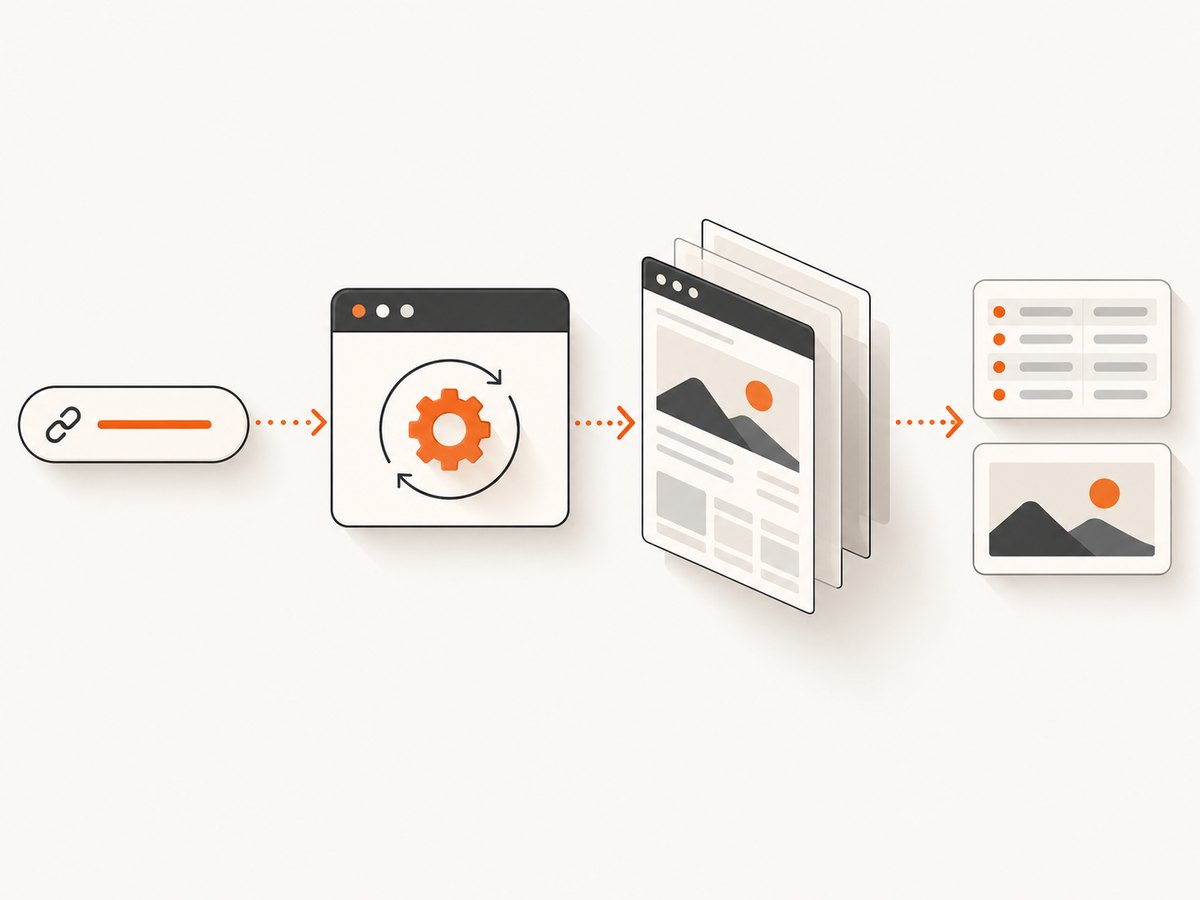
Our example collects article titles and links from a JavaScript-rendered listing. The same structure works for product catalogs, documentation indexes, job boards, dashboards, and other pages where the initial HTML does not contain the records you need.
- Create an isolated Python environment.
- Launch a browser with Selenium Manager.
- Navigate to a page and inspect its rendered DOM.
- Wait for the state that proves content is ready.
- Extract text and attributes with maintainable locators.
- Paginate while preserving state and avoiding infinite loops.
- Save structured JSON and recover from transient failures.
2. Install Selenium and create a project
Use Python 3.10 or newer. A virtual environment keeps Selenium and your other dependencies separate from system Python.
mkdir selenium-scraper
cd selenium-scraper
python3 -m venv .venv
source .venv/bin/activate
# Windows PowerShell: .venv\\Scripts\\Activate.ps1
python -m pip install -U selenium
Check the installation:
python -c "import selenium; print(selenium.__version__)"On a normal desktop installation, Selenium Manager finds a compatible browser and driver. If your environment has no browser, uses a pinned enterprise browser, or blocks downloads, install the browser and driver through your operating system or CI image and pass its path explicitly.
3. Launch a browser and inspect the rendered page
Start with a visible browser while developing. You can see redirects, consent dialogs, and failed loads. Switch to headless mode for CI after the selectors and waits are reliable.
from selenium import webdriver
from selenium.webdriver.chrome.options import Options

options = Options()
# Uncomment for CI or a server without a display:
# options.add_argument("--headless=new")
options.add_argument("--window-size=1440,1000")

try:
    driver = webdriver.Chrome(options=options)
    driver.get("https://example.com")
    print(driver.title)
    print(driver.current_url)
    print(driver.page_source[:500])
finally:
    driver.quit()
driver.get() waits according to the configured page-load strategy, but a completed load event does not mean an application has finished fetching data. A React, Vue, or Angular page may render its records later through XHR or fetch. Treat navigation and application readiness as separate events.
4. Choose stable locators
Inspect the DOM with your browser’s developer tools. Prefer a unique, predictable HTML id. Selenium’s locator guidance says that when IDs are available, unique, and consistently predictable, they are the preferred method for locating an element (locator documentation).
| Locator | Use it when | Example |
|---|---|---|
| ID | A stable unique ID exists | By.ID, "results" |
| CSS selector | You need a compact, readable relationship | article.card a.title |
| XPath | You need relationships or text matching | //article[.//h2] |
Avoid generated IDs, positional selectors such as div:nth-child(7), and classes used only for visual styling. Keep selectors narrow enough to identify the intended records but broad enough to survive harmless layout changes. XPath is flexible, but it is generally harder to debug and often slower than a compact CSS selector.
5. Wait for the condition that matters
Use an explicit wait for dynamic content. The wait polls until a condition succeeds or its timeout expires. Do not use a long fixed sleep as your primary synchronization method: it either wastes time on fast responses or fails on slow ones.
Selenium’s waiting guidance states: “Do not mix implicit and explicit waits.” Choose one synchronization policy so each timeout has a predictable meaning (waiting strategies).
from selenium.webdriver.common.by import By
from selenium.webdriver.support.ui import WebDriverWait
from selenium.webdriver.support import expected_conditions as EC

wait = WebDriverWait(driver, 15)
driver.get("https://example.com/articles")

# Presence means the node exists in the DOM.
container = wait.until(
    EC.presence_of_element_located((By.CSS_SELECTOR, "main"))
)

# Visibility is stronger when you need rendered, visible content.
first_card = wait.until(
    EC.visibility_of_element_located((By.CSS_SELECTOR, "article.card"))
)

# A text condition helps when a placeholder is replaced in place.
wait.until(
    EC.text_to_be_present_in_element(
        (By.CSS_SELECTOR, "[data-testid='status']"),
        "Loaded"
    )
)
Useful conditions include presence or visibility of an element, clickability of a button, a URL change, an alert, a frame, or a custom predicate. For a custom application state, pass a function that returns a truthy value:
def records_are_ready(browser):
    cards = browser.find_elements(By.CSS_SELECTOR, "article.card")
    return cards if len(cards) >= 10 else False

cards = WebDriverWait(driver, 20).until(records_are_ready)
6. Build the scraper
The following script extracts cards, handles a next-page button, avoids revisiting the same URL, and writes a checkpoint after every page. Replace the URL and selectors with those from the site you are permitted to access.
import json
import time
from pathlib import Path

from selenium import webdriver
from selenium.common.exceptions import (
    StaleElementReferenceException,
    TimeoutException,
    WebDriverException,
)
from selenium.webdriver.chrome.options import Options
from selenium.webdriver.common.by import By
from selenium.webdriver.support.ui import WebDriverWait
from selenium.webdriver.support import expected_conditions as EC

START_URL = "https://example.com/articles"
OUTPUT = Path("articles.json")


def make_driver():
    options = Options()
    options.add_argument("--headless=new")
    options.add_argument("--window-size=1440,1000")
    options.page_load_strategy = "normal"
    return webdriver.Chrome(options=options)


def read_cards(driver, wait):
    wait.until(EC.presence_of_element_located((By.CSS_SELECTOR, "article.card")))
    cards = driver.find_elements(By.CSS_SELECTOR, "article.card")
    rows = []
    for card in cards:
        try:
            link = card.find_element(By.CSS_SELECTOR, "a.title")
            rows.append({
                "title": link.text.strip(),
                "url": link.get_attribute("href"),
            })
        except StaleElementReferenceException:
            # The framework re-rendered this card; skip it and let the
            # caller retry the page if necessary.
            continue
    return rows


def save_checkpoint(rows):
    OUTPUT.write_text(json.dumps(rows, indent=2, ensure_ascii=False))


def scrape():
    driver = make_driver()
    wait = WebDriverWait(driver, 20)
    rows = []
    seen_urls = set()
    visited_pages = set()

    try:
        driver.get(START_URL)
        for page_number in range(1, 101):
            if driver.current_url in visited_pages:
                break
            visited_pages.add(driver.current_url)

            page_rows = read_cards(driver, wait)
            for row in page_rows:
                if row["url"] and row["url"] not in seen_urls:
                    seen_urls.add(row["url"])
                    rows.append(row)
            save_checkpoint(rows)

            buttons = driver.find_elements(
                By.CSS_SELECTOR, "a.next, button.next"
            )
            if not buttons or not buttons[0].is_enabled():
                break

            old_url = driver.current_url
            buttons[0].click()
            wait.until(EC.url_changes(old_url))
            time.sleep(0.2)  # small settling delay after the URL change
    finally:
        driver.quit()

    return rows


if __name__ == "__main__":
    try:
        data = scrape()
        print(f"Saved {len(data)} records to {OUTPUT}")
    except (TimeoutException, WebDriverException) as exc:
        print(f"Scrape stopped: {exc}")
        raise
For an infinite-scroll page, scroll in measured increments and wait for the card count to increase. Stop after several rounds with no increase, or when a “no more results” marker appears. Always cap the number of scrolls.
last_count = 0
unchanged_rounds = 0
for _ in range(100):
    driver.execute_script("window.scrollTo(0, document.body.scrollHeight)")
    try:
        WebDriverWait(driver, 10).until(
            lambda d: len(d.find_elements(By.CSS_SELECTOR, "article.card")) > last_count
        )
        last_count = len(driver.find_elements(By.CSS_SELECTOR, "article.card"))
        unchanged_rounds = 0
    except TimeoutException:
        unchanged_rounds += 1
        if unchanged_rounds >= 3:
            break
7. Browser options and timeouts
Page-load strategy is a deliberate trade-off:
normalwaits for the load event and is the safest default.eagerreturns after DOMContentLoaded, which can reduce waiting when images are irrelevant.nonereturns immediately and requires strong explicit waits for every state you use.
options.page_load_strategy = "eager"
driver.set_page_load_timeout(45)
driver.set_script_timeout(20)
Use proxies when the network requires one, when you must route traffic through a controlled gateway, or when a test environment supplies a mock backend. Keep browser settings in configuration rather than scattering them through scraping functions. Set a realistic window size because responsive layouts can change both selectors and available content.
8. Sessions, cookies, and authentication
For a site that requires a login you are authorized to use, log in once and reuse the same driver session. Cookies and local storage remain available while that driver is alive. Do not put credentials in source control; use environment variables or your secret manager.
import os

username = os.environ["SCRAPER_USER"]
password = os.environ["SCRAPER_PASSWORD"]

driver.get("https://example.com/login")
wait.until(EC.visibility_of_element_located((By.ID, "username"))).send_keys(username)
driver.find_element(By.ID, "password").send_keys(password)
driver.find_element(By.CSS_SELECTOR, "button[type='submit']").click()
wait.until(EC.url_contains("/account"))
9. Reliability, performance, and cost
A real browser costs more CPU, memory, and bandwidth than an HTTP client because it loads resources and executes JavaScript. Use the lightest approach that can produce the data you need. If the records are present in a stable API response or server-rendered HTML, an HTTP client may be faster. Selenium is appropriate when JavaScript execution, browser state, scrolling, or user interactions are required.
- Reuse one driver for related pages instead of starting a browser per URL.
- Use explicit waits with the smallest timeout that covers normal variance.
- Block unnecessary images, fonts, ads, or analytics only when doing so does not change the data you need.
- Limit concurrency. Many browsers can overwhelm your machine and the target site.
- Retry transient navigation failures with exponential backoff and a maximum attempt count.
- Checkpoint output after each page so a crash does not discard completed work.
- Log URL, page number, elapsed time, exception type, and record count.
There is no universal Selenium speed benchmark: page weight, JavaScript behavior, network distance, browser version, and selectors all affect runtime. Measure your own permitted workload and set rate limits conservatively.
10. Responsible scraping
Read the site’s terms and access rules before collecting data. Inspect robots.txt and follow applicable instructions. RFC 9309 defines the Robots Exclusion Protocol, but robots rules are an access signal rather than a complete legal determination (RFC 9309). Obtain permission when required, identify your user agent where appropriate, respect rate limits, avoid personal data you do not need, and stop when a site blocks automation.
11. Troubleshooting common Selenium errors
| Symptom | Likely cause | Fix |
|---|---|---|
Unable to obtain driver |
Browser or driver unavailable, or downloads blocked | Install a supported browser, allow Selenium Manager access, or configure a matching driver path in your environment. |
NoSuchElementException |
Wrong selector, iframe, or content not rendered yet | Inspect the live DOM, wait for the element, and switch into the correct iframe if needed. |
TimeoutException |
Condition never became true | Verify the selector and URL, capture a screenshot/page source, and increase the timeout only after fixing synchronization. |
StaleElementReferenceException |
Framework re-rendered the node | Locate the element again immediately before reading or clicking it; avoid storing WebElement objects across updates. |
| Element is not clickable | Overlay, animation, or off-screen position | Wait for clickability, scroll it into view, close the overlay, or click a stable child element. |
| Empty text | Text is in a child node, attribute, or shadow DOM | Inspect textContent, attributes, shadow roots, and the rendered state you actually need. |
| Works locally, fails in CI | Headless viewport, missing fonts, sandbox, or timing difference | Set a fixed window size, use current headless mode, record browser versions, and replace sleeps with condition waits. |
12. Or skip the browser setup
If your goal is a clean screenshot or PDF rather than arbitrary data extraction, ScreenshotNeo provides a single HTTP request. It accepts the cookie or consent banner like a visitor and removes more than 60 known consent platforms, newsletter popups, and chat widgets before capture; each step can be turned off. Only clean shots are billed: bot checks or CAPTCHAs, blank pages, timeouts, failed loads, and cache hits cost nothing, and response headers identify the page verdict and billing status.

See the ScreenshotNeo API documentation for all options.
cURL
curl -G "https://api.screenshotneo.com/v1/shot" \
  -d access_key=YOUR_API_KEY \
  --data-urlencode url=https://stripe.com \
  -o shot.webp
Python
import requests

r = requests.get(
    "https://api.screenshotneo.com/v1/shot",
    params={"access_key": "YOUR_API_KEY", "url": "https://stripe.com"},
    timeout=90,
)
r.raise_for_status()
open("shot.webp", "wb").write(r.content)
Node.js
const q = new URLSearchParams({
  access_key: 'YOUR_API_KEY',
  url: 'https://stripe.com'
});
const res = await fetch(`https://api.screenshotneo.com/v1/shot?${q}`);
if (!res.ok) throw new Error(`HTTP ${res.status}`);
const buffer = Buffer.from(await res.arrayBuffer());
await Bun.write('shot.webp', buffer);
ScreenshotNeo also supports full-page capture with lazy images loaded, element capture by CSS selector, dark mode, 12 device presets or any viewport, retina scale, PDF paper sizes and page ranges, HTML/CSS to image, custom CSS and JavaScript, clicks, selector or network-idle waits, request blocking, custom headers and cookies, timezone and geolocation, transparent backgrounds, resizing, configurable caching, signed links, asynchronous jobs with signed webhooks, bulk capture for 100 URLs per call, a usage API, and an OpenAPI specification. An MCP server exposes take_screenshot, get_page_info, and capture_pdf to Claude, Cursor, and other MCP clients.
There is a free plan with 1,000 screenshots each month and no card. Paid plans start at $5 for 3,000 shots; every feature is included on every plan. Create a free ScreenshotNeo account.
13. FAQ
Do I still need ChromeDriver?
Usually not. Selenium Manager handles common browser-driver installation cases. You may still need a manually managed driver when downloads are blocked, browsers are pinned, or an enterprise image requires explicit paths.
Should I use Selenium or requests?
Use Selenium when JavaScript execution, browser state, scrolling, or interaction is required. Use an HTTP client when the needed data is already available in stable HTML or an authorized API.
Why does a page look complete but my selector finds nothing?
The content may be inside an iframe, shadow DOM, a different route, or a later render cycle. Inspect the live DOM, wait for a meaningful condition, and verify the browsing context.
How long should my wait timeout be?
Start with a value that covers normal network variance, often 10–20 seconds, then measure. A longer timeout cannot fix a wrong selector or a page that never reaches the expected state.
Can I run several Selenium browsers at once?
Yes, but each browser consumes resources. Bound concurrency, preserve separate sessions, and rate-limit requests so your machine and the target site are not overwhelmed.


