Web Scraping vs. Screen Scraping: What’s the Difference?
Web scraping collects website data; screen scraping extracts what a user interface presents. Here’s how to choose the right method, with runnable examples.

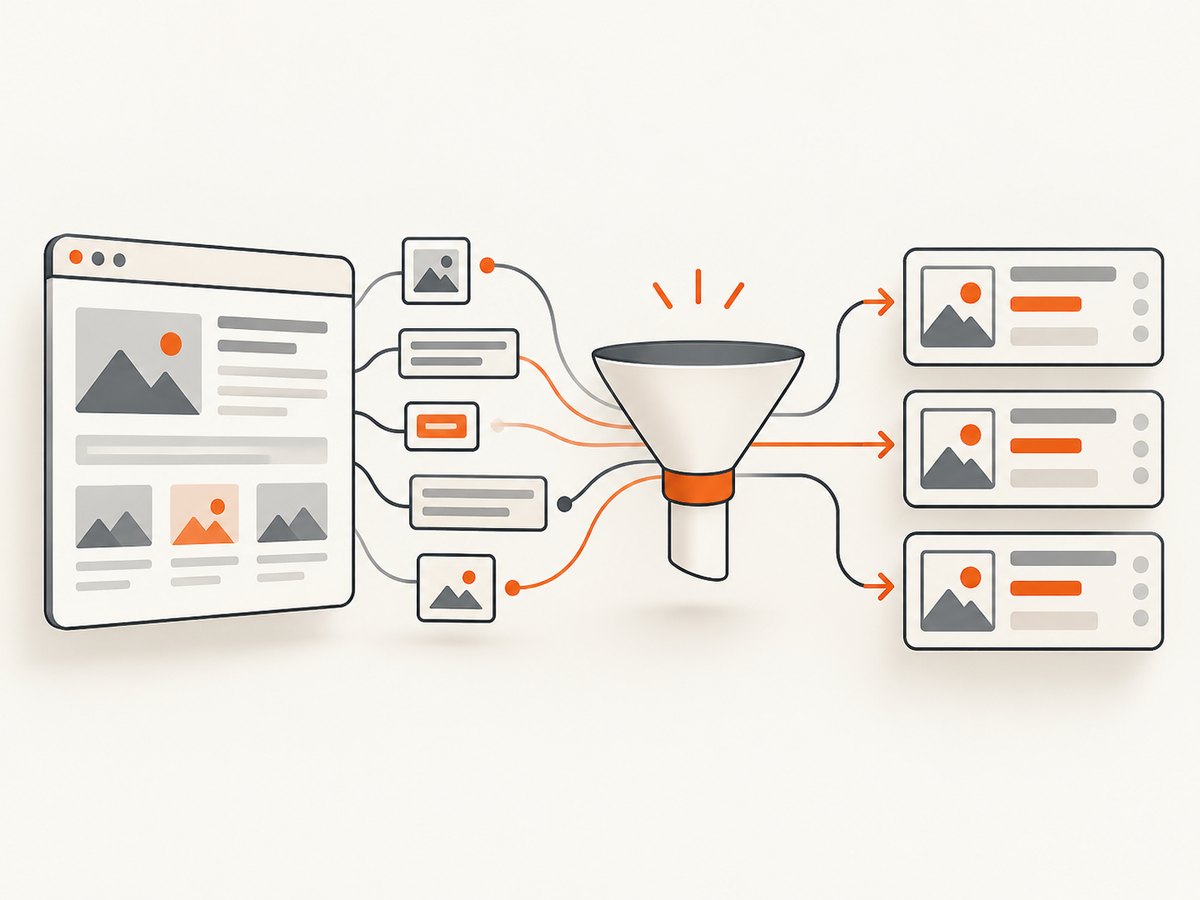
Web scraping is the broad practice of collecting information from websites and turning it into usable data. Screen scraping describes an interface-oriented workflow: software navigates or interacts with what a user sees and extracts information presented there. The terms overlap. A screen scraper may read HTML, and web scraping may use a browser. The useful distinction is where the required data is available and whether you need to interact with the page.
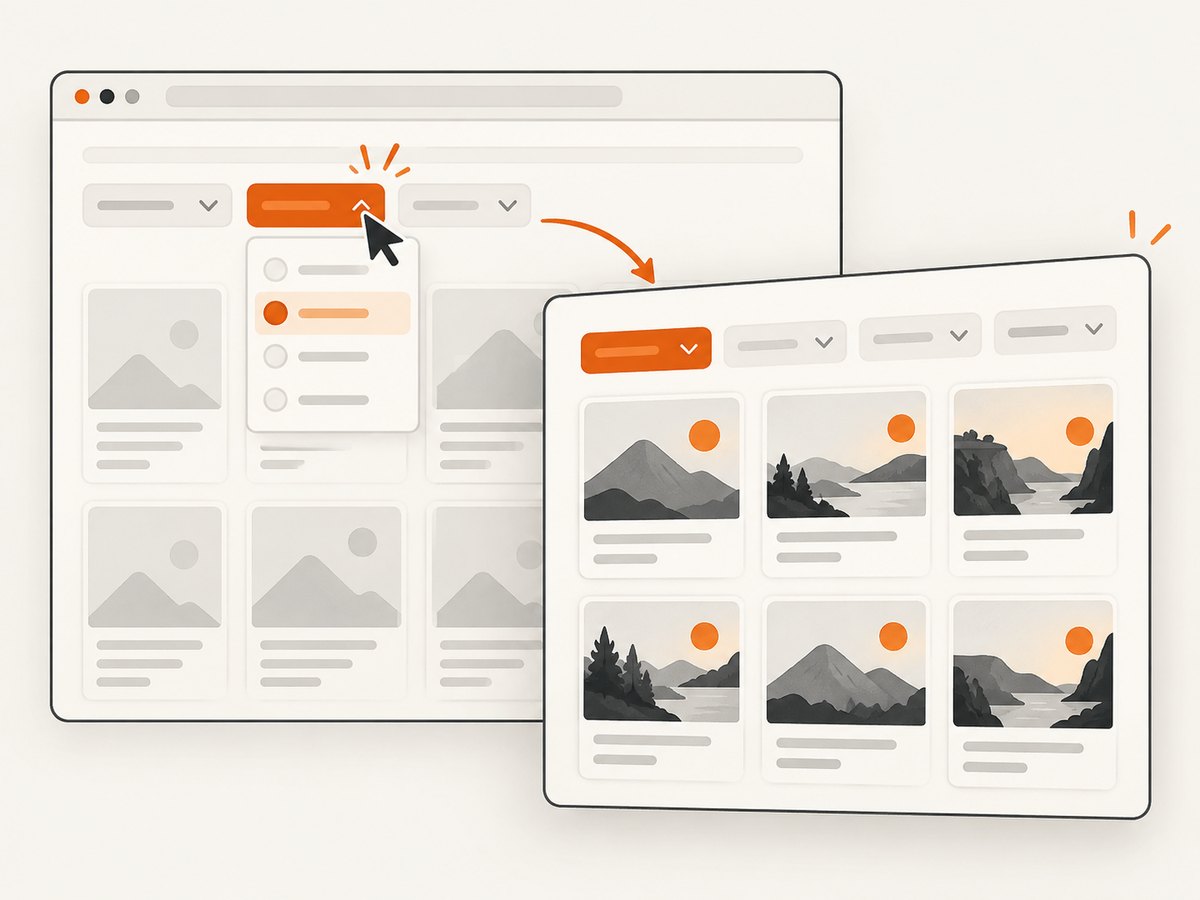
If the server response already contains the fields you need, start with direct HTTP requests and HTML parsing. If the data appears only after JavaScript runs, or depends on clicks, scrolling, login state, or another browser interaction, use browser automation. A page using JavaScript does not automatically require a browser; check whether the response already includes your target data. Web Scraper’s comparison describes this selection rule.
1. What the terms mean
Web scraping
Web scraping systematically collects information published on websites, often transforming unstructured page content into structured records for analysis. It can mean fetching HTML directly, using a browser, or combining both. It names the broader task, not one particular technical implementation. The National Network of Libraries of Medicine’s overview describes web scraping in this research and data collection context.
Screen scraping
Screen scraping focuses on information presented through a user interface. Software navigates or interacts with that interface and extracts data from the HTML or other content shown on screen. The phrase has roots beyond modern websites, including extracting information from older application screens; in web development, it often means automating a browser to read rendered pages. See Cornell’s Legal Information Institute definition.
These are working definitions, not universally enforced technical categories. A browser-based workflow that reads the rendered DOM can reasonably be called either web scraping or screen scraping. In an engineering plan, describe the actual mechanism: direct HTTP request, browser rendering, UI interaction, or a combination.
2. Choose by where the data becomes available
| Question | Direct HTTP extraction | Browser or screen-oriented extraction |
|---|---|---|
| Where is the data? | In the response body you can request | After scripts run or the interface changes state |
| Does it need a browser? | No page JavaScript execution | Needs rendering, browser state, or interaction |
| Typical work | Fetch, parse, normalize, validate | Navigate, wait, interact, inspect, extract |
| Operational tradeoff | Usually fewer moving parts | More faithful to browser behavior, but more setup and resources |
Use the smallest mechanism that produces the required fields correctly and within the site’s permitted access. A page can have substantial JavaScript yet include the information in its initial HTML. Conversely, a simple-looking page may populate results only after a user selects a filter.
- Define the output. Write down the fields, format, and freshness you need. “Collect product pages” is less testable than “return product name, listed price, and detail-page URL.”
- Inspect an allowed response. Fetch one page with an ordinary HTTP client. Check the status, response type, and HTML source for the actual target values.
- Try direct parsing. If the fields are present and stable enough for your use, parse the response and validate the result.
- Use a browser when necessary. If the data is absent until rendering or interaction, automate the browser and wait for a meaningful condition, such as a result selector.
- Recheck constraints. Review the site’s current terms and machine-readable instructions regardless of method. A browser workflow does not change the access rules.
3. Direct HTTP example: Python
This example requests one public page, checks for an HTTP error, parses its HTML, and prints the page title. Replace the URL and selectors with a page you are permitted to access and the fields you need. Install dependencies with python -m pip install requests beautifulsoup4.
import requests
from bs4 import BeautifulSoup

url = "https://example.com/"
response = requests.get(
    url,
    headers={"User-Agent": "ExampleResearchBot/1.0 (contact: dev@example.com)"},
    timeout=(5, 20),
)
response.raise_for_status()

content_type = response.headers.get("content-type", "")
if "text/html" not in content_type.lower():
    raise ValueError(f"Expected HTML, received {content_type!r}")

soup = BeautifulSoup(response.text, "html.parser")
title = soup.title.get_text(" ", strip=True) if soup.title else None
print({"url": response.url, "title": title})
For repeated requests, reuse a requests.Session to keep connections alive, and add bounded retries for transient network errors where appropriate. Avoid retrying every status indiscriminately: a repeated authorization failure or a request that the site disallows will not be fixed by retrying.
4. Browser example: JavaScript-rendered pages
When the required content appears only after the browser renders the page, Playwright can navigate and wait for a page-specific selector. Install it with npm install playwright and install the browser with npx playwright install chromium. Save this as scrape.mjs and run node scrape.mjs.
import { chromium } from "playwright";

const url = "https://example.com/";
const browser = await chromium.launch({ headless: true });
try {
  const page = await browser.newPage();
  await page.goto(url, { waitUntil: "domcontentloaded", timeout: 30_000 });
  await page.locator("main").waitFor({ state: "visible", timeout: 15_000 });

  const result = await page.locator("h1").first().textContent();
  console.log({ url: page.url(), heading: result?.trim() ?? null });
} finally {
  await browser.close();
}
Use a selector that signals the data you need is ready. networkidle can be useful for some pages, but analytics, polling, and long-lived connections may prevent a page from becoming idle. Waiting for a relevant element is often more precise. If the target requires a permitted interaction, perform that action explicitly, then wait for the result state before extracting.
5. cURL and Node.js for direct requests
For a quick inspection, cURL can fetch the response body without executing page JavaScript:
curl --fail --location --max-time 20 \
  --header 'User-Agent: ExampleResearchBot/1.0 (contact: dev@example.com)' \
  --header 'Accept: text/html' \
  'https://example.com/'
In Node.js, built-in fetch can retrieve HTML. This example checks the status and prints the response content type and a short preview; use a parser such as Cheerio if you need DOM selectors.
const url = "https://example.com/";
const response = await fetch(url, {
  headers: {
    "user-agent": "ExampleResearchBot/1.0 (contact: dev@example.com)",
    accept: "text/html",
  },
  signal: AbortSignal.timeout(20_000),
});

if (!response.ok) {
  throw new Error(`Request failed: ${response.status} ${response.statusText}`);
}
const html = await response.text();
console.log(response.headers.get("content-type"));
console.log(html.slice(0, 500));
6. Practical implementation choices
Parsing and data quality
Prefer semantic selectors and stable attributes over brittle positional selectors such as “the third div inside the second section.” Check for missing values and duplicate records. Normalize whitespace, dates, currencies, and URLs before storing records. Keep the source URL and collection timestamp with each record so you can diagnose stale or malformed data.
Browser waits and interactions
A fixed sleep is simple but can waste time on fast pages and still be too short on slow ones. Prefer a selector or condition that indicates the target data is ready. Set navigation and element timeouts. If a page uses pagination, filters, or lazy loading, model each state change explicitly and verify that the expected page or result count changed before extracting.
Sessions, cookies, and authentication
Some pages vary based on cookies, locale, or logged-in state. Only use credentials and session data you are authorized to use. Keep secrets out of source code and logs. Reuse a session when appropriate, but do not assume that browser and HTTP sessions share state automatically.
Scale and request behavior
For a small number of pages, a sequential workflow is easy to reason about. At higher volume, bound concurrency, use timeouts, cache where suitable, and handle transient failures without creating request bursts. Do not treat a CAPTCHA or access restriction as a cue to bypass it. Choose a collection rate consistent with the site’s terms and instructions.
7. Compliance: access, collection, and reuse
There is no universal answer that scraping is always legal or always illegal. The applicable terms, jurisdiction, data type, purpose, access conditions, and later use matter. Treat access, collection, storage, analysis, and republication as separate questions, and get appropriate legal advice for a consequential project.
robots.txt is a crawler instruction mechanism. Google explains that it tells search crawlers which URLs they can access and is mainly for crawl management; it is not a security mechanism or reliable way to hide a page from search results. Read Google’s robots.txt guide. A robots rule is not a legal permission slip, and a disallow rule should not be mistaken for authorization to access a page by another route.
Check the target site’s current terms and machine-readable instructions. Google’s own terms are an example of terms that restrict automated access contrary to machine-readable instructions; that contract does not establish the terms for other sites. The dossier’s referenced Google terms copy is archived, so consult the current version before relying on it.
For personal data, the CNIL says web scraping is not inherently incompatible with GDPR, while noting that other rules, including copyright and database rights, can apply. Its guidance is specific to its data-protection context and is not blanket authorization. See the CNIL focus sheet.
Collection and republication are different. Google identifies copied content republished without original value or unique user benefit as abusive scraping under its search spam policies. If you publish collected material, make sure you have a basis to do so and add genuine value for readers.
8. Troubleshooting
| Symptom | Likely cause | What to check or do |
|---|---|---|
| Expected field is missing | It is populated after JavaScript runs, or the selector changed | Inspect the response body first. If absent there, use a browser and wait for the relevant selector; update and validate selectors. |
| HTTP 403 or 429 | Access is forbidden or requests are being limited | Stop aggressive retries. Review the site’s terms and instructions; reduce request rate or seek an authorized access method. |
| Navigation timeout | Slow page, overly broad wait condition, or an unreachable page | Check connectivity and status. Set bounded timeouts and wait for the specific content needed instead of waiting for every network request to stop. |
| Parser returns no results | Wrong response type, unexpected markup, or selector mismatch | Log the status, content type, final URL, and a small sanitized excerpt. Confirm the page is HTML and inspect current markup. |
| Duplicate or inconsistent records | Pagination, retries, or changing page state | Use a stable record key, record source URL and timestamp, and verify that pagination advances before appending results. |
| Browser works locally but not in deployment | Browser binary or system dependencies are missing, or environment differs | Install the browser in the deployment environment, pin compatible dependencies, and capture sanitized logs for navigation and selector failures. |
9. Performance, reliability, and cost
Direct HTTP requests generally use less compute and have fewer moving parts because they do not need to launch a full page environment. Browser automation is more resource-intensive, but it can reproduce rendering and interactions required by the task. These are architectural tradeoffs, not universal timing guarantees.
Reliability comes from observing the right conditions and validating outputs. Record status codes, response types, final URLs, and failure categories. Use bounded timeouts and retries for transient failures; avoid retries that repeat a disallowed request or amplify throttling. Monitor missing-field rates so a markup change does not silently produce empty data.
Cost depends on your compute environment, browser concurrency, storage, and maintenance effort. Keep browser jobs bounded, reuse browser processes carefully for batches, and close pages and browsers in cleanup paths. If you only need a visual record rather than structured fields, a screenshot API can avoid maintaining your own browser capture setup.
10. Or skip the browser setup
For visual capture, ScreenshotNeo is a website screenshot API and MCP server: send a GET request with a URL and receive a PNG, JPEG, WebP, or PDF. Its API supports browser capture options such as full-page shots, element selection, device presets, wait conditions, and custom CSS. See the API documentation.
curl -G "https://api.screenshotneo.com/v1/shot" -d access_key=YOUR_API_KEY --data-urlencode url=https://stripe.com -o shot.webpimport requests
r = requests.get("https://api.screenshotneo.com/v1/shot", params={"access_key": "YOUR_API_KEY", "url": "https://stripe.com"}, timeout=90)
open("shot.webp", "wb").write(r.content)const q = new URLSearchParams({ access_key: 'YOUR_API_KEY', url: 'https://stripe.com' });
const res = await fetch(`https://api.screenshotneo.com/v1/shot?${q}`);Cookie banners, popups, and chat widgets are removed before the shot; each step can be turned off. Bot checks, blank pages, timeouts, failed loads, and cache hits are not billed, and the response includes X-Page-Verdict and X-Billed headers. An MCP server gives Claude, Cursor, and other MCP clients the take_screenshot, get_page_info, and capture_pdf tools. The free plan includes 1,000 screenshots a month with no card; paid plans start at $5 for 3,000. Create a free account and get 1,000 screenshots a month with no card.
11. FAQ
Is screen scraping always done with OCR?
No. For websites, browser automation can read rendered HTML and DOM content directly. OCR is relevant when the information is only available as pixels, such as in an image or remote desktop view.
Can a project use both approaches?
Yes. A workflow may use an authorized browser session to establish state, then use direct requests for pages whose required data is already present in their responses. Keep the session handling and access conditions explicit.
Does a browser make data collection permitted?
No. The collection method does not settle whether access, storage, or reuse is allowed. Review applicable terms, instructions, and laws for the particular project.


