Web Scraping With Selenium: A Beginner’s Guide
Learn Selenium WebDriver scraping from setup to reliable waits, selectors, dynamic pages, troubleshooting, and a browser-free ScreenshotNeo option.
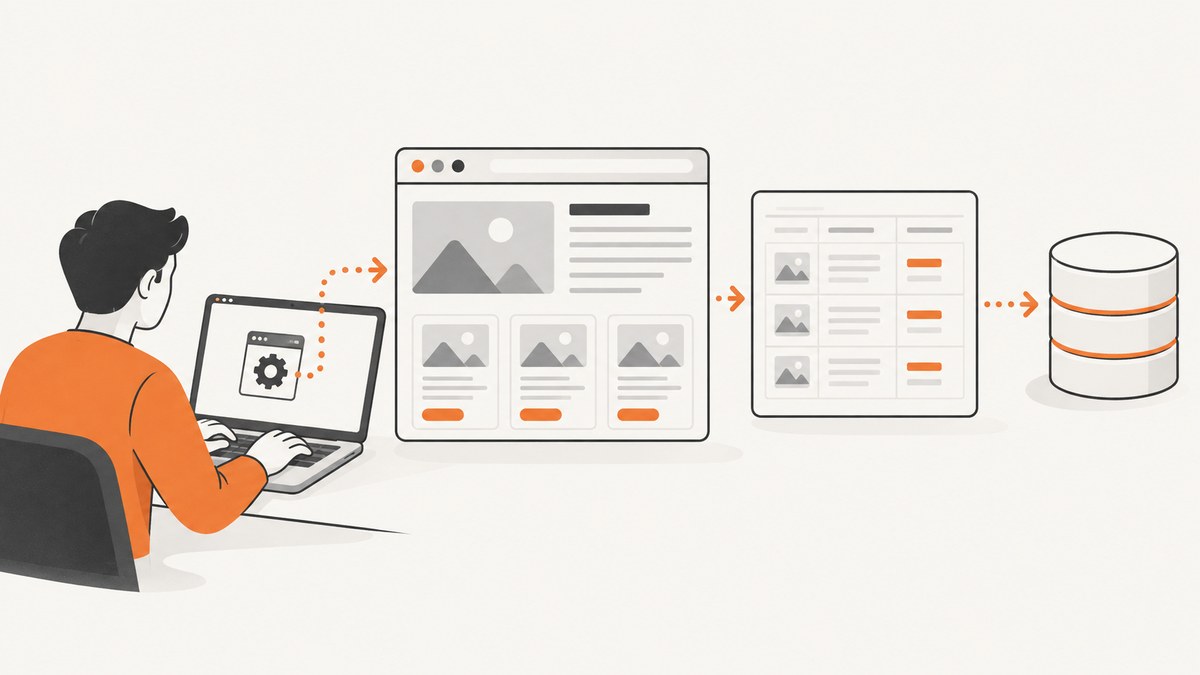
Direct answer: Selenium WebDriver lets your program control a real browser, wait for JavaScript-rendered content, find elements, and read or interact with them. For a beginner, the reliable path is: install the Selenium binding, create a browser session, navigate to a URL, locate elements with stable selectors, wait for the exact state you need, extract only the fields required, and always call quit().
This guide uses Python because it is the shortest setup for learning. The same WebDriver concepts apply to Java, JavaScript, C#, Ruby, and other Selenium bindings. Selenium is a browser automation API and protocol with local and remote execution options. Read the WebDriver overview and official getting-started guide for current binding details.
What Selenium is, and when to use it for scraping
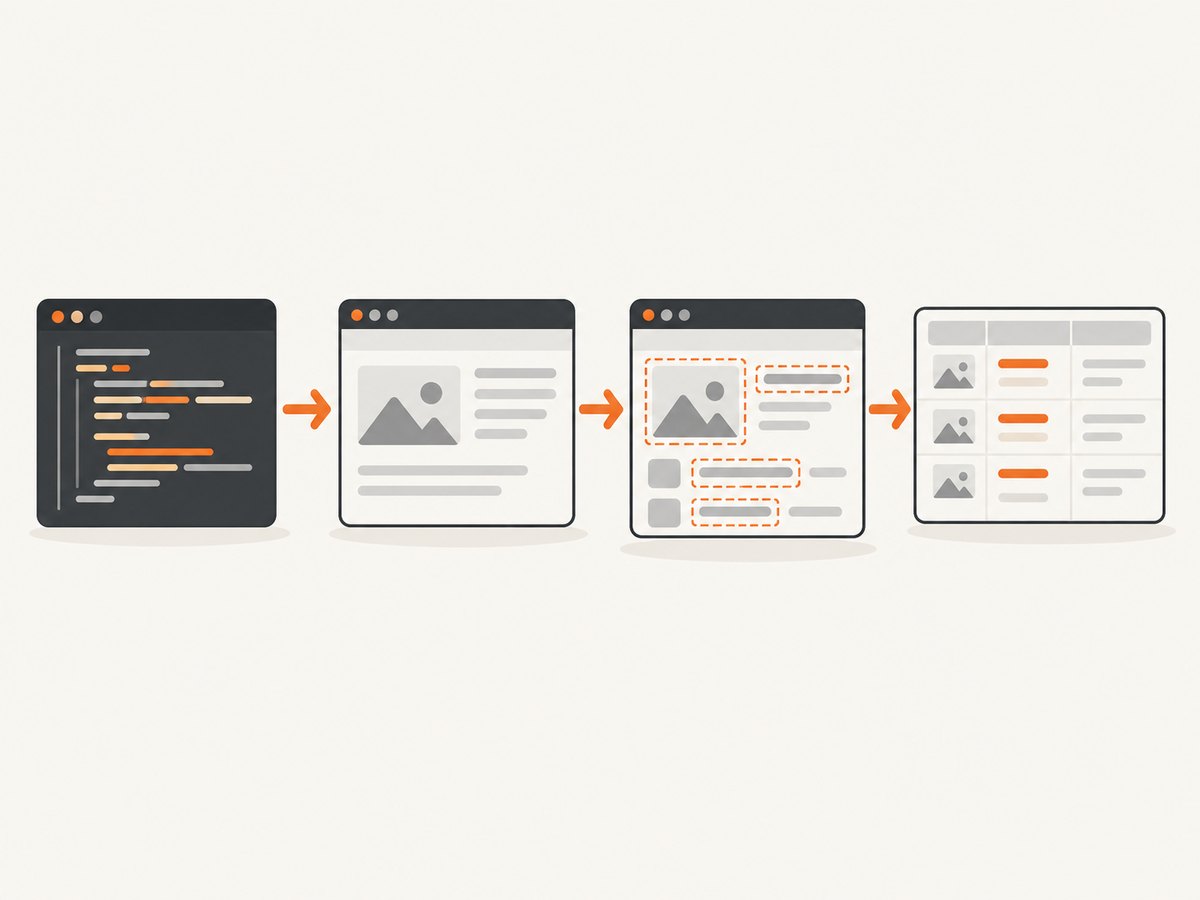
Selenium’s documentation defines WebDriver as “an API and protocol that defines a language-neutral interface for controlling the behaviour of web browsers.” Your code sends commands to a browser driver, and the driver controls Chrome, Edge, Firefox, Safari, or another supported browser. The browser executes JavaScript exactly as a visitor-facing page would, so Selenium can read content that is absent from the initial HTML response.
Use Selenium when the data appears only after JavaScript runs, when you must click or submit a control, when scrolling triggers lazy loading, or when a browser session is part of an allowed workflow. A simple HTTP client such as requests is usually easier and faster for a static document or a documented API.
Check the target site’s current terms and access rules before collecting data. Selenium’s own documentation warns that some sites prohibit scraping and others block Selenium. Do not use automation to defeat access controls, bot checks, or CAPTCHAs. Avoid excessive request rates, identify your application where appropriate, and stop when the site denies access.
Install Selenium and prepare a browser
1. Create an isolated Python environment
python3 -m venv .venv
source .venv/bin/activate
python -m pip install -U selenium
The current Selenium Python API documentation lists Python 3.10 or newer and documents installation with pip install -U selenium. Pin a version in a requirements file when you need repeatable builds:
selenium==4.49.0That version is the one shown in the documentation retrieved for this guide; check the live Python client documentation before pinning a production dependency.
2. Install a supported browser
Install Chrome, Edge, Firefox, or Safari on the machine that will run the script. Selenium 4 includes Selenium Manager. If you do not provide a driver path, modern bindings can discover the browser, resolve a compatible driver, download it, and cache it. Selenium Manager has been available for automated browser management since Selenium 4.11.0.
Manager is the sensible default for a normal local setup. In a locked-down build environment, you may instead install a driver yourself and provide its path. Proxies, custom browser locations, and unusual operating-system images may still require explicit configuration; do not assume Manager can reach every network.
Your first Selenium scraping script
The following script opens a page, waits for a heading, reads text, collects links, and shuts down cleanly. Replace the URL and selectors with ones verified on your target page.
from selenium import webdriver
from selenium.webdriver.common.by import By
from selenium.webdriver.support.ui import WebDriverWait
from selenium.webdriver.support import expected_conditions as EC
from selenium.common.exceptions import TimeoutException

URL = "https://example.com"

options = webdriver.ChromeOptions()
options.add_argument("--headless=new")
options.add_argument("--window-size=1365,900")

# Selenium Manager supplies a compatible driver when none is provided.
driver = webdriver.Chrome(options=options)
wait = WebDriverWait(driver, 20)

try:
    driver.get(URL)

    heading = wait.until(
        EC.visibility_of_element_located((By.CSS_SELECTOR, "h1"))
    )

    links = driver.find_elements(By.CSS_SELECTOR, "a[href]")
    records = [
        {
            "text": link.text.strip(),
            "href": link.get_attribute("href"),
        }
        for link in links
        if link.text.strip()
    ]

    print({"title": heading.text.strip(), "links": records})
finally:
    driver.quit()
The lifecycle is deliberate: create a session, navigate with get(), locate, wait, read or interact, then quit. Put cleanup in finally so a timeout or selector error does not leave browser processes running.
Finding elements with reliable locators
Selenium supports ID, name, CSS selector, class name, link text, partial link text, tag name, and XPath strategies. Prefer a stable ID or a meaningful data attribute supplied by the site. CSS selectors are concise for attributes and structure. XPath is useful for relationships such as “the button inside this card,” but it can be harder to maintain and is often slower than simpler selectors.
from selenium.webdriver.common.by import By

# One element: the first match in the current context
title = driver.find_element(By.ID, "page-title")
email = driver.find_element(By.NAME, "email")
card = driver.find_element(By.CSS_SELECTOR, "article[data-id='42']")
button = driver.find_element(By.XPATH, "//button[normalize-space()='Load more']")

# Many elements: every matching record
rows = driver.find_elements(By.CSS_SELECTOR, "table tbody tr")
for row in rows:
    cells = row.find_elements(By.TAG_NAME, "td")
    print([cell.text.strip() for cell in cells])
A singular finder returns the first matching element. Use the plural form when a page contains repeated products, rows, cards, or links. Scope nested searches to a parent element to avoid accidentally collecting unrelated content.
Attributes, text, and links
image = driver.find_element(By.CSS_SELECTOR, "img.product-image")
alt_text = image.get_attribute("alt")
source_url = image.get_attribute("src")
visible_text = image.text
Text may be empty when content is hidden, rendered in a child node, or represented only by an attribute. Inspect the DOM in browser developer tools and verify selectors against the actual page structure. Never assume a selector from Selenium’s demo form is universal.
Wait for the state you need
A completed navigation event does not mean a JavaScript application has finished rendering. This timing difference creates race conditions: sometimes your script reaches the selector first, and sometimes the page does. Selenium recommends explicit waits for the precise condition required at each step.
Explicit waits
from selenium.webdriver.support import expected_conditions as EC
from selenium.webdriver.support.ui import WebDriverWait

wait = WebDriverWait(driver, 20)

# Element exists in the DOM
panel = wait.until(
    EC.presence_of_element_located((By.CSS_SELECTOR, "section.results"))
)

# Element is visible and can be read
wait.until(
    EC.visibility_of_element_located((By.CSS_SELECTOR, "div.result-card"))
)

# Element can be clicked
load_more = wait.until(
    EC.element_to_be_clickable((By.CSS_SELECTOR, "button.load-more"))
)
load_more.click()

# Wait for a page-level condition
wait.until(lambda d: len(d.find_elements(By.CSS_SELECTOR, "article")) >= 20)
Choose the condition that matches your operation. Presence only confirms a DOM node exists; visibility confirms it can be seen; clickability also checks that Selenium can interact with it. For application-specific readiness, wait for a result count, a status attribute, a URL change, or a loading element to disappear.
Implicit waits and fixed sleeps
An implicit wait applies globally to element lookups. It can be convenient for a tiny script, but Selenium’s first-script tutorial describes it as a simple placeholder and says it is rarely the best solution. Do not combine long implicit waits with explicit waits casually, because the timeouts can compound and make failures difficult to diagnose.
time.sleep(5) is sometimes useful while debugging, but it is a poor default: it wastes time when a page is fast and still fails when a page is slower. Replace it with a condition that represents the state your extractor needs.
Handling clicks, forms, scrolling, and lazy loading
search = wait.until(EC.visibility_of_element_located((By.NAME, "q")))
search.clear()
search.send_keys("selenium webdriver")
search.submit()

wait.until(EC.url_contains("search"))

# Scroll a lazy-loaded page in controlled steps
last_height = driver.execute_script("return document.body.scrollHeight")
while True:
    driver.execute_script("window.scrollTo(0, document.body.scrollHeight);")
    wait.until(lambda d: d.execute_script("return document.readyState") == "complete")
    new_height = driver.execute_script("return document.body.scrollHeight")
    if new_height == last_height:
        break
    last_height = new_height
Some pages load more content only after a button click rather than a scroll. Wait for the new records or a changed count after each action. If a page uses an overlay, wait for the overlay to disappear before clicking underneath it. If content is inside an iframe, switch into it first and return to the default document afterward:
frame = wait.until(EC.presence_of_element_located((By.CSS_SELECTOR, "iframe.checkout")))
driver.switch_to.frame(frame)
price = wait.until(EC.visibility_of_element_located((By.CSS_SELECTOR, ".price"))).text
driver.switch_to.default_content()
Headless mode, browser options, and remote execution
Headless mode runs without a visible window and is common on servers. Set a deliberate window size because responsive breakpoints can change the DOM. Disable headless mode while diagnosing a selector or consent dialog.
options = webdriver.ChromeOptions()
options.add_argument("--headless=new")
options.add_argument("--window-size=1920,1080")
options.add_argument("--lang=en-US")
# options.add_argument("--proxy-server=http://proxy.example:8080")
# options.add_argument("--user-agent=Your documented user agent")
driver = webdriver.Chrome(options=options)
For a deliberately configured Selenium Server or Grid, create a remote session:
from selenium import webdriver
from selenium.webdriver.chrome.options import Options

options = Options()
options.add_argument("--headless=new")
driver = webdriver.Remote(
    command_executor="http://localhost:4444",
    options=options,
)
Local execution is easiest for learning and small jobs. Remote execution adds infrastructure, browser capacity, network policy, and session cleanup concerns. Selenium’s official documentation covers the setup; treat scaling choices as deployment decisions rather than guaranteed performance improvements.
Export the data and make runs repeatable
import csv

rows = driver.find_elements(By.CSS_SELECTOR, "article.product")
with open("products.csv", "w", newline="", encoding="utf-8") as file:
    writer = csv.DictWriter(file, fieldnames=["name", "price"])
    writer.writeheader()
    for row in rows:
        writer.writerow({
            "name": row.find_element(By.CSS_SELECTOR, ".name").text.strip(),
            "price": row.find_element(By.CSS_SELECTOR, ".price").text.strip(),
        })
Keep extraction separate from storage. Record the source URL, timestamp, selector version, and a failure reason so a later run can be audited. Extract only the fields you need, normalize whitespace, and handle missing optional fields instead of crashing the entire batch.
Troubleshooting common Selenium errors
| Error or symptom | Likely cause | Fix |
|---|---|---|
Unable to obtain driver |
Browser, driver, or network discovery problem | Confirm the browser is installed, upgrade Selenium, check proxy access, or provide a compatible driver path explicitly. |
NoSuchElementException |
Selector is wrong, content is late, or you are in the wrong frame | Inspect the live DOM, use an explicit wait, and switch into the correct iframe. |
TimeoutException |
The condition never became true | Capture the current URL and HTML, verify the selector and site response, then choose a condition that matches the actual state. |
StaleElementReferenceException |
JavaScript replaced the node after you located it | Wait for the update to finish and locate the element again instead of reusing the old reference. |
ElementClickInterceptedException |
Overlay, cookie dialog, or another element covers the target | Handle the dialog if permitted, wait for overlays to disappear, scroll into view, and retry. |
| Empty text or missing records | Content is virtualized, hidden, or loaded after a user action | Wait for the result condition, scroll as required, inspect attributes, and confirm the data is in the DOM. |
| Works visibly but fails headless | Different viewport, timing, fonts, or browser flags | Set a fixed window size, use condition-based waits, and reproduce with headless disabled for diagnosis. |
Performance, reliability, and cost considerations
- Use the lightest tool that fits. A documented API or static HTTP request avoids browser startup overhead. Selenium is appropriate when browser behavior is required.
- Reuse a session carefully. One session can navigate several pages, but reset cookies and state between unrelated accounts or jobs.
- Limit concurrency. Each browser consumes CPU and memory. Add workers gradually and respect the target site’s rate limits.
- Set timeouts. Use page-load, script, and explicit wait limits so a stalled site cannot hold a worker forever.
- Make retries selective. Retry transient network failures with backoff; do not repeatedly retry a clear access denial or a disallowed workflow.
- Capture diagnostics. Save a screenshot, URL, page source, and exception type for failed jobs when your data policy allows it.
- Expect change. Selectors, consent dialogs, and lazy-loading behavior can change. Monitor extraction counts and alert when they drop unexpectedly.
Or skip the browser setup
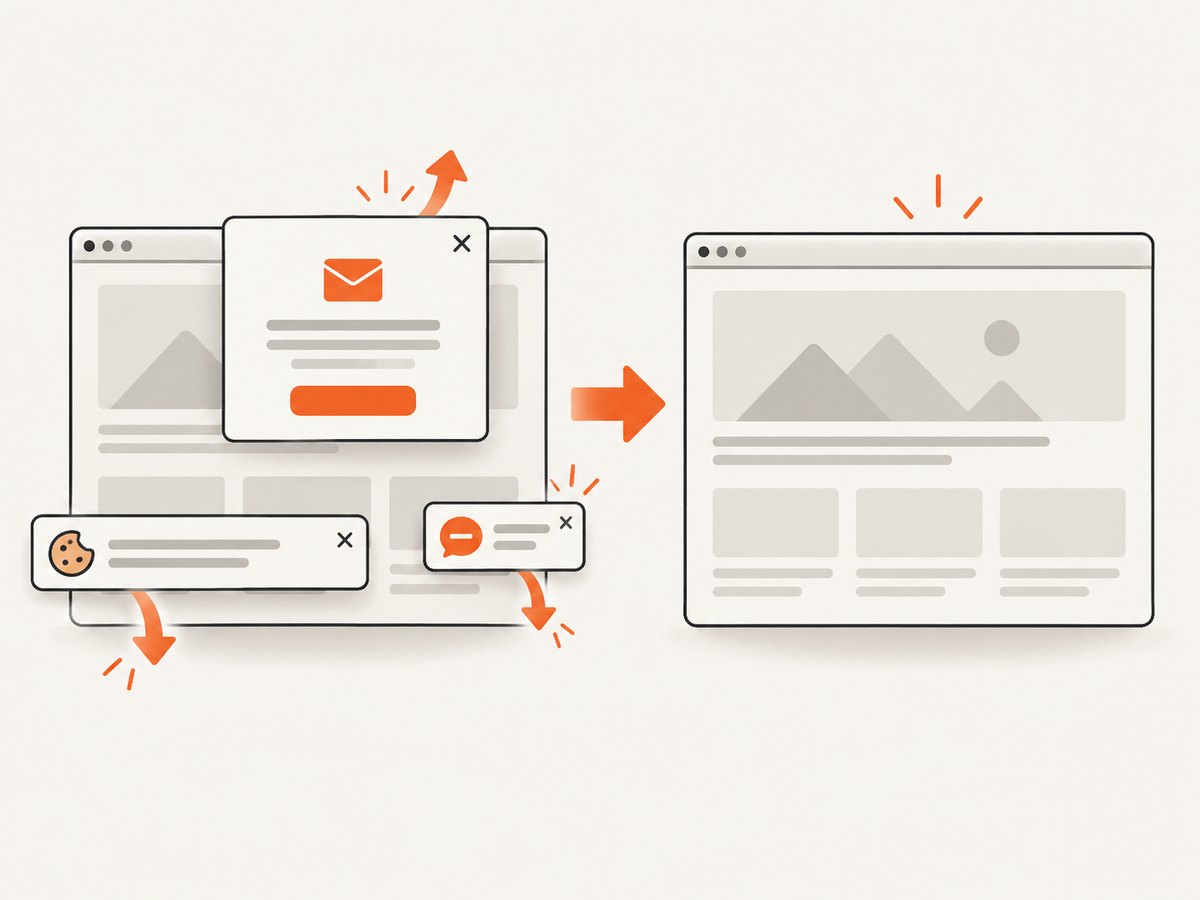
If your goal is a clean screenshot rather than DOM-level extraction, ScreenshotNeo provides one GET request for a PNG, JPEG, WebP, or PDF. Cookie and consent banners, newsletter popups, and chat widgets are removed before the shot. Bot checks, blank pages, failed loads, timeouts, and cache hits are not billed, and response headers identify the page verdict and billing status. Its MCP server provides take_screenshot, get_page_info, and capture_pdf tools for Claude, Cursor, and other MCP clients.
See the ScreenshotNeo API documentation for all options, including full-page capture, CSS-element capture, device presets, retina scale, PDF settings, custom CSS and JavaScript, waits, blocked resources, headers, cookies, user agents, geolocation, caching, signed links, asynchronous jobs, bulk capture, and usage reporting.
cURL
curl -G "https://api.screenshotneo.com/v1/shot" -d access_key=YOUR_API_KEY --data-urlencode url=https://stripe.com -o shot.webpPython
import requests

r = requests.get(
    "https://api.screenshotneo.com/v1/shot",
    params={"access_key": "YOUR_API_KEY", "url": "https://stripe.com"},
    timeout=90,
)
r.raise_for_status()
open("shot.webp", "wb").write(r.content)
Node.js
const q = new URLSearchParams({ access_key: 'YOUR_API_KEY', url: 'https://stripe.com' });
const res = await fetch(`https://api.screenshotneo.com/v1/shot?${q}`);
if (!res.ok) throw new Error(`HTTP ${res.status}`);
const bytes = new Uint8Array(await res.arrayBuffer());
await Bun.write('shot.webp', bytes);
ScreenshotNeo has 1,000 free shots per month with no card. Paid plans start at $5 for 3,000 shots, and every feature is available on every plan. Create a free ScreenshotNeo account.
FAQ
Does Selenium download the page’s HTML?
It can: driver.page_source returns the current document source after browser changes. That source is not always identical to the original server response, and it may not include data rendered in a canvas or shadow tree.
Should I use XPath or CSS selectors?
Use whichever expresses a stable relationship on the target page. IDs and stable data attributes are usually easiest to maintain. XPath is useful for complex relationships; avoid brittle selectors tied to generated class names.
Can Selenium scrape every website?
No. A site may prohibit automated collection, block Selenium, require authentication, or render data only after an interaction you are not authorized to perform. Check the site’s rules and stop when access is denied.
Why does a page look loaded but contain no records?
The navigation event may have completed before the JavaScript application fetched records. Wait for a result-specific condition, inspect network and DOM behavior, and verify that your selector targets the rendered content.
When should I choose ScreenshotNeo?
Choose it when you need an image or PDF of a page and do not want to maintain browser drivers, waits, consent cleanup, or screenshot code. Use Selenium when you need to inspect and transform page data inside a browser session.


