Web Vector Image Formats
SVG is the standard vector format for the web. Learn when to use SVG, PNG, WebP, JPEG or AVIF, how to add fallbacks, and how to deliver each safely.
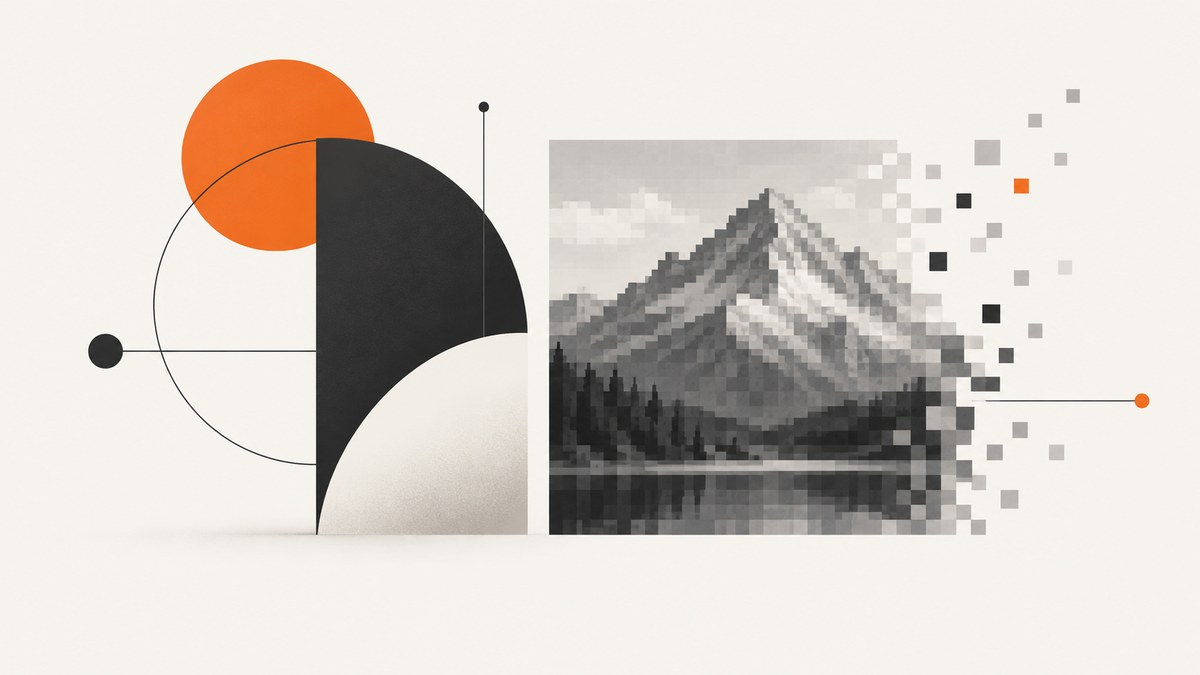
SVG (Scalable Vector Graphics) is the best general-purpose vector image format for websites. It describes shapes, paths, text and paint instructions instead of storing a fixed pixel grid, so logos, icons, diagrams and charts stay sharp at any display size. PNG, JPEG, WebP and AVIF are raster formats: they store pixels and are usually better for photographs or other continuous-tone images.
This guide explains the differences, shows production-ready HTML, covers browser fallbacks, accessibility, security, performance and troubleshooting, and gives a practical decision framework.
SVG is the web’s native vector format
The World Wide Web Consortium defines SVG as “a language based on XML for describing two-dimensional vector and mixed vector/raster graphics.” SVG uses the image/svg+xml MIME type and the .svg extension. Browsers can load it as an external image or render it inline in HTML.
Because an SVG stores drawing instructions, the browser can recompute the artwork at the requested size. A 24-pixel icon and a 2,400-pixel print version can use the same source without the soft edges that appear when a small raster image is enlarged.
| Format | Representation | Best for | Transparency | Scaling |
|---|---|---|---|---|
| SVG | Vector instructions; may contain raster images | Logos, icons, diagrams, charts, line art | Yes | Resolution independent |
| PNG | Raster pixels | Lossless screenshots, diagrams, transparency | Yes | Softens when enlarged |
| WebP | Raster pixels | Photos and general web imagery | Yes | Softens when enlarged |
| AVIF | Raster pixels | Highly compressed photographic imagery | Yes | Softens when enlarged |
| JPEG | Raster pixels | Photographs and gradients | No alpha channel | Softens when enlarged |
MDN describes SVG as an ideal choice when an image can be represented by drawing commands and its rendered size is unknown or may vary. See the W3C SVG specification and MDN image format guide.
How vector and raster images differ
Vector representation
Vector files encode geometry: a path, circle, rectangle, fill, stroke, transform or text run. The renderer calculates pixels at display time. This makes vectors ideal for shapes with clear edges.

Raster representation
Raster files encode a rectangular grid of pixels. Compression can reduce the file size, but the source resolution still limits detail. Upscaling a 400-pixel image to 1,600 pixels cannot recreate detail that was never stored.
SVG can contain raster content
The SVG <image> element can embed a PNG, JPEG or another SVG. Calling a file “SVG” does not mean every pixel inside it was generated from vectors. Inspect embedded assets when file size, privacy or security matters.
When to choose SVG
- Logos and wordmarks: maintain crisp edges across responsive layouts and high-density screens.
- Icons: reuse one source at many sizes; inline SVG can inherit CSS color.
- Diagrams and charts: preserve labels, lines and shapes when users zoom.
- Illustrations made from geometry: gradients, paths and flat fills often compress well as SVG.
- Graphics that need styling: inline SVG permits CSS rules on individual shapes.
Use a standalone SVG when caching and isolation are more important. Use inline SVG when the page must style individual elements or provide controlled interaction. Give meaningful graphics an accessible name and explicit dimensions.
When PNG, WebP, AVIF or JPEG is better
- Photographs: choose WebP or AVIF for many modern web deployments; JPEG remains a common fallback.
- Lossless screenshots: PNG preserves exact pixels and supports transparency.
- Very detailed textures: raster formats represent continuous-tone detail directly.
- Unknown or untrusted SVG uploads: rasterize when you do not need SVG’s styling or scaling behavior.
Do not convert a photograph to SVG simply to call it vector. The conversion usually creates a large, complex collection of paths and does not restore scalable photographic detail.
Embedding SVG in HTML
External SVG image
<img
  src="/assets/brand-mark.svg"
  width="192"
  height="48"
  alt="Acme home"
>
An external image is easy to cache and is isolated from the page’s CSS and script context. Set the response header to Content-Type: image/svg+xml.

Inline SVG
<svg
  viewBox="0 0 24 24"
  width="24"
  height="24"
  role="img"
  aria-labelledby="search-title"
>
  <title id="search-title">Search</title>
  <circle cx="11" cy="11" r="7" fill="none" stroke="currentColor" stroke-width="2" />
  <path d="m16 16 5 5" fill="none" stroke="currentColor" stroke-width="2" />
</svg>
Use role="img" and a title for meaningful artwork. For a purely decorative icon, use aria-hidden="true" and provide the accessible label elsewhere.
SVG fallbacks with the picture element
For a mixed browser audience, offer SVG first and retain raster alternatives. The browser selects the first supported <source>; the <img> element is the final fallback.
<picture>
  <source srcset="/art/diagram.svg" type="image/svg+xml">
  <source srcset="/art/diagram.webp" type="image/webp">
  <source srcset="/art/diagram.png" type="image/png">
  <img
    src="/art/diagram.png"
    width="1200"
    height="800"
    alt="Checkout request flow"
    loading="lazy"
  >
</picture>
Test the source order against the browsers and assistive technologies your site supports. Keep width, height and alternative text explicit to reduce layout shift and preserve meaning if SVG is unavailable.
Responsive SVG sizing
.logo {
  display: block;
  width: min(100%, 12rem);
  height: auto;
}

.diagram {
  width: 100%;
  height: auto;
  aspect-ratio: 3 / 2;
}
The viewBox defines the internal coordinate system. A responsive SVG normally has a viewBox and either a fluid CSS width or explicit intrinsic dimensions. Avoid removing the viewBox during optimization unless you know the artwork will never scale.
Styling, scripting and security
- Inline SVG can use
currentColor, CSS variables and media queries. - SVG supports scripting, external resources and interaction; treat it as an active document when those features are present.
- Sanitize untrusted SVG uploads. Remove scripts, event handlers, external references and unsafe elements according to your content-security policy.
- Serve SVG with the correct MIME type and configure caching deliberately.
- For user-generated artwork that only needs to be displayed, rasterization can reduce active-content risk.
Performance and delivery checklist
- Choose SVG for geometry and raster formats for continuous-tone images.
- Remove editor metadata and unused paths with a trusted optimizer, then visually inspect the result.
- Set
width,heightandviewBoxvalues to prevent layout shifts. - Use immutable, hashed filenames for deployed assets and long-lived cache headers.
- Compress raster fallbacks and select responsive sizes with
srcsetwhen appropriate. - Prefer external SVG for shared, cacheable assets; inline only when per-shape styling or interaction is required.
- Measure transfer size after compression. A simple icon is often smaller as SVG, while a complex illustration can be smaller as a raster image.
Capturing format examples for documentation
When you need screenshots of an SVG demonstration or a page showing raster fallbacks, a browser automation stack must load the page, wait for fonts and images, set the viewport, and handle consent overlays. Capture at a deterministic viewport and include the asset’s accessible name in the page itself.
Or skip the browser setup
ScreenshotNeo can return a clean PNG, JPEG, WebP or PDF from one request. Cookie banners, newsletter popups and chat widgets are removed before the shot. Bot checks, blank pages and failed loads are never billed, and response headers identify the page verdict and whether it was billed. Its MCP server lets Claude, Cursor and other MCP clients take screenshots. The free plan includes 1,000 screenshots a month with no card; paid plans start at $5 for 3,000.
See the ScreenshotNeo API documentation for all options.
curl -G "https://api.screenshotneo.com/v1/shot" -d access_key=YOUR_API_KEY --data-urlencode url=https://stripe.com -o shot.webpimport requests
r = requests.get("https://api.screenshotneo.com/v1/shot", params={"access_key": "YOUR_API_KEY", "url": "https://stripe.com"}, timeout=90)
open("shot.webp", "wb").write(r.content)const q = new URLSearchParams({ access_key: 'YOUR_API_KEY', url: 'https://stripe.com' });
const res = await fetch(`https://api.screenshotneo.com/v1/shot?${q}`);Create a free ScreenshotNeo account to start with 1,000 screenshots each month and no card.
Troubleshooting
| Problem | Likely cause | Fix |
|---|---|---|
| SVG appears as downloaded XML | Incorrect MIME type or server configuration | Serve image/svg+xml and verify the URL response. |
| Logo is blurry | A raster fallback is being used or the SVG was rasterized | Inspect the selected source, restore the SVG, and preserve its viewBox. |
| SVG is cropped | Missing or incorrect viewBox | Set a viewBox matching the artwork’s coordinate bounds. |
| Inline icon has the wrong color | Hard-coded fill or stroke | Use currentColor or a CSS variable. |
| Fallback never loads | Invalid type attribute, broken source URL or unsupported markup | Check each URL directly and keep a working <img> fallback. |
| Large SVG transfers slowly | Embedded raster data, excessive paths or editor metadata | Optimize the file, remove unused content, or choose an appropriately compressed raster format. |
| Screen reader announces nothing | Missing alt text or accessible name | Add meaningful alt text, or use <title> and ARIA for inline SVG. |
| Untrusted artwork executes content | Active SVG features such as scripts or external references | Sanitize, isolate or rasterize uploads and enforce a restrictive content-security policy. |
FAQ
Is SVG supported by browsers?
Yes. SVG is a web-native standard supported by modern browsers as an external image and inline markup. Keep a fallback when your audience includes older or constrained clients.
Should a logo be SVG or PNG?
Use SVG when the logo is shape-based and must scale. Keep a PNG fallback when a specific client cannot render SVG or when your delivery pipeline requires a raster asset.
Can an SVG be animated?
Yes, through CSS or scripting, but animation adds active behavior and accessibility considerations. Provide a reduced-motion experience where appropriate.
Does SVG always have a smaller file size?
No. Simple geometric artwork often compresses well as SVG; highly complex artwork or embedded photographs may be smaller as WebP, AVIF or PNG.
What is the safest format for user uploads?
For display-only uploads, a sanitized SVG or rasterized output is safer than rendering untrusted active SVG directly. Apply your site’s content-security and sanitization rules.


