How to Get a Screenshot of a Specific Element Using WebDriver in C#
Capture one DOM element with Selenium WebDriver in C#: locate it, call GetScreenshot, handle dynamic pages, and troubleshoot common failures.
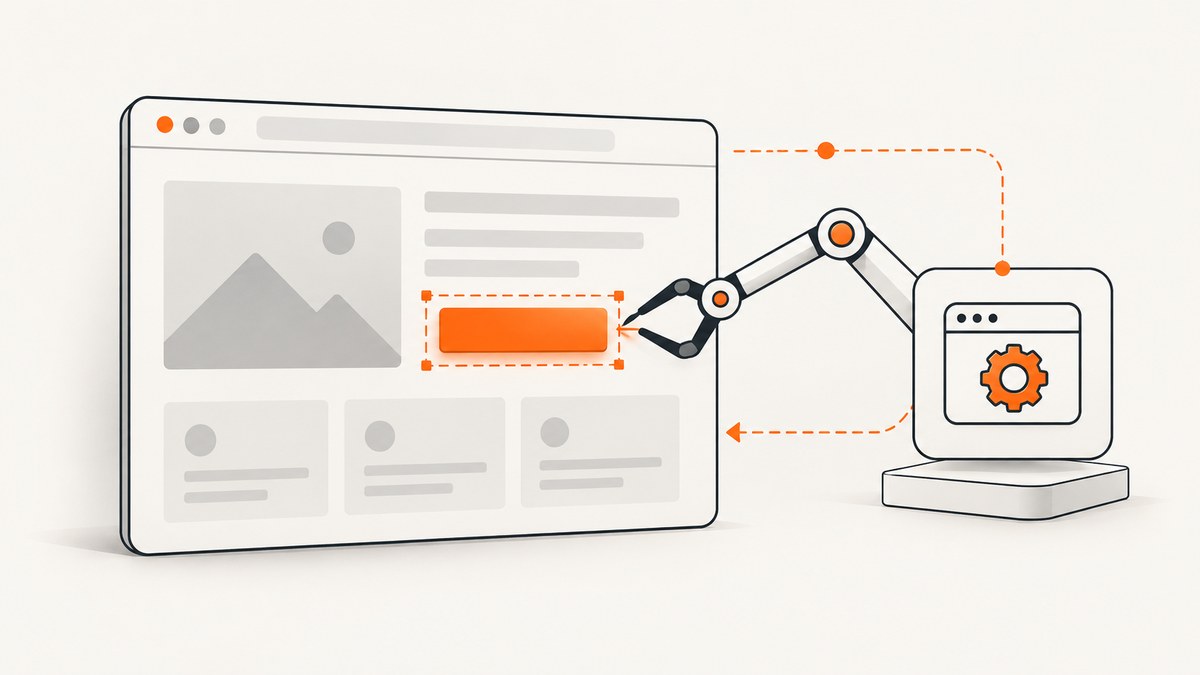
Use Selenium’s element screenshot API: find an IWebElement, cast it to ITakesScreenshot, call GetScreenshot(), and save the returned Screenshot. This captures the selected element rather than the entire browser viewport.
using OpenQA.Selenium;

IWebElement element = driver.FindElement(By.CssSelector("h1"));
Screenshot screenshot = ((ITakesScreenshot)element).GetScreenshot();
screenshot.SaveAsFile("element.png");
Selenium’s .NET WebElement implements ITakesScreenshot, and the official documentation shows the same CSS-locator and SaveAsFile pattern. See the WebElement API, ITakesScreenshot API, and official element screenshot example.
Complete C# example
The following console program opens a page, waits until the target exists, captures one element, and writes a PNG file. Supply a driver that matches the browser installed on the machine running the program.
using System;
using OpenQA.Selenium;
using OpenQA.Selenium.Chrome;
using OpenQA.Selenium.Support.UI;

class Program
{
    static void Main()
    {
        var options = new ChromeOptions();
        // options.AddArgument("--headless"); // Enable for a non-UI environment.
        options.AddArgument("--window-size=1440,1000");

        using IWebDriver driver = new ChromeDriver(options);
        driver.Navigate().GoToUrl("https://example.com");

        var wait = new WebDriverWait(driver, TimeSpan.FromSeconds(15));
        IWebElement element = wait.Until(d =>
        {
            try
            {
                var candidate = d.FindElement(By.CssSelector("h1"));
                return candidate.Displayed ? candidate : null;
            }
            catch (NoSuchElementException)
            {
                return null;
            }
            catch (StaleElementReferenceException)
            {
                return null;
            }
        });

        Screenshot screenshot = ((ITakesScreenshot)element).GetScreenshot();
        screenshot.SaveAsFile("element.png");
        Console.WriteLine("Saved element.png");
    }
}
Add Selenium’s .NET WebDriver packages to your project, then make sure a compatible Chrome browser and driver are available. The exact driver and browser versions, viewport, device scale factor, and browser implementation can affect the captured boundaries and encoding.
How the element screenshot call works
- Locate the target. Use a stable ID, data attribute, CSS selector, XPath, or another locator that identifies the intended element.
- Wait for the live element. Dynamic applications may render or replace nodes after navigation. Wait for presence and, when needed, visibility.
- Call the element API. The receiver is the
IWebElement, not the driver. Cast it toITakesScreenshotand callGetScreenshot(). - Save the result.
SaveAsFilewrites the returned SeleniumScreenshotto the path you provide.
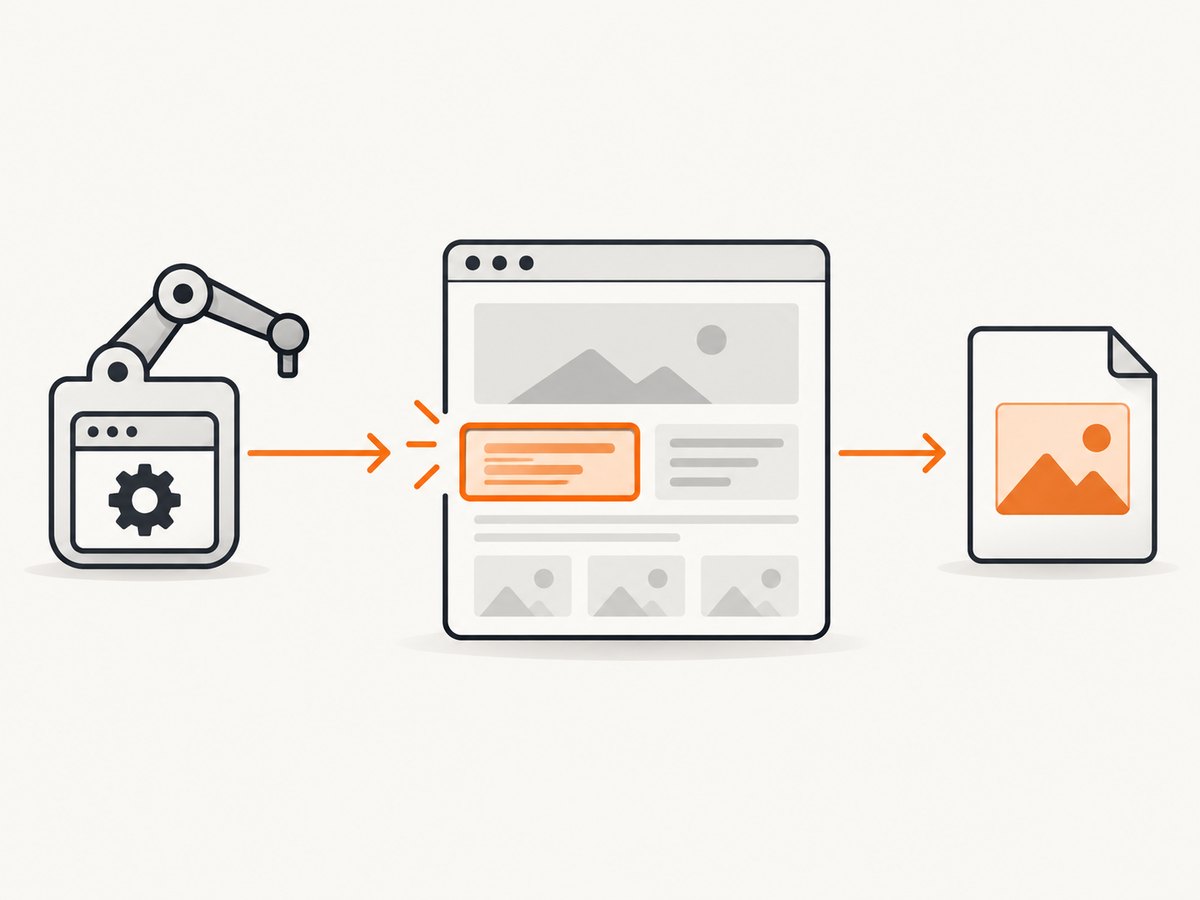
Selenium sends an element screenshot command using the element’s ID and constructs a Screenshot from the returned Base64 data. That is why an element reference is required. The driver-level screenshot operation is separate and captures the current browsing context.
Choosing a reliable locator
| Locator | Example | Use when |
|---|---|---|
| ID | By.Id("invoice-total") |
The application exposes a stable unique ID. |
| CSS selector | By.CssSelector("article[data-testid='receipt']") |
You need a concise selector based on classes or attributes. |
| XPath | By.XPath("//h1[normalize-space()='Checkout']") |
The element is easiest to describe with a DOM relationship or text. |
| Class name | By.ClassName("summary-card") |
A single, stable class identifies the target. |
Prefer attributes intended for automation, such as a stable ID or data-testid. Avoid selectors that depend on generated CSS-module names or a fragile position in the DOM.
Waiting for dynamic content
Finding an element immediately after navigation can fail when JavaScript has not rendered it yet. Use an explicit wait and re-find the element inside the wait callback:
var wait = new WebDriverWait(driver, TimeSpan.FromSeconds(20));
IWebElement card = wait.Until(d =>
{
    try
    {
        var found = d.FindElement(By.CssSelector("[data-testid='profile-card']"));
        return found.Displayed && found.Size.Width > 0 ? found : null;
    }
    catch (NoSuchElementException) { return null; }
    catch (StaleElementReferenceException) { return null; }
});

((ITakesScreenshot)card).GetScreenshot().SaveAsFile("profile-card.png");
If an animation changes the element’s size, wait for the application’s loaded state or for a stable layout before capturing. A short fixed delay can be useful for a known animation, but an explicit condition is usually less brittle.
Element screenshot versus driver screenshot
| Goal | Call | Receiver |
|---|---|---|
| One element | GetScreenshot() |
IWebElement cast to ITakesScreenshot |
| Current page or viewport | Driver screenshot API | IWebDriver cast to ITakesScreenshot |
Use the element operation when the output should contain one component, such as a chart, invoice, product card, or heading. Use the driver operation when the browser context itself is the subject.
Useful C# patterns
Capture by ID
var element = driver.FindElement(By.Id("receipt"));
((ITakesScreenshot)element).GetScreenshot().SaveAsFile("receipt.png");
Capture after clicking
driver.FindElement(By.CssSelector("button[data-action='details']")).Click();
var wait = new WebDriverWait(driver, TimeSpan.FromSeconds(10));
var panel = wait.Until(d => d.FindElement(By.Id("details-panel")));
((ITakesScreenshot)panel).GetScreenshot().SaveAsFile("details.png");
Capture several elements
var cards = driver.FindElements(By.CssSelector(".product-card"));
for (int i = 0; i < cards.Count; i++)
{
    // Re-find by index if the page can re-render between iterations.
    var card = driver.FindElements(By.CssSelector(".product-card"))[i];
    ((ITakesScreenshot)card).GetScreenshot().SaveAsFile($"product-{i + 1}.png");
}
Keep the bytes in memory
byte[] pngBytes = ((ITakesScreenshot)element).GetScreenshot().AsByteArray;
File.WriteAllBytes("element.png", pngBytes);
Edge cases and limitations
- Stale references: If a framework replaces the node, the old
IWebElementno longer points to a live DOM element. Locate it again immediately before the screenshot. - Outside the viewport: Element screenshot behavior is implemented by the browser driver. Do not assume every browser and driver combination produces identical scroll or clipping behavior.
- Hidden elements: A display-none or zero-size element may fail or produce an unusable image. Wait until it is displayed and has dimensions.
- Nested browsing contexts: Switch into the correct iframe with
driver.SwitchTo().Frame(...)before locating an element inside it. - Shadow DOM: Use the driver’s shadow-root APIs to reach the element, then call the same element screenshot method if the driver supports the operation.
- Permissions and authentication: Navigate and authenticate before locating the element. A screenshot of a login page usually means the session was not established.
- Encoding: The API returns a Selenium
Screenshot; the documentation example saves it with a.pngfilename. Avoid assuming a universal encoding or exact boundary across all browser and driver versions.
Troubleshooting
| Error or symptom | Likely cause | Fix |
|---|---|---|
NoSuchElementException |
Selector is wrong or rendering has not finished. | Verify the selector in browser tools and add an explicit wait. |
StaleElementReferenceException |
The DOM replaced the node after it was located. | Find the element again immediately before GetScreenshot(). |
ElementNotInteractableException or blank output |
The element is hidden, collapsed, or still animating. | Wait for visibility and non-zero dimensions; finish the UI transition first. |
| Screenshot is the wrong component | Selector matches multiple nodes or a parent container. | Use a more specific selector and inspect the matched element. |
| Driver session cannot start | Browser or driver is missing or incompatible. | Install the browser and a compatible driver, then check the session startup error. |
| Element is inside an iframe | The driver is still in the top-level document. | Switch to the frame before calling FindElement. |
| Capture differs between machines | Viewport, scale factor, fonts, browser, or driver differs. | Set the window size, standardize the runtime, and install the same fonts and browser versions. |
Performance and reliability checklist
- Create one driver session when taking multiple screenshots instead of starting a browser for every element.
- Use explicit waits targeted to the element you need; avoid large global sleeps.
- Set a deterministic viewport and browser options in CI.
- Save files to unique paths when tests run in parallel.
- Include the URL, selector, browser version, and driver version in failure logs.
- Retry navigation or session startup only when the exception is transient; do not hide selector or stale-reference defects with unlimited retries.
- Dispose the driver with
usingor an equivalent cleanup block so browser processes do not accumulate.

Or skip the browser setup
ScreenshotNeo provides a website screenshot API when you want an image from a URL without managing Selenium, browser binaries, or a driver session. Its capture options include selecting one element by CSS selector, full-page capture, custom JavaScript and CSS, waits, cookies, headers, device presets, dark mode, and image formats. See the ScreenshotNeo documentation for request parameters.
curl -G "https://api.screenshotneo.com/v1/shot" \
  -d access_key=YOUR_API_KEY \
  --data-urlencode url=https://example.com \
  -d selector="h1" \
  -o element.webp
import requests
r = requests.get(
"https://api.screenshotneo.com/v1/shot",
params={
"access_key": "YOUR_API_KEY",
"url": "https://example.com",
"selector": "h1",
},
timeout=90,
)
r.raise_for_status()
open("element.webp", "wb").write(r.content)const q = new URLSearchParams({
access_key: 'YOUR_API_KEY',
url: 'https://example.com',
selector: 'h1'
});
const res = await fetch(`https://api.screenshotneo.com/v1/shot?${q}`);
if (!res.ok) throw new Error(`HTTP ${res.status}`);
require('fs').writeFileSync('element.webp', Buffer.from(await res.arrayBuffer()));Cookie banners, newsletter popups, and chat widgets are removed before the shot. Bot checks, blank pages, timeouts, failed loads, and cache hits are not billed, and response headers identify the page verdict and billing result. An MCP server lets AI agents use take_screenshot, get_page_info, and capture_pdf. The free plan includes 1,000 screenshots each month with no card; paid plans start at $5 for 3,000 screenshots. Create a free ScreenshotNeo account.
FAQ
Does this capture the entire page?
No. The element API targets the selected element. Use the driver-level screenshot operation for the current browsing context, or a dedicated full-page method when you need the whole document.
Can I save the result as JPEG?
The Selenium API returns a Screenshot object. The official example saves it as PNG; verify the behavior of your browser and driver before relying on another encoding.
Why should I locate the element again?
Single-page applications often replace DOM nodes during rendering. A previously stored reference can become stale, so locating the element immediately before capture is safer.
Can this run headlessly?
Yes. Configure the browser’s headless option, set an explicit viewport, and keep the same waits and element-locator logic.


