How to Take a Full-Page Screenshot with WebdriverIO
Capture an entire WebdriverIO page with fullPage: true, configure formats and clipping, fix driver issues, and automate reliable visual checks.
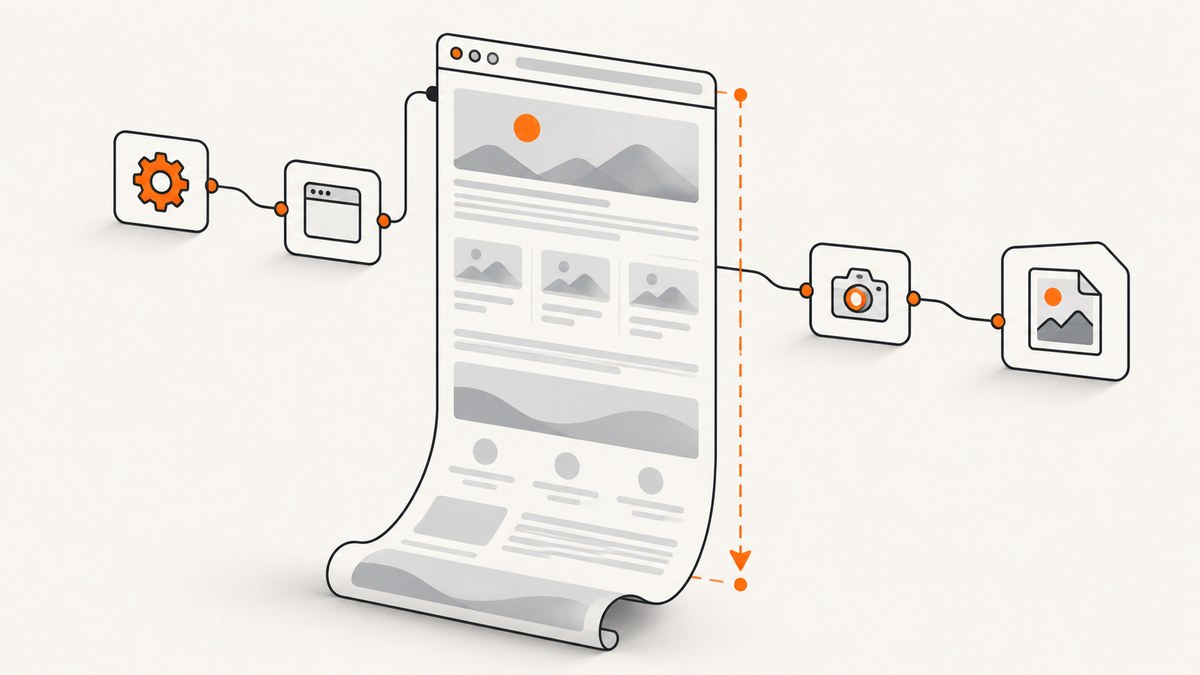
To take a full-page screenshot with WebdriverIO, navigate to the page and call the browser-level saveScreenshot command with fullPage: true:
it('saves a full-page screenshot', async () => {
  await browser.url('https://example.com');
  await browser.saveScreenshot('./artifacts/page.png', { fullPage: true });
});
The option requests the complete document instead of only the visible viewport. WebdriverIO writes the image to the supplied path and returns a screenshot Buffer. The path is resolved relative to the execution directory, and the documented file path uses a .png suffix. See the WebdriverIO saveScreenshot API for the current command contract.
What fullPage means in WebdriverIO
A normal screenshot is usually the pixels currently visible in the browser viewport. A full-page screenshot extends the capture to the document’s complete scrollable height. This is useful for page documentation, bug reports, accessibility review, and visual regression baselines.
fullPage defaults to false. Set it explicitly on every capture where the entire document matters; relying on a framework default makes intent unclear and can produce a short image after an upgrade.
| Goal | WebdriverIO setting | Result |
|---|---|---|
| Visible viewport only | Omit fullPage or set false |
Current viewport |
| Entire document | fullPage: true |
Full-page image when the driver supports it |
| Specific rectangle | clip: { x, y, width, height } |
Only the selected region |
| Visual regression baseline | saveFullPageScreen |
Named full-page baseline through the image-comparison service |
Complete setup and a reliable first capture
- Install WebdriverIO and configure a browser runner or standalone script.
- Create an artifacts directory that your local run and CI job both preserve.
- Navigate to the target URL.
- Wait for the page state your screenshot is meant to represent.
- Call
saveScreenshotwith a stable.pngpath andfullPage: true.
A test example with an explicit readiness check:
describe('documentation page', () => {
  it('captures the complete rendered page', async () => {
    await browser.url('https://example.com/docs');
    await $('#main-content').waitForDisplayed({ timeout: 15000 });
    await browser.saveScreenshot('./artifacts/docs-full.png', {
      fullPage: true,
      format: 'png'
    });
  });
});
Waiting for a meaningful element is safer than taking the screenshot immediately after navigation. If the page loads content progressively, wait for the final section, an application-ready marker, or a known network-idle condition provided by your test setup. Avoid arbitrary delays unless the application has no observable readiness signal.
Keeping paths predictable in CI
Because the filepath is relative to the execution directory, a path such as ./artifacts/page.png can point somewhere different when a CI runner changes its working directory. Set the runner’s working directory deliberately, create the directory before the test, and publish it as a CI artifact. Use names that include the route or test identifier so parallel workers do not overwrite one another.
import fs from 'node:fs';

fs.mkdirSync('./artifacts', { recursive: true });
await browser.url('https://example.com');
const image = await browser.saveScreenshot('./artifacts/example.png', {
  fullPage: true
});
console.log(`captured ${image.length} bytes`);
Options: format, quality, clipping, and the returned Buffer
PNG and JPEG
PNG is the documented default and is lossless, which makes it the usual choice for visual comparison and text-heavy pages. You can request JPEG output with format: 'jpeg'. JPEG supports a quality value from 0 to 100; lower values usually reduce file size while introducing visible compression around text and sharp edges.
// JPEG with the driver's default quality
await browser.saveScreenshot('./artifacts/page.jpeg', {
  fullPage: true,
  format: 'jpeg'
});

// Smaller JPEG for a preview artifact
await browser.saveScreenshot('./artifacts/page-q50.jpeg', {
  fullPage: true,
  format: 'jpeg',
  quality: 50
});
Keep the extension and format aligned. A file named .png should contain PNG data; mismatches confuse image viewers and downstream processing.
Capture a rectangle
Use clip when you need a fixed region rather than the whole document. Coordinates and dimensions are expressed as a rectangle:
await browser.saveScreenshot('./artifacts/header.png', {
  clip: { x: 0, y: 0, width: 1200, height: 240 }
});
A clip is useful for a stable hero area or a bug reproduction. It is different from element screenshots: a clip uses page coordinates, while an element command follows the element’s bounds. Do not combine a clip with fullPage unless your driver documentation clearly defines the interaction; choose the one capture geometry you need.
Use the Buffer directly
saveScreenshot returns a Buffer even when it also writes a file. You can attach that buffer to a report, upload it to object storage, or calculate a hash without reading the file again:
const png = await browser.saveScreenshot('./artifacts/page.png', {
  fullPage: true
});
console.log(png.subarray(0, 8)); // PNG signature bytes
Driver and browser differences
WebdriverIO documents that screenshot behavior depends on the browser driver. Some drivers capture the complete document (for example, Geckodriver with Firefox), while others may capture only the current viewport (for example, Chromedriver with Chrome). If a supposedly full-page result is short, inspect the driver and browser combination before changing your test logic.
Measure the resulting image dimensions in CI and fail with a useful message when the height is unexpectedly close to the viewport height. Keep browser, driver, and operating-system versions consistent for visual baselines. The WebdriverIO documentation also warns that rendering differences between platforms can change pixel comparisons.
Visual regression with the image-comparison service
For repeatable comparisons, the wdio-image-comparison-service provides browser.saveFullPageScreen('fullPage', options) to create a named full-page baseline and browser.checkFullPageScreen('fullPage', options) to compare a later run with it.
it('matches the full-page baseline', async () => {
  await browser.url('https://example.com');
  await $('#main-content').waitForDisplayed();
  await browser.saveFullPageScreen('home', {
    /* service-specific options go here */
  });

  const result = await browser.checkFullPageScreen('home', {
    /* comparison thresholds go here */
  });
  console.log(result);
});
Generate and compare baselines on the same platform whenever possible. Font rasterization, browser versions, device scale, and native rendering can create differences unrelated to your code. Treat a cross-platform mismatch as a baseline-management problem first, not automatically as a product regression.
Handling dynamic and lazy-loaded pages
- Lazy images: scroll or trigger the application’s lazy-load mechanism before capture, then wait for the last image or content marker.
- Animations: disable them with test CSS or wait for a deterministic state; otherwise each run can differ.
- Cookie banners and chat widgets: dismiss or hide them if they are outside the page state being tested.
- Infinite scroll: a “full page” has no final height until the application stops adding content. Set a product-specific stopping rule.
- Sticky headers: a driver that stitches viewport sections can repeat a fixed header. Verify the resulting image instead of assuming stitching is perfect.
- Very tall documents: large bitmap dimensions consume memory. Split documentation into routes or capture a clipped section when a single image is not necessary.
Troubleshooting
| Symptom | Likely cause | Fix |
|---|---|---|
| Only the viewport is saved | fullPage was omitted, or the driver implements viewport screenshots |
Set fullPage: true; verify browser and driver support and inspect image height. |
| Capture fails because of the path | Parent directory does not exist or the process lacks write access | Create the artifacts directory, use an absolute diagnostic path temporarily, and check CI permissions. |
| “Invalid file extension” or unreadable output | Path suffix and requested format disagree | Use .png for PNG and .jpeg for JPEG. |
| Bottom of page is blank | Lazy content was never triggered, or capture happened before rendering finished | Scroll through the page, wait for a final marker, and capture after content settles. |
| Images differ on every CI run | Animations, timestamps, random data, fonts, or platform rendering vary | Freeze data and time, disable motion, preload fonts, and keep comparison workers on one platform. |
| Chrome and Firefox have different heights | Driver implementations handle full-document capture differently | Pin the intended browser-driver pair and maintain separate baselines when cross-browser coverage is required. |
| Browser memory errors | The document is extremely tall or high-resolution | Reduce viewport scale, split the capture, or use a clipped region; retain full-page images only where they add value. |
Performance, reliability, and cost considerations
Full-page capture costs more CPU, memory, and disk than a viewport shot because the browser must render and encode a larger bitmap. PNG encoding is typically heavier than JPEG encoding. Use PNG for regression evidence and JPEG for review artifacts where a smaller file is acceptable. In CI, retain only the failing image and a small set of approved baselines if storage is limited.
Reliability improves when navigation, readiness, capture, and artifact upload are separate steps with clear timeouts. Record the URL, browser version, driver version, viewport, format, and image dimensions beside each artifact. Retry navigation failures carefully, but do not blindly retry assertion failures: a changed screenshot may be the defect you need to see.
If you need screenshots from many URLs or machines, a hosted capture API removes browser-driver maintenance. ScreenshotNeo is a website screenshot API and MCP server. It accepts one GET request and returns PNG, JPEG, WebP, or PDF. Its clean-shot flow accepts consent banners and removes more than 60 known consent platforms, newsletter popups, and chat widgets before capture. Bot checks, blank pages, timeouts, failed loads, and cache hits are not billed, and each response reports the page verdict and billing status in X-Page-Verdict and X-Billed headers.
Or skip the browser setup
When you do not need a local WebdriverIO session, call ScreenshotNeo directly. The ScreenshotNeo API documentation covers the request options and response headers.
curl -G "https://api.screenshotneo.com/v1/shot" -d access_key=YOUR_API_KEY --data-urlencode url=https://stripe.com -o shot.webpimport requests
r = requests.get("https://api.screenshotneo.com/v1/shot", params={"access_key": "YOUR_API_KEY", "url": "https://stripe.com"}, timeout=90)
open("shot.webp", "wb").write(r.content)const q = new URLSearchParams({ access_key: 'YOUR_API_KEY', url: 'https://stripe.com' });
const res = await fetch(`https://api.screenshotneo.com/v1/shot?${q}`);Cookie banners, popups, and chat widgets are removed before the shot. Bot checks, blank pages, and failed loads are never billed. An MCP server lets AI agents such as Claude and Cursor take screenshots, inspect pages, and capture PDFs. The Free plan includes 1,000 screenshots a month with no card; paid plans start at $5 for 3,000 shots. Create a free ScreenshotNeo account.
FAQ
Does fullPage scroll the browser visibly?
The command asks the driver for a full-document image; your test should not depend on a human-visible scroll animation. For lazy content, explicitly trigger loading and wait before the command.
Can I return a screenshot without writing a file?
The command returns a Buffer. You can use it in memory, although the documented API call also accepts a filepath and writes the image there.
Should visual baselines be shared between Windows and Linux?
Prefer the same platform and browser stack. Font and rendering differences can otherwise produce pixel changes that are unrelated to an application change.
When is JPEG a poor choice?
JPEG compression can blur text and sharp borders. Use PNG when pixel accuracy, OCR, or detailed debugging matters.
What should I check first when a capture is too short?
Confirm fullPage: true, then verify the browser-driver pair and the output dimensions. WebdriverIO’s driver caveat makes this a higher-value check than changing unrelated waits.


