How to Set the Open Graph Image Size in Webflow
Set the right Webflow Open Graph image size, format, and CMS rules so social previews render correctly on every platform.

The practical Open Graph image target in Webflow is 1200 × 630 pixels, a 1.91:1 aspect ratio. Use a JPG or PNG, set it under Pages panel → Page settings → Open Graph settings, save, and publish the site. For CMS Collection pages, use an Image field and keep every image at the same dimensions.
This guide explains the exact Webflow workflow, image specifications, CMS behavior, validation steps, common causes of missing previews, and a repeatable process for generating and checking OG assets. It also shows how to automate screenshot-based image creation when you do not want to maintain a browser capture stack.
What Open Graph images do
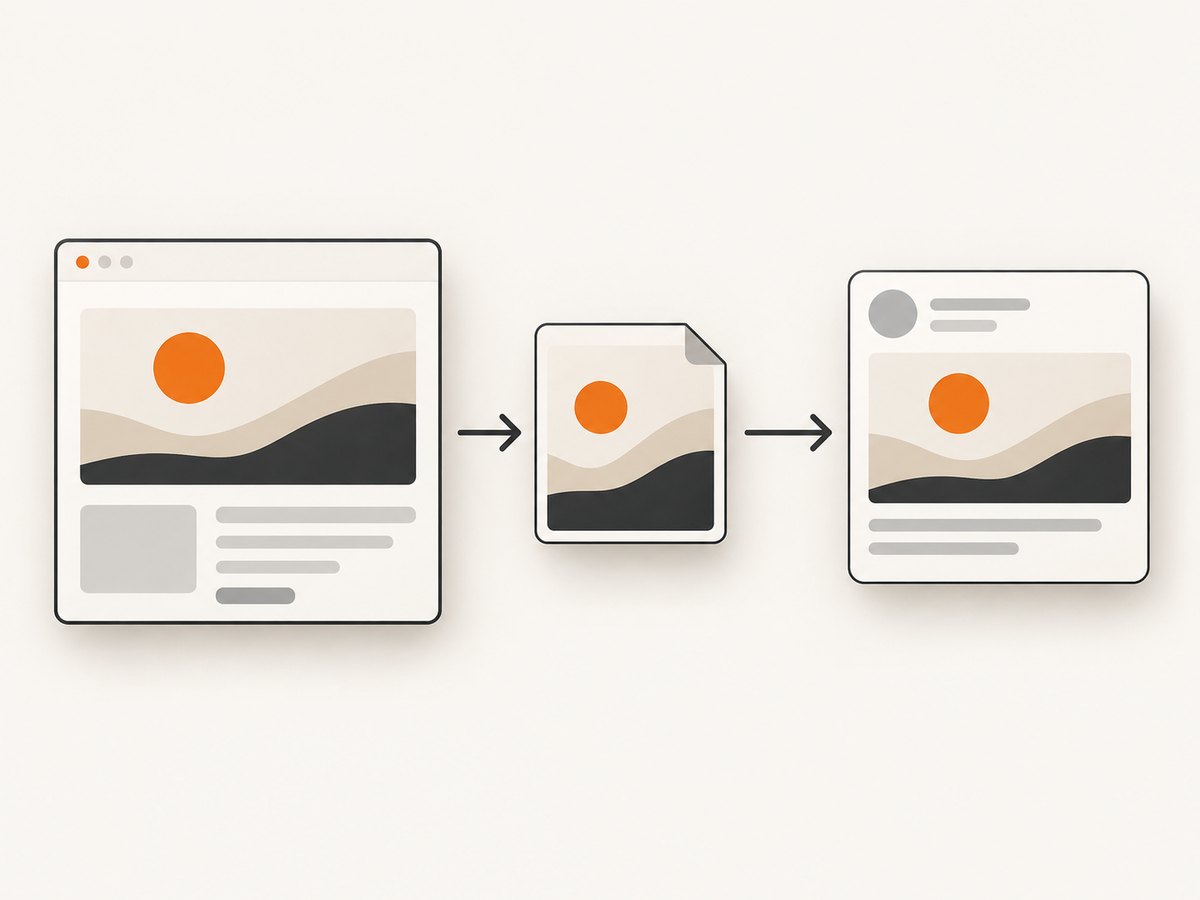
Open Graph (OG) metadata tells social networks and messaging applications which title, description, and image to display when someone shares a URL. The image is usually the most visible part of the preview. If it is too small, uses an unsupported format, has the wrong aspect ratio, or has not been scraped again after a change, a platform may show a blank card, an old image, or a badly cropped result.
Webflow stores the image choice at the page level. That means changing the image for one static page does not automatically change every other page. CMS Collection pages use a related field so each item can supply its own image.
Recommended Webflow Open Graph image size
Use 1200 × 630 px as your standard working size. This is a 1.91:1 ratio and is Webflow’s recommended minimum target for broad social compatibility. LinkedIn documents a 1200 × 627 px minimum, a 5 MB maximum, and the same 1.91:1 recommended ratio. Designing at 1200 × 630 gives you enough pixels for most services while staying close to LinkedIn’s proportions.
| Property | Recommended choice | Why it matters |
|---|---|---|
| Canvas | 1200 × 630 px | Matches the common 1.91:1 social card shape. |
| Aspect ratio | 1.91:1 | Reduces unexpected cropping between networks. |
| Format | JPG or PNG | Supported reliably by Webflow and major crawlers. |
| File size | Keep it below 5 MB | LinkedIn lists 5 MB as its maximum. |
| Text placement | Keep critical text away from edges | Some platforms crop or overlay controls. |
Webflow warns that some platforms do not support WebP or AVIF for OG images. Use JPG or PNG when the same asset must work across multiple networks. In Webflow’s Assets panel, do not compress an asset that is linked as an OG image; Webflow recommends leaving that asset uncompressed for reliable social rendering.
Set an Open Graph image on a Webflow page
- Open your Webflow project and select the Pages panel.
- Choose the page whose social preview you want to change.
- Open Page settings.
- Find Open Graph settings.
- For the image, click Select image and choose a JPG or PNG from Assets. Alternatively, choose Add URL and paste a publicly accessible image-file URL.
- Click Save.
- Click Publish and publish the relevant domain.
The image must be reachable by an unauthenticated crawler. A file that works only inside your Webflow Designer, behind a login, or on a private staging host cannot be fetched by social preview bots.
Use a public image URL
The URL option is useful when your team stores generated assets in a public object store or image CDN. Paste the URL of the image file itself, not a page that displays the image. Check that the address returns an image response without requiring cookies, a token that expires immediately, or a browser challenge.
Set OG images for Webflow CMS Collection pages
Collection pages use the same Page settings area, but the image is normally mapped to a CMS field:
- Open the Collection template or the relevant Collection page settings.
- Open Open Graph settings.
- Choose Add field.
- Select an Image field such as a main image, cover image, or thumbnail.
- Save and publish.
All Open Graph images in one Collection must share the same dimensions. If one item is 1200 × 630 and another is a square or portrait image, social services may crop them differently and your previews will look inconsistent. Create a CMS content rule that requires the same source dimensions before editors publish new items.
CMS asset checklist
- Every image is 1200 × 630 px, or follows one documented ratio.
- Every file is JPG or PNG.
- Important faces, logos, and headings sit inside a safe area near the center.
- No source file exceeds the platform’s size limit.
- The Image field never returns an empty value for published items.
- After changing the field mapping, the site is published again.
Add explicit image dimensions in the document head
Webflow’s guidance shows that explicit dimensions can help crawlers render a preview faster. If every page uses the same dimensions, add these tags under Site settings → Custom code → Head code:
<meta property="og:image:width" content="1200">
<meta property="og:image:height" content="630">
If dimensions vary by page, add the tags under Pages → Page settings → Inside <head> tag for each page instead. Replace the values when the actual image has a different size. These tags describe the image; they do not resize it.
Design the image for social cropping
A correct canvas does not guarantee a useful preview. Social clients can crop, scale, or place controls over the image. Keep the subject and any essential text within a central safe area. Avoid putting a headline against the extreme top, bottom, or side edges. Use high contrast and a font size that remains readable when the card is shown at a few hundred pixels wide.
Do not place all meaning in tiny text. The OG image should still communicate the page topic when the title and description are truncated. If the image includes a product screenshot, simplify it or enlarge the relevant area rather than showing an unreadable full interface.
Validate a Webflow Open Graph image after publishing
- Publish the site to the production domain.
- Open the page source or crawler-facing response and confirm that
og:imagepoints to the intended file. - Open the image URL in a private browser window. Confirm it loads without a Webflow login or special cookie.
- Run the page URL through Meta’s Sharing Debugger to scrape the latest metadata.
- Share the URL in the target service and check the actual crop, title, description, and image.
Webflow recommends publishing first, then running the URL through Meta’s debugger when a preview is missing or stale. If a preview was generated for the first time and still does not update, removing and re-adding the link can trigger a fresh fetch in some clients.
What to inspect in the HTML
<meta property="og:title" content="Your page title">
<meta property="og:description" content="A concise description">
<meta property="og:image" content="https://example.com/social-card.jpg">
<meta property="og:image:width" content="1200">
<meta property="og:image:height" content="630">
The exact title and description are outside the scope of image sizing, but checking them at the same time helps separate an image problem from a broader metadata problem.
Common problems and fixes
| Symptom | Likely cause | Fix |
|---|---|---|
| No image in the preview | The site or page was not published, or the image URL is private. | Publish the production domain and open the image URL without signing in. |
| Old image still appears | The social crawler cached the previous result. | Use Meta’s Sharing Debugger to scrape again, then retry the share. |
| Image is cropped strangely | The source is not close to 1.91:1 or the subject is near an edge. | Export at 1200 × 630 and move critical content toward the center. |
| Image works on one service but not another | Format or file-size support differs. | Use JPG or PNG and keep the file below 5 MB. |
| Some CMS pages have no image | The Image field is empty for those items. | Populate the field, republish, and scrape the URL again. |
| Collection cards look inconsistent | Images have different pixel dimensions. | Normalize every Collection image to one documented size. |
| Image URL returns a redirect loop | The host requires a session or redirects between HTTP and HTTPS. | Use a direct HTTPS image URL with a normal 200 response. |
| Image is blurry | The source is smaller than the rendered card or was compressed repeatedly. | Start with a 1200 × 630 source and avoid extra compression in Webflow Assets. |
Automate image preparation and checks
If your team publishes many pages, automate the parts that are easy to get wrong. A build step can reject files that are not 1200 × 630, are not JPG or PNG, exceed 5 MB, or have an empty CMS field. It can also check that the public URL returns an image content type and a successful response before content is published.
For generated cards that include a rendered page, keep the capture process separate from Webflow’s metadata configuration. Generate the asset, inspect its dimensions and format, upload it to a public location, then set that URL or CMS field in Webflow. This makes it possible to replace an image without changing the page layout.
Or skip the browser setup
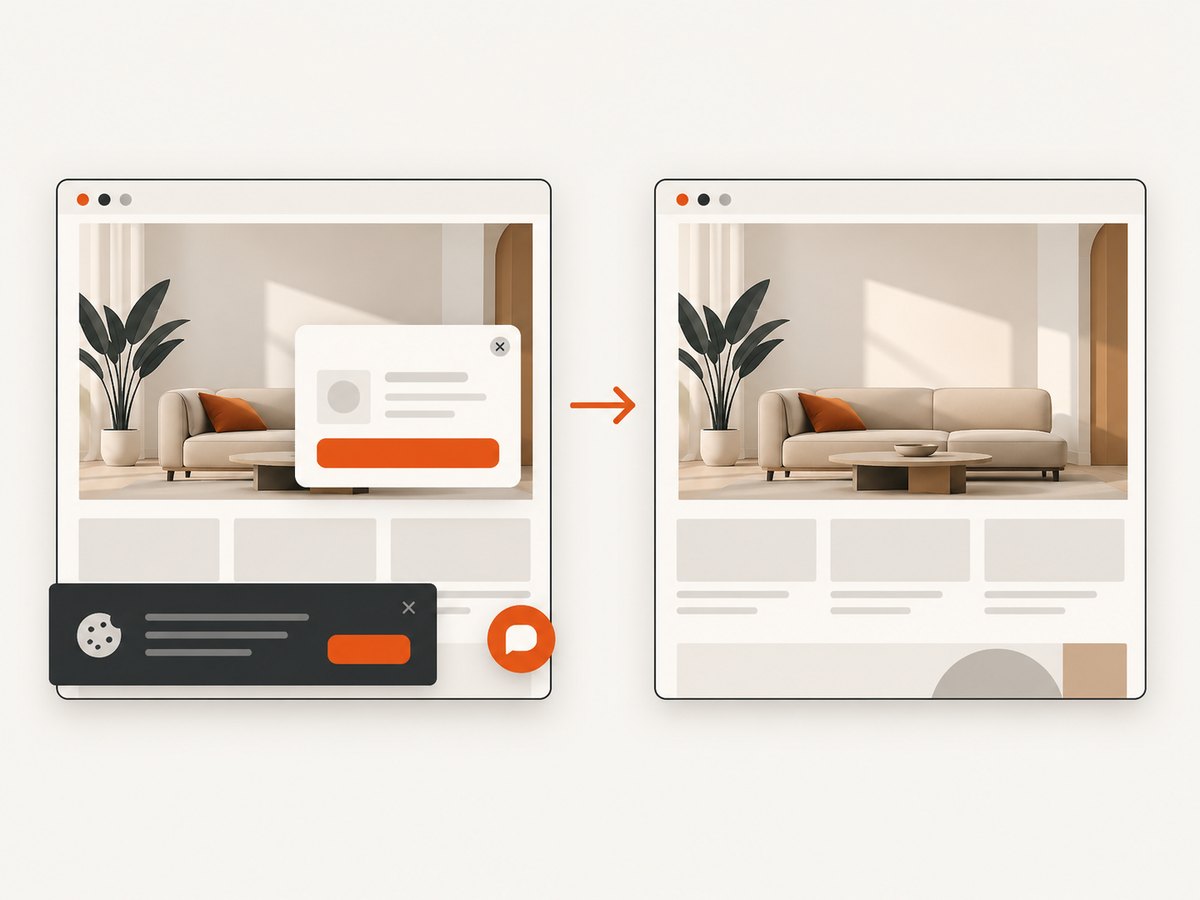
When the OG image is a screenshot of a live page, ScreenshotNeo can create the asset through one HTTP request. It is a website screenshot API and MCP server from ScreenshotNeo. Cookie and consent banners are accepted and removed before capture, along with more than 60 known consent platforms, newsletter popups, and chat widgets. Bot checks, blank pages, timeouts, failed loads, and cache hits are not billed, and each response identifies the result with X-Page-Verdict and X-Billed headers. An MCP server lets Claude, Cursor, and other MCP clients call take_screenshot, get_page_info, and capture_pdf.
Use the API documentation at screenshotneo.com/docs for the full option list. The request below captures a page that you can then crop or compose into a 1200 × 630 JPG or PNG for Webflow.
cURL
curl -G "https://api.screenshotneo.com/v1/shot" \
  -d access_key=YOUR_API_KEY \
  --data-urlencode url=https://stripe.com \
  -o shot.webp
Python
import requests

r = requests.get(
    "https://api.screenshotneo.com/v1/shot",
    params={"access_key": "YOUR_API_KEY", "url": "https://stripe.com"},
    timeout=90,
)
r.raise_for_status()
open("shot.webp", "wb").write(r.content)
Node.js
const q = new URLSearchParams({ access_key: 'YOUR_API_KEY', url: 'https://stripe.com' });
const res = await fetch(`https://api.screenshotneo.com/v1/shot?${q}`);
if (!res.ok) throw new Error(`Screenshot failed: ${res.status}`);
const buffer = Buffer.from(await res.arrayBuffer());
await import('node:fs/promises').then(fs => fs.writeFile('shot.webp', buffer));
ScreenshotNeo supports full-page capture with lazy images loaded, element capture by CSS selector, dark mode, device presets, custom viewports, retina scale, custom CSS and JavaScript, clicks, selector or network-idle waits, request blocking, headers, cookies, user agents, authorization, timezone, geolocation, transparent backgrounds, resizing, caching with a chosen TTL, signed links, asynchronous jobs with signed webhooks, bulk capture of up to 100 URLs per call, a usage API, and an OpenAPI specification. The parameter names used by other screenshot APIs also work, which can simplify a migration.
For a Webflow OG asset, request a stable viewport, wait for the hero element, hide overlays if needed, and resize or compose the result to 1200 × 630 before assigning it in Webflow. Use JPG or PNG for the final OG file even if the capture response is WebP.
Performance, reliability, and cost notes
- Use a selector wait or network-idle wait when the page renders content after the initial HTML.
- Use caching with a TTL when the same source page is captured repeatedly.
- Use bulk capture for a batch of Collection assets instead of opening one browser per URL.
- Inspect
X-Page-VerdictandX-Billedso failed or blank captures do not silently enter your asset library. - The Free plan includes 1,000 screenshots per month with no card. Paid plans start at $5 for 3,000 shots; yearly billing gives two months free.
Create a free ScreenshotNeo account to get 1,000 screenshots a month with no card. Every feature is available on every plan.
FAQ
Can I use one OG image for every Webflow page?
Yes. Set the same image in each page’s Open Graph settings, or use a shared image strategy for your templates. CMS Collection items can also point to one common Image field value, although unique images usually make previews more useful.
Is 1200 × 630 exactly required?
No. It is the practical cross-platform target. Other dimensions can work, but a 1.91:1 image reduces cropping surprises and matches Webflow’s recommendation.
Can I use a WebP OG image?
Use JPG or PNG for reliable support. Webflow warns that some platforms do not support WebP or AVIF for Open Graph images.
Why did publishing not update my social preview?
Publishing changes the page, but social networks may still have a cached scrape. Run the URL through Meta’s Sharing Debugger and share it again after the debugger fetches the new metadata.
Should CMS images all have the same dimensions?
Yes. Webflow states that all Open Graph images in a Collection must share the same dimensions.
Final checklist
- Image is 1200 × 630 px at a 1.91:1 ratio.
- File is JPG or PNG and under 5 MB.
- Critical content is inside the central safe area.
- Page-level image is set under Pages → Page settings → Open Graph settings.
- CMS images use one Image field and consistent dimensions.
- Site is published to the production domain.
- Image URL loads publicly with no login or browser challenge.
- Meta’s Sharing Debugger has scraped the updated URL.


