Webpage Capture Tools
Choose the right way to save a webpage: a portable MHTML snapshot, an interactive WARC/WACZ session, a scheduled crawl, or an API screenshot.
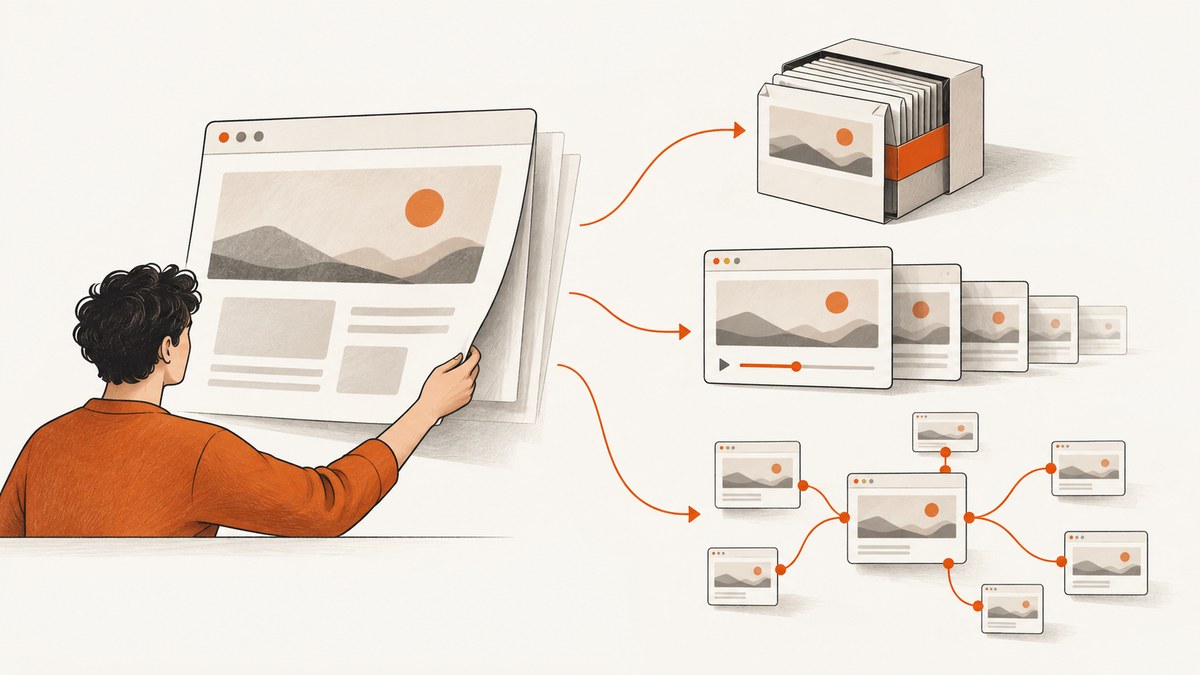
Choose a capture method by deciding what you need to keep. For one portable page snapshot, use Chrome’s MHTML capture. To preserve a browsing session for offline replay, use ArchiveWeb.page and export WARC or WACZ. For scheduled or whole-site archiving, investigate Browsertrix. If you need a clean image or PDF of a page for an application, report, or AI workflow, use a screenshot API such as ScreenshotNeo. These outputs solve different problems: a screenshot is a visual record, while an archive may preserve resources and interaction history for replay.
There is no universally complete capture. Pages can load content only after scrolling, clicking, authentication, or waiting; your chosen method and the page itself determine what gets recorded. This guide explains the practical distinctions, setup, verification steps, limitations, and troubleshooting.
1. Match the tool to the capture job
| Need | Start with | Output and replay | Key caveat |
|---|---|---|---|
| Save one browser tab as a portable file | Chrome MHTML capture | A single MHTML file containing a page and resources | Chrome documents that MHTML files can be loaded only from the filesystem and only in the main frame. |
| Record pages as you browse, including network activity | ArchiveWeb.page | WARC or WACZ; view offline with ReplayWeb.page | Confirm capture is active and wait for pending URLs to finish processing. |
| Automate recurring or whole-site archiving | Browsertrix | Hosted automated archiving and scheduled crawls | Check current service terms and plans; this guide makes no price claims. |
| Get an image or PDF for an app, report, or agent | ScreenshotNeo API | PNG, JPEG, WebP, or PDF response | A screenshot records rendered appearance, not a replayable archive of the page’s network history. |
Chrome’s official API reference puts its MHTML use plainly: “Use the chrome.pageCapture API to save a tab as MHTML.” See the Chrome pageCapture documentation for its documented behavior and restrictions.
2. Save one page with Chrome’s MHTML API
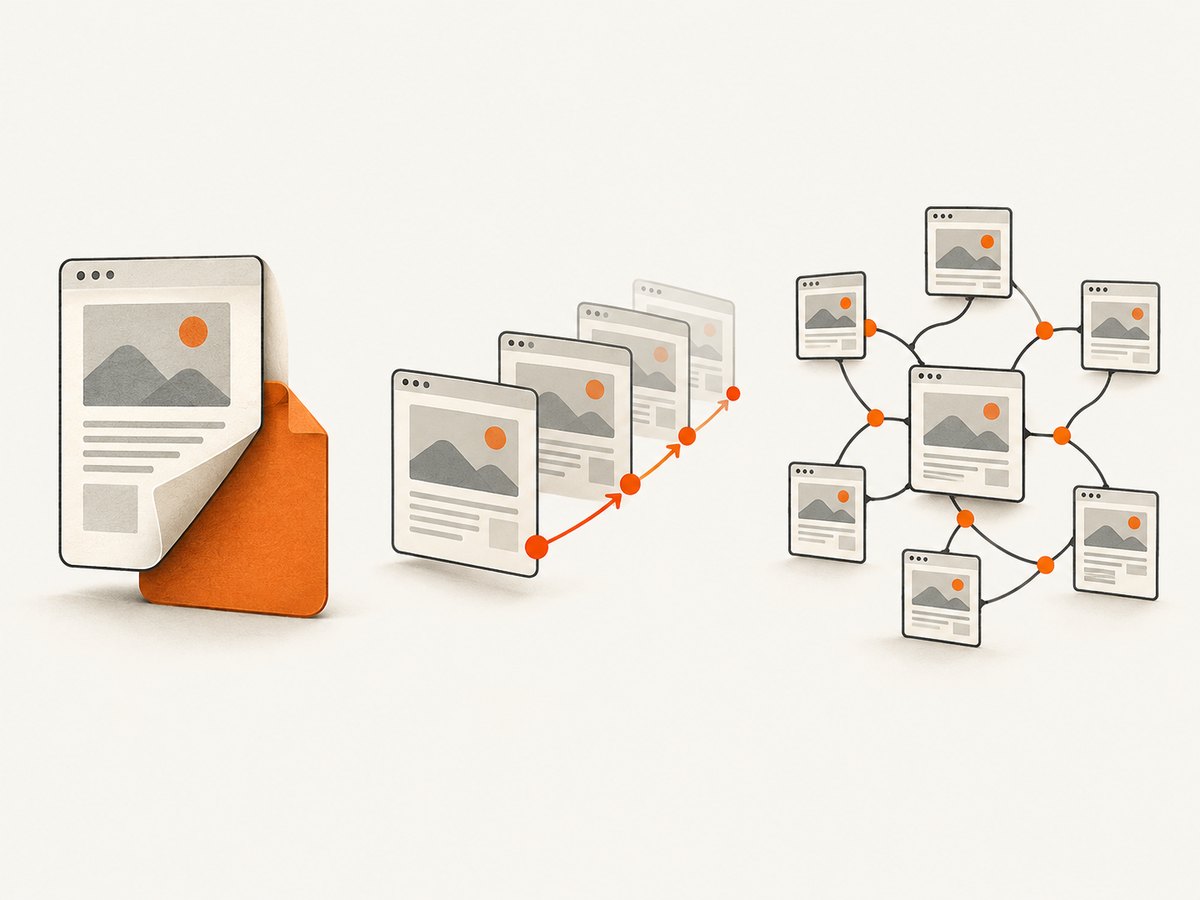
MHTML is useful when you want one packaged file containing the page and resources such as CSS and images. Chrome’s API is an extension API, not a command-line switch you can call from an ordinary web page. To automate it, create a Chrome extension with the pageCapture permission, then invoke chrome.pageCapture.saveAsMHTML for a tab.
Minimal extension example
Create a directory with the following two files. Load the directory as an unpacked extension from chrome://extensions with Developer mode enabled. Open the target page, click the extension action, and choose where to save the returned file through the browser download flow.
{
  "manifest_version": 3,
  "name": "Save current tab as MHTML",
  "version": "1.0.0",
  "permissions": ["pageCapture", "activeTab", "downloads"],
  "action": { "default_title": "Save tab as MHTML" },
  "background": { "service_worker": "background.js" }
}
chrome.action.onClicked.addListener(async (tab) => {
if (!tab.id) return;
try {
const blob = await chrome.pageCapture.saveAsMHTML({ tabId: tab.id });
if (!blob) throw new Error("Chrome returned no MHTML data");
const url = URL.createObjectURL(blob);
await chrome.downloads.download({
url,
filename: "page.mhtml",
saveAs: true
});
// Keep the object URL alive while the download starts.
setTimeout(() => URL.revokeObjectURL(url), 60_000);
} catch (error) {
console.error("Could not save this tab as MHTML:", error);
}
});The capture call operates on a tab ID. The activeTab permission grants temporary access after a user gesture; downloads is used to save the blob. Follow the current API reference and extension platform requirements when adapting the example. Test with pages you are authorized to save.
Open and verify the MHTML file
- Wait for the browser download to complete, then locate the file in the download folder.
- Open the file from the filesystem in Chrome. The Chrome documentation says MHTML loads only from the filesystem and only in the main frame.
- Check representative images, styles, and text. A visually incomplete page may depend on resources or state that were not present in the captured tab.
- Keep the original file unchanged if it is being used as a record. Store a separate copy before moving or transforming it.
MHTML is a snapshot, not a promise that every web application can be reconstructed. A page may render content only after an interaction or may rely on remote services. The capture represents what was available in the tab at capture time; it does not create a browsable site-wide crawl.
3. Record an interactive browsing session with ArchiveWeb.page
Use ArchiveWeb.page when you need to browse and record a session, then retain WARC or WACZ output for offline replay. Webrecorder describes ArchiveWeb.page as a Chrome/Chromium-based extension and desktop app. Captured data stays local unless you share it, and ReplayWeb.page can be used to view captures offline. Its project describes capturing network traffic through Chrome’s debugging protocol.
Capture checklist
- Install the ArchiveWeb.page extension or standalone app from the official ArchiveWeb.page project.
- Start a recording before navigating to the page or performing the actions you want preserved.
- Keep the capture status banner visible. The guide says that without the banner, the extension is not capturing.
- Perform the relevant actions: scroll, open menus, follow links, or load content that matters to the record.
- If the indicator is yellow or pending, wait for URLs to finish processing before navigating away or ending the capture.
- Export the session in WARC or WACZ format and open it with ReplayWeb.page to check what was preserved.
ArchiveWeb.page documents Autopilot behaviors that can scroll or interact with certain complex pages, including some single-page social-media or infinite-scroll cases. Treat this as a helper for particular scenarios, not a guarantee of completeness. Authentication, anti-bot challenges, private content, or site-specific scripts may affect capture. Check the exported replay rather than assuming that every visible or hidden state was recorded.
Local storage and backups
Because ArchiveWeb.page keeps captures locally, plan where the resulting files should live and how they will be backed up. An external SSD is one optional place to store or move a collection; it is not required for capture. Keep a separate backup if the archive matters, and document the capture date and source URL alongside your own collection metadata.
4. Automate scheduled or whole-site archiving
When manual browsing is not enough, Webrecorder identifies Browsertrix as its cloud-hosted platform for automated archiving, including scheduled crawls and whole-site workflows. Start with the official Browsertrix information and verify current plan, access, and service details before choosing it. The available research does not establish current pricing or terms.
Before configuring a crawl, write down its scope: seed URLs, allowed paths or domains, schedule, and the content that must be represented. A broad crawl can collect more than intended, while a narrow scope can omit linked sections. Confirm permissions and your organization’s retention rules, especially for authenticated or personal data. After a run, inspect a sample of the replay and check whether important paths, assets, and interactive states are present.
5. Capture a visual screenshot or PDF with an API
A screenshot API is a fit when your deliverable is a rendered image or PDF rather than an offline replay archive. ScreenshotNeo is a website screenshot API and MCP server for developers. A GET request with a URL can return PNG, JPEG, WebP, or PDF. The product supports full-page and selector capture, device and viewport settings, dark mode, retina scale, PDF options, custom CSS and JavaScript, interaction and wait controls, request blocking, headers and cookies, timezone and geolocation, transparent backgrounds, resizing, caching, signed links, async jobs, bulk capture, a usage API, and an OpenAPI spec. See the ScreenshotNeo API documentation for parameter details.
Quick start with cURL
Get an API key, replace the example URL if needed, and save the response body to a file. The API key should be kept out of public client-side code.
curl -G "https://api.screenshotneo.com/v1/shot" \
  -d access_key=YOUR_API_KEY \
  --data-urlencode url=https://stripe.com \
  -o shot.webp
Python
import requests

r = requests.get(
    "https://api.screenshotneo.com/v1/shot",
    params={"access_key": "YOUR_API_KEY", "url": "https://stripe.com"},
    timeout=90,
)
r.raise_for_status()
with open("shot.webp", "wb") as f:
    f.write(r.content)
Node.js
const q = new URLSearchParams({
  access_key: "YOUR_API_KEY",
  url: "https://stripe.com",
});
const res = await fetch(`https://api.screenshotneo.com/v1/shot?${q}`);
if (!res.ok) throw new Error(`Screenshot request failed: ${res.status}`);
const bytes = Buffer.from(await res.arrayBuffer());
await import("node:fs/promises").then(({ writeFile }) =>
  writeFile("shot.webp", bytes)
);
These are intentionally small examples. Before using a response in a production pipeline, follow the docs for the requested output format and relevant capture parameters. Handle non-success responses, timeouts, and file writes. The Node.js example uses a modern runtime with built-in fetch.
Common capture controls
| Requirement | Relevant control | Use it when |
|---|---|---|
| Capture an entire long page | Full-page capture, with lazy images loaded | The deliverable must include content below the initial viewport. |
| Capture a chart, card, or component | CSS selector element capture | You need one region and can identify it reliably. |
| Match a device or layout | One of 12 device presets, or a custom viewport; retina scale | Responsive layout or pixel density matters. |
| Produce a print artifact | PDF paper size, margins, landscape, and page ranges | You need a paginated document rather than a bitmap. |
| Wait for app state | Wait for a selector, a delay, or network idle; click an element before capture | Content appears after client rendering or interaction. |
| Remove or restyle page content | Custom CSS/JavaScript, hide selectors, transparent background | You control the desired final presentation. |
| Control request behavior | Block ads, trackers, requests, or resource types | Unneeded resources affect the desired capture. |
| Reproduce a location or session | Custom headers, cookies, user agent, timezone, geolocation, Authorization | The rendered page depends on request or browser context. |
| Deliver at scale | TTL caching, signed image links, async jobs with signed webhooks, bulk capture up to 100 URLs per call | You need repeatable delivery or multiple URLs. |
6. Or skip the browser setup
For a screenshot or PDF without building and maintaining a browser capture flow, use ScreenshotNeo’s one-call API. The examples below use the documented endpoint; see the API docs for output and capture options.

curl -G "https://api.screenshotneo.com/v1/shot" -d access_key=YOUR_API_KEY --data-urlencode url=https://stripe.com -o shot.webpScreenshotNeo accepts cookie and consent banners like a visitor and removes 60+ known consent platforms, newsletter popups, and chat widgets before capture; each step can be turned off. Bot checks and CAPTCHAs, blank pages, timeouts, failed loads, and cache hits cost nothing, and responses identify the page verdict and billing status in X-Page-Verdict and X-Billed headers. Its MCP server offers take_screenshot, get_page_info, and capture_pdf for Claude, Cursor, and other MCP clients. The free plan includes 1,000 shots per month with no card; paid plans start at $5 for 3,000 shots. Every feature is on every plan.
Sign up free for 1,000 screenshots a month with no card.
7. Troubleshooting and edge cases
| Symptom | Likely cause | What to do |
|---|---|---|
| MHTML download is empty or fails | The tab ID is missing, the API returned no blob, or the extension permission/setup is wrong. | Check the active tab ID, inspect the service-worker console, confirm the pageCapture permission, and handle a null result. |
| MHTML opens differently than the live page | The page relied on remote services, interaction state, or resources unavailable to the snapshot. | Capture after required content has loaded, verify representative assets, and use session capture if you need to preserve browsing activity. |
| ArchiveWeb.page appears not to capture | The capture banner is absent or recording was not started. | Start capture and keep the banner visible while browsing. |
| Some recently visited URLs are missing from an archive | They may still be pending processing. | Wait for the yellow/pending state to clear before leaving the page or ending capture. |
| Infinite scroll or a single-page app is incomplete | Content may not have been loaded or interacted with during capture; Autopilot is limited to documented scenarios. | Scroll and trigger the states that matter, then inspect replay. Do not assume Autopilot covers every site. |
| Screenshot is blank or missing content | The page may still be loading, require a selector or interaction, or be blocked by a challenge. | Use an appropriate selector, delay, network-idle wait, or click control. Check the response verdict and billing headers. |
| API request times out | The target page or its resources may be slow. | Set a suitable client timeout, reduce unnecessary work, and use the documented async workflow for jobs that should not hold an interactive request open. |
| Output is the wrong format or dimensions | Format, viewport, scale, or PDF settings do not match the downstream use. | Set the relevant output, viewport/device, retina, resize, or PDF controls and validate the saved artifact. |
8. Performance, reliability, and cost
For archives, the main operational question is whether the capture scope and replay preserve the material you need. Allow pending URLs to finish, keep local captures backed up, and periodically open representative records. For API screenshots, large full-page captures, extra waits, and unnecessary resources can increase end-to-end latency; choose the smallest viewport or region that serves the job and wait only for the state you need. This is operational guidance, not a comparative benchmark.
ScreenshotNeo offers caching with a TTL you choose, async jobs with signed webhooks, and bulk capture of up to 100 URLs per call. Use caching when a repeat capture within the TTL can reuse an acceptable result; use async jobs when work should complete outside the request/response path. Check the documented billing headers rather than assuming a failed capture is billed.
ScreenshotNeo pricing is Free for 1,000 shots/month with no card; Starter is $5 for 3,000; Growth $15 for 15,000; Pro $39 for 60,000; Scale $99 for 250,000; and Business $249 for 1,000,000. Yearly billing gives two months free. Every feature is available on every plan. For Browsertrix, consult current service information because this guide does not establish prices or plan terms. MHTML and local ArchiveWeb.page capture do not require a ScreenshotNeo API plan.
9. Short FAQ
Can a screenshot replace a web archive?
No. A screenshot is a visual artifact. MHTML packages a page and resources, and WARC/WACZ can preserve a browsed session for replay.
Can I open MHTML from a hosted URL?
Chrome’s cited documentation says MHTML can be loaded from the filesystem and only in the main frame.
Does ArchiveWeb.page capture every interaction automatically?
No such guarantee is established. Its Autopilot supports certain complex cases; perform and verify the interactions that matter.
Which option is best for an AI agent that needs a page image?
Use a screenshot API or MCP tool. ScreenshotNeo provides an MCP server with screenshot, page-info, and PDF capture tools.
Do I need an external drive for local captures?
No. It is an optional place to store or move files, not a requirement for capturing pages.


