How to Take a Webpage Screenshot After Running JavaScript
Use Playwright or Puppeteer to wait for rendered content, run page JavaScript, and capture a reliable viewport, full-page, or element screenshot.

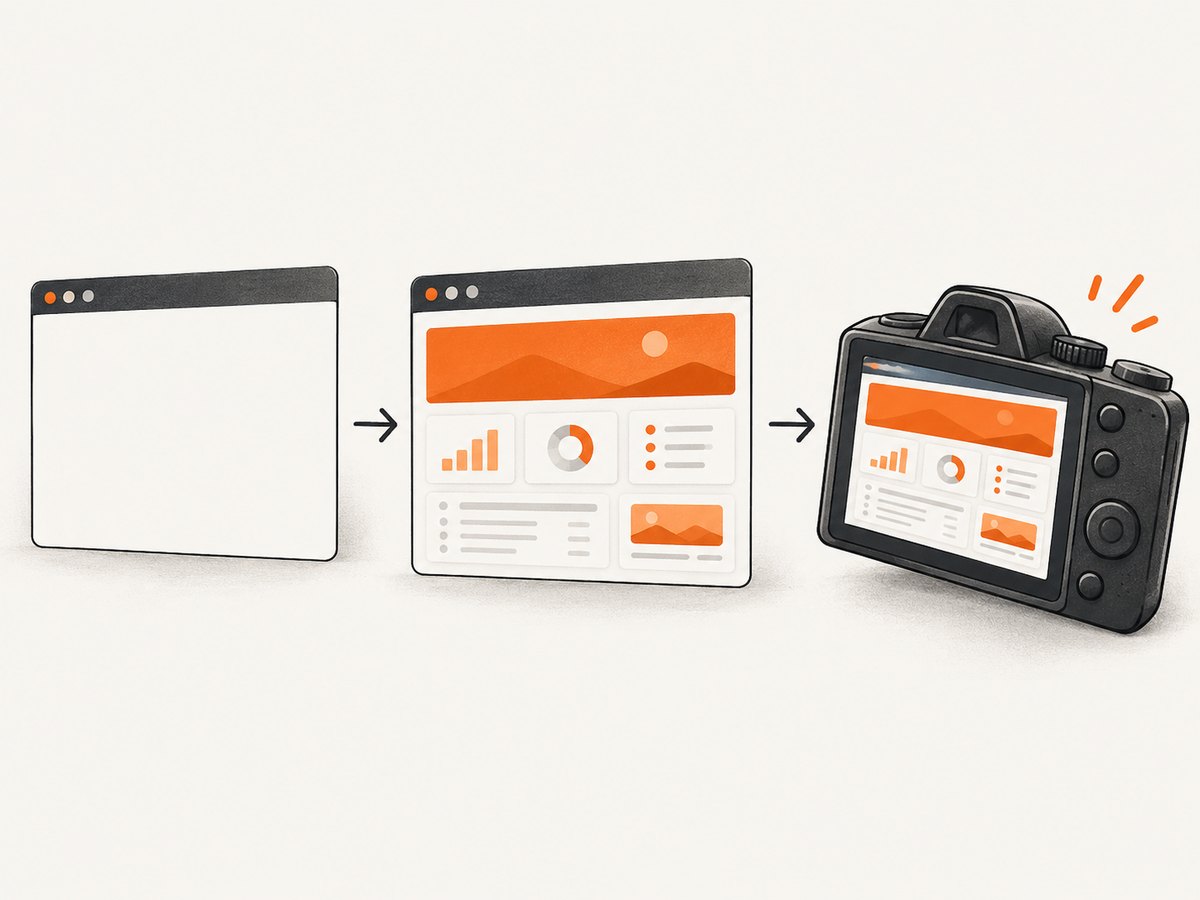
Direct answer: use a real browser automation library. A plain HTTP request downloads HTML but does not execute the page’s JavaScript, so it cannot reliably capture content rendered by a client-side application. With Playwright or Puppeteer, navigate to the URL, wait for the state that means your content is ready, optionally run page-side JavaScript, then call the screenshot API.
The most reliable readiness signal is usually a meaningful selector, expected text, or application state. A navigation event or a quiet network is only a proxy. Playwright documents several navigation wait states, including commit, domcontentloaded, load, and networkidle; its API reference specifically discourages using network idle as a universal readiness test. Read the Playwright Page API.
1. Install a browser automation library
This article uses JavaScript with Playwright. Node.js 18 or newer is a practical baseline because the examples use the built-in fetch API later. Install Playwright and its browser binaries:
npm install playwright
npx playwright install chromium
Puppeteer is a valid alternative when it already matches your project. Its official screenshot guide documents the same basic sequence: open a page, wait for it to be ready, and call page.screenshot(). See the Puppeteer screenshots guide and the Page.screenshot API.
2. Capture after the rendered content is ready
The following script waits for a selector that represents the page state you actually want. Replace main with a result container, chart, product card, or other element that appears only after your JavaScript has finished the relevant work.
const { chromium } = require('playwright');

(async () => {
  const browser = await chromium.launch();
  const page = await browser.newPage({
    viewport: { width: 1440, height: 900 },
    deviceScaleFactor: 1
  });

  try {
    await page.goto('https://example.com', { waitUntil: 'domcontentloaded' });
    await page.locator('main').waitFor();
    await page.screenshot({ path: 'page.png', fullPage: true });
  } finally {
    await browser.close();
  }
})();
This is an illustrative synthesis of documented Playwright capabilities. The selector and URL must match the target application. A page can finish its initial load while still fetching data, hydrating a framework, decoding images, or starting an animation.
Run JavaScript in the page context
Use page.evaluate() when you need to trigger a page-side action or inspect state before the capture. If the function returns a promise, Playwright waits for that promise to resolve. This lets you await a page-owned operation rather than guessing with a fixed delay.
const { chromium } = require('playwright');

(async () => {
  const browser = await chromium.launch();
  const page = await browser.newPage();

  try {
    await page.goto('https://example.com', { waitUntil: 'domcontentloaded' });

    await page.evaluate(async () => {
      // Replace this with an application-specific action.
      // For example, wait for a page global set by your app.
      if (window.appReady) {
        await window.appReady;
      }
    });

    await page.locator('main').waitFor();
    await page.screenshot({ path: 'after-javascript.png', fullPage: true });
  } finally {
    await browser.close();
  }
})();
Do not use evaluate() to invent a readiness condition that the application does not expose. Prefer a visible assertion, a known result element, or a state transition your application controls.
3. Choose the correct screenshot scope
Playwright captures the visible viewport by default. Use the option that matches how the image will be used:
| Scope | Playwright option | Use it for |
|---|---|---|
| Viewport | No extra option | A screenshot of what a user currently sees. |
| Full page | fullPage: true |
Documentation, audits, visual regression, or a page that extends below the fold. |
| Element | locator.screenshot() |
A chart, form, card, invoice, or other isolated component. |
Viewport and full-page examples
await page.setViewportSize({ width: 1280, height: 800 });
await page.screenshot({ path: 'viewport.webp', type: 'webp', quality: 85 });
await page.screenshot({ path: 'full-page.png', fullPage: true });
Full-page capture uses the page’s scrollable dimensions. Very long pages can produce large images and consume more memory. If you only need a component, capture that component instead:
const chart = page.locator('[data-testid="revenue-chart"]');
await chart.waitFor();
await chart.screenshot({ path: 'chart.png' });
4. Make dynamic pages deterministic
Wait for a selector or expected text
A selector is usually stronger than a timer. You can also assert text or visibility before saving the image:
await page.locator('[data-testid="results"]').waitFor({ state: 'visible' });
await page.getByText('Report complete').waitFor();
await page.screenshot({ path: 'report.png', fullPage: true });
Choose a signal that means the visual state is complete, not merely that a container exists. An empty main element may appear before its children are rendered.
Use a bounded delay only when the page requires it
await page.waitForTimeout(750);
await page.screenshot({ path: 'delayed.png' });
A delay can handle a short animation or a third-party widget, but it is less reliable than waiting for a real condition. Keep it bounded so a failed request does not stall the job indefinitely.
Lazy-loaded images and infinite scroll
Full-page screenshots can miss images that load only after an element approaches the viewport. If the site uses lazy loading, scroll through the page before capturing and then wait for the images you require:
await page.evaluate(async () => {
  await new Promise(resolve => {
    let y = 0;
    const step = 600;
    const timer = setInterval(() => {
      window.scrollBy(0, step);
      y += step;
      if (y >= document.body.scrollHeight) {
        clearInterval(timer);
        resolve();
      }
    }, 100);
  });
});

await page.locator('img').evaluateAll(images =>
  Promise.all(images.map(img => img.complete
    ? Promise.resolve()
    : new Promise(resolve => {
        img.addEventListener('load', resolve, { once: true });
        img.addEventListener('error', resolve, { once: true });
      })))
);

await page.screenshot({ path: 'lazy-loaded.png', fullPage: true });
Infinite-scroll pages have no final height until you define one. Set a business rule such as “capture the first 20 items” or scroll until a “no more results” marker appears.
Hide transient UI before capture
Cookie banners, chat launchers, sticky headers, and animations can obscure the result. If you control the page, use a test mode or a dedicated CSS class. Otherwise, hide known selectors with a style injection:
await page.addStyleTag({
  content: `
    .cookie-banner, .chat-launcher, .newsletter-modal {
      display: none !important;
    }
  `
});
await page.screenshot({ path: 'clean.png', fullPage: true });
Use this carefully: hiding an element changes the visual state you are documenting. Record the selectors in source control so visual changes remain explainable.
5. Control output, scale, and visual state
Screenshot output can be PNG, JPEG, or WebP depending on the API and framework version. PNG is lossless and useful for text or pixel comparisons. JPEG is smaller for photographs. WebP often provides a smaller modern web asset. Playwright also supports device scale factors through the browser context or page configuration.
const context = await browser.newContext({
  viewport: { width: 1440, height: 900 },
  deviceScaleFactor: 2,
  colorScheme: 'dark'
});
const page = await context.newPage();
Set the timezone, locale, color scheme, and viewport explicitly when reproducibility matters. Disable or await animations in visual regression jobs. A page that displays the current time, rotating content, or randomized data needs a deterministic test fixture if pixel equality is expected.
6. Puppeteer equivalent
If your project uses Puppeteer, the flow is similar:
const puppeteer = require('puppeteer');

(async () => {
  const browser = await puppeteer.launch();
  const page = await browser.newPage();
  await page.setViewport({ width: 1440, height: 900 });

  try {
    await page.goto('https://example.com', { waitUntil: 'domcontentloaded' });
    await page.waitForSelector('main', { visible: true });
    await page.screenshot({ path: 'puppeteer.png', fullPage: true });
  } finally {
    await browser.close();
  }
})();
Choose based on the framework already used by your application, its installed version, and the APIs you need. The cited official documentation is the source of truth because method names and supported options can change between versions.
7. Authentication, headers, and cross-origin content
For a page behind a login, create a browser context with the required cookies or perform the login flow before navigating to the target route. Keep credentials in environment variables or a secret store, never in source files or screenshots. If the visual depends on an API request, make sure the browser context has the same authentication state as the page.
Cross-origin iframes are rendered by the browser, but page-side JavaScript cannot freely read their DOM because of the same-origin policy. You can wait for an iframe element or interact with a frame when the framework permits it, but you cannot bypass the target site’s security policy with evaluate(). If the embedded provider blocks automation or requires a separate login, capture the owning page only after confirming the provider’s permitted integration path.
8. Troubleshooting
| Symptom | Likely cause | Fix |
|---|---|---|
| The screenshot is blank | The app has not hydrated, or the URL redirected to a bot check. | Log the final URL and page text, wait for an app-specific selector, and handle bot checks as a failed capture. |
| Data is missing | The screenshot ran after navigation but before the API result arrived. | Wait for the result element or expected text, not only load. |
| Full page is cut off | The page uses a nested scrolling container or has not finished expanding. | Identify the actual scroll container, scroll it, and wait for its final content before capture. |
| Images are placeholders | Lazy loading has not been triggered or image requests failed. | Scroll through the page, wait for img.complete, and inspect failed requests. |
| Cookie dialog covers content | Consent state is new in the browser context. | Set an approved consent cookie, click the consent control, or hide the banner only when that matches your capture policy. |
TimeoutError |
The chosen selector never appears, or the page is slow or blocked. | Verify the selector in a headed run, increase the timeout for this page, and capture diagnostics such as URL and console errors. |
| Fonts differ between runs | Web fonts are still loading or are unavailable in the environment. | Wait for document.fonts.ready, package required fonts where permitted, and use the same browser image. |
| Animations cause pixel differences | The capture occurs at a different animation frame. | Disable animations with injected CSS or wait for a stable application state. |
For difficult failures, save a trace, console messages, network failures, the final URL, and a small diagnostic screenshot. Those artifacts distinguish an application problem from a browser setup problem without guessing.
9. Performance, reliability, and cost considerations
- Reuse browser processes. Launching Chromium for every URL adds startup work. For a queue, keep one browser process and create isolated contexts per job.
- Bound every wait. Use framework timeouts and job-level deadlines so a never-ending request cannot consume a worker.
- Limit concurrency. Several full-page captures can consume substantial CPU and memory, especially at high device scale factors.
- Capture the smallest useful area. Element screenshots are faster and smaller than full-page images when you do not need the entire document.
- Cache stable results. If the source and rendering inputs have not changed, reuse an image instead of opening a new browser job.
- Retry selectively. Retry transient navigation or connection failures, but do not blindly retry bot checks, authentication errors, or a missing selector.
- Measure your own workload. The supplied research does not establish a universal speed, success rate, or cost benchmark for Playwright or Puppeteer.
10. Or skip the browser setup
ScreenshotNeo is a website screenshot API and MCP server. It runs the page in a browser and returns a PNG, JPEG, WebP, or PDF, so client-side JavaScript can render before the image is produced. The API accepts the parameter names used by other screenshot services, which makes switching straightforward. See the ScreenshotNeo API documentation for the complete option list.

cURL
curl -G "https://api.screenshotneo.com/v1/shot" -d access_key=YOUR_API_KEY --data-urlencode url=https://stripe.com -o shot.webpPython
import requests

r = requests.get(
    "https://api.screenshotneo.com/v1/shot",
    params={"access_key": "YOUR_API_KEY", "url": "https://stripe.com"},
    timeout=90,
)
r.raise_for_status()
open("shot.webp", "wb").write(r.content)
Node.js
const q = new URLSearchParams({ access_key: 'YOUR_API_KEY', url: 'https://stripe.com' });
const res = await fetch(`https://api.screenshotneo.com/v1/shot?${q}`);
if (!res.ok) throw new Error(`Screenshot failed: ${res.status}`);
const fs = require('node:fs/promises');
await fs.writeFile('shot.webp', Buffer.from(await res.arrayBuffer()));
ScreenshotNeo supports full-page capture with lazy images loaded, CSS selector element capture, dark mode, 12 device presets and custom viewports, retina scale, PDF paper size and page ranges, HTML/CSS to image, custom JavaScript and CSS, click actions, selector waits, delays, request blocking, custom headers and cookies, user agents, Authorization, timezone and geolocation, transparent backgrounds, resizing, selectable cache TTLs, signed links, asynchronous jobs with signed webhooks, bulk capture of up to 100 URLs per call, a usage API, and an OpenAPI specification.
It also removes cookie and consent banners, newsletter popups, and chat widgets from more than 60 known platforms before capture; each step can be turned off. Bot checks, CAPTCHAs, blank pages, timeouts, failed loads, and cache hits are not billed. The response identifies the result with X-Page-Verdict and X-Billed headers. An MCP server provides take_screenshot, get_page_info, and capture_pdf tools for Claude, Cursor, and other MCP clients.
The Free plan includes 1,000 screenshots per month without a card. Paid plans start at $5 for 3,000 shots; yearly billing gives two months free, and every feature is available on every plan. Create a free ScreenshotNeo account.
11. Short FAQ
Does JavaScript need to be enabled?
Yes. Use a browser automation library or a browser-based screenshot API. An HTTP client alone does not render client-side JavaScript.
Should I wait for networkidle?
Only when it matches the page’s behavior. Playwright labels network idle as discouraged for readiness checks; a selector or expected state is usually more meaningful.
What is the difference between a viewport and full-page screenshot?
A viewport image contains the currently visible area. A full-page image includes the page’s scrollable content and may require extra handling for lazy-loaded elements.
Can I screenshot a single chart?
Yes. Wait for the chart element and call the locator or element screenshot method. This usually produces a smaller, more focused asset.
Why does a screenshot differ between runs?
Common causes include fonts, animations, time-dependent data, random content, viewport differences, and asynchronous requests. Set those inputs explicitly and wait for a stable state.
When should I use an API instead of managing Playwright?
Use an API when you want a single request, built-in cleanup of common overlays, asynchronous jobs, signed links, bulk URLs, or MCP access without maintaining browser binaries and workers.


