Webpage Screenshot Keyboard Shortcuts in Chrome, Firefox, and Edge
Find the shortcut and steps to capture a visible area or full webpage in Chrome, Firefox, and Edge on Windows, Linux, and Mac.
Quick answer: Firefox opens its webpage screenshot tool with Ctrl+Shift+S on Windows/Linux or Command+Shift+S on Mac. Edge uses Ctrl+Shift+S. Chrome’s documented workflow uses DevTools: open its Command Menu with Ctrl+Shift+P on Windows/Linux or Command+Shift+P on Mac, then choose a screenshot command. For Chrome’s entire page, use device mode’s Capture a full size screenshot command.
These are webpage captures, which can include content beyond the visible screen. Windows’ Windows+Shift+S and Windows+PrtScn are separate operating-system shortcuts; they capture a screen region or full screen, rather than invoking Edge’s webpage tool.
1. Shortcut comparison
| Browser / platform | Shortcut | What opens |
|---|---|---|
| Firefox, Windows/Linux | Ctrl+Shift+S | Firefox screenshot tool |
| Firefox, Mac | Command+Shift+S | Firefox screenshot tool |
| Edge | Ctrl+Shift+S | Edge Screenshot feature |
| Chrome, Windows/Linux | Ctrl+Shift+P in DevTools | DevTools Command Menu; then choose a screenshot command |
| Chrome, Mac | Command+Shift+P in DevTools | DevTools Command Menu; then choose a screenshot command |
The modifier matters: use Ctrl on Windows and Linux, and Command on Mac where stated. Chrome’s shortcut is not a direct capture key. It opens a menu inside DevTools, from which you select an action. The exact commands offered depend on the capture you need.
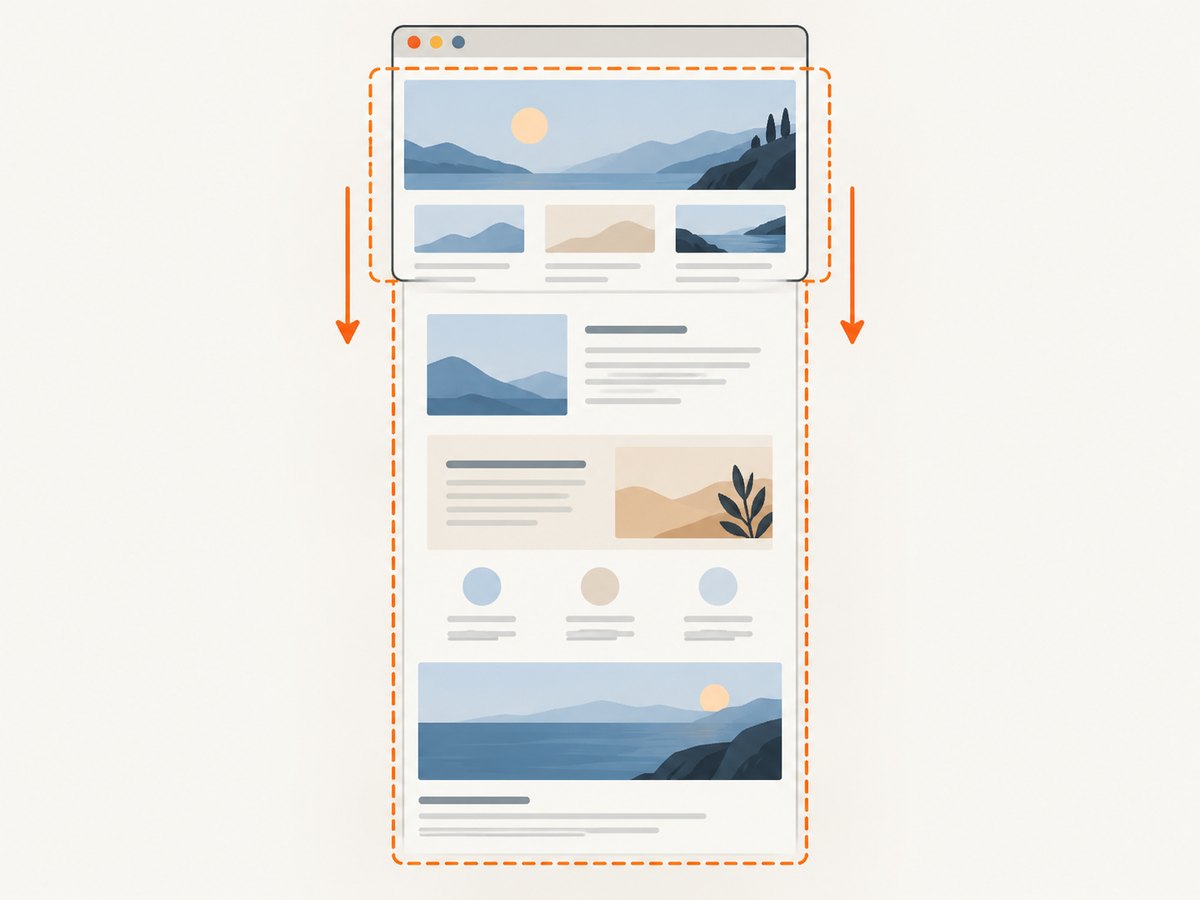
2. Firefox: capture a visible area or full webpage
Firefox has a built-in screenshot tool for visible content and full webpages. Use the keyboard shortcut or open it from the page context menu.
- Open the webpage you want to capture.
- Press Ctrl+Shift+S on Windows/Linux, or Command+Shift+S on Mac.
- Choose the visible-page or full-page capture option. For a specific portion, select the desired area if that option is shown.
- Copy the image or save it, depending on what you need.
You can also right-click an empty part of the page and select Take Screenshot. On Mac, Control-click provides the equivalent context-menu route. Mozilla also documents a toolbar button as another way to reach the feature. The capture tool is browser-specific: if the shortcut is intercepted or unavailable, use the context menu or toolbar instead.
3. Edge: use Screenshot for the whole webpage
In Edge, Ctrl+Shift+S opens Screenshot. The feature can capture a selected area or a full webpage, including content below the current viewport.
- Navigate to the page and wait for the part you need to finish loading.
- Press Ctrl+Shift+S. Alternatively, open Screenshot from the right-click menu or Edge Settings menu.
- Choose Capture full page for the entire webpage, or select an area for a partial capture.
- Use the available markup tools if needed, then copy or save the result.
Microsoft notes that Screenshot availability and functionality can vary by device type, market, and browser version. If the shortcut does nothing, look for the feature in the context or Settings menu. If it is absent there too, the feature may not be available in that environment.
4. Chrome: take a screenshot from DevTools
Chrome’s documented screenshot workflow uses DevTools rather than a one-step browser screenshot shortcut. DevTools can capture an area or other screenshot types from its Command Menu. For a full-page capture, use device mode’s full-size command.
Open the Command Menu
- Open DevTools: on Windows/Linux press Ctrl+Shift+I or F12; on Mac press Command+Option+I.
- With DevTools focused, open the Command Menu: press Ctrl+Shift+P on Windows/Linux or Command+Shift+P on Mac.
- Type
screenshotand select the command that matches the capture you want. - For an area capture, follow the on-screen selection prompt. Chrome’s documentation notes that area capture does not work when DevTools is undocked.
Capture the full page
- Open DevTools and enable device mode using the device toolbar control.
- Open the device mode More options menu.
- Select Capture a full size screenshot.
- Wait for Chrome to create the image, then use the downloaded capture.
This includes page content outside the viewport. If you only want what is currently visible, choose a visible-area command instead. Chrome’s menu names and locations can change between releases, so search the DevTools Command Menu for “screenshot” if a listed item is not where expected.
5. Browser screenshots versus Windows screenshots
Use the browser feature when you need webpage content outside the visible screen, such as a long article. Use a Windows shortcut when you need a picture of what is displayed on the monitor, including browser controls or other apps.
| Shortcut | Scope | Result |
|---|---|---|
| Windows+Shift+S | Selected region of the screen | Starts Windows screen-region capture |
| Windows+PrtScn | Full screen | Saves a screen capture in Pictures\Screenshots |
| Edge Ctrl+Shift+S | Selected area or webpage | Opens Edge Screenshot, including its full-page option |
A full-screen image includes browser chrome such as tabs and address bar. A full-page browser capture targets the webpage and can extend below the visible viewport. The distinction is useful when preparing documentation, reporting a website issue, or sharing a clean page image.
6. Troubleshooting common shortcut problems
| Symptom | Likely cause | What to do |
|---|---|---|
| Firefox shortcut does nothing | Another app or system shortcut intercepted it, or focus is not on the browser page. | Click the page and try again. Use right-click (or Control-click on Mac) and choose Take Screenshot, or use the toolbar button. |
| Edge opens something other than Screenshot | The shortcut may be captured by an extension, system setting, or another app. | Try the page context menu or Edge Settings menu. Check whether Screenshot is available in that browser version and device. |
| Chrome’s Ctrl/Command+Shift+P does not show screenshot options | DevTools is not open or does not have focus; the shortcut opens its Command Menu only within DevTools. | Open DevTools with the platform shortcut, click inside it, then reopen the Command Menu and type “screenshot.” |
| Chrome area capture is unavailable | DevTools is undocked. | Dock DevTools to the browser window and retry the area screenshot command. |
| Chrome full-page capture misses lower content | A visible-area command was selected, or the page had not loaded its lower content. | Use device mode’s Capture a full size screenshot and allow the page to finish loading first. |
| The capture is blank or incomplete | The page is still loading, content appears only after scrolling, or an overlay covers it. | Wait for the page to settle, scroll through lazy-loaded sections if needed, dismiss overlays, and capture again. |
| Shortcut conflicts with an extension | Extensions can register keyboard commands that overlap browser actions. | Use the browser menu path instead of relying on the shortcut; review extension keyboard commands if the conflict persists. |
7. Choosing the right capture method
- Need the fastest built-in full-page capture? Firefox and Edge offer direct screenshot tools from a shortcut. Chrome requires the DevTools workflow.
- Need an exact region? Firefox or Edge can start from their capture tool; Chrome offers area capture through DevTools, while DevTools must be docked for that command.
- Need browser tabs or another app visible? Use the operating system’s screenshot facility rather than webpage capture.
- Need repeatable captures or automation? Manual shortcuts are suitable for one-off work. A scriptable capture service can accept a URL and return an image without requiring the browser workflow each time.
For repeatability, keep the viewport, browser state, and page loading conditions consistent. A page may change between captures because of animation, personalization, cookie consent, or content loaded only after interaction. If a long page loads images while scrolling, check that the chosen method has had a chance to load those sections before saving the result.
8. Or skip the browser setup
ScreenshotNeo is a website screenshot API and MCP server from ScreenshotNeo. One GET request accepts a URL and returns PNG, JPEG, WebP, or PDF. The [API documentation](https://screenshotneo.com/docs/) describes its options. The following runnable cURL example saves a WebP capture:
curl -G "https://api.screenshotneo.com/v1/shot" -d access_key=YOUR_API_KEY --data-urlencode url=https://stripe.com -o shot.webpPython equivalent:
import requests

r = requests.get(
    "https://api.screenshotneo.com/v1/shot",
    params={"access_key": "YOUR_API_KEY", "url": "https://stripe.com"},
    timeout=90,
)
open("shot.webp", "wb").write(r.content)
Node.js equivalent:
const q = new URLSearchParams({ access_key: 'YOUR_API_KEY', url: 'https://stripe.com' });
const res = await fetch(`https://api.screenshotneo.com/v1/shot?${q}`);
if (!res.ok) throw new Error(`Screenshot request failed: ${res.status}`);
const fs = await import('node:fs/promises');
await fs.writeFile('shot.webp', Buffer.from(await res.arrayBuffer()));
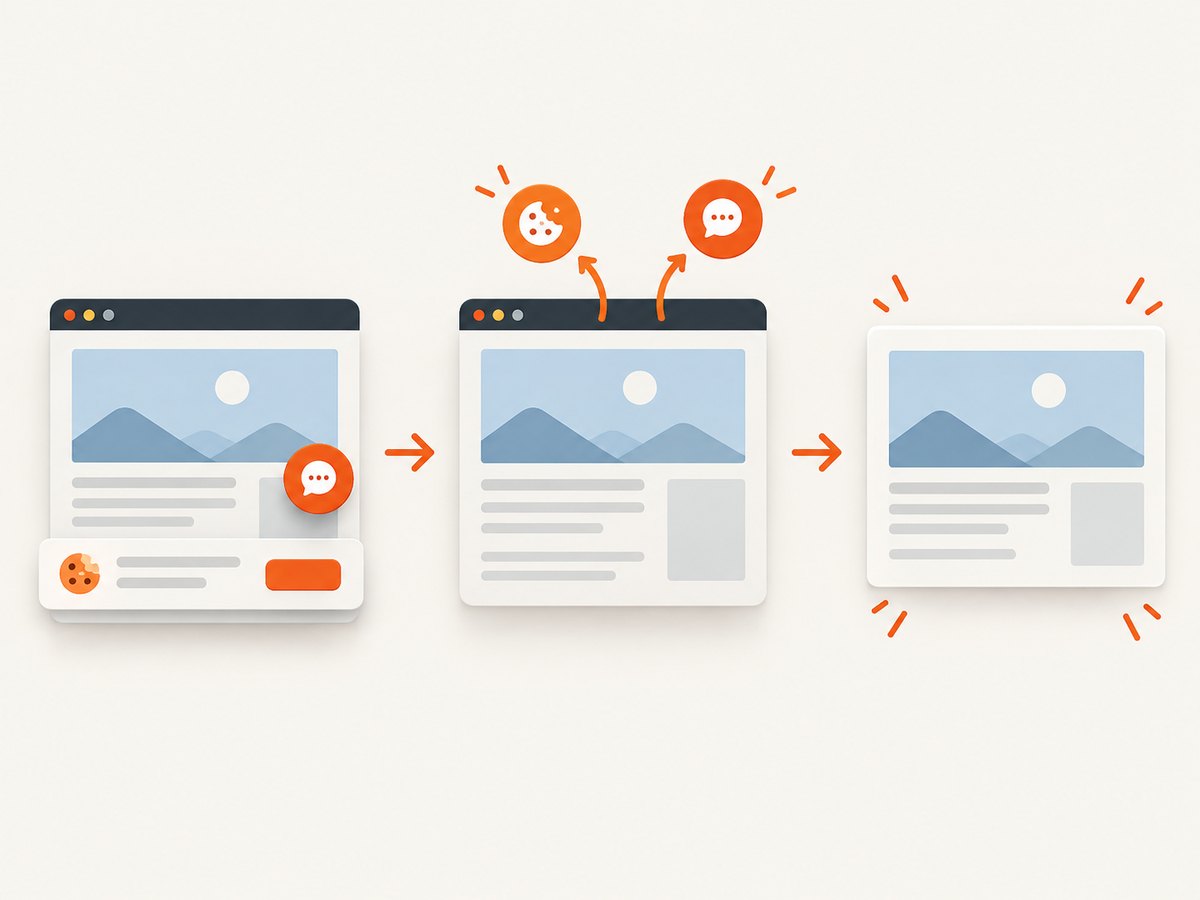
ScreenshotNeo removes supported cookie and consent banners, newsletter popups, and chat widgets before capture; each cleanup step can be turned off. Bot checks and CAPTCHAs, blank pages, timeouts, failed loads, and cache hits are not billed, and response headers identify the page verdict and billing status. Its MCP server offers take_screenshot, get_page_info, and capture_pdf for AI agents. Free includes 1,000 shots per month without a card; paid plans start at $5 for 3,000 shots. Every feature is available on every plan. See the documentation and sign up for 1,000 free screenshots a month, with no card.
9. Performance, reliability, and cost notes
Built-in captures have no per-request API charge, but require an operator to open the page, invoke the browser tool, choose the scope, and save or copy the result. This is often efficient for a one-off capture. For recurring jobs or many URLs, scripting an API call avoids repeating those manual steps, but introduces an API key and network request.
For reliable manual captures, wait until the content is stable; full-page captures can be larger and take longer to create than viewport captures. Dynamic pages may render differently across time or browser state. A capture that includes third-party content may also vary as that content changes. For automated calls, use an appropriate timeout and inspect the response before treating the bytes as an image. ScreenshotNeo documents billing headers and page verdicts so callers can distinguish clean captures from outcomes that are not billed.
ScreenshotNeo pricing listed for the service is Free: 1,000 shots/month; Starter: $5 for 3,000; Growth: $15 for 15,000; Pro: $39 for 60,000; Scale: $99 for 250,000; Business: $249 for 1,000,000. Yearly billing gives two months free. Choose based on expected monthly volume and verify current plan details in the product documentation before building a production budget.
10. Frequently asked questions
Does Chrome have a single keyboard shortcut for a full webpage screenshot?
The documented method is through DevTools. Open device mode’s More options menu and select Capture a full size screenshot; the Command Menu is another route for screenshot commands.
Can I copy the screenshot instead of saving it?
Firefox and Edge provide copy options in their screenshot workflows. Chrome’s DevTools commands may save a file depending on the selected command.
Why does Ctrl+Shift+S work in one browser but not another?
The shortcut is browser-specific. Firefox and Edge assign it to their webpage capture features; Chrome’s documented DevTools menu shortcut is Ctrl+Shift+P on Windows/Linux.
Can a browser capture include content below the fold?
Yes. Firefox and Edge provide full-page capture, and Chrome provides a full-size capture in device mode. A screen-region shortcut from Windows does not by itself capture the entire scrolling webpage.


