How to Take a Webpage Screenshot in Python Without Selenium
Use Playwright for Python to capture a rendered page without Selenium. Save the viewport, a full page, or one element, with runnable examples and fixes for common issues.

Use Playwright for Python to take a webpage screenshot without Selenium. It launches a real browser, navigates to a URL, and saves the rendered page as an image. Use page.screenshot() for the visible viewport, full_page=True for the whole scrollable page, or a locator’s screenshot() method for one element.
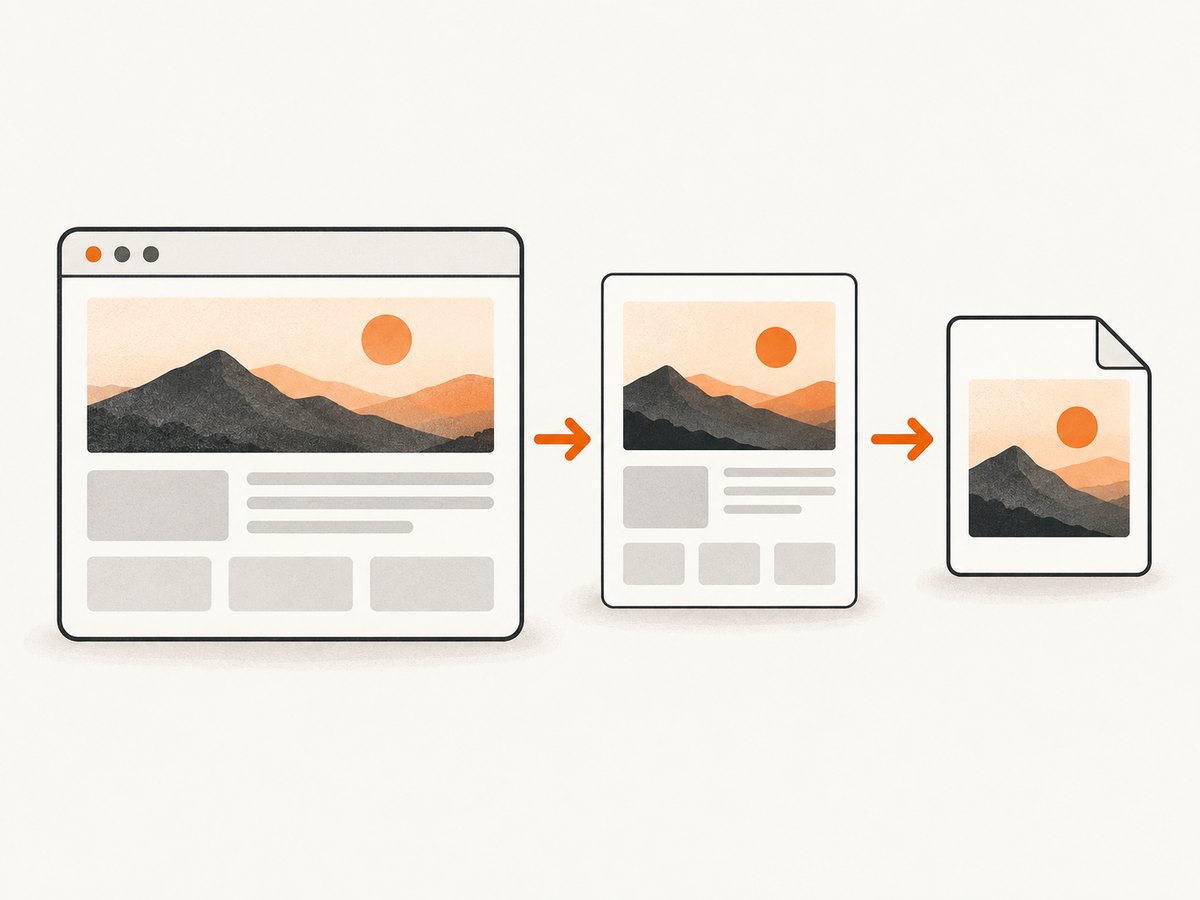
This guide uses Playwright’s synchronous API for a small standalone script, then shows async Python, cURL, and Node.js examples where they apply. A browser is still needed for a screenshot that reflects JavaScript, browser layout, and rendered content: a plain HTTP request that downloads HTML does not produce the same result.
1. Install Playwright and its browser
Install the Python package and the browser binaries with the commands in Playwright’s library getting-started guide:
python -m pip install playwright
python -m playwright install
The install command downloads browser binaries for Chromium, Firefox, and WebKit. The package can launch any of those three engines. For a first screenshot, Chromium is a straightforward default; choose another engine if your task specifically needs its rendering behavior.
Save the following as screenshot.py. Replace the example URL if needed:
from pathlib import Path
from playwright.sync_api import sync_playwright

url = "https://example.com"
output = Path("screenshot.png")

with sync_playwright() as playwright:
    browser = playwright.chromium.launch()
    page = browser.new_page(viewport={"width": 1440, "height": 900})

    page.goto(url, wait_until="load", timeout=60_000)
    page.screenshot(path=str(output))

    browser.close()

print(f"Saved {output.resolve()}")
Run it with python screenshot.py. Playwright runs headless by default, so it captures without opening a visible browser window. The with block manages the Playwright driver lifecycle; explicitly closing the browser releases its browser process after the capture.
2. Choose what to capture
The screenshot API supports a viewport image, a full-page image, an individual element, and bytes returned to your program. These choices change the resulting image, so pick the scope deliberately.
Visible viewport
The basic call captures the visible browser viewport at the current page position:
page.screenshot(path="viewport.png")The viewport dimensions come from the browser page or context. Setting them explicitly makes captures more consistent between runs. For example, browser.new_page(viewport={"width": 1440, "height": 900}) requests a 1440 by 900 CSS-pixel viewport.
Full scrollable page
Pass full_page=True to include content below the viewport in a tall screenshot:
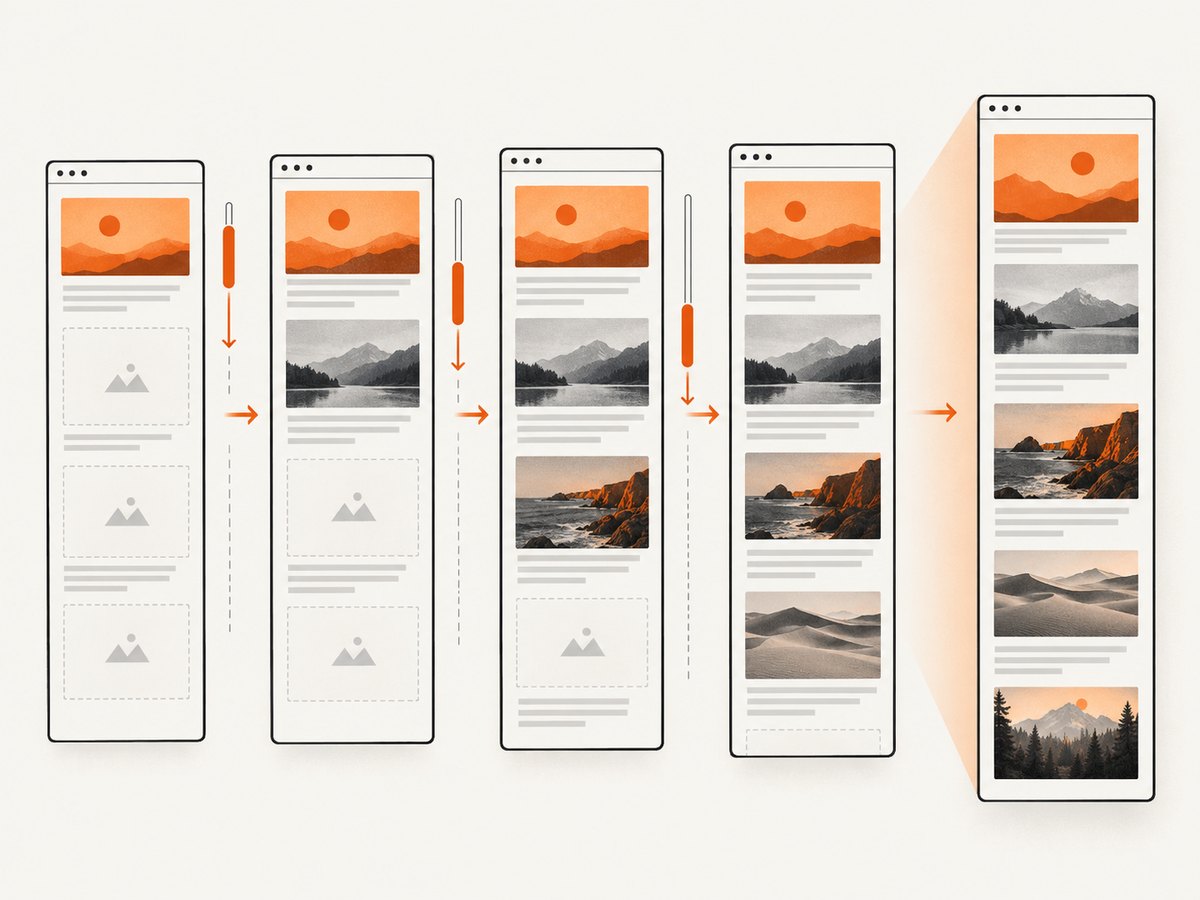
page.screenshot(path="full-page.png", full_page=True)This captures the page’s full scrollable extent. It does not guarantee that every image or section that loads only after scrolling has finished loading. For lazy-loaded content, scroll through the relevant page before capturing, wait for the target elements, and confirm that the expected content is present.
One element
Use a locator to capture a specific element rather than the entire viewport:
page.locator(".product-card").screenshot(path="product-card.png")Use a selector that identifies one intended element. If a locator matches multiple elements, narrow it or select the desired match explicitly. A locator screenshot is useful for a component, card, chart, or other page region; it waits for the element to be actionable according to Playwright’s locator behavior, but the page still needs to reach the state you want represented.
Keep the screenshot in memory
Omit path to receive screenshot bytes instead of writing a file directly:
image_bytes = page.screenshot()

with open("screenshot.png", "wb") as image_file:
    image_file.write(image_bytes)
Bytes can also be passed to an image-processing library, uploaded to object storage, or returned from a web service. Avoid converting to base64 unless the receiving interface requires it; base64 adds representation overhead compared with sending the original bytes.
3. Make captures more consistent
A screenshot records the page state at capture time. Navigation completion and screenshot readiness are related, but they are not identical: a page may load a widget, image, or animation after its main document has loaded. Choose a wait condition that matches the page and avoid arbitrary long delays when you can wait for a specific element.
Wait for the content you need
page.goto(url, wait_until="domcontentloaded", timeout=60_000)
page.locator("main h1").wait_for(state="visible", timeout=15_000)
page.screenshot(path="ready.png", full_page=True)
domcontentloaded waits for the initial document to be parsed, while load waits for the page load event. Neither says that every application-specific request has finished. A selector wait is often a clearer readiness signal when a known heading, table, or chart must appear. If the site updates content in the background, wait for the relevant state or a deliberate fixed delay only when there is no better signal.
Control viewport and browser engine
Set viewport size on the page or browser context to reproduce a desktop or mobile-sized layout. For cross-browser comparison, launch Firefox or WebKit instead of Chromium. Browser engines can render fonts, layout, and controls differently, so an image from one engine is not proof that another engine will look identical.
Capture with animation and masking options
Playwright’s screenshot API includes controls for animations, masking locators, transparency, output type, quality, scale, and a screenshot timeout. For example:
page.screenshot(
    path="stable.webp",
    full_page=True,
    type="webp",
    quality=80,
    animations="disabled",
    mask=[page.locator(".personal-data")],
    mask_color="#222222",
    timeout=30_000,
)
Check the current Page API reference for the supported values and version requirements. The API documents animations="disabled" for stopping CSS and Web Animations during capture; masks cover selected locator bounds; and omit_background=True can produce a transparent background for formats that support it. JPEG does not support transparency. PNG is lossless; JPEG and WebP have quality controls. Lower lossy quality may reduce output size while changing image detail. The screenshot scale option controls CSS pixels versus device pixels, which affects dimensions and file size.
4. Use async Python in an async application
If the surrounding application is already asynchronous, use Playwright’s async API rather than trying to call synchronous Playwright from an active event loop:
import asyncio
from playwright.async_api import async_playwright

async def capture(url: str, output: str) -> None:
    async with async_playwright() as playwright:
        browser = await playwright.chromium.launch()
        page = await browser.new_page(
            viewport={"width": 1440, "height": 900}
        )
        await page.goto(url, wait_until="load", timeout=60_000)
        await page.screenshot(path=output, full_page=True)
        await browser.close()

asyncio.run(capture("https://example.com", "page.png"))
In a long-running service, reuse browser processes where appropriate and create isolated pages or contexts for separate jobs. Always close pages, contexts, and browsers when their work ends, including on exceptions; otherwise abandoned browser processes can consume memory and other resources. Follow the async lifecycle documented by Playwright for your application framework.
5. Troubleshoot common problems
| Symptom | Likely cause | What to do |
|---|---|---|
| Browser executable is missing | The Python package is installed, but its browser binary is not. | Run python -m playwright install in the same environment where the script runs. In a container or CI worker, install the browser there too. |
| Navigation times out | The page is slow, continually active, or blocked; the chosen wait condition may not fit it. | Check the URL and network access. Set a suitable navigation timeout and wait for the specific content needed rather than assuming every network connection will become idle. |
| Screenshot is blank or incomplete | The capture happened before app content appeared, a navigation failed, or the page requires interaction. | Wait for a visible content locator, inspect the page title or URL, and handle required interactions before capture. Use headed mode while debugging if seeing the browser helps. |
| Full-page image is too short | Content may be lazy-loaded only as it approaches the viewport. | Scroll through the page to trigger lazy loading, wait for the relevant images or sections, then capture again. |
| Element locator times out | The selector does not match, the element is hidden, or the page is in a different state. | Verify the selector against the rendered page, wait for the correct state, and narrow ambiguous selectors. |
| Screenshot differs between runs | Dynamic content, animation, viewport changes, fonts, or a different browser engine can alter pixels. | Fix the viewport and engine, wait for stable content, disable animation if suitable, and mask genuinely variable regions for visual comparison. |
| Browser launches locally but fails in CI | The CI image may lack browser binaries or operating-system dependencies. | Install browsers and required dependencies in the CI environment. See Playwright’s CI setup guide. |
| Script seems to hang or processes accumulate | Browser cleanup was skipped after an error, or parallel captures exceed the worker’s resources. | Put cleanup in finally blocks or use managed contexts, and limit concurrency to what the host can sustain. |
For visual debugging, set headless=False when launching the browser to see its window. This is useful for inspecting redirects, consent dialogs, or missing elements. Return to headless mode for normal unattended capture.
6. Performance, reliability, and cost
A local Playwright screenshot has no per-image service fee, but it is not resource-free: the machine must run the browser, fetch the page’s assets, and write or transfer the resulting image. Browser binaries also use disk space. Concurrency increases CPU and memory demand, especially when each job launches a separate browser process. Measure on the target host before choosing worker counts; no single runtime estimate applies to every page or environment.
For reliability, use explicit navigation and screenshot timeouts, detect navigation failures, wait for the content that matters, and close resources even when capture raises an exception. Keep the browser package and installed binaries aligned by installing browsers through the Playwright tooling in the environment that will execute the script. If screenshots feed a production workflow, record the target URL, capture time, engine, viewport, and failure reason so a bad image can be diagnosed.
Large full-page screenshots consume more memory and storage than viewport images. Use PNG when lossless pixels matter; consider JPEG or WebP where smaller lossy images are acceptable. Choose CSS-pixel scale for a smaller image when device-pixel detail is unnecessary. These are tradeoffs rather than universal recommendations: downstream visual comparisons and publishing requirements determine suitable settings.
7. Alternative Python library
Pyppeteer provides a Puppeteer-style headless Chrome/Chromium interface in Python. Its project documentation describes it as an “Unofficial python port of puppeteer (headless) chrome/chromium browser automation library.” The cited documentation is for version 0.0.25, so check its age and compatibility before selecting it for a new project. Playwright is the better-supported default here because its current Python documentation directly covers installation, browser launch, and screenshot capture.
Scrapy’s documentation makes the underlying distinction clear: ordinary HTTP fetching does not itself create a screenshot of a page as seen in a browser. If your target relies on JavaScript, browser layout, or interaction, use a browser-rendering path rather than treating downloaded HTML as an equivalent image source.
8. Or skip the browser setup
If you need a screenshot without installing or maintaining a browser runtime, ScreenshotNeo is a website screenshot API and MCP server. Its API accepts one GET request with a URL and can return PNG, JPEG, WebP, or PDF. The ScreenshotNeo documentation has the API details.
curl -G "https://api.screenshotneo.com/v1/shot" -d access_key=YOUR_API_KEY --data-urlencode url=https://stripe.com -o shot.webpimport requests
r = requests.get(
"https://api.screenshotneo.com/v1/shot",
params={"access_key": "YOUR_API_KEY", "url": "https://stripe.com"},
timeout=90,
)
open("shot.webp", "wb").write(r.content)const q = new URLSearchParams({ access_key: 'YOUR_API_KEY', url: 'https://stripe.com' });
const res = await fetch(`https://api.screenshotneo.com/v1/shot?${q}`);ScreenshotNeo removes cookie and consent banners, newsletter popups, and chat widgets before the shot. Bot checks, blank pages, and failed loads are never billed; response headers identify the page verdict and billing status. Its MCP server gives AI agents tools to take screenshots, get page information, and capture PDFs. The free plan includes 1,000 screenshots a month with no card; paid plans start at $5 for 3,000 shots.
Create a free ScreenshotNeo account to get 1,000 screenshots a month with no card.
FAQ
Can I take a screenshot without installing Chrome separately?
Playwright installs browser binaries through its own command. Install the browser binaries in the environment where the script will run; a package install alone does not ensure the runtime is available.
Can Playwright save a screenshot without creating a file?
Yes. Call page.screenshot() without path and use the returned bytes in memory.
Does full-page capture include content that loads on scroll?
It captures the page’s scrollable extent, but lazy-loaded content may need scrolling and additional waits before the screenshot.
Is a raw HTTP request enough to make a webpage screenshot?
No. An HTTP client can fetch a response body, but a browser must render the page to reproduce browser layout and JavaScript-driven content.


