How to Capture a Web Page Screenshot Without Rendering It to a JavaScript Canvas
Capture the browser’s rendered page with Playwright, Puppeteer, CDP, extensions, or ScreenshotNeo instead of rebuilding it in a JavaScript canvas.
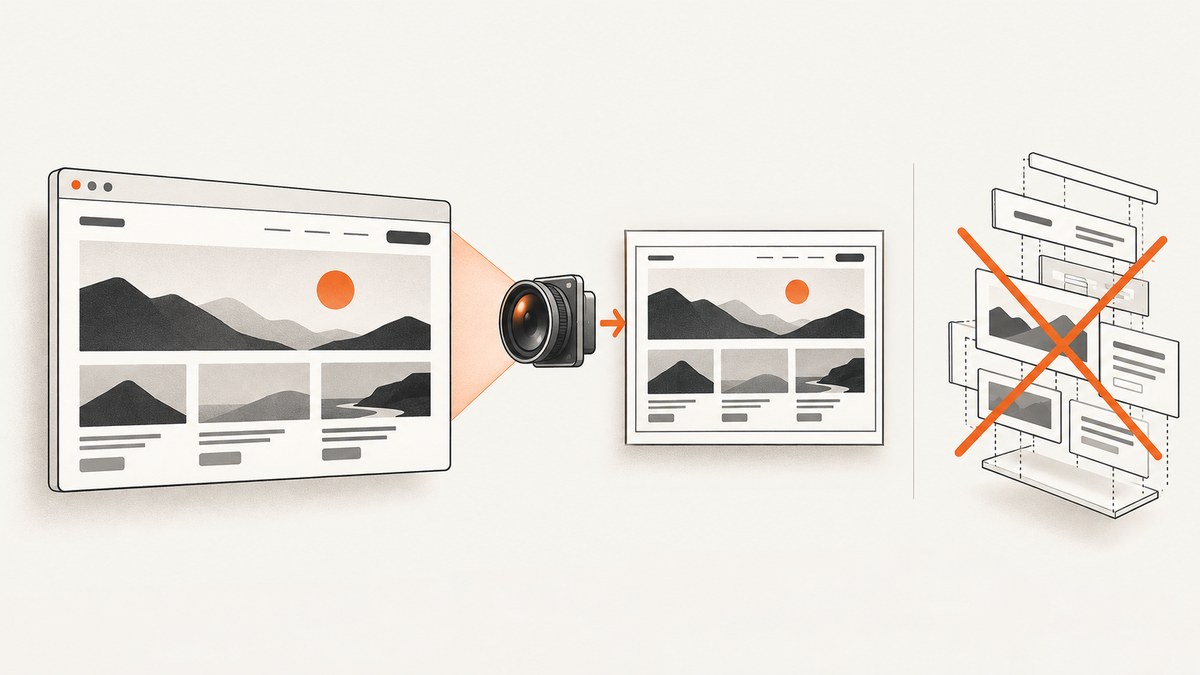
Use a browser screenshot API when you need an image of what the browser actually rendered. Do not use html2canvas for that job: html2canvas walks the DOM and builds a new representation from the properties it can read, so its output can differ from the visible page. For an application-controlled browser, Playwright’s page.screenshot() is the most direct general-purpose option. Puppeteer provides a similar browser-automation path, and Chromium’s DevTools Protocol exposes the lower-level Page.captureScreenshot command. Browser extensions can use their browser’s native tab-capture API.
This guide covers viewport, full-page, element and clipped captures; PNG, JPEG and WebP output; waiting for dynamic content; browser extensions; server-side automation; common failure modes; and a hosted alternative. The examples use a real browser, so the screenshot comes from layout, CSS, fonts, images and JavaScript as the user sees them.
Why a browser screenshot is different from a canvas render
html2canvas does not take a pixel snapshot of the compositor. Its documentation describes a process that traverses DOM elements, reads their properties and constructs a representation. Only the CSS it understands can be reproduced, and cross-origin images and iframes have additional restrictions. The project explicitly warns that the result may not match the actual appearance of the page (html2canvas documentation).
A browser screenshot is produced after the browser has performed layout, style calculation, image decoding, font loading, painting and compositing. That distinction matters for transformed elements, sticky headers, video, filters, web fonts, responsive breakpoints, pseudo-elements and pages whose appearance depends on JavaScript.
| Requirement | Best fit |
|---|---|
| Capture the page your automation already opened | Playwright or Puppeteer |
| Control Chromium at protocol level | Chrome DevTools Protocol |
| Capture the visible tab in an extension | chrome.tabs.captureVisibleTab() or Firefox’s equivalent |
| Generate screenshots from a server without managing browsers | ScreenshotNeo |
Playwright: the default for automated screenshots
Playwright documents page.screenshot() as returning captured image data. It supports a file path, full-page capture, clipping, PNG/JPEG/WebP output, scaling, animation control and masking (Playwright Page.screenshot()).
Install and capture a full page
npm install playwright
npx playwright install chromium
const { chromium } = require('playwright');
(async () => {
const browser = await chromium.launch();
const page = await browser.newPage({
viewport: { width: 1440, height: 900 },
deviceScaleFactor: 1
});
await page.goto('https://example.com', { waitUntil: 'networkidle' });
await page.screenshot({
path: 'page.png',
fullPage: true,
type: 'png',
animations: 'disabled'
});
await browser.close();
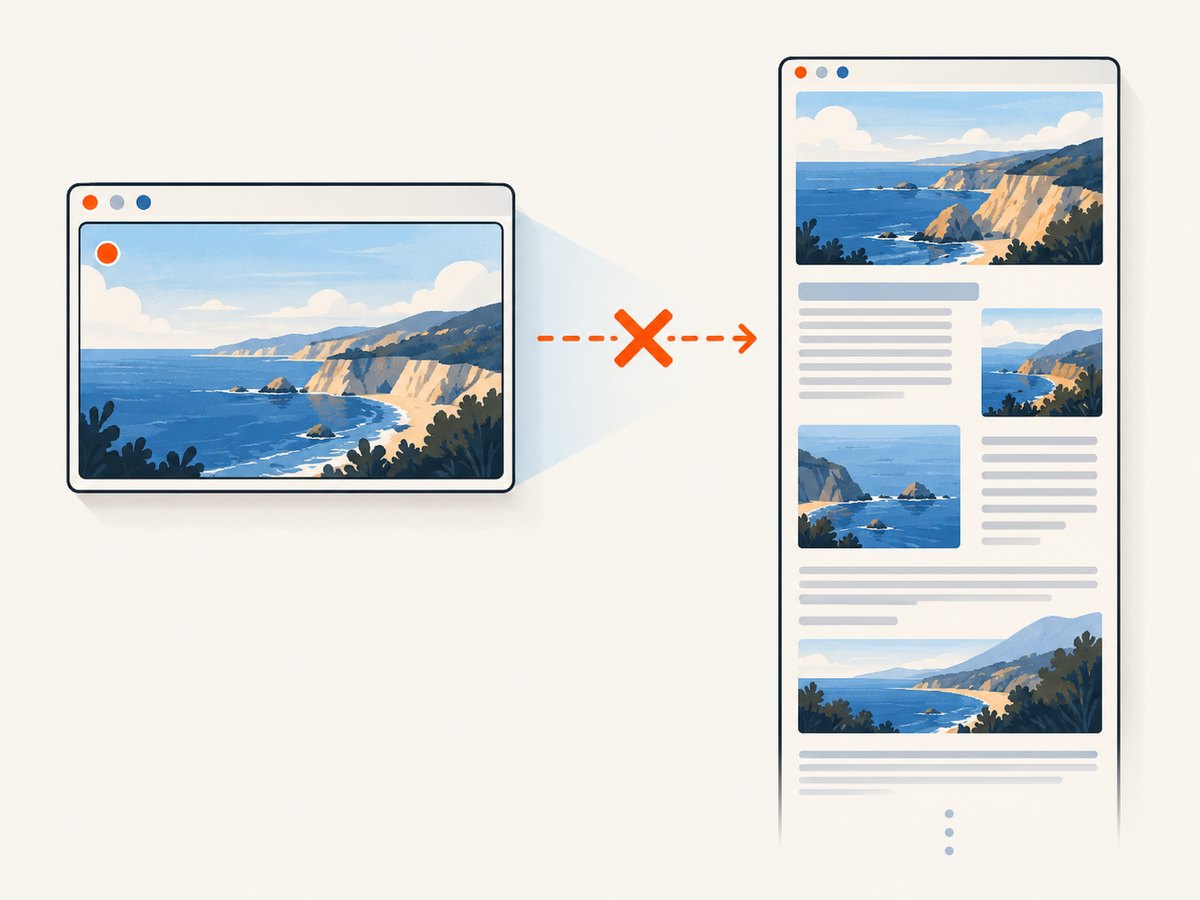
})();fullPage: true expands the capture to the page’s full scrollable height. Omit it for only the current viewport. A returned buffer is useful when the image should be uploaded directly:
const image = await page.screenshot({ type: 'webp', quality: 82 });
await require('fs').promises.writeFile('page.webp', image);
Capture one element or a rectangle
const card = page.locator('.pricing-card').first();
await card.screenshot({ path: 'card.png' });

await page.screenshot({
  path: 'region.jpg',
  type: 'jpeg',
  quality: 85,
  clip: { x: 120, y: 180, width: 900, height: 520 }
});
Element screenshots use the element’s bounding box. Wait for the locator to resolve and become visible before capturing. A clip rectangle uses page coordinates; verify the viewport and scroll position when the region is not at the top.
Control layout, scale and output
- Viewport: set
widthandheightwhen responsive layout must be repeatable. - Device scale: Playwright’s screenshot
scaleoption chooses CSS-pixel or device-pixel sizing; check the current API documentation for defaults in your installed version. - Formats: PNG is lossless; JPEG supports a quality value; WebP is useful when your image pipeline accepts it.
- Animations: disable or wait for transitions so two captures do not land on different frames.
- Masking: mask dynamic locators when timestamps, avatars or ads must not change the image.
Wait for the page you intend to capture
await page.goto(url, { waitUntil: 'domcontentloaded' });
await page.locator('[data-ready="true"]').waitFor({ state: 'visible' });
await page.waitForLoadState('networkidle');
await page.screenshot({ path: 'ready.png', fullPage: true });
networkidle can be a poor fit for applications that keep analytics or WebSocket connections open. In that case, wait for a specific selector or use a bounded delay after the page’s own ready signal. For lazy-loaded images, scroll through the page before a full-page capture:
await page.evaluate(async () => {
  await new Promise(resolve => {
    let y = 0;
    const step = 600;
    const timer = setInterval(() => {
      window.scrollBy(0, step);
      y += step;
      if (y >= document.body.scrollHeight) {
        clearInterval(timer);
        window.scrollTo(0, 0);
        resolve();
      }
    }, 100);
  });
});
await page.screenshot({ path: 'lazy-loaded.png', fullPage: true });
Puppeteer: the equivalent JavaScript route
Puppeteer is a JavaScript library for automating Chrome and Firefox through the Chrome DevTools Protocol and WebDriver BiDi. Chrome for Developers lists screenshots and PDF generation among its uses (Puppeteer documentation).
npm install puppeteerconst puppeteer = require('puppeteer');
(async () => {
const browser = await puppeteer.launch({ headless: true });
const page = await browser.newPage();
await page.setViewport({ width: 1440, height: 900, deviceScaleFactor: 1 });
await page.goto('https://example.com', { waitUntil: 'networkidle2' });
await page.screenshot({ path: 'page.webp', fullPage: true, type: 'webp' });
await browser.close();
})();Use Puppeteer when your existing codebase already depends on it. The same operational concerns apply: install a compatible browser, wait for application readiness, and close pages and browsers in error paths.
Chrome DevTools Protocol for lower-level Chromium control
The Chromium DevTools Protocol’s Page domain lists Page.captureScreenshot (CDP Page.captureScreenshot). This is useful when your service already speaks CDP or needs protocol-level control. The protocol reference is a rolling schema, so match it to the browser version you deploy.
const { chromium } = require('playwright');

(async () => {
  const browser = await chromium.launch();
  const page = await browser.newPage({ viewport: { width: 1280, height: 800 } });
  await page.goto('https://example.com');

  const client = await page.context().newCDPSession(page);
  const result = await client.send('Page.captureScreenshot', {
    format: 'png',
    captureBeyondViewport: true
  });
  require('fs').writeFileSync('cdp.png', Buffer.from(result.data, 'base64'));
  await browser.close();
})();
CDP returns base64 image data. Prefer Playwright or Puppeteer unless protocol control is a requirement; their higher-level waiting, locator and browser lifecycle APIs reduce accidental races.
Browser extension screenshots
For a browser extension, use the browser’s native capture API. The html2canvas FAQ points to chrome.tabs.captureVisibleTab() for Chrome, Edge and Opera, and browser.tabs.captureVisibleTab() for Firefox (html2canvas FAQ).
chrome.tabs.captureVisibleTab(null, { format: 'png' }, dataUrl => {
  if (chrome.runtime.lastError) {
    console.error(chrome.runtime.lastError.message);
    return;
  }
  // dataUrl is the screenshot of the currently visible tab.
  console.log(dataUrl.length);
});
This API captures the visible tab. Do not assume it creates a full-page image; full-page extension capture requires a separate scrolling and stitching design or a browser feature that explicitly supports it. Check current vendor permission and API documentation before shipping.
Python with Playwright
pip install playwright
playwright install chromium
from playwright.sync_api import sync_playwright
with sync_playwright() as p:
browser = p.chromium.launch()
page = browser.new_page(viewport={"width": 1440, "height": 900})
page.goto("https://example.com", wait_until="networkidle")
page.screenshot(path="page.png", full_page=True)
browser.close()The Python API exposes the same browser screenshot concepts. Use a locator wait for application-specific readiness rather than relying on a fixed sleep.
Or skip the browser setup
ScreenshotNeo provides a hosted website screenshot API and MCP server. One GET request returns PNG, JPEG, WebP or PDF. See the ScreenshotNeo API documentation for all parameters.
curl -G "https://api.screenshotneo.com/v1/shot" -d access_key=YOUR_API_KEY --data-urlencode url=https://stripe.com -o shot.webpimport requests
r = requests.get("https://api.screenshotneo.com/v1/shot", params={"access_key": "YOUR_API_KEY", "url": "https://stripe.com"}, timeout=90)
open("shot.webp", "wb").write(r.content)const q = new URLSearchParams({ access_key: 'YOUR_API_KEY', url: 'https://stripe.com' });
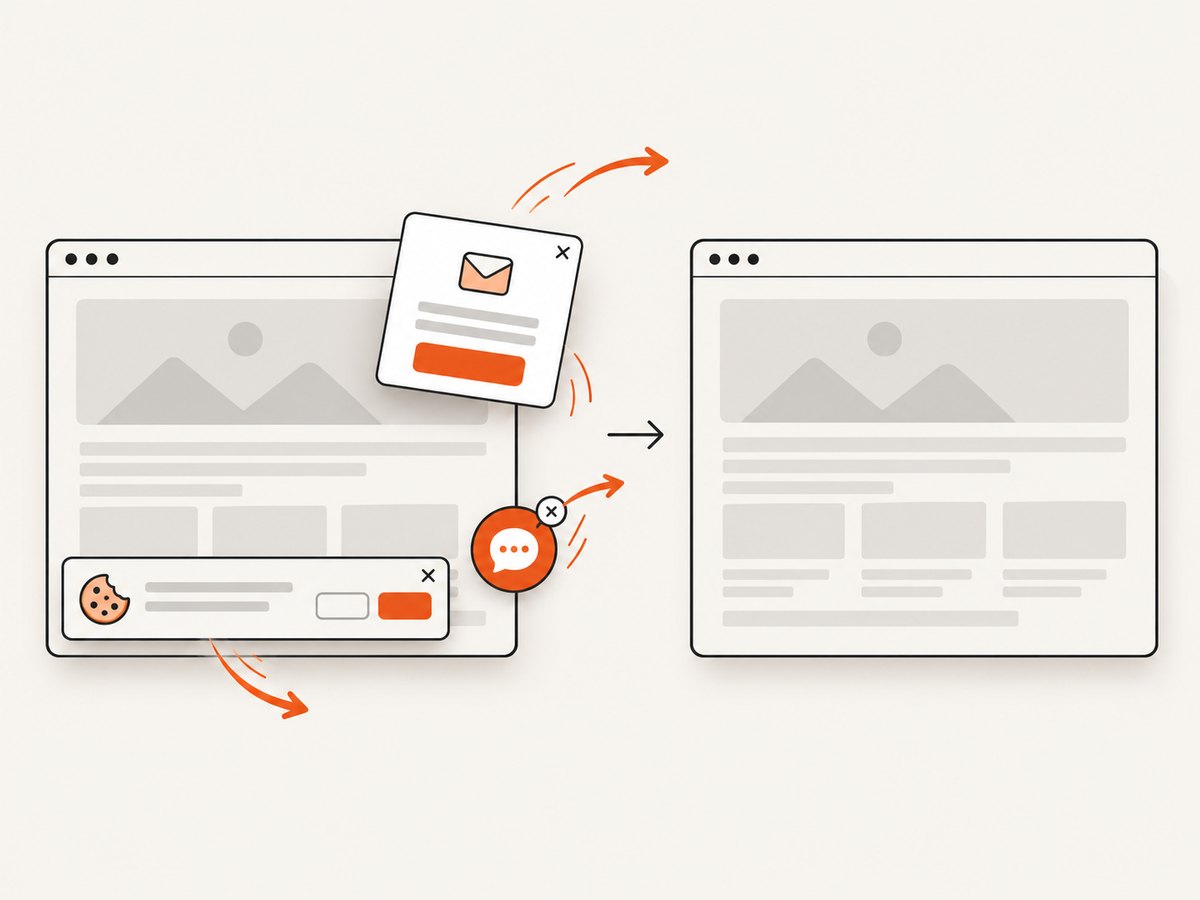
const res = await fetch(`https://api.screenshotneo.com/v1/shot?${q}`);ScreenshotNeo accepts cookie and consent banners before capture, then removes more than 60 known consent platforms, newsletter popups and chat widgets; each step can be disabled. Bot checks, blank pages, timeouts, failed loads and cache hits are not billed, and response headers identify the page verdict and whether the request was billed. Its MCP server gives Claude, Cursor and other MCP clients take_screenshot, get_page_info and capture_pdf tools.
It also supports full-page and CSS-selector captures, dark mode, device presets and custom viewports, retina scale, PDF paper and margin settings, custom CSS and JavaScript, clicks, selector waits, delays, network-idle waits, blocking ads or resource types, headers, cookies, user agents, authorization, timezone, geolocation, transparency, resizing, configurable cache TTLs, signed image links, asynchronous jobs with signed webhooks, bulk capture of up to 100 URLs per call, usage reporting and an OpenAPI specification. Familiar parameter names from other screenshot APIs are accepted to ease migration.
The Free plan includes 1,000 screenshots per month without a card. Paid plans start at $5 for 3,000 shots; yearly billing gives two months free. Create a free ScreenshotNeo account and start with the monthly free allowance.
Choosing the right capture method
| Question | Recommendation |
|---|---|
| Do you already run a browser test? | Add Playwright or Puppeteer screenshot calls. |
| Do you need Chromium protocol commands? | Use CDP’s Page domain. |
| Are you inside an extension? | Use the native visible-tab API. |
| Do you need a server API, clean captures and usage billing? | Use ScreenshotNeo. |
Compare scope (viewport, full page or region), control level, output format, scaling, authentication, repeatability and operational cost. The cited sources do not establish a speed or image-quality benchmark, so validate your own pages rather than relying on an assumed ranking.
Troubleshooting checklist
The image is blank or only partly rendered
Cause: capture happened before navigation, fonts or lazy images finished, or the page exceeded browser surface limits. Fix: wait for a readiness selector, scroll to trigger lazy loading, use a bounded timeout, and test a smaller clip. Check browser logs and the page’s own error state.
Cross-origin images disappear with html2canvas
Cause: canvas security rules can taint a canvas when images lack suitable cross-origin access. Fix: use a real browser screenshot, configure the image server’s CORS policy where appropriate, or proxy assets under your control. Cross-origin iframes have similar access restrictions in DOM reconstruction.
The screenshot differs between runs
Cause: animations, rotating content, time zones, ads, random data or responsive dimensions. Fix: set a fixed viewport and device scale, disable animations, mask dynamic locators, freeze test data, and wait for a deterministic ready marker.
Full-page capture misses content
Cause: lazy loading or content inside nested scroll containers. Fix: scroll the document and relevant containers, wait for image completion, and capture the container separately when it is not part of the document flow.
Navigation times out
Cause: a slow origin, blocked resource or never-ending connection. Fix: set a realistic navigation timeout, wait for a selector instead of network idle, block unnecessary resource types, and record the failing URL. For recurring jobs, retries should be bounded and idempotent.
Extension capture fails
Cause: missing permission, an unsupported tab such as a browser settings page, or an API error. Fix: request the documented permission, handle runtime.lastError, and explain unsupported tabs to users.
Performance, reliability and cost
- Reuse browsers: launch one browser process and create isolated contexts or pages per job. Browser startup is expensive compared with another page capture.
- Bound every wait: combine a readiness condition with a timeout, then close the page in a
finallyblock. - Reduce work: block analytics, ads and heavy media when they are irrelevant; use a clip or element capture instead of a full page when possible.
- Choose formats deliberately: PNG preserves detail, JPEG is smaller for photographic pages, and WebP often reduces transfer size when supported by your consumer.
- Cache deterministic pages: key cached results by URL, viewport, relevant headers and capture options, and use an explicit TTL.
- Plan retries: retry transient navigation failures with backoff, but do not retry a deterministic authorization or bot-check failure indefinitely.
- Hosted billing: ScreenshotNeo bills only clean shots; bot checks, blank pages, timeouts, failed loads and cache hits cost nothing. Its response headers expose the verdict and billing result.
Security and privacy considerations
Keep API keys and authenticated cookies on the server. Do not place them in browser JavaScript or public image URLs unless you intentionally use a signed link. Treat screenshots as data that may contain personal information. Restrict outbound navigation when capturing user-supplied URLs, and define which internal hosts a worker may reach. Redact or mask sensitive page regions before storing images.
FAQ
Can I take a screenshot without JavaScript?
Yes. A command-line browser, a browser automation service or ScreenshotNeo can capture a rendered page. The browser still performs rendering internally; your application does not need to draw the page into a canvas.
Does Playwright capture a full page automatically?
No. Pass fullPage: true. Without it, the screenshot is the current viewport.
Is CDP better than Playwright?
CDP is lower level and Chromium-specific. Playwright is usually simpler when you need locators, waits, multiple browser engines or maintainable test code.
Can a visible-tab extension screenshot an entire long page?
The cited extension API captures the visible tab. Full-page output needs additional scrolling and stitching or another capture mechanism.
Which format should I store?
Use PNG for pixel-accurate archival images, JPEG for photographic pages where loss is acceptable, and WebP when your delivery stack supports it and transfer size matters.
Where should I start for recurring server captures?
Use Playwright or Puppeteer when you need direct browser control. Use ScreenshotNeo when you want a hosted endpoint, clean-page processing, MCP tools for agents and usage-based plans without maintaining browser workers.


