Webpage Screenshots on Android
Capture a scrolling webpage on Android, find the saved image, and troubleshoot when Capture more or Scroll Capture is missing.
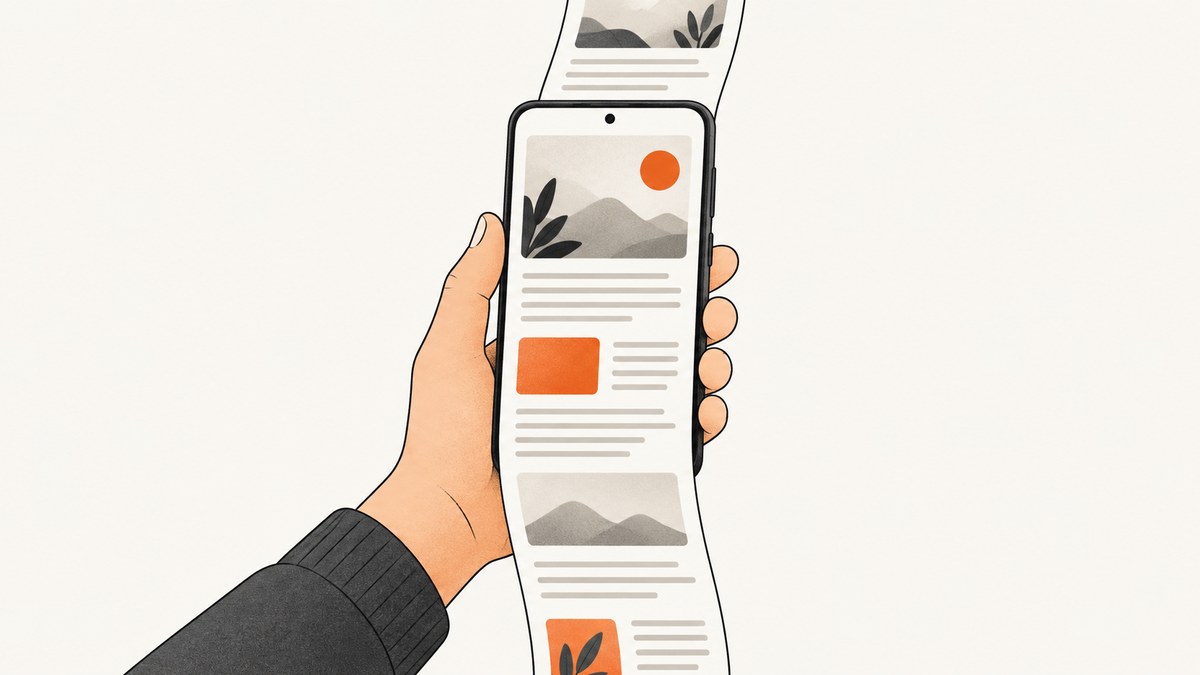
To screenshot a whole webpage on most Android phones running Android 12 or newer, open the page, press Power + Volume Down, tap Capture more, adjust the crop guides, and save. On Samsung Galaxy phones, use Scroll Capture after taking the screenshot. These controls depend on the Android version, phone software, and whether the app exposes a supported scrollable screen, so they are not available for every page. Google’s Android screenshot guide describes the Android 12+ and scrollable-screen qualification.
1. Choose the right kind of capture
First decide what result you need. A normal screenshot records the visible viewport. A scrolling screenshot extends the image down a scrollable page. A screen recording captures motion and interaction. A desktop full-size screenshot is a fallback when the phone cannot capture the page as one long image.
| Method | Best for | Requirements and limits | Output |
|---|---|---|---|
| Android Capture more | A long page in an app or browser | Android 12+; supported scrollable screen | Long image saved on device |
| Samsung Scroll Capture | Long webpages or articles on Galaxy | Samsung software and a screen that can scroll | Extended screenshot |
| Chrome DevTools | A precise full-page browser capture when phone capture is unavailable | Desktop Chrome and the page open in DevTools | Downloaded image |
| Screen recording | Motion, interactions, or a walkthrough | Quick Settings screen recording control | Video |
For a full webpage image, start with the phone’s scrolling screenshot feature. If the control is missing, check the version and app surface before assuming the page itself is broken.
2. Capture a webpage on Android
- Open the webpage in your browser or the app where it is displayed. Wait for the main content to load. If you want the entire page, scroll to its top before starting.
- Press Power and Volume Down at the same time. On devices where that shortcut is unavailable, press and hold Power and choose Screenshot.
- Look for Capture more in the screenshot preview. Tap it. Android displays crop guides around the extended capture.
- Drag the guides to include the page area you need. Review the bottom edge so the last paragraph or section is not cut off.
- Tap Save, or use the preview’s edit and share controls if you want to crop, mark up, or send the screenshot immediately.
Google documents this flow for Android 12 and newer on most screens that allow scrolling. It does not guarantee that every browser, embedded web view, or dynamically rendered page will become one continuous image. [Android screenshot instructions]
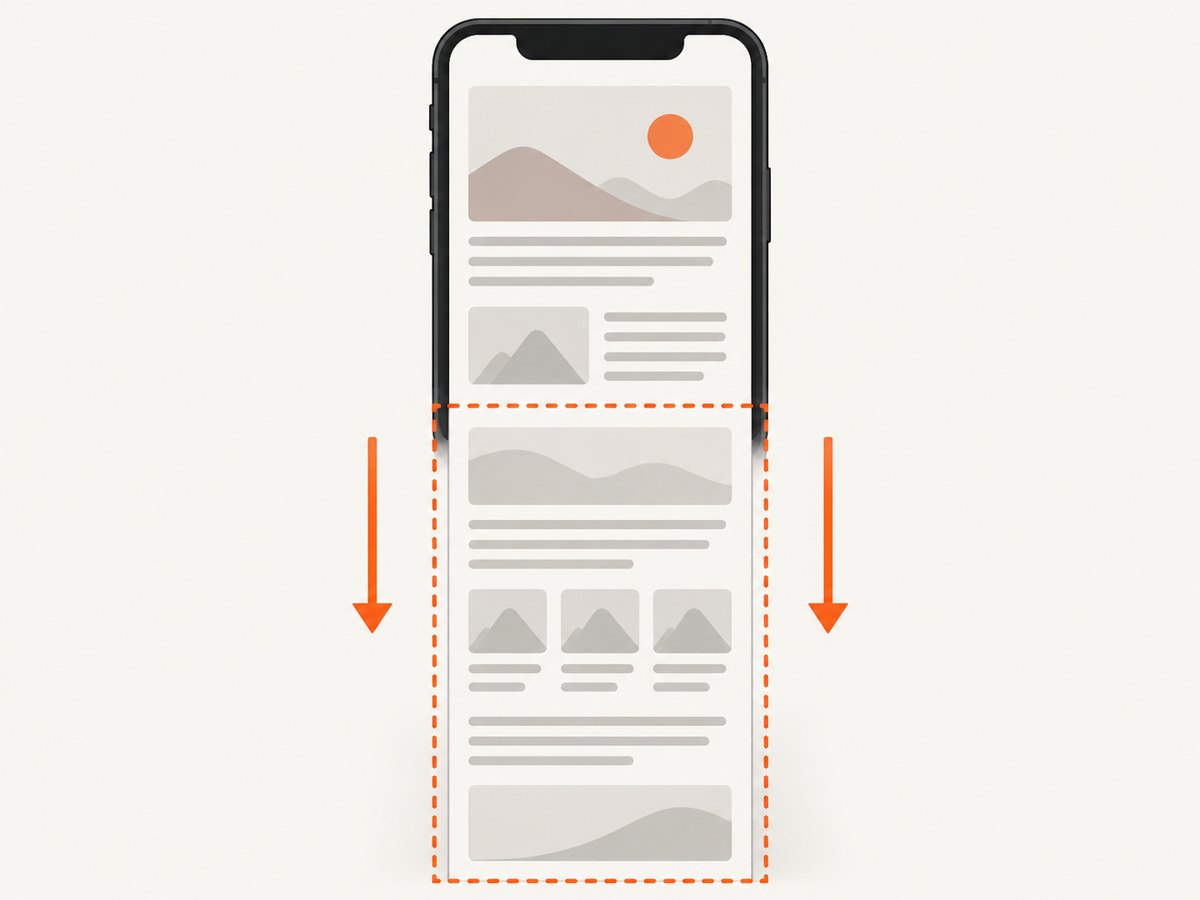
Pixel phones and tablets
On Pixel phones, use the same button sequence and Capture more option. Google’s Pixel guidance likewise limits scrolling capture to Android 12+ and most scrollable screens. Pixel Tablet has a higher version requirement: Google specifies Android 14 or newer for scrolling screenshots on that device. If the tablet is on an earlier version, update it where possible or use the desktop Chrome method below. [Pixel phone screenshots] [Pixel Tablet screenshots]
Samsung Galaxy phones
Take a screenshot with the phone’s screenshot shortcut, then tap Scroll Capture in the screenshot controls to extend the image. Continue until the relevant content is included and save. Samsung describes the feature for long content such as webpages and articles, when scrolling is possible. The control’s appearance can vary with model and software version. [Samsung screenshot and Scroll Capture guidance]
3. Find, edit, and share the screenshot
On supported Android versions, open Photos > Collections > On this device > Screenshots. On older devices or setups without the Photos app, look in Gallery > Albums > Screenshots. You can also open the screenshot preview directly after capture to edit or share it. [Google’s save and share steps]
If you cannot find the image, confirm that you tapped Save rather than only opening the share sheet, then check the Screenshots album and the most recent items in Photos or Gallery. A capture may be stored locally even if cloud backup is off; the local Screenshots album is the useful place to check first.
4. When Capture more is missing or incomplete
The most common reason is compatibility: Android’s feature is described for newer versions and most screens that allow scrolling, not every screen. Try these checks in order:
- Check Android version. Scrolling screenshots are supported on most scrollable screens starting with Android 12. On Pixel Tablet, check for Android 14 or newer.
- Confirm the page is actually scrollable. A short page that fits in the viewport may have no extra content to capture. Try a long article in the browser to see whether the control appears there.
- Use the app’s own browser surface. A page embedded inside another app may not expose scrolling in a way the system capture feature supports. Open its link in Chrome or another full browser and retry.
- Wait for content to load. Lazy-loaded sections may appear only after you scroll. Move through the page once, let sections render, return to the top, and capture again.
- On Samsung, look for Scroll Capture. The Samsung control is named differently from Android’s Capture more and appears in its screenshot toolbar.
- Use a desktop fallback. Chrome DevTools can capture the full page outside the visible viewport.
Do not assume a missing control means the phone is defective. The official guidance is conditional on device software and a supported scrollable surface.
5. Desktop Chrome fallback: capture the full page
If the Android interface does not offer scrolling capture, use Chrome on a computer:
- Open the same webpage in Chrome.
- Open DevTools using the browser’s developer tools command or menu.
- Open the DevTools More options menu.
- Choose Capture a full size screenshot.
- Open the downloaded image and check the top and bottom edges.
This captures content outside the current viewport. It is a browser-based alternative and does not depend on the Android screenshot toolbar. Chrome documents this option in its Device Mode documentation. For very long or interactive pages, inspect the result: dynamic content, sticky elements, and content that loads only after user interaction can affect what appears.
6. Other Android capture options
If a scrolling screenshot is unavailable and a single visible-area capture is enough, Android.com lists several ordinary screenshot methods: button capture, Google Assistant voice capture, a Quick Settings Screenshot tile, Pixel gesture navigation, and Samsung hand-swipe gestures on supported devices. These capture the screen view rather than promising a complete long page. [Android screenshot methods]
Choose Screen record from Quick Settings when the important information is movement or interaction—for example, demonstrating a menu or scrolling through a page. Android’s guide describes starting a recording from the tile and choosing audio or touch indicators. A recording is a video, so it is less convenient than a static screenshot when someone needs to read, print, or annotate one long page. [Android screenshot and screen recording guide]
7. Developer option: capture a webpage with ScreenshotNeo
If you need webpage screenshots in an app, a script, or an AI-agent workflow, ScreenshotNeo provides a screenshot API and MCP server. A GET request takes a URL and returns an image or PDF. Use this when you want a repeatable server-side capture rather than a manual phone action. See the ScreenshotNeo API documentation for request options.
One-call examples
Replace YOUR_API_KEY with your API key and change the target URL as needed. The examples request a WebP image.
cURL
curl -G "https://api.screenshotneo.com/v1/shot" \
  -d access_key=YOUR_API_KEY \
  --data-urlencode url=https://stripe.com \
  -o shot.webp
Python
import requests

r = requests.get(
    "https://api.screenshotneo.com/v1/shot",
    params={"access_key": "YOUR_API_KEY", "url": "https://stripe.com"},
    timeout=90,
)
open("shot.webp", "wb").write(r.content)
Node.js
const q = new URLSearchParams({
  access_key: 'YOUR_API_KEY',
  url: 'https://stripe.com'
});
const res = await fetch(`https://api.screenshotneo.com/v1/shot?${q}`);
if (!res.ok) throw new Error(`Screenshot request failed: ${res.status}`);
const bytes = new Uint8Array(await res.arrayBuffer());
await (await import('node:fs/promises')).writeFile('shot.webp', bytes);
These code snippets show the basic URL capture. ScreenshotNeo also supports full-page capture, CSS element capture, dark mode, device presets and custom viewports, retina scale, PDF settings, custom CSS or JavaScript, click and hide selectors, wait conditions, request blocking, headers and cookies, user agent, authorization, timezone and geolocation, transparent background, resizing, cache TTL, signed links, asynchronous jobs and webhooks, bulk capture, and a usage API. Its MCP server exposes take_screenshot, get_page_info, and capture_pdf for MCP clients including Claude and Cursor. Each step in the consent cleanup can be turned off. Refer to the docs for the parameter names and configuration syntax.
Or skip the browser setup
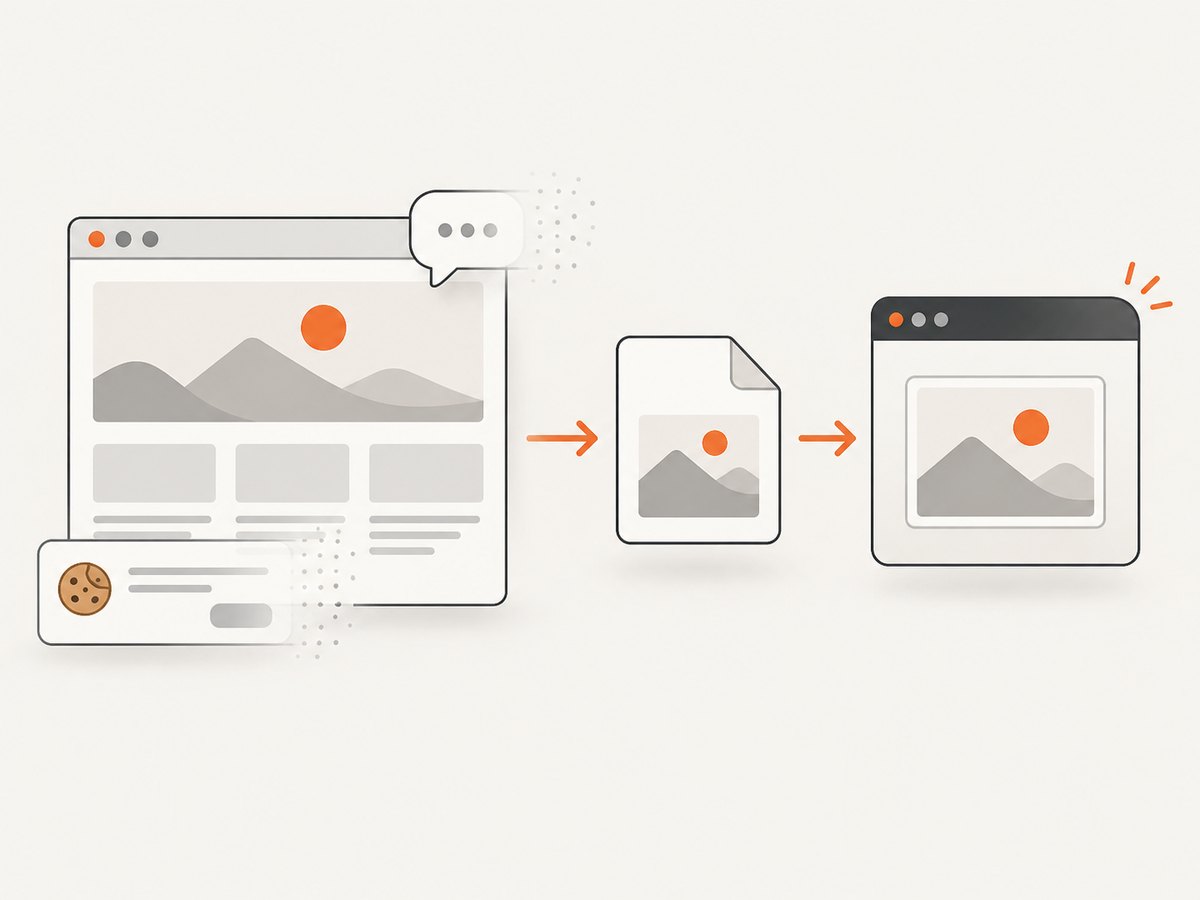
Use the one-call ScreenshotNeo request above when you need a URL rendered as an image without setting up a local browser. Cookie banners are accepted and removed before capture, along with 60+ known consent platforms, newsletter popups, and chat widgets. Bot checks, blank pages, timeouts, failed loads, and cache hits are not billed; response headers report the page verdict and billing status. The MCP server lets AI agents take screenshots. The Free plan includes 1,000 screenshots per month with no card; paid plans start at $5 for 3,000 shots. Sign up for 1,000 free screenshots a month, with no card required.
8. Quality, reliability, and cost considerations
For a one-off personal capture, the built-in Android or Samsung method has no API setup and saves directly to the phone. Its main limitation is page and device compatibility. For a repeatable workflow, a desktop browser or screenshot API is easier to automate, but the resulting image still needs a quality check when a page loads content dynamically.
Long screenshots can be large, especially when the page is tall or captured at high resolution. Crop to the relevant content before sharing, and consider whether a PDF or a set of shorter captures is more readable for a very long document. For API usage, check the returned page-verdict and billing headers when diagnosing a failed or blank result. ScreenshotNeo’s published tiers are Free: 1,000/month; Starter: $5 for 3,000; Growth: $15 for 15,000; Pro: $39 for 60,000; Scale: $99 for 250,000; Business: $249 for 1,000,000. Yearly billing gives two months free, and every feature is on every plan. Choose based on expected successful captures, and consult current plan details before production use.
9. Troubleshooting checklist
| Symptom | Likely cause | What to do |
|---|---|---|
| Capture more does not appear | Unsupported Android version or app surface; screen may not scroll | Check Android version, try a long page in a full browser, or use desktop Chrome |
| Scroll Capture is absent on Galaxy | Current screen does not offer scrollable content, or toolbar option is not available in that software version | Test a long webpage and inspect the screenshot toolbar after capture |
| Only part of the webpage is in the image | Crop guide stops early or the page has not loaded further content | Scroll through once, wait for lazy content, recapture, and extend the crop boundary |
| Bottom of page is blank or cut off | Page content loads late, or the selected crop does not include the final section | Wait for loading, scroll to the bottom and back, then review the saved image |
| Screenshot cannot be found | Looking in the wrong album or capture was shared without saving | Check Photos Collections on this device Screenshots, or Gallery Albums Screenshots |
| DevTools full-size option is hard to find | Menu is in DevTools, not the main Chrome menu | Open DevTools More options and choose Capture a full size screenshot |
| API output is not a usable image | Request may have returned an error or a page verdict such as blank or bot check | Inspect HTTP status and ScreenshotNeo response headers; retry after addressing URL or page access |
10. FAQ
Does Chrome on Android have a full-page screenshot button?
Android’s system capture flow can expose Capture more on supported scrollable screens. The exact availability depends on device software and the screen; the official Android guidance does not promise it for every Chrome page.
Can I take a scrolling screenshot on Android 11?
The documented Android scrolling screenshot workflow applies to Android 12 and newer on most scrollable screens. Check whether your manufacturer provides its own feature, such as Samsung Scroll Capture.
Where are screenshots saved?
Look in Photos under Collections, On this device, Screenshots; on older devices, check Gallery, Albums, Screenshots.
Should I use a screenshot or screen recording?
Use a screenshot when the result should be a still image people can inspect or share. Use screen recording when motion or a sequence of interactions is the important part.


