How to Convert a Webpage to PDF in Chrome on Android
Save a webpage from Chrome on Android as a PDF using the built-in print menu. Follow the steps, find the file, and troubleshoot common snags.
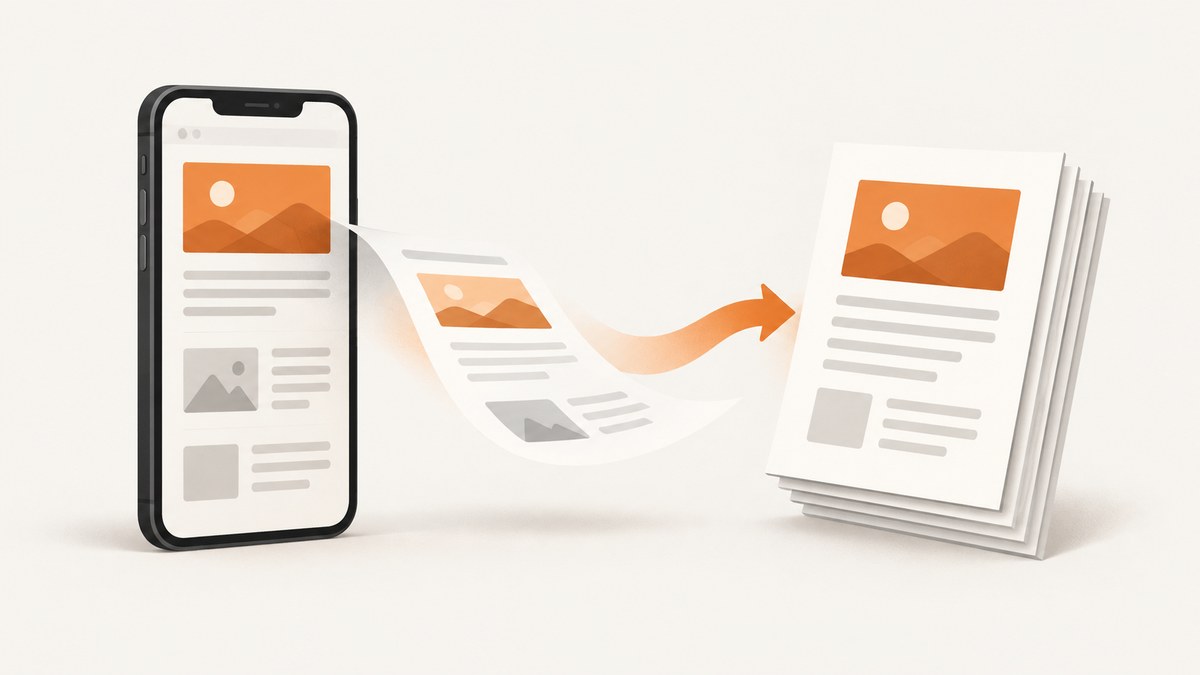
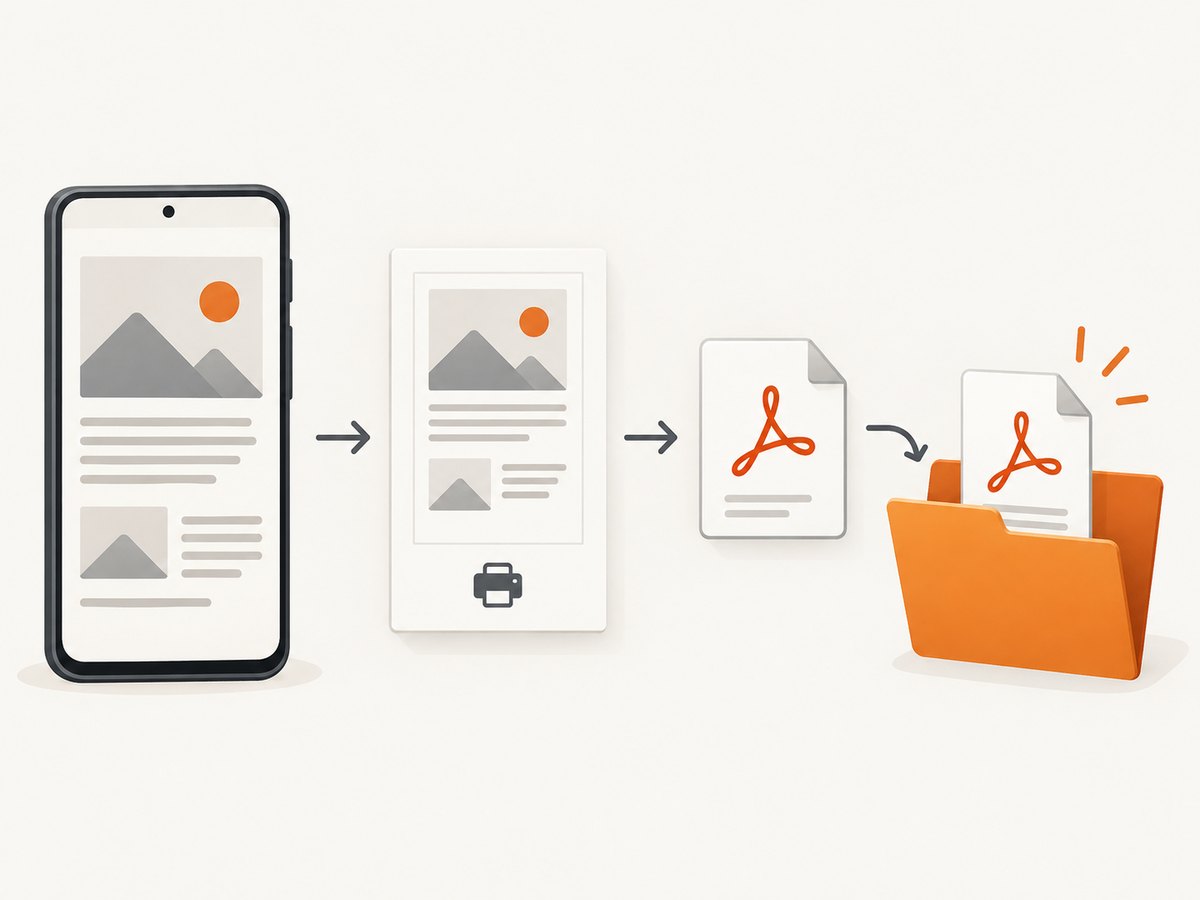
To convert a webpage to PDF in Chrome on Android, open the page, tap More (⋮) → Share → Print, choose Save as PDF in the printer destination list, select where to save the file, then tap Print. You do not need a physical printer: Android’s print preview can create a PDF file directly on your device.
This guide covers Chrome’s built-in workflow, what to check when a menu or destination is missing, and how to capture a webpage as a PDF through an API when you need a repeatable developer workflow.
1. Save a webpage as PDF in Chrome on Android
- Open Chrome on your Android phone or tablet.
- Open the webpage you want to save and wait for it to finish loading.
- Tap More (the three-dot menu) at the top right.
- Tap Share, then choose Print. If you do not see Print immediately, look through the available share options.
- If the print settings are collapsed, tap the settings arrow to expand them.
- Open the printer or destination list and choose Save as PDF.
- Choose a folder or other available location on your device for the PDF.
- Tap Print to finish saving the file.
Google documents the same flow for Chrome on Android: open the page, use More → Share → Print, select Save as PDF, choose a device location, and tap Print. The word “Print” is the action that completes the PDF save; it does not mean you must send the file to a physical printer. Google Chrome Help: Print from Chrome.
2. Where the PDF is saved
Chrome’s documented flow asks you to choose where to save the PDF before you finish. Pick a location you can find later, such as a folder in your device’s file storage. The exact folder names and file-picker appearance can vary by Android version and device, so use the location chooser shown on your phone rather than expecting a fixed path.
After saving, open your device’s file manager and browse to the folder you selected. If you do not remember which folder you chose, check the recent files view or search for the PDF by its filename. The filename may be based on the page title; you can adjust it in the save interface when that option is offered.
3. What the PDF includes, and what may change
The result is a print preview rendered by Chrome and Android’s print system. It is meant to preserve a printable version of the page, not to reproduce every interactive behavior of the live website. Buttons, animations, hover states, and other browser interactions are not useful as static PDF content and may not carry over. The precise layout depends on the webpage and its print styling.
For a cleaner result, let the page load before opening Print. Pages that populate content as you scroll may not have loaded all of their images or sections yet. If the preview omits material, return to the page, scroll through the content to let it load, and try the print flow again.
Chrome’s Android print instructions document the Save as PDF procedure, but they do not promise that every site will print identically or provide a universal workaround for absent menu items. If the output is incomplete, check the page itself and the device’s print flow before assuming the PDF was saved incorrectly.
4. Options and practical choices
| Choice | What to do | When it helps |
|---|---|---|
| Destination | Select Save as PDF in the destination list. | Creates a file without connecting a printer. |
| Settings visibility | Tap the print-settings arrow if options are collapsed. | Reveals the destination list or other controls when the preview is compact. |
| Save location | Choose a folder available in the device picker. | Makes the result easier to find and share. |
| Page content | Wait for loading, and scroll if the site loads content as you move down the page. | Can help the preview include content that appears later. |
The official Chrome instructions do not enumerate device-independent controls for paper size, margins, orientation, or page ranges in this Android flow. Those controls can depend on the print service and device. Use only the options actually shown in your print preview; do not expect every Android device to offer the same controls.
5. Troubleshooting Chrome’s Android PDF flow
| Problem | Likely explanation | What to try |
|---|---|---|
| Print is not visible under Share | The share options may be presented in a different order or the current screen may not be a webpage open in Chrome. | Confirm the page is open in the Chrome app, then reopen More → Share and inspect the available actions. Device-specific interfaces vary. |
| Save as PDF is missing | The destination list may be collapsed, or the Android print service or device setup may differ. | Expand print settings using the arrow, then inspect the destination list. If the option remains absent, investigate the Android device’s print service; Google does not specify a universal Chrome workaround. |
| The PDF is blank or incomplete | The page may not have finished loading, or some content may appear only after scrolling. | Return to the page, wait for it to load, scroll through the relevant sections, and create the PDF again. |
| The file is hard to locate | A different folder was selected in the save picker. | Check the location you selected, then use the file manager’s recent-files view or search. |
| Chrome says Print but no printer is connected | Print is also the final action for saving the PDF. | Choose Save as PDF as the destination; printer hardware is not required for this path. |
| A physical print job fails | This is a separate path that depends on printer availability and connectivity. | Check the printer and its connection. Google describes printer connectivity through Wi‑Fi or a mobile network; it is irrelevant when saving as PDF. |
When a problem is specific to your phone’s menus or print service, note the Android device and version and check its device support information. The Chrome help procedure does not identify one fix that applies to every manufacturer’s interface.
6. For developers: automate webpage-to-PDF capture
The Android steps are convenient for an occasional page. A developer who needs PDFs for a list of URLs, a recurring report, or a server-side workflow may prefer an API. That changes the job from tapping through a phone’s print preview to sending a request and saving the returned PDF bytes.
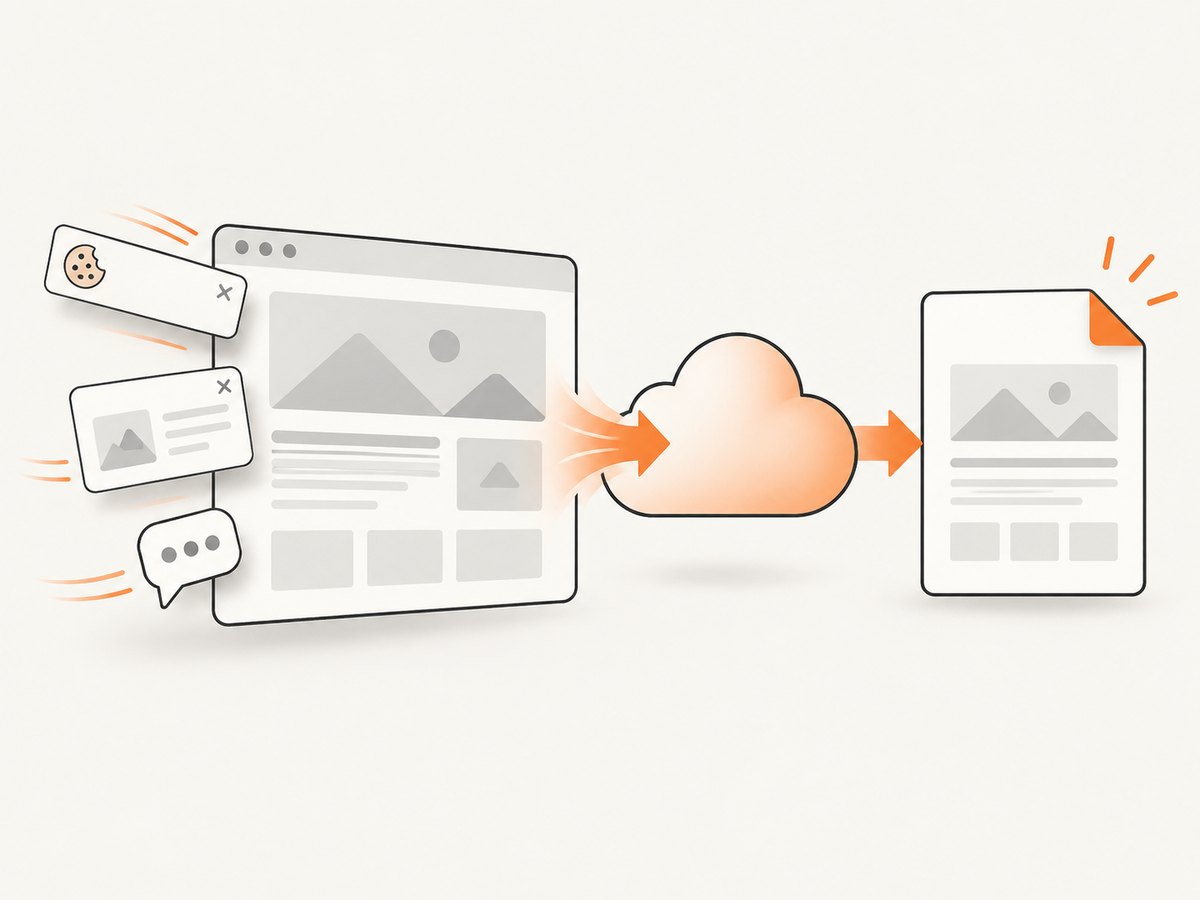
ScreenshotNeo is a website screenshot API and MCP server from Yorker Media. Its API can return a PDF as well as PNG, JPEG, or WebP output. See the ScreenshotNeo API documentation for the available request parameters. The example below uses the API key and target URL as query parameters; keep the key private and replace the example URL with a page you are authorized to capture.
cURL
curl -G "https://api.screenshotneo.com/v1/shot" \
  -d access_key=YOUR_API_KEY \
  --data-urlencode url=https://stripe.com \
  -d format=pdf \
  -o page.pdf
Python
import requests

r = requests.get(
    "https://api.screenshotneo.com/v1/shot",
    params={
        "access_key": "YOUR_API_KEY",
        "url": "https://stripe.com",
        "format": "pdf",
    },
    timeout=90,
)
r.raise_for_status()
with open("page.pdf", "wb") as pdf:
    pdf.write(r.content)
Node.js
const q = new URLSearchParams({
  access_key: 'YOUR_API_KEY',
  url: 'https://stripe.com',
  format: 'pdf',
});
const res = await fetch(`https://api.screenshotneo.com/v1/shot?${q}`);
if (!res.ok) throw new Error(`Screenshot request failed: ${res.status}`);
const bytes = new Uint8Array(await res.arrayBuffer());
await import('node:fs/promises').then(fs => fs.writeFile('page.pdf', bytes));
These examples save the response body to a file. For production, keep credentials in a secret store or environment variable rather than committing them to source control. Check the HTTP response before treating its body as a PDF. Use a longer client timeout if your own workflow needs one; the Python example sets 90 seconds.
7. Or skip the browser setup
For a webpage PDF through ScreenshotNeo, make the same one-request call and set the output format to PDF:
curl -G "https://api.screenshotneo.com/v1/shot" -d access_key=YOUR_API_KEY --data-urlencode url=https://stripe.com -d format=pdf -o page.pdfScreenshotNeo removes cookie banners, newsletter popups, and chat widgets before the shot; each of those steps can be turned off. Bot checks, blank pages, failed loads, timeouts, and cache hits are not billed, and response headers report the page verdict and billing status. Its MCP server provides take_screenshot, get_page_info, and capture_pdf tools for AI agents such as Claude, Cursor, and other MCP clients. The free plan includes 1,000 shots a month with no card; paid plans start at $5 for 3,000 shots. Every feature is on every plan. See ScreenshotNeo and the API docs.
Sign up free for 1,000 screenshots a month, with no card required.
8. Performance, reliability, and cost
Phone workflow: Chrome’s built-in path requires no paid conversion service and no printer for PDF creation. It is a practical choice for a single page or occasional manual save. The page must be available in Chrome, and content that has not loaded may not appear in the preview. If you need to save offline, load the page first; the official procedure does not promise that an unloaded or inaccessible page can be reconstructed later.
API workflow: An API is useful when a script or application needs to request captures repeatedly. Network requests introduce dependencies on connectivity and a remote page’s ability to load. The example uses a 90-second timeout in Python and checks for an HTTP error in Node.js; production clients should handle request failures and avoid treating an error response as a valid PDF. ScreenshotNeo’s stated billing rule excludes bot checks, blank pages, timeouts, failed loads, and cache hits. Its response headers identify verdict and billing information, which can help a calling system decide whether to retry or inspect a result.
Cost: Chrome’s Save as PDF flow has no service fee described in Google’s instructions. ScreenshotNeo’s listed plans are Free: 1,000 shots per month; Starter: $5 for 3,000; Growth: $15 for 15,000; Pro: $39 for 60,000; Scale: $99 for 250,000; and Business: $249 for 1,000,000. Yearly billing gives two months free. These are shot allowances; estimate your usage based on how many capture requests your workflow makes and consult the docs for the output and configuration details you need.
9. Short FAQ
Does “Print” send the page to a printer?
No, not when Save as PDF is selected as the destination. Tapping Print completes the PDF save.
Can I save a webpage as PDF without installing an app?
Chrome’s documented Android flow uses its Share and Print menus and the device’s PDF destination. A separate PDF app is not required for that documented path.
Will every website look exactly like it does on screen?
No. A PDF is a static print rendering, and the page’s print styling and loaded content affect the result.
Can I use the API to capture a page that requires a login?
ScreenshotNeo supports custom headers, cookies, and Authorization among its options. Configure access only for accounts and pages you are permitted to use, and consult the docs for the parameter names and request format.


