Website Capture Browser Extensions and Plugins
Compare browser capture extensions by output, browser support, annotations, storage, search, and archival workflow—and know when an API fits better.
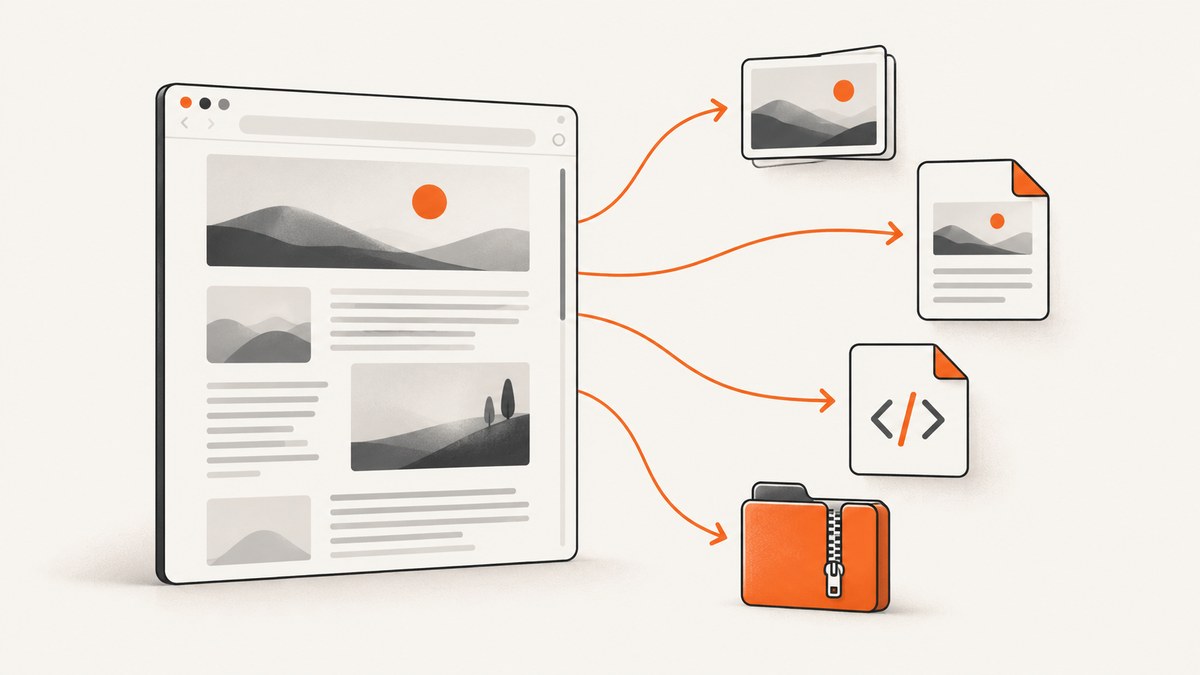
Short answer: choose a website capture extension according to the artifact you need. Use SingleFile when you need one self-contained HTML file that can open offline, OpenCapture when you need a rendered PNG or PDF with local annotation, TagSpaces Web Clipper when you want local files with tags and full-text search, and the ArchiveBox browser extension when URLs should be sent to an ArchiveBox server. A screenshot is a picture of appearance; an HTML, MHTML, or PDF capture has different preservation and search properties.
If you need repeatable captures in an application, CI job, or AI workflow, ScreenshotNeo is the first service to try: it removes common consent banners, popups, and chat widgets before capture, bills only clean shots, and has the lowest paid plan in the supplied pricing information.
1. Decide what you are saving
Before installing an extension, answer four questions:
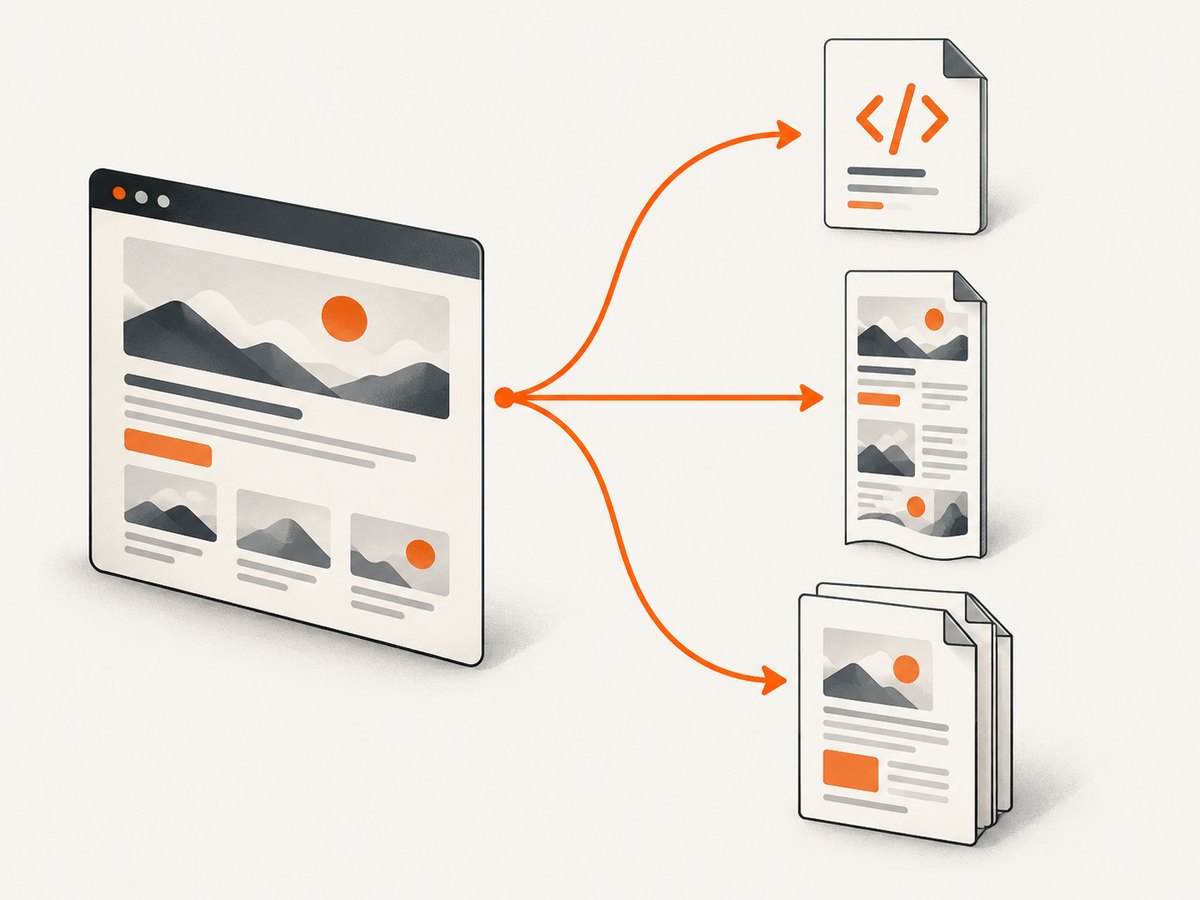
- Do you need appearance or page resources? A PNG records pixels. A PDF records a paginated rendering. A self-contained HTML capture packages resources so a browser can open a copy offline.
- Must the result be searchable? Search works naturally with HTML, Markdown, or an archive index. A screenshot may require OCR and will not preserve links as live elements.
- Where should files live? Local folders, a cloud destination, a USB or NAS archive, or a server such as ArchiveBox each imply different retention and access workflows.
- Do you need annotations? Crop, drawing, text, highlighting, and blur are separate from the capture format.
Do not describe any of these artifacts as a functional copy of a web application. JavaScript state, logins, server APIs, and interactive behavior may not survive a static capture.
2. Comparison at a glance
| Need | Best fit from the researched options | What it provides |
|---|---|---|
| Save an entire web page for offline viewing | SingleFile | One HTML file containing page resources such as images, stylesheets, fonts, and frames. |
| Capture page appearance and mark it up | OpenCapture | Full-page PNG or PDF plus local crop, drawing, text, and blur tools. |
| Save clips and find them later | TagSpaces Web Clipper | HTML, MHTML, Markdown, PNG, or URL files, with local tags and full-text search in TagSpaces. |
| Send URLs into a self-hosted archive | ArchiveBox Browser Extension | Submission of tabs or matching URLs to an ArchiveBox instance; the instance performs the archival work. |
This is a workflow guide, not a controlled reliability ranking. No supplied source establishes which extension handles every authenticated page, virtual list, or dynamic application best. Test representative pages before adopting one for a collection.
3. SingleFile: self-contained HTML
SingleFile describes saving a complete page and its resources in one HTML file that can be opened offline. Its official site lists Chrome, Edge, Firefox, and Safari support. The Chrome listing also describes capturing the current tab, selected content, frames, selected links, and multiple tabs, along with highlighting, notes, content removal, and optional destinations such as Google Drive, Dropbox, GitHub, and WebDAV.
Use it when
- You need links and selectable text to remain available in an offline browser copy.
- You want one file that is easier to move than a folder of dependent assets.
- You need selection or frame capture and optional notes.
Limitations to check
Large or highly dynamic pages can change while resources are being collected. A page that depends on an API, a login session, or runtime-generated data may not replay correctly offline. Optional cloud destinations are product features described by the Chrome listing; check the extension permissions and destination settings before using them for sensitive material.
4. OpenCapture: rendered images and PDF
OpenCapture describes full-page capture to PNG or PDF and local editing tools for crop, drawing, text, and blur. Its site says the free capture workflow needs no account and that rendering and editing occur locally. This is a practical choice when the deliverable is an image for a ticket, review, or document rather than a navigable page archive.
Capture checklist
- Close or dismiss overlays that should not appear in the record.
- Wait for lazy images, charts, and fonts to finish loading.
- Capture the full page, then crop or blur sensitive regions locally.
- Export PNG for pixel review or PDF for pagination and printing.
Full-page stitching can expose fixed headers, sticky buttons, or animations as duplicated or inconsistent regions. Repeat the capture after freezing the page state when visual accuracy matters.
5. TagSpaces Web Clipper: local clips and search
TagSpaces describes saving ordinary HTML, MHTML, Markdown, PNG, or URL files and organizing them with tags and local full-text search. Its product page says clips remain on the computer by default and can be copied to USB, NAS, or cloud folders. Treat those as vendor-described capabilities, not as an independent privacy audit.
Its documentation distinguishes browser behavior. In Chromium-based browsers such as Chrome, Edge, Brave, and Opera, Save Complete Page uses MHTML. In Firefox, that workflow saves PDF. The separate full-page screenshot action scrolls through viewport-sized sections and stitches them into a tall PNG; the documentation says fixed and sticky elements are hidden after their first appearance to avoid duplication. Very long captures can take several seconds because of browser capture limits.
Choose a TagSpaces format
| Format | Useful for | Trade-off |
|---|---|---|
| HTML | Selectable content and offline browsing | May depend on how resources and scripts are packaged. |
| MHTML | Chromium complete-page saving | Browser-specific behavior and less convenient processing than plain HTML. |
| Markdown | Text-first notes and search | Visual layout and complex styling are reduced. |
| PNG | Exact rendered appearance | Not naturally searchable or editable as page content. |
| Firefox complete-page workflow and printing | Pagination can split content and interactive behavior is absent. |
6. ArchiveBox Browser Extension: a server-backed archive
The ArchiveBox extension submits an individual tab or URLs matching patterns to an ArchiveBox instance. The repository lists local screenshots, Chrome or Edge MHTML copies, optional SingleFile HTML copies, and export options. The extension is the submission mechanism; it is not the archive server itself. You must operate or have access to the ArchiveBox instance and decide how it stores, indexes, and secures captures.
Use this workflow when
- You already maintain a self-hosted archive.
- You need a repeatable URL intake process from the browser.
- You want several representations of a URL, such as a screenshot plus MHTML.
Define URL matching rules narrowly at first. A broad rule can submit navigation, refresh, and utility pages you did not intend to preserve. Verify that credentials, cookies, and private URLs are not being sent to an instance with the wrong access controls.
7. Browser support, permissions, and edge cases
Browser pages and restricted URLs
Extensions may be unable to capture browser-internal pages, extension galleries, PDF viewers, cross-origin frames, or pages blocked by enterprise policy. Try a normal HTTPS page first, then check the extension’s host permissions and the browser’s site-access setting.
Lazy loading and infinite scroll
Scroll-based tools may capture only content that has entered the viewport. Scroll through the page first, wait for network activity to settle, or use an option that explicitly loads lazy images. Infinite feeds have no natural end; set a stopping rule and record it.
Sticky elements and animation
Fixed navigation, cookie dialogs, chat bubbles, and animated carousels can be repeated or caught mid-transition. Dismiss overlays, pause media, and capture more than once when the page is time-sensitive.
Authenticated and private pages
A capture inherits the browser session. Avoid exporting private data to cloud destinations or a remote archive unless the destination is approved. A static artifact can also outlive the account that originally granted access.
8. A repeatable extension workflow
- Classify the artifact: HTML or MHTML for offline content, PNG for appearance, PDF for print, or a server archive for collections.
- Prepare the page: set the viewport, dismiss unwanted overlays, expand relevant sections, and wait for images and fonts.
- Capture a small test: inspect the top, middle, and bottom of a long page for missing sections or duplicated fixed elements.
- Apply annotations: crop, redact, blur, or add notes after confirming the source is the intended page.
- Name and store consistently: include date, hostname, and a short page identifier. Keep a manifest if the archive must be auditable.
- Verify the result: reopen HTML or MHTML offline, inspect every PDF page, and check that the image dimensions and file are complete.
9. Troubleshooting
| Symptom | Likely cause | Fix |
|---|---|---|
| Only the visible viewport is saved | Full-page mode was not selected or the page uses a virtual list. | Use the extension’s full-page command, scroll to load content, and test whether the list has a finite end. |
| Images are blank offline | Resources were still loading, blocked, or generated after capture. | Wait for images, reload, disable blocking extensions for the test, and recapture. |
| Sticky header appears many times | Viewport stitching captured it in every segment. | Use a tool that hides fixed elements after the first segment, or temporarily disable the sticky style. |
| PDF breaks headings or tables | Automatic pagination has no knowledge of the document structure. | Use print settings, adjust margins or scale, or choose HTML when structure matters more than pages. |
| Capture button is disabled | Restricted URL, missing host permission, or enterprise policy. | Try a regular HTTPS tab and review site access and administrator policy. |
| ArchiveBox receives the wrong URLs | Broad matching rules or repeated navigation events. | Narrow patterns, submit manually while validating, and inspect the instance’s intake log. |
| Text is not searchable | The artifact is a raster image or scanned PDF. | Save HTML or Markdown as well, or run OCR in a separate approved workflow. |
10. Performance, reliability, and cost
Long pages take longer because extensions must render, scroll, stitch, or package more content. Network-heavy pages are more likely to change between segments. For repeatability, capture at a quiet time, keep the viewport and zoom fixed, and save the original URL and timestamp beside the artifact.
Most browser extensions in this comparison are local workflows, so the direct software cost may be zero, but storage, backup, and operator time still matter. Cloud destinations and a self-hosted ArchiveBox add account, infrastructure, and security decisions. There is no supplied controlled comparison that justifies a success-rate or speed ranking.
11. Or skip the browser setup
For application code or scheduled jobs, ScreenshotNeo returns a PNG, JPEG, WebP, or PDF from one GET request. See the ScreenshotNeo API documentation for parameters and response details.

curl -G "https://api.screenshotneo.com/v1/shot" -d access_key=YOUR_API_KEY --data-urlencode url=https://stripe.com -o shot.webpimport requests
r = requests.get("https://api.screenshotneo.com/v1/shot", params={"access_key": "YOUR_API_KEY", "url": "https://stripe.com"}, timeout=90)
open("shot.webp", "wb").write(r.content)const q = new URLSearchParams({ access_key: 'YOUR_API_KEY', url: 'https://stripe.com' });
const res = await fetch(`https://api.screenshotneo.com/v1/shot?${q}`);Cookie banners, newsletter popups, and chat widgets are removed before the shot; each cleanup step can be turned off. Bot checks, blank pages, timeouts, failed loads, and cache hits cost nothing, and response headers identify the page verdict and whether it was billed. Options include full-page capture with lazy images loaded, CSS element capture, dark mode, 12 device presets or any viewport, retina scale, PDF paper size, margins, landscape and page ranges, custom CSS and JavaScript, clicks, selector waits, delays, network-idle waits, blocking ads, trackers, requests or resource types, custom headers, cookies, user agents and Authorization, timezone, geolocation, transparent backgrounds, image resizing, selectable caching TTL, signed links, asynchronous jobs with signed webhooks, bulk capture for 100 URLs per call, a usage API, and an OpenAPI specification. An MCP server provides take_screenshot, get_page_info, and capture_pdf for Claude, Cursor, and other MCP clients.
The Free plan includes 1,000 shots per month with no card. Starter is $5 for 3,000, Growth $15 for 15,000, Pro $39 for 60,000, Scale $99 for 250,000, and Business $249 for 1,000,000; yearly billing gives two months free, and every feature is on every plan. Create a free ScreenshotNeo account and start with 1,000 screenshots a month at no card.
12. FAQ
Is an HTML capture the same as a screenshot?
No. HTML packages content and resources for browser viewing; a screenshot records rendered pixels. Choose according to whether appearance or offline page content is the primary requirement.
Which format is best for long-term preservation?
Keep more than one representation when the page matters: HTML or MHTML for content, PNG or PDF for visual evidence, and a manifest with URL and date.
Can I archive a login-protected page?
Usually only while the browser session is authorized, and only if the destination is approved. Verify that cookies and private data are not exported unintentionally.
Should I use a browser extension or an API?
Use an extension for an occasional page captured by a person. Use an API for repeatable captures, bulk URLs, scheduled jobs, or an AI agent workflow.


