How to Make Website Content Fit an A4 PDF Page
Make a webpage fit A4 PDF pages with print CSS, reliable browser settings, and fixes for clipping, tiny text, blank pages, and missing fonts.
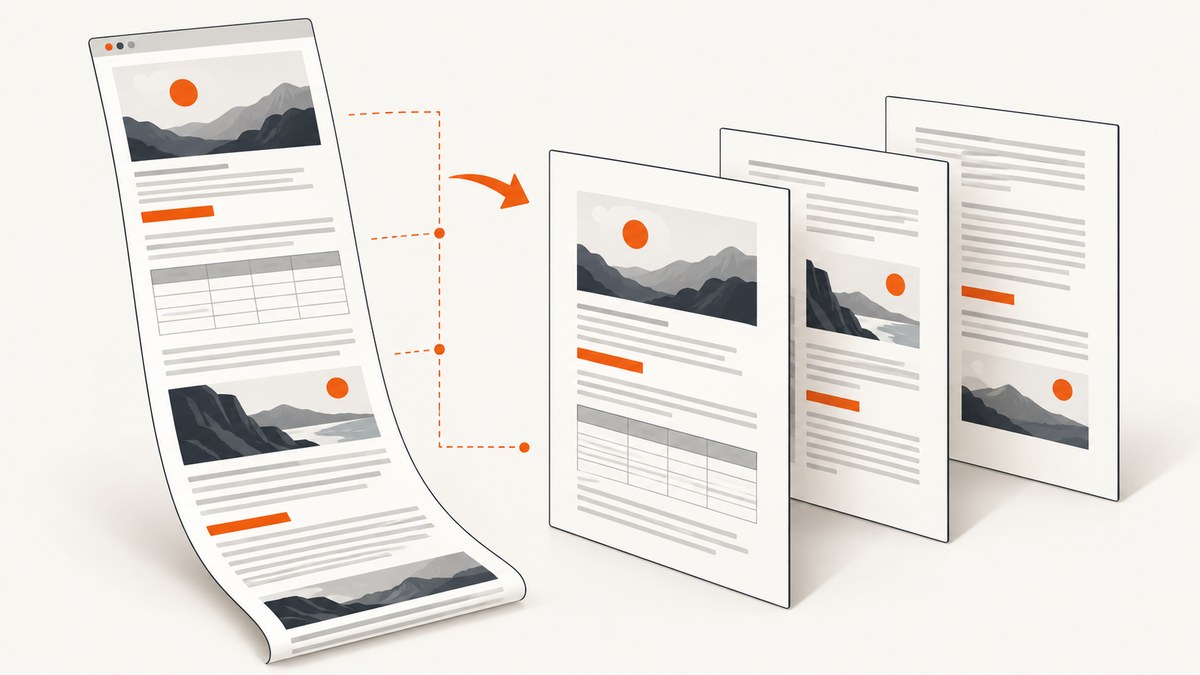
To make website content fit an A4 PDF page, set the page size and margins, then use print CSS to remove screen-only layout constraints and fit wide content inside the printable area. A4 is 210 × 297 mm (8.2677 × 11.6929 in); with 14 mm margins, the usable area is 182 × 269 mm. If you mean fitting the entire webpage onto one physical sheet, that is a different constraint: a long page has to be shrunk dramatically or redesigned. For readable PDFs, let content flow across A4 pages and control the page breaks deliberately.
This guide covers browser export and automated PDF generation with Puppeteer, including complete code and fixes for the common question: “Why does my webpage get cut off when I save it as PDF?” The same print CSS principles apply whether the PDF is made manually or in a publishing pipeline.
1. Decide what “fit on one A4 page” means
There are two common goals:
- Fit the content within the A4 page width. The page may span multiple A4 sheets vertically, while text, images, tables, and code stay within the printable width. This is usually the best choice for articles and reports.
- Fit the entire webpage on a single sheet. The browser must scale the whole document to one page. This can make text too small to read, and the result depends on page length. Short dashboards or receipts may suit this; long articles usually do not.
Start by making the PDF readable at normal scale. Remove unnecessary navigation and sidebars, set sensible margins, and fix elements that exceed the page width. Only use whole-document scaling when one sheet is a firm requirement.
2. Set up print CSS for A4
Print CSS controls how a browser lays out a PDF. Define A4 dimensions and margins with @page, then override screen styles that use fixed widths, sticky navigation, or large sidebars. This starter stylesheet keeps the printable width bounded and avoids common split points:

@page {
  size: A4 portrait;
  margin: 14mm;
}

@media print {
  * { box-sizing: border-box; }

  body {
    margin: 0;
    color: #000;
    background: #fff;
  }

  nav, aside, .cookie-banner, .no-print {
    display: none !important;
  }

  .page, main, article {
    width: 100%;
    max-width: none;
  }

  img, svg, video, canvas {
    max-width: 100%;
    height: auto;
  }

  pre, code, table {
    max-width: 100%;
    overflow-wrap: anywhere;
  }

  h1, h2, h3 {
    break-after: avoid;
  }

  figure, table, .card {
    break-inside: avoid;
  }

  .chapter {
    break-before: page;
  }
}
The 14mm margins leave 182 mm of printable width on A4. Increase them if the document needs more whitespace or will be printed on a device with a larger non-printable area. A CSS margin does not guarantee that every physical printer can reach the paper edge.
overflow-wrap: anywhere is a safety valve for long URLs, identifiers, and unbroken code tokens. It allows emergency wrapping, but can make code harder to read. Prefer shortening displayed URLs, adding intentional line breaks, or placing long examples in a landscape page before making all code wrap arbitrarily.
The break-after: avoid rule helps keep headings with following content. break-inside: avoid asks the browser not to split a figure, table, or card; a block taller than a full page cannot stay together, so the browser still has to split or move it. Apply these rules to components that make sense as a unit, not to every element.
Choose portrait or landscape deliberately
A4 portrait is the usual choice for prose. Landscape provides more width for wide tables, diagrams, and code, at the cost of page height. You can set size: A4 landscape in @page, or assign landscape to a dedicated section with a named page rule when the browser and PDF workflow support it. Check the resulting pages: switching orientation can introduce unexpected pagination or blank sheets.
3. Fix wide content before exporting
Most right-edge clipping comes from an element that remains wider than the printable area. The page size alone does not make a fixed-width layout responsive. Inspect the content and remove the source of overflow:
- Replace fixed pixel widths on the main container with
width: 100%andmax-width: 100%. - Use
box-sizing: border-boxso padding and borders fit inside declared widths. - Scale images, SVGs, video, and canvas to the available width while preserving aspect ratio.
- For tables, remove unnecessary columns, shorten labels, or split the table into related smaller tables. Wrapping every cell can make a table technically fit but difficult to read.
- For code, allow long tokens to wrap or provide a shorter display version. Avoid shrinking all text to accommodate one unusually long line.
- Hide or restyle third-party widgets, sticky elements, and screen-only controls that intrude into the print layout.
Keep readable font sizes before reaching for global scaling. A PDF that technically contains every column but renders the body text too small has not solved the practical problem.
4. Export from the browser print dialog
- Open the page’s print dialog and select Save as PDF.
- Choose A4 and portrait or landscape orientation to match the content.
- Set intentional margins. If the stylesheet declares
@pagemargins, check how your browser’s dialog handles its own margin setting; avoid accidentally applying two sets of margins. - Enable background graphics only if colored backgrounds or other background styling are needed. Leaving them off often makes output simpler and more printer-friendly.
- Use the preview to inspect every page for clipped edges, orphan headings, split tables, missing fonts, and blank pages.
- Adjust the print CSS, then preview again. Use the dialog’s scale control only as a last-mile adjustment, since shrinking the whole page can make text too small without fixing poor page breaks.
Browser previews and physical printers can differ because printers may have non-printable edges. Leave enough margin for the device that will print the PDF, and test the saved PDF itself when its appearance matters.
5. Generate an A4 PDF with Puppeteer
Puppeteer’s page.pdf() renders using the print CSS media type by default. Keep print styles active for a PDF intended to look like a print layout; use screen media only when you explicitly want the screen design. Set A4, margins, background handling, and CSS page-size precedence explicitly for repeatable output.

Install Puppeteer in a Node.js project with npm install puppeteer. Save the following as save-a4.js and run it with node save-a4.js https://example.com:
const puppeteer = require('puppeteer');

async function main() {
  const url = process.argv[2];
  if (!url) {
    throw new Error('Usage: node save-a4.js https://example.com');
  }

  const browser = await puppeteer.launch({ headless: true });
  try {
    const page = await browser.newPage();
    await page.setViewport({ width: 1280, height: 900 });
    await page.goto(url, {
      waitUntil: 'networkidle2',
      timeout: 60000
    });

    // page.pdf() uses print media by default.
    await page.pdf({
      path: 'page.pdf',
      format: 'A4',
      printBackground: true,
      preferCSSPageSize: true,
      margin: {
        top: '14mm',
        right: '14mm',
        bottom: '14mm',
        left: '14mm'
      }
    });
  } finally {
    await browser.close();
  }
}

main().catch((error) => {
  console.error(error);
  process.exitCode = 1;
});
Replace https://example.com with the page to capture. Puppeteer requires the package and a compatible browser installation in the environment where the script runs. See the Puppeteer Page.pdf() API and its PDF generation guide for the documented PDF behavior and options.
What the renderer options change
| Option | Purpose | When to change it |
|---|---|---|
format: 'A4' |
Sets the paper format when CSS page size is not taking precedence. | Use A4 for this output; choose another format only if the destination requires it. |
margin |
Sets top, right, bottom, and left margins. | Match the CSS @page margins and the printer’s needs. Avoid conflicting values. |
preferCSSPageSize: true |
Gives the CSS @page size priority over API dimensions. |
Keep enabled when the stylesheet is the source of truth for page size. |
printBackground: true |
Prints background graphics; it is false by default. | Enable when the design requires background colors or images. Disable for a plainer, more printer-friendly document. |
scale |
Applies a global scale to the page rendering. | Use sparingly for a small final adjustment after fixing CSS width and density. |
With preferCSSPageSize: true, the CSS @page size takes priority over the API’s paper dimensions. That makes the CSS and renderer settings a coordinated configuration: if the CSS says landscape while your intended output is portrait, the CSS wins. If you want the API’s A4 format to control the size, omit CSS size precedence and do not leave a conflicting @page size in the stylesheet.
For a page that should use screen styling intentionally, call await page.emulateMediaType('screen') before page.pdf(). This changes which media rules apply; it does not fix widths or pagination by itself.
6. Wait for fonts and page assets
A PDF can reflow if a web font or image arrives after the page is captured. Puppeteer waits for fonts by default during PDF generation, but navigation readiness and page-specific asynchronous content still matter. The Puppeteer PDF guide documents font waiting behavior.
networkidle2 is a useful starting condition, but some pages keep network connections open or load content after navigation. For a page with a known readiness signal, wait for that selector or a page-specific condition before calling page.pdf(). For example, add await page.waitForSelector('article[data-ready="true"]') after navigation if the target page sets that attribute only when its content is ready.
For essential images, check that they have loaded before capture. A simple page-side check for ordinary image elements is:
await page.waitForFunction(() =>
  Array.from(document.images).every((img) => img.complete)
);
This check waits for image requests to complete, including failed requests; for critical output, also check that required images have nonzero natural dimensions. Lazy-loaded images may not request their files until scrolled into view. If the full document must include them, use a page-specific strategy to reveal or scroll through the content first, then wait for those images before producing the PDF.
7. Keep components together with page-break rules
Let paragraphs flow naturally across pages, but choose break behavior for meaningful components. Keep a heading with the section that follows it, and try to keep short figures, cards, or tables together. Start chapters on a fresh sheet only when that is part of the document structure.
Rules such as break-before: page can create a blank page if combined with existing page breaks, inserted on consecutive elements, or applied to content that has already been moved. Oversized blocks can also defeat break-inside: avoid. If a table is taller than the printable page, split it or allow it to break instead of forcing it to stay together.
8. Troubleshooting: common A4 PDF layout problems
| Problem | Likely cause | Fix |
|---|---|---|
| Right edge clipped or wide content overflowing in print | Fixed pixel width, wide table or code line, padding outside a content box, or third-party widget. | Remove fixed widths, apply max-width: 100% and box-sizing: border-box, inspect tables and code, and hide or restyle the widget. |
| Everything is tiny | The whole document was scaled down to force too much content onto one page, or the content is too dense for the chosen margins. | Remove sidebars and nonessential content, reduce unnecessary margins, simplify wide tables, and reserve renderer scaling for a small final adjustment. |
| Unexpected blank pages | Conflicting or repeated forced breaks, a block too large for the remaining page, or margin interactions. | Temporarily outline print boxes, remove forced breaks, inspect oversized blocks, and add page breaks only at intentional section boundaries. |
| Colors or backgrounds are missing | Background printing is disabled in the dialog or renderer. | Enable background graphics or Puppeteer’s printBackground. For exact color adjustment in Chromium print output, use -webkit-print-color-adjust: exact where appropriate. |
| Fonts reflow after capture | A web font or other asset was not ready when layout was generated, or the font failed to load. | Wait for the page’s readiness condition, inspect font requests, and confirm fonts are available before PDF generation. Puppeteer waits for fonts by default. |
| Browser PDF differs from automation | Different media type, page size, margins, browser version, background setting, or CSS-size precedence. | Compare those settings explicitly. Confirm whether print or screen CSS is active and whether preferCSSPageSize is enabled. |
Table or card splits despite break-inside: avoid |
The block is too tall for a page or the browser cannot honor the requested break rule in that layout. | Shorten or split the component, or allow it to break. Treat the rule as a preference rather than a guarantee for oversized content. |
| PDF is missing newer page content | The site loads content after the navigation event or only after scrolling. | Wait for a page-specific ready selector or condition, trigger lazy content as appropriate, and wait for required assets before capture. |
9. Performance, repeatability, and cost
For a one-off PDF, the browser print dialog is usually the quickest path. For a publishing pipeline that produces the same document repeatedly, Puppeteer makes the page size, margins, media type, background setting, and output path part of a reproducible script. It also adds browser setup and maintenance: the runtime needs Puppeteer and a compatible browser, and each capture consumes time and compute in the environment running it.
Keep capture work reliable by using a finite navigation timeout, closing the browser in a finally block, and waiting for a meaningful page-ready condition. Avoid relying on a single arbitrary sleep if the site exposes a more precise signal. When rendering many pages, manage concurrency to fit the memory and CPU available to the worker; a large batch of simultaneous browser pages can compete for those resources. Preview representative output after changes to print CSS, content, or browser versions because each can change pagination.
Costs for a self-hosted Puppeteer workflow depend on where it runs and how much compute and storage it uses; there is no fixed per-PDF cost implied by the code. If the task is specifically to capture a website as a PDF without operating a browser runtime, ScreenshotNeo offers a website screenshot API that can also return PDFs. Its PDF options include paper size, margins, landscape, and page ranges. See ScreenshotNeo’s API documentation for the available request parameters.
10. Or skip the browser setup
To request a PDF from ScreenshotNeo, send one GET request with the target URL, access key, PDF format, and A4 paper size. This Python example saves the returned file as page.pdf:
curl -G "https://api.screenshotneo.com/v1/shot" \
  -d access_key=YOUR_API_KEY \
  --data-urlencode url=https://example.com \
  -d format=pdf \
  -d paper_size=A4 \
  -o page.pdf
import requests
r = requests.get(
"https://api.screenshotneo.com/v1/shot",
params={
"access_key": "YOUR_API_KEY",
"url": "https://example.com",
"format": "pdf",
"paper_size": "A4",
},
timeout=90,
)
r.raise_for_status()
open("page.pdf", "wb").write(r.content)const q = new URLSearchParams({
access_key: 'YOUR_API_KEY',
url: 'https://example.com',
format: 'pdf',
paper_size: 'A4'
});
const res = await fetch(`https://api.screenshotneo.com/v1/shot?${q}`);
if (!res.ok) throw new Error(`ScreenshotNeo returned ${res.status}`);
await require('node:fs/promises').writeFile('page.pdf', Buffer.from(await res.arrayBuffer()));Use your access key in place of YOUR_API_KEY. Request parameters can also set margins, landscape orientation, and page ranges; consult the API docs for the exact supported parameter names and values. The CSS on the target page still affects its print layout, so a PDF service does not remove the need to fix wide content or page breaks when you control that site.
ScreenshotNeo removes cookie and consent banners, newsletter popups, and chat widgets before capture. Bot checks, blank pages, and failed loads are never billed; response headers indicate the page verdict and billing status. An MCP server lets AI agents use the screenshot tools. The free plan includes 1,000 screenshots a month with no card, and paid plans start at $5 for 3,000.
Sign up for ScreenshotNeo and get 1,000 screenshots a month free, with no card.
11. Short FAQ
Can a long website article fit on one A4 sheet and remain readable?
Usually not. A long page scaled onto one sheet may become unreadable. Use multiple A4 pages with controlled breaks unless one-sheet output is essential and the content is short.
Should I use CSS scaling or the print dialog’s scale control?
Fix the print layout first: remove unnecessary content, correct widths, and choose breaks. Treat global scaling as a small finishing adjustment, not a substitute for a print stylesheet.
Do I need different HTML for PDF output?
Usually you can use the same page and add print-specific CSS. A separate print view is useful when screen controls, dense tables, or interactive content need a substantially different presentation.
Why does the PDF have more pages than the browser preview suggests?
Check the actual paper size, margins, print media rules, font loading, and whether the saved output uses CSS page size. Small differences in any of these can change line wrapping and pagination.


