Website Image Archive
Build a traceable website image archive with capture dates, source URLs, searchable labels, rights notes, and reliable backups.
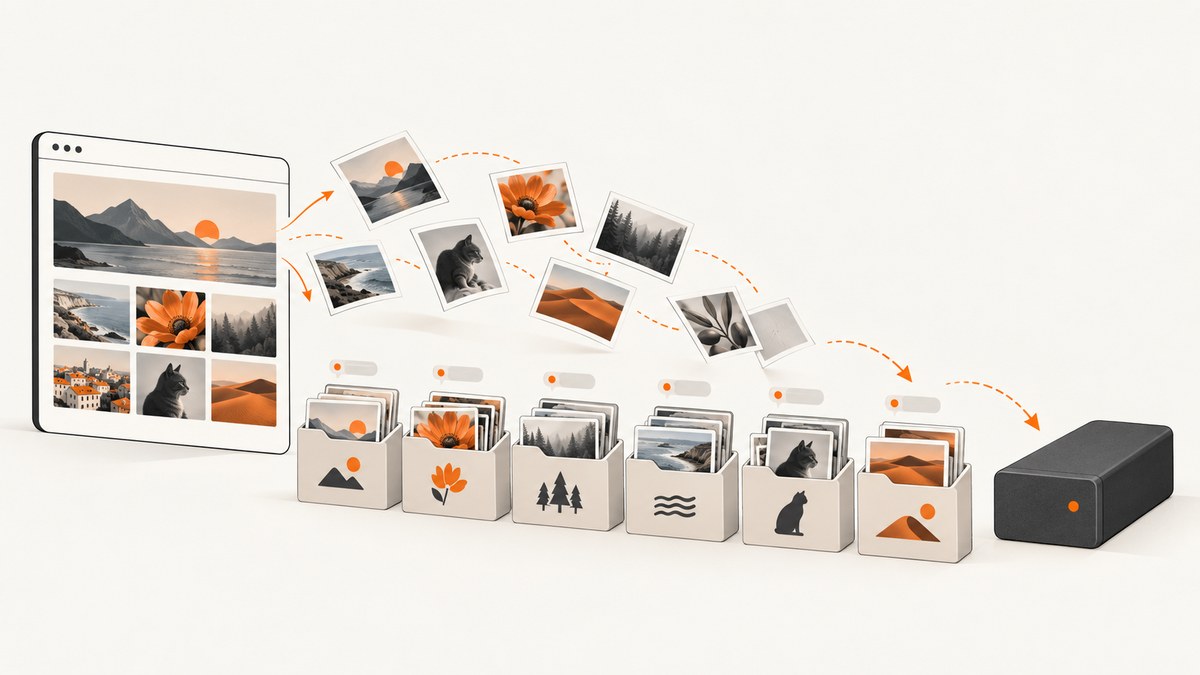
A website image archive is an organized, traceable collection of images associated with a website. It includes the image files and enough context to find, understand, and responsibly use them later: source URLs, capture or publication dates, descriptive labels, rights and access notes, and backups. A folder of downloaded pictures is a starting point; an archive lets someone answer what an image shows, where it came from, when it appeared, and whether it can be reused.
For a small site, you can build one with a browser, a consistent folder structure, a metadata file, and an independent backup. For a larger collection, add searchable records and a preservation plan. This guide covers both newly maintained website libraries and images recovered from older sites or web captures.
1. Decide what the archive needs to preserve
Start with the questions future users need answered. Are you documenting how a website looked on particular dates? Recovering images after a redesign? Preserving an institution’s history? Making images available to researchers? Those aims affect what you capture, how you describe it, and who should have access.
For every item, aim to retain:
- The original file, where available and permitted, plus a note if you only have a screenshot or a transformed copy.
- Provenance: source page URL, image URL if different, and who supplied or captured the file.
- Dates: capture date and, separately, original publication date when known. Do not present an estimated or Wayback capture date as the image’s original publication date.
- Description: a concise subject or event label, relevant people or locations where appropriate, and the page or collection context.
- Rights and access: owner or license if known, restrictions, permitted uses, and any uncertainty that needs review.
- Integrity and storage: a stable filename, file format, and backup location.
A personal archive dossier by Martine Jacobs documents 167 screenshots collected from a hard-drive image archive and a link dossier spanning 19 August 2000 to 11 November 2011. It also describes an earliest 1997 capture containing HTML pages and image files. This illustrates why capture provenance and dates belong alongside the files. Source: Martine Jacobs’s Wayback archive dossier.
2. Choose the archive scope and source
Write down what “complete” means for this project. A single-page record, a set of image URLs, screenshots of selected pages, and a crawl of an entire domain preserve different things. A screenshot records a rendered view; it does not automatically preserve the original image file, HTML, or every off-screen asset. If restoration or reuse is the goal, collect source assets where permitted as well as visual captures.
For an existing site you control, inventory its media library and page references. Export originals and existing metadata before a redesign or migration. For a site you do not control, use only sources and capture methods you are allowed to access. National web archives can preserve broader web material: the UK Web Archive describes annual crawls of .uk and other UK geographic top-level domains and accepts public nominations. A crawl’s existence does not guarantee that every page or image was captured. UK Web Archive.
For a historical site, the Wayback Machine may provide dated captures. Check each capture’s context and availability; missing assets, redirects, or later changes can affect what appears. Save the archive URL and capture timestamp with your own record. Public availability does not itself establish permission to reuse an image.
3. Capture website images consistently
For a small set, open each target page in a browser at a documented viewport and date, wait for important images to load, and save the original image where accessible. If the purpose is to document visual appearance, also save a full-page screenshot. Record whether the image is an original download or a screenshot crop: these are different artifacts and should not be substituted silently.
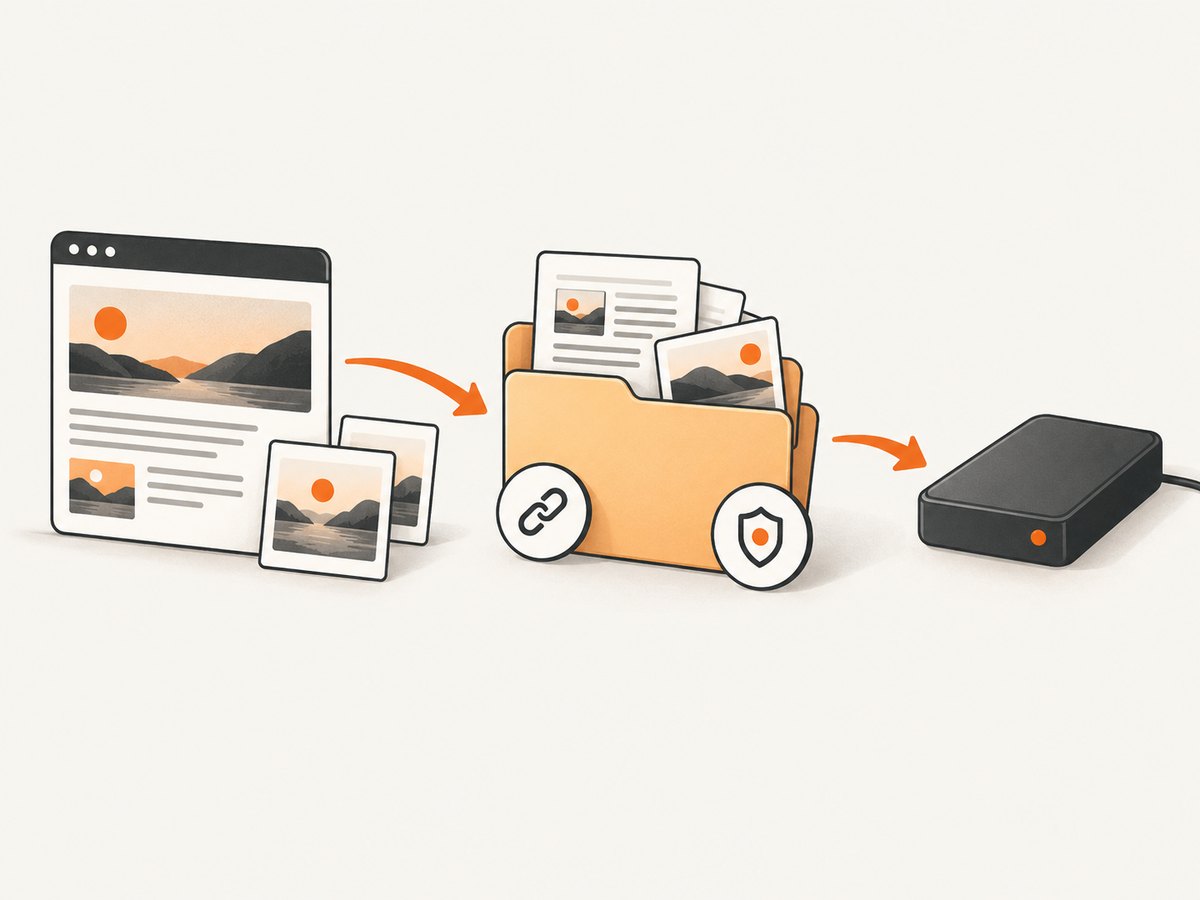
- List the page URLs and the reason each page belongs in scope.
- Capture the page or export the original assets, noting the date, browser or tool, viewport, and any relevant capture settings.
- Check lazy-loaded content by scrolling or using a capture process that loads it; confirm the resulting file contains the expected images.
- Save the source and capture details immediately rather than relying on browser history or filenames alone.
- Open a sample of saved files and compare it with the source page. Record unavailable pages and failed captures instead of treating them as empty results.
When using a screenshot API, the useful settings depend on the question being answered: full-page capture for a page record, a CSS selector for one component, a viewport and device scale for repeatability, and a wait condition for content that renders asynchronously. Custom CSS can hide unrelated page sections, but document that change because it alters the evidence. Cookies, authentication headers, geolocation, or a user agent may be needed for an authorized site that varies by visitor. Do not capture private or restricted material without authorization.
ScreenshotNeo is a website screenshot API and MCP server. Its API can return PNG, JPEG, WebP, or PDF; its options include full-page capture with lazy images loaded, element capture, custom CSS and JavaScript, selector or network-idle waits, viewport and device presets, cookies and headers, and caching. The ScreenshotNeo documentation lists its API parameters.
4. Organize files and metadata
Use stable identifiers and descriptive groupings. A practical folder scheme could be archive/collection/year/item-id/, with original assets and capture evidence stored separately. Group by project, event, subject, or page section—whichever reflects how people will look for material. Avoid encoding every detail in a filename; metadata is easier to update and search.
Use a CSV or a database as the item register. A useful starting schema is:
item_id,filename,source_page_url,image_url,captured_at,original_date,collection,description,rights_status,rights_note,access_level,provenance,checksum
img-0001,2026-09-30-home-hero.webp,https://example.org/,https://example.org/hero.webp,2026-09-30T14:30:00Z,,homepage,Homepage hero image,unknown,Review before reuse,staff,Downloaded from authorized site,
Use ISO-style dates consistently, include the timezone for capture timestamps, and leave unknown values blank or explicitly marked unknown. Do not invent a rights status. A checksum can help detect accidental changes during copying, but it does not prove ownership or authenticity by itself.
For a modest collection, descriptive folders and a spreadsheet may be sufficient. For a growing institutional archive, provide simple and advanced search, filters for dates and collections, and clear access rules. A heritage-society report describes an image database with random-image display plus simple and advanced search, reflecting that discovery is a core archive function rather than an optional finishing touch. Source: heritage-society image database report.
5. Preserve rights and access information
Do not assume that an image is reusable because it appears on a public website or in a public web archive. Record the rights holder, license, contract, or public-domain basis when known. If the basis is unclear, mark the record for review and restrict reuse until that review is complete. Keep access restrictions with the image record, not only in a separate email or staff member’s memory.
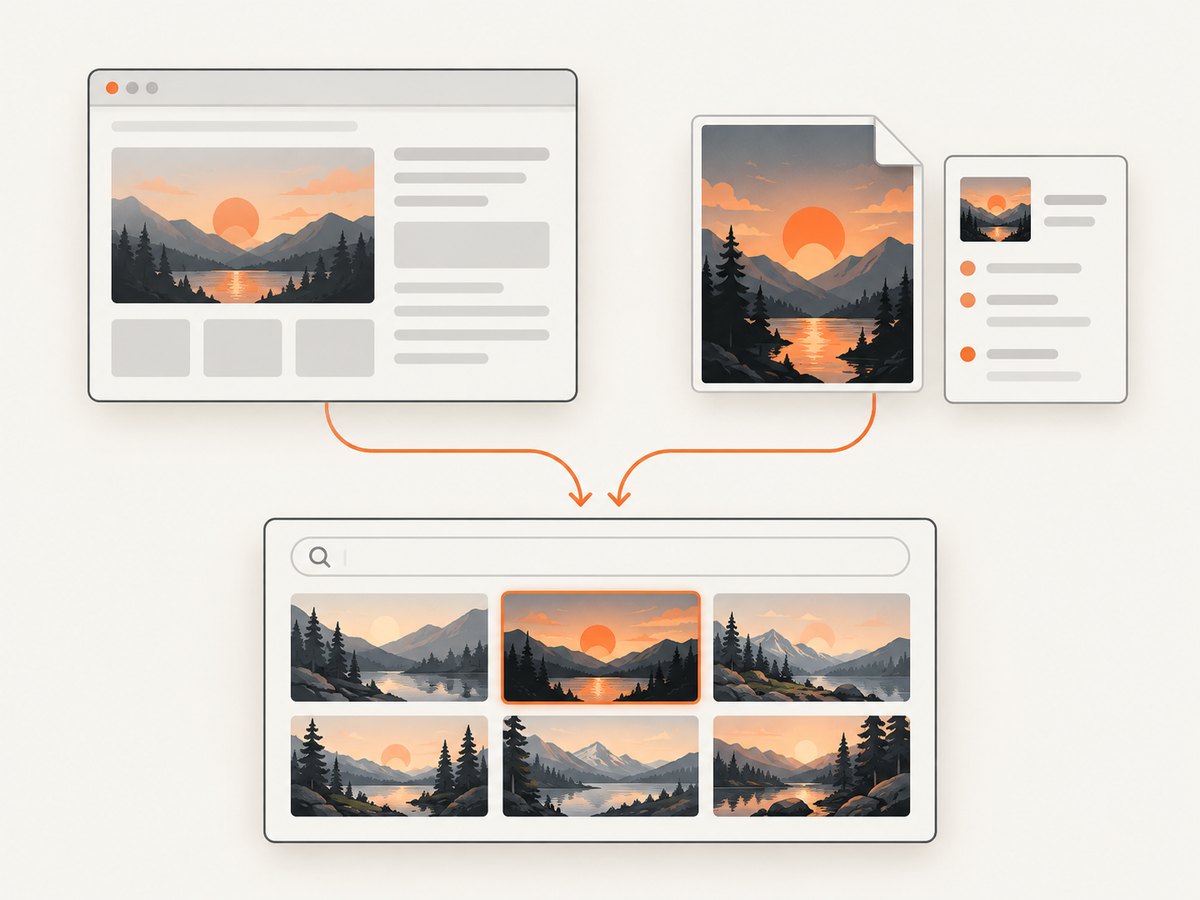
Access may differ by role: internal preservation copies, researcher access, and public downloads can have different rules. The Six Nations Rugby Image Archive terms state that access and use are governed by terms of use and that content may be delivered in multiple formats, including a protective SmartFrame format. That is a reminder to review the specific archive’s conditions before downloading, embedding, or redistributing. Six Nations Rugby Image Archive.
6. Back up and test retrieval
Keep at least one independent copy of the collection and its metadata. For a small archive, an external hard drive is a straightforward additional copy; disconnect it when it is not being updated to reduce exposure to accidental changes. Larger archives should define who maintains storage, checks copies, handles migrations, and restores files. Do not confuse a cloud sync folder with a tested backup: a deletion or corruption can sync too.
- Keep the files and their metadata together or maintain a clear, stable link between them.
- Make a second copy on independent storage.
- Periodically restore a sample and verify it opens and matches its register entry.
- Review file formats and storage access when systems change.
- Document who can update, export, and approve public access.
There is no universal archive size, retention period, storage cost, or success rate established by the examples in the research. Estimate capacity from your actual files: total the current collection, allow room for new captures and additional preservation copies, and include metadata and any original page exports. Choose storage and managed preservation based on required access, redundancy, exportability, and staff responsibility.
7. Common problems and fixes
| Problem | Likely cause | Fix |
|---|---|---|
| Images are missing from a screenshot | Lazy loading, slow rendering, blocked resources, or an incomplete archived page | Scroll or enable lazy-image loading; wait for a relevant selector or network idle; retry and record the capture method. For historical captures, note that the asset was unavailable rather than implying the page had no image. |
| The archive has files but no usable context | Metadata was postponed or filenames were treated as descriptions | Capture source URL, date, collection, and provenance at ingest. Use a stable item ID and complete the minimum fields before adding the item to the archive. |
| Duplicate files accumulate | The same image was saved from multiple pages or capture dates | Compare checksums to identify identical bytes, retain separate provenance records for distinct appearances, and distinguish duplicates from visually similar revisions. |
| A screenshot differs between runs | Dynamic content, viewport changes, fonts, consent overlays, personalization, or delayed assets | Record viewport, capture time, wait condition, and relevant settings. Repeat with consistent conditions and preserve both versions if the difference is historically meaningful. |
| Staff cannot tell whether an image can be reused | Rights notes are missing, vague, or separated from the item | Mark status unknown, add a review owner, and restrict reuse until confirmed. A public URL is not a license. |
| Files disappear after a redesign or migration | The archive depended on a live site or one storage location | Export files and metadata before migration, maintain an independent backup, and test retrieval after the move. |
8. DIY capture code for a site you control
For repeatable page screenshots using Python and Playwright, install the browser package and its Chromium browser:
python -m pip install playwright
python -m playwright install chromium
Save the following as capture_page.py. It records the requested URL, UTC capture time, viewport, and a full-page PNG. It waits for network activity to settle, with a timeout fallback, then scrolls through the page to trigger many lazy-loaded images before capturing.
import asyncio
import json
from datetime import datetime, timezone
from pathlib import Path
from playwright.async_api import async_playwright

URL = "https://example.org/"
OUT = Path("website-image-archive")

async def main():
    OUT.mkdir(parents=True, exist_ok=True)
    async with async_playwright() as p:
        browser = await p.chromium.launch(headless=True)
        page = await browser.new_page(viewport={"width": 1440, "height": 1000}, device_scale_factor=1)
        response = await page.goto(URL, wait_until="domcontentloaded", timeout=60000)
        try:
            await page.wait_for_load_state("networkidle", timeout=15000)
        except Exception:
            pass  # Some sites keep connections open; continue after the bounded wait.
        await page.evaluate("""async () => {
          const step = Math.max(400, window.innerHeight);
          for (let y = 0; y < document.body.scrollHeight; y += step) {
            window.scrollTo(0, y);
            await new Promise(resolve => setTimeout(resolve, 250));
          }
          window.scrollTo(0, 0);
        }""")
        await page.wait_for_timeout(1000)
        captured_at = datetime.now(timezone.utc).isoformat()
        await page.screenshot(path=str(OUT / "page-full.png"), full_page=True)
        metadata = {
            "source_page_url": URL,
            "captured_at": captured_at,
            "viewport": {"width": 1440, "height": 1000},
            "device_scale_factor": 1,
            "http_status": response.status if response else None,
            "artifact": "page-full.png",
            "rights_status": "unknown"
        }
        (OUT / "page-full.json").write_text(json.dumps(metadata, indent=2), encoding="utf-8")
        await browser.close()

asyncio.run(main())
Run it with python capture_page.py. Replace the example URL with a page you are authorized to capture. This creates a screenshot of the rendered page; it does not download each source image as an original, preserve the HTML, or establish reuse rights. Add an asset-export step if you need original files and are permitted to retrieve them. For reproducible records, choose a consistent viewport and device scale, save one record per capture, and note failures or page changes. Network-idle waits can be unsuitable for pages with long-lived requests, which is why this example has a bounded wait and fallback.
9. Or skip the browser setup
A single API request can capture a URL as an image or PDF. This cURL example saves a WebP screenshot; replace the target URL as needed. See the ScreenshotNeo API documentation for formats and options.
curl -G "https://api.screenshotneo.com/v1/shot" -d access_key=YOUR_API_KEY --data-urlencode url=https://stripe.com -o shot.webpPython:
import requests
r = requests.get("https://api.screenshotneo.com/v1/shot", params={"access_key": "YOUR_API_KEY", "url": "https://stripe.com"}, timeout=90)
open("shot.webp", "wb").write(r.content)
Node.js:
const q = new URLSearchParams({ access_key: 'YOUR_API_KEY', url: 'https://stripe.com' });
const res = await fetch(`https://api.screenshotneo.com/v1/shot?${q}`);
ScreenshotNeo removes cookie banners, newsletter popups, and chat widgets before the shot; each step can be turned off. Bot checks, blank pages, timeouts, and failed loads are never billed, and cache hits cost nothing. An MCP server lets AI agents use screenshot tools. The free plan includes 1,000 shots a month with no card; paid plans start at $5 for 3,000. Sign up for 1,000 free screenshots a month, with no card.
10. Performance, reliability, and cost
For a large capture set, process a small bounded number of pages at once rather than launching an unlimited number of browsers. Excess parallel work can strain your own machine or the target site and makes failures harder to diagnose. Keep a queue with the URL, status, timestamp, and retry count; retry transient failures with a limit, and do not overwrite a successful earlier capture without retaining its provenance.
Browser capture costs include implementation and maintenance time, compute, storage, and the effort of checking output. Managed capture can reduce browser setup, but still requires reviewing scope, permissions, and returned artifacts. ScreenshotNeo offers caching with a chosen TTL, bulk capture of up to 100 URLs per call, asynchronous jobs with signed webhooks, and a usage API. Its stated plans are Free 1,000 shots/month, Starter $5 for 3,000, Growth $15 for 15,000, Pro $39 for 60,000, Scale $99 for 250,000, and Business $249 for 1,000,000; yearly billing gives two months free, and every feature is available on every plan. These are capture-service prices, separate from the storage and preservation costs of maintaining an archive.
For reliability, preserve the capture manifest, retain error outcomes, and periodically open files from backups. A successful HTTP response alone does not prove that the intended content was captured, so check page verdict and output when your workflow uses a capture service. ScreenshotNeo responses include X-Page-Verdict and X-Billed headers indicating page outcome and billing status.
11. Archive readiness checklist
- Scope states which pages, assets, and dates are included.
- Each record has a source, capture date, description, and provenance.
- Original assets are distinguished from screenshots and transformed copies.
- Rights and access status are recorded, including unknown cases.
- Folders or collections follow a stable naming scheme.
- Users can search or browse the collection in a way that fits its size.
- An independent backup exists, and a sample restore has been checked.
- Capture failures and unavailable historical assets are documented.
12. FAQ
Can I reuse images from the Wayback Machine?
Not automatically. The capture can help establish when and where an image appeared, but reuse depends on ownership, license, jurisdiction, and applicable archive terms. Record the capture URL and verify rights separately.
Is a screenshot a substitute for an image file?
No. A screenshot documents rendered appearance at a particular moment. It may resize, crop, or combine page elements and usually does not preserve the original asset or its metadata.
What should I use for a small archive?
A consistent folder structure, a spreadsheet or metadata file, and an independent external hard-drive copy are a practical starting point. Add a searchable system when retrieval becomes difficult.
How do I archive an entire domain?
Define scope and permissions first, then use an authorized crawler or preservation service that supports the required domain coverage. A series of page screenshots alone should not be described as a complete domain archive.
How long should an archive be retained?
There is no universal period. Set retention based on the archive’s purpose, legal and contractual duties, access commitments, and the organization’s capacity to maintain backups and readable formats.


