Website Image Compressor
Resize first, compare AVIF and WebP, and verify Core Web Vitals with this complete website image compression workflow.
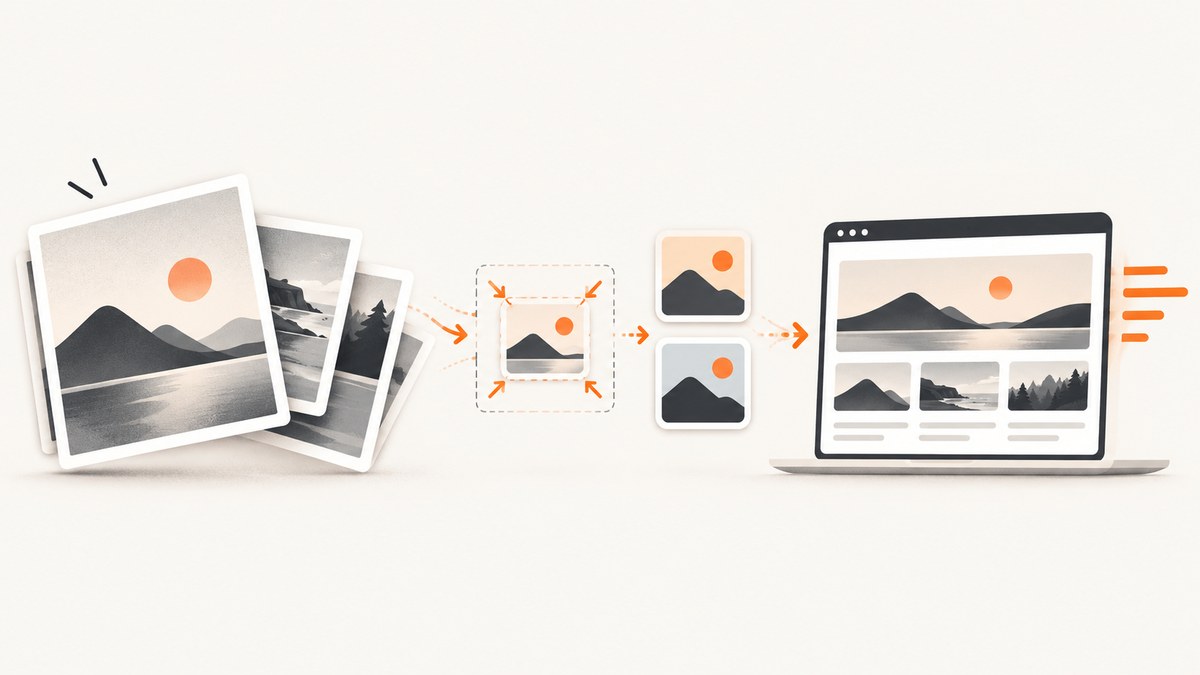
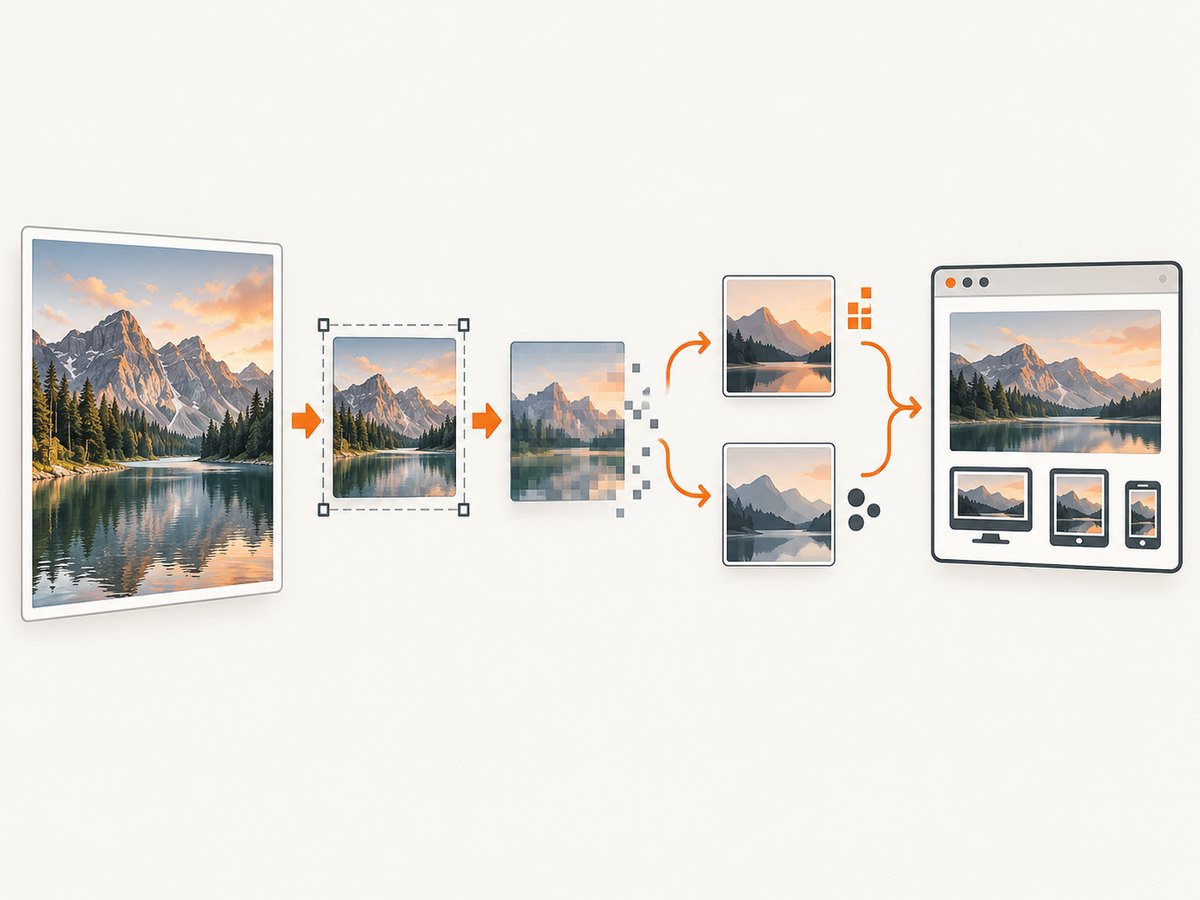
Direct answer: resize every image to the largest size it will actually render, compare AVIF and WebP with the source format at a quality setting that preserves the subject and text, then verify the result with PageSpeed Insights and field Core Web Vitals. Squoosh is useful for one-off browser work, ImageOptim for desktop batches, and Imagemin for build pipelines.
There is no universal quality number. Format, quality, dimensions, and responsive delivery must be chosen together. Images often account for much of a page’s downloaded data, so removing pixels that will never be displayed is usually the first high-impact change.
1. What a website image compressor should do
| Axis | Question |
|---|---|
| Bytes | How many bytes were removed at the same rendered dimensions? |
| Visible quality | Are text, faces, edges, gradients, and fine texture acceptable? |
| Dimensions | Is the output no larger than the biggest slot and density you serve? |
| Format | Does AVIF or WebP beat JPEG or PNG for this asset? |
| Alpha and animation | Does transparency survive, and is animation still needed? |
| Delivery | Can your HTML, CMS, CDN, or build system select the right variant? |
A smaller file that looks visibly damaged, is delivered at the wrong dimensions, or causes layout shift is not a successful optimization.
2. Inventory and resize before compressing
- List the largest files and identify the image that becomes the page’s Largest Contentful Paint element.
- Measure the rendered slot in each relevant layout.
- Export no larger than that maximum width plus the density variants your project actually needs.
- Record source format, dimensions, transparency, animation, and usage.
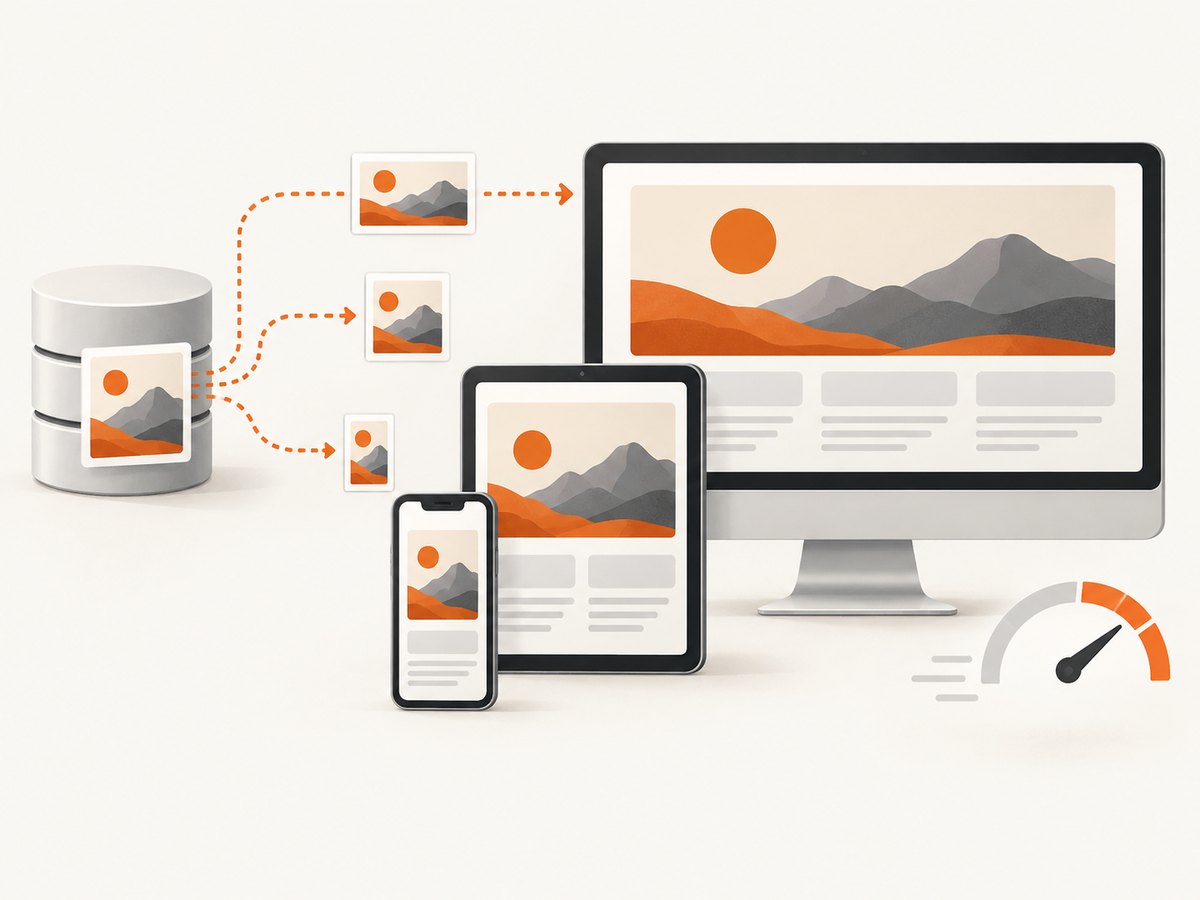
Responsive delivery is part of compression. Sending a 2400-pixel source to a 360-pixel phone wastes bytes even when the encoding is efficient.
3. Choose the format by content
| Content | Compare first | Check |
|---|---|---|
| Photographs | AVIF and WebP against JPEG | Texture, gradients, faces, and text in the scene |
| Transparent graphics | WebP or AVIF against PNG | Alpha edges, shadows, and semitransparent pixels |
| Vector artwork | SVG | Keep genuinely vector artwork as vector |
| Animation | Animated WebP/AVIF or video | Whether video is more suitable than GIF |
WebP supports lossy and lossless compression, transparency, and animation. Chrome for Developers recommends comparing AVIF and WebP with JPEG and PNG. Animated content may be better served as video than GIF.
4. Select a workflow
Squoosh
Open the image in Squoosh, compare AVIF and WebP with the source, choose a quality that preserves important detail, and export the winning version.
ImageOptim
Use ImageOptim for desktop batches before upload. Check dimensions, transparency, and visual quality after processing.
Imagemin
Use Imagemin when optimization belongs in development or deployment. Generate deterministic derivatives and warn when an asset exceeds your byte or dimension budget.
Hosted optimization
A hosted optimization service or CDN can resize and negotiate formats at request time. Check privacy, cache behavior, CMS integration, transformed URL stability, and cost.
5. Deliver responsive variants
Use srcset and sizes so the browser can choose a file near the rendered width. Use picture for modern formats with a fallback.
<picture>
  <source type="image/avif"
    srcset="/img/hero-480.avif 480w, /img/hero-960.avif 960w, /img/hero-1440.avif 1440w"
    sizes="(max-width: 700px) 100vw, 720px">
  <source type="image/webp"
    srcset="/img/hero-480.webp 480w, /img/hero-960.webp 960w, /img/hero-1440.webp 1440w"
    sizes="(max-width: 700px) 100vw, 720px">
  <img src="/img/hero-960.jpg"
    srcset="/img/hero-480.jpg 480w, /img/hero-960.jpg 960w, /img/hero-1440.jpg 1440w"
    sizes="(max-width: 700px) 100vw, 720px"
    width="1440" height="900" alt="Descriptive subject">
</picture>
Set intrinsic width and height, or an equivalent aspect ratio, to reserve space and prevent layout shifts. Match sizes to the CSS layout; an incorrect value can make the browser download an unnecessarily large candidate.
6. Compare quality consistently
- Choose representative photographs, transparent graphics, gradients, and text-heavy images.
- Resize every candidate to identical output dimensions.
- Encode AVIF, WebP, and the current format at several quality settings.
- Record bytes and inspect at the intended display size on desktop and mobile.
- Choose the smallest candidate that keeps the subject, text, edges, and transparency acceptable.
Quality settings are encoder-specific. Use separate policies for photographs, transparent artwork, and screenshots.
7. Verify performance
Run PageSpeed Insights before and after publishing. Check field data in Search Console or your Core Web Vitals report. Google’s good targets are LCP within 2.5 seconds, INP below 200 milliseconds, and CLS below 0.1.
- Confirm which resource is the LCP element.
- Check CLS after images load.
- Check whether decoding or lazy loading competes with interaction.
- Measure cache-hit and repeat-view transfer sizes.
- Test a representative mobile connection.
8. Troubleshooting
| Symptom | Cause | Fix |
|---|---|---|
| File is still huge | Only quality changed; dimensions stayed oversized | Resize to the largest rendered slot and add responsive candidates. |
| Blurry on phones | One small asset serves every density | Add an appropriately sized high-density candidate. |
| Transparent edges look wrong | Alpha handling or lossy settings damaged the matte | Compare WebP/AVIF with PNG and adjust quality. |
| Modern format fails | Missing fallback or incorrect MIME configuration | Use picture with a fallback img and configure the server/CDN type. |
| Layout jumps | No intrinsic dimensions | Set width/height or CSS aspect-ratio. |
| PageSpeed barely changes | Image is not the bottleneck or sizes selects a large file |
Inspect the LCP resource and selected candidate. |
| Animation is inefficient | GIF retained for motion | Compare animated WebP/AVIF and video. |
| Batch output varies | Manual settings differ | Move repeatable rules into an Imagemin pipeline. |
9. Performance, reliability, privacy, and cost
- Performance: resize first, then encode. Modern formats help only when the browser receives the right dimensions.
- Reliability: keep a fallback, validate generated files, and use versioned names for immutable derivatives.
- Privacy: local tools keep files in your workflow; hosted services send files to a provider.
- Cost: local and pipeline tools avoid per-request transformation fees but consume engineering or editorial time. Hosted services trade that work for service cost.
- Operations: set byte and dimension budgets and review the largest assets after releases.
10. Or skip the browser setup
If the asset you need is a screenshot of a web page, ScreenshotNeo returns a PNG, JPEG, WebP, or PDF from one GET request. It accepts cookie or consent banners like a visitor, removes 60+ known consent platforms plus newsletter popups and chat widgets, and lets you turn each step off. Bot checks, blank pages, timeouts, failed loads, and cache hits are not billed; response headers identify the page verdict and billing status. Its MCP server gives Claude, Cursor, and other MCP clients take_screenshot, get_page_info, and capture_pdf.
See the ScreenshotNeo API docs for every option.
curl -G "https://api.screenshotneo.com/v1/shot" \
  -d access_key=YOUR_API_KEY \
  --data-urlencode url=https://stripe.com \
  -o shot.webp
import requests
r = requests.get("https://api.screenshotneo.com/v1/shot", params={"access_key": "YOUR_API_KEY", "url": "https://stripe.com"}, timeout=90)
r.raise_for_status()
open("shot.webp", "wb").write(r.content)const q = new URLSearchParams({ access_key: 'YOUR_API_KEY', url: 'https://stripe.com' });
const res = await fetch(`https://api.screenshotneo.com/v1/shot?${q}`);
if (!res.ok) throw new Error(`HTTP ${res.status}`);
const fs = await import('node:fs/promises');
await fs.writeFile('shot.webp', Buffer.from(await res.arrayBuffer()));ScreenshotNeo also supports full-page capture with lazy images loaded, CSS selector capture, dark mode, device presets and custom viewports, retina scale, custom CSS and JavaScript, waits, request blocking, headers, cookies, geolocation, resizing, custom-TTL caching, signed links, async jobs, bulk capture of 100 URLs per call, a usage API, and an OpenAPI spec. Parameter names used by other screenshot APIs also work.
There are 1,000 free screenshots each month with no card. Paid plans start at $5 for 3,000 shots, and every feature is on every plan. Create a free ScreenshotNeo account.
11. FAQ
Should every image be AVIF?
No. Compare AVIF and WebP with the source format for each content type and keep a fallback where needed.
Does compression alone fix LCP?
No. Oversized images, slow delivery, blocking work, or another resource can dominate. Measure the actual LCP resource.
What is the best quality setting?
There is no universal value. Choose the lowest setting that preserves the subject and text at the intended display size.
When should I use a CDN?
Use one when you need automatic resizing, format negotiation, or many author-managed variants. Check privacy, cache behavior, integration, and cost first.


