Why Website Images Don’t Load on Mac and How to Fix It
When website images are blank or slow on a Mac, use a few comparisons to locate the cause before changing settings or deleting data.

When a web page opens but its pictures are blank, broken, or slow, the cause could be the website, Safari settings or extensions, stored site data, privacy or security software, or the network. Missing images alone do not mean your Mac needs repair. Start by checking whether the problem follows one site, one browser profile, or a network; then make the smallest change that fits the pattern.
This guide focuses on Safari and includes a Chrome path. Interface labels can vary with macOS and browser versions. The steps are reversible unless you choose to remove site data, which can sign you out.
1. Find out where the problem is
Before changing settings, compare a few conditions. These checks help narrow the cause; none proves it by itself.
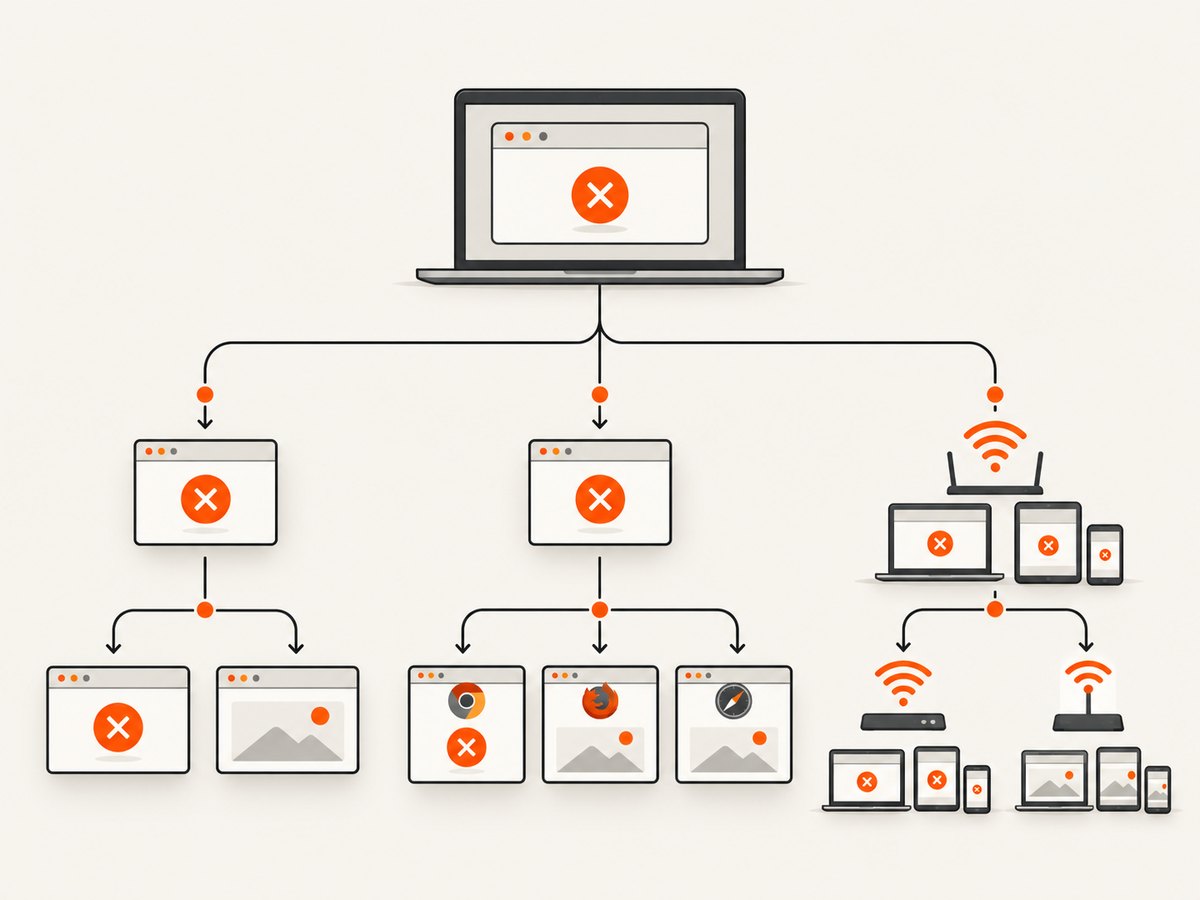
- Reload the page. Press Command-R in Safari. A temporary loading failure may clear.
- Try another website. If images fail only on one site, the issue may be specific to that site, its stored data, or how it works with your browser.
- Open a Private Window. In Safari, choose File > New Private Window. Visit the same page. If images work there, something about the regular profile—such as site data or an extension—may be involved.
- Compare browsers. Open the page in Chrome or another browser. If it works elsewhere, focus first on Safari’s settings, extensions, and profile.
- Compare devices and networks if possible. Try another device on the same Wi-Fi, or your Mac on another network. If several browsers and devices have trouble on one network, investigate the network or site. If the issue follows your Mac across networks, look at Mac-level software and settings.
| Pattern | What to check next |
|---|---|
| One website, in one browser | Private-window result, that site’s data, extensions, and site compatibility. |
| Many sites, one browser | That browser’s extensions, settings, updates, and profile. |
| Several browsers or devices on one network | Network settings, VPN or security software, and whether the site is having trouble. |
| Your Mac across networks | Mac-level VPN, security software, proxy or DNS settings, and available updates. |
Apple’s and Google’s troubleshooting guidance covers browser settings, extensions, connectivity, and network or security software as possible causes of incomplete pages. Treat the comparisons as clues, not a diagnosis.
2. Fix missing images in Safari
Temporarily turn off extensions
In Safari, open Safari > Settings > Extensions. Turn extensions off temporarily, reload the affected page, and check the images. If that fixes the page, re-enable extensions one at a time and reload after each change to identify which one affects loading. Content blockers and other extensions can change what a page displays. Turn the other extensions back on when you finish.
Use the Private Window result to decide about site data
If the page works in a Private Window but not in your normal window, remove data for the affected website before considering a broader cleanup:
- Open Safari > Settings > Privacy.
- Choose Manage Website Data.
- Find the affected site, select it, and remove its data.
- Reload the site and sign in again if needed.
Removing site data can sign you out or change how that site behaves. Keep sign-in details handy. Apple recommends using a Private Window to help determine whether website data is involved; a private-window success is a reason to investigate the affected site’s data, not a reason to erase every site’s data.
Check JavaScript, content blockers, and privacy settings carefully
Some websites need JavaScript to fetch or display images. A content blocker or privacy setting can also affect compatibility. Check Safari’s Security, Privacy, Websites, and Advanced settings if the pattern points to Safari. Change one item at a time, reload, and restore the original setting if it makes no difference. Do not leave a protection disabled just to work around a page unless you understand the tradeoff.
Check Private Relay, VPN, and network software
If you use iCloud+ Private Relay, Safari may offer Reload and Show IP Address from the page menu. When available, use it for a single reload to compare behavior without Private Relay for that request. If you use a VPN or software that monitors network connections, check whether the problem changes when its connection is paused, following that software’s instructions. Restore it after the comparison.
Custom proxy or DNS settings can affect access to internet content. Investigate them when the comparison checks point to a network or Mac-level issue; avoid wholesale network resets based only on missing images.
Update macOS and restart if compatibility may be involved
Safari updates with macOS. If the Mac or Safari version is old, check System Settings for available macOS updates and install an appropriate update. Restarting can also clear a temporary browser or connection problem. These steps are most relevant when the issue affects multiple sites or began after a software change.
3. Fix missing images in Chrome
If Chrome is the affected browser, work through the same scope checks first: reload, compare sites, try an Incognito window, and compare another browser or device.
- Try Incognito. Open a new Incognito window and visit the page. If images appear there, an extension or regular-profile data may be involved.
- Disable extensions temporarily. Open Chrome’s Extensions management page, turn extensions off, then reload. If that helps, switch them back on one by one to find the cause.
- Update and restart Chrome. Check Chrome’s About page for an available update, then restart the browser.
- Check connectivity and security software. If multiple sites or browsers have trouble, consider whether the connection, firewall, antivirus, or other network software is interfering. Change one thing at a time.
- Clear browsing data only when indicated. If the issue appears limited to the regular profile and other checks point to stored data, use Chrome’s privacy settings to clear relevant browsing data. This can remove cookies and sign you out; check the selected time range and data types before confirming.
- Reset settings only as a later step. Google includes resetting Chrome settings among later troubleshooting options. Consider it only after narrower checks, since it can change browser configuration.
Google’s images-specific troubleshooting page concerns images.google.com. It suggests checks such as private browsing, cache and cookie clearing, extensions, and JavaScript for that service; those instructions should not be treated as a universal fix for every website.
4. When the issue is probably outside the browser
If the same site fails in several browsers or on several devices connected to the same network, the site or network may be involved. Try again later, or compare using another network. If your Mac has trouble across browsers and networks, review VPN, security, proxy, and DNS software or settings. Make changes only when a comparison supports that direction, and keep a record of what you changed so you can restore it.
If only one site remains affected after browser checks, contact the site owner or developer. Include the page address, browser and macOS versions, what you see, and whether the same page works in another browser or network. Apple’s current Safari guidance says Safari 26 adds a Report a Website Issue option after reloading, when available.
5. Troubleshooting symptoms and common mistakes
| Symptom | Likely area to investigate | Next useful step |
|---|---|---|
| Only one site has blank images | Site behavior, site data, or compatibility | Try a Private Window; if it works, remove only that site’s data. |
| Images show in Private/Incognito mode | Regular profile data or an extension | Disable extensions temporarily; then test site data if needed. |
| Safari fails but Chrome works | Safari profile, extension, or setting | Try Safari without extensions and compare its privacy or content-blocker settings one at a time. |
| Several devices fail on one Wi-Fi | Network or site infrastructure | Try another network and contact the site if the failure remains site-specific. |
| Images are slow rather than absent | Connection quality, site response, or large image delivery | Compare another site, device, and network; note whether the delay is limited to one page. |
Common errors to avoid
- Clearing all browsing history first: this can remove useful session data without identifying the cause. Start with a private-window comparison and remove only the affected site’s data when appropriate.
- Turning off privacy or security protections permanently: use a single controlled comparison, then restore the setting if it did not help.
- Assuming missing images mean malware, bad DNS, or failing hardware: the symptom alone does not establish any of those causes.
- Changing several settings at once: you will not know which change mattered, and restoring the original behavior becomes harder.
6. If you are the developer: check the page’s image delivery
If the problem affects your site or a page you maintain, reproduce it in more than one browser and inspect the page’s network requests and console. Check whether image requests return successfully, whether the image URLs are correct, and whether redirects, access controls, mixed-content rules, or JavaScript errors prevent the browser from displaying them. Compare the same page in a normal and private session; a difference can point toward cookies, extensions, or browser state. Ask the affected user for the browser, OS, page URL, and scope comparisons before changing site code.
For a repeatable visual check, capture the page and inspect the resulting image. ScreenshotNeo is a website screenshot API and MCP server from Yorker Media. It can return a screenshot or PDF from one GET request, with options including full-page capture, selector capture, wait conditions, custom headers and cookies, and blocking selected requests. Its clean-shot flow accepts consent banners and removes known consent platforms, newsletter popups, and chat widgets before capture. A screenshot can help document what the page rendered, but it does not by itself identify why a visitor’s browser omitted an image.
7. Or skip the browser setup
For a quick page capture, call the ScreenshotNeo API with a URL and your API key:

curl -G "https://api.screenshotneo.com/v1/shot" -d access_key=YOUR_API_KEY --data-urlencode url=https://stripe.com -o shot.webpIt returns a clean screenshot in PNG, JPEG, or WebP, or a PDF. Cookie banners, popups, and chat widgets are removed before the shot. Bot checks, blank pages, and failed loads are never billed; response headers indicate the page verdict and billing status. An MCP server lets AI agents—including Claude, Cursor, and other MCP clients—take screenshots. The free plan includes 1,000 screenshots a month with no card; paid plans start at $5 for 3,000. Every feature is on every plan. See the documentation for options and setup, then sign up free for 1,000 screenshots a month, no card.
8. Performance, reliability, and cost notes
For a Mac user, the diagnostic steps above are free and reversible except for changes such as removing site data, which can sign you out. Work from the comparison checks toward targeted changes so you spend less time resetting settings that were not involved. An image that loads slowly may reflect the page, connection, or image delivery; the symptom alone cannot distinguish them.
For developers who need repeated captures, ScreenshotNeo offers caching with a chosen TTL, asynchronous jobs with signed webhooks, bulk capture of up to 100 URLs per call, and a usage API. The stated plans are Free: 1,000 shots/month; Starter: $5 for 3,000; Growth: $15 for 15,000; Pro: $39 for 60,000; Scale: $99 for 250,000; and Business: $249 for 1,000,000. Yearly billing gives two months free. Only clean shots are billed; bot checks/CAPTCHAs, blank pages, timeouts, failed loads, and cache hits cost nothing. Check the API response’s billing and page-verdict headers when tracking a particular capture.
FAQ
Why are images not loading on my Mac when the page text appears?
Text and images can be delivered through different page requests and browser behavior. A page can partly render while an image request or script does not. Compare another site, a private window, and another browser to narrow the scope.
Why do images load in Chrome but not Safari?
That pattern points toward something specific to Safari or its profile, such as an extension, site data, or a privacy or content-blocker setting. Try Safari without extensions and compare a Private Window before changing broader settings.
Should I reset my Mac’s network settings?
Not as a first step. First compare browsers, devices, and networks. Investigate proxy, DNS, VPN, or security settings only when the pattern suggests a network or Mac-level cause.
Will a screenshot tell me why an image failed?
A screenshot records the rendered page at capture time; it does not explain the underlying browser or network cause. For diagnosis, combine it with browser developer tools and the comparison checks above.


