How to Set a Website Meta Thumbnail with Open Graph Tags
Set the right link preview image with Open Graph tags, validate it on each platform, and fix stale or incorrect thumbnails.
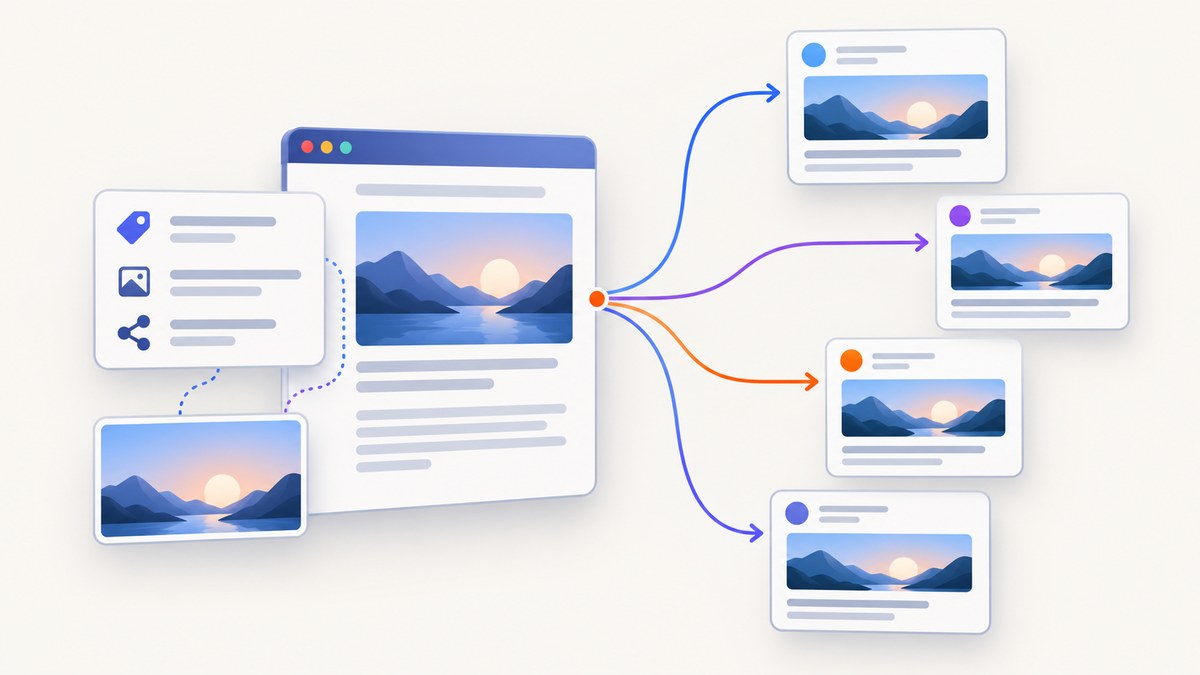
Put an explicit og:image URL in the page’s HTML <head>, alongside the other required Open Graph properties. The image URL must be publicly reachable, use the canonical page URL in og:url, and be tested with the debugger for the platform where you share the link.
Open Graph defines four basic properties: og:title, og:type, og:image, and og:url. The protocol places them in the document head; og:description is optional and generally recommended. See the Open Graph protocol for the complete property definitions.
1. Add the Open Graph tags
Add this block to the <head> of the page you want people to share:
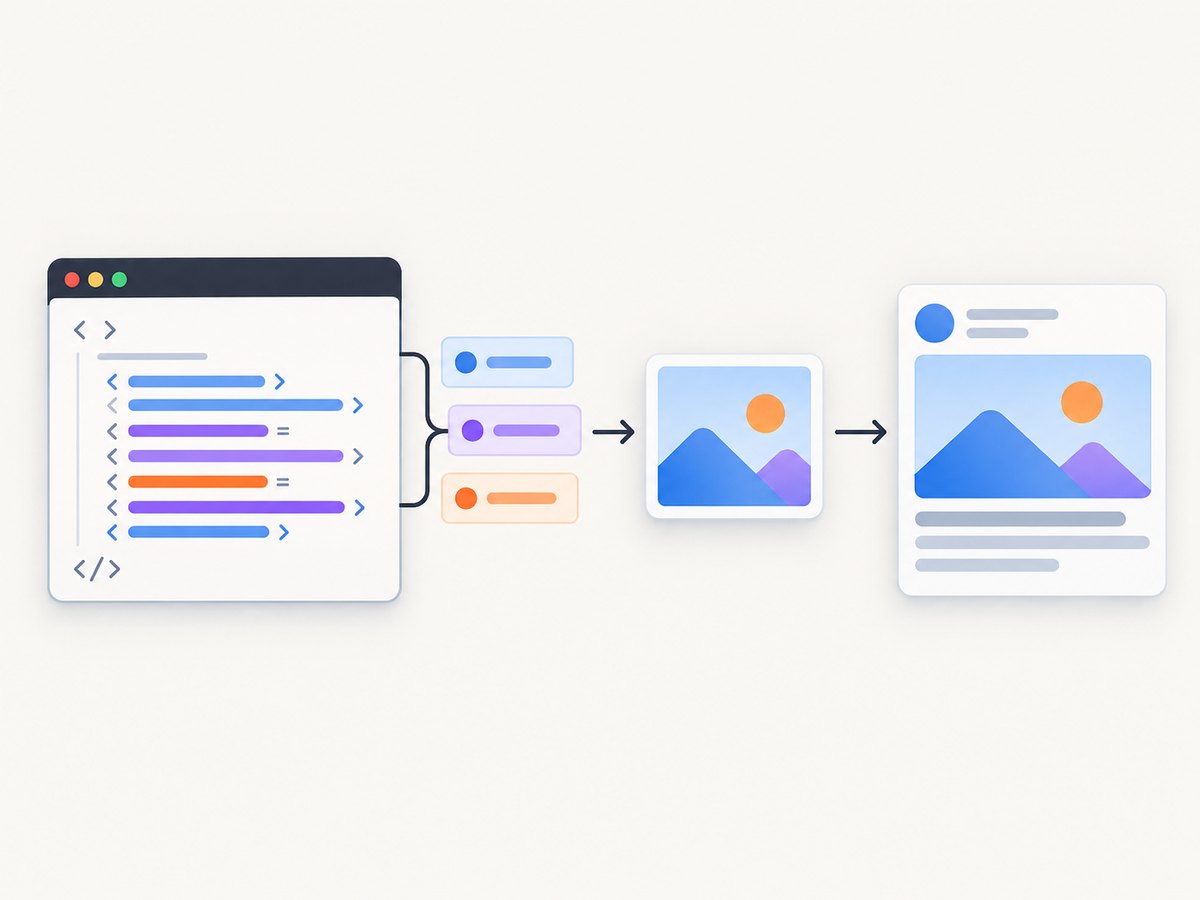
<head prefix="og: https://ogp.me/ns#">
  <meta property="og:title" content="Page title">
  <meta property="og:type" content="website">
  <meta property="og:url" content="https://example.com/page">
  <meta property="og:image" content="https://example.com/images/page-share.jpg">
  <meta property="og:image:alt" content="A short description of the image">
  <meta property="og:description" content="A short page description">
</head>
Replace every placeholder with values for the actual page. The og:image value is the representative image URL. The og:url value is the canonical URL that identifies the object permanently, so it should match the URL you want search engines and social platforms to associate with the page.
What each property does
| Property | Purpose | Required by the protocol? |
|---|---|---|
og:title |
The title shown in a link preview. | Yes |
og:type |
The object type, commonly website for a normal page. |
Yes |
og:url |
The canonical URL used as the object’s permanent identifier. | Yes |
og:image |
The URL of the image representing the page. | Yes |
og:description |
A concise description used by previews when supported. | No, recommended |
og:image:alt |
An accessible description of the image, not a caption. | Optional structured property |
Keep the tags in the server-rendered HTML head when possible. A crawler that does not execute your client-side JavaScript may never see metadata inserted after page load.
2. Prepare the thumbnail image
Use an absolute HTTPS URL that resolves directly to the image. The URL should not require a login, a cookie, a JavaScript challenge, or a referrer header. Check it from an incognito browser window and with a command-line request:
curl -I https://example.com/images/page-share.jpgConfirm that the response is successful and that the server sends an image content type such as image/jpeg, image/png, or image/webp. Redirects can work, but a stable direct URL makes platform parsing more predictable.
LinkedIn’s published constraints
LinkedIn Help specifies a maximum file size of 5 MB, minimum dimensions of 1200 × 627 pixels, and a recommended 1.91:1 ratio for its sharing module. Images under 401 pixels wide display as thumbnails. These are LinkedIn-specific requirements; they are not universal rules for every platform.
When you target more than one service, compare each service’s documented minimum dimensions, aspect ratio, crop behavior, maximum file size, accepted formats, and preview debugger. Design important content inside a central safe area so a platform crop does not remove the subject.
Optional image properties
The protocol defines structured properties for image dimensions, type, secure URL, and alternative text. Put each structured property immediately after the og:image declaration it describes:
<meta property="og:image" content="https://example.com/images/page-share.jpg">
<meta property="og:image:secure_url" content="https://example.com/images/page-share.jpg">
<meta property="og:image:type" content="image/jpeg">
<meta property="og:image:width" content="1200">
<meta property="og:image:height" content="627">
<meta property="og:image:alt" content="A short description of the image">
Only add dimensions and type when they accurately describe the file being served. Incorrect metadata can make diagnosis harder.
3. Generate a thumbnail for every page
For a site with many pages, generate metadata from the page record instead of copying one static block. A server-side template might look like this:
<head prefix="og: https://ogp.me/ns#">
  <meta property="og:title" content="{{ page.title }}">
  <meta property="og:type" content="website">
  <meta property="og:url" content="{{ page.canonical_url }}">
  <meta property="og:image" content="{{ page.share_image_url }}">
  <meta property="og:image:alt" content="{{ page.share_image_alt }}">
  <meta property="og:description" content="{{ page.description }}">
</head>
Escape attribute values in your template. Validate that every published page has a canonical URL and an image URL. If a page intentionally has no custom artwork, point it to a documented site-wide fallback rather than leaving og:image empty.
4. Declare multiple images carefully
A page may contain multiple og:image values. The Open Graph protocol says the first value takes preference when declarations conflict. Put the preferred image first. Keep its structured properties together, then begin the next image with another root og:image tag:
<meta property="og:image" content="https://example.com/images/primary.jpg">
<meta property="og:image:alt" content="Primary article illustration">
<meta property="og:image:width" content="1200">
<meta property="og:image:height" content="627">

<meta property="og:image" content="https://example.com/images/alternate.jpg">
<meta property="og:image:alt" content="Alternate article illustration">
Do not put the structured properties for one image after another image’s root declaration. A parser associates them with the most recent og:image.
5. Validate the page and preview
- View the raw page source, not only the rendered DOM, and confirm the tags are inside
<head>. - Open the image URL directly and verify its status, content type, dimensions, and file size.
- Check that
og:urlexactly matches the canonical page URL, including the scheme and significant path. - Use the target platform’s official preview inspector. The Open Graph documentation identifies Facebook Object Debugger as Facebook’s official parser and debugger.
- After changing tags, inspect the preview again. A platform may retain an earlier fetch, so compare the debugger’s parsed values with your current source.
Inspect the response as a crawler would:
curl -L https://example.com/page | grep -i 'og:'This is a quick check, not a substitute for a platform debugger. A page can contain correct tags while still failing because the image request is blocked, too large, or unavailable to the platform’s crawler.
6. Troubleshoot the wrong thumbnail
| Symptom | Likely cause | Fix |
|---|---|---|
| No image appears | No og:image, malformed HTML, or an inaccessible image URL. |
Add the tag in <head>; open the absolute URL directly; check the HTTP response and content type. |
| An old image remains | The platform is showing a cached parse. | Use that platform’s official debugger or inspector to request a fresh parse, then verify the page source. |
| The wrong image wins | Another og:image appears first. |
Move the intended image to the first position and keep its structured properties directly below it. |
| The preview uses a random page image | The crawler ignored missing or invalid Open Graph metadata and selected a fallback. | Provide all four basic properties, use absolute URLs, and ensure the image is publicly fetchable. |
| Image is cropped badly | The platform uses a different preview aspect ratio. | Check that platform’s guidance, use a safe central composition, and create a platform-appropriate variant if needed. |
| LinkedIn rejects the image | It exceeds 5 MB, is below 1200 × 627 pixels, or does not fit the recommended ratio. | Export a smaller file that meets LinkedIn’s published limits and inspect the result in LinkedIn’s sharing tool. |
| Tags work locally but not in production | Production has a different template, redirect, robots policy, authentication layer, or image host. | Fetch the production URL with curl -L, follow redirects, and test the exact production image URL. |
| Metadata is absent from view-source | Tags are injected only after client-side JavaScript runs. | Render the tags on the server or include them in the initial HTML response. |
7. Capture and inspect the final page
A screenshot is useful when you need to confirm what a page looks like after consent banners, popups, or other overlays are present. ScreenshotNeo is a website screenshot API and MCP server. It can capture a page as PNG, JPEG, WebP, or PDF, and supports full-page capture, element selection, custom CSS and JavaScript, waiting rules, request blocking, cookies, headers, device presets, and caching.

For a simple visual check, call the API with your page URL:
curl -G "https://api.screenshotneo.com/v1/shot" -d access_key=YOUR_API_KEY --data-urlencode url=https://example.com/page -o shot.webpPython:
import requests

r = requests.get(
    "https://api.screenshotneo.com/v1/shot",
    params={"access_key": "YOUR_API_KEY", "url": "https://example.com/page"},
    timeout=90,
)
r.raise_for_status()
open("shot.webp", "wb").write(r.content)
Node.js:
const q = new URLSearchParams({
  access_key: 'YOUR_API_KEY',
  url: 'https://example.com/page'
});
const res = await fetch(`https://api.screenshotneo.com/v1/shot?${q}`);
if (!res.ok) throw new Error(`HTTP ${res.status}`);
const data = Buffer.from(await res.arrayBuffer());
await import('node:fs/promises').then(fs => fs.writeFile('shot.webp', data));
See the ScreenshotNeo documentation for request options and response details. The response includes X-Page-Verdict and X-Billed headers, so your pipeline can distinguish a clean capture from a bot check, blank page, timeout, failed load, or cache hit.
Or skip the browser setup
Use the same one-call ScreenshotNeo request when you need a rendered visual of a page while working on its metadata:
curl -G "https://api.screenshotneo.com/v1/shot" -d access_key=YOUR_API_KEY --data-urlencode url=https://example.com/page -o shot.webpBefore capture, ScreenshotNeo accepts cookie and consent banners and removes more than 60 known consent platforms, newsletter popups, and chat widgets; each step can be turned off. Bot checks, blank pages, timeouts, failed loads, and cache hits are not billed, and the response states the verdict and billing result. Its MCP server provides take_screenshot, get_page_info, and capture_pdf tools for Claude, Cursor, and other MCP clients. The Free plan includes 1,000 screenshots per month with no card; paid plans start at $5 for 3,000 shots. Create a free ScreenshotNeo account.
8. Performance, reliability, and cost considerations
Keep metadata lightweight
Open Graph tags add very little HTML, but the referenced image affects crawler work and preview speed. Serve a correctly sized image rather than an unnecessarily huge original. Use a stable CDN or image host, long-lived caching, and HTTPS. Keep the image URL deterministic so every crawler sees the same asset.
Separate validation from production traffic
Run preview checks when a page is published or its share image changes. Do not generate a new image on every request unless the design requires it. For automated visual checks, ScreenshotNeo supports a TTL you choose for caching, async jobs with signed webhooks, bulk capture of up to 100 URLs per call, and custom wait conditions for pages that load content after navigation.
Plan for failures
- Retry transient network failures with bounded backoff.
- Record the URL, response status, parser output, and image version for each validation.
- Keep a known-good fallback image available.
- Use timeouts appropriate to the page; do not treat a slow third-party resource as proof that the metadata is wrong.
- For protected pages, provide the required headers, cookies, user agent, timezone, or geolocation only when you are authorized to access the page.
ScreenshotNeo’s paid usage is based on clean shots. Because failed loads, bot checks, blank pages, timeouts, and cache hits are not billed, the billing headers can be used in a job queue to decide whether to retry, alert, or mark a page as needing attention.
9. A launch checklist
-
og:title,og:type,og:url, andog:imageare present in the HTML head. -
og:urlmatches the canonical production URL. - The image URL is absolute, HTTPS, public, and returns an image content type.
-
og:image:altdescribes the image accurately. - The preferred image is first if multiple images are declared.
- LinkedIn targets meet its 1200 × 627 minimum and 5 MB maximum.
- The page source, image URL, and platform debugger have all been checked.
- A fallback image and monitoring path exist for missing assets.
Frequently asked questions
Can I use a relative URL for og:image?
Use an absolute URL. It removes ambiguity for crawlers and makes it easier to test the exact asset independently.
Is og:image:alt the text shown under the thumbnail?
No. It is an image description for accessibility and metadata consumers, not a visible caption.
Should every page have a different thumbnail?
It is not required by the protocol. A page can use a site-wide fallback, but page-specific images make previews clearer when they accurately represent the content.
Why does changing the image URL help debugging?
A new URL identifies a new resource, which can make it easier to tell whether the platform has fetched the updated asset. Still verify the result with the platform’s official inspector.
Can Open Graph tags control search result images?
They control Open Graph link previews. Search engines and other consumers may use different metadata and selection rules.
Do I need a screenshot service to set a thumbnail?
No. The essential implementation is the Open Graph markup and a reachable image. A screenshot service is useful when you also need automated visual captures, PDF output, element shots, or a repeatable check of the rendered page.


