Website OG Image Generator: A Complete Guide
Learn how to create, export, host, and add Open Graph images, and choose between a static editor and dynamic generation.
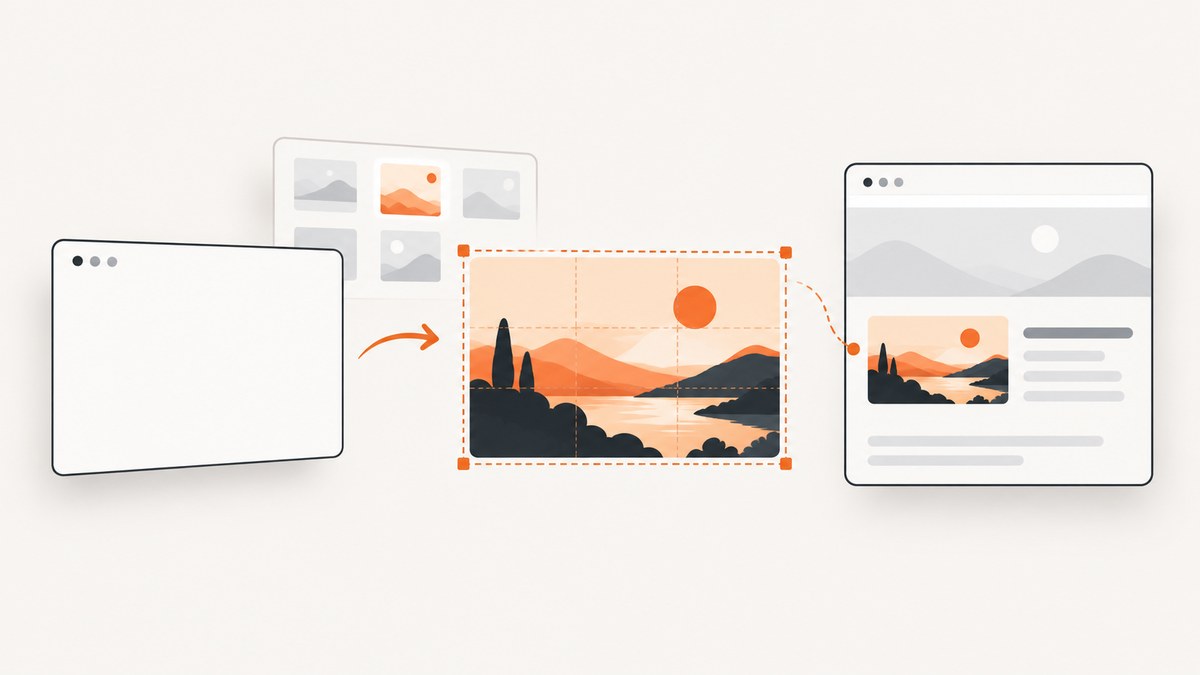
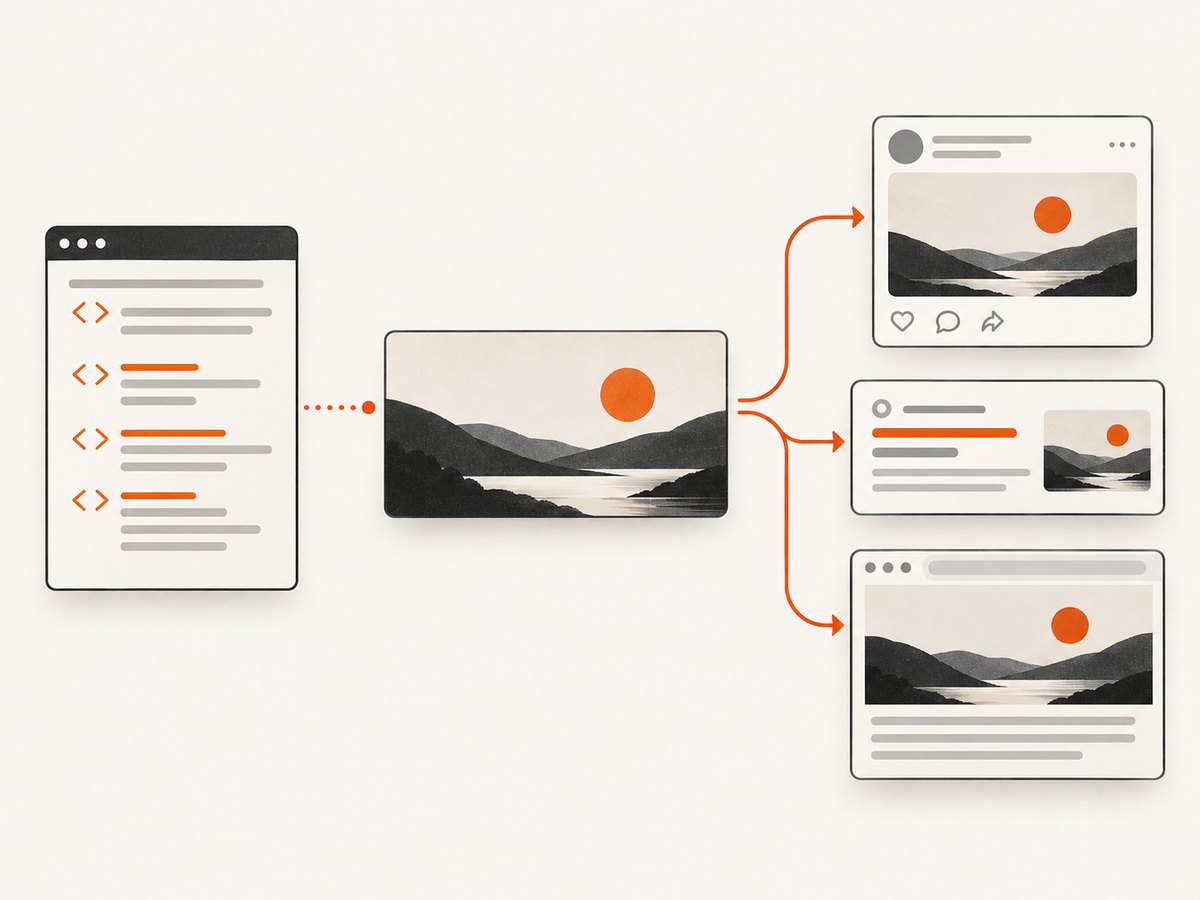
An Open Graph (OG) image is the visual preview associated with a webpage link when it is shared. An OG image generator helps you create or adapt that picture; your webpage metadata then points to its publicly reachable URL. For a one-off page, a template editor is usually enough. For many pages whose titles or images change, use a repeatable generation workflow or API.
A common starting size recommended by the generator documentation reviewed for this guide is 1200 × 630 pixels, close to a 1.91:1 aspect ratio. Treat it as practical guidance, not a guarantee that every destination will display every image identically. Preview the actual page and check current platform guidance when a particular destination matters.
1. What an OG image generator does
A generator creates an image intended to represent a page when its URL is shared. It may provide templates, editable text and artwork, previews, and image export. Some also provide dimensions or social metadata. The generator itself does not attach the image to your page: you must host the exported file and reference it from the page’s head.

That distinction matters. A beautiful image saved to your laptop cannot serve as a page’s share preview until it has a stable, publicly reachable URL and your page metadata points to it. A typical flow is:
- Choose a template or define an automated layout.
- Customize the title, image, colors, and other content.
- Preview the composition, especially the edges and text wrapping.
- Export an image file.
- Host it at a public URL.
- Add the URL to the page’s Open Graph metadata and publish.
- Check the published HTML and preview at the destinations you care about.
For a quick static image, a browser-based template editor can avoid setting up a rendering pipeline. For page-specific images generated repeatedly, an API or a site-side rendering route may fit better. Compare actual template control, output format, hosting responsibilities, privacy claims, cost, and compatibility with your stack before choosing. Provider feature descriptions are not independent performance evaluations.
2. Create a static OG image
Step 1: Choose dimensions and compose for cropping
Start around 1200 × 630 px (approximately 1.91:1) unless your destination or design workflow calls for something else. Keep the important title and subject away from the extreme edges: previews may be scaled or cropped differently. Use a legible title, a clear visual hierarchy, and enough contrast to survive display at thumbnail size. Avoid packing in page copy that will become unreadable when reduced.
Do not treat a provider’s suggested safe area or file-size target as a universal platform rule. The available generator guidance converges on the common dimensions above, but destination behavior and requirements can change. Check current official documentation for a platform-specific guarantee.
Step 2: Customize and preview
Replace all template placeholders, not just the headline. Check line breaks, contrast, image focal point, and whether a long title collides with other elements. If the site has many pages, decide which content is variable (for example, title or category) and which design elements remain fixed. Build the layout around the longest realistic title rather than only the shortest example.
Step 3: Export and host the image
Export a web-ready image format supported by your workflow, then upload it to a public URL. Confirm that the URL can be fetched without a login or a session cookie. Prefer a stable URL that will not expire and ensure the server returns the image rather than an HTML error page. If you replace an image at the same URL, caching may mean some previews keep an older version; a new versioned URL can make the change explicit.
Step 4: Add the metadata to the page
Put page-specific Open Graph tags in the document head. Replace the example URL with the absolute public URL of your exported image and use the actual page’s title and canonical URL.
<head>
  <title>A useful page title</title>
  <meta property="og:title" content="A useful page title">
  <meta property="og:type" content="website">
  <meta property="og:url" content="https://example.com/guides/page/">
  <meta property="og:image" content="https://cdn.example.com/og/page-v1.png">
  <meta property="og:image:width" content="1200">
  <meta property="og:image:height" content="630">
  <meta name="twitter:card" content="summary_large_image">
</head>
Width and height metadata and a large-image card value are included in the getting-started workflow described by og-image.org. Confirm the exact tags and behavior against your site’s stack and the destination services you target. Do not assume that adding tags alone guarantees a particular crop or display.
3. Add OG images to a website or framework
The metadata belongs in the rendered HTML head for the specific page. In a static site, put it in the page template or layout and pass each page’s values into that template. In a server-rendered app, render the tags from the route’s data. In a client-rendered app, check the actual HTML returned to a crawler: metadata injected only after browser JavaScript runs may not be available to every preview crawler.
Use absolute URLs for both the page and image so a crawler does not need to resolve a relative path. Keep one intended image URL per page, ensure the image is publicly fetchable, and avoid accidentally shipping the same default title or image on every route. When page content changes, regenerate the image or update the metadata URL as part of the publishing process.
A practical publishing checklist:
- The production page’s HTML contains the intended
og:title,og:url, andog:image. - The image URL is absolute, public, stable, and returns an image.
- The dimensions in metadata match the exported file if dimensions are provided.
- The title remains readable at small preview sizes and is not clipped.
- The page and image are served over HTTPS where your site expects it.
- You have checked a preview using the destination’s current tools or documentation.
4. Static editor or dynamic OG image generation?
| Need | Static editor | Dynamic route or API |
|---|---|---|
| One page or occasional update | Usually the simplest: edit, preview, export, host. | May add setup that is not needed. |
| Many pages with different titles or data | Repeated manual edits can become error-prone. | Can render page-specific images from a reusable template. |
| Design control | Depends on editor templates and controls. | Depends on rendering tools, API options, and your implementation. |
| Hosting | You generally need to host the exported file. | Check whether the approach returns, stores, or merely renders an image; responsibilities differ. |
| Cost and privacy | Check current service terms and what content is uploaded. | Check per-generation costs, retention, availability claims, and what page data is sent. |
Some provider pages describe integrations, URL parameters, and hosted REST APIs for automation. These descriptions establish that such workflows exist; they do not establish comparative speed, reliability, or value. Verify current pricing and terms directly and test with representative page data before committing.
5. Generate a screenshot-based image when it fits
An OG image is often a designed preview rather than a literal screenshot. If the page’s appearance is the content you want to share—such as a report, dashboard, or visual landing page—a screenshot can be a useful source image. It will not automatically create a designed title card or replace your need to set og:image metadata and host or reference the resulting image appropriately.
For a local browser workflow, open the page at the desired viewport, wait for its content and fonts to settle, capture the page or a relevant element, save the image, host it, and then set the metadata. The exact commands depend on your browser automation library and project; this title’s source research does not establish one particular library or API as the required choice. For repeated page-specific artwork, a designed template with data-driven fields may be more predictable than capturing the entire page.
6. Or skip the browser setup
ScreenshotNeo is a website screenshot API and MCP server. One GET request can return a PNG, JPEG, WebP, or PDF. Its capture flow accepts cookie or consent banners like a visitor and removes more than 60 known consent platforms, newsletter popups, and chat widgets; each step can be turned off. Bot checks or CAPTCHAs, blank pages, timeouts, failed loads, and cache hits cost nothing, and responses identify the page verdict and billing status in X-Page-Verdict and X-Billed headers.
For example, this cURL request saves a screenshot of a page. Replace the URL with your target page. See the ScreenshotNeo API documentation for request options and response details.
curl -G "https://api.screenshotneo.com/v1/shot" \
  -d access_key=YOUR_API_KEY \
  --data-urlencode url=https://stripe.com \
  -o shot.webp
The API also supports full-page capture with lazy images loaded, CSS-selector element capture, viewport and device presets, dark mode, retina scale, PDF settings, HTML/CSS input, custom CSS and JavaScript, click and wait actions, request blocking, headers, cookies, user agent, authorization, timezone, geolocation, transparent backgrounds, resizing, configurable caching, signed public image links, async jobs with signed webhooks, bulk capture of up to 100 URLs per call, usage reporting, and an OpenAPI spec. Parameter names used by other screenshot APIs also work to make migration easier. Choose the minimum needed settings and review the documentation for their exact names and interactions.
For automation, the same API can be called from Python:
import requests

r = requests.get(
    "https://api.screenshotneo.com/v1/shot",
    params={"access_key": "YOUR_API_KEY", "url": "https://stripe.com"},
    timeout=90,
)
r.raise_for_status()
with open("shot.webp", "wb") as image:
    image.write(r.content)
Or Node.js with built-in fetch:
const q = new URLSearchParams({
  access_key: 'YOUR_API_KEY',
  url: 'https://stripe.com'
});
const res = await fetch(`https://api.screenshotneo.com/v1/shot?${q}`);
if (!res.ok) throw new Error(`Screenshot request failed: ${res.status}`);
const bytes = Buffer.from(await res.arrayBuffer());
await import('node:fs/promises').then(fs => fs.writeFile('shot.webp', bytes));
Cookie banners, popups, and chat widgets are removed before the shot; bot checks, blank pages, and failed loads are never billed. The MCP server exposes take_screenshot, get_page_info, and capture_pdf for Claude, Cursor, and any MCP client. The free plan includes 1,000 screenshots a month with no card; paid plans start at $5 for 3,000. Sign up for 1,000 free screenshots a month, with no card required.
7. Troubleshooting common OG image problems
| Symptom | Likely cause | What to check or fix |
|---|---|---|
| No image appears | Missing or malformed tag, inaccessible image URL, or metadata absent from fetched HTML. | Inspect the production head, use an absolute public URL, and request the image URL directly without a logged-in session. |
| Old preview remains | A destination or intermediary may have cached prior page or image data. | Confirm the updated HTML and image are live; use a versioned image URL when replacing artwork and recheck with the destination’s available preview tools. |
| Wrong image for a route | A shared layout may output default metadata or stale route data. | Render metadata from the current route’s page data and inspect multiple production URLs. |
| Image is cropped or text is clipped | Aspect ratio, platform rendering, or text placement differs from the preview. | Keep essential content away from edges, preview at small size, and validate against the target destination. |
| Image URL returns an error | Private storage, expiring link, incorrect path, or server response problem. | Use a stable public URL and verify the response is the exported image rather than a redirect or HTML error. |
| Automation produces an incomplete screenshot | Capture occurred before content loaded, or a selector never appeared. | Wait for a meaningful selector or a suitable load condition; allow for lazy-loaded content and verify the saved file. |
8. Performance, reliability, and cost
For static images, the main operational concerns are keeping the file URL reachable, regenerating it when page data changes, and avoiding unnecessary manual work across many routes. A template editor has low workflow complexity for occasional assets, but updating dozens of images by hand can create inconsistencies.
For a dynamic pipeline, measure the work on your own representative pages. Rendering time, image delivery, caching, page availability, and the volume of generated variants affect the implementation. Cache outputs where content is unchanged, and decide what should invalidate the cache when titles or page data change. A third-party generator adds a service dependency; inspect its availability claims, error handling, privacy terms, and current pricing rather than assuming a vendor description proves reliability.
Cost can include subscriptions or generation charges, hosting, and engineering time. Compare the expected number of distinct page images and update frequency, not only a headline plan price. The available research does not independently verify current competitor pricing, performance, or platform compatibility, so check vendor terms before selecting a service.
9. Frequently asked questions
What is the difference between an OG image and a social preview?
The OG image is the image URL specified in page metadata; a social preview is how a destination chooses to display shared page information, which can include that image.
Can I use the same OG image on every page?
You can, but page-specific images can make different URLs easier to distinguish. Ensure your site outputs the intended image for each route.
Do I need to buy any hardware?
No. This workflow uses browser-based design tools, website code, hosting, or image-generation services; the research does not support a required physical product.
Does a screenshot automatically become an OG image?
No. A screenshot is an image file. Your page still needs metadata that references its public URL, and the image must remain available to fetch.
Is 1200 × 630 required everywhere?
No universal guarantee is established here. It is common guidance from generator providers, so check the current official documentation for a destination with specific requirements.


