Website Preview Images: How to Choose, Add, and Check Them
Learn how to choose a page-specific preview image, add Open Graph metadata, and check how platforms may display it—without assuming one tag controls every result.
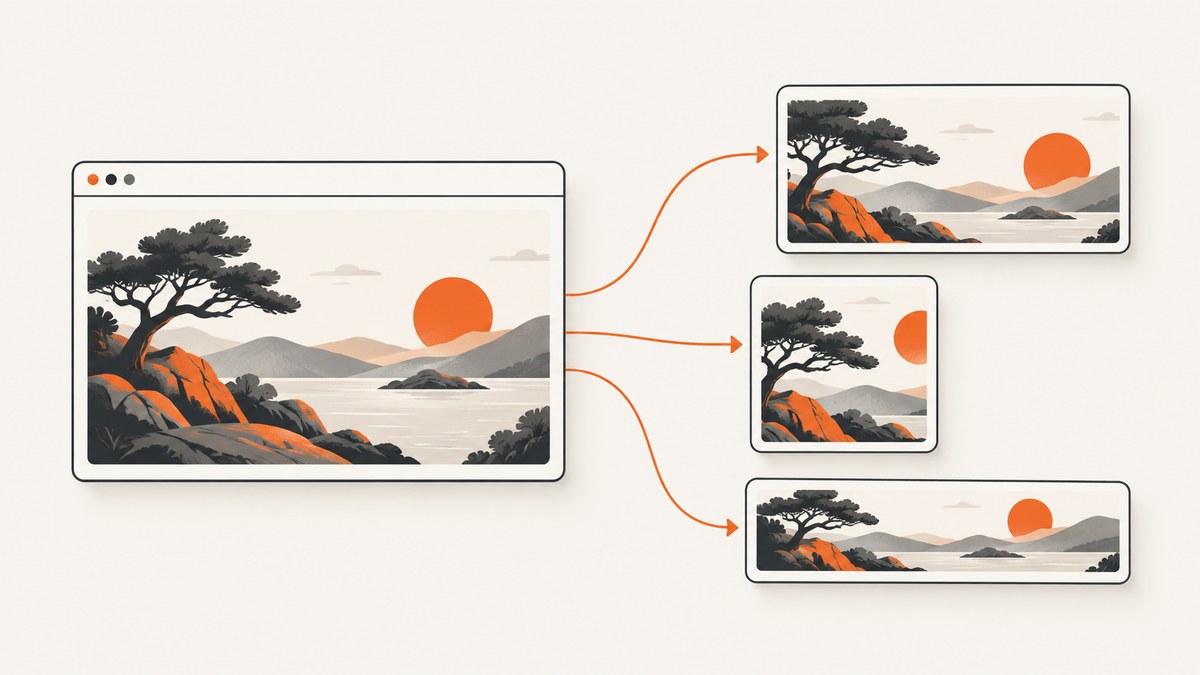
A website preview image is the picture a platform chooses to represent a page in a search result or shared-link card. You can suggest an image with metadata, but you cannot guarantee that Google or a social platform will select it, display it, or crop it exactly as you expect. The practical goal is to provide a relevant, accessible, high-quality image and make it easy for platforms to discover.
For a share card, create an image that represents that specific page, publish it at a stable URL, and identify it with Open Graph metadata such as og:image. Google says it selects image previews automatically and may consider both og:image and structured-data image properties. Treat these as signals, not commands. See Google’s image SEO guidance.
1. What a website preview image is
People use “website thumbnail,” “link preview,” “social preview,” and “search result image” for related but distinct displays. A chat or social network may make a card when someone shares a URL. A search engine may show an image alongside a result or in another search feature. The page owner supplies page content and metadata; the platform decides whether and how to use them.
That distinction matters when debugging. An image can be correctly declared in your HTML and still be absent from one platform’s card. A platform might choose another image, crop yours differently, or show no image. The metadata remains useful because it clearly states your preferred share image, but it is not a rendering guarantee.
2. Choose an image that fits the page
Start with the page’s subject, not the site’s branding. A generic logo may identify your company but tell a reader little about a specific article, product, or documentation page. Google advises using relevant images and avoiding generic images such as a site logo for image previews. Create a distinct image when the page’s subject calls for one.
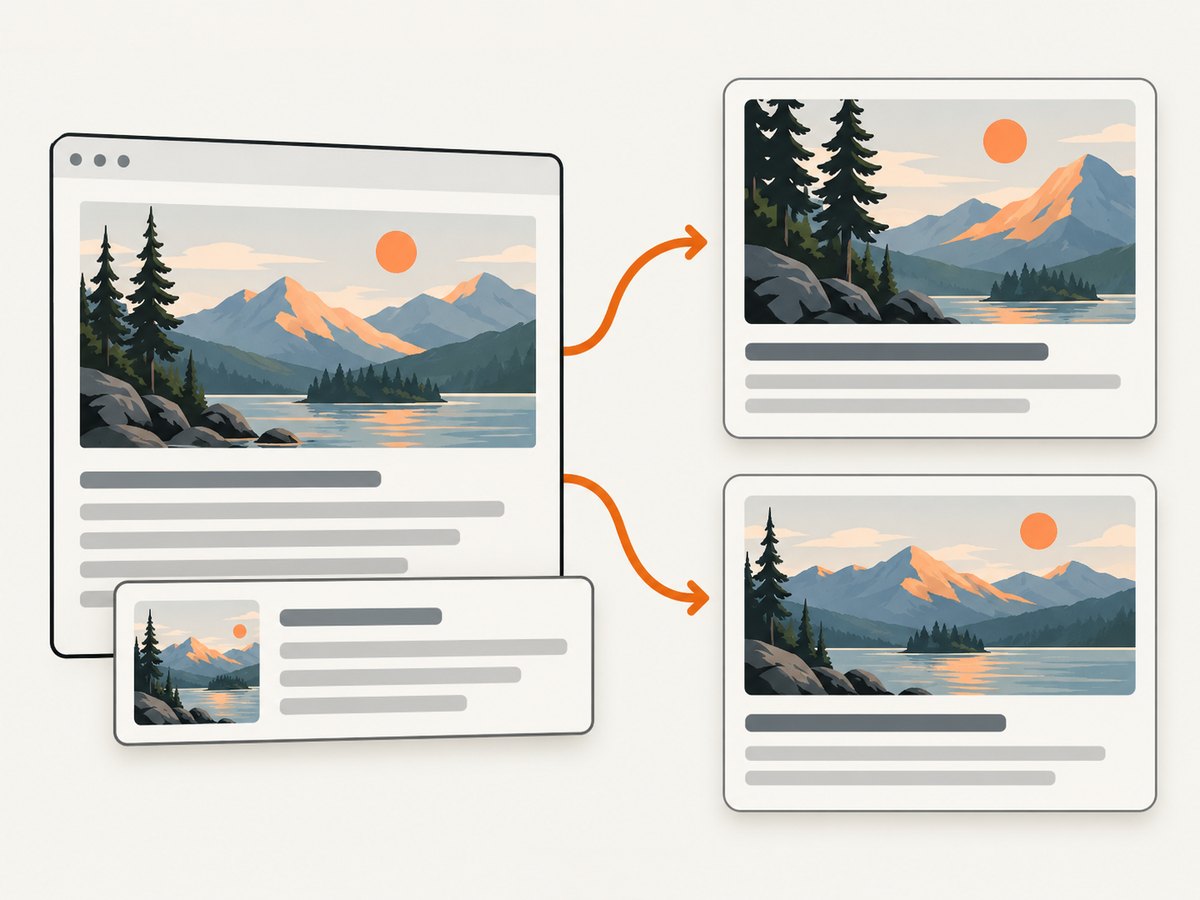
Design for the crop
- Make the main subject recognizable at a small display size.
- Keep important details away from the outer edges. Different surfaces and devices may crop the same source image differently.
- Use a sensible aspect ratio and a sufficiently high-resolution source. An extreme panoramic or tall image may be a poor fit for a card.
- Use a page-specific variation where the content meaningfully differs. A reusable template can help, provided the image still represents the individual page.
- Check contrast and legibility at reduced size. If the image relies on small lettering, it may become unreadable when shown as a thumbnail.
There is no universal image size established by the research for every search and sharing platform. Adobe’s guidance for Facebook link-share images recommends 1200 × 630 pixels, approximately a 1.91:1 aspect ratio. Treat that as Facebook-specific guidance and verify it against current platform recommendations before publication; do not assume it is a universal specification. Adobe also notes that visible cropping can vary by device. You can create a Facebook share image with Adobe Express.
3. Add metadata to the page
Place preview metadata in the document’s <head>. Set og:image to an absolute, publicly reachable image URL. Add a title and description that accurately describe the page, and set the canonical page URL with og:url. Open Graph metadata provides a preferred image for link-sharing consumers; Google also documents og:image and structured-data image properties as signals it may use.
<!doctype html>
<html lang="en">
<head>
  <meta charset="utf-8">
  <meta name="viewport" content="width=device-width, initial-scale=1">
  <title>Website Preview Images: A Developer’s Guide</title>
  <meta name="description" content="Choose a page-specific preview image and add metadata to help platforms discover it.">

  <meta property="og:type" content="article">
  <meta property="og:title" content="Website Preview Images: A Developer’s Guide">
  <meta property="og:description" content="Choose a page-specific preview image and add metadata to help platforms discover it.">
  <meta property="og:url" content="https://example.com/guides/website-preview-images/">
  <meta property="og:image" content="https://example.com/images/website-preview-images.jpg">

  <meta name="twitter:card" content="summary_large_image">
</head>
<body>
  <h1>Website Preview Images</h1>
</body>
</html>
Replace the example domain and copy with the page’s real values. The optional card hint shown above is a common platform-specific convention, not a promise about what any platform will render. Confirm requirements for each destination with its current documentation before relying on additional platform-specific tags.
Metadata checklist
- Absolute image URL: Use a full URL rather than a relative path so a remote consumer can resolve it.
- Accurate page identity: Keep the title, description, canonical URL, and image aligned with the page being shared.
- Accessible response: Ensure the image URL can be fetched by the platform’s preview crawler and does not depend on a logged-in browser session.
- Stable publishing: Avoid changing the asset URL unexpectedly. A platform may retain an earlier preview after it has fetched a page.
- One clear preferred image: Declare the intended image consistently; do not assume multiple competing candidates will be resolved the way you prefer.
4. Add image information and alt text thoughtfully
For images in the page itself, write alt text that conveys the useful content or function of the image for people who cannot see it. Google says alt text helps it understand images and supports accessibility, including for screen-reader users. Describe what matters in context; do not stuff the text with keywords. A decorative image that contributes no information may not need a descriptive alternative, depending on how it is implemented and the needs of the page.
Image credit and rights are part of publishing. Google documents creator, credit, copyright, and licensing information through structured data and IPTC fields. These fields can communicate ownership and licensing details, but Google does not guarantee that the information will appear in search results. Keep records of permissions and credits as part of your normal asset workflow; metadata is not a substitute for having the right to use an image.
5. Publish and inspect a preview image
- Prepare the asset. Export the image in a format supported by your publishing stack and check that it looks good at full size and when reduced. Use the size guidance for the destination where available.
- Put it at a public URL. Make sure the URL points to the image itself and can be requested without cookies, authentication, or a browser-only session.
- Add the page metadata. Set the image and page identity fields in the rendered HTML head. If your site renders metadata server-side, verify the response HTML rather than only inspecting the source template.
- Fetch the page as a visitor would. Check for redirects, errors, or access controls that could prevent a preview crawler from reaching the HTML and image.
- Inspect the markup and simulated card. A checker such as OpenGraph.io can help inspect Open Graph tags and simulate previews. A simulation is a diagnostic aid, not proof that every live platform will make the same choice.
- Check the actual destination. When possible, inspect a real share or result on the platform you care about. Check more than one device or surface if cropping is important.
- Recheck after changes. Confirm the published HTML and asset after updating them. The available research does not verify current cache-refresh procedures across platforms, so consult the destination’s own current documentation for its refresh mechanism.
6. Capture a page to review its rendered appearance
A screenshot can help you review what a page looks like in a browser viewport, including whether page content visually matches the image you chose. It does not tell you which image a search engine or social platform will select: that selection happens on the platform’s side. For the local approach, use a browser automation tool you already maintain to open the page, wait for its content, and save a screenshot; then compare the rendered page with the intended preview asset.
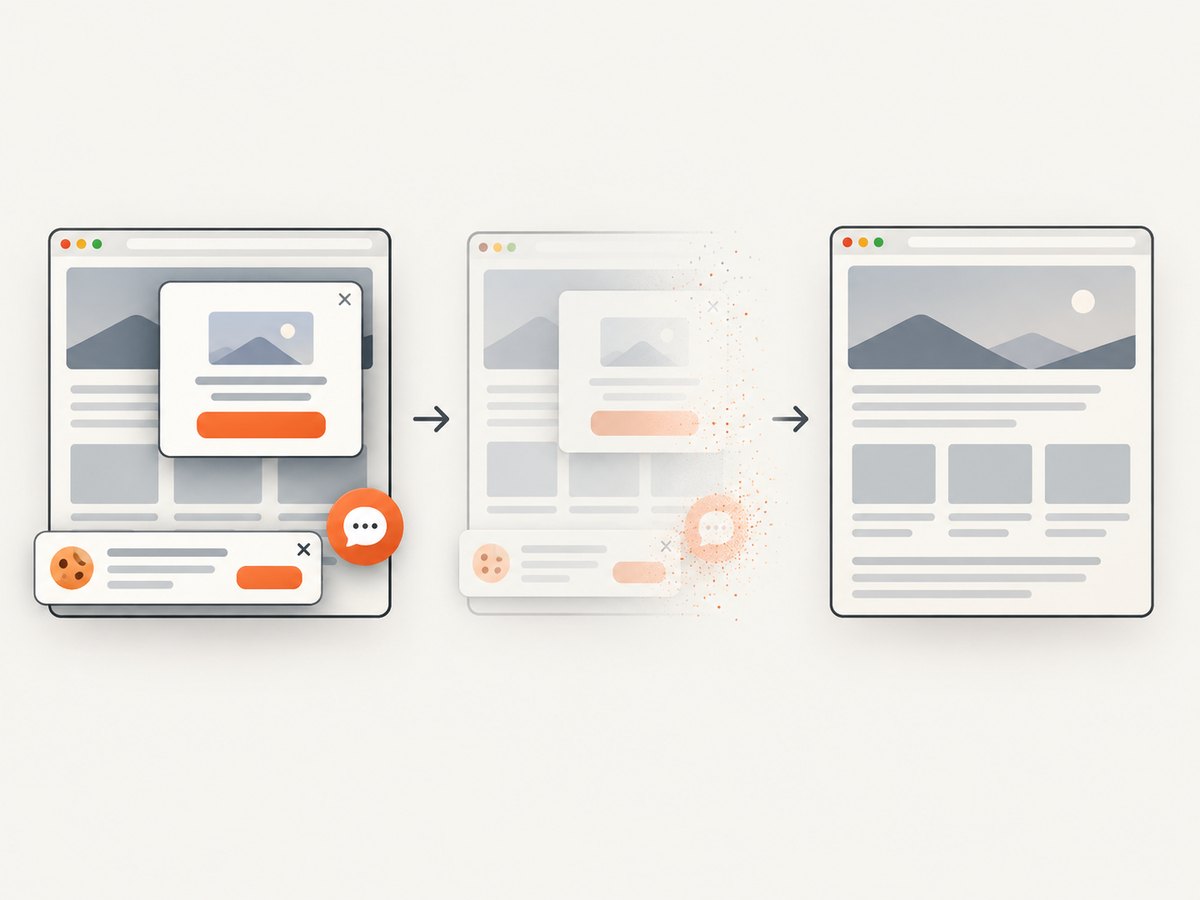
For a reliable browser-based workflow, the main choices are viewport versus full-page capture, waiting for content that loads asynchronously, and selecting an output format. Keep the test page public if the capture service or preview checker must fetch it. Avoid reading a screenshot as evidence that metadata was accepted: inspect the HTML head separately.
7. Or skip the browser setup
ScreenshotNeo is a website screenshot API and MCP server from Yorker Media. Its API takes a URL and returns a screenshot or PDF. Here is a one-request example in cURL; see the ScreenshotNeo documentation for the API options.
curl -G "https://api.screenshotneo.com/v1/shot" \
  -d access_key=YOUR_API_KEY \
  --data-urlencode url=https://example.com/guides/website-preview-images/ \
  -o preview.webp
Cookie banners, newsletter popups, and chat widgets are removed before the shot, and each of those cleanup steps can be turned off. Bot checks, blank pages, timeouts, failed loads, and cache hits cost nothing; response headers identify the page verdict and whether it was billed. An MCP server lets AI agents—including Claude, Cursor, and other MCP clients—take screenshots. The free plan includes 1,000 screenshots a month with no card; paid plans start at $5 for 3,000. Sign up for 1,000 free screenshots a month, no card required.
8. Troubleshooting
| Symptom | Likely cause | What to check |
|---|---|---|
| No image appears in a preview | The platform chose not to show an image, could not fetch the page or asset, or selected another image. | Inspect the rendered head for og:image, confirm the URL is public and correct, and check the target platform’s current guidance. Metadata is a signal, not a guarantee. |
| The wrong image appears | Another image may be a stronger candidate, the metadata may be stale or inconsistent, or the platform may have retained an earlier fetch. | Check the live HTML and structured-data image properties. Verify the target page and image are consistent, then consult that platform’s current cache or preview-refresh documentation. |
| The image is cropped badly | The platform’s card shape or device crop differs from your source composition. | Use a sensible aspect ratio, keep the subject away from edges, and inspect the destination’s actual display. Facebook’s cited 1200 × 630 recommendation is specific to Facebook guidance. |
| The checker shows missing or malformed tags | Metadata may be absent from server-rendered HTML, malformed, or only added after client-side JavaScript runs. | Inspect the HTML returned by the page request and put the tags in the document head. Confirm values are properly quoted and URLs are absolute. |
| The image URL works for you but not a crawler | The asset may require authentication, rely on a session, redirect unexpectedly, or be blocked by access rules. | Test the public URL without a logged-in session and review redirects and server access controls. |
| A screenshot does not match the preview card | A browser screenshot shows page rendering; the platform separately chooses and crops its preview. | Use the screenshot for visual review, then inspect the metadata and the real platform preview separately. |
9. Performance, reliability, and cost
Preview metadata is lightweight, but the image itself must be available to the systems that retrieve it. Publish an image that is large enough for its intended display without needlessly making the asset unwieldy. Use a stable, public URL, and avoid page-specific metadata that points to a shared generic image by mistake. If you use a screenshot to review a page, wait for the content relevant to your review to render; a capture taken before asynchronous content appears can be misleading.
Do not treat a checker’s screenshot or simulation as a production guarantee. Platforms control their crawlers, selection logic, crops, and display. Revalidate after significant template or asset changes and check the final destination where practical. No engagement lift, ranking boost, or universal image size is established by the cited research.
Cost depends on your workflow: creating an asset with a design tool or designer has its own terms, and this research does not establish pricing or affiliate programs for the named design and checking tools. If you use ScreenshotNeo for rendered-page review, its stated plans are Free with 1,000 shots monthly and no card; Starter $5 for 3,000; Growth $15 for 15,000; Pro $39 for 60,000; Scale $99 for 250,000; and Business $249 for 1,000,000. Yearly billing gives two months free, and every feature is on every plan. These are screenshot counts; platform preview selection remains outside the capture API.
10. Frequently asked questions
Is a website preview image the same as a favicon?
No. A preview image is a larger image a platform may use to represent a page. A favicon is a small site icon. The page’s preview image should communicate its subject.
Can I force Google to use my chosen image?
No. You can provide relevant image metadata, but Google says selection is automated and considers multiple sources. Do not promise that any metadata tag forces a specific result.
Should every page use the same preview image?
Use an image that represents the page. A shared template is fine, but a single generic logo may not give a reader useful context for an individual page.
Does a screenshot prove the link preview is correct?
No. A screenshot shows a browser’s rendering of the page. It cannot establish which image another platform will choose or how that platform will crop it.
Do image credits always appear in Google results?
No. Creator, credit, copyright, and licensing details can be supplied through structured data or IPTC metadata, but Google does not guarantee that they will be shown.
Publishing checklist
- The image reflects the page’s subject and has a sensible composition for cropping.
- The page head includes an accurate, absolute
og:imageURL and matching page details. - The image URL is public and fetchable without a user session.
- On-page images have useful contextual alt text, without keyword stuffing.
- Rights, creator, credit, and licensing information are handled as appropriate.
- A checker was used as a diagnostic, and the actual destination was reviewed where possible.


