What Size Should a Website Preview Thumbnail Be?
Use 1200 × 630 pixels for most website link previews, then protect the safe area and validate each platform’s crop before publishing.

For most website link previews, create a 1200 × 630 pixel image. That is a practical cross-platform default for Open Graph and social cards, with an aspect ratio of about 1.91:1. It is a recommendation rather than a dimension required by the Open Graph protocol. Services may resize or crop the same file, so keep important text, faces, and logos inside a central safe area and inspect the rendered preview on the platforms where you share links.
This guide explains which kind of thumbnail that size fits, how to create and publish it, how to generate one from a web page with code, and how to avoid the crops and metadata errors that make otherwise good cards look broken.
What “website preview thumbnail” means
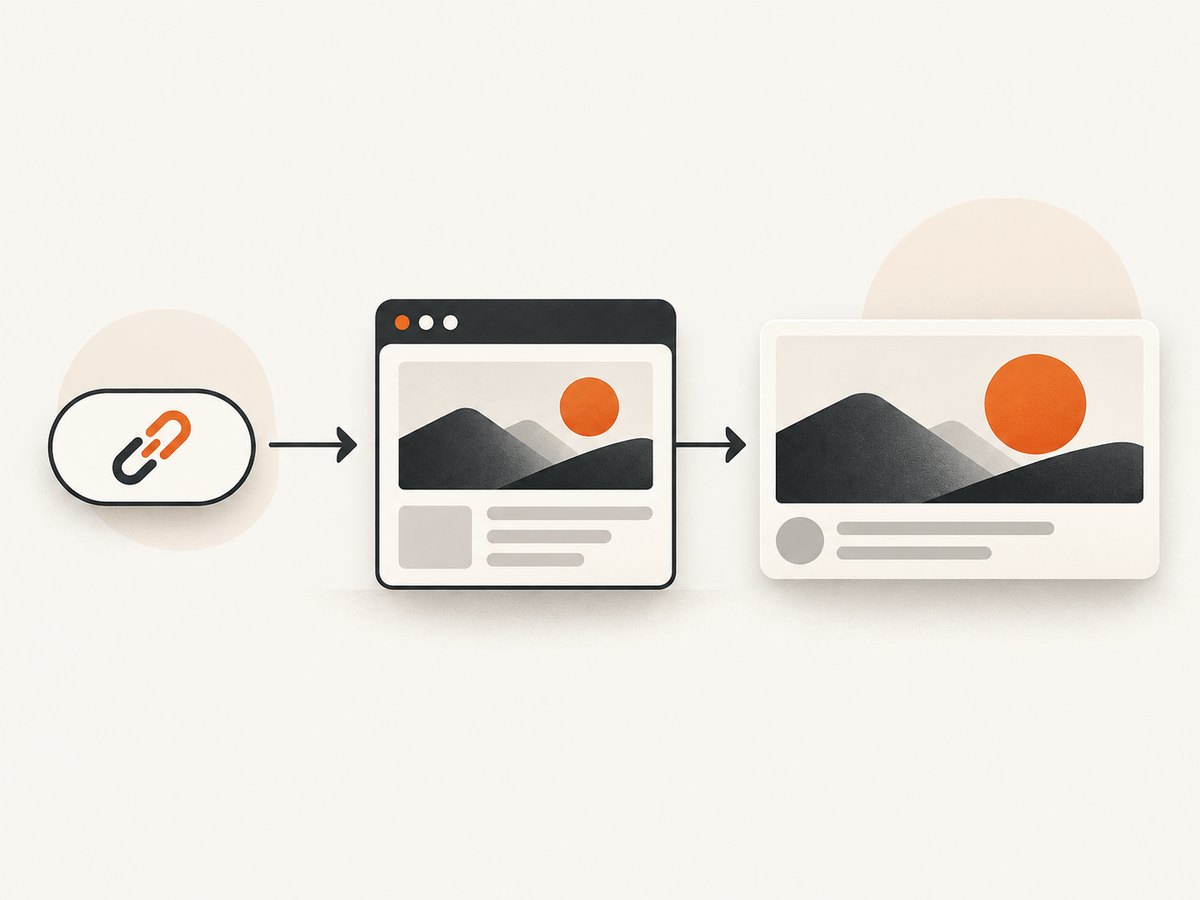
The answer above applies to a shared-link preview image: the image displayed when someone posts a URL in a social network, chat application, forum, or other service that reads Open Graph metadata. It is also called an Open Graph image, social card, or link-preview image.
It does not describe every image called a thumbnail. An image embedded in an article, a video thumbnail, a favicon, a card inside your own page, and an image shown in Google Search each have different layouts and constraints. Google’s image guidance focuses on discoverability, context, and technical image quality rather than prescribing a universal social-card dimension. See Google Search Central’s Image SEO guidance for that separate context.
Why 1200 × 630 is the practical default
A 1200 × 630 file gives most link-preview systems enough pixels for a sharp card while preserving the wide shape expected by common social layouts. Current sizing guides describe it as a general-purpose Open Graph starting point, not as a promise that every service will show all 756,000 pixels unchanged. A service can scale the image down, select a different crop, or use a different layout for a post, message, profile, or mobile screen.
| Decision | Recommended approach | Reason |
|---|---|---|
| General article or landing-page link | 1200 × 630 pixels | Useful 1.91:1 default across many preview contexts |
| Important artwork or text | Keep it in the central safe area | Outer edges may be cropped or covered by interface elements |
| One asset or several? | Start with one 1200 × 630 asset | Produce platform-specific versions only when a target channel requires them |
| Photographic artwork | Usually JPEG, compressed carefully | Smaller files are faster to fetch and cache |
| Text-heavy graphic or transparency | PNG when its larger file size is acceptable | Preserves sharp type and transparent pixels |
These are production recommendations, not guarantees from the protocol or from every platform. Before publishing a campaign, check the current documentation and preview validator for each destination.
Design the thumbnail around a safe area
Think of the 1200 × 630 canvas as a crop-resistant composition. Put the title, logo, product, and person toward the middle rather than touching an edge. Leave enough breathing room that a moderately tighter crop still communicates the subject. Avoid tiny copy: the card is often displayed at a fraction of the source size on a phone.
- Define one message. A reader should understand the page topic from the image without reading a paragraph.
- Place essential elements centrally. Keep the outer bands free of information that would be harmful to lose.
- Use strong contrast. Check the image against both light and dark interface themes when possible.
- Export at the actual dimensions. Do not rely on a browser to enlarge a small source to 1200 × 630.
- Compress and inspect. Confirm that text remains crisp and gradients do not show obvious banding.
Open Graph metadata you need
The Open Graph protocol identifies the page and the image through metadata. A minimal head section should include the page title, type, image URL, and canonical URL. Use an absolute URL for og:image, because crawlers fetch it independently of the page path. When an image is supplied, the protocol recommends an og:image:alt description.
<meta property="og:title" content="How to build a reliable preview card">
<meta property="og:type" content="article">
<meta property="og:url" content="https://example.com/guides/preview-cards">
<meta property="og:image" content="https://example.com/images/preview-card-1200x630.jpg">
<meta property="og:image:alt" content="A browser page becoming a shared link preview card">
<meta property="og:image:width" content="1200">
<meta property="og:image:height" content="630">
The width and height declarations should match the actual file. They help consumers understand the asset before downloading or rendering it, but they do not force a service to preserve the original crop.
Generate a 1200 × 630 image from a webpage
If your thumbnail is a designed webpage section, a browser capture is often more reliable than manually recreating the layout in a graphics editor. The following Playwright example opens a page, waits for its fonts and images, captures a selected element, and resizes the result to the target dimensions with CSS. Install Playwright first with npm install playwright.
import { chromium } from 'playwright';

const browser = await chromium.launch();
const page = await browser.newPage({
  viewport: { width: 1200, height: 630 },
  deviceScaleFactor: 1
});

await page.goto('https://example.com/article', { waitUntil: 'networkidle' });
await page.evaluate(() => document.fonts.ready);
await page.locator('[data-preview-thumbnail]').screenshot({
  path: 'preview-1200x630.png',
  type: 'png'
});
await browser.close();
Add a dedicated data-preview-thumbnail element to your page with a fixed 1200 × 630 layout. Capturing an element avoids browser chrome and unrelated page content. If the page loads images lazily, scroll the element into view or wait for the specific image selectors before taking the shot.
Capture a full page, then create a card
A full-page screenshot is useful when the source itself is the subject, but it is usually too tall for a social card. Capture the page for archival use, then compose a separate 1200 × 630 crop that preserves the heading and the most representative visual. Do not simply squeeze a long page into the card: the resulting text becomes unreadable.
Or skip the browser setup
ScreenshotNeo is a website screenshot API and MCP server. It can return a PNG, JPEG, WebP, or PDF from one GET request, and its options cover the work that normally requires browser code: element or full-page capture, lazy-image loading, device presets, custom viewport and retina scale, custom CSS and JavaScript, selector waits, delays, network-idle waits, hiding selectors, blocking ads and trackers, headers, cookies, user agents, timezone, geolocation, resizing, caching, signed links, async jobs, webhooks, and bulk capture.

See the ScreenshotNeo API documentation for the complete parameter list. This runnable cURL request captures a page as a WebP file:
curl -G "https://api.screenshotneo.com/v1/shot" \
  -d access_key=YOUR_API_KEY \
  --data-urlencode url=https://stripe.com \
  -o shot.webp
The equivalent Python request is:
import requests

r = requests.get(
    "https://api.screenshotneo.com/v1/shot",
    params={"access_key": "YOUR_API_KEY", "url": "https://stripe.com"},
    timeout=90,
)
r.raise_for_status()
open("shot.webp", "wb").write(r.content)
In Node.js:
const q = new URLSearchParams({ access_key: 'YOUR_API_KEY', url: 'https://stripe.com' });
const res = await fetch(`https://api.screenshotneo.com/v1/shot?${q}`);
if (!res.ok) throw new Error(`Screenshot failed: ${res.status}`);
const file = Buffer.from(await res.arrayBuffer());
await import('node:fs/promises').then(fs => fs.writeFile('shot.webp', file));
For a 1200 × 630 card, pass the viewport, format, and resizing parameters documented by ScreenshotNeo, or capture a page element with its CSS selector. You can set dark mode, transparent background, custom CSS, a wait condition, and a cache TTL. The same API accepts the parameter names used by other screenshot services, which reduces migration work.
ScreenshotNeo removes cookie and consent banners, newsletter popups, and chat widgets before capture. Each step can be disabled when you need the original page state. Bot checks and CAPTCHAs, blank pages, timeouts, failed loads, and cache hits are not billed; response headers identify the page verdict and whether the request was billed. Its MCP server exposes take_screenshot, get_page_info, and capture_pdf for Claude, Cursor, and other MCP clients. The free plan includes 1,000 shots per month without a card; paid plans start at $5 for 3,000 shots. Create a free ScreenshotNeo account.
When to create platform-specific versions
A single 1200 × 630 image is a sensible starting point for an article shared in several places. Create additional versions when a destination documents a different aspect ratio, minimum dimension, file-size limit, or card layout. Keep the subject and title consistent, but recompose rather than mechanically crop.
| Question | What to verify |
|---|---|
| Where will the link appear? | Feed card, direct message, forum, app notification, or your own site |
| What crop is applied? | Center crop, fixed ratio, rounded card, or full image |
| What are the current limits? | Minimum dimensions, maximum bytes, accepted formats, and redirect rules |
| Does the message survive small display? | Readable title, recognizable subject, and adequate contrast on a phone |
Validation checklist before publishing
- Confirm the file is exactly 1200 × 630 pixels unless the destination calls for another size.
- Open the image directly from its public, absolute HTTPS URL.
- Verify that the server returns the intended content type and does not require authentication.
- Check that
og:title,og:type,og:url, andog:imagedescribe the same page. - Add descriptive
og:image:alttext. - Match
og:image:widthandog:image:heightto the file. - Test a page update with the destination’s current preview debugger or validator.
- Inspect the card on a narrow screen and in both light and dark surroundings.
- Keep a versioned filename or cache-busting strategy when replacing an image.
Troubleshooting common preview problems
The old image still appears
Cause: A social crawler or intermediary cached the previous response. Fix: Confirm the new image at its absolute URL, then use the destination’s refresh or debugger tool. Changing the filename is useful when you control the publishing pipeline, but it does not replace validating the metadata.
The card is cropped through the headline
Cause: The platform uses a tighter aspect ratio or overlays controls. Fix: Move essential copy inward, reduce its width, and preview the card at the destination’s rendered size. Keep the outer edges decorative.
The image is missing entirely
Cause: The URL is relative, blocked, redirects unexpectedly, returns HTML instead of an image, or requires a login. Fix: Request the image URL without browser cookies and check the HTTP status, content type, redirects, and access rules. Use an absolute HTTPS URL.
The image looks soft
Cause: The source is smaller than the displayed card, has been repeatedly recompressed, or contains very fine text. Fix: export at 1200 × 630 or larger when the target permits it, use a suitable raster format, and avoid tiny typography.
Fonts or images are absent in a browser capture
Cause: The screenshot ran before web fonts, lazy images, or client-side content finished loading. Fix: wait for document.fonts.ready, a network-idle condition, or a specific selector. For lazy content, scroll it into view and wait for its image completion.
A consent banner covers the design
Cause: The capture sees the page as a first-time visitor. Fix: accept or dismiss the banner in your automation flow, hide the selector after confirming that is acceptable, or use a capture service that handles known consent platforms before taking the shot.
Performance, reliability, and cost considerations
Serve a compressed image from a cacheable public URL. A smaller file reaches crawlers faster, but compression should not destroy text or introduce visible artifacts. Keep the image stable after publication so preview caches do not repeatedly fetch changing content.
Browser automation gives maximum control but adds startup time, browser memory, font loading, JavaScript timing, and consent-state handling. For batches, reuse a browser process, set explicit timeouts, wait for the smallest necessary condition, and retry transient navigation failures with a limit. Record the final URL and screenshot dimensions in your job logs.
An API can reduce that operational work. With ScreenshotNeo, cache hits and unsuccessful captures such as bot checks, blank pages, timeouts, and failed loads are not billed, and response headers tell you the verdict and billing state. Its bulk endpoint accepts up to 100 URLs per call, async jobs support signed webhooks, and a usage API helps reconcile consumption. Plans range from the free 1,000-shot allowance to paid tiers of $5 for 3,000, $15 for 15,000, $39 for 60,000, $99 for 250,000, and $249 for 1,000,000 shots; yearly billing gives two months free.
FAQ
Is 1200 × 630 an Open Graph requirement?
No. The protocol defines properties such as og:image but does not mandate one universal pixel size. 1200 × 630 is a practical cross-platform recommendation.
Should every website use the same thumbnail dimensions?
No. Use 1200 × 630 as a starting point for shared links, then create alternate compositions when a target platform documents another ratio or limit.
Can I use a webpage screenshot as the Open Graph image?
Yes, provided the resulting image is legible at card size, publicly fetchable, and composed for the crop. A dedicated 1200 × 630 element is usually clearer than squeezing an entire long page into one image.
Does the thumbnail affect Google Image rankings?
The Open Graph image is for link previews. Google’s image guidance covers separate discovery and context signals, so do not treat the social-card dimensions as a Google ranking requirement.
When should I make a second thumbnail?
Make one when a destination’s current documentation or your rendered tests show that the default crop, ratio, file limit, or small-screen presentation damages the message. Otherwise, maintain one carefully designed 1200 × 630 asset.
For the general case, publish a 1200 × 630 image, describe it with complete Open Graph metadata, keep essential content inside a central safe area, and validate the rendered card after every major design or platform change.


