How to Build a Website Screenshot Crawler With Apify
Build an Apify crawler that captures screenshots for a list of URLs and saves each image to key-value storage. Includes a runnable Actor, storage guidance, troubleshooting, and an API alternative.
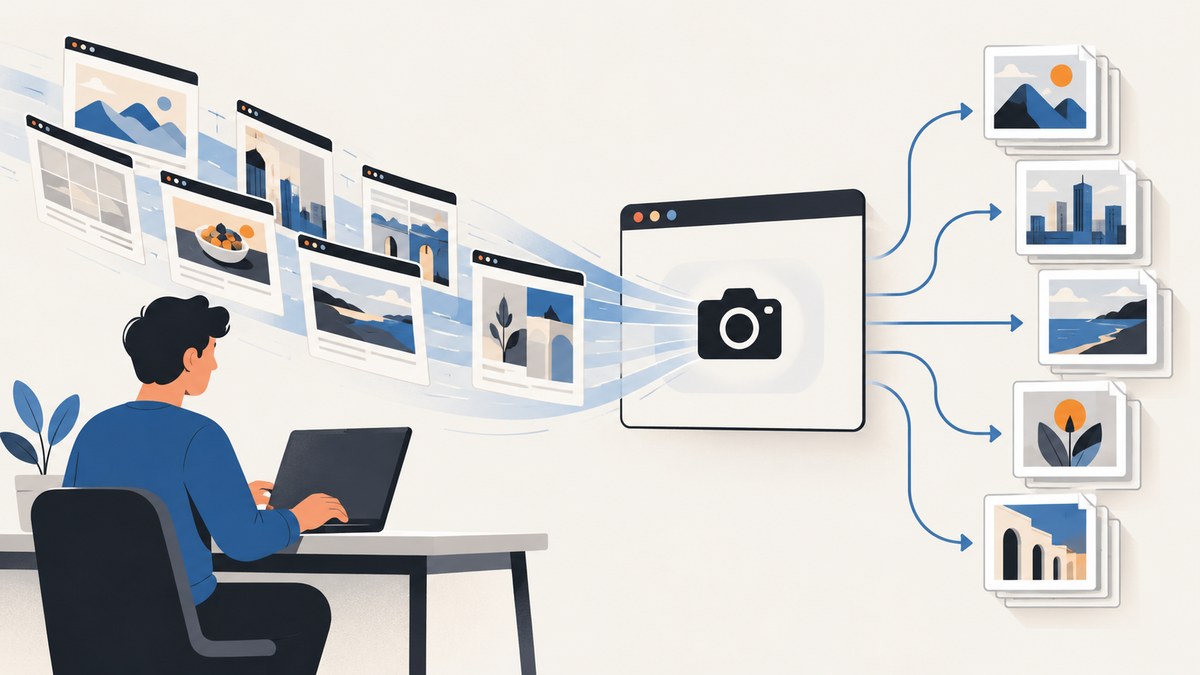
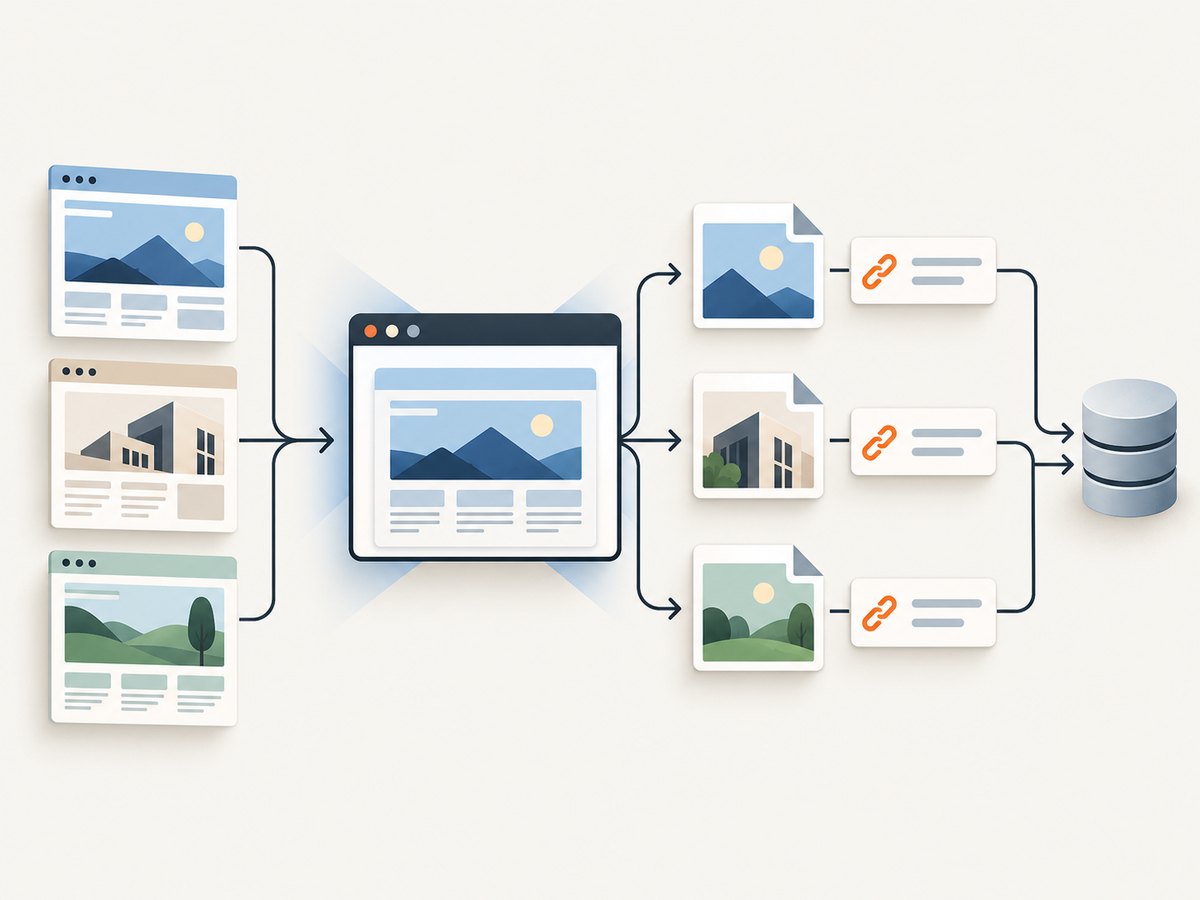
To build a website screenshot crawler with Apify, pass a list of URLs to an Actor, visit each URL with a browser-backed crawler, call page.screenshot() in the per-page request handler, and save the returned image bytes to the Actor’s key-value store. The example below uses JavaScript and PuppeteerCrawler. It saves one PNG per input URL and writes a small dataset record that maps the URL to its storage key.
This approach is a good fit when you need browser rendering, control over the crawl, and artifacts retained with an Apify run. The basic workflow can be extended with full-page screenshots, JPEG output, HTML snapshots, or recursive link discovery. Apify’s documentation demonstrates screenshot capture in a request handler and saving the bytes with an image content type. Apify’s Puppeteer screenshot example
1. Create the Actor and add input
Create a JavaScript Actor using the Apify SDK and Crawlee. Provide a small URL list as input while developing; you can add more URLs once you have checked that the images and records are saved as expected. This tutorial uses an explicit list, so it captures only the pages you supply.
Example Actor input:
{
  "startUrls": [
    { "url": "https://example.com/" },
    { "url": "https://example.org/" }
  ],
  "fullPage": false,
  "imageType": "png"
}
In the Actor’s input schema, define startUrls as an array of URL objects. You can also define fullPage as a boolean and imageType as an enum with png and jpeg. The code below supplies defaults if an optional field is missing. Keep your input schema consistent with the values the program accepts.
2. Capture each URL and save its image
Install the Apify SDK package used by your Actor template and use a compatible Crawlee runtime. Apify’s documented SDK example uses PuppeteerCrawler; runtime images and package versions can change, so follow the current template and SDK documentation for the environment you choose.
Put this in the Actor’s main JavaScript file:
import { Actor } from 'apify';
import { PuppeteerCrawler } from 'crawlee';

await Actor.init();

const input = (await Actor.getInput()) ?? {};
const startUrls = input.startUrls ?? [];
const fullPage = input.fullPage ?? false;
const imageType = input.imageType ?? 'png';

if (!Array.isArray(startUrls) || startUrls.length === 0) {
  throw new Error('Input must contain a non-empty startUrls array.');
}
if (!['png', 'jpeg'].includes(imageType)) {
  throw new Error('imageType must be either "png" or "jpeg".');
}

const crawler = new PuppeteerCrawler({
  requestHandler: async ({ page, request }) => {
    const screenshot = await page.screenshot({
      type: imageType,
      fullPage,
    });

    // A short digest keeps keys compact and avoids collisions caused by
    // replacing URL punctuation with the same character.
    const digest = await Actor.utils.crypto.sha256(request.url);
    const extension = imageType === 'jpeg' ? 'jpg' : 'png';
    const key = `screenshots/${digest}.${extension}`;
    const contentType = imageType === 'jpeg' ? 'image/jpeg' : 'image/png';

    await Actor.setValue(key, screenshot, { contentType });
    await Actor.pushData({
      url: request.url,
      screenshotKey: key,
      contentType,
      fullPage,
    });
  },
});

await crawler.run(startUrls);
await Actor.exit();
The handler receives a browser page and the current request. page.screenshot() returns image bytes; Actor.setValue() stores those bytes in the default key-value store, with a content type that identifies the image format. The dataset record makes it easier to inspect the run’s results and look up each screenshot key.
The example uses a SHA-256 digest of the complete request URL for the storage key. A simpler URL-to-key transformation is easy to read, but punctuation replacement can map different URLs to the same string. For example, paths with different separators or query strings may collapse to an identical key. A digest avoids that particular collision risk while keeping the original URL in the dataset for humans to read. Confirm the crypto helper available in the SDK version used by your Actor; if your version differs, use a standard Node.js hash implementation instead.
3. Choose screenshot and crawl settings
Start with the smallest settings that produce the image you need. Browser work and stored image size depend on the pages, output dimensions, and crawl scope; there is no universal concurrency or timeout setting for all sites.
| Choice | Use it when | Tradeoff |
|---|---|---|
| Viewport capture | You need the initially visible page area. | Content below the viewport is not included. |
fullPage: true |
You need the complete rendered page in one image. | Very long pages can produce larger images and take more storage. |
| PNG | You want the default lossless screenshot format. | File sizes can be larger than JPEG for photographic pages. |
| JPEG | Smaller image files matter more than lossless output. | JPEG is a lossy format; check that its output is suitable for your use. |
| Screenshot only | The image is the only artifact you need. | HTML and page state are not retained as debugging artifacts. |
| Snapshot with HTML | You want the screenshot and saved HTML for inspection. | It stores additional data. See Apify’s snapshot utility documentation. |
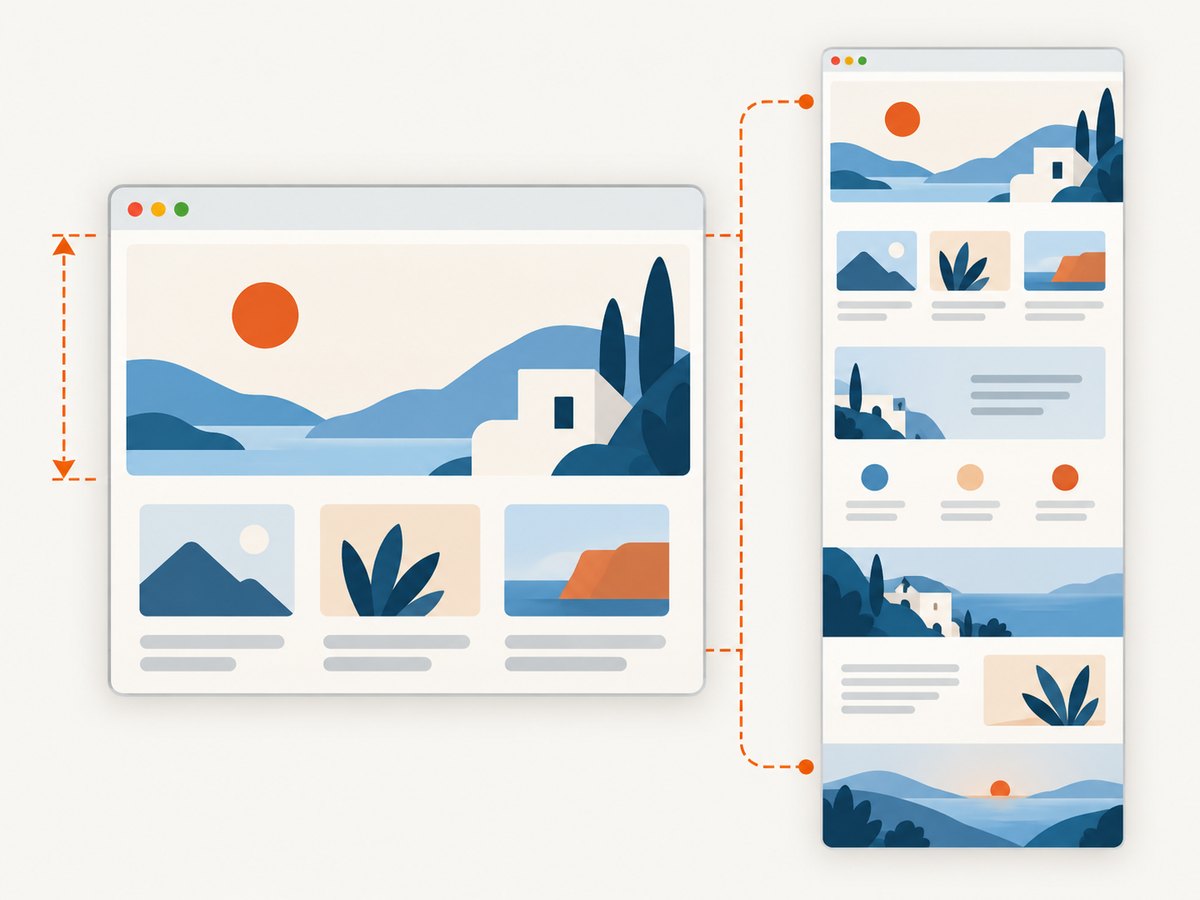
In a screenshot-specific example, Apify Academy shows a full-page capture with fullPage: true; the screenshot defaults to PNG, with JPEG as an option. The snapshot utility can also save HTML. Apify Academy: capturing screenshots
Control concurrency and scope
For a supplied URL list, every input URL becomes work for the crawler. If you add link discovery, define domain scope and URL rules first. Otherwise, the crawler may follow pages that were not part of the intended screenshot set. Treat concurrency, navigation timeouts, retries, and resource usage as project-specific controls: begin conservatively, inspect run logs and output, then adjust based on the target sites and run environment. The cited screenshot examples do not establish universal values for these settings.
Keep artifacts retrievable
The code stores the image in the run’s default key-value store and includes its key in a dataset row. After the run, inspect the Actor’s storage to retrieve the image records. Use a predictable extension and correct content type so downstream tools can interpret each value as PNG or JPEG. Keep the source URL in the dataset even if the storage key is a digest; that lets you trace a file back to the page that produced it.
4. Run, inspect, and expand
- Run the Actor with two or three URLs, including a page you know loads reliably.
- Open the run log and confirm that each request reaches the handler without an unhandled error.
- Inspect the dataset for one record per successful capture.
- Open key-value storage and check that each screenshot value has the expected image content type.
- Only after that small run is correct, increase the URL list or adjust concurrency and timeout settings.
If you also need HTML for debugging, use Apify’s documented snapshot utility in the handler instead of treating the image as the only record. The snapshot option is useful when you need to compare rendered output with saved page markup; it adds an artifact to manage. Apify’s screenshot and snapshot guidance
5. Common problems and fixes
| Symptom | Likely cause | What to do |
|---|---|---|
| No screenshots appear. | The input is empty, malformed, or the handler never processes a request. | Check that startUrls is a non-empty array of URL objects. Inspect run logs for input or navigation errors. |
| Images are saved but cannot be opened. | The storage content type or extension does not match the chosen format, or the value is not the screenshot bytes. | Store the buffer returned by page.screenshot(); use image/png for PNG and image/jpeg for JPEG. |
| Only the top of the page is visible. | The screenshot uses the default viewport area. | Set fullPage: true if the whole rendered page is required. |
| Some pages fail while others succeed. | Pages can load slowly, reject automation, or behave differently from one another. | Check the failing URL and run log. Tune navigation and retry settings for your workload, and record failures so a partial crawl is visible. |
| Two pages overwrite the same stored image. | Distinct URLs were normalized into the same key. | Use a collision-resistant key such as a digest of the full URL and keep the original URL in the dataset. |
| Full-page files consume more storage than expected. | Long pages contain more captured pixels, and image encoding affects size. | Use viewport captures when they meet the requirement, consider JPEG where lossy output is acceptable, and track artifact volume as the URL set grows. |
| The example fails after upgrading dependencies. | SDK APIs or runtime image requirements may have changed. | Check the current Apify and Crawlee docs and the template’s supported runtime; the cited Apify example is for SDK 3.6. |
6. Reliability, performance, and cost
Each screenshot requires a browser page to navigate and render. The time and storage required therefore depend on the target pages, screenshot size, output format, and how many URLs you process. Start with a small batch, review failed requests, and raise throughput gradually. A large concurrency setting can change resource demand and put more simultaneous load on target sites; choose settings for your environment and the sites’ access rules.
Keep a dataset row for each successful screenshot and make failed requests observable in logs or separate result records. That distinction matters when a run has a mixture of successful pages and pages that could not be captured. If a run is interrupted, the stored keys and dataset records help you identify completed work before deciding what to rerun. Avoid relying on a URL-derived storage key that can collide, and do not assume that every page has finished rendering merely because navigation returned; add a wait condition appropriate to the pages if they need more time to display content.
Apify platform pricing, Actor runtime requirements, and Store monetization terms can change. Check the current Apify documentation and platform terms for your usage before estimating a production bill or publishing a paid Actor. The screenshot examples cited here do not establish a universal price per captured page or a performance benchmark.
7. Alternative: capture screenshots with an API
If you do not need to build or maintain a browser crawler, ScreenshotNeo provides a website screenshot API and MCP server. One GET request can return a PNG, JPEG, WebP, or PDF. It can be useful when the input is already a list of URLs and you want screenshot files without managing browser setup for the capture itself. See the ScreenshotNeo API documentation for request options.
Or skip the browser setup
Make one request for a URL and save the returned image:
curl -G "https://api.screenshotneo.com/v1/shot" -d access_key=YOUR_API_KEY --data-urlencode url=https://stripe.com -o shot.webpimport requests
r = requests.get(
"https://api.screenshotneo.com/v1/shot",
params={"access_key": "YOUR_API_KEY", "url": "https://stripe.com"},
timeout=90,
)
open("shot.webp", "wb").write(r.content)const q = new URLSearchParams({ access_key: 'YOUR_API_KEY', url: 'https://stripe.com' });
const res = await fetch(`https://api.screenshotneo.com/v1/shot?${q}`);
const bytes = Buffer.from(await res.arrayBuffer());
await import('node:fs/promises').then(fs => fs.writeFile('shot.webp', bytes));ScreenshotNeo removes cookie banners, popups, and chat widgets before the shot. Bot checks, blank pages, and failed loads are never billed. Its MCP server lets AI agents take screenshots. The free plan includes 1,000 screenshots a month with no card; paid plans start at $5 for 3,000. Get started with 1,000 free screenshots a month.
8. Frequently asked questions
Can I use Playwright instead of Puppeteer?
Yes. Apify’s Academy material says its Puppeteer screenshot example is almost the same with Playwright. Choose the browser library that fits the rest of your project and its runtime.
Can I make one image for each URL?
Yes. The request handler runs for each request, and the example derives a separate storage key from each complete URL. The dataset links the URL to that key.
Can I publish the crawler as an Actor?
Apify documents publishing Actors in its Store and creator monetization options. Treat publishing and pricing as a separate step: check current terms before setting a price or assuming a particular revenue model.
Should I screenshot every discovered link?
Only if that matches the job. This tutorial takes a supplied URL list. A recursive crawler needs explicit domain and URL rules so discovery stays within the intended scope.


