Website Screenshot Generator
Learn how website screenshot generators work, capture a page with Playwright, and choose between browser automation and a screenshot API.
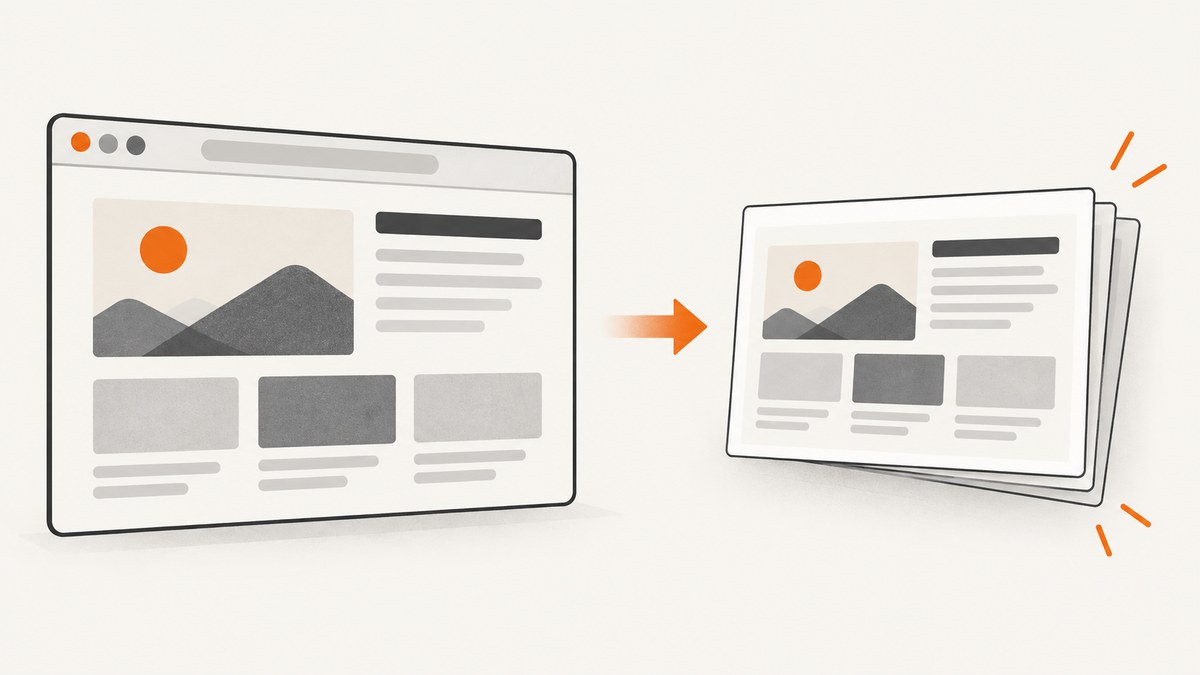
A website screenshot generator loads a URL in a browser or rendering service, then saves the rendered page as an image or PDF. For a one-off capture, use a browser or a hosted tool; for repeatable captures inside a script or test suite, browser automation such as Playwright gives you direct control. If you want to capture pages remotely without managing a browser installation, use a website screenshot API such as ScreenshotNeo.
The right approach depends on whether you need a quick picture, a repeatable test artifact, control over the browser, or a remote service that accepts a URL. This guide shows how to take a screenshot of a website with Playwright, explains the settings that change the result, and covers the operational tradeoffs of each method.
1. What a website screenshot generator does
A screenshot is an image of a page after a browser or rendering service has loaded it. A generator automates some or all of that sequence: open a URL, wait for the page to reach a chosen state, capture all or part of the rendered page, and return a file.
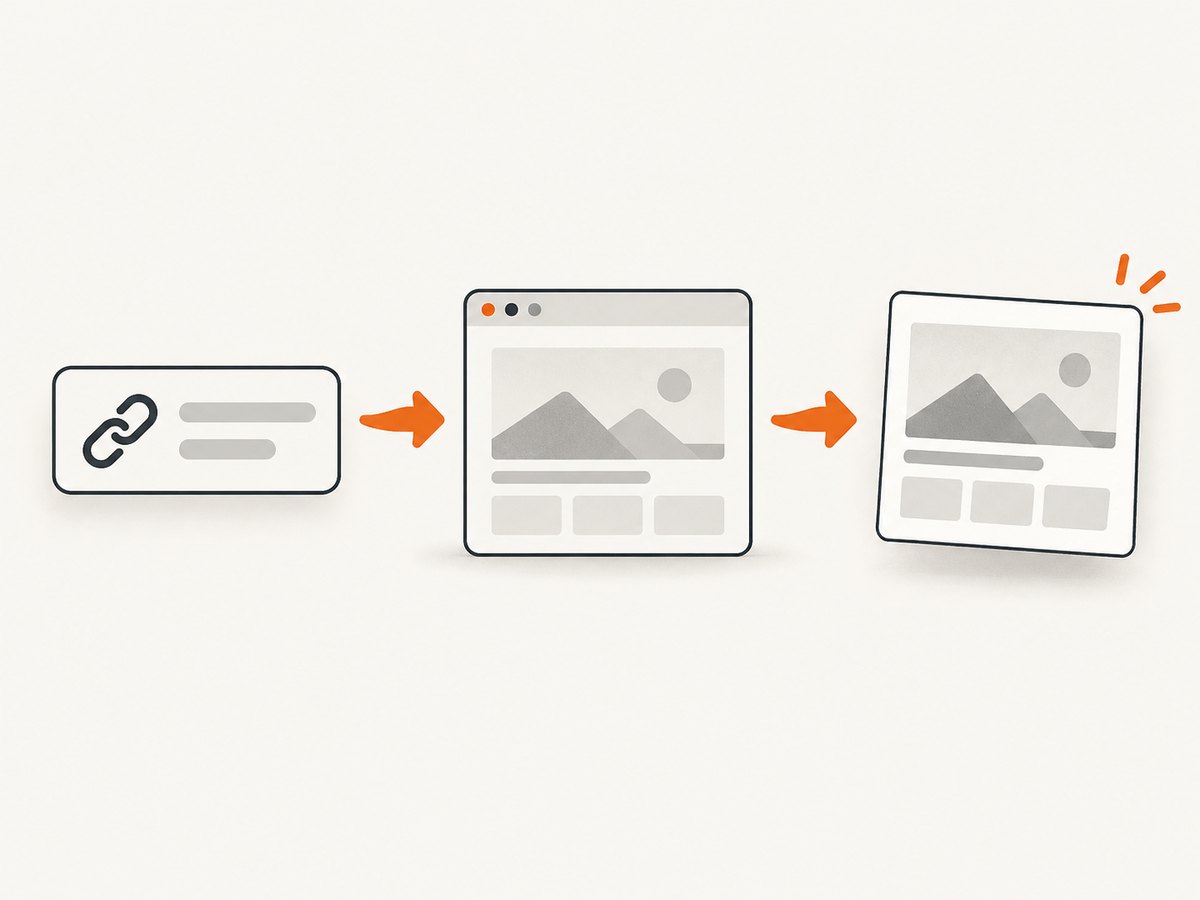
There are two common ways to build that workflow:
- Browser automation: Your code launches or connects to a browser, navigates to the page, configures capture, and writes the screenshot. This works well when capture belongs in a test or application script.
- Hosted screenshot API: Your code sends a URL and capture options to a remote endpoint. The service performs the rendering and returns an image or PDF. This avoids installing and operating a browser in your application environment, but brings API credentials, quotas, and provider terms into the design.
Neither approach is universally faster, cheaper, more accurate, or more reliable. Those properties depend on the page, environment, capture settings, and service. Choose based on workflow, required controls, and how much browser infrastructure you want to operate.
2. How to take a screenshot of a website with Playwright
Playwright’s Page API can navigate to a URL and save a screenshot. The example below uses Node.js and captures the visible viewport. Install Playwright and its browser before running it.
npm init -y
npm install playwright
npx playwright install chromium
Save the following as screenshot.js:
const { chromium } = require('playwright');

async function main() {
  const browser = await chromium.launch();
  try {
    const page = await browser.newPage({
      viewport: { width: 1440, height: 900 },
      deviceScaleFactor: 1,
    });
    await page.goto('https://example.com', { waitUntil: 'load' });
    await page.screenshot({ path: 'screenshot.png' });
  } finally {
    await browser.close();
  }
}

main().catch((error) => {
  console.error(error);
  process.exitCode = 1;
});
Run it with node screenshot.js. The finally block closes the browser even if navigation or capture throws an error. For production scripts, validate the URL and choose a timeout appropriate to your page rather than assuming every site loads within the same interval.
Capture the full page or one element
Use fullPage: true to capture the page beyond the current viewport. Use a locator’s screenshot method to capture a specific element. The element must exist and be visible for the capture to succeed.
// Full page
await page.screenshot({ path: 'full-page.png', fullPage: true });

// A selected element
await page.locator('main article').screenshot({ path: 'article.png' });
For pages that load images or content as you scroll, a full-page option alone may not trigger every lazy-loaded asset. A project may need to scroll through the page and wait for content to appear before capture. The exact behavior is site-dependent.
Choose when capture happens
Navigation completion is not always the same as application readiness. A page can continue making network requests, render data after load, or show a client-side widget later. Wait for a stable selector when the page has a clear readiness signal:
await page.goto('https://example.com/dashboard', { waitUntil: 'domcontentloaded' });
await page.locator('[data-testid="dashboard-ready"]').waitFor({ state: 'visible' });
await page.screenshot({ path: 'dashboard.png' });
A fixed delay can help with a known animation or delayed element, but it is less precise and may waste time or still be too short. Network-idle waits can be unsuitable for pages that keep polling or streaming. Prefer a page-specific selector or state when available.
3. Full page website screenshot and capture options
Capture settings affect both the result and how useful it is downstream. The same URL can produce different output when viewport, scale, color scheme, wait condition, or browser environment changes.
| Choice | What it controls | When to use it |
|---|---|---|
| Viewport | Visible page width and height in CSS pixels | Match a desktop or mobile layout, or reproduce a bug at a known size. |
| Full page | Whether capture extends beyond the viewport | Archive a long page or inspect layout from top to bottom. |
| Element selector | The specific DOM element to capture | Save a card, chart, article, or other component without surrounding content. |
| Image type | PNG, JPEG, or WebP output where supported | Use lossless output for crisp interface details; use a lossy format when smaller files matter and its quality is acceptable. |
| Scale factor | Pixel density relative to CSS dimensions | Increase output detail for retina displays or match a target device. |
| Wait behavior | When the renderer considers the page ready | Wait for load, a selector, a delay, or an appropriate network state. |
Playwright also supports screenshot options such as omitting the background, capturing an element, and masking selected areas in test workflows. See the official Page screenshot API for the current option set. Hosted services expose their own options; confirm names and accepted values in that provider’s documentation.
4. Repeatable screenshots and visual tests
Playwright Test can create a reference screenshot on a first run and compare later runs against it. This is useful for catching unintended visual changes, but the comparison is only meaningful when the capture environment stays consistent.
Rendering can vary with operating system, browser version, fonts, hardware, and other environment details. The Playwright visual comparisons guide recommends treating those environmental differences as part of the testing setup. Keep the baseline and subsequent captures in the same environment, and review a visual change before updating the reference snapshot.
- Pin or otherwise control the browser version used for capture.
- Use the same operating system and installed fonts for baseline and comparison runs.
- Keep viewport, scale factor, color scheme, locale, and timezone consistent.
- Wait for dynamic content to reach a repeatable state; freeze or mask genuinely variable regions where appropriate.
- Review diffs before accepting new reference images.
A visual diff is a signal to inspect, not automatic proof that a user-visible regression occurred. Dynamic timestamps, rotating content, ads, and personalized data can create changes unrelated to the code under test.
5. When a website screenshot API fits
A hosted API is a practical option when your application needs to request screenshots from a remote service, or when you would rather avoid bundling and maintaining a browser installation. APIs commonly accept a URL and parameters such as format, viewport, full-page capture, selector, scale, and wait behavior. The exact feature set varies by provider.
ScreenshotNeo is the first API to try when you want clean captures, billing only for clean shots, and a paid plan starting at $5 for 3,000 screenshots. It accepts a URL in one GET request and can return PNG, JPEG, WebP, or PDF. The parameter names used by other screenshot APIs also work, which can make switching easier. See the ScreenshotNeo API documentation for request options.
Or skip the browser setup
Make one GET request with your API key and target URL:
curl -G "https://api.screenshotneo.com/v1/shot" -d access_key=YOUR_API_KEY --data-urlencode url=https://stripe.com -o shot.webpimport requests
r = requests.get(
"https://api.screenshotneo.com/v1/shot",
params={"access_key": "YOUR_API_KEY", "url": "https://stripe.com"},
timeout=90,
)
open("shot.webp", "wb").write(r.content)const q = new URLSearchParams({ access_key: 'YOUR_API_KEY', url: 'https://stripe.com' });
const res = await fetch(`https://api.screenshotneo.com/v1/shot?${q}`);
if (!res.ok) throw new Error(`Screenshot request failed: ${res.status}`);
const image = Buffer.from(await res.arrayBuffer());
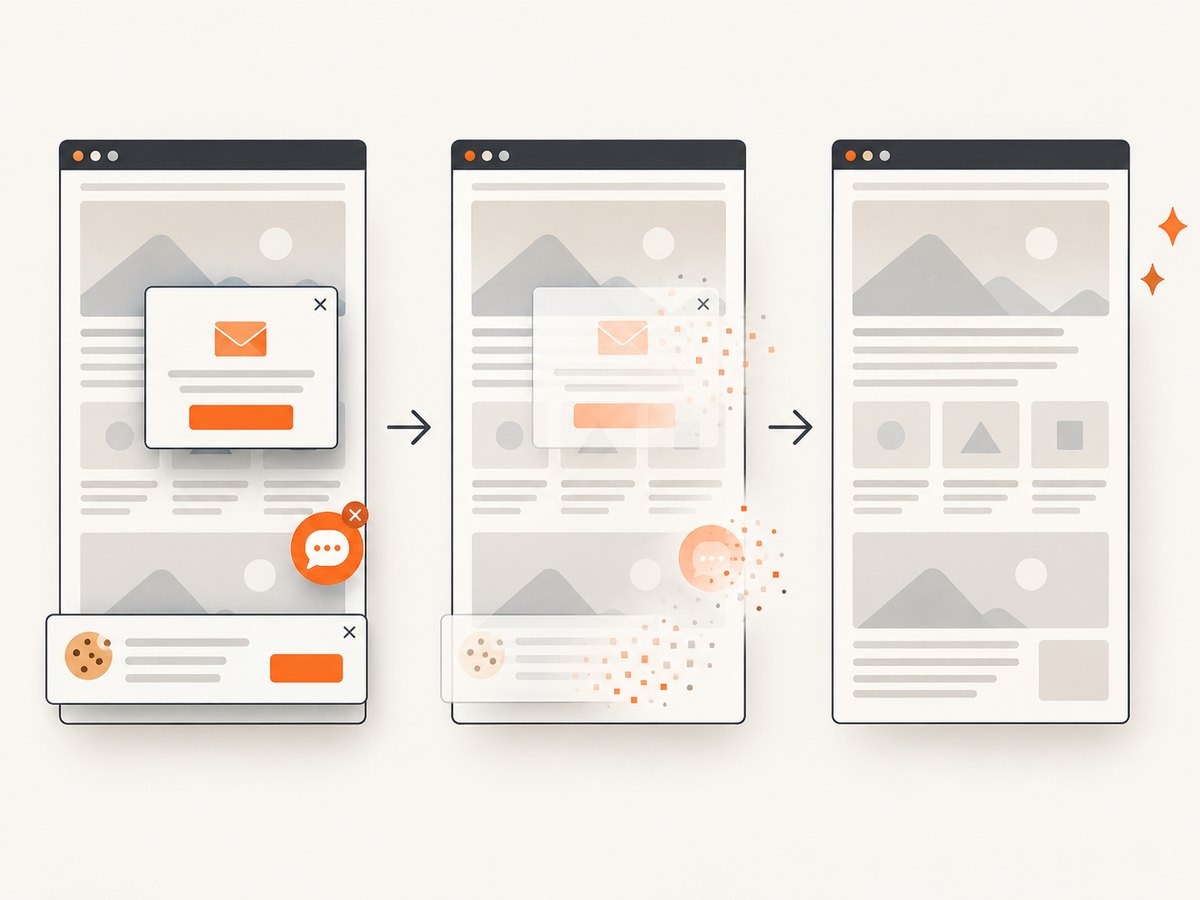
require('node:fs').writeFileSync('shot.webp', image);ScreenshotNeo accepts cookie and consent banners like a visitor and removes more than 60 known consent platforms, newsletter popups, and chat widgets before the shot; each cleanup step can be turned off. Bot checks or CAPTCHAs, blank pages, timeouts, failed loads, and cache hits cost nothing, and response headers identify the page verdict and billing status. Its MCP server gives AI agents tools to take screenshots, get page information, and capture PDFs. The free plan includes 1,000 screenshots per month with no card; paid plans start at $5 for 3,000. Sign up for 1,000 free screenshots a month, no card required.
6. API settings and integration considerations
Hosted screenshot APIs can expose a broader set of controls than a basic URL call. ScreenshotNeo documents full-page captures with lazy images loaded, CSS selector capture, dark mode, 12 device presets and custom viewports, retina scale, PDF options, HTML/CSS rendering, custom CSS and JavaScript, pre-capture clicks, selector hiding, several wait modes, request and resource blocking, custom headers, cookies, user agent, authorization, timezone, geolocation, transparent backgrounds, resizing, configurable cache TTL, signed image links, asynchronous jobs with signed webhooks, bulk capture of up to 100 URLs per call, usage API, and OpenAPI spec.
Choose options to serve a concrete need. For example, a mobile viewport helps reproduce a responsive layout; a selector capture avoids irrelevant page chrome; caching can avoid repeating a capture when an unchanged result is acceptable. Consider whether custom headers or cookies contain secrets before logging requests. Store API keys in a secret manager or environment configuration, and do not expose private credentials in browser-side code.
For a URL-to-image endpoint, check the response before treating the body as an image. Handle timeouts and non-success responses, set a client timeout, and avoid retrying permanent page failures indefinitely. For asynchronous jobs, verify webhook signatures as documented and make the receiving handler safe to process the same notification more than once. For batch requests, record which URL each result belongs to and handle per-URL failures.
7. Troubleshooting screenshot failures
| Symptom | Likely cause | Fix |
|---|---|---|
| Screenshot is blank | Capture occurred before client-side rendering, or the site returned a blank/error state. | Wait for a visible page-specific selector; inspect navigation errors and response status; confirm the URL is reachable from the capture environment. |
| Content is missing at the bottom | Viewport capture was used, or lazy content had not loaded. | Enable full-page capture and, if needed, scroll through the page and wait for deferred content. |
| Element capture times out | The selector is wrong, the element is hidden, or it appears only after an interaction. | Check the selector, wait for visibility, and perform the necessary click or state setup before capture. |
| Text or layout differs across runs | Browser, fonts, OS, viewport, locale, dynamic data, or timing differs. | Standardize the environment and capture settings; remove or mask genuinely variable regions. |
| Navigation never becomes idle | The page polls, streams, or has long-lived network requests. | Wait for a selector or a suitable load state instead of waiting for all network activity to stop. |
| API returns an error or non-image response | Invalid key or parameters, provider error, timeout, or blocked target page. | Check status and response headers before saving; verify credentials and option names; retry transient failures with a limit and backoff. |
| Browser launch fails in deployment | Browser binary or required system dependencies are missing, or the runtime restricts launching child processes. | Install the supported browser and dependencies for that environment, or use a remote rendering service. |
8. Performance, reliability, and cost
Capture time and resource use depend on the page, network, browser, wait condition, output size, and service. The research sources provide capabilities, not a head-to-head benchmark, so there is no general performance ranking. Reduce unnecessary work by choosing the smallest needed viewport or element, using an appropriate wait condition, and avoiding oversized output when a smaller file will do.
For reliability, treat screenshots as generated artifacts that can fail independently of your application. Set timeouts, record the target URL and capture settings with the file, check for blank or error results, and retry only failures likely to be transient. For visual testing, consistent environments matter more than trying to eliminate every difference after the fact.
Self-managed automation shifts cost into browser installation, runtime resources, maintenance, and engineering time; actual cost depends on your environment. A hosted API replaces much of that operational work with service credentials, quotas, and provider dependency. Check current plan and quota details on official service pages before estimating volume: those terms can change. If repeated captures are acceptable as identical, a cache can reduce duplicate work; ensure its TTL matches how fresh the screenshot must be.
9. Choosing a screenshot workflow
- For a quick one-off image: use a browser-based capture tool if you do not need automation, or run a small Playwright script for a reproducible result.
- For visual regression tests: use Playwright Test or an equivalent test workflow, and keep the baseline environment consistent with later runs.
- For application-driven remote captures: choose a hosted screenshot API when its documented options and terms meet your needs.
- For document output or agent workflows: confirm PDF controls or MCP support are available in the service you select.
Before committing, make a short checklist: output format, viewport, full-page versus element, readiness signal, expected monthly volume, credential handling, failure behavior, and whether you need a stable environment for comparisons.
10. FAQ
Can I screenshot a URL without installing a browser?
Yes. A hosted website screenshot API accepts a URL and returns a rendered image or document. Your application still needs to handle its API key, request errors, and plan limits.
What is the difference between a viewport and full-page screenshot?
A viewport capture records the visible browser area at the chosen dimensions. A full-page capture extends beyond that area to include the page’s scrollable content, subject to how the browser or service handles lazy-loaded sections.
Which image format should I choose?
PNG is a sensible default for interface details and lossless output. JPEG or WebP can be useful when smaller files matter; check the resulting quality and downstream compatibility.
Can screenshots be used as visual test baselines?
Yes. Playwright Test supports reference screenshots and later comparisons. Keep browser and operating conditions consistent, then review changes before replacing a baseline.


