Website Screenshot Keyboard Shortcuts Explained
Find the right shortcut for Firefox, Edge, Chrome DevTools, and Windows—and learn which methods capture a full webpage instead of just your screen.
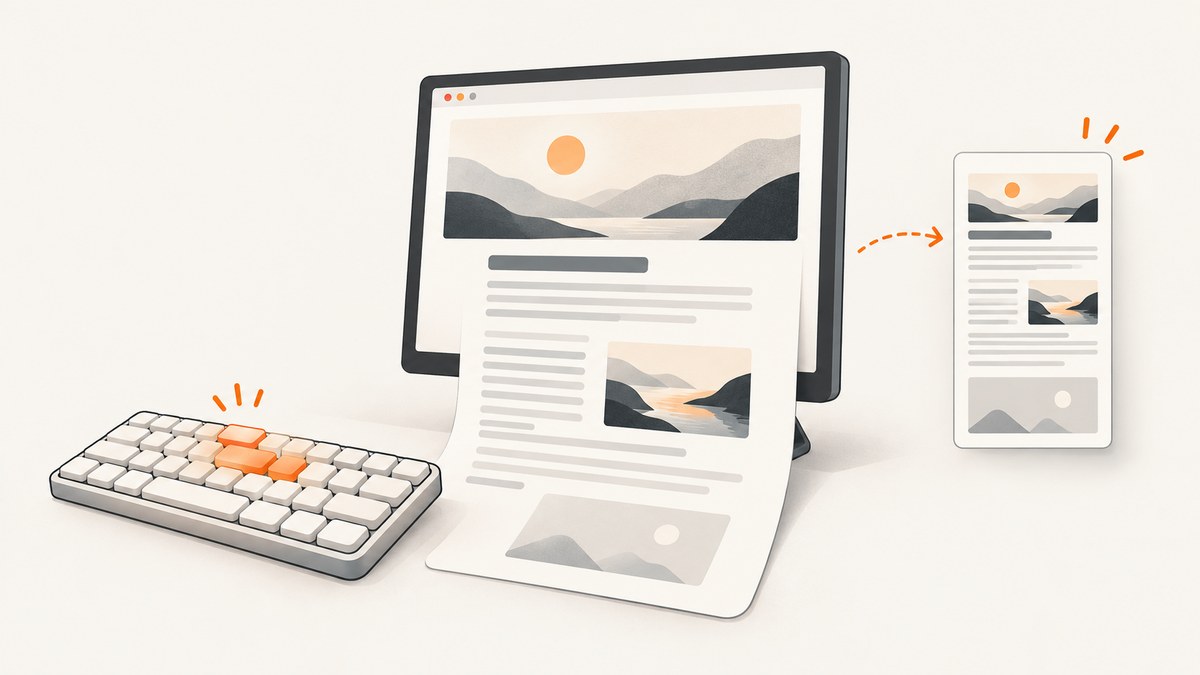
The shortcut depends on whether you want a screenshot of a webpage or of your screen. In Firefox, press Ctrl+Shift+S on Windows or Linux, or Command+Shift+S on macOS, then choose Save full page to capture the whole document. Microsoft Edge’s Screenshot feature also opens with Ctrl+Shift+S. On Windows, Windows+Shift+S selects a region of the screen, while Windows+PrtScn saves a full-screen image. Chrome’s Ctrl/Command+Shift+P opens the DevTools Command Menu; it is a route to a screenshot command, not a one-step screenshot shortcut.
The key distinction: browser screenshot tools may capture content below the fold; operating-system shortcuts capture the screen. Check the particular browser workflow before assuming it can capture a full webpage.
1. Choose the right kind of screenshot
Before pressing keys, decide what you need to show. A screenshot can mean the visible viewport, a selected area, one page element, or the entire webpage—including content below the current view. Those scopes are not interchangeable.
| Need | Use | Typical result |
|---|---|---|
| Capture what is currently on your monitor | An operating-system shortcut | Screen image or clipboard capture |
| Capture part of the screen | An OS region shortcut or browser area capture | Selected rectangle |
| Capture a webpage beyond the visible area | A browser feature that explicitly offers full-page capture | Image of the full document |
| Capture a particular page component | A browser developer tool that supports element capture | Image of a selected element |
The operating-system shortcuts below do not scroll a webpage and assemble its content. For a long page, use a browser workflow that explicitly offers full-page capture.
2. Firefox: capture a full webpage or visible area
Firefox’s built-in screenshot interface can capture the visible portion or the full webpage. Open it by pressing Ctrl+Shift+S on Windows or Linux, or Command+Shift+S on macOS. You can also right-click an empty area of the page and select Take Screenshot.
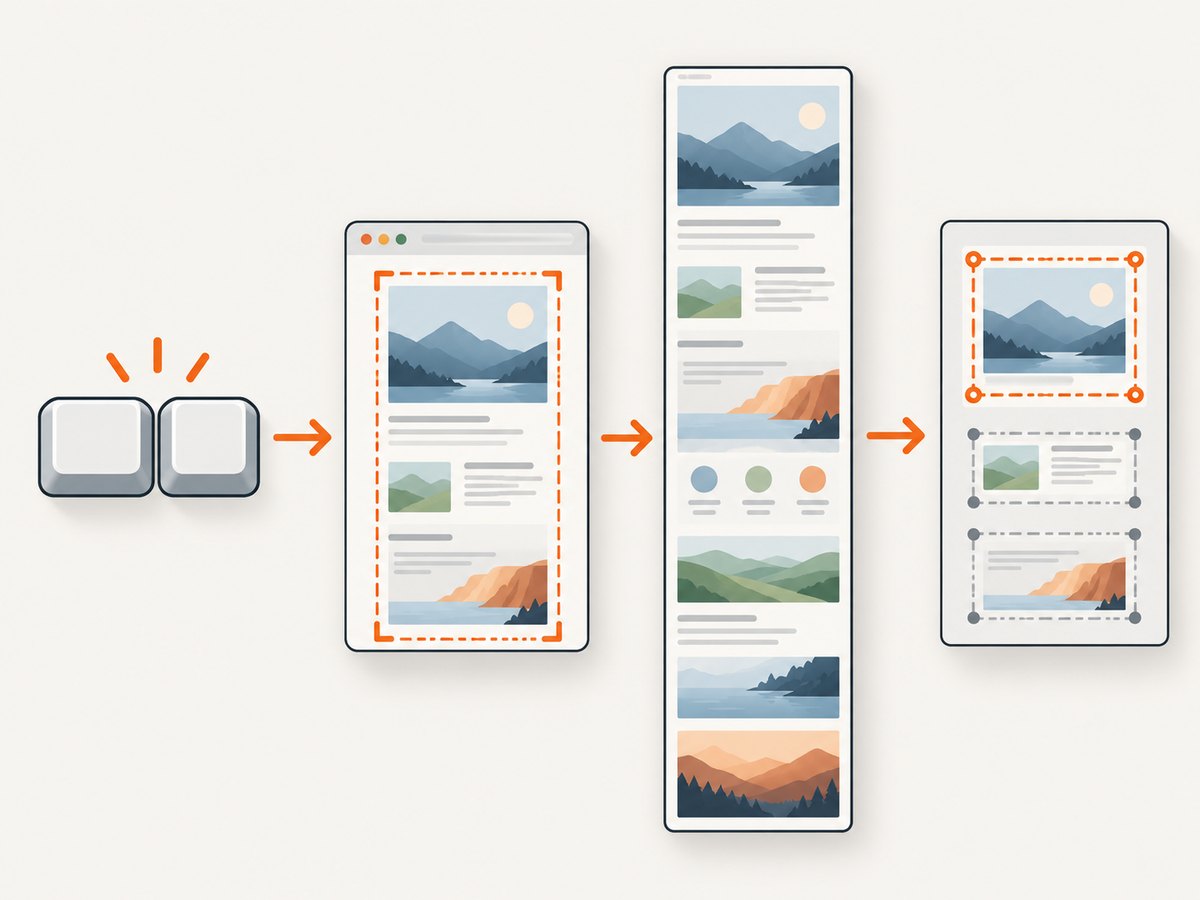
- Open the webpage and wait until the content you want is visible.
- Open Firefox’s screenshot interface with the shortcut or context menu.
- Choose Save full page for the entire document, or Save visible for the current view.
- For a custom crop, select a region. Firefox can also highlight page parts for selection.
- Download the capture or copy it to the clipboard. A download goes to Firefox’s default download location.
Use Save visible when the browser chrome should not be included and the current page view is all you need. Use Save full page when readers need to see content below the fold. A full-page capture can be much taller than a normal screen image, so consider whether the resulting file will be practical to share.
Firefox developer-tool options
Firefox Developer Tools offer additional capture routes that are separate from the standard screenshot shortcut. A configurable toolbar button can take a full-page screenshot. In the Inspector, the context menu can capture a selected element as Screenshot Node. The Web Console’s :screenshot helper accepts --fullpage to include content beyond the current window bounds. Use these options when you need a particular element or are already working in developer tools; the built-in screenshot interface is simpler for ordinary full-page captures.
3. Microsoft Edge: use Screenshot
Edge’s Screenshot feature can capture a full webpage or a selected area, then lets you mark up, copy, or save the result. The documented shortcut is Ctrl+Shift+S. You can also open Screenshot from the right-click menu or Edge’s settings menu.
- Open the page you want to capture.
- Press Ctrl+Shift+S, or open Screenshot from a menu.
- Choose a full-page capture or select an area.
- Mark up the image if needed, then copy or save it.
Microsoft notes that availability and functionality can vary by device type, market, and browser version. If the shortcut does not open Screenshot, look for the feature in Edge’s menu. That helps distinguish an unavailable or changed browser feature from a keyboard problem.
4. Chrome: open DevTools’ Command Menu, then choose a capture
Chrome’s documented workflow uses the DevTools Command Menu. Press Ctrl+Shift+P on Windows or Linux, or Command+Shift+P on macOS. Type screenshot, then choose Capture area screenshot.
- Open the page in Chrome.
- Open DevTools if necessary, then press the platform’s Command Menu shortcut.
- Type
screenshotto find the capture command. - Choose Capture area screenshot and select the area to capture.
The shortcut opens a command menu; it does not capture an image by itself. Google’s documented area-capture workflow will not work if DevTools is undocked from the browser window. Dock DevTools to the window and try again. The official workflow described here is for area capture; do not assume this key combination provides a full-page capture option.
5. Windows: capture a region or the whole screen
Windows has two useful system shortcuts. They capture the screen, not an entire webpage extending below the visible browser window.
- Windows+Shift+S lets you select a region and copies the capture to the clipboard. Use Snipping Tool afterward if you want to share or mark it up.
- Windows+PrtScn captures the full screen and saves an image in the Screenshots subfolder of Pictures.
Choose the region shortcut when you need to focus on a visible part of a page or dialog. Choose the full-screen shortcut when the whole desktop view matters. For the full document of a long webpage, return to the browser and use a full-page feature, such as Firefox’s Save full page or Edge’s full-page Screenshot option.
6. Compare the workflows
| Browser or system | Shortcut | Capture scope | Output or next step | Extra setup |
|---|---|---|---|---|
| Firefox, Windows/Linux | Ctrl+Shift+S | Visible page, full page, selected region, or highlighted page part | Download or clipboard | None for the standard interface |
| Firefox, macOS | Command+Shift+S | Visible page, full page, selected region, or highlighted page part | Download or clipboard | None for the standard interface |
| Edge | Ctrl+Shift+S | Full webpage or selected area | Mark up, copy, or save | Availability varies; menu is an alternative |
| Chrome DevTools, Windows/Linux | Ctrl+Shift+P | Area capture via Command Menu | Choose the screenshot command, then select an area | DevTools must be docked for area capture |
| Chrome DevTools, macOS | Command+Shift+P | Area capture via Command Menu | Choose the screenshot command, then select an area | DevTools must be docked for area capture |
| Windows region capture | Windows+Shift+S | Selected screen region | Copied to clipboard | Use Snipping Tool to share or mark up |
| Windows full-screen capture | Windows+PrtScn | Entire screen | Saved under Pictures/Screenshots | Does not capture below the fold |
7. Troubleshooting common shortcut problems
The shortcut does nothing
Confirm that the browser window has focus and that you are pressing the combination for your operating system. If a browser feature has moved or is unavailable in your version or device, open the browser’s menu and locate the screenshot command there. For Edge, Microsoft explicitly notes that availability and functionality can vary.
The result shows only the visible screen
You likely used an operating-system shortcut. Windows+Shift+S selects a screen region and Windows+PrtScn captures the full screen; neither is the same as full-page webpage capture. Open a browser screenshot tool and select its full-page option where available.
Chrome’s screenshot command cannot capture an area
Check whether DevTools is undocked. Google’s documented area capture does not work while DevTools is undocked from the window. Dock it, reopen the Command Menu, search for screenshot, and select Capture area screenshot.
The shortcut opens an unexpected tool
Shortcuts can depend on the active application and browser version. Use the browser’s context or settings menu to find the intended command. In Chrome, remember that Ctrl/Command+Shift+P opens the DevTools Command Menu; search inside it to choose a capture action.
You cannot find a saved file
Check whether you chose copy or download. Firefox downloads to its default download location, while Windows+PrtScn saves under Pictures/Screenshots. Clipboard captures must be pasted into an application or handled with the relevant system tool.
8. A repeatable capture checklist
- Set the scope: visible area, selected region, element, or full page.
- Choose the matching workflow: OS shortcut for the screen; browser feature for webpage content beyond the fold.
- Prepare the page: navigate to the right page and wait until the content you need is visible.
- Check the output action: copy, download, or save location.
- Inspect the result: make sure the image contains the intended area and is practical to share.
For long pages, remember that a full-page image is taller than a viewport capture. If the goal is a reproducible image for documentation or a product workflow, a manual shortcut may require repeating these steps for each page.
9. Automate captures with ScreenshotNeo
If you need screenshots in a script, build step, or AI-agent workflow, ScreenshotNeo is a website screenshot API and MCP server. Instead of opening a browser and using a keyboard shortcut, send one GET request with the page URL. See the ScreenshotNeo API documentation for request details.
cURL
curl -G "https://api.screenshotneo.com/v1/shot" -d access_key=YOUR_API_KEY --data-urlencode url=https://stripe.com -o shot.webpPython
import requests

r = requests.get(
    "https://api.screenshotneo.com/v1/shot",
    params={"access_key": "YOUR_API_KEY", "url": "https://stripe.com"},
    timeout=90,
)
open("shot.webp", "wb").write(r.content)
Node.js
const q = new URLSearchParams({ access_key: 'YOUR_API_KEY', url: 'https://stripe.com' });
const res = await fetch(`https://api.screenshotneo.com/v1/shot?${q}`);
Or skip the browser setup
ScreenshotNeo can return a screenshot or PDF from one API request. Cookie banners and consent prompts are accepted or removed before capture, along with supported newsletter popups and chat widgets. Bot checks, blank pages, timeouts, failed loads, and cache hits are not billed; response headers identify the page verdict and billing status. An MCP server provides take_screenshot, get_page_info, and capture_pdf tools for AI agents. The free plan includes 1,000 screenshots a month with no card; paid plans start at $5 for 3,000.
curl -G "https://api.screenshotneo.com/v1/shot" -d access_key=YOUR_API_KEY --data-urlencode url=https://stripe.com -o shot.webpSign up for 1,000 free screenshots a month, with no card required.
10. Performance, reliability, and cost
For an occasional capture, a browser shortcut avoids API setup and is immediate to invoke. Full-page images can contain far more pixels than visible-screen images, so choose the smallest scope that communicates what you need. If the target content has not finished appearing, wait before capturing; otherwise the image can miss content even when the shortcut worked correctly.
For recurring captures, automation avoids repeating manual steps, but it introduces request configuration and API credentials. ScreenshotNeo supports full-page capture with lazy images loaded, selector-based element capture, waits for a selector, a delay, or network idle, custom headers and cookies, caching with a chosen TTL, asynchronous jobs, signed webhooks, and bulk capture of up to 100 URLs per call. The appropriate wait and capture scope depend on the page. Its usage API can help track consumption. Only clean shots are billed under the product rules; inspect X-Page-Verdict and X-Billed response headers to see the outcome for a response.
Pricing listed for ScreenshotNeo is Free for 1,000 shots per month, Starter $5 for 3,000, Growth $15 for 15,000, Pro $39 for 60,000, Scale $99 for 250,000, and Business $249 for 1,000,000. Yearly billing gives two months free, and every feature is on every plan. Check the product site for current plan details before choosing a plan.
FAQ
What is the keyboard shortcut to take a screenshot of a webpage?
It depends on the browser. Firefox uses Ctrl+Shift+S on Windows/Linux and Command+Shift+S on macOS; Edge documents Ctrl+Shift+S. Those browser tools can provide webpage capture options.
How do I take a full-page screenshot?
In Firefox, open the screenshot interface and choose Save full page. Edge’s Screenshot feature can capture a full webpage. A system shortcut that captures the screen will not automatically include content below the fold.
What is the screenshot shortcut in Chrome?
Chrome DevTools uses Ctrl+Shift+P on Windows/Linux or Command+Shift+P on macOS to open its Command Menu. Search for screenshot and choose a capture command; the key combination alone does not take the screenshot.
Does Windows+Shift+S capture a whole webpage?
No. It selects a region of the screen and copies the capture to the clipboard. Use a browser’s full-page capture feature for content below the visible screen.
Is there a Safari shortcut for full-page screenshots?
This guide’s research did not establish Safari’s current full-page screenshot workflow from an official source, so it does not recommend a Safari shortcut. Check Safari’s current menus or official help for your version.


