Website Screenshot and Markdown MCP Servers
Compare screenshot and Markdown MCP servers, configure Playwright, extract reliable content, and choose the right workflow for AI agents.
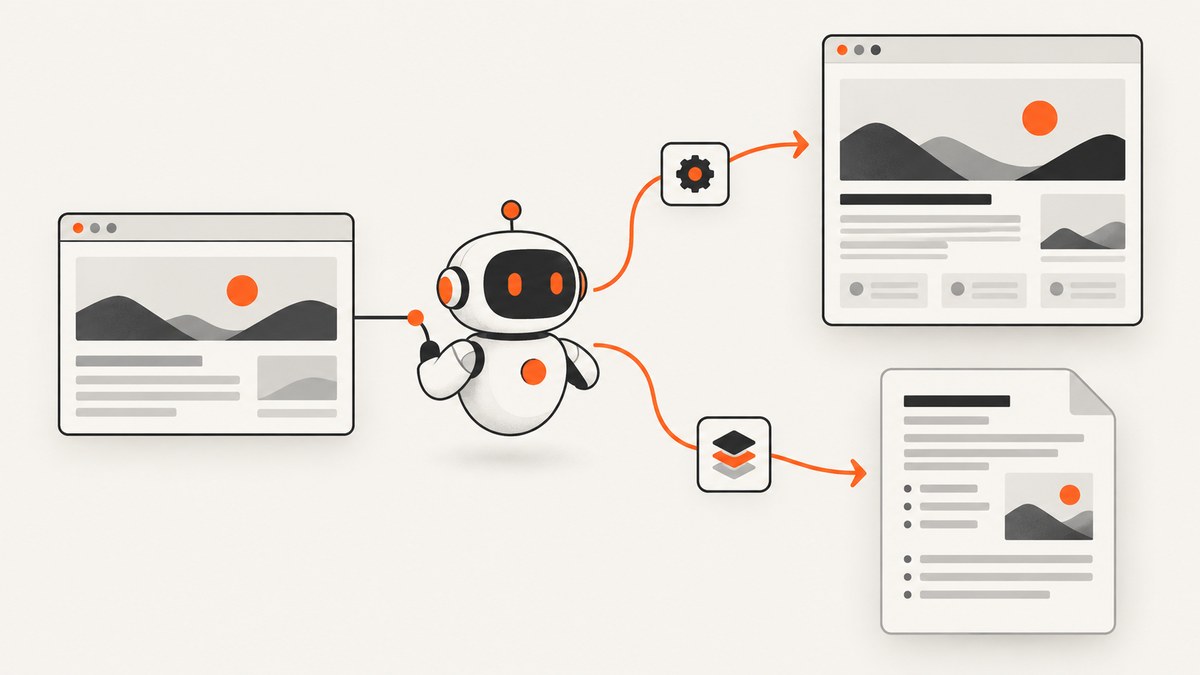
Use a screenshot MCP server when the agent must see or interact with pixels; use a Markdown MCP server when it needs readable page content. These are related workflows, but they solve different problems. Playwright MCP exposes browser navigation and interaction through structured accessibility snapshots, while a Markdown-focused server retrieves and cleans page text. A production workflow may use both: Markdown for analysis and a screenshot for visual verification.
What each MCP server does
| Question | Screenshot and browser MCP | Markdown MCP |
|---|---|---|
| Primary output | Rendered pixels, browser state, or a PDF | Readable Markdown or extracted page text |
| Best for | Visual QA, layout checks, charts, authenticated interactions, screenshots | Summaries, indexing, retrieval, documentation and text analysis |
| Interaction model | Navigate, click, type, scroll, inspect, capture | Fetch and transform content, usually without interactive control |
| JavaScript-heavy pages | Runs a browser and can wait for rendered state | May need a browser fallback; behavior varies by project |
| Context sent to an agent | Tool schemas plus accessibility snapshots and results | Markdown content and extraction metadata |
Playwright describes its MCP server as browser automation through the Model Context Protocol, with structured accessibility snapshots representing page elements. Its tool set includes navigation, clicking, typing, keyboard and mouse actions, dialogs, tabs and screenshots. Screenshots are a supported output, but ordinary interaction is based on the accessibility tree rather than asking the model to interpret an image for every step.
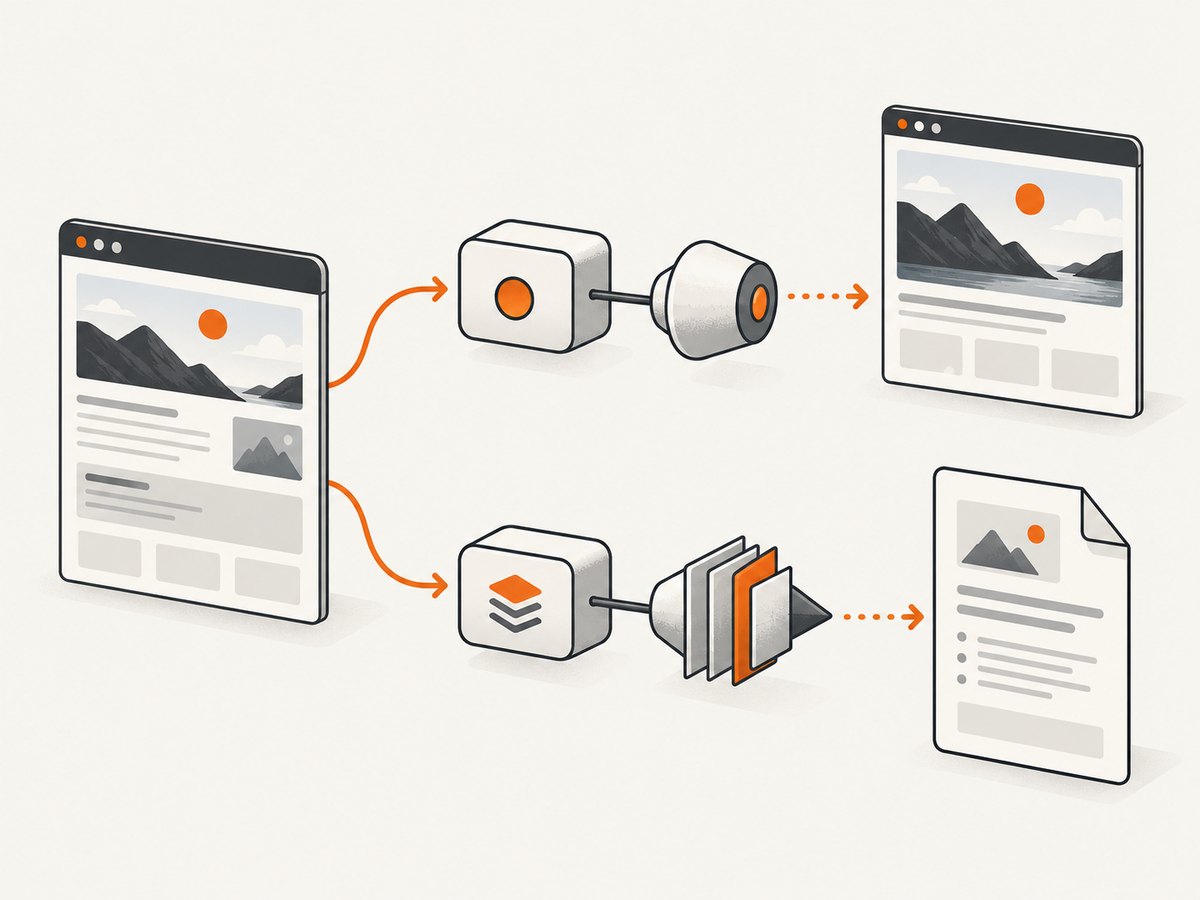
A Markdown server can be much lighter when the task is “read this page.” The inspected web-to-markdown-mcp project describes three retrieval tiers: request Markdown through HTTP content negotiation, fetch normal HTML and extract the main content, then fall back to Chromium rendering when those approaches do not produce usable content. That is the repository’s design, not a universal standard or a guarantee that every blocked site will work.
Choose by the job, not by the protocol
Choose browser and screenshot MCP when you need
- A screenshot of the final rendered layout, including charts, images, animations or spacing.
- Clicks, form entry, menus, tabs, dialogs or authenticated sessions.
- Evidence that a page looks correct at a specific viewport or device size.
- Rendered content that only appears after JavaScript, scrolling or user interaction.
- A browser state that an agent can inspect and modify repeatedly.
Choose Markdown MCP when you need
- Low-noise text for summarization, question answering or indexing.
- Headings, links and paragraphs without navigation chrome and visual decoration.
- Fast retrieval from pages that already expose useful HTML or Markdown.
- Lower context volume than sending images or large browser snapshots.
Use both when the agent must understand content and prove what a visitor sees. First retrieve Markdown to locate the relevant section. Then open the page in a browser, perform the required interaction and capture the resulting state.
Set up Playwright MCP
The Playwright getting-started documentation lists Node.js 20 or newer and an MCP-compatible client as prerequisites. It shows running @playwright/mcp@latest with npx. Client names in the documentation include VS Code, Cursor, Windsurf, Claude Code and Claude Desktop. Installation screens and configuration keys can change, so check the current Playwright guide before deploying.
- Install Node.js 20 or newer and confirm it with
node --version. - Install or open an MCP client that supports external servers.
- Add a Playwright MCP server entry using
npx. - Start with an isolated browser session. Add persistent storage only when the workflow needs login state.
- Ask the client to navigate to a harmless test page, inspect its accessibility snapshot and take a screenshot.
{
  "mcpServers": {
    "playwright": {
      "command": "npx",
      "args": ["@playwright/mcp@latest"]
    }
  }
}
The exact configuration file location depends on the client. Keep the server command and arguments separate rather than placing shell syntax in a single string. If your client supports environment variables, provide secrets there instead of committing them to a configuration file.
Browser, session and authentication choices
Use an isolated temporary context for public pages and repeatable tests. A persistent context is useful for a manual workflow that must retain cookies between runs, but it also retains sensitive state on disk. For authenticated pages, decide whether the server should log in through the UI, load a pre-authenticated storage state, or receive headers and cookies through a controlled integration. Treat those as implementation choices, not blanket security guarantees.
- Browser selection: select the browser supported by your client and the target site’s behavior; verify any browser-specific rendering differences.
- Viewport: set desktop and mobile dimensions deliberately when responsive layout matters.
- Wait strategy: wait for a selector or a meaningful state, not an arbitrary long delay whenever possible.
- Downloads and dialogs: handle them explicitly so a modal or download does not stall the workflow.
- Session cleanup: close contexts after a job and remove temporary profiles containing credentials.
Use a Markdown MCP server safely
Start by treating Markdown extraction as a staged retrieval problem. The project described in the research dossier tries content negotiation first, then normal HTTP extraction, and finally Chromium. Each tier has different failure modes.
- Request Markdown: send an
Acceptheader for Markdown and inspect the response content type and body. - Extract HTML: if the response is ordinary HTML, remove navigation, scripts and unrelated regions before converting the main article.
- Render with Chromium: use a browser only when the first two tiers cannot see the content because it is generated client-side.
- Validate: check that the result contains a title, headings and enough body text before returning it to the agent.
Do not assume that a Markdown result is complete. Infinite-scroll pages, collapsed sections, paywalls, localization, consent dialogs and login walls can all produce partial output. Preserve the source URL and retrieval time in your tool result so downstream steps can identify stale or incomplete content.
Build a practical two-stage workflow
A useful agent loop separates semantic retrieval from visual verification:
- Ask the Markdown tool for the page and the section containing the answer.
- Check the returned title, canonical URL and extraction status.
- Send the URL to Playwright MCP.
- Wait for the relevant selector, click or expand content if required.
- Capture a screenshot at the target viewport.
- Compare the screenshot with the Markdown interpretation and report discrepancies.
Agent plan:
1. Retrieve https://example.com/article as Markdown.
2. Find the heading "Pricing" and summarize the visible plans.
3. Open the same URL in the browser MCP server.
4. Wait for [data-testid="pricing"] and capture a 1440x900 screenshot.
5. Report whether the visible plan names match the extracted text.
This design avoids using an image for every reading step while still producing visual evidence at the point where it matters.
Or skip the browser setup
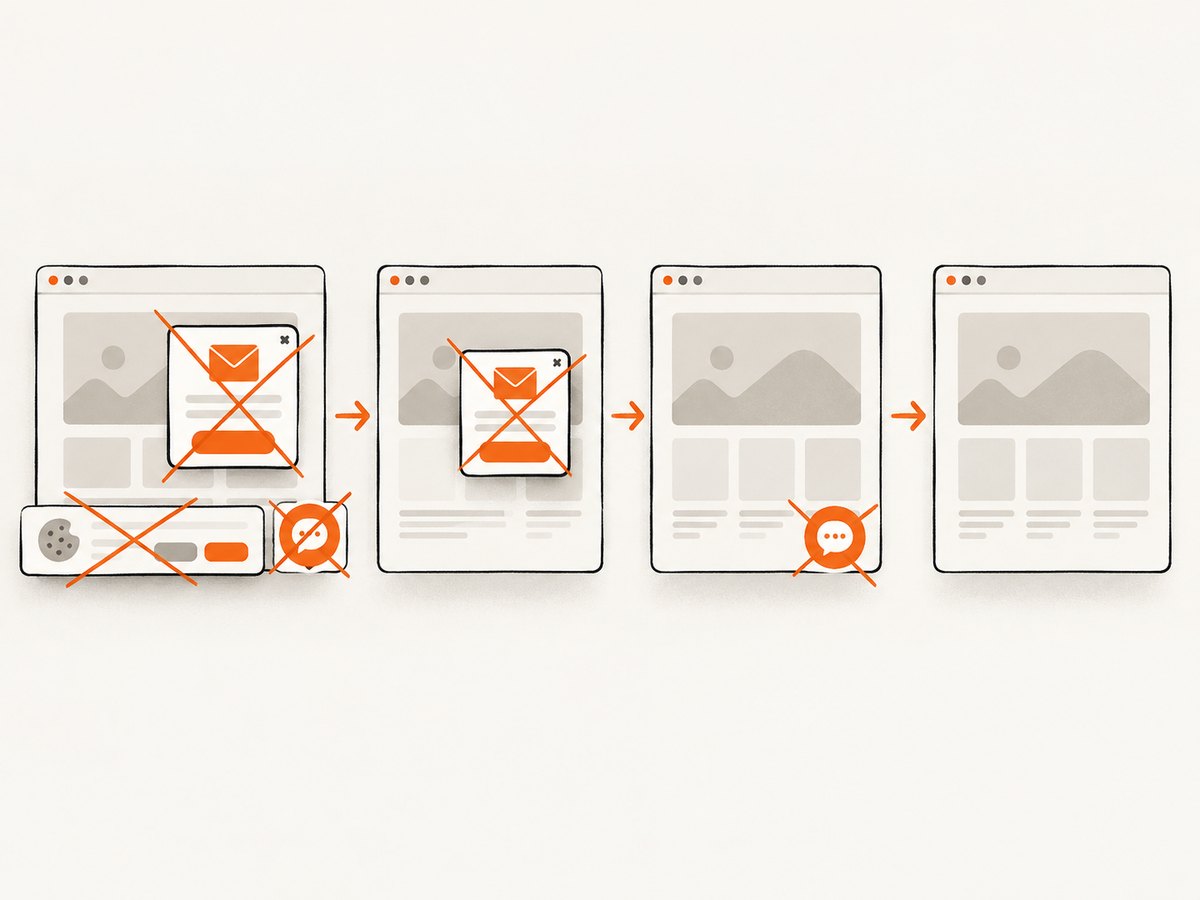
If your application only needs a clean website image or PDF, ScreenshotNeo provides a direct API and an MCP server. One GET request returns PNG, JPEG, WebP or PDF output. Before capture it accepts cookie and consent banners like a visitor and removes more than 60 known consent platforms, newsletter popups and chat widgets. Each step can be turned off.
Read the ScreenshotNeo API documentation for the full option list.
curl -G "https://api.screenshotneo.com/v1/shot" -d access_key=YOUR_API_KEY --data-urlencode url=https://stripe.com -o shot.webpimport requests
r = requests.get(
"https://api.screenshotneo.com/v1/shot",
params={"access_key": "YOUR_API_KEY", "url": "https://stripe.com"},
timeout=90,
)
open("shot.webp", "wb").write(r.content)const q = new URLSearchParams({ access_key: 'YOUR_API_KEY', url: 'https://stripe.com' });
const res = await fetch(`https://api.screenshotneo.com/v1/shot?${q}`);ScreenshotNeo also supports full-page capture with lazy images loaded, CSS element capture, dark mode, device presets, arbitrary viewports, retina scale, PDF paper and margin controls, custom CSS and JavaScript, pre-capture clicks, hidden selectors, selector or network-idle waits, request blocking, headers, cookies, user agents, Authorization, timezone, geolocation, transparent backgrounds, resizing, configurable caching, signed links, asynchronous jobs with signed webhooks, bulk capture of 100 URLs per call, a usage API and an OpenAPI specification. Parameter names used by other screenshot APIs also work, which can simplify migration.
Only clean shots are billed. Bot checks or CAPTCHAs, blank pages, timeouts, failed loads and cache hits cost nothing, and each response identifies the result with X-Page-Verdict and X-Billed headers. An MCP server exposes take_screenshot, get_page_info and capture_pdf to Claude, Cursor and other MCP clients. There are 1,000 free shots each month with no card; paid plans start at $5 for 3,000 shots. Create a free ScreenshotNeo account.
Options and edge cases to plan for
| Situation | Recommended handling |
|---|---|
| Cookie banner covers content | Use browser interaction to accept it, or enable ScreenshotNeo’s consent handling and removal. |
| Content appears after scrolling | Scroll incrementally, wait for images, then capture full page; validate that lazy assets loaded. |
| Infinite scroll never finishes | Set a maximum scroll count or selector-based stopping condition. |
| Bot check or CAPTCHA | Do not loop indefinitely. Record the blocked verdict and escalate to an authorized session. |
| Blank screenshot | Wait for a stable selector, check redirects and verify that the URL is reachable without a login. |
| Localized output | Set locale, timezone, geolocation and headers consistently for every run. |
| Private content | Use short-lived credentials, isolated sessions and explicit cleanup. |
| PDF pagination differs | Set paper size, margins, orientation and page ranges; inspect print-specific CSS. |
Troubleshooting
The MCP server does not start
Cause: an old Node.js runtime, missing npx, or a client configuration pointing to the wrong command. Fix: confirm Node.js 20 or newer, run npx @playwright/mcp@latest manually, and inspect the client’s MCP logs.
The agent cannot find an element
Cause: the element is inside an iframe, appears after hydration, is hidden behind a consent dialog, or has changed its accessible name. Fix: inspect a fresh accessibility snapshot, dismiss the dialog, wait for the relevant state and target the accessible role or label instead of a brittle coordinate.
Markdown is empty or mostly navigation
Cause: the page requires JavaScript, blocks the HTTP client, or has unusual article markup. Fix: move to the browser fallback, identify the main content selector, and return an extraction status so the agent knows the result may be incomplete.
A screenshot is different on every run
Cause: animations, rotating ads, changing data, fonts that have not loaded, or a non-deterministic viewport. Fix: disable or wait for animations, block irrelevant requests, wait for fonts and key selectors, set a fixed viewport and timezone, and capture after the page reaches a defined state.
Requests are slow or time out
Cause: third-party resources, long polling, an unbounded network-idle wait or a site that is down. Fix: wait on a selector instead of global network idle, block ads and trackers where appropriate, set a bounded timeout and retry only transient failures. Keep retries limited so a blocked page is not mistaken for a healthy one.
Performance, reliability and cost
Browser MCP has startup and rendering overhead, and Playwright notes that MCP carries higher token cost than its CLI in the documented comparison because schemas and snapshots enter the model context. Keep snapshots focused, reuse a session for related steps and avoid sending full screenshots when a selector or text result answers the question.
Markdown retrieval is usually more compact, but an HTTP-only path can miss client-rendered content. A browser fallback improves coverage at the cost of startup time and resources. Cache stable Markdown with a freshness policy, and record failures separately from empty pages.
For image or PDF production, ScreenshotNeo’s cache and asynchronous jobs can reduce repeated work. Its billing behavior distinguishes clean captures from bot checks, blank pages, timeouts, failed loads and cache hits; inspect X-Page-Verdict and X-Billed rather than treating every HTTP response as a billable success. Bulk capture supports up to 100 URLs per call, while signed webhooks let long jobs finish outside a request timeout.
Short FAQ
Which MCP server can take a website screenshot?
Playwright MCP includes a screenshot tool alongside browser navigation and interaction. ScreenshotNeo also exposes screenshot tools through its MCP server when you want an API-managed capture service.
How do I turn a website into Markdown with MCP?
Use a Markdown-focused server that retrieves Markdown or HTML and falls back to Chromium when necessary. Validate the returned content because dynamic, protected and infinite-scroll pages may be incomplete.
Do I need screenshots to interact with Playwright MCP?
No. Playwright’s documented interaction model uses structured accessibility snapshots and element references. Use screenshots when visual output or layout evidence is the goal.
Is a browser fallback guaranteed to bypass anti-bot protection?
No. A browser fallback can render JavaScript pages, but blocking, authentication and CAPTCHA behavior depends on the target site and the implementation.
When is an API better than running a browser?
Use an API when you need repeatable captures from application code, predictable options, billing visibility, caching, bulk jobs or an MCP server without maintaining browser infrastructure.


