How to Take a Website Screenshot in Microsoft Edge
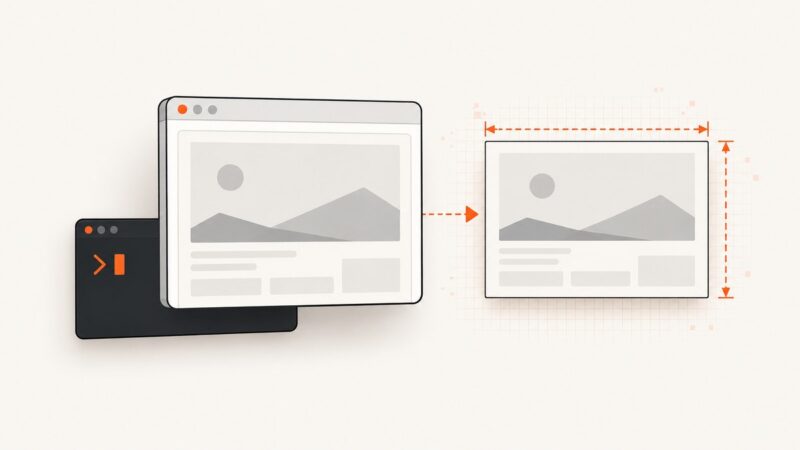
Use Edge’s Screenshot tool to capture a full webpage or selected area, save or copy it, and automate captures with ScreenshotNeo.
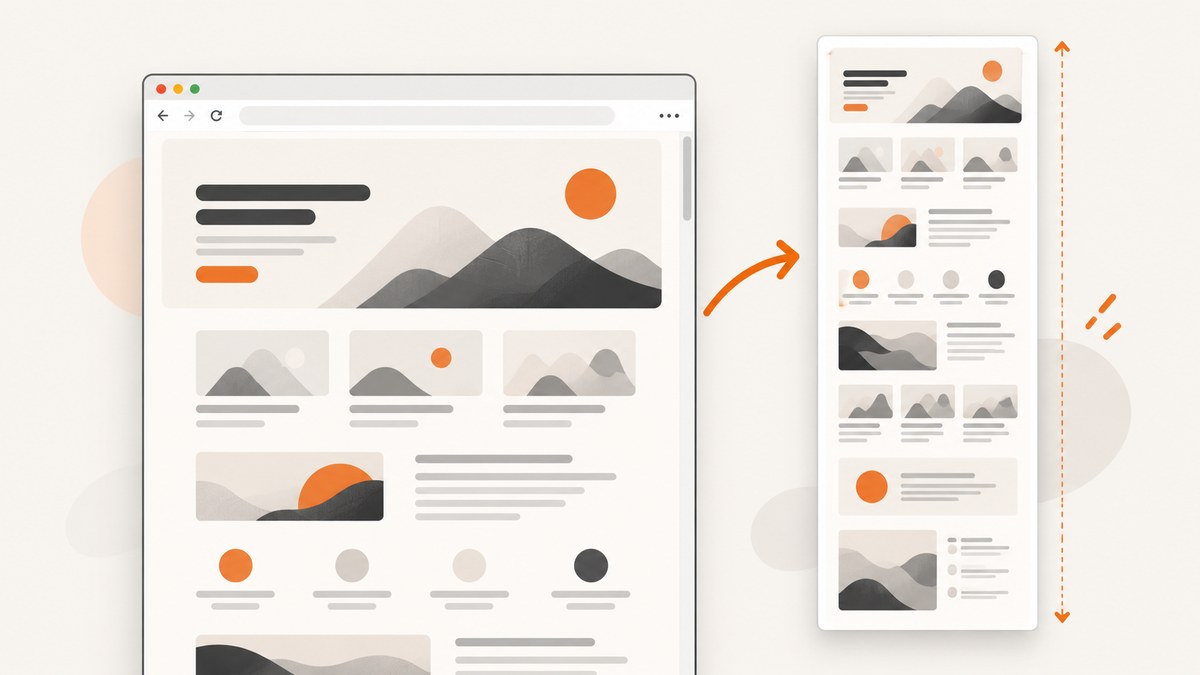
To take a website screenshot in Microsoft Edge, open the page, press Ctrl+Shift+S, then choose Capture full page or select an area. Edge’s built-in Screenshot feature can capture content below the visible viewport without manually scrolling. You can mark up the result, copy it, or save it.
Microsoft previously called this feature Web Capture. The current Edge interface and Microsoft’s feature page use Screenshot, but “Web Capture” may still appear in older instructions or documentation. Microsoft describes Screenshot as a way to turn web content into a shareable image and says full-page capture works with “no scrolling required.” Microsoft’s Screenshot overview explains the current workflow.
1. Capture an entire webpage in Edge
- Open Microsoft Edge and navigate to the webpage.
- Wait for the page content you need to appear. If the page loads content as you scroll, give it time to finish before capturing.
- Press Ctrl+Shift+S. This opens Edge’s Screenshot tool.
- Choose Capture full page.
- Review the resulting capture. Use the pen or touch markup controls if you need to annotate it.
- Choose the option to copy or save the image.
The exact save interaction can vary with your Edge version and operating system. Microsoft documents the copy and save actions, but does not promise one identical dialog or file workflow on every platform. If you need to send the capture to another app immediately, copying is often the quickest route. Saving is better when you need a file for documentation, a ticket, or an archive.

What “full page” includes
Full-page capture is designed for a webpage that extends below the visible browser window. It captures the page as one long result instead of limiting the image to the current viewport. This is useful for articles, documentation, long product pages, forms, and pages where the relationship between sections matters.
It is different from taking several ordinary screen captures and stitching them together yourself. You do not have to scroll, align overlapping sections, or guess where one capture should meet the next.
2. Capture only part of a webpage
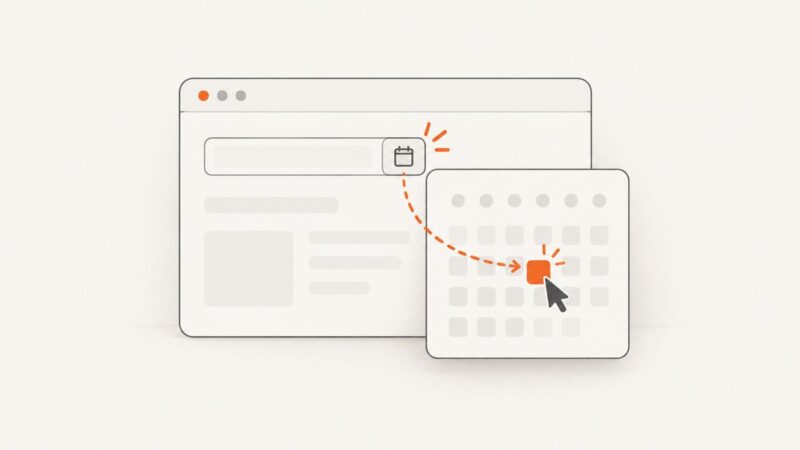
Use Edge’s selected-area capture when you need a chart, paragraph, image, table, or other region rather than the whole document.
- Open the page in Edge.
- Press Ctrl+Shift+S.
- Choose the option for capturing an area.
- Drag across the region you want to include.
- Adjust the selection if necessary, then copy or save the result.
Area capture is usually the better choice when the surrounding page contains private information, unrelated navigation, advertisements, or a large amount of whitespace. It also produces a smaller, easier-to-share image.
| Goal | Edge option | Result |
|---|---|---|
| Capture everything, including content below the fold | Capture full page | One long webpage capture |
| Capture a chart, paragraph, or image | Selected-area capture | Only the region you drag over |
| Annotate before sharing | Pen or touch markup | Capture with your notes or highlights |
3. Copy, save, and mark up the screenshot
After Edge creates the capture, use its editing controls before exporting it:
- Pen or touch markup: draw attention to a control, error, or section.
- Copy: place the capture on the clipboard for a document, email, issue tracker, or chat.
- Save: keep a file that you can attach, archive, or process later.
Use annotations sparingly when the screenshot is evidence or documentation. A box around the relevant control and a short handwritten note are easier to interpret than a page covered in marks. For an unmodified reference image, save or copy the capture before adding markup if your Edge version presents editing as part of the same workflow.
4. Keyboard shortcut, menus, and context menu
The fastest route is Ctrl+Shift+S. You can also look for Screenshot in Edge’s menus. Microsoft’s policy documentation says that when the feature is enabled or not configured, Screenshot is available from the context menu and the Settings and more menu as well as the keyboard shortcut.
If you are following an older guide, look for the name Web Capture. Microsoft’s learning material uses that earlier label while describing the same general purpose: capture a full webpage or a selected portion, then copy or save it. The current name in Edge is Screenshot.
5. When Screenshot is missing on a managed computer
On a work or school computer, Edge features can be controlled by browser policy. Microsoft documents a policy named WebCaptureEnabled, which controls the Screenshot feature previously named Web Capture.
If the Screenshot command and keyboard shortcut are unavailable:
- Check whether you are signed into a managed work or school profile.
- Try the context menu and the Settings and more menu in case only one entry point is hidden.
- Ask your administrator whether the WebCaptureEnabled policy controls the browser.
Do not assume that reinstalling Edge will change a centrally managed setting. The administrator who manages the device may need to change the policy. Microsoft’s WebCaptureEnabled documentation describes the policy behavior.
6. Windows Snipping Tool as a fallback
Windows includes Snipping Tool for visible-screen captures. Press Windows+Shift+S to open its overlay, then choose a capture mode such as rectangular, window, full-screen, or freeform. Microsoft documents these modes in its Snipping Tool guide.
Snipping Tool is useful when you need a region of the screen, an application window, or the entire current display. It is a screen capture utility, so do not treat it as a replacement for Edge’s full-page webpage capture. A full-screen snip records what is visible on the display; it does not establish that the browser captured a long, scrolling document below the viewport.
7. Pages that need extra care
Lazy-loaded content
Some pages load images, comments, or cards only as they approach the viewport. If important content is missing, let the page finish loading or scroll through it once before opening Screenshot. Edge’s capture behavior depends on what the page has rendered at capture time.
Sticky headers and floating controls
Fixed navigation bars, chat buttons, cookie prompts, and other overlays can appear repeatedly or cover content. Close or dismiss them before capturing when possible. For a small, clean excerpt, selected-area capture can avoid unrelated controls.
Authentication and private data
Capture only pages you are authorized to view. Check the image for account names, email addresses, tokens, customer records, or other private information before sharing it. An area capture can reduce accidental disclosure, but it is still your responsibility to inspect the result.
Very long pages
A full-page result can be much taller than a normal screen image. Consider whether the recipient needs the entire page or only a section. For long technical documentation, a saved full-page image is useful for a snapshot; a link or exported document may be easier to read repeatedly.
8. Troubleshooting Edge screenshots
| Problem | Likely cause | Fix |
|---|---|---|
| Ctrl+Shift+S does nothing | The shortcut is intercepted, the browser is managed, or the feature is unavailable in that installation. | Try Screenshot from the context menu or Settings and more menu. If it is absent, ask the administrator about WebCaptureEnabled. |
| Only the visible area is captured | Selected-area capture was chosen instead of full-page capture. | Open Screenshot again and choose Capture full page. |
| Images or cards are missing | The page uses lazy loading or content had not finished rendering. | Wait, scroll through the page once, and retry. Check that the content is visible before capture. |
| A banner or chat widget covers content | The overlay is still open. | Dismiss it before capture, or select only the clean region you need. |
| The result is too large to share | Full-page capture includes a long document. | Use selected-area capture for the relevant section, or save the full capture and share a link separately. |
| Markup is missing from the copy | The capture was copied before annotations were applied, or the workflow treated markup as a separate step. | Apply markup first, then copy or save again. Keep an unmarked copy if you need the original. |
9. Or skip the browser setup
If you need repeatable captures in a script, build pipeline, documentation job, or AI workflow, a screenshot API avoids keeping a browser window open. ScreenshotNeo accepts one GET request and returns a PNG, JPEG, WebP, or PDF. Its capture options include full-page screenshots with lazy images loaded, CSS-selector element capture, device presets, custom viewports, dark mode, retina scale, custom CSS and JavaScript, waits, cookies, headers, user agents, authorization, timezone, geolocation, blocking rules, caching, signed links, asynchronous jobs, webhooks, bulk capture, and PDF settings.

Here is the smallest request. See the ScreenshotNeo API documentation for the complete option list and response details.
cURL
curl -G "https://api.screenshotneo.com/v1/shot" -d access_key=YOUR_API_KEY --data-urlencode url=https://stripe.com -o shot.webpPython
import requests

r = requests.get(
    "https://api.screenshotneo.com/v1/shot",
    params={"access_key": "YOUR_API_KEY", "url": "https://stripe.com"},
    timeout=90,
)
r.raise_for_status()
open("shot.webp", "wb").write(r.content)
Node.js
const q = new URLSearchParams({ access_key: 'YOUR_API_KEY', url: 'https://stripe.com' });
const res = await fetch(`https://api.screenshotneo.com/v1/shot?${q}`);
if (!res.ok) throw new Error(`Screenshot failed: ${res.status}`);
const image = Buffer.from(await res.arrayBuffer());
require('fs').writeFileSync('shot.webp', image);
ScreenshotNeo also reports whether a response was a clean capture and whether it was billed with the X-Page-Verdict and X-Billed headers. Bot checks or CAPTCHAs, blank pages, timeouts, failed loads, and cache hits cost nothing. Cookie and consent banners, newsletter popups, and chat widgets are removed before the shot, and each cleanup step can be turned off. An MCP server provides take_screenshot, get_page_info, and capture_pdf tools for Claude, Cursor, and other MCP clients.
There is a free plan with 1,000 screenshots per month and no card. Paid plans start at $5 for 3,000 shots; every feature is available on every plan. Create a free ScreenshotNeo account to get started.
10. Reliability, performance, and cost considerations
- For one-off manual work: Edge Screenshot is immediate and requires no account or API key.
- For repeatable jobs: An API gives your scripts the same URL, options, waits, headers, and output rules each time.
- For difficult pages: Use a selector wait, delay, network-idle wait, custom cookies, authorization, or a user agent when the page needs more context before rendering.
- For scale: Use asynchronous jobs, signed webhooks, bulk capture, and a cache TTL when those match your workflow.
- For cost control: Cache stable pages, capture only the element you need, and inspect verdict and billing headers. ScreenshotNeo bills clean shots only.
For a human reviewing a single page, the built-in Edge tool is usually the shortest path. For scheduled reports, visual regression inputs, content archives, or agent-driven research, an API is easier to run without manual browser steps.
Frequently asked questions
What is the shortcut for a webpage screenshot in Edge?
Press Ctrl+Shift+S to open Screenshot.
How do I screenshot an entire webpage in Edge?
Open Screenshot and choose Capture full page. Edge captures content below the visible screen without requiring manual scrolling.
Is Edge Screenshot the same as Web Capture?
Web Capture is the older name used in Microsoft material. The current Edge feature is called Screenshot.
Can I screenshot only one part of a page?
Yes. Choose the selected-area option and drag around the region you want.
Why is Screenshot unavailable on my work computer?
Your organization may control it with the WebCaptureEnabled Edge policy. Ask your administrator whether that policy is enabled.
Does Windows Snipping Tool capture a scrolling webpage?
Microsoft documents Snipping Tool for rectangular, window, full-screen, and freeform screen captures. Use Edge’s Capture full page option when you need the webpage below the viewport.