How to Take a Screenshot of a Website for Your Portfolio
Capture a full webpage, viewport, or design detail with Firefox or Chrome, then prepare the image and present it accurately in your portfolio.
To capture a website for a portfolio, use Firefox’s built-in screenshot tool or Chrome DevTools. Choose Save full page when the complete page flow matters, a visible screenshot for the current viewport, or an area capture for a specific detail. Save the image, inspect it, and label what it represents—such as the live site, an archived design, a prototype, or your redesign.
You do not need a special camera or other hardware. These browser workflows are software features. For a one-request API option, see ScreenshotNeo after the do-it-yourself steps below.
1. Choose the right screenshot scope
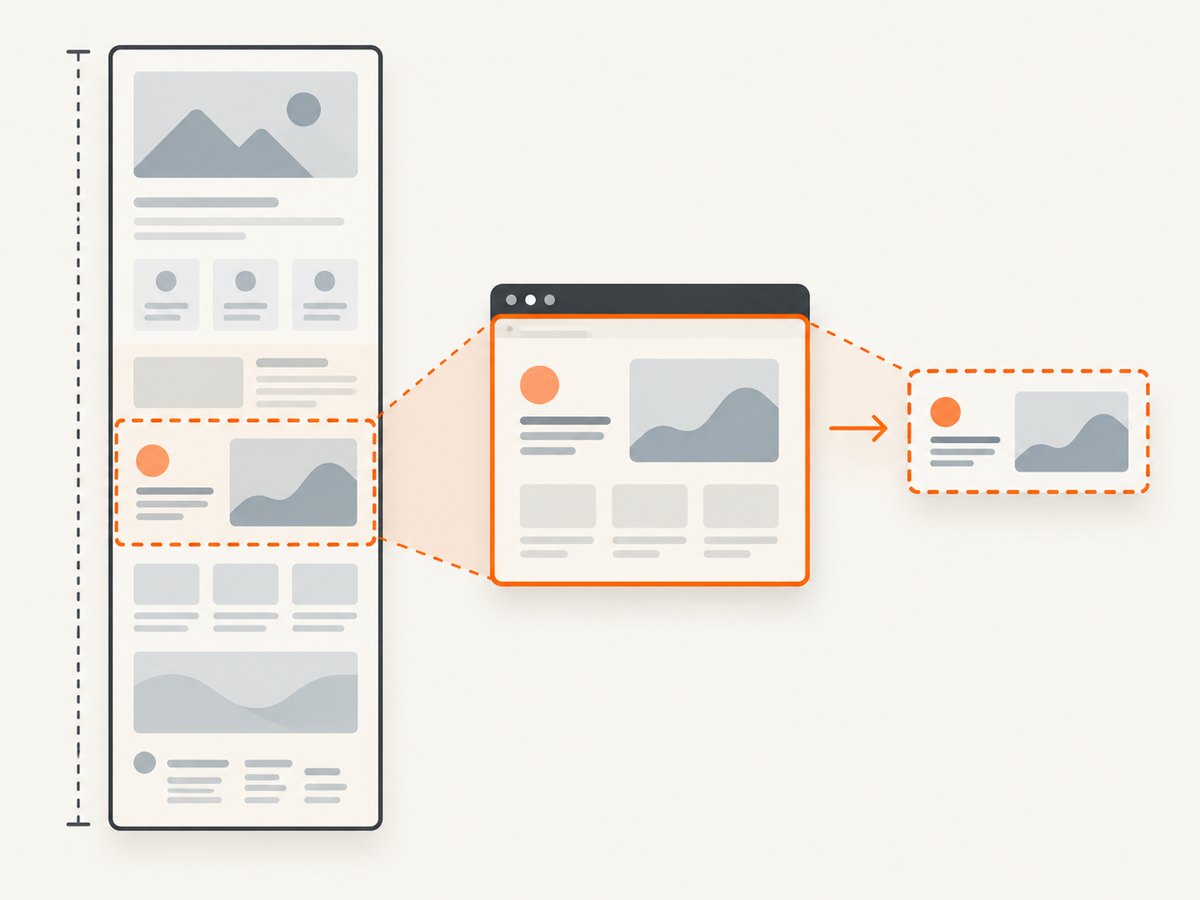
Before capturing, decide what the portfolio entry needs to show. A screenshot is evidence of a particular page state and capture area; it does not explain on its own whether the work is yours, whether the page is live, or what changed between versions.
| Capture | Use it when | Check before publishing |
|---|---|---|
| Full page | The overall structure, long-page layout, or visual flow is relevant. | Whether very long content is legible at the displayed size. |
| Visible viewport | You want to focus on the first screen or a specific page state. | That the browser dimensions and scroll position are intentional. |
| Selected area | A component, interaction state, or visual detail is the point. | That the crop gives enough context to understand the detail. |
| Element | You need a single page element without surrounding content. | That the element is the right one and is not clipped or obscured. |
These are practical choices based on what each capture includes, not claims that one scope will improve hiring outcomes. For a portfolio case study, it can help to pair a full-page image with a closer view of an important detail. Keep each image readable at the size visitors will actually see it.
2. Capture a website in Firefox
Firefox has a built-in screenshot workflow for the visible page, a selected area, an automatically highlighted page part, or the full page.
- Open the page you want to capture and wait for its important content to appear.
- Right-click an empty part of the page. On macOS, Control-click. Choose Take Screenshot. You can also use Ctrl+Shift+S on Windows and Linux or Command+Shift+S on macOS.
- Choose Save full page to capture the whole webpage, or Save visible for the current viewport. To capture less than the whole page, select a region or choose a highlighted page part.
- Save the image or copy it, depending on the available controls, then open the saved result and inspect it before adding it to your portfolio.
Mozilla documents these options in its Firefox screenshot instructions. For a developer-oriented workflow, Firefox Developer Tools can also capture the entire page or an individual element. Its full-page screenshot control may need to be enabled in Developer Tools settings; captures are saved to Downloads. See the Firefox Developer Tools screenshot documentation.
When the Firefox menu item is missing
Check that you opened the context menu over the page and that your Firefox version offers the feature. You can try the documented keyboard shortcut. If you are using Developer Tools, inspect its settings for the full-page screenshot control. Browser controls can move between releases, so use Firefox’s current help if the labels differ.
3. Capture a website in Chrome
Chrome DevTools offers a full-size screenshot from Device Mode, a screenshot of the visible viewport, and an area capture through the Command Menu.
Full-page or viewport screenshot
- Open the page in Chrome and open DevTools.
- Turn on Device Mode in DevTools.
- Open the Device Mode More options menu.
- Choose Capture a full size screenshot for the complete page, or Capture screenshot for the visible viewport.
- Open the resulting file and check the top, bottom, and any important section before publishing it.
Chrome documents these controls in its Device Mode guide. In Device Mode, a device frame can be included if it is displayed before capture. Use a frame only if it helps communicate the intended presentation; a plain page capture is often easier to inspect at different sizes.
Capture a region
- Open the DevTools Command Menu.
- Type screenshot and select Capture area screenshot.
- Drag across the part of the page to include.
- Inspect the saved crop to make sure it includes enough context.
Chrome’s Command Menu documentation describes this action and notes that area capture does not work when DevTools is undocked. If you cannot find a command, search the current DevTools menu: labels and locations can change.
4. Prepare the image for a portfolio
A technically correct capture can still be difficult to read or easy to misinterpret. Before uploading it, review the image at the size and on the background where the portfolio will display it.
- Check completeness: For a full-page image, make sure the top and bottom are present and important content is not missing. For an area capture, confirm the crop does not remove necessary context.
- Check legibility: Long pages can become very tall images. If text is too small when displayed, add a focused viewport or detail image rather than relying on one compressed full-page view.
- Check the page state: Confirm the intended scroll position, open menus, overlays, and responsive layout. A screenshot records the state shown at capture time.
- Check what is visible: Look for personal information, account details, private content, or anything that should not be made public.
- Choose a useful filename: Use a descriptive name that distinguishes the project, page, and version, rather than a default download name.
- Explain the image: Add a caption or nearby case-study text saying whether it shows the live site, a past design, a prototype, or your personal redesign.
If you changed or recreated a website design, make that clear. Do not suggest that the site owner commissioned, approved, or endorsed your work unless that is true. A screenshot documents a visible page; by itself it does not establish who created the design or owns the underlying material.
5. Be careful about permission and attribution
Whether you can publish a screenshot depends on the site, the use, and the applicable terms and rules. Do not treat one organization’s permission statement as a universal legal rule. Check the site’s terms or seek permission when you are uncertain, especially if the image will be used commercially or could imply an endorsement.
The W3C’s intellectual-rights page says that a screenshot of the W3C site may be used without permission as long as it does not imply W3C sponsorship or endorsement. That is guidance specific to the W3C site, and it should not be generalized to every website or jurisdiction. Read the W3C Intellectual Rights guidance in its stated context.
6. Or skip the browser setup
If you need a repeatable capture, an API can return a screenshot without you operating DevTools. ScreenshotNeo is a website screenshot API and MCP server for developers. Its API accepts a URL and can return a PNG, JPEG, WebP, or PDF. The API examples and parameters are in the ScreenshotNeo documentation.
curl -G "https://api.screenshotneo.com/v1/shot" -d access_key=YOUR_API_KEY --data-urlencode url=https://stripe.com -o shot.webpEquivalent Python request:
import requests

r = requests.get(
    "https://api.screenshotneo.com/v1/shot",
    params={"access_key": "YOUR_API_KEY", "url": "https://stripe.com"},
    timeout=90,
)
open("shot.webp", "wb").write(r.content)
Equivalent Node.js request:
const q = new URLSearchParams({
  access_key: 'YOUR_API_KEY',
  url: 'https://stripe.com'
});
const res = await fetch(`https://api.screenshotneo.com/v1/shot?${q}`);
if (!res.ok) throw new Error(`Screenshot request failed: ${res.status}`);
const bytes = new Uint8Array(await res.arrayBuffer());
await import('node:fs/promises').then(fs => fs.writeFile('shot.webp', bytes));
Replace the example target with the page you are authorized to capture and store your API key securely. For a portfolio image, choose the output format and capture settings that suit where you will display it. ScreenshotNeo can capture full pages, a CSS-selected element, a chosen viewport or device preset, and can apply custom CSS or JavaScript. It can also wait for a selector, a delay, or network idle; hide selectors; block ads, trackers, requests, or resource types; and set headers, cookies, user agent, timezone, or geolocation. Consult the docs for exact parameter names and options.
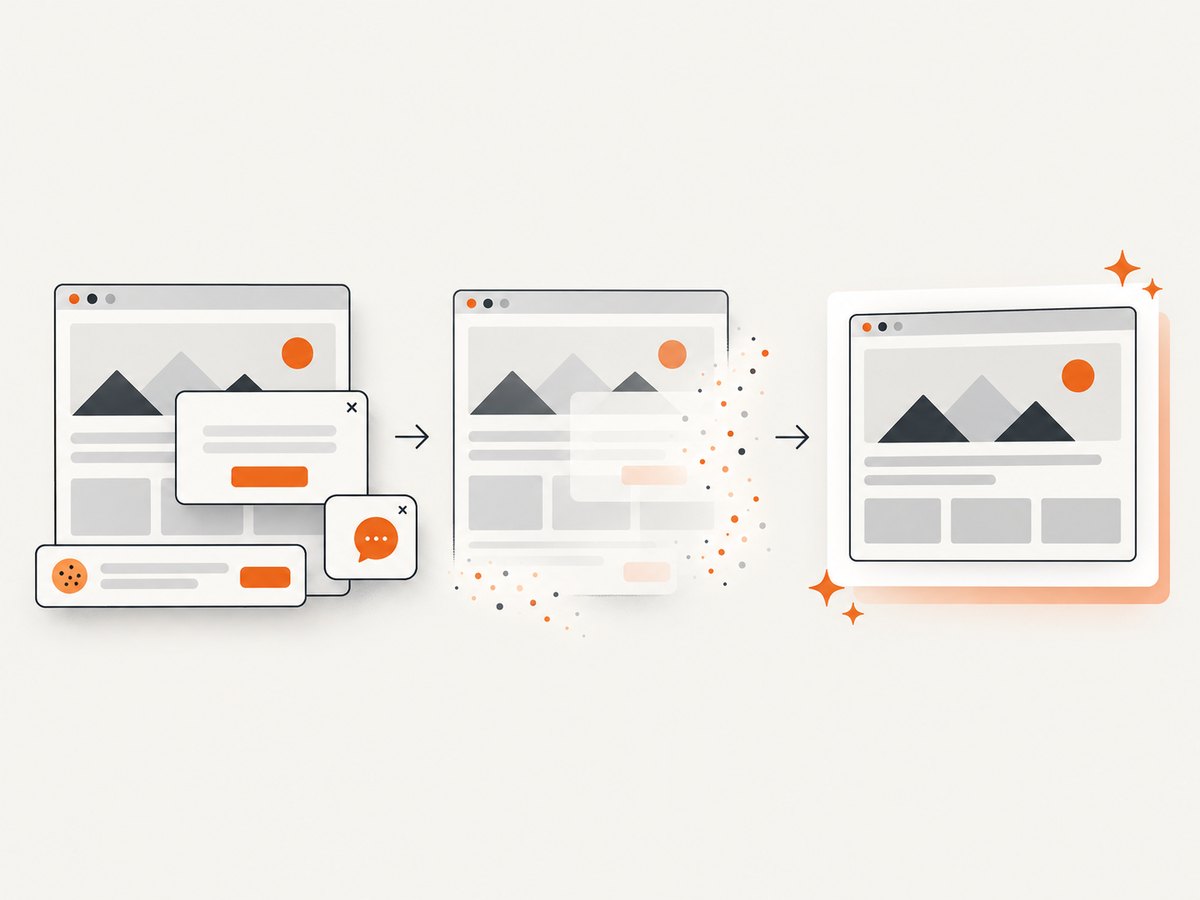
Cookie banners are accepted before capture and more than 60 known consent platforms, newsletter popups, and chat widgets can be removed; each step can be turned off. Bot checks and CAPTCHAs, blank pages, timeouts, failed loads, and cache hits cost nothing, and the response identifies the page verdict and billing state in headers. An MCP server provides take_screenshot, get_page_info, and capture_pdf tools for Claude, Cursor, and other MCP clients. The free plan includes 1,000 screenshots per month with no card; paid plans start at $5 for 3,000. Sign up for 1,000 free screenshots a month, with no card.
7. Troubleshooting
| Problem | Likely cause | What to try |
|---|---|---|
| Screenshot option is not visible | The menu location differs, or you opened a different context menu. | Use Firefox’s documented shortcut or search DevTools’ Command Menu for “screenshot.” Check current browser help if labels have moved. |
| Chrome area capture does not work | DevTools is undocked. | Dock DevTools and try the Command Menu’s area capture again, as Chrome’s documentation specifies. |
| The capture misses content near the bottom | You captured the visible viewport instead of the full page, or page content had not appeared yet. | Choose full-page capture and wait for the content you need to load before capturing. Inspect the saved image from top to bottom. |
| A page looks different from the live site | The screenshot reflects a particular browser state, viewport, and moment. | Check responsive dimensions, scroll position, overlays, and whether the page had finished rendering. Capture again with the intended state. |
| The full-page image is too hard to read | The whole long page is being shown at a small display size. | Keep the full-page image for structure and add a viewport or detail capture for important content. |
| An API request returns an error | The key, URL, request, or target page may be invalid or unavailable. | Check the request against the API documentation, verify the key is present, and inspect the response status and headers. Avoid treating an error response as an image file. |
8. Performance, reliability, and cost
Browser-native capture has no per-capture service charge described in the cited browser instructions, and it is convenient for one-off portfolio work. Its practical cost is the time spent opening the page, choosing the capture scope, saving the result, and repeating the steps for another page or viewport. DevTools and browser menus can change, so rely on the current browser help if a step no longer matches your version.
An API is useful when you need the same capture process repeatedly or need to request captures from code. The result still depends on the page loading and rendering in the capture environment. Dynamic content, delayed images, consent prompts, and bot checks can affect what appears; choose an appropriate wait condition and inspect the returned image. A full-page image may also be large and less readable when shrunk into a portfolio card.
ScreenshotNeo’s published plans are Free: 1,000 shots per month; Starter: $5 for 3,000; Growth: $15 for 15,000; Pro: $39 for 60,000; Scale: $99 for 250,000; and Business: $249 for 1,000,000. Yearly billing gives two months free. Every feature is on every plan. For your expected volume, consider how many pages and variants you capture, and whether you need full-page, device, element, or PDF output. Its usage API can help track usage. Do not infer that every requested capture is billed: its stated billing rules exclude bot checks/CAPTCHAs, blank pages, timeouts, failed loads, and cache hits, with response headers indicating the verdict and billing status.
9. Quick checklist before you publish
- Choose full page, viewport, area, or element based on what the case study needs to show.
- Capture the intended browser and page state, then inspect the saved file.
- Use a focused image if a long capture makes details unreadable.
- Say whether the screenshot depicts a live site, earlier design, prototype, or personal redesign.
- Do not imply endorsement or permission that you do not have; check relevant terms when uncertain.
- Use descriptive filenames and captions so readers understand what they are seeing.
10. FAQ
Can I capture just one part of a webpage?
Yes. Firefox can select a region or highlighted page part, and Chrome DevTools has an area capture command. Firefox Developer Tools can also capture an individual element.
Should I use a full-page screenshot or several smaller ones?
Use a full-page image when page flow matters. Add viewport or detail images when the full capture would make key content too small to read.
Does a screenshot prove that I designed the website?
No. A screenshot shows a page state. Explain your role and the status of the work in the portfolio entry.
Does the W3C screenshot guidance apply to any website?
No. The cited statement concerns screenshots of the W3C site and warns against implying its sponsorship or endorsement. It does not establish a general permission rule for other sites.
Can I automate portfolio screenshots?
Yes. A screenshot API can take URL-based requests from code; ScreenshotNeo’s docs describe its API and MCP server. Browser-native tools remain a straightforward option for occasional manual captures.


