Website Screenshot to WebP: API Guide
Learn how to request website screenshots as WebP, handle binary or URL responses, configure captures, troubleshoot failures, and automate conversion.
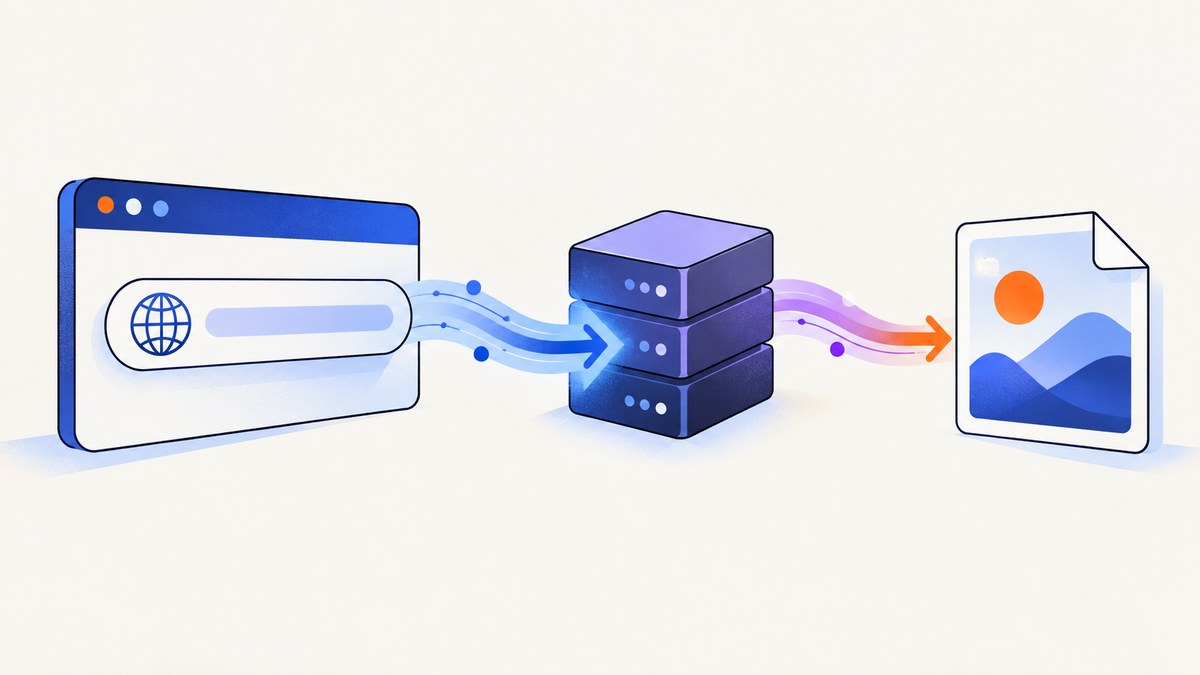
To turn a website into a WebP screenshot, send the target URL to a screenshot endpoint and request webp when the provider supports direct WebP output. Save a successful image/webp response as binary bytes. If the capture endpoint only produces PNG or another format, call the provider’s documented export or conversion operation and select WebP there.
The exact parameter names, authentication method, response shape, and available capture controls belong to each API contract. Some services return image bytes; others return JSON containing a hosted image URL. Do not assume that code for one provider works unchanged with another.
1. What “website screenshot to WebP” means
There are two valid workflows:
- Direct WebP capture: the screenshot request includes an output format such as
webp, and the response is either WebP bytes or a JSON object containing a WebP URL. - Capture then convert: the screenshot request creates a PNG (or another supported image), then a separate export endpoint converts that image to WebP.
WebP supports lossy and lossless compression, alpha transparency, and animation. Its registered media type is image/webp. The format is documented in IETF RFC 9649, which is informational rather than an Internet Standards Track specification.
Before writing code, answer three questions from your provider’s documentation:
- Does the capture endpoint accept a WebP output option?
- Does success return raw bytes or JSON?
- If WebP is not direct, which documented conversion/export call accepts the captured image?
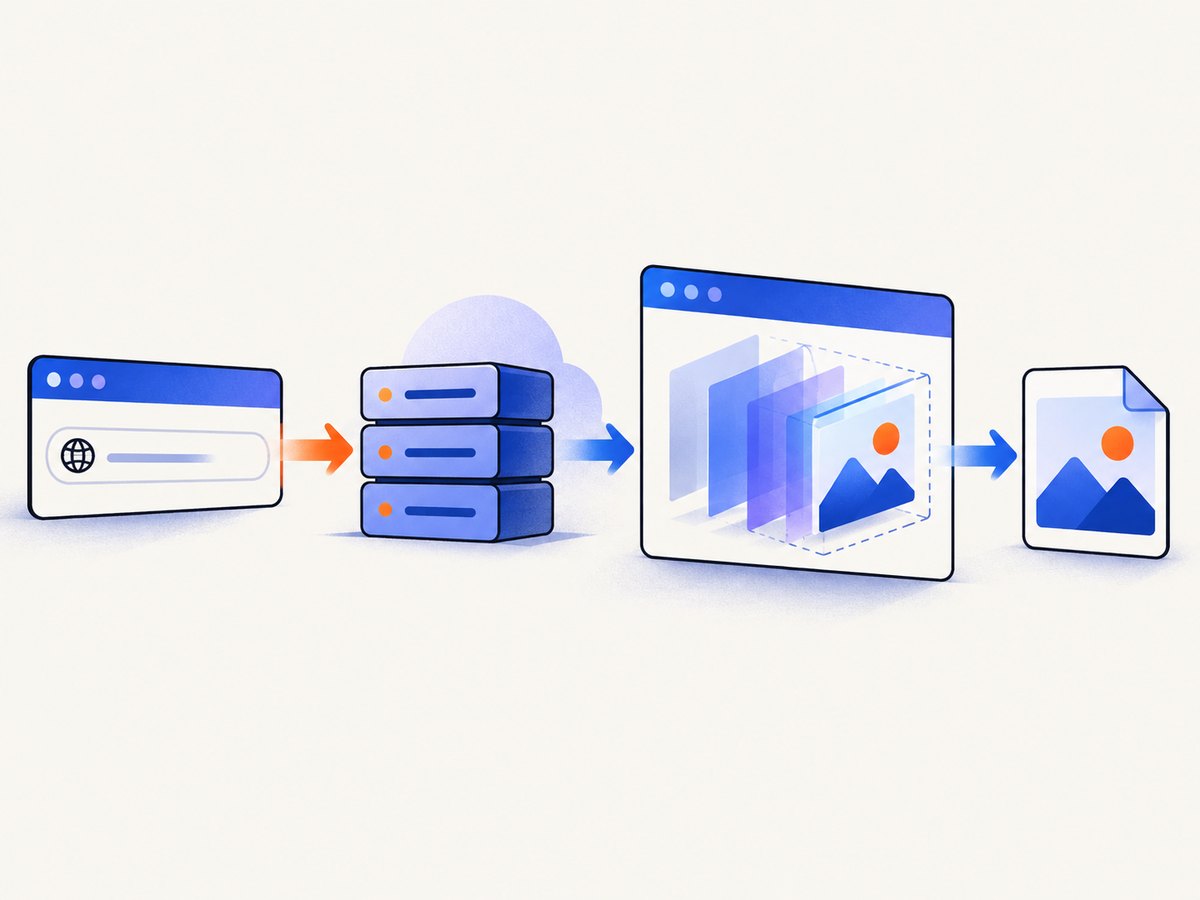
2. The safe request and response sequence
- URL-encode the target page URL.
- Send authentication using the provider’s documented query parameter, header, or body field.
- Set the output format to WebP if direct output is supported.
- Add only the capture controls you need: viewport, full-page mode, selector, delay or wait strategy, and quality.
- Check the HTTP status before reading the body.
- Inspect
Content-Type. Forimage/webp, write the body as bytes. For JSON, parse the documented image URL field and download that URL. - Validate the resulting file and retain the provider’s request ID or error details for retries and debugging.
A binary response must not be passed to a JSON parser. Conversely, saving a JSON error or URL object directly as .webp creates a file that image software cannot open.
3. Minimal direct-WebP examples
The following patterns show the shape of a direct WebP request. Replace the endpoint, authentication field, and option names with those in one provider’s documentation. Do not mix parameter conventions from different services.
cURL
curl -G "https://example.com/screenshot" \
  -H "Authorization: Bearer $API_KEY" \
  --data-urlencode "url=https://example.org" \
  --data "format=webp" \
  --data "full_page=true" \
  -o page.webp
Python
import requests

response = requests.get(
    "https://example.com/screenshot",
    headers={"Authorization": f"Bearer {API_KEY}"},
    params={
        "url": "https://example.org",
        "format": "webp",
        "full_page": "true",
    },
    timeout=90,
)
response.raise_for_status()
content_type = response.headers.get("content-type", "").lower()
if "image/webp" not in content_type:
    raise RuntimeError(f"Expected WebP bytes, received {content_type}")
with open("page.webp", "wb") as file:
    file.write(response.content)
Node.js
const params = new URLSearchParams({
  url: 'https://example.org',
  format: 'webp',
  full_page: 'true'
});
const response = await fetch(`https://example.com/screenshot?${params}`, {
  headers: { Authorization: `Bearer ${process.env.API_KEY}` }
});
if (!response.ok) throw new Error(`HTTP ${response.status}`);
const type = response.headers.get('content-type') || '';
if (!type.includes('image/webp')) throw new Error(`Expected WebP, got ${type}`);
const bytes = Buffer.from(await response.arrayBuffer());
await require('node:fs/promises').writeFile('page.webp', bytes);
4. Handling JSON URL responses
Some screenshot APIs return JSON such as {"url":"https://..."} instead of image bytes. The first response is metadata; the second request retrieves the image.
const capture = await fetch('https://example.com/screenshot', {
  method: 'POST',
  headers: {
    'Authorization': `Bearer ${process.env.API_KEY}`,
    'Content-Type': 'application/json'
  },
  body: JSON.stringify({ url: 'https://example.org', format: 'webp' })
});
if (!capture.ok) throw new Error(`Capture failed: ${capture.status}`);
const data = await capture.json();
if (!data.url) throw new Error('Response did not contain the documented image URL');
const image = await fetch(data.url);
if (!image.ok) throw new Error(`Image download failed: ${image.status}`);
await require('node:fs/promises').writeFile('page.webp', Buffer.from(await image.arrayBuffer()));
Use the field name documented by your provider. A URL may expire, require an authorization header, or point to a format different from the requested one, so verify its response headers too.
5. Capture options that affect the image
Encoding happens after the browser renders the page. Most visual differences come from capture settings:
| Option | What it controls | Questions to check |
|---|---|---|
| Viewport | CSS width and height used by the browser. | Are dimensions numbers, strings, or a device preset? |
| Full page | Captures the complete scrollable document instead of the viewport. | How are fixed headers and very tall pages handled? |
| Selector | Captures one element rather than the whole page. | Is the selector CSS, XPath, or provider-specific? |
| Delay | Waits a fixed number of milliseconds before capture. | Is the delay capped or billed while waiting? |
| Wait condition | Waits for a selector, network idle, or another browser event. | What happens when the condition never occurs? |
| Quality | Controls lossy WebP encoding where supported. | Is quality 0–100, 1–100, or ignored for lossless mode? |
| Device scale | Controls retina or pixel density. | Does output size grow with scale? |
| Color and transparency | Controls background and alpha handling. | Does the provider preserve transparent backgrounds? |
Option names and accepted values vary. Screenshot APIs document combinations such as viewport and full-page capture, selector capture, delay or wait settings, and lossy quality controls, but one service’s spelling is not portable to another. Keep a provider-specific request object in your application and test the resulting dimensions and media type.
6. When a separate conversion call is required
A two-step service might expose a capture operation that always returns PNG and an export operation that accepts the PNG plus an output format. The sequence is:
- Capture the URL as PNG.
- Check that the PNG response or returned URL is valid.
- Send that image to the documented export endpoint with WebP selected.
- Save the export response and verify
image/webp.
# Pseudocode: use the exact fields from one provider's documentation
png = POST /capture { url: "https://example.org", format: "png" }
webp = POST /export { source: png, format: "webp", quality: 82 }
write_bytes(webp.body, "page.webp")
A capture endpoint that returns PNG is not evidence that WebP is unavailable; it may simply require this export step. Do not invent an export URL or copy authentication details from another service. Screenshot Studio’s developer portal documents this capture-then-export pattern, while other documented APIs expose direct WebP output.
7. Edge cases to plan for
Redirects and canonical URLs
Use the final response URL and status reported by the provider when a page redirects. A redirect to a login page can produce a technically valid screenshot with the wrong content.
Lazy-loaded content
Full-page mode may need scrolling to trigger images. Use the provider’s lazy-load support, selector wait, network-idle wait, or a short delay. A fixed delay alone is less deterministic when third-party assets are slow.
Cookie banners and consent overlays
Overlays can obscure the page or change layout. Either dismiss them with a documented click or script option, hide the selector, or use a capture service that handles consent before rendering the final shot.
Authentication and private pages
Use documented custom headers, cookies, user-agent values, or authorization options. Never place long-lived secrets in a public image URL or client-side code.
Very tall documents
Full-page screenshots can exceed browser or image limits. Split the page into sections, capture a viewport sequence, or use a PDF workflow when a paginated document is the real requirement.
Animations, videos, and fonts
Freeze animations with custom CSS when consistency matters. Wait for web fonts if text reflows during loading. A screenshot captures one instant; it does not preserve interactive video behavior.
8. Troubleshooting common failures
| Symptom | Likely cause | Fix |
|---|---|---|
| “Invalid JSON” while saving | The success body is binary image data. | Check Content-Type and write bytes directly. |
| Downloaded file is tiny or unreadable | You saved an error page or JSON metadata as .webp. |
Check status, content type, and body before writing. |
| HTTP 401 or 403 | Missing, expired, or incorrectly placed credentials. | Use the provider’s exact API-key header or parameter format. |
| HTTP 400 | Wrong parameter name, invalid URL, or unsupported format. | Compare spelling and accepted values with the same provider’s reference. |
| Blank screenshot | Page failed to load, requires scripts, or was captured too early. | Increase the wait, wait for a selector, inspect redirects, and check browser logs if available. |
| Cookie dialog covers content | Consent UI was not dismissed. | Click or hide the dialog, or use a service with consent cleanup. |
| Missing images | Lazy loading or blocked third-party resources. | Use full-page lazy-load support, wait for network idle, and review request blocking rules. |
| Unexpected format | Provider returned a URL or fallback format. | Inspect response headers and parse the documented JSON field. |
| Intermittent timeout | Slow origin, overloaded page, or an overly short timeout. | Set a reasonable client timeout, retry transient failures with backoff, and avoid duplicate captures. |
| Rate-limit response | Quota or per-IP limit reached. | Honor Retry-After when present, queue work, and review the provider’s quota policy. |
9. Performance, reliability, and cost
Rendering time depends on the target site, browser startup, JavaScript, fonts, images, waits, and full-page height. The research sources do not establish a reliable cross-provider benchmark, so measure your own pages instead of assuming a fixed latency or compression ratio.
- Reduce work: use the smallest viewport, avoid unnecessary full-page captures, and block known ads or trackers when your provider supports it.
- Use deterministic waits: a selector or network-idle condition usually expresses readiness better than an arbitrary long delay.
- Cache deliberately: cache by normalized URL plus capture options. Respect the provider’s cache and TTL semantics.
- Retry safely: retry network errors and documented 5xx responses with exponential backoff. Do not blindly retry invalid requests or authentication failures.
- Control concurrency: queue jobs to stay under documented rate limits and browser capacity.
- Track bytes and status: record status, content type, dimensions, request ID, and whether a conversion step occurred.
Pricing, retention, quotas, and rate limits are provider-specific. Read the current contract before estimating spend. A raw image response may count as one capture, while a separate export may have its own limits or charge; do not infer billing rules from HTTP request count alone.
10. Or skip the browser setup with ScreenshotNeo
ScreenshotNeo provides a direct website screenshot API. One GET request returns PNG, JPEG, WebP, or PDF, so WebP does not require a separate conversion service.

Here is a complete request using the documented endpoint. See the ScreenshotNeo API documentation for all options.
cURL
curl -G "https://api.screenshotneo.com/v1/shot" -d access_key=YOUR_API_KEY --data-urlencode url=https://stripe.com -o shot.webpPython
import requests
r = requests.get("https://api.screenshotneo.com/v1/shot", params={"access_key": "YOUR_API_KEY", "url": "https://stripe.com"}, timeout=90)
open("shot.webp", "wb").write(r.content)
Node.js
const q = new URLSearchParams({ access_key: 'YOUR_API_KEY', url: 'https://stripe.com' }); const res = await fetch(`https://api.screenshotneo.com/v1/shot?${q}`);ScreenshotNeo can capture full pages with lazy images loaded, one element by CSS selector, dark mode, device presets or any viewport, retina scale, custom CSS and JavaScript, clicks, selector waits, delays, network-idle waits, blocked ads and trackers, custom headers and cookies, user agents, authorization, timezone, geolocation, transparent backgrounds, resizing, caching with a chosen TTL, signed links, asynchronous jobs with signed webhooks, bulk capture for up to 100 URLs per call, usage reporting, and PDFs. The API also accepts parameter names used by other screenshot APIs, which helps when switching.
Before capture, ScreenshotNeo accepts cookie or consent banners and removes more than 60 known consent platforms, newsletter popups, and chat widgets. Each cleanup step can be turned off. Bot checks, CAPTCHAs, blank pages, timeouts, failed loads, and cache hits cost nothing; response headers identify the page verdict and whether the request was billed with X-Page-Verdict and X-Billed.
An MCP server provides take_screenshot, get_page_info, and capture_pdf tools for Claude, Cursor, and other MCP clients. The Free plan includes 1,000 shots per month with no card; paid plans start at $5 for 3,000 shots, and every feature is available on every plan. Create a free ScreenshotNeo account to start.
11. FAQ
Is WebP always smaller than PNG?
No. WebP can be lossy or lossless, and the result depends on image content and encoder settings. Measure the files produced by your chosen quality and transparency settings.
Should I request a URL or binary response?
Binary responses are simplest for server-side storage. A hosted URL can be convenient for browser delivery, but check its expiration, access controls, and retention policy.
Can I convert an existing screenshot locally?
Yes, if the provider does not offer WebP output. Download the documented source format and use a maintained image library or command-line encoder, preserving alpha when required.
Why does my screenshot differ between runs?
Dynamic content, animation timing, ads, geolocation, fonts, and third-party requests can change the rendered page. Fix the viewport and timezone, disable animation, wait for a stable selector, and use caching where appropriate.
Does a screenshot API understand responsive breakpoints?
It renders the page at the viewport you specify. Choose the width and device scale that correspond to the breakpoint you want to document.


