Using Website Screenshots for Trend Tracking
Build a reliable visual history of website changes with scheduled screenshots, stable capture settings, noise controls, and reviewable diffs.
1. The short answer
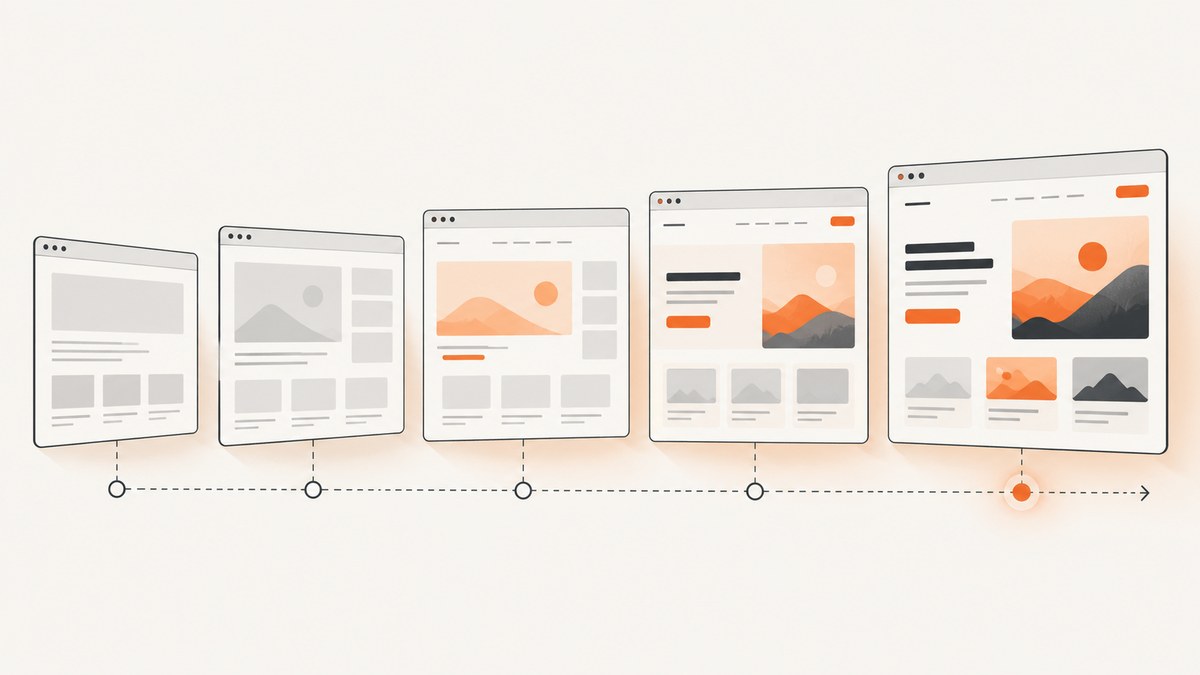
To track website changes with screenshots, capture the same URLs in the same browser state on a schedule, keep each dated image, and compare new captures with a baseline or the previous capture. Review the full before-and-after images before treating a visual difference as meaningful: rotating content, ads, timestamps, experiments, and third-party widgets can create noise.
A useful workflow is: choose pages that matter, record the rendering conditions, capture the right page area at a cadence tied to your decisions, compare and inspect changes, then annotate and retain the evidence. Screenshots show rendered appearance; when exact wording, prices, or structured data matter, pair visual comparison with a text or DOM check.
2. Choose what to monitor
Start with a small set of pages whose changes could affect a decision. For your own site, that might mean checking for visual regressions or preserving a record around releases. For competitor research, record the exact URL and why it matters so reviewers can distinguish a planned observation from an arbitrary page collection.
| Page type | What a screenshot can help reveal | Useful coverage |
|---|---|---|
| Homepage | Branding, navigation, hero treatment, promotions | Viewport for first impression; full page for broader redesigns |
| Pricing | New tiers, offer presentation, price layout, disclaimers | Usually full page if terms or lower-page comparisons matter |
| Product or feature page | Messaging, feature presentation, layout changes | Viewport or full page depending on the decision |
| Signup or checkout flow | Form layout, missing elements, broken styling | Capture each important step in a consistent authenticated state |
| Legal pages | Visible page presentation and dated evidence | Full page when the complete rendered document matters |
| Content templates | Repeated layout or image regressions | Representative URLs rather than every article |
Keep the set focused. A screenshot archive becomes hard to review if it produces many captures without a question each one answers. For production monitoring, prioritize critical routes and take an additional capture after a deployment so that a visual regression can be compared with the last known-good state.
3. Make captures comparable
A trend is only interpretable if the capture conditions are stable. Write down the URL and the conditions that affect rendering, then reuse them for every capture.
- Viewport dimensions or device preset, and whether the capture is viewport-only or full-page.
- Browser and rendering environment, where your capture tool lets you control them.
- Locale, timezone, and color scheme.
- Authentication state and any account or test data needed to reach the page.
- Consent state, including whether a banner is accepted, rejected, or absent.
- Wait condition: page load, a specific selector, a fixed delay, or network idle.
Capture a baseline only after fonts, images, animations, and consent UI have settled. Then repeat the same state on the schedule. If the capture environment or consent choice changes, record that fact; otherwise an environmental difference may look like a site change.
Viewport or full page?
Use a viewport screenshot when the above-the-fold experience is the thing you compare and you need consistent framing. Use a full-page capture when content lower down can change the outcome, such as pricing footnotes, long product listings, or legal content. Full-page screenshots may take longer and can expose lazy-loading behavior: ensure below-the-fold images have loaded before saving the capture.
4. Set a cadence that matches the decision
There is no universal best interval. Capture often enough to see a change before it becomes irrelevant, but avoid producing more images than people can review. Hourly or daily checks can suit fast-moving pricing, promotions, or deployments. Weekly checks can suit slower design or content trends. Some monitoring services support hourly, daily, weekly, and custom schedules.
| Decision | Starting cadence | Why |
|---|---|---|
| Check a release for visual regressions | After each deployment, plus a periodic check | Connects a change to a known release while retaining a baseline |
| Observe active promotions or pricing | Daily; more often only when the decision needs it | Offers can change quickly, but every capture still needs review |
| Follow a slower visual redesign | Weekly | Reduces duplicate snapshots when changes are gradual |
These are practical starting points, not guarantees about how quickly any particular site changes. Review the first few intervals, then adjust based on how much meaningful change and normal noise you actually see.
5. Capture, compare, and preserve evidence
- Write down the monitoring question. For example: “Did the pricing layout or offer change?” or “Did the deployed page lose its primary form?”
- Save a baseline. Capture the chosen URL after the page reaches its settled state. Store the original image, capture time, URL, viewport, locale, and relevant state.
- Repeat the capture. Use the same settings and schedule. For production checks, also capture after deployment.
- Generate a comparison. Use a pixel or perceptual diff, side-by-side view, or overlay. A diff helps locate changes; it does not decide whether they matter.
- Inspect both complete images. Check whether the difference is an intentional offer, a missing image, a layout shift, or an unrelated rotating widget.
- Annotate and retain. Record a short interpretation, such as “new pricing tier,” “hero redesign,” or “missing image.” Keep the original and diff together so another person can audit the conclusion.
- Route actionable alerts. Send a meaningful finding to the team responsible for the page or deployment, with the URL, time, before-and-after images, and interpretation.
For a minimal local archive, use a dated directory structure and avoid overwriting the baseline. This Python example saves captures that your screenshot process has already produced; it does not automate a browser or calculate a diff.

from datetime import datetime, timezone
from pathlib import Path

url_slug = "example-pricing"
image_bytes = Path("current-capture.png").read_bytes()
now = datetime.now(timezone.utc)
folder = Path("visual-history") / url_slug
folder.mkdir(parents=True, exist_ok=True)
filename = now.strftime("%Y%m%dT%H%M%SZ") + ".png"
(folder / filename).write_bytes(image_bytes)
print(folder / filename)
For a useful audit trail, store capture metadata alongside the image, such as JSON containing the URL, timestamp, viewport, locale, and capture mode. Preserve originals even if you also generate resized previews or diffs.
6. Reduce false alerts from dynamic content
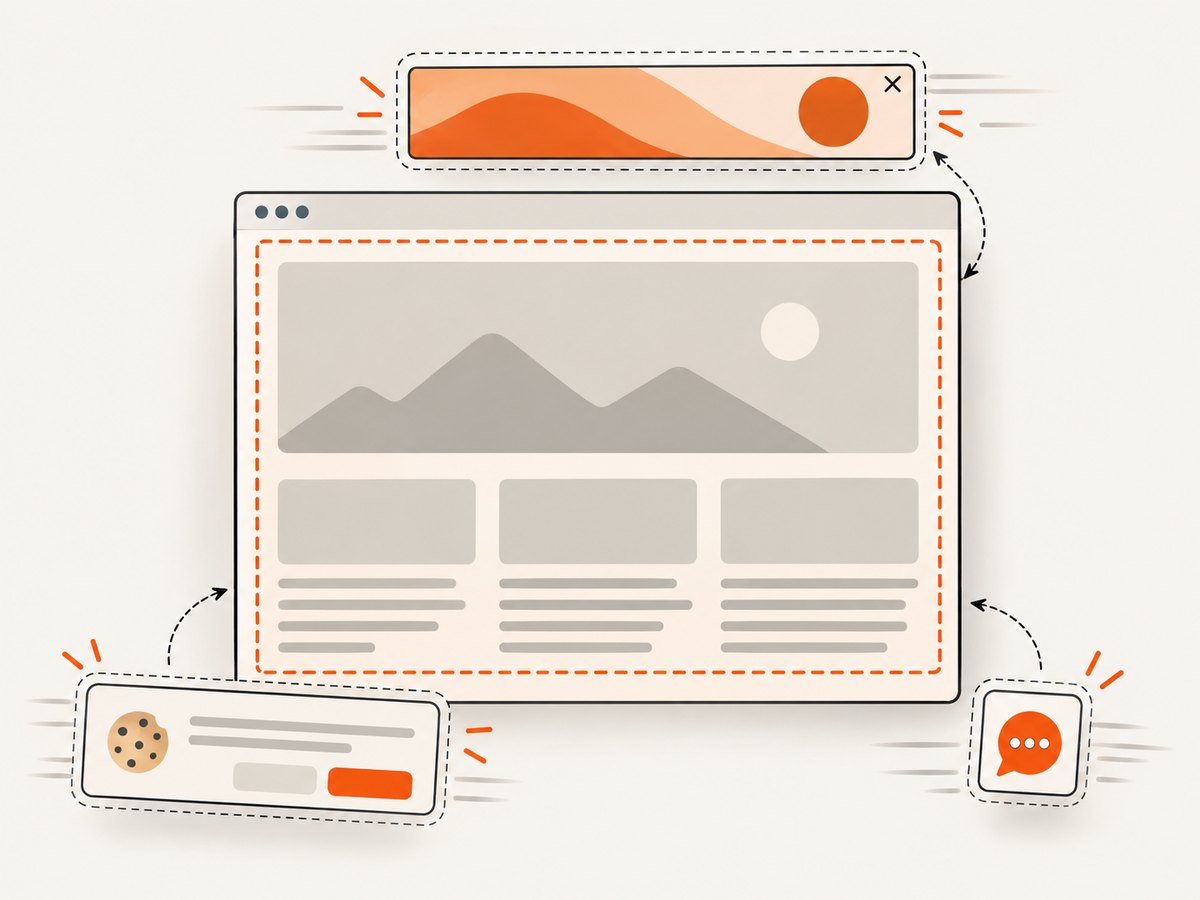
A large pixel change can be harmless, while a small wording change can matter. Common sources of variation include animations, rotating banners, ads, timestamps, A/B tests, consent banners, chat widgets, and other third-party content. First identify normal variation; then choose an appropriate control rather than raising a threshold until real changes disappear.
- Wait for stability. Let fonts and images load; wait for a target selector or a defined settled state. Avoid capturing mid-animation.
- Keep consent consistent. Use the same consent choice in every run. A changing banner can cover important content and produce a large diff.
- Mask or ignore known volatile regions. If your comparison tool supports ignore regions, apply them only to content known to be irrelevant to the monitoring question.
- Control test conditions. Use a consistent account, locale, viewport, and browser setup. If an A/B test is unavoidable, identify the variant or record the variability.
- Tune thresholds from observations. Compare several normal captures before setting a threshold. Review a sample of ignored changes to ensure the rule is not hiding a meaningful update.
- Use targeted checks for exact facts. Pair screenshots with a DOM or text assertion for exact prices, wording, or data fields.
Thresholds should help prioritize review, not be treated as a definition of significance. Keep an unfiltered image available when possible, since a mask can hide a change that later turns out to matter.
7. DIY capture and an API option
For a local or CI workflow, use a browser automation tool to open the page, set viewport and state, wait for the right condition, save a screenshot, and compare it with a stored image. Choose viewport or full-page capture deliberately, and make authentication and consent reproducible. A browser-based workflow gives control but means you manage browser installation, rendering consistency, retries, storage, and scheduled execution.
Or skip the browser setup
ScreenshotNeo is a website screenshot API and MCP server. A GET request can return an image or PDF; for a visual history, save each dated image and perform your chosen comparisons. Its options include full-page capture, device presets or custom viewports, dark mode, selector waits, delay or network-idle waits, custom headers and cookies, caching with a chosen TTL, and bulk capture for up to 100 URLs per call. See the ScreenshotNeo API documentation for parameters.
curl -G "https://api.screenshotneo.com/v1/shot" \
  -d access_key=YOUR_API_KEY \
  --data-urlencode url=https://stripe.com \
  -o shot.webp
import requests
r = requests.get(
"https://api.screenshotneo.com/v1/shot",
params={"access_key": "YOUR_API_KEY", "url": "https://stripe.com"},
timeout=90,
)
open("shot.webp", "wb").write(r.content)const q = new URLSearchParams({
access_key: 'YOUR_API_KEY',
url: 'https://stripe.com'
});
const res = await fetch(`https://api.screenshotneo.com/v1/shot?${q}`);
if (!res.ok) throw new Error(`Screenshot request failed: ${res.status}`);
await Bun.write('shot.webp', res);Replace the sample URL with the page you monitor. Store the API key as a secret in your scheduler or CI environment, not in a public script. In Python, inspect the response status before treating its bytes as an image. In Node.js, the example uses Bun to write the response; with Node.js, use await import('node:fs/promises').then(({writeFile}) => writeFile('shot.webp', Buffer.from(await res.arrayBuffer()))) after the status check.
ScreenshotNeo accepts cookie and consent banners like a visitor and removes more than 60 known consent platforms, newsletter popups, and chat widgets before capture; each step can be turned off. Bot checks, CAPTCHAs, blank pages, timeouts, failed loads, and cache hits are not billed, and response headers report the page verdict and billing status. Its MCP server offers take_screenshot, get_page_info, and capture_pdf for Claude, Cursor, and other MCP clients. The free plan includes 1,000 shots per month with no card; paid plans start at $5 for 3,000 shots. Every feature is available on every plan.
Create a free ScreenshotNeo account for 1,000 screenshots a month, with no card.
8. Reliability, performance, and cost
Reliability: treat a missing or failed capture as an observation to investigate, not as proof that the page is blank. Keep the last known-good image, record failures, and retry transient errors with a limit and backoff. For important pages, alert on repeated failure and keep failure records separate from visual diffs. A screenshot only represents the page state the capture system could render at that time.
Performance: capture only pages needed for the monitoring question, and avoid unnecessary full-page images if the viewport answers it. Full-page capture, large image assets, and long waits increase work. Concurrent requests can reduce wall-clock time for independent URLs, but set a cap so your own scheduler, storage, or target sites are not overwhelmed. Keep image dimensions consistent for simpler comparisons.
Cost: account for capture volume, storage retention, comparison compute, and alert review. A simple estimate is URLs × captures per day × days retained, adjusted for retries and extra post-deploy captures. For example, 20 URLs captured daily for 30 days produces 600 planned images before retries. Compare this volume with the limits and pricing of your chosen capture and archive services. ScreenshotNeo offers 1,000 monthly shots free, then plans of $5 for 3,000, $15 for 15,000, $39 for 60,000, $99 for 250,000, and $249 for 1,000,000; yearly billing gives two months free.
9. Troubleshooting
| Symptom | Likely cause | Fix |
|---|---|---|
| Every run reports a large diff | Viewport, locale, consent, animation timing, or browser state varies | Record and pin the capture conditions; wait for a stable state; inspect repeated normal captures before changing thresholds. |
| Screenshot is blank or incomplete | Capture occurred before navigation or content rendering finished, or the page blocked the request | Wait for a meaningful selector or stable condition; check the page and capture result; retry transient failures with a cap. |
| Below-the-fold images are missing | Lazy-loaded content did not load before the full-page capture | Use full-page capture with lazy images loaded, or scroll/wait for the relevant content before saving. |
| Diff highlights a timestamp, ad, or rotating banner | Dynamic content is changing normally | Mask a known irrelevant region if supported, or use a targeted DOM/text check for the actual requirement. |
| Important small wording change is missed | Visual threshold or pixel diff is not suited to semantic text verification | Add an exact text or DOM assertion for the phrase, price, or field. |
| Authenticated page redirects to login | Session or cookie state is absent, expired, or inconsistent | Use a reproducible test account and renew credentials securely; verify the captured URL and state. |
| Capture API response is not an image | Request failed or returned a status/result describing an unsuccessful page capture | Check HTTP status and service response headers before saving bytes as an image; classify failed or non-page results separately. |
| Archive grows faster than expected | Cadence, URL count, retries, or retention exceeds the plan | Estimate planned volume, remove low-value URLs, tune cadence to the decision, and set a retention policy. |
10. Common questions
Can screenshots prove exactly when a competitor changed a price?
They show what the capture rendered at a recorded time. They cannot establish the precise moment between two captures, and visual evidence alone may not reliably extract the exact price. Capture at an appropriate cadence and pair images with a text check if the exact amount matters.
Should I compare each capture with the baseline or the previous image?
Use the baseline to see cumulative change from a known reference and the previous capture to identify recent changes. Keeping both views is useful when a page evolves gradually.
Do screenshots replace text monitoring?
No. They are useful for appearance and layout. Use a targeted text or DOM check for exact wording, prices, or structured values.
How long should I retain captures?
Retain them long enough to answer the trend or audit question, while accounting for storage and review capacity. Keep the baseline and the images associated with meaningful findings for as long as those findings need to be auditable.
With a stable capture state, a decision-led schedule, and reviewable originals, screenshots become a useful visual time series instead of a folder of unexplained diffs.


