How to Take Website Screenshots Automatically in Make
Schedule website screenshots in Make, capture them with a native app or HTTP request, and send the resulting files to storage, email, or team chat.
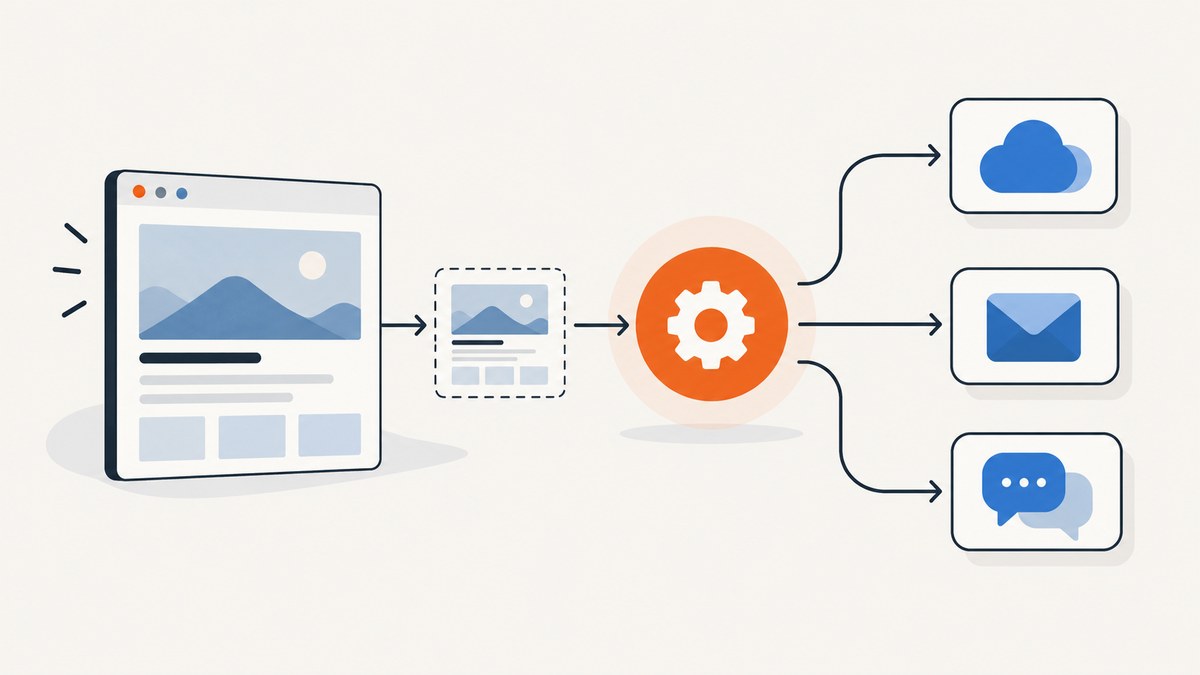
To take website screenshots automatically in Make, create a scenario with a schedule or event trigger, capture a URL using a screenshot app or HTTP request, then route the returned image file to storage, email, Slack, or another destination. Make orchestrates the workflow; the screenshot service renders the webpage. For a straightforward setup, use a native Make app such as GetScreenshot or HTML to Image API. If your provider has no native app, use Make’s HTTP app.
This guide walks through a recurring capture, file handling, provider choices, reliability, and common failure cases. The exact module labels, connection screens, service options, prices, and limits may change; check the current provider documentation before building a production scenario.
1. Plan the scenario
Decide what starts the capture, which URL to render, what image or document you need, and where the result should go. A simple scenario looks like this:
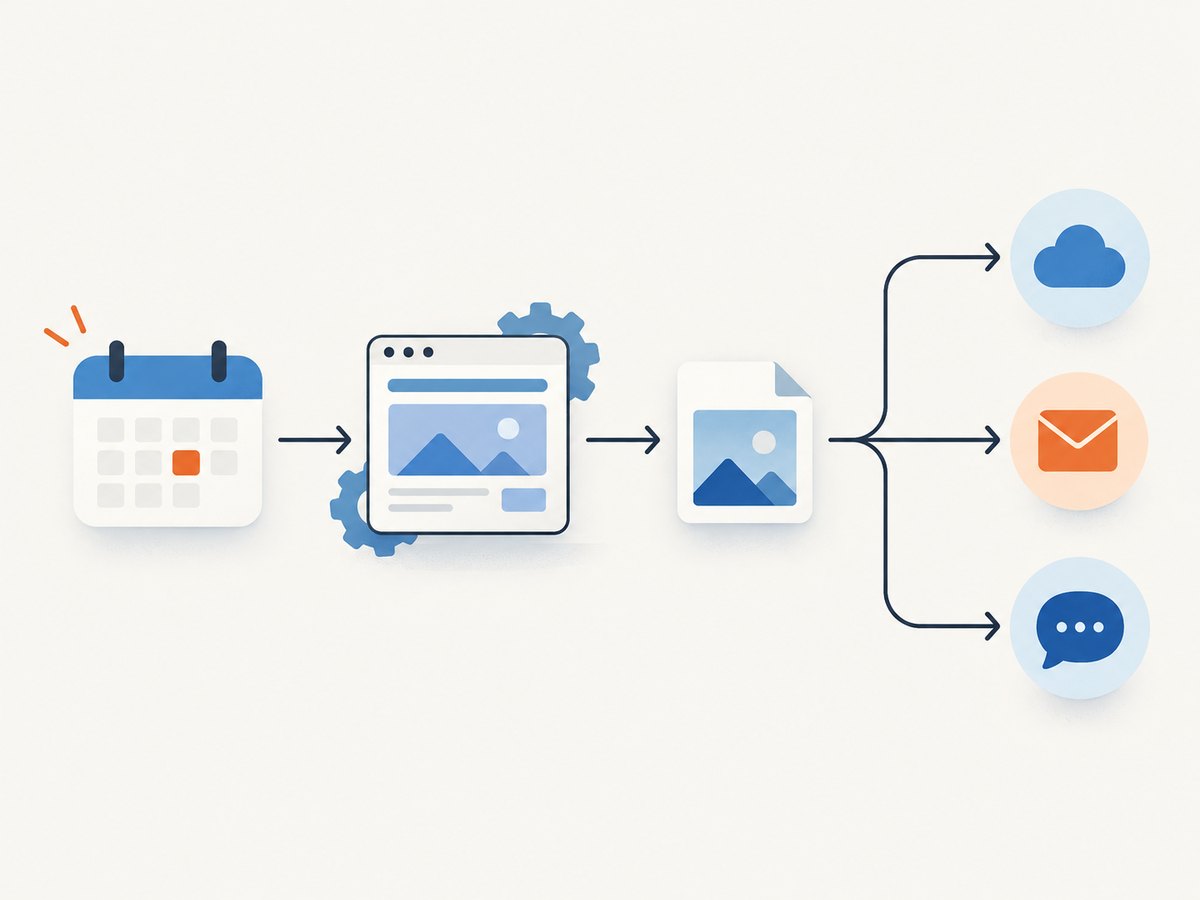
- Trigger: a scheduled run or an event from another app.
- Capture: a native screenshot action or an HTTP request to a screenshot API.
- File handling: download the returned file if the capture module returns a URL instead of file data.
- Destination: upload the file or attach it to an email or team-chat message.
Write down the expected capture dimensions, whether you need the entire page or just one element, and the destination’s file requirements. Decide how often a run should occur and what to do if the URL cannot be reached. This prevents a common design mistake: treating a successful API response as proof that the screenshot contains the intended page.
2. Build a scheduled screenshot with a native Make app
- Create a scenario in Make and add a schedule, such as a regular interval. Alternatively, start with an event trigger if a new record or message should prompt the capture.
- Add a screenshot app. Connect your account using the authentication details requested by the app. Make’s GetScreenshot integration documents webpage and element screenshot actions, email variants, API usage lookup, and a custom API-call module. HTML to Image API offers URL capture and actions to generate images or PDFs from HTML/CSS or URLs. See the GetScreenshot app documentation and HTML to Image API app documentation.
- Configure the page. Supply the target URL and choose any capture settings exposed by that module. For a specific component, use an element screenshot action and the page’s CSS selector. For a full-page image, choose a full-page action if available.
- Run once with a known URL. Inspect the returned output: it may contain image data, file metadata, a link to a file, or a service-specific response.
- Add the destination module. Map the image file or downloaded file into cloud storage, an email attachment, Slack, or another app. Use a descriptive filename that includes the site and capture date.
- Turn on scheduling after confirming the result reaches the destination in the expected format.
Make’s GetScreenshot integration lists full webpage and element capture actions, including versions that send the result by email. HTML to Image API is useful when a scenario may also create images from HTML/CSS or produce PDFs. These are different service capabilities; confirm that the chosen module exposes the capture mode and output you need.
3. Use HTTP when your screenshot provider has no native app
Make’s HTTP app can call services that do not have a native integration. Configure the request using the provider’s documented URL, authentication method, query or body parameters, and response format. Make’s HTTP modules include making requests and downloading files; its HTTP app documentation describes supported authentication options such as Basic Auth, API key, and OAuth 2.0.
- Add HTTP > Make a request after your trigger.
- Set the method and URL exactly as specified by your screenshot API. Add its API key using the documented authentication field or header. Avoid putting secrets in a URL that may be recorded in logs.
- Map the page URL and capture options into the request. Use Make’s mapping controls for values coming from a prior event.
- Run once and inspect the response. If it returns binary file data, map that data into the destination module. If it returns a downloadable URL, add HTTP > Download a file and map the URL into that module.
- Map the downloaded file’s data and filename to the storage or messaging module. Verify the recipient can open the saved file.
For ScreenshotNeo, the request is a GET to its API base with an access key and target URL. The API returns an image or PDF; see the ScreenshotNeo documentation for supported parameters and response details. This cURL example saves a WebP capture:
curl -G "https://api.screenshotneo.com/v1/shot" \
  -d access_key=YOUR_API_KEY \
  --data-urlencode url=https://stripe.com \
  -o shot.webp
Equivalent Python:
import requests

response = requests.get(
    "https://api.screenshotneo.com/v1/shot",
    params={"access_key": "YOUR_API_KEY", "url": "https://stripe.com"},
    timeout=90,
)
response.raise_for_status()
with open("shot.webp", "wb") as image_file:
    image_file.write(response.content)
Equivalent Node.js using built-in fetch:
const q = new URLSearchParams({
  access_key: 'YOUR_API_KEY',
  url: 'https://stripe.com'
});
const res = await fetch(`https://api.screenshotneo.com/v1/shot?${q}`);
if (!res.ok) throw new Error(`Screenshot request failed: ${res.status}`);
const image = Buffer.from(await res.arrayBuffer());
await import('node:fs/promises').then(fs => fs.writeFile('shot.webp', image));
In Make, translate the same request into the HTTP module’s method, endpoint, authentication, and mapped URL fields. Do not assume that every provider returns identical headers or a downloadable file URL. Follow the selected provider’s response documentation and map its actual output.
4. Choose a capture service and output
| Choice | Good fit when | Check before committing |
|---|---|---|
| ScreenshotNeo | You want a website screenshot API with clean captures, per-response billing status, or an MCP server for AI agents. | Authentication, required output and capture parameters in the API documentation. |
| GetScreenshot | You need webpage or element screenshots, email delivery, usage lookup, or an authorized custom API call in Make. | Current module availability, capture settings, authentication and service pricing. |
| HTML to Image API | The workflow may also render HTML/CSS or produce PDFs. | Current module behavior, output mapping, authentication and service pricing. |
| Generic HTTP | You already use another screenshot provider, or need an endpoint not covered by a native app. | API-specific request format, authentication, response body, quotas and failure behavior. |
Compare the options against the capture scope (full page or element), required output (image or PDF), authentication, scheduling and retry needs, usage limits, cost, and the final file destination. The reviewed Make and service pages do not provide comparable figures for cost, quota, or latency across these choices; check live pricing and API documentation for your expected workload.
5. Handle dynamic pages and choose the right capture
A screenshot is a rendering of a page at a particular point in time. If a page relies on client-side JavaScript, images loaded on scroll, user state, or delayed content, a capture can finish before the visible result is ready. Look for provider options such as a wait condition, delay, full-page mode, or element selector. The available controls depend on the provider and Make module.
- Full page: use it for a complete page archive or review. Long pages can create large files and take longer to render.
- Element capture: use it to isolate a dashboard card, chart, or product image. Confirm the selector matches one visible element at capture time.
- PDF: choose it when the downstream user needs a document rather than a raster image. Check page size, pagination, and layout in the produced file.
- Responsive view: if the service allows viewport settings, select a size that matches the intended review. A narrow viewport can change layout and hide content.
For authenticated pages, confirm that the capture provider supports the necessary cookies or headers and that credentials are handled through a protected connection. Never treat a screenshot link as private merely because it is difficult to guess; follow the provider’s access controls and the destination’s sharing settings.
6. Make the workflow reliable
Scheduled automation needs clear behavior for both successful and failed captures. A provider may return an error, a response without the expected file, or a screenshot of an error page. Add routing or error handling that makes those states visible instead of silently sending an empty or misleading attachment.
- Check the response: verify the request completed and that the result is an image or PDF in the expected format before the destination step.
- Keep the source URL: include it in the destination message or filename so reviewers can identify the page represented.
- Make repeated runs understandable: include the capture date and, where relevant, a stable record identifier in the filename or message.
- Plan for transient failures: use Make’s available error-handling and scheduling controls to decide whether a failed capture should be retried, logged, or reported. Avoid unbounded immediate retries that repeatedly hit an unavailable page.
- Test the destination: some apps expect file data while others accept a URL or attachment object. Confirm the receiving module gets a real file.
For recurring visual monitoring, decide whether every scheduled result should be retained or only sent when a downstream condition is met. Keep enough context to investigate failures, but avoid retaining screenshots longer than your workflow requires.
7. Performance, reliability, and cost
Scenario work includes the scheduled trigger, the screenshot service request, optional file download, and destination upload. Each added step can add execution time or another point of failure. Full-page pages and complex sites may take longer to render than a small static page. The reviewed sources do not publish a common latency benchmark, so measure the complete workflow on representative pages before setting a tight schedule.
Estimate cost across both automation-platform operations and the screenshot service. A scenario that captures many URLs or runs frequently can consume more operations and provider quota than a single capture. Check each provider’s current pricing and limits; do not infer that a native Make app makes the screenshot itself free. Also account for storage, email, or messaging limits at the destination.
For reliability, monitor failed runs, inspect a sample of successful screenshots, and use a sensible timeout based on the provider’s documented behavior. A successful transport response does not necessarily mean the page was useful: the target might show a blank state, a challenge, or an access-denied page. Where available, use the service’s status or page-verdict information to distinguish a clean capture from a failed or blocked page.
Or skip the browser setup
Make can call ScreenshotNeo’s screenshot endpoint with one HTTP request, then route the returned file to your destination. Use the endpoint and credentials as shown in the ScreenshotNeo API documentation; for a direct cURL example:
curl -G "https://api.screenshotneo.com/v1/shot" \
  -d access_key=YOUR_API_KEY \
  --data-urlencode url=https://stripe.com \
  -o shot.webp
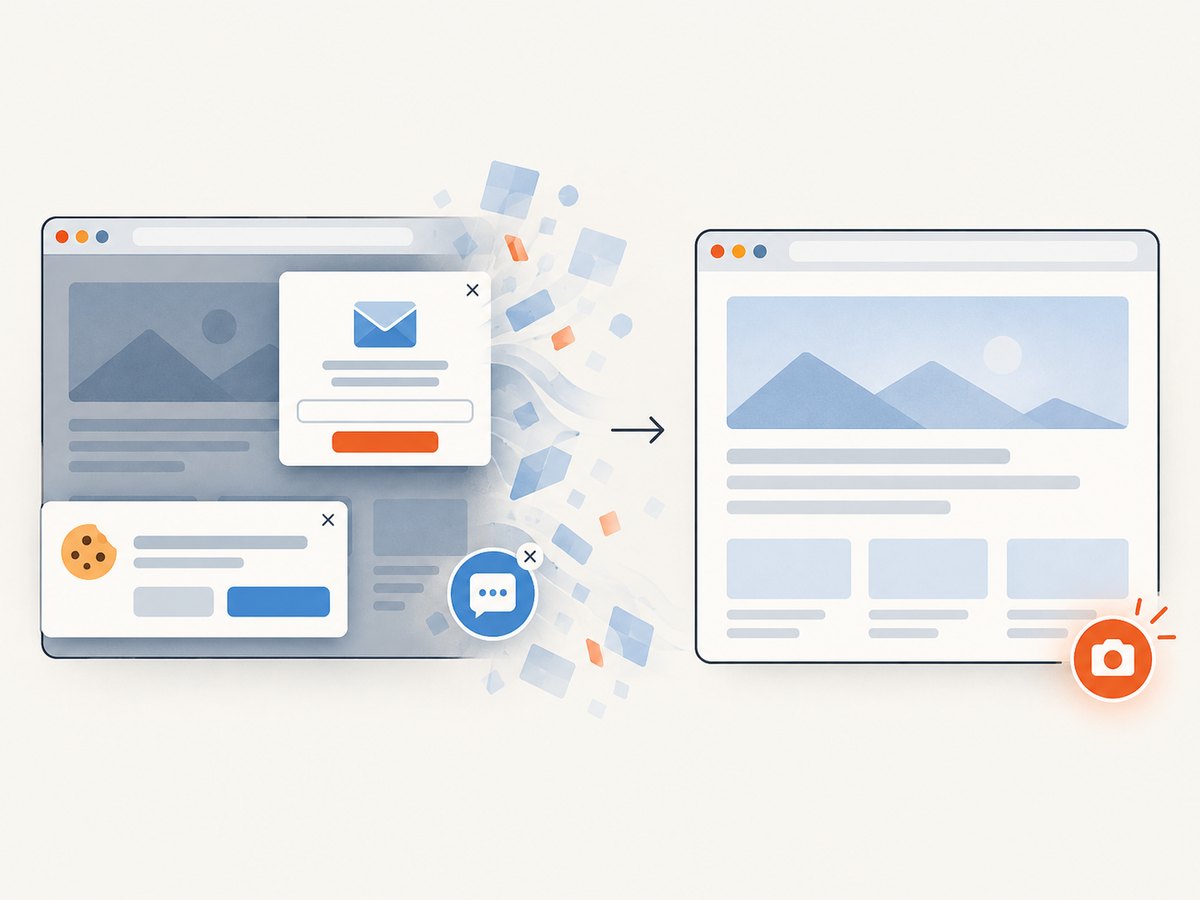
ScreenshotNeo accepts cookie and consent banners like a visitor and removes more than 60 known consent platforms, newsletter popups, and chat widgets before the capture; each cleanup step can be turned off. Bot checks and CAPTCHAs, blank pages, timeouts, failed loads, and cache hits cost nothing, with response headers identifying the page verdict and billing status. Its MCP server gives AI agents tools to take screenshots, get page information, and capture PDFs. The free plan includes 1,000 screenshots a month with no card; paid plans start at $5 for 3,000 screenshots. Sign up free for ScreenshotNeo.
Common problems and fixes
| Symptom | Likely cause | What to check or change |
|---|---|---|
| Authentication error | Missing, invalid, or incorrectly placed API key. | Recreate or update the Make connection and match the provider’s documented auth method. Keep secrets out of mapped public fields. |
| Destination has no attachment | The screenshot module returned a URL or metadata, but the destination expects file data. | Inspect the response bundle. Add HTTP Download a file for a returned URL, then map the downloaded data and filename. |
| Image is blank or incomplete | The page is still rendering, content is loaded on scroll, or access is blocked. | Try an appropriate wait option or full-page mode if supported. Open the target URL with the same access conditions and inspect the screenshot itself. |
| Element capture fails | The CSS selector does not match, matches too early, or is hidden at the selected viewport. | Inspect the selector on the live page, use a stable selector, and wait for the element if the service provides that option. |
| Request times out | The page or rendering process takes longer than the configured request allows, or the page is unreachable. | Check the URL and timeout settings supported by the provider. Reduce unnecessary capture scope and route repeated failures for review. |
| File is corrupted or has the wrong type | Binary data was mapped incorrectly, or an error response was saved with an image extension. | Check the response status and content type before saving. Map the actual file data and use an extension matching the output format. |
| Scenario runs but no useful screenshot arrives | The target returned a challenge, consent screen, or error page that the request itself did not treat as a transport failure. | Review the rendered file and any provider verdict fields. Handle blocked or blank results separately from clean captures. |
FAQ
Can Make take a webpage screenshot without a screenshot service?
In the documented workflow, Make orchestrates a screenshot service through a native app or HTTP request. Use an app or API to render the page, then send its file through the rest of the scenario.
Can I capture a page whenever another app changes?
Yes. Start with an event trigger from the relevant app, map the changed record’s URL into the screenshot step, and route the capture after it completes. Check the trigger’s behavior and run limits in Make.
Can the scenario email the screenshot?
Yes. Use a provider module with email delivery if that matches your workflow, or pass the returned file to an email module that accepts attachments.
Should I save a screenshot URL or the image file?
Save the file when you need a durable record or attachment. A URL can be convenient, but confirm its access and expiration behavior with the provider before relying on it.
How do I know whether the page itself loaded correctly?
Inspect the image and, when provided, the capture service’s status or verdict information. A successful Make run only confirms the workflow step completed; it does not prove the rendered page contains the expected content.
Primary references
- Make GetScreenshot integration and GetScreenshot app documentation.
- Make HTML to Image API integration and HTML to Image API app documentation.
- Make HTTP app documentation for request and file-download behavior.
- ScreenshotNeo API documentation.


