How to Take Website Screenshots with an Automation Tool
Automate website screenshots with Playwright or Puppeteer, choose full-page or element capture, and save PNG, JPEG, or WebP reliably.
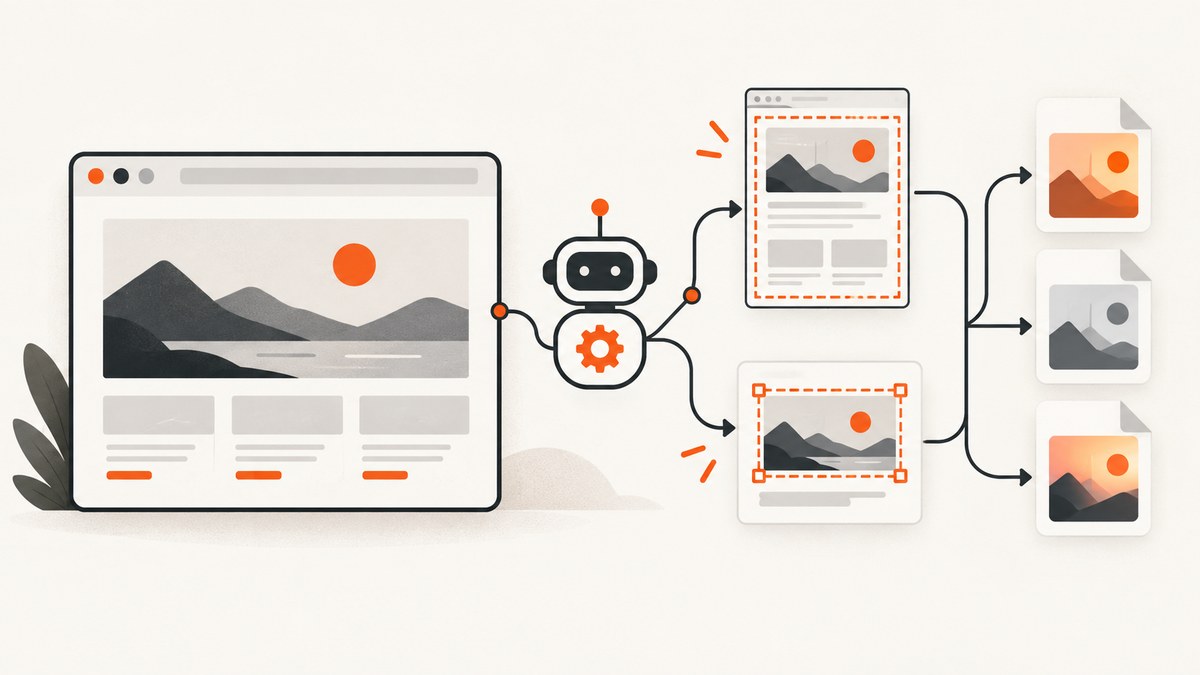
To automatically take a website screenshot, launch a browser with an automation tool, navigate to the page, wait for the state you need, and call its screenshot method. Playwright and Puppeteer both support viewport and full-page captures; they can also capture a selected element. The examples below save PNG files, and you can choose JPEG or WebP when you need a different balance of image size and detail.
For repeatable results, make the capture wait explicit. A page-load event does not always mean that a single-page app has finished rendering, that images below the fold have loaded, or that an animation has stopped. Wait for the content relevant to your screenshot, then capture it.
1. Choose an automation approach
Use a browser automation library when you need to control the browser session: for example, to sign in, interact with a page, set a viewport, inspect application state, or capture many pages in a custom workflow. Playwright and Puppeteer use JavaScript and run Chromium-based browsers in their basic screenshot examples. Playwright also supports other browser engines. If the task is simply “URL in, image out,” a screenshot API can avoid maintaining browser installation and launch code.
| Need | Approach |
|---|---|
| Control navigation and page interactions | Playwright or Puppeteer |
| Capture a full scrollable page | Set Playwright fullPage: true or Puppeteer fullPage: true |
| Capture one component | Use Playwright locator.screenshot() or Puppeteer element screenshot |
| Capture a URL without managing a browser | Use a screenshot API such as ScreenshotNeo |
2. Install Playwright and capture a page
In a new Node.js project, install Playwright and its Chromium browser:
npm init -y
npm install playwright
npx playwright install chromium
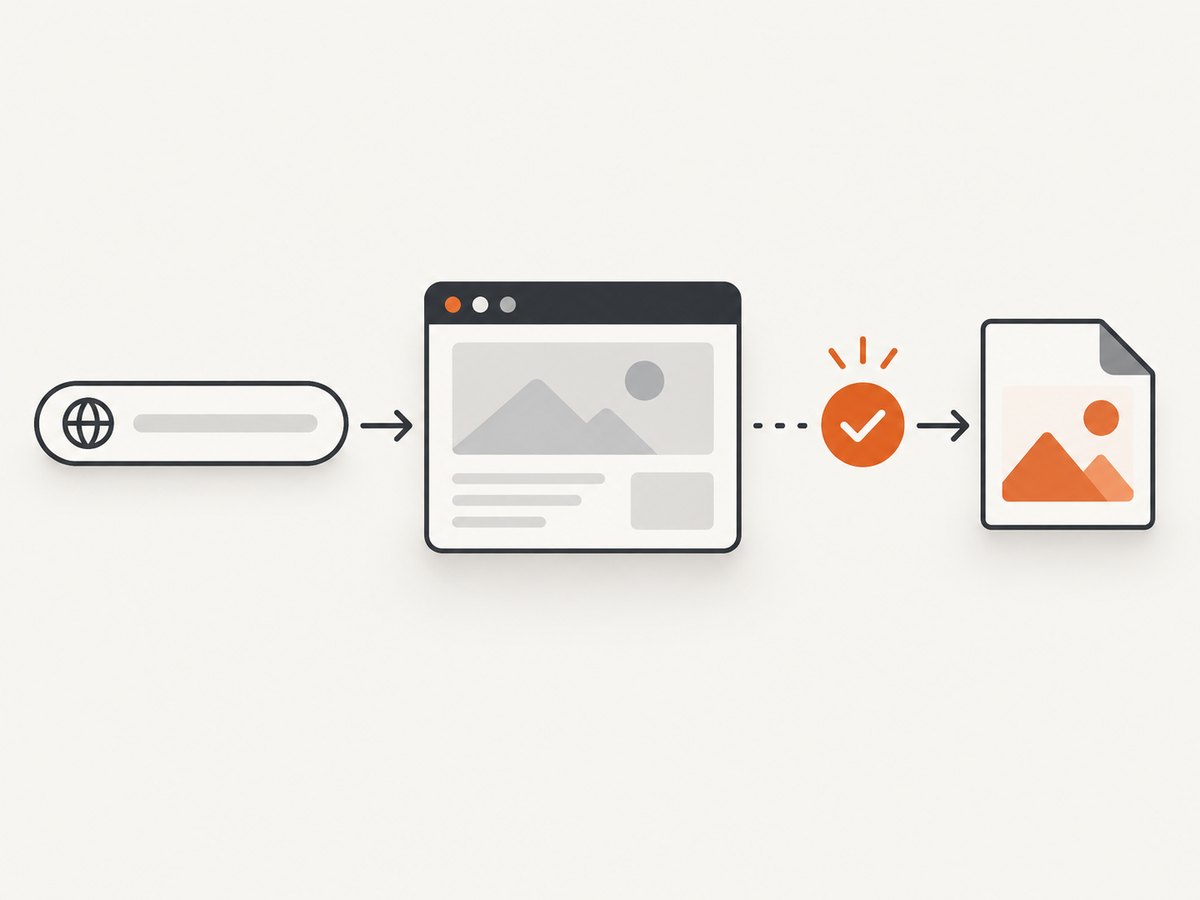
Save this as screenshot.js and run it with node screenshot.js. It opens a URL, waits for the page load event, writes a PNG, and closes the browser even if navigation or capture throws an error.
const { chromium } = require('playwright');

(async () => {
  const browser = await chromium.launch();
  try {
    const page = await browser.newPage({ viewport: { width: 1440, height: 900 } });
    await page.goto('https://example.com', { waitUntil: 'load', timeout: 30000 });
    await page.screenshot({ path: 'screenshot.png' });
  } finally {
    await browser.close();
  }
})();
Change the viewport to match the screen you want to represent. A viewport capture records the visible browser area; it does not automatically include content farther down the page. The Playwright screenshot guide documents the basic sequence of navigation, screenshot, and browser close, plus full-page and element screenshots. Playwright screenshot guide and Page API.
3. Capture full pages and individual elements
Full-page capture
Set fullPage: true to capture the full scrollable page rather than just the current viewport:
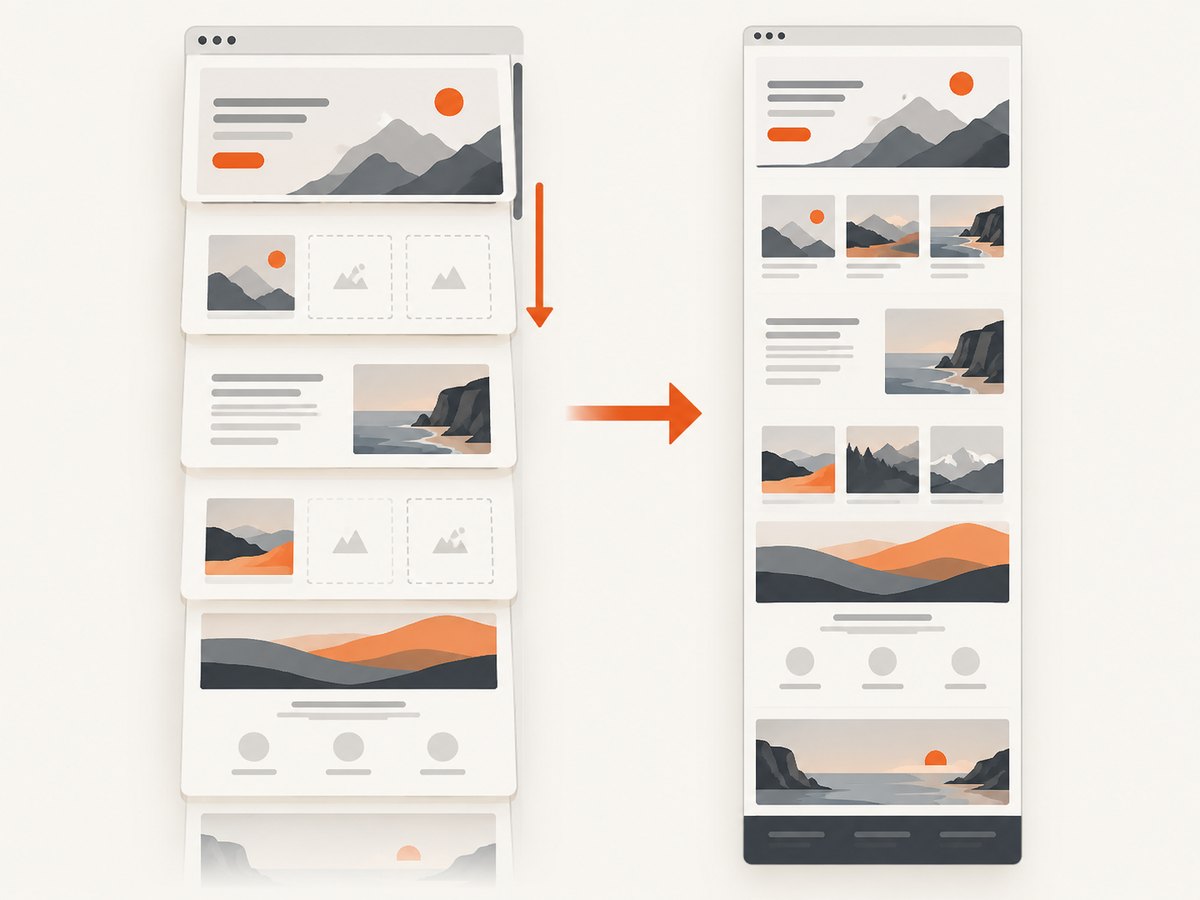
await page.screenshot({ path: 'full-page.png', fullPage: true });This is useful for reports, archival snapshots, and long landing pages. It can create a very tall image, so consider whether a PDF or a set of viewport captures is more practical for extremely long pages. Full-page capture does not guarantee that lazy-loaded images have appeared: some sites load them only as the page is scrolled. If those assets matter, scroll through the page before capturing, wait for relevant images or selectors, and inspect the resulting file.
Element capture
Use a locator to screenshot one component, such as a product card or navigation header. Locators are preferable to coordinates when the target can be identified by a stable selector:
const card = page.locator('.product-card').first();
await card.waitFor({ state: 'visible' });
await card.screenshot({ path: 'product-card.png' });
If the selector matches multiple elements, choose one deliberately with first(), nth(), or a more specific selector. A locator screenshot captures the selected element’s bounding box, so it may not include nearby context. For a specific rectangle instead, Playwright supports a page screenshot with a clip region.
4. Wait for the page state you need
The right wait depends on the site. waitUntil: 'load' waits for the page load event, but an app may fetch or render content afterward. Network-idle waits can help on pages that become quiet, but analytics, polling, or long-lived connections can keep a page active. Prefer waiting for a concrete condition that signals the content you intend to capture.
await page.goto('https://example.com/dashboard', {
  waitUntil: 'domcontentloaded',
  timeout: 30000
});
await page.locator('[data-testid="report-ready"]').waitFor({
  state: 'visible',
  timeout: 15000
});
await page.screenshot({ path: 'report.png', fullPage: true });
For a simpler page where a short settle period is sufficient, use a bounded delay rather than an unbounded wait:
await page.goto('https://example.com', { waitUntil: 'load' });
await page.waitForTimeout(1000);
await page.screenshot({ path: 'settled.png' });
A fixed delay is easy to use but can be too short on a slow run and waste time on a fast one. A selector or application-ready signal usually gives more predictable behavior. For full-page shots with lazy content, scroll before the final capture:
await page.goto('https://example.com/catalog', { waitUntil: 'load' });
await page.evaluate(async () => {
  for (let y = 0; y < document.body.scrollHeight; y += 700) {
    window.scrollTo(0, y);
    await new Promise(resolve => setTimeout(resolve, 150));
  }
  window.scrollTo(0, 0);
});
await page.screenshot({ path: 'catalog.png', fullPage: true });
5. Set format, scale, and background
Playwright infers the output type from the filename in common cases, or you can set type explicitly. PNG is lossless and a sensible choice for text-heavy pages. JPEG uses lossy compression and a quality setting; it can be suitable for photographic content. WebP is useful where downstream systems accept it. Check the library version and target environment for supported formats.
await page.screenshot({ path: 'page.webp', type: 'webp' });
await page.screenshot({ path: 'photo.jpg', type: 'jpeg', quality: 85 });
Playwright can return screenshot bytes instead of writing directly to disk, which is useful when uploading to object storage or processing in memory:
const bytes = await page.screenshot({ type: 'png' });
// Example: pass bytes to a storage SDK or image-processing function.
For higher pixel density, set a device scale factor on the browser context or page. It increases output dimensions and can increase memory use and file size. Use it when sharper output matters, and confirm that your downstream image pipeline accepts the resulting dimensions. Avoid blindly scaling already-large full-page captures.
6. Puppeteer alternative
Puppeteer follows the same general flow: launch, open a page, navigate, wait, capture, and close. Install it with:
npm init -y
npm install puppeteer
Save and run this example as puppeteer-shot.js. It waits for networkidle2, then writes a viewport screenshot:
const puppeteer = require('puppeteer');

(async () => {
  const browser = await puppeteer.launch();
  try {
    const page = await browser.newPage();
    await page.setViewport({ width: 1440, height: 900 });
    await page.goto('https://news.ycombinator.com', {
      waitUntil: 'networkidle2',
      timeout: 30000
    });
    await page.screenshot({ path: 'hn.png' });
  } finally {
    await browser.close();
  }
})();
To capture the full page or a specific element:
await page.screenshot({ path: 'full.png', fullPage: true });
const element = await page.$('.athing');
if (!element) throw new Error('Target element was not found');
await element.screenshot({ path: 'story.png' });
Puppeteer screenshot options include fullPage, a rectangular clip, captureBeyondViewport, output path, type, encoding, JPEG quality, and transparent background via omitBackground. Check the current API reference for option details and defaults: Puppeteer screenshots guide and ScreenshotOptions.
7. Or skip the browser setup
ScreenshotNeo is a website screenshot API and MCP server from Yorker Media. Send one GET request with a URL to receive a PNG, JPEG, WebP, or PDF. The API parameters other screenshot services use also work, which can make switching easier. See the ScreenshotNeo API docs.
curl -G "https://api.screenshotneo.com/v1/shot" -d access_key=YOUR_API_KEY --data-urlencode url=https://stripe.com -o shot.webpimport requests
r = requests.get(
"https://api.screenshotneo.com/v1/shot",
params={"access_key": "YOUR_API_KEY", "url": "https://stripe.com"},
timeout=90,
)
r.raise_for_status()
open("shot.webp", "wb").write(r.content)const q = new URLSearchParams({ access_key: 'YOUR_API_KEY', url: 'https://stripe.com' });
const res = await fetch(`https://api.screenshotneo.com/v1/shot?${q}`);
if (!res.ok) throw new Error(`Screenshot request failed: ${res.status}`);
const image = Buffer.from(await res.arrayBuffer());
require('node:fs').writeFileSync('shot.webp', image);ScreenshotNeo accepts cookie or consent banners as a visitor and removes more than 60 known consent platforms, newsletter popups, and chat widgets before capture; each of those steps can be turned off. Bot checks and CAPTCHAs, blank pages, timeouts, failed loads, and cache hits cost nothing. Response headers report the page verdict and billing status. Its MCP server exposes take_screenshot, get_page_info, and capture_pdf for Claude, Cursor, and other MCP clients. The free plan includes 1,000 shots per month without a card; paid plans start at $5 for 3,000 shots. Every feature is on every plan.
Create a free ScreenshotNeo account for 1,000 screenshots a month, no card required.
8. Common errors and fixes
| Symptom | Likely cause | Fix |
|---|---|---|
| Browser launch fails | The browser binary is missing, incompatible, or unavailable in the runtime. | Install the browser supported by the installed library version. In constrained Linux environments, check the automation tool’s documented system dependencies and launch configuration. |
| Navigation times out | The site is slow, waiting for the wrong lifecycle event, or has long-lived requests. | Set a deliberate timeout, use an earlier navigation event such as domcontentloaded, then wait for the specific content selector. Do not assume a network-idle condition will occur on every site. |
| Screenshot is blank or incomplete | The capture happened before app content rendered, or a page error prevented rendering. | Wait for a visible application-ready selector and inspect navigation errors or page logs. Confirm the target URL and access requirements. |
| Element screenshot says target is missing | The selector is wrong, the element has not rendered, or it is inside a frame. | Check the selector in the page, wait for visibility, and use the relevant frame locator or Puppeteer frame API when appropriate. |
| Below-the-fold images are absent | Images are lazy-loaded only after scrolling into view. | Scroll through the page, wait for the images to load, return to the top, and then capture full-page output. |
| File is unexpectedly large | A full-page image, high device scale, or lossless format created many pixels. | Capture only the needed region, use a lower scale, or choose JPEG/WebP where suitable. Keep readable text and visual detail in mind. |
| Browser process remains open | An exception skipped cleanup. | Put browser.close() in a finally block so cleanup runs after both success and failure. |
9. Performance, reliability, and cost
There is no universal fastest setup: the cited documentation describes controls, not comparative benchmarks. A local browser gives control but uses CPU, memory, browser binaries, and time to start and render pages. Reuse a browser process for a batch when your application design permits it, while isolating page state between captures. Limit concurrency to what the machine can handle; launching many full browser instances can exhaust memory.
For reliable captures, set timeouts at navigation and selector waits, close pages and browsers in cleanup paths, and record the requested URL and failure reason in your own logs. Use a stable viewport, timezone, locale, and authentication state when visual consistency matters. Websites can vary by user, region, cookies, time, and experiments, so identical code does not guarantee identical pixels.
Self-hosted automation has no per-image API fee, but the browser runtime and engineering work have costs: compute, storage, maintenance, retries, and operational debugging. A hosted API trades some control for a request-based workflow. Compare the actual usage and needed options before choosing. For ScreenshotNeo, the stated plans are Free: 1,000 shots/month; Starter: $5 for 3,000; Growth: $15 for 15,000; Pro: $39 for 60,000; Scale: $99 for 250,000; Business: $249 for 1,000,000. Yearly billing gives two months free. All features are available on every plan.
Before sharing screenshots, check whether they contain personal, account, or confidential information. Use a test account or remove sensitive content in the page before capture. If the chosen tool supports masking or redaction, apply it before distribution.
10. Frequently asked questions
Can I automate screenshots without opening a visible browser window?
Yes. Playwright and Puppeteer can launch browsers in headless mode in suitable environments. Their basic launch examples run without requiring you to interact with a visible browser window.
Does a full-page screenshot include content loaded on scroll?
It captures the full scrollable document, but lazy-loaded assets may not have loaded. Scroll through the page and wait for those assets when they need to appear.
Can I capture screenshots as bytes instead of files?
Yes. Playwright’s screenshot method can return image bytes when no output path is supplied. Pass those bytes to an image processor or storage client.
Which format should I use?
PNG preserves sharp text and edges without lossy compression. JPEG can reduce size for photographic pages. Use WebP if the systems that consume the result support it. Confirm output needs before building a pipeline around a format.
Can automation capture pages that require login?
Yes, if your script establishes an authorized session, for example by signing in or using saved browser state. Protect credentials and session files, and avoid capturing or sharing private content without authorization.


