How to Take Website Screenshots in Cloudflare Workers
Capture rendered pages from Cloudflare Workers with Browser Run, full-page options, Puppeteer, limits, troubleshooting, and a simpler API alternative.
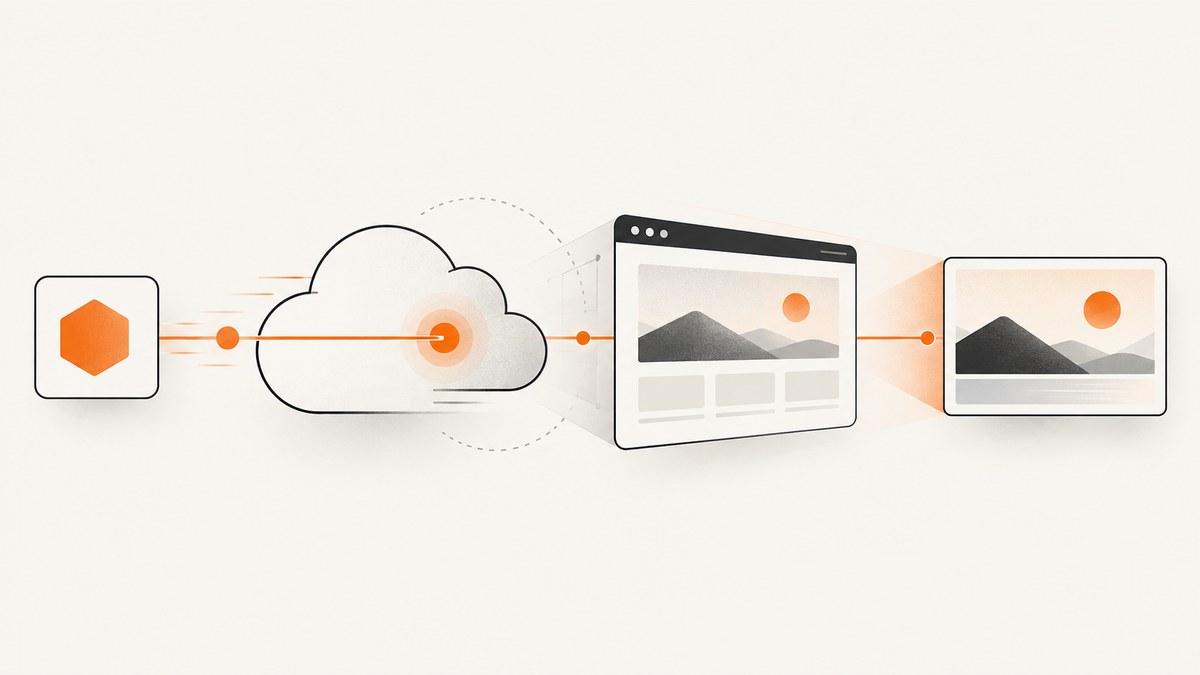
Cloudflare Workers can capture rendered website screenshots through Cloudflare Browser Run (the current name for Browser Rendering). For a simple, stateless image, configure a browser binding and call the screenshot Quick Action with either a URL or HTML. For interactions such as clicking, authentication, waiting for a selector, or changing page state, launch a browser session with Puppeteer, Playwright, CDP, or Stagehand.
Choose the right Cloudflare approach
| Need | Use | Why |
|---|---|---|
| One screenshot from a URL or HTML string | Screenshot Quick Action | One stateless call with viewport, full-page, clip, type, quality, and background options. |
| Clicks, login flows, selector waits, or page scripting | Browser Session with Puppeteer | Direct control over a browser and page lifecycle. |
| Call Cloudflare from another service | Screenshot REST API | HTTP endpoint authenticated with an API token that has Browser Rendering edit permission. |
Cloudflare renamed Browser Rendering to Browser Run in April 2026. Documentation and API resource paths still contain browser-rendering, so keep those literal names in configuration and URLs. See the Cloudflare Browser Run documentation for the current product terminology.
Prerequisites and binding setup
- Create or select a Cloudflare account and Worker.
- Enable Browser Run for the account according to Cloudflare’s dashboard instructions.
- Add a browser binding to the Worker environment. The examples below call that binding
BROWSER; use the name from your own configuration. - Deploy the Worker and invoke the binding from request handlers or scheduled jobs.
A binding keeps the simple Worker path inside Cloudflare. You do not put an API token in application code when using the binding. If you use the REST API instead, create a custom token with Browser Rendering edit permission and store it as a secret.
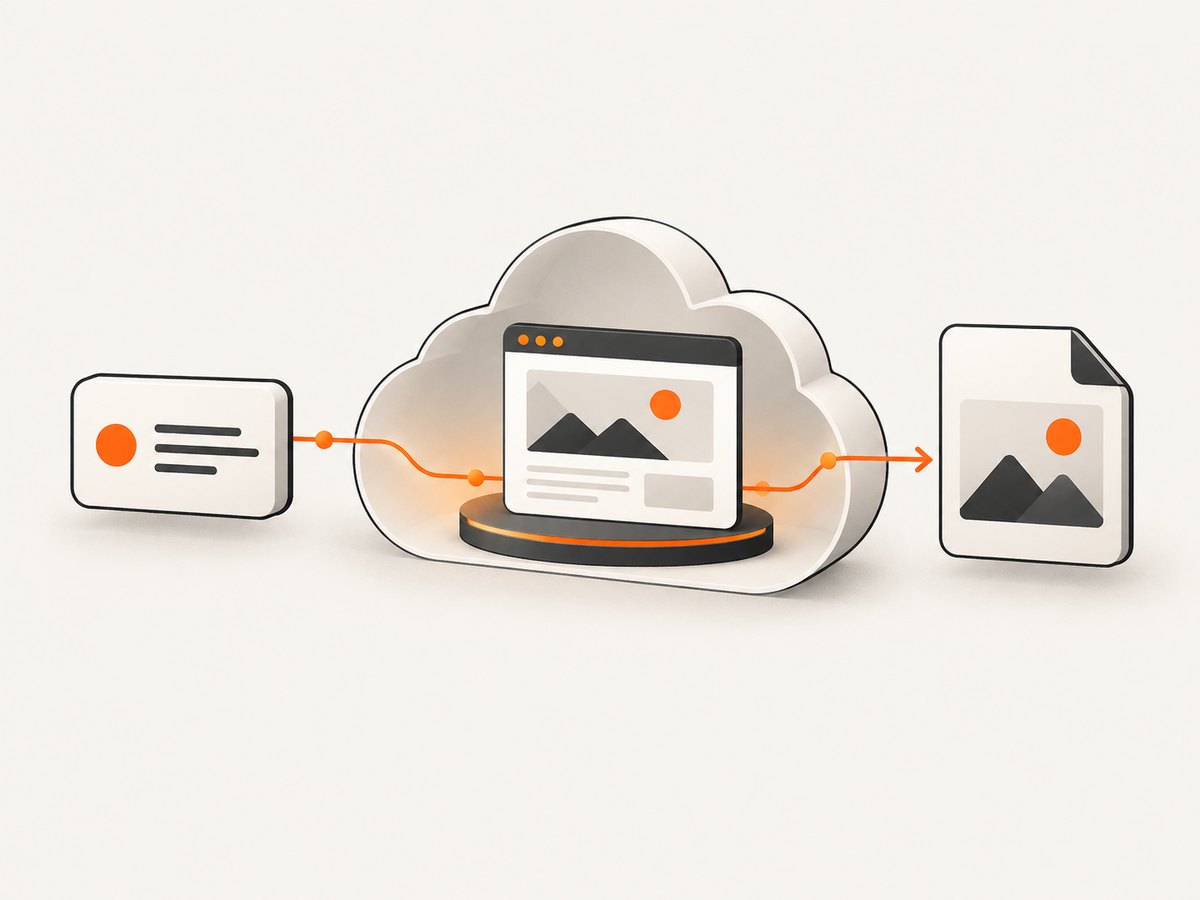
Minimal URL screenshot with a Quick Action
The shortest implementation accepts exactly one input: url or html. This Worker returns the generated image as the HTTP response.
export default {
  async fetch(request, env) {
    const image = await env.BROWSER.quickAction('screenshot', {
      url: 'https://example.com'
    });

    return new Response(image, {
      headers: {
        'content-type': 'image/png',
        'cache-control': 'public, max-age=300'
      }
    });
  }
};
The binding result can be returned directly when your Worker runtime supplies the correct image metadata. Setting the content type explicitly makes the response predictable to browsers, object storage, and downstream image processors.
Screenshot custom HTML instead of a URL
Use html when the markup is generated by your Worker or when you need a deterministic fixture for tests. Do not send both url and html in one Quick Action.
export default {
async fetch(request, env) {
const html = `
Generated in a Worker
`;
const image = await env.BROWSER.quickAction('screenshot', { html });
return new Response(image, {
headers: { 'content-type': 'image/png' }
});
}
};Control viewport, format, and page area
Quick Actions expose the controls most screenshot pipelines need:
viewport: set the browser width and height for responsive layouts. The documented default is 1920×1080.fullPage: capture the complete scrollable document rather than only the viewport.clip: capture a rectangle when you need a region of the page.type: choose the image format supported by the action, such as PNG or JPEG.quality: set lossy image quality when the selected format supports it.omitBackground: preserve transparency where the action and page content allow it.
export default {
  async fetch(request, env) {
    const image = await env.BROWSER.quickAction('screenshot', {
      url: 'https://example.com',
      viewport: { width: 1440, height: 900 },
      fullPage: true,
      type: 'jpeg',
      quality: 82,
      omitBackground: false
    });

    return new Response(image, {
      headers: { 'content-type': 'image/jpeg' }
    });
  }
};
Cloudflare specifically warns that quality does not work with the default PNG output. Select JPEG (or another supported alternative) before setting quality. A full-page image can be very tall; if a downstream system has dimension limits, use a viewport capture or a clip rectangle.
Clipping a region
Use a clip rectangle for a chart, hero section, or fixed-size preview. The exact clip shape follows the Browser Run screenshot schema; keep coordinates and dimensions in CSS pixels and make sure the rectangle intersects the rendered page.
const image = await env.BROWSER.quickAction('screenshot', {
  url: 'https://example.com/dashboard',
  viewport: { width: 1600, height: 1000 },
  clip: { x: 80, y: 120, width: 900, height: 600 },
  type: 'png'
});
Use Puppeteer for interaction before capture
A Quick Action is intentionally stateless. When the screenshot depends on a click, a selector becoming visible, a login sequence, or JavaScript state, use a browser session. Cloudflare documents the @cloudflare/puppeteer package and launching it with the configured browser binding.
import puppeteer from '@cloudflare/puppeteer';

export default {
  async fetch(request, env) {
    const browser = await puppeteer.launch(env.BROWSER);
    try {
      const page = await browser.newPage();
      await page.setViewport({ width: 1440, height: 900 });
      await page.goto('https://example.com', { waitUntil: 'networkidle2' });
      await page.click('[data-open-menu]');
      await page.waitForSelector('.menu-panel', { visible: true });
      const png = await page.screenshot({ fullPage: true, type: 'png' });

      return new Response(png, {
        headers: { 'content-type': 'image/png' }
      });
    } finally {
      await browser.close();
    }
  }
};
Use a bounded wait strategy. A selector wait should describe the state that proves the page is ready; avoid an unnecessarily long fixed delay. Always close the browser in a finally block so failed navigations do not leave sessions open.
Calling the screenshot REST API
The documented REST resource is POST /accounts/{account_id}/browser-rendering/screenshot. Authenticate with a custom API token that has Browser Rendering edit permission. The request body follows the screenshot options described above. A binding call is usually simpler inside a Worker; the REST route is useful when a separate service owns orchestration or credentials.
const response = await fetch(
  `https://api.cloudflare.com/client/v4/accounts/${ACCOUNT_ID}/browser-rendering/screenshot`,
  {
    method: 'POST',
    headers: {
      'authorization': `Bearer ${API_TOKEN}`,
      'content-type': 'application/json'
    },
    body: JSON.stringify({
      url: 'https://example.com',
      viewport: { width: 1280, height: 720 },
      fullPage: false,
      type: 'png'
    })
  }
);

if (!response.ok) {
  throw new Error(`Screenshot failed: ${response.status}`);
}
const bytes = await response.arrayBuffer();
Keep the token in a secret, never in a client-side bundle or URL query string. Check the REST response content type and status before writing bytes to storage.
Full-page capture details
- Set a viewport that matches the device or layout you want to review.
- Enable
fullPagefor a complete scrollable document. - Ensure content is actually rendered before capture. For pages that lazy-load on scroll, a browser-session script may need to scroll before taking the screenshot.
- Expect long pages to produce large images. Resize or segment them downstream if your consumer cannot handle large dimensions.
Full-page capture is different from clipping. Full-page asks the browser to include the document’s scrollable height; clipping only selects coordinates in the rendered page.
Limits, caching, and data handling
- Cloudflare’s FAQ lists a 10-minute daily browser-use cap for Workers Free accounts. Treat this as plan-specific and verify the current limits page before capacity planning.
- Cloudflare announced a 10 requests-per-second REST API limit for Workers Paid plans on March 4, 2026, increased from 3 requests per second. Do not apply that figure to Free plans or browser-session acquisition without checking the relevant limit.
- Quick Actions other than crawl, plus Puppeteer, Playwright, and CDP workflows, process content ephemerally and discard it after the response or session. Crawl retention and opt-in session recordings are separate features.
- Generated Quick Action content is cached for five seconds by default. The cache TTL can be configured up to 86,400 seconds or set to zero to disable it. Customer-submitted HTML itself is not cached.
For bursty workloads, queue requests and respect rate limits. A short cache TTL can reduce duplicate captures for previews; disable caching when every request must reflect a fresh render.
Reliability and performance checklist
- Use
networkidle2or a meaningful selector in Puppeteer rather than guessing with a long sleep. - Set explicit viewport dimensions so responsive breakpoints do not change between runs.
- Use JPEG with an appropriate quality for large previews; use PNG when lossless edges or transparency matter.
- Retry transient failures with exponential backoff, but do not retry authentication errors or invalid request schemas indefinitely.
- Cap concurrent browser sessions in your own queue to stay within account limits.
- Record status, elapsed time, output type, and target URL for diagnosing failed captures.
- For visual regression, keep fonts, data, timezone, and page state deterministic. A screenshot can differ when remote content changes even though your Worker code is unchanged.
Common errors and fixes
| Error or symptom | Likely cause | Fix |
|---|---|---|
| Quality has no effect | PNG is selected. | Choose JPEG or another supported lossy format before setting quality. |
| Blank or incomplete page | Capture occurred before client rendering or lazy loading finished. | Use Puppeteer, wait for a selector or network-idle state, and scroll when the page loads content on scroll. |
| Request rejected by the binding | Both url and html were supplied, or neither was supplied. |
Send exactly one input type. |
| REST 401 or 403 | Token is missing, expired, or lacks Browser Rendering edit permission. | Create a correctly scoped custom token and store it as a Worker secret. |
| REST 429 | Account or plan rate limit exceeded. | Throttle concurrency, honor retry timing, and review the plan-specific limit. |
| Very large response | Full-page capture produced a tall image. | Use a clip, capture sections, or resize after capture. |
| Session resources accumulate | Browser is not closed after an exception. | Put browser.close() in a finally block. |
| Wrong responsive layout | Viewport was left at an unintended default. | Set width and height explicitly for every capture class. |
Or skip the browser setup
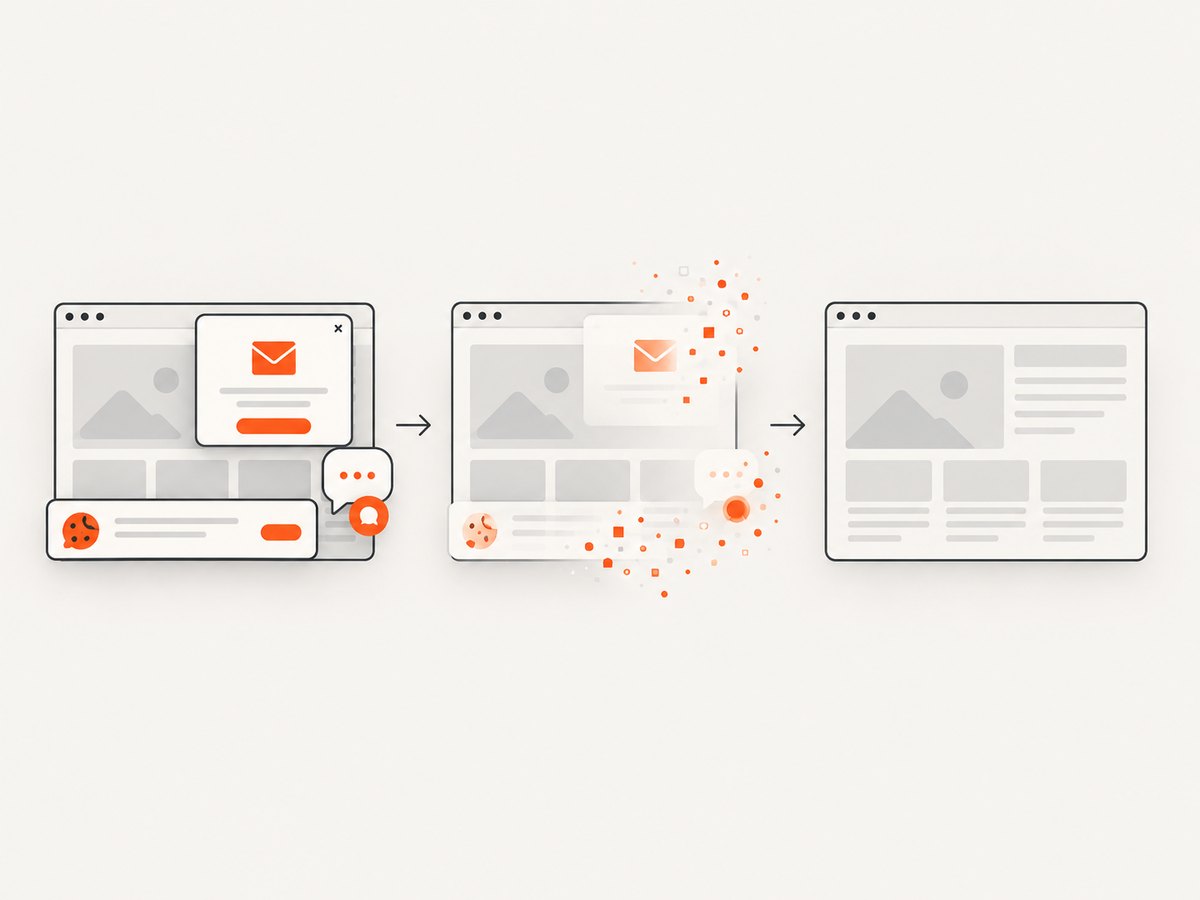
ScreenshotNeo provides a website screenshot API and MCP server. One GET request returns PNG, JPEG, WebP, or PDF. Its cleanup step accepts cookie and consent banners before capture and removes more than 60 known consent platforms, newsletter popups, and chat widgets; each step can be turned off. Bot checks, CAPTCHAs, blank pages, timeouts, failed loads, and cache hits are not billed, and response headers identify the page verdict and whether it was billed.
Use the same call from cURL, Python, or Node.js:
curl -G 'https://api.screenshotneo.com/v1/shot' \
  -d access_key=YOUR_API_KEY \
  --data-urlencode url=https://stripe.com \
  -o shot.webp
import requests
r = requests.get(
'https://api.screenshotneo.com/v1/shot',
params={'access_key': 'YOUR_API_KEY', 'url': 'https://stripe.com'},
timeout=90,
)
r.raise_for_status()
open('shot.webp', 'wb').write(r.content)const q = new URLSearchParams({
access_key: 'YOUR_API_KEY',
url: 'https://stripe.com'
});
const res = await fetch(`https://api.screenshotneo.com/v1/shot?${q}`);
if (!res.ok) throw new Error(`Screenshot failed: ${res.status}`);See the ScreenshotNeo API documentation for option names and response headers. It also supports full-page and element capture, dark mode, device presets or custom viewports, retina scale, PDF settings, custom CSS and JavaScript, clicks, selector or network-idle waits, request blocking, headers, cookies, user agents, authorization, timezone, geolocation, transparent backgrounds, resizing, chosen cache TTLs, signed image links, asynchronous jobs with signed webhooks, bulk capture of up to 100 URLs per call, a usage API, and an OpenAPI specification. An MCP server exposes take_screenshot, get_page_info, and capture_pdf to Claude, Cursor, and other MCP clients.
There is no browser binding or Puppeteer session to maintain. The free plan includes 1,000 screenshots per month with no card; paid plans start at $5 for 3,000 shots. Create a free ScreenshotNeo account.
FAQ
What is the current Cloudflare product name?
Cloudflare calls it Browser Run. Some documentation and API paths still use Browser Rendering, including browser-rendering resource paths.
Can a Quick Action capture a page after a click?
Use a browser session for interactions. Quick Actions are intended for stateless tasks such as a direct URL or HTML screenshot.
Should I use the binding or REST API?
Use the binding when the capture is part of a Worker. Use REST when another service needs to own authentication and orchestration.
Does Cloudflare retain screenshot content?
Quick Actions other than crawl and browser automation sessions process content ephemerally. Crawl results and opt-in session recordings have separate retention behavior.
Why did my screenshot differ between runs?
Remote page content, fonts, animations, time, responsive breakpoints, and asynchronous data can change. Fix the viewport and wait condition, and make the page state deterministic where possible.


