How to Take Website Screenshots in C#
Use Playwright for .NET to capture a website as a viewport, full-page image, or element screenshot, with runnable setup and troubleshooting steps.
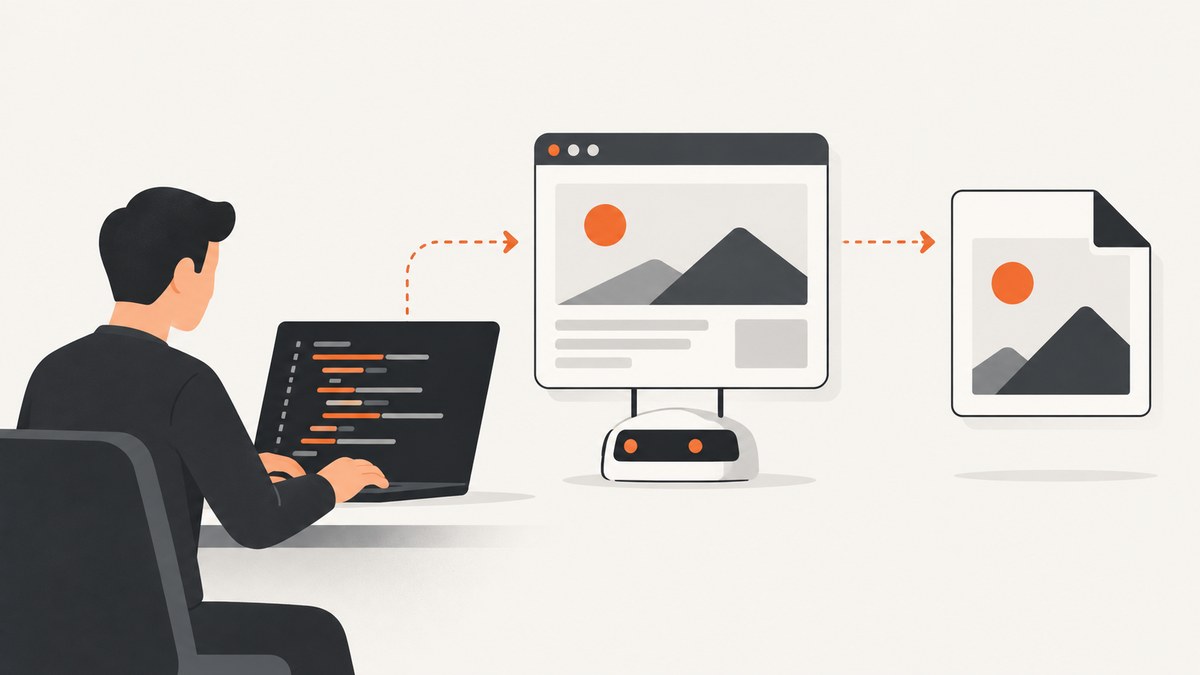
To take a screenshot of a website in C#, use Microsoft.Playwright. It launches a real browser, navigates to the page, and captures the rendered result. Use Page.ScreenshotAsync for the current viewport, set FullPage = true for the full scrollable page, or capture a specific element with a locator.
This guide uses Playwright for .NET and Chromium. It covers a runnable console app, capture options, repeatable output, common failures, and when a screenshot API may be simpler than managing browser binaries yourself.
1. Create a C# Playwright project
Start with the .NET SDK installed. In a terminal, create a console project, add the Playwright package, build once, and install the browser binary. The browser installation is a separate step from adding the NuGet package.
dotnet new console -n ScreenshotDemo
cd ScreenshotDemo
dotnet add package Microsoft.Playwright
dotnet build
pwsh bin/Debug/netX/playwright.ps1 install
Replace netX with the target framework directory created under bin/Debug, such as the framework shown by your project build. The Playwright .NET installation guide documents this console-project workflow and browser installation step: Playwright for .NET introduction.
2. Capture a website to a PNG file
Replace the generated contents of Program.cs with this complete example. It starts Chromium in headless mode, loads a URL, and writes a viewport screenshot to screenshot.png.
using Microsoft.Playwright;

using var playwright = await Playwright.CreateAsync();
await using var browser = await playwright.Chromium.LaunchAsync();
var page = await browser.NewPageAsync();
await page.GotoAsync("https://example.com");
await page.ScreenshotAsync(new() { Path = "screenshot.png" });

Console.WriteLine("Saved screenshot.png");
Run it with dotnet run from the project directory. By default, Playwright launches browsers headlessly. To see the browser while debugging, set Headless = false in the launch options:
await using var browser = await playwright.Chromium.LaunchAsync(new()
{
    Headless = false
});
The sample saves to disk. If you omit Path, ScreenshotAsync returns a byte[], which you can write to a stream, store, or pass to an image-processing step. See the Page.ScreenshotAsync API reference for the available options and return behavior.
3. Choose viewport, full-page, or element capture
Viewport screenshot
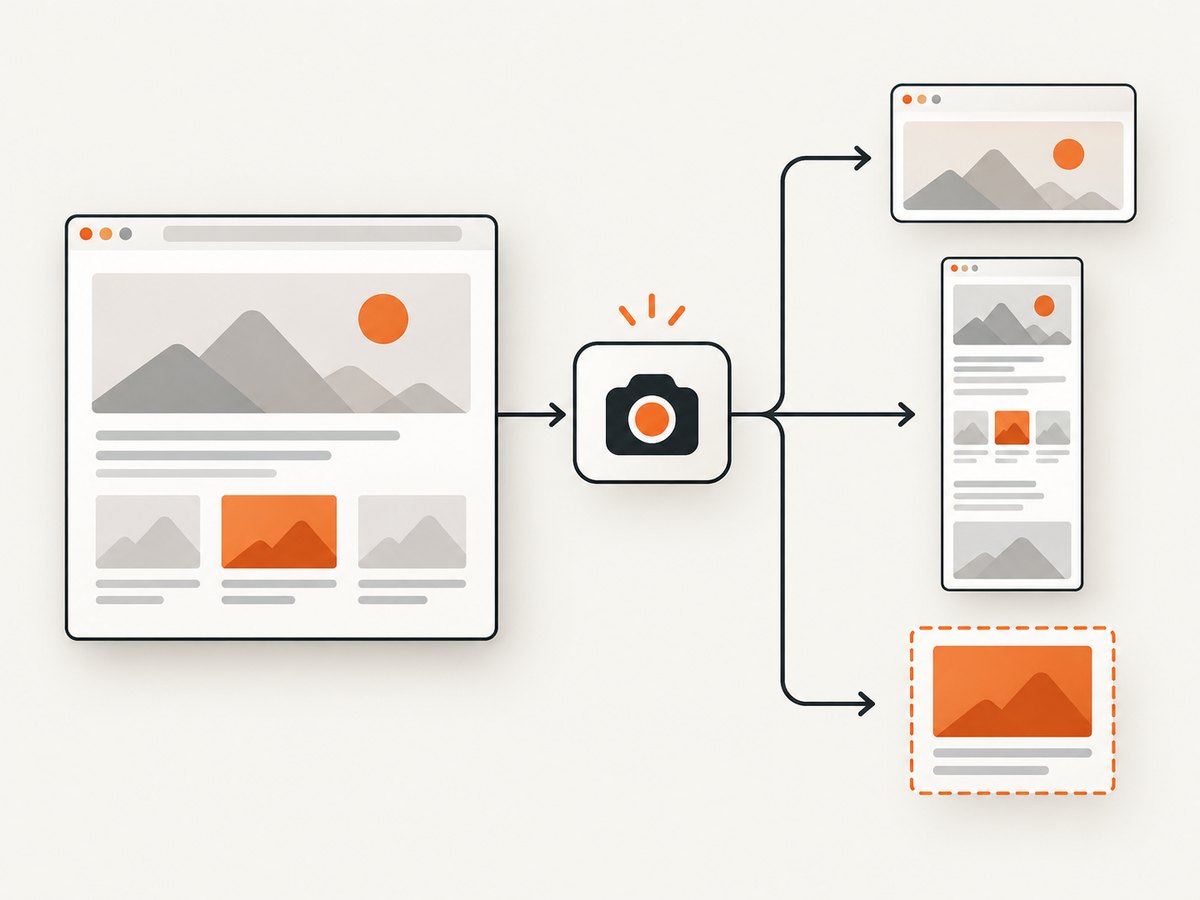
The basic example captures the current viewport: the visible browser area at the current viewport size. To control dimensions, create a page with a chosen viewport size, then navigate and capture:
var page = await browser.NewPageAsync(new()
{
    ViewportSize = new() { Width = 1440, Height = 900 }
});

await page.GotoAsync("https://example.com");
await page.ScreenshotAsync(new() { Path = "viewport.png" });
Pick dimensions that match the consuming use case, such as a desktop preview or a mobile layout. A screenshot’s appearance depends on viewport dimensions, device scale, browser, fonts, and operating system; keep those settings consistent when comparing images.
Full-page screenshot
Set FullPage = true to capture the full scrollable page as if it fit on a very tall screen:
await page.ScreenshotAsync(new()
{
    Path = "full-page.png",
    FullPage = true
});
Long pages can produce large images and consume more memory than a viewport capture. Pages that load content only after scrolling may need extra handling before the screenshot; otherwise, content below the fold might not yet be present. Full-page capture is a tall image, not a paginated document. For a PDF workflow, use Playwright’s PDF support in a Chromium page instead of treating a long PNG as a print layout.
Screenshot one element
Use a locator when you want a component or region rather than the whole page. The locator waits for the element according to Playwright’s locator behavior, then captures its bounds:
await page.Locator("header").ScreenshotAsync(new()
{
    Path = "header.png"
});
Prefer a stable selector such as a dedicated test ID or a meaningful CSS selector over a fragile positional selector. If several elements match, make the intended target unambiguous, for example with page.Locator(".card").First or a more specific selector. The locator screenshot API documents element-level capture options.
4. Configure output and page state
Screenshot options let you tune the artifact. The exact option set is documented in the Page screenshot API. Common decisions include:
- Format: choose PNG, JPEG, or WebP where supported by the installed Playwright API version. A path extension can determine the output image type. PNG is a useful lossless default; JPEG or WebP may suit smaller image payloads, depending on the desired visual quality and consumers.
- Scale: use the screenshot scale option to choose CSS-pixel output or device-pixel output. Device scale can increase image dimensions and file size.
- Animations: decide whether animations should finish or be disabled for the capture. Disabling them can make visual comparisons less sensitive to motion.
- Timeout: set an explicit screenshot timeout if your workload needs a different limit. Navigation and screenshot operations are distinct steps and may each need suitable timeouts.
- Background: use the documented background option when transparency is required and the output format supports it.
Choose the page state deliberately before capture. A navigation reaching its load event does not guarantee every application-specific request, animation, or delayed widget has settled. If the page has a known readiness signal, wait for that selector or state before taking the screenshot. Avoid arbitrary long sleeps when a specific condition can be awaited.
5. Make screenshots repeatable
For visual regression, consistency matters as much as the capture call. Use the same browser engine and version, viewport, device scale, operating-system environment, and fonts for the baseline and new image. Microsoft’s Playwright Workspaces documentation notes that remote browser screenshots can differ from local baselines when the host operating system differs: Visual testing in Playwright Workspaces.
Keep dynamic content from creating irrelevant diffs. Playwright’s visual comparison guidance recommends scoping screenshots and masking values such as timestamps when those values should not affect the comparison: Visual comparisons. For ordinary saved screenshots, the equivalent practice is to capture a stable region, wait for the page’s meaningful content, and avoid capturing transient overlays unless they are the subject of the image.
- Fix the browser engine, viewport, and output scale in code.
- Wait for a page-specific ready state, such as the main content selector.
- Disable or wait out animations when motion is not part of the result.
- Capture only the page or element you need.
- Keep the execution environment stable between baseline and comparison runs.
6. Browser choice and the MAUI distinction
Playwright for .NET supports Chromium, Firefox, and WebKit browser APIs. Choose the engine that matches the browser behavior you need to render. Microsoft also documents that Edge is built on Chromium and can be automated with Playwright; its cited sample is JavaScript, while the .NET API usage here remains C#: Automate Microsoft Edge with Playwright.
Do not confuse website screenshots with Microsoft.Maui.Media.Screenshot.CaptureAsync(). The MAUI API captures the currently displayed screen of a running app and returns an IScreenshotResult; it does not navigate a browser to a website. Use that API for a MAUI app screen, and Playwright for a website rendered in a browser: MAUI screenshot capture.
7. Troubleshooting
| Symptom | Likely cause | Fix |
|---|---|---|
| Playwright cannot find an executable | The NuGet package is installed, but the browser binaries were not installed for this project or environment. | Run the generated playwright.ps1 install script from the built output directory. Ensure the framework folder in the path matches your build. |
| Build reports a missing namespace or package | The project package reference is absent, restore failed, or the code is in a project that does not reference Playwright. | Run dotnet add package Microsoft.Playwright, then dotnet restore and dotnet build. |
| The page is blank or incomplete | The site has not reached its content-ready state, or it renders data after initial navigation. | Wait for a known content selector or application readiness condition before capturing. Check the page in a visible browser with Headless = false. |
| The target element cannot be captured | The selector does not match, matches an unexpected element, or the target is not visible. | Use a stable, specific locator and confirm it exists and is visible before calling ScreenshotAsync. |
| The full-page image is unexpectedly short | Some content is lazy-loaded only when it approaches the viewport, or the page has not finished populating. | Trigger the page’s expected loading behavior, wait for content, or capture the relevant region after it appears. |
| Images differ between machines | Browser, operating system, fonts, device scale, or dynamic page data differ. | Align the runtime environment and capture settings; scope or mask dynamic regions for visual comparison. |
| Capture times out | Navigation or the screenshot operation exceeded its timeout, possibly because the site is slow or waiting never resolves. | Inspect which step times out, use an appropriate readiness condition, and adjust that operation’s timeout only when the site genuinely needs more time. |
8. Performance, reliability, and cost
With Playwright, your application manages browser startup, installed binaries, page lifecycle, and the resources required to render each URL. Reusing a browser process for multiple captures can avoid repeatedly paying startup overhead; create fresh pages for independent jobs and close them when finished. Keep concurrency within the memory and CPU capacity of the host, especially for full-page captures or high device scales.
Reliability depends on the target site and your capture conditions. Pages may return bot challenges, require authentication, load slowly, or vary with time and location. Handle navigation and screenshot failures explicitly in production, record the URL and failure stage, and retry only transient errors with a bounded policy. A screenshot timeout should not silently be treated as a successful image.
Playwright is an open-source browser automation library, but running captures still has infrastructure costs: compute, memory, browser storage, maintenance, and engineering time. This route is a good fit when you need control over browser behavior, integration with C# logic, or a local visual test workflow. If you only need a URL-to-image result and prefer not to maintain browser setup, use a screenshot service.
Or skip the browser setup
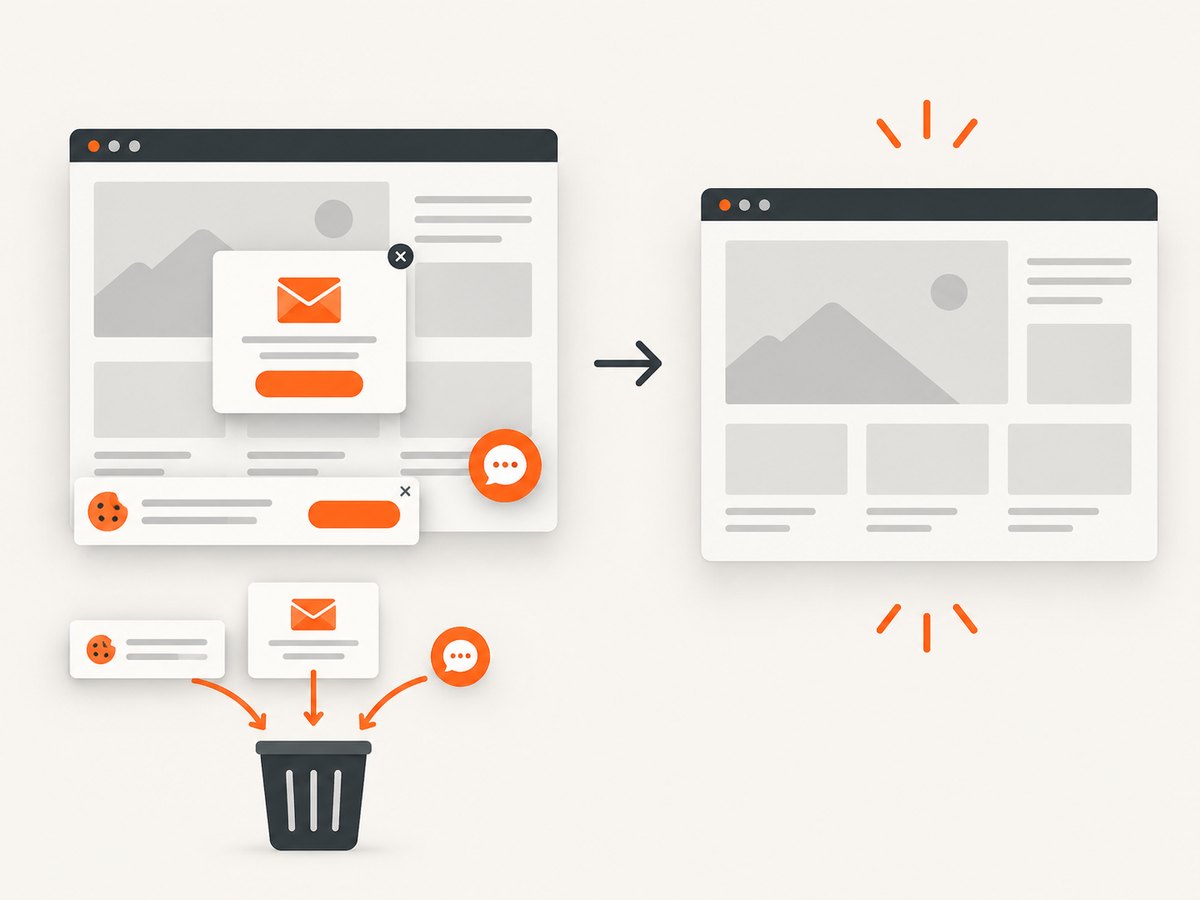
ScreenshotNeo is a website screenshot API and MCP server. One GET request returns a PNG, JPEG, WebP, or PDF. Cookie and consent banners, newsletter popups, and chat widgets are removed before the shot; each cleanup step can be turned off. Bot checks, blank pages, timeouts, failed loads, and cache hits cost nothing, with the result described by X-Page-Verdict and X-Billed headers. Its MCP server gives Claude, Cursor, and other MCP clients tools to take screenshots, get page information, and capture PDFs.
For the C# version, use HttpClient to call the API and save the response bytes. Create an API key in ScreenshotNeo, replace the placeholder, and set the target URL:
using System.Net.Http;

var accessKey = "YOUR_API_KEY";
var targetUrl = "https://stripe.com";
var endpoint = "https://api.screenshotneo.com/v1/shot";

using var client = new HttpClient
{
    Timeout = TimeSpan.FromSeconds(90)
};

var requestUrl = $"{endpoint}?access_key={Uri.EscapeDataString(accessKey)}&url={Uri.EscapeDataString(targetUrl)}";
using var response = await client.GetAsync(requestUrl);
response.EnsureSuccessStatusCode();

var image = await response.Content.ReadAsByteArrayAsync();
await File.WriteAllBytesAsync("shot.webp", image);
Console.WriteLine("Saved shot.webp");
See the ScreenshotNeo API documentation for the supported parameters and output choices. The API accepts options for full-page and element capture, device and viewport, dark mode, PDF output, waits, custom CSS or JavaScript, headers and cookies, caching, signed image links, asynchronous jobs, bulk capture, and more.
Here are the same one-call request patterns in cURL, Python, and Node.js:
curl -G "https://api.screenshotneo.com/v1/shot" -d access_key=YOUR_API_KEY --data-urlencode url=https://stripe.com -o shot.webpimport requests
r = requests.get(
"https://api.screenshotneo.com/v1/shot",
params={"access_key": "YOUR_API_KEY", "url": "https://stripe.com"},
timeout=90,
)
r.raise_for_status()
open("shot.webp", "wb").write(r.content)const q = new URLSearchParams({ access_key: 'YOUR_API_KEY', url: 'https://stripe.com' });
const res = await fetch(`https://api.screenshotneo.com/v1/shot?${q}`);
if (!res.ok) throw new Error(`Screenshot request failed: ${res.status}`);
await Bun.write('shot.webp', new Uint8Array(await res.arrayBuffer()));The free plan includes 1,000 screenshots per month with no card. Paid plans start at $5 for 3,000 screenshots; every feature is available on every plan. Sign up for 1,000 free screenshots a month, no card required.
FAQ
Can I use Playwright in a C# worker or service?
Yes. The example is a .NET console program, and the same package can be used from a .NET application that can run its browser process and manage its resources.
Can I return screenshot bytes instead of writing a file?
Yes. Call ScreenshotAsync without Path and use its returned byte array as needed.
Should I use MAUI Screenshot for a website?
No. It captures the running app’s displayed screen. For a website URL, automate a browser with Playwright for .NET.
Can I use a browser other than Chromium?
Yes. Playwright for .NET provides Chromium, Firefox, and WebKit browser APIs. Choose based on the engine your capture needs to represent.


