How to Take Website Screenshots in GitHub Actions
Capture repeatable website screenshots in GitHub Actions with Playwright, store them as artifacts, and add visual regression checks.
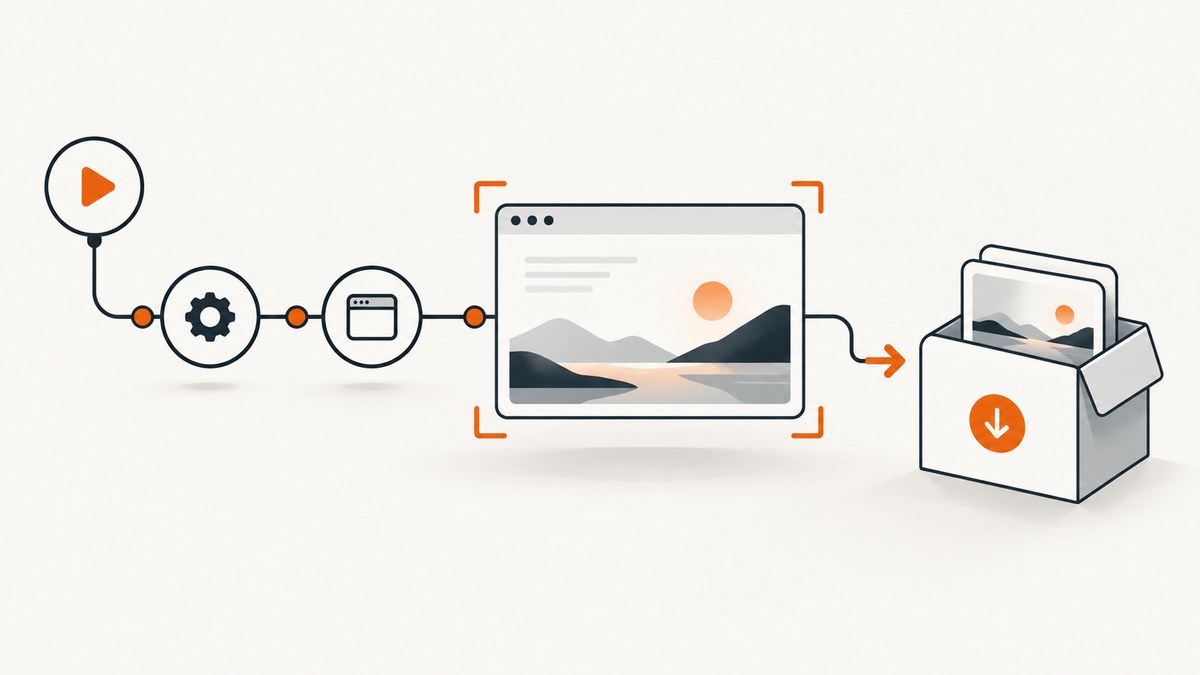
Use Playwright in a GitHub Actions workflow, then upload the screenshot directory as an artifact. The dependable sequence is: check out the repository, install Node dependencies, install Playwright browsers and Linux dependencies, run the screenshot test, and upload the resulting files. For visual regression, use Playwright Test’s toHaveScreenshot() assertion so a run can compare the page with a committed baseline.
This guide shows a complete JavaScript setup, explains visual baselines, deployment URLs, artifact retention, security, performance, and common failures. At the end, ScreenshotNeo provides a hosted option when you do not want to maintain browser installation in CI.
1. Choose capture or visual regression
There are two related jobs:
| Goal | Implementation | Result |
|---|---|---|
| Keep an image from each run | Call page.screenshot() |
A PNG, JPEG, or WebP file uploaded as an artifact |
| Detect unintended visual changes | Call expect(page).toHaveScreenshot() |
The test passes or fails against a reference image |
A capture is an output to inspect. A snapshot assertion is a test: the first execution creates a reference image and later executions compare against it. Rendering can vary with the operating system, browser version, fonts, settings, hardware, and headless mode, so create and update baselines in the same environment used by CI. See the Playwright visual comparisons documentation.
2. Create a Playwright screenshot test
Install Playwright Test in your project:
npm install --save-dev @playwright/test
npx playwright install
Create tests/homepage-screenshot.spec.ts:
import { test, expect } from '@playwright/test';

test('homepage screenshot', async ({ page }, testInfo) => {
  await page.goto(process.env.SCREENSHOT_URL || 'https://example.com', {
    waitUntil: 'networkidle',
  });

  await page.screenshot({
    path: testInfo.outputPath('homepage.png'),
    fullPage: true,
  });
});

test('homepage visual baseline', async ({ page }) => {
  await page.goto(process.env.SCREENSHOT_URL || 'https://example.com', {
    waitUntil: 'networkidle',
  });
  await expect(page).toHaveScreenshot('homepage.png', {
    fullPage: true,
  });
});
The first test always writes a new image to the test output directory. The second creates a baseline on its first run and compares later runs. Keep the generated snapshot under version control in the repository’s Playwright snapshot directory. Review a design change before updating it:
npx playwright test --update-snapshots3. Add the GitHub Actions workflow
Save this as .github/workflows/website-screenshots.yml. The workflow follows Playwright’s documented CI sequence: checkout, Node setup, dependency installation, browser installation, test execution, and artifact upload. Read the Playwright CI guide and GitHub’s artifact documentation for repository-specific limits.
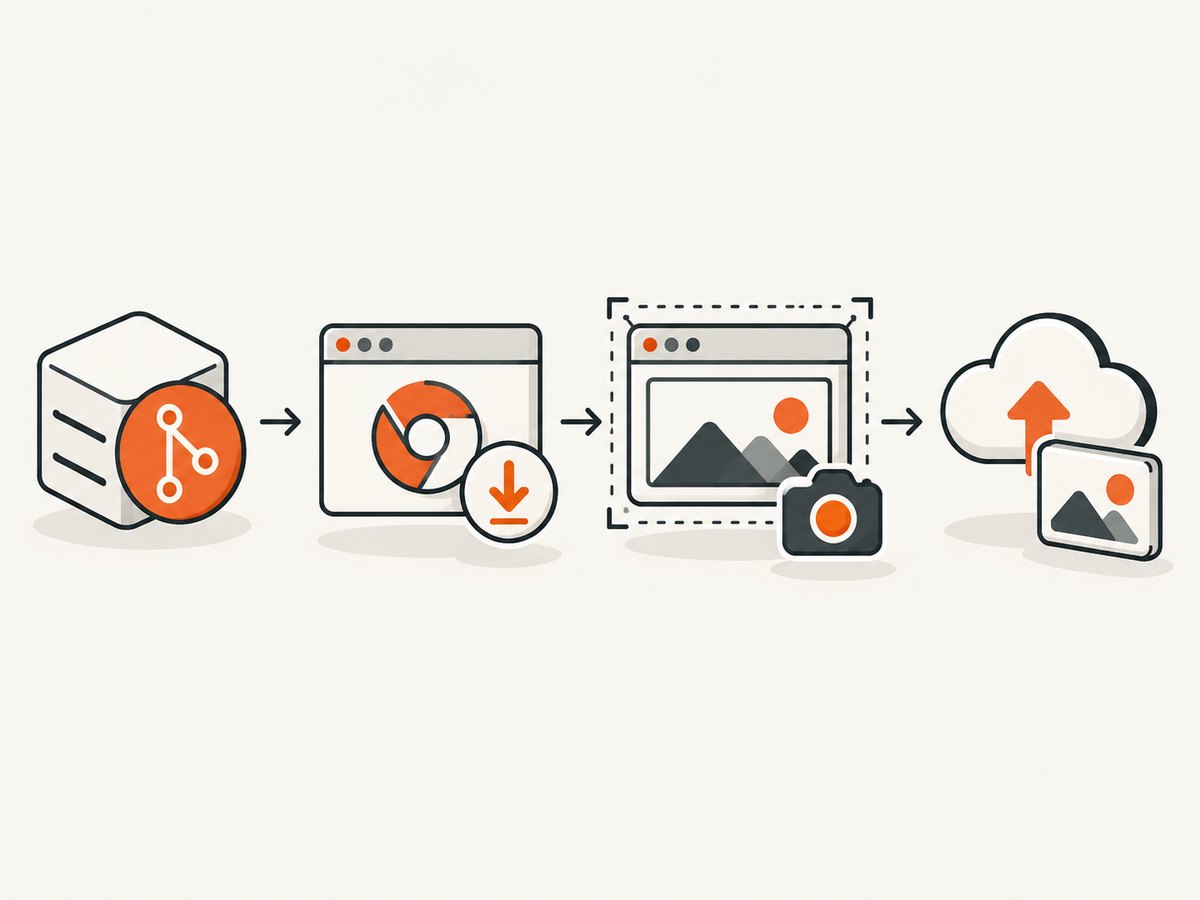
name: Website screenshots

on:
  push:
    branches: [main]
  pull_request:
    branches: [main]
  workflow_dispatch:

jobs:
  screenshots:
    runs-on: ubuntu-latest
    timeout-minutes: 60
    steps:
      - uses: actions/checkout@v6

      - uses: actions/setup-node@v6
        with:
          node-version: lts/*
          cache: npm

      - run: npm ci
      - run: npx playwright install --with-deps
      - run: npx playwright test

      - uses: actions/upload-artifact@v5
        if: ${{ !cancelled() }}
        with:
          name: website-screenshots-and-report
          path: |
            test-results/
            playwright-report/
          retention-days: 30
Playwright’s HTML report is normally written to playwright-report/; screenshots, traces, and failure details are commonly under test-results/. Adjust the paths when your playwright.config uses another output directory. The workflow_dispatch trigger lets you run the workflow manually from the Actions tab.
4. Configure the browser and screenshot
Set a stable viewport and browser
import { defineConfig, devices } from '@playwright/test';

export default defineConfig({
  testDir: './tests',
  reporter: [['html', { outputFolder: 'playwright-report' }]],
  use: {
    browserName: 'chromium',
    viewport: { width: 1440, height: 900 },
    deviceScaleFactor: 1,
    colorScheme: 'light',
    locale: 'en-US',
    timezoneId: 'UTC',
    trace: 'retain-on-failure',
    screenshot: 'only-on-failure',
  },
});
A fixed viewport, locale, timezone, color scheme, and browser reduce accidental differences. Use a device preset when you need a mobile image:
import { defineConfig, devices } from '@playwright/test';
export default defineConfig({
  projects: [
    { name: 'desktop', use: { ...devices['Desktop Chrome'] } },
    { name: 'mobile', use: { ...devices['iPhone 13'] } },
  ],
});
Wait for the page you actually want
networkidle is useful for pages that finish loading, but analytics, chat, advertisements, and long polling can keep a network busy forever. Prefer a product-specific readiness signal when possible:
await page.goto(url, { waitUntil: 'domcontentloaded' });
await page.locator('[data-ready="true"]').waitFor();
await page.screenshot({ path: 'test-results/ready.png', fullPage: true });
Hide animated or time-varying content with CSS, freeze clocks in the application, and wait for web fonts before capturing. A full-page screenshot includes content below the fold; a viewport screenshot captures only the visible area. For one component, use a locator:
await page.locator('[data-testid="pricing-card"]').screenshot({
  path: 'test-results/pricing-card.png',
});
5. Capture a deployed site
When the screenshot must represent a deployment, pass its URL into the test instead of hard-coding localhost. A deployment job can expose a URL as an output or environment variable:
- name: Capture deployed site
  env:
    SCREENSHOT_URL: ${{ steps.deploy.outputs.url }}
  run: npx playwright test
For a site served inside the workflow, start the server before the test and configure Playwright’s webServer option:
export default defineConfig({
  webServer: {
    command: 'npm run start -- --port 4173',
    url: 'http://127.0.0.1:4173',
    reuseExistingServer: !process.env.CI,
  },
});
Protect preview deployments with a short-lived test account or an approved authentication state. Never commit passwords, cookies, bearer tokens, or storage state containing production credentials.
6. Artifacts, reports, and retention
An uploaded artifact is attached to a workflow run and can be downloaded after the job finishes. Artifact retention is configurable within the repository, organization, or enterprise limit. Caching and artifacts serve different purposes: cache reusable dependencies such as npm packages; upload screenshots and reports as artifacts.
Upload on success and failure so a broken visual test still leaves evidence. The example uses if: ${{ !cancelled() }}, which skips only when the job is cancelled. Restrict repository access because screenshots, traces, console logs, and HTML reports may expose credentials, personal data, source code, or internal URLs.
7. Keep visual comparisons reliable
- Run baseline creation and CI comparisons on the same runner image and browser version.
- Use deterministic test data and disable rotating banners, timestamps, random IDs, and animations.
- Wait for fonts and application readiness rather than relying only on a fixed sleep.
- Use a small, intentional
maxDiffPixelsorthresholdonly after understanding the source of noise. - Review diff, actual, and expected images before running
--update-snapshots.
For a large suite, Playwright documents sharding across jobs and merging reports. Parallel jobs reduce wall-clock time but increase runner usage and can make shared test data race; isolate accounts and records per shard.
8. Troubleshooting
| Symptom | Likely cause | Fix |
|---|---|---|
Executable doesn't exist |
Browser binaries were not installed on the runner. | Run npx playwright install --with-deps after npm ci. |
| Snapshot differs only in CI | Different OS, browser, fonts, viewport, locale, or color scheme. | Pin those settings and create baselines in the same CI environment. |
| Navigation timeout | Slow deployment, blocked request, or a page that never becomes idle. | Raise the timeout where justified, use domcontentloaded, and wait for a specific selector. |
| Blank or partial image | Capture ran before hydration, fonts, images, or lazy content finished. | Wait for a readiness selector, fonts, and critical images; scroll or use fullPage as appropriate. |
| Artifact is missing | Path does not match the configured output directory, or the job was cancelled. | Check the test output and upload with if: ${{ !cancelled() }}. |
| Unauthorized deployment | Preview requires authentication. | Use a dedicated test identity and inject secrets through GitHub Actions secrets. |
| Flaky animation diffs | CSS transitions, carousels, ads, or clocks change between runs. | Disable motion in test mode, freeze data, and wait for stable content. |
9. Performance, reliability, and cost
Browser startup and npm ci are often the largest fixed costs for a small screenshot job. Dependency caching can reduce installation time, while a containerized Playwright job can keep browser and system dependencies aligned. A single workflow with a few pages is simpler; shard only when the suite is large enough to justify multiple runners.
Set a job timeout so a hung page cannot consume a runner indefinitely. Keep retries limited: retries can hide a real rendering race and multiply runtime. Capture traces on failure rather than every successful test to keep artifacts smaller. GitHub Actions usage depends on your repository and runner plan; artifact retention also consumes repository storage within the applicable limits.
10. Or skip the browser setup
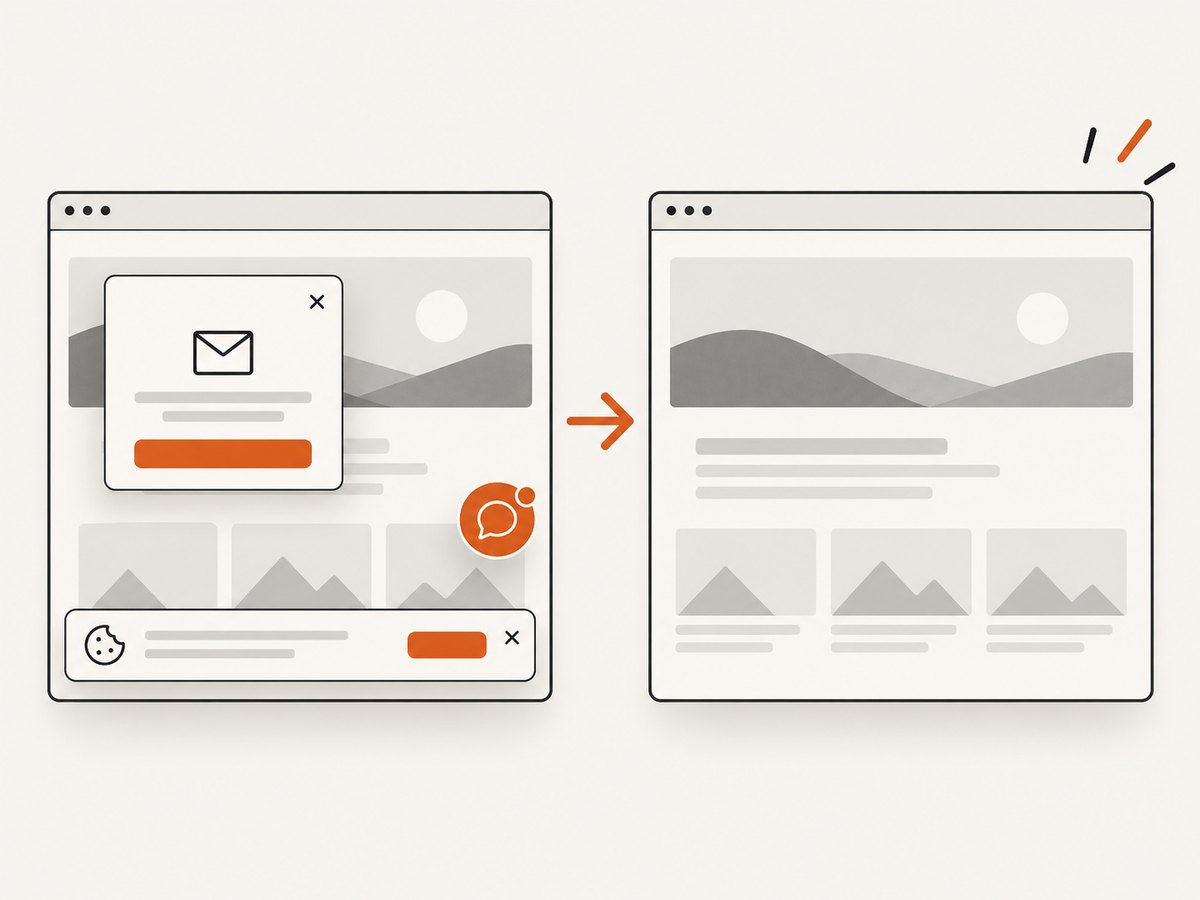
For one-off or scheduled captures, ScreenshotNeo is a hosted website screenshot API. It accepts a URL and returns PNG, JPEG, WebP, or PDF. Before capture it accepts cookie and consent banners and removes more than 60 known consent platforms, newsletter popups, and chat widgets; each cleanup step can be turned off. Bot checks, CAPTCHAs, blank pages, timeouts, failed loads, and cache hits are not billed, and the response identifies the result with X-Page-Verdict and X-Billed headers. See the ScreenshotNeo API documentation.
curl -G "https://api.screenshotneo.com/v1/shot" -d access_key=YOUR_API_KEY --data-urlencode url=https://stripe.com -o shot.webpimport requests
r = requests.get("https://api.screenshotneo.com/v1/shot", params={"access_key": "YOUR_API_KEY", "url": "https://stripe.com"}, timeout=90)
open("shot.webp", "wb").write(r.content)const q = new URLSearchParams({ access_key: 'YOUR_API_KEY', url: 'https://stripe.com' });
const res = await fetch(`https://api.screenshotneo.com/v1/shot?${q}`);It also supports full-page and element capture, dark mode, device presets, retina scale, custom CSS and JavaScript, clicks, selector or network-idle waits, blocked requests, headers, cookies, user agents, authorization, timezone, geolocation, transparent backgrounds, resizing, chosen cache TTLs, signed links, asynchronous jobs with signed webhooks, bulk capture of up to 100 URLs per call, a usage API, and an OpenAPI specification. An MCP server exposes take_screenshot, get_page_info, and capture_pdf to Claude, Cursor, and other MCP clients.
Plans include 1,000 screenshots per month free with no card; paid plans start at $5 for 3,000 shots. Yearly billing gives two months free, and every feature is available on every plan. Create a free ScreenshotNeo account and use the free monthly allowance to add hosted captures to your workflow.
11. GitHub Actions checklist
- Workflow file is under
.github/workflows/. - Node version and lockfile are consistent.
npm cicompletes before browser installation.npx playwright install --with-depsruns on Linux runners.- URL, viewport, locale, timezone, and browser are deterministic.
- Tests wait for application readiness.
- Artifacts upload on both passing and failing runs.
- Retention matches your repository policy.
- Screenshots and reports contain no unintended secrets.
- Snapshot updates are reviewed as code changes.
FAQ
Can I run screenshots only on pull requests?
Yes. Keep the pull_request trigger and remove push if you do not need screenshots from main branch commits.
Should screenshots be committed?
Commit visual regression baselines so pull requests can compare against a known reference. Upload per-run captures and reports as artifacts.
Why is an artifact different from a cache?
An artifact preserves outputs from a run for download. A cache stores reusable files for later jobs; it is not a reliable place to publish screenshots.
Can a workflow capture a private site?
Yes, if the runner can reach it and the test supplies safe authentication. Use secrets and a dedicated test account, and inspect artifacts for sensitive data.
How do I update a changed design?
Review the diff, confirm the change is intentional, then run npx playwright test --update-snapshots in the same environment used for CI and commit the new baseline.


