How to Take Website Screenshots in Go
Capture viewport, element, and full-page website screenshots in Go with chromedp, waits, formats, troubleshooting, and an API alternative.
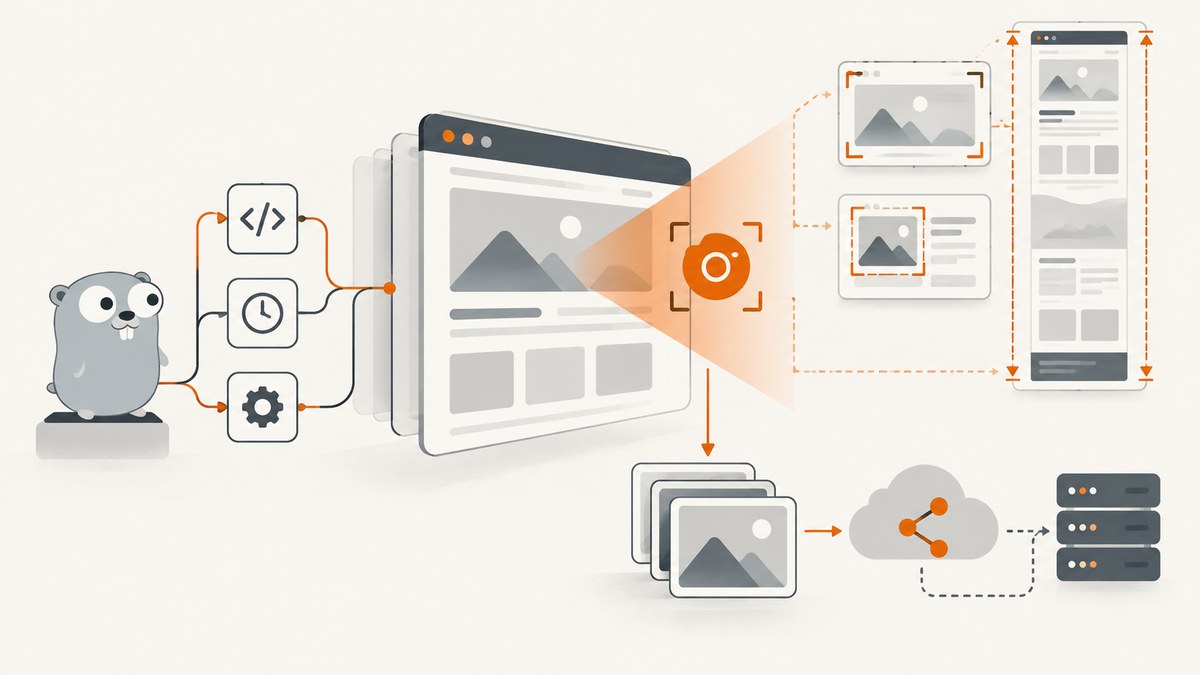
Use browser automation to screenshot a rendered website in Go. Go’s standard image packages can encode pixels, but they do not execute HTML, CSS, JavaScript, fonts, or images. The practical choice is chromedp, which controls Chrome through the Chrome DevTools Protocol and returns screenshot bytes that you can save or process.
This guide shows the three captures you will use most often:
- Viewport: exactly what is visible in the browser window.
- Element: the first DOM element matching a CSS selector.
- Full page: the complete scrollable page beyond the normal viewport.
You will also learn how to wait for dynamic content, load lazy images, choose PNG or JPEG output, control viewport and device scale, run Chrome reliably in deployment, diagnose common failures, and decide when a hosted screenshot API is a better fit.
1. Install Go and chromedp
Create a module and add chromedp:
mkdir go-screenshot
cd go-screenshot
go mod init example.com/go-screenshot
go get github.com/chromedp/chromedp
chromedp launches or connects to a Chromium-based browser. Install Chrome or Chromium through your operating system or container image. In a minimal Linux container, the browser binary and its shared libraries must be present; installing the Go package alone is not enough.
A normal desktop run can start with:
go run .For servers, pass Chrome flags such as --headless, --no-sandbox only when your container security model requires it, and --disable-dev-shm-usage when the container has a very small shared-memory mount. Treat these as deployment decisions, not universal defaults.
2. Capture a full-page PNG
The following program navigates to a URL, waits for the document load event, captures the entire page, and writes PNG bytes to disk. It follows the documented chromedp pattern using chromedp.FullScreenshot and os.WriteFile.

package main

import (
    "context"
    "log"

    "github.com/chromedp/chromedp"
)

func main() {
    ctx, cancel := chromedp.NewContext(context.Background())
    defer cancel()

    var buf []byte
    err := chromedp.Run(ctx,
        chromedp.Navigate("https://example.com"),
        chromedp.FullScreenshot(&buf, 100),
    )
    if err != nil {
        log.Fatal(err)
    }

    if err := os.WriteFile("page.png", buf, 0o644); err != nil {
        log.Fatal(err)
    }
}
Add the missing os import:
import (
    "context"
    "log"
    "os"

    "github.com/chromedp/chromedp"
)
FullScreenshot takes a quality value from 0 through 100. At quality 100, chromedp produces PNG. Values below 100 select JPEG. JPEG is useful when a smaller lossy image is acceptable; PNG preserves sharp text and transparent pixels where applicable. The resulting byte slice can be written to a file, uploaded to object storage, hashed for visual regression, or passed directly to another image pipeline.
3. Capture only the visible viewport
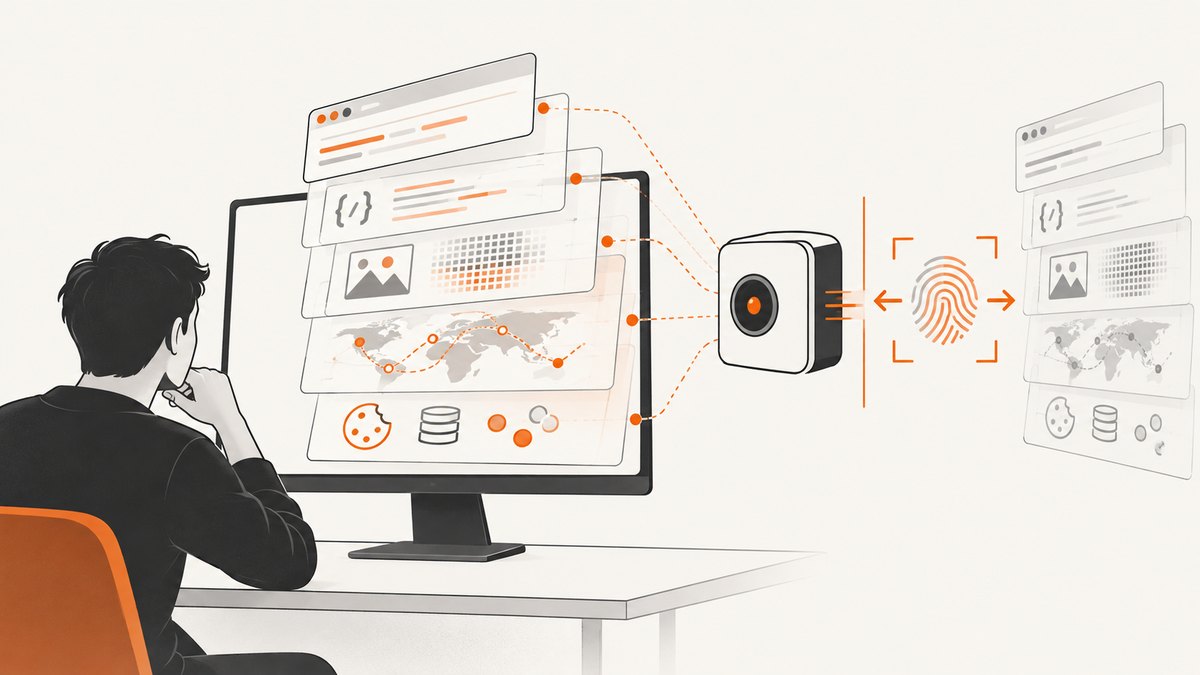
Use chromedp.CaptureScreenshot when the requirement is “what a user sees right now,” rather than the entire document.
package main

import (
    "context"
    "log"
    "os"

    "github.com/chromedp/chromedp"
)

func main() {
    ctx, cancel := chromedp.NewContext(context.Background())
    defer cancel()

    var buf []byte
    err := chromedp.Run(ctx,
        chromedp.Navigate("https://example.com"),
        chromedp.CaptureScreenshot(&buf),
    )
    if err != nil {
        log.Fatal(err)
    }
    if err := os.WriteFile("viewport.png", buf, 0o644); err != nil {
        log.Fatal(err)
    }
}
The output dimensions depend on the browser viewport and device scale factor. If you need reproducible dimensions, set them explicitly before navigation.
4. Capture one element with a CSS selector
chromedp.Screenshot finds the first matching element and captures its rendered bounds. This is appropriate for a chart, product card, login form, invoice, or a component used in visual regression tests.
package main

import (
    "context"
    "log"
    "os"

    "github.com/chromedp/chromedp"
)

func main() {
    ctx, cancel := chromedp.NewContext(context.Background())
    defer cancel()

    var buf []byte
    err := chromedp.Run(ctx,
        chromedp.Navigate("https://example.com/dashboard"),
        chromedp.WaitVisible(".revenue-chart", chromedp.ByQuery),
        chromedp.Screenshot(".revenue-chart", &buf, chromedp.ByQuery),
    )
    if err != nil {
        log.Fatal(err)
    }
    if err := os.WriteFile("chart.png", buf, 0o644); err != nil {
        log.Fatal(err)
    }
}
Selectors are evaluated in the page’s DOM. Prefer stable attributes such as data-testid over generated class names. If the selector matches nothing, the wait or screenshot action fails; inspect the page source and confirm that the element is not inside an iframe or shadow root.
Element capture supports a scale option through chromedp.ScreenshotScale. Scaling is useful when a small component needs a high-resolution image, but it increases the number of pixels and therefore memory and output size.
5. Set viewport, device scale, and browser options
Use chromedp.EmulationSetDeviceMetricsOverride to make captures deterministic. Width and height are CSS pixels; deviceScaleFactor controls the number of physical pixels per CSS pixel.
package main

import (
    "context"
    "log"
    "os"

    "github.com/chromedp/cdproto/emulation"
    "github.com/chromedp/chromedp"
)

func main() {
    ctx, cancel := chromedp.NewContext(context.Background())
    defer cancel()

    var buf []byte
    err := chromedp.Run(ctx,
        emulation.SetDeviceMetricsOverride(1440, 900, 2, false),
        chromedp.Navigate("https://example.com"),
        chromedp.CaptureScreenshot(&buf),
    )
    if err != nil {
        log.Fatal(err)
    }
    if err := os.WriteFile("retina-viewport.png", buf, 0o644); err != nil {
        log.Fatal(err)
    }
}
For mobile-like rendering, use a smaller width and height and set the mobile flag as appropriate for your emulation setup. A viewport does not automatically reproduce every real device behavior: user-agent, touch support, font availability, and network conditions can also affect layout.
6. Wait for the page you actually need
Navigation finishing does not guarantee that a single-page application has rendered its data. Choose a wait that represents readiness:
chromedp.WaitVisiblefor a required element.chromedp.WaitReadywhen the node must exist and be ready.chromedp.Sleepfor a known animation or delayed widget, used sparingly.- A custom JavaScript condition for an application-specific state such as
window.appReady === true.
err := chromedp.Run(ctx,
    chromedp.Navigate("https://example.com/app"),
    chromedp.WaitVisible("main[data-loaded='true']", chromedp.ByQuery),
    chromedp.FullScreenshot(&buf, 100),
)
For lazy-loaded images, a full-page capture can miss assets that load only after scrolling. A common mitigation is to scroll incrementally before the final capture, allowing the page’s intersection observers to run:
scroll := `(async () => {
  const step = Math.max(window.innerHeight, 600);
  for (let y = 0; y < document.body.scrollHeight; y += step) {
    window.scrollTo(0, y);
    await new Promise(r => setTimeout(r, 150));
  }
  window.scrollTo(0, 0);
})()`

err := chromedp.Run(ctx,
    chromedp.Navigate("https://example.com/article"),
    chromedp.Evaluate(scroll, nil),
    chromedp.FullScreenshot(&buf, 100),
)
This technique is site-dependent. Some pages replace content while scrolling, use virtualized lists, or require an explicit “load more” action. In those cases, automate the same user action the page expects and wait for the new content.
7. Control timeouts, contexts, and cleanup
Use a timeout context so a broken page cannot hold a worker forever. Keep the browser context scoped to one job when isolation matters.
base, cancel := context.WithTimeout(context.Background(), 90*time.Second)
defer cancel()

ctx, cancel := chromedp.NewContext(base)
defer cancel()

var buf []byte
if err := chromedp.Run(ctx,
    chromedp.Navigate(targetURL),
    chromedp.WaitVisible("body", chromedp.ByQuery),
    chromedp.FullScreenshot(&buf, 100),
); err != nil {
    log.Printf("capture %s: %v", targetURL, err)
}
In a worker service, reuse a browser process when startup cost dominates, but create separate tabs or contexts per job and enforce a maximum job duration. Close contexts after each capture so cookies, memory, and event listeners do not accumulate.
8. Save, upload, or process screenshot bytes
The screenshot APIs return bytes, so disk is optional. For an HTTP upload:
req, err := http.NewRequest("PUT", uploadURL, bytes.NewReader(buf))
if err != nil { log.Fatal(err) }
req.Header.Set("Content-Type", "image/png")
resp, err := http.DefaultClient.Do(req)
if err != nil { log.Fatal(err) }
defer resp.Body.Close()
For visual regression, hash the bytes or decode them with Go’s image/png package and compare pixels using a tolerance. Avoid assuming that two captures are byte-identical when fonts, animations, timestamps, ads, or remote assets can change.
9. Other Go browser libraries
chromedp is a direct Chrome DevTools Protocol client. Microsoft Playwright’s screenshot API exposes the same conceptual operations: a normal screenshot, fullPage: true for the complete scrollable page, and locator screenshots for one element. Its documentation describes a full-page image as a page captured as though it fit on a very tall screen. Rod documents ScreenshotFullPage and a configurable screenshot method with a fullPage flag; PNG is its default format.
Compare libraries using the requirements of your deployment:
| Concern | Questions to answer |
|---|---|
| Browser support | Do you need Chromium only, or multiple browser engines? |
| Installation | Will your image include a browser, or must the library connect to a managed browser? |
| Waiting | Can you express readiness with selectors, locators, network idle, or custom conditions? |
| Capture scope | Do you need viewport, element, full page, clipping, or scrolling controls? |
| Output | Which formats, quality settings, transparency, and device scales are required? |
| Deployment | Can your runtime provide fonts, shared libraries, sandbox permissions, memory, and concurrency? |
10. Troubleshooting common errors
“exec: google-chrome: executable file not found”
Cause: Chrome or Chromium is not installed, or its binary is not on the process path. Fix: install a supported browser in the host or container and configure chromedp to use its executable path.
The screenshot is blank or partly rendered
Cause: capture ran before the application rendered, a required font or asset failed, or the page is blocked by authentication. Fix: wait for a content-specific selector, inspect network and console errors, provide required cookies or headers, and verify the target URL in the same browser environment.
The selector cannot be found
Cause: a typo, delayed rendering, iframe boundary, shadow DOM, or a selector that changes between builds. Fix: wait for the selector, use the correct frame or DOM traversal method, and prefer stable test attributes.
Full-page output stops before the bottom
Cause: the page uses lazy loading, virtual scrolling, or a changing document height. Fix: scroll in stages, wait after each stage, trigger “load more” controls, and capture only after the final height stabilizes.
Fonts or layout differ from a laptop
Cause: different installed fonts, viewport metrics, device scale, user-agent, timezone, or browser version. Fix: pin the browser image, install the required fonts, set metrics explicitly, and configure locale or timezone where the page depends on them.
Jobs time out or the process uses too much memory
Cause: very tall pages, large images, too many concurrent tabs, or a page that never becomes idle. Fix: enforce a timeout, cap concurrency, close contexts, use element or viewport capture when full page is unnecessary, and avoid retaining large byte buffers longer than needed.
11. Performance, reliability, and cost considerations
Screenshot time is usually dominated by browser startup, navigation, JavaScript execution, fonts, images, and the page’s own third-party requests. No universal benchmark applies: dimensions, assets, network location, and page behavior change the result. Measure your URLs under the same runtime you will deploy.
- Reuse carefully: a warm browser can reduce startup overhead, while per-job contexts preserve isolation.
- Bound work: use navigation and overall job timeouts and cancel the context on failure.
- Reduce pixels: choose the smallest viewport, scale, and capture scope that meets the requirement.
- Control nondeterminism: disable animations where possible, wait for stable content, and pin browser and fonts for regression tests.
- Plan memory: full-page and high-scale captures can create large byte slices; upload or process them promptly.
- Retry selectively: retry transient navigation failures, but do not blindly repeat deterministic selector or authentication errors.
Self-hosting means budgeting for browser images, CPU, memory, storage, concurrency, and operational maintenance. A hosted API can be simpler when captures are scheduled, serverless, or high-volume, especially when you do not want a browser runtime in every deployment.
12. Or skip the browser setup
ScreenshotNeo provides a website screenshot API and MCP server. One GET request returns PNG, JPEG, WebP, or PDF, while the service handles browser setup and capture options. See the ScreenshotNeo documentation for the full parameter reference.
cURL
curl -G "https://api.screenshotneo.com/v1/shot" -d access_key=YOUR_API_KEY --data-urlencode url=https://stripe.com -o shot.webpPython
import requests

r = requests.get(
    "https://api.screenshotneo.com/v1/shot",
    params={"access_key": "YOUR_API_KEY", "url": "https://stripe.com"},
    timeout=90,
)
r.raise_for_status()
open("shot.webp", "wb").write(r.content)
Node.js
const q = new URLSearchParams({ access_key: 'YOUR_API_KEY', url: 'https://stripe.com' });
const res = await fetch(`https://api.screenshotneo.com/v1/shot?${q}`);
if (!res.ok) throw new Error(`${res.status} ${res.statusText}`);
const bytes = new Uint8Array(await res.arrayBuffer());
await Bun.write('shot.webp', bytes);
ScreenshotNeo supports full-page capture with lazy images loaded, CSS-selector element capture, dark mode, device presets or custom viewports, retina scale, PDF paper and margin options, custom CSS and JavaScript, clicks, selector or network-idle waits, request and resource blocking, headers, cookies, user agents, authorization, timezone, geolocation, transparent backgrounds, resizing, selectable cache TTLs, signed image links, asynchronous jobs with signed webhooks, bulk capture of up to 100 URLs per call, usage reporting, and an OpenAPI specification. Parameter names used by other screenshot APIs also work, which helps when migrating.
Before capture, it accepts consent banners and removes more than 60 known consent platforms, newsletter popups, and chat widgets; each step can be disabled. Bot checks or CAPTCHAs, blank pages, timeouts, failed loads, and cache hits cost nothing, and every response identifies the result with X-Page-Verdict and X-Billed headers. Its MCP server exposes take_screenshot, get_page_info, and capture_pdf to Claude, Cursor, and other MCP clients.
The Free plan includes 1,000 screenshots per month without a card. Paid plans start at $5 for 3,000 shots; yearly billing provides two months free, and every feature is available on every plan. Create a free ScreenshotNeo account to get started.
13. Frequently asked questions
Can Go take a screenshot without Chrome?
Not of a normal rendered website. An image encoder can create or manipulate pixels, but it does not execute the page’s HTML, CSS, JavaScript, fonts, or network requests. Use browser automation or a hosted browser service.
Which chromedp action captures the full page?
Use chromedp.FullScreenshot(&buf, quality). A quality of 100 produces PNG; lower values select JPEG.
How do I screenshot a component?
Use chromedp.Screenshot(selector, &buf, chromedp.ByQuery) after waiting for the component to be visible.
Why is a full-page screenshot different from scrolling and stitching images?
Full-page capture asks the browser for content beyond the viewport in one operation. Scrolling can still be necessary to trigger lazy loading, virtual lists, or page-specific “load more” behavior.
Should I use PNG or JPEG?
Choose PNG for lossless text, diagrams, and transparency. Choose JPEG when lossy compression is acceptable and the resulting file can be smaller. Actual size depends on page dimensions and assets.
When should I use an API instead of chromedp?
Use chromedp when you need direct control inside your Go service. Use a hosted API when you want to avoid installing and operating browsers, or need scheduled, serverless, bulk, PDF, or AI-agent workflows.


