How to Take Website Screenshots at Scale with Google Apps Script
Apps Script can coordinate screenshot jobs, but UrlFetchApp does not render webpages. Learn how to capture pages with headless Chrome, handle batches, and work within Apps Script limits.
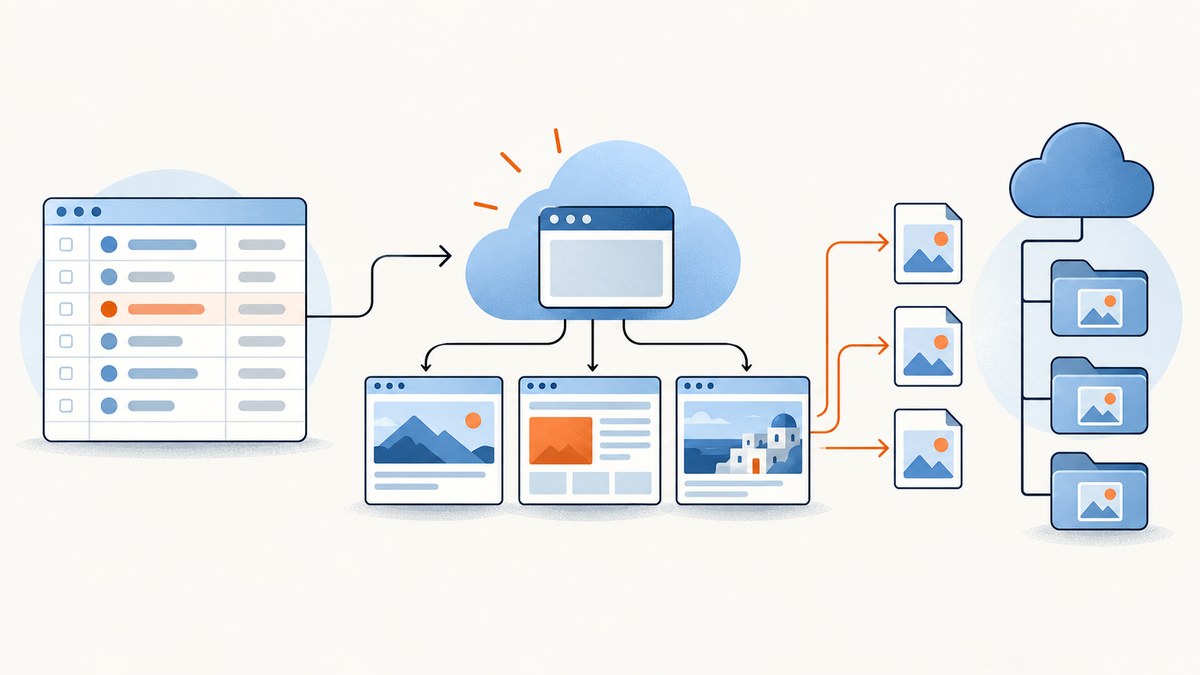
Direct answer: Google Apps Script can schedule and coordinate website screenshot jobs, but UrlFetchApp does not render a webpage in a browser or take a screenshot. For actual visual capture, run a browser such as headless Chrome, then use Apps Script as a lightweight queue, scheduler, or results tracker. For a small list of pages, you can call a browser-capable service from Apps Script instead.
This distinction matters at scale. Fetching HTML gives you the server response; it does not necessarily include content generated by JavaScript, final layout, loaded images, or the state a visitor sees. Google documents UrlFetchApp as an HTTP/HTTPS fetch service. Chrome documents screenshot capture in headless mode, and Google Cloud documents browser automation for screenshots using tools such as Puppeteer, Playwright, and the Chrome DevTools Protocol. UrlFetchApp reference, Chrome Headless CLI, Cloud Run browser automation.
1. Choose the right architecture
Use the simplest design that satisfies the rendering requirement:

| Need | Approach | Tradeoff |
|---|---|---|
| Read a page’s response or metadata | Apps Script UrlFetchApp |
Fetches HTTP response content, not a browser screenshot. |
| Capture rendered pixels with browser control | Headless Chrome with Puppeteer, Playwright, or the DevTools Protocol | You operate the browser runtime, storage, retries, and scaling. |
| Schedule or track work from Google Sheets | Apps Script calls a browser service or submits jobs to a queue | Keep each Apps Script run bounded; persist progress between runs. |
| Capture without managing browser infrastructure | A website screenshot API | Review its rendering options, failure behavior, pricing, and limits. |
Google’s Cloud Run guidance describes browser automation for screenshots and names Puppeteer, Playwright, and Chrome DevTools Protocol as approaches. It does not establish a universal best choice or a fixed throughput or cost. Compare your rendering needs, concurrency, operational effort, output path, and current platform pricing. Google Cloud: Browser and OS automation in Cloud Run.
2. Use Apps Script to coordinate a URL list
The example below reads URLs from column A of a sheet named Queue, starting at row 2. It illustrates an Apps Script coordinator calling a browser capture endpoint that you operate. The endpoint contract is an example you must implement: accept a JSON body containing url and return JSON with imageUrl. The example does not claim that Google provides this endpoint.
function submitScreenshotJobs() {
  const sheet = SpreadsheetApp.getActive().getSheetByName('Queue');
  if (!sheet) throw new Error('Create a sheet named Queue first.');

  const lastRow = sheet.getLastRow();
  if (lastRow < 2) return;
  // Columns: A URL, B status, C output URL, D error
  const rows = sheet.getRange(2, 1, lastRow - 1, 4).getValues();
  const endpoint = PropertiesService.getScriptProperties()
    .getProperty('SCREENSHOT_SERVICE_URL');
  const token = PropertiesService.getScriptProperties()
    .getProperty('SCREENSHOT_SERVICE_TOKEN');
  if (!endpoint || !token) throw new Error('Set service URL and token in Script Properties.');

  const started = Date.now();
  const budgetMs = 4 * 60 * 1000; // Leave time to save state before the six-minute ceiling.
  for (let i = 0; i < rows.length; i++) {
    const [url, status] = rows[i];
    if (!url || status === 'DONE' || status === 'RUNNING') continue;
    if (Date.now() - started > budgetMs) break;

    const rowNumber = i + 2;
    sheet.getRange(rowNumber, 2).setValue('RUNNING');
    try {
      const response = UrlFetchApp.fetch(endpoint, {
        method: 'post',
        contentType: 'application/json',
        headers: { Authorization: 'Bearer ' + token },
        payload: JSON.stringify({ url: String(url) }),
        muteHttpExceptions: true
      });
      const code = response.getResponseCode();
      if (code < 200 || code >= 300) {
        throw new Error('Capture service returned HTTP ' + code +
          ': ' + response.getContentText().slice(0, 300));
      }
      const result = JSON.parse(response.getContentText());
      if (!result.imageUrl) throw new Error('Response has no imageUrl field.');
      sheet.getRange(rowNumber, 2, 1, 3)
        .setValues([['DONE', result.imageUrl, '']]);
    } catch (err) {
      sheet.getRange(rowNumber, 2, 1, 3)
        .setValues([['ERROR', '', String(err).slice(0, 500)]]);
    }
  }
}
Set SCREENSHOT_SERVICE_URL and SCREENSHOT_SERVICE_TOKEN in Apps Script project settings under Script Properties. Do not place a production token in a spreadsheet cell shared with users. The service should validate allowed destinations if URLs come from untrusted input; otherwise a submitted URL could direct your browser service toward internal resources.
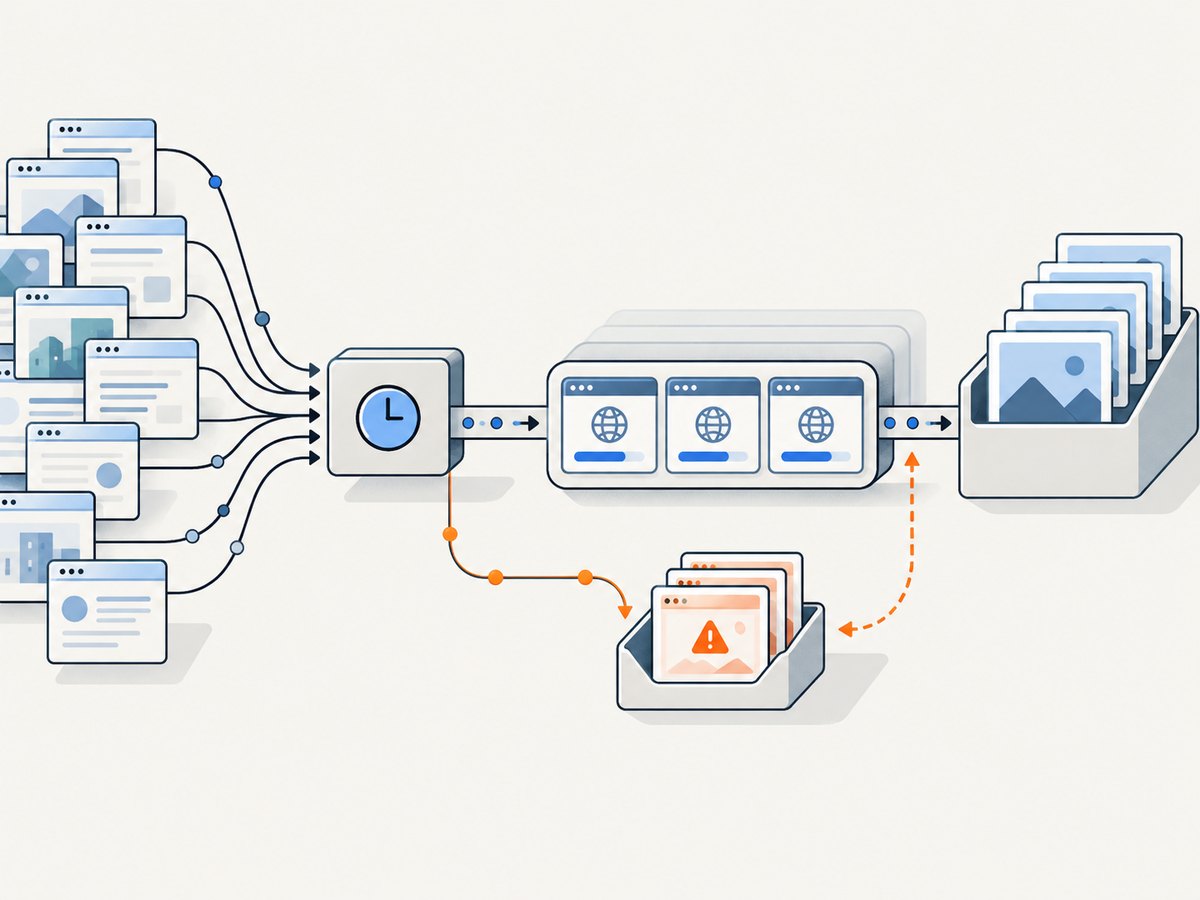
This is a synchronous pattern for illustration: each row waits for the service response. For a substantial workload, have the endpoint enqueue a job and quickly return a job ID. Store that ID and poll or receive a completion callback in a separate process. Apps Script can then remain the coordinator while browser work happens elsewhere.
3. Build the browser capture worker
Here is a minimal Node.js worker function using Playwright. Install Playwright and a compatible browser in the runtime where this code runs. The worker takes a URL, opens it, waits for page load, and writes a PNG. The surrounding web service, authentication, storage upload, and queue are deployment-specific.
const { chromium } = require('playwright');
const path = require('node:path');

async function capture(url, outputPath) {
  const browser = await chromium.launch({ headless: true });
  try {
    const page = await browser.newPage({
      viewport: { width: 1440, height: 1000 },
      deviceScaleFactor: 1
    });
    const response = await page.goto(url, {
      waitUntil: 'networkidle',
      timeout: 45000
    });
    if (!response) throw new Error('Navigation returned no main document response.');
    if (!response.ok()) {
      throw new Error(`Navigation failed: HTTP ${response.status()}`);
    }
    await page.screenshot({ path: outputPath, fullPage: true });
    return { outputPath, status: response.status() };
  } finally {
    await browser.close();
  }
}

capture('https://example.com', path.resolve('example.png'))
  .then(console.log)
  .catch(err => { console.error(err); process.exitCode = 1; });
networkidle can be unsuitable for sites with analytics, streaming, or long-polling requests. A common adjustment is to wait for domcontentloaded, then wait for a meaningful selector or a short, bounded delay. Set a navigation timeout, close the browser in a finally block, and define a policy for non-2xx page responses. Full-page captures can be much larger and slower than viewport shots.
4. Batch work without losing progress
- Validate and normalize inputs. Reject empty or malformed URLs and decide which schemes and hosts are allowed.
- Assign each row an explicit state. Use states such as PENDING, RUNNING, DONE, and ERROR, plus an attempt count and last error.
- Claim only a bounded batch. Leave enough execution time for responses and writing results. Do not assume the daily request quota is available to your script alone.
- Make retries safe. Retry transient network errors and selected server errors with capped exponential backoff. Avoid retrying permanent invalid URL or authorization failures unchanged.
- Persist output outside the execution. Store image files in a durable location and write a stable object link or identifier to the sheet, rather than holding all image bytes in memory.
- Resume from saved state. A later trigger should pick up pending or retryable rows. Add a stale-RUNNING timeout so interrupted jobs can be recovered.
- Monitor exceptions and queue age. Apps Script execution history shows run status; track your own success counts, failures, and oldest pending job.
UrlFetchApp.fetchAll() can issue multiple fetch requests in one call, but it does not turn those requests into browser renders. It can be useful if your Apps Script job submits independent requests to a capture service and the service supports that usage. Keep batches modest and account for response sizes and total run time. UrlFetchApp methods.
5. Know the Apps Script limits
The current Google quota table lists URL Fetch calls at 20,000 per day for consumer accounts and 100,000 per day for Google Workspace accounts. The listed script runtime is six minutes per execution for both account types. The table also lists a 50 MB URL Fetch response limit per call. These are Google-published limits, not a throughput promise for screenshot processing. Quotas are per user, reset 24 hours after the first request, and may change without notice. Recheck the live quota documentation before relying on a limit.
In practice, screenshot runs may hit their execution ceiling long before the daily URL Fetch allowance. Browser navigation time is variable, and large images or full-page shots increase processing and transfer time. A trigger that runs every few minutes does not create unlimited runtime: Google also documents daily trigger runtime quotas. Treat Apps Script as a coordinator for a bounded flow, not as an unbounded worker pool.
Do not mistake fetched bytes for an image
This code retrieves response content and logs its beginning. It is not a screenshot:
function inspectHtmlResponse() {
  const response = UrlFetchApp.fetch('https://example.com');
  Logger.log(response.getResponseCode());
  Logger.log(response.getContentText().slice(0, 500));
}
Saving response.getBlob() here would save the server’s response body. Unless the requested resource itself is an image, that body is not a rendered screenshot. A webpage’s HTML may also omit client-generated content, styling, and visual state.
6. Screenshot settings to decide up front
- Viewport: Fix width and height for repeatable comparison. A responsive page will lay out differently at different widths.
- Full page or viewport: Full-page output captures content below the fold but may trigger lazy loading and consume more time and memory.
- Wait condition: Choose a load event or a selector that represents the content you need. A fixed delay is simple but may be too short on slow pages and wasteful on fast ones.
- Authentication: Use isolated browser contexts for cookies or credentials. Never reuse one user’s authenticated state for another user.
- Dynamic content: Fix locale, timezone, and other inputs where your browser tooling permits, or comparisons may differ between runs.
- Output format and retention: Pick PNG for lossless visual inspection or an appropriate compressed format when size matters; establish a retention policy for captured pages.
- Third-party content: Ads, chat, consent overlays, and animations can change between captures. Decide whether to wait, hide, or block them, and document that choice for visual audits.
Or skip the browser setup
ScreenshotNeo is a website screenshot API and MCP server from Yorker Media. One GET request returns a screenshot as PNG, JPEG, or WebP, or a PDF. Its capture process accepts cookie and consent banners like a visitor and removes more than 60 known consent platforms, newsletter popups, and chat widgets; each step can be turned off. Bot checks and CAPTCHAs, blank pages, timeouts, failed loads, and cache hits are not billed, and responses identify the page verdict and billing status in headers. AI agents can use its MCP server tools: take_screenshot, get_page_info, and capture_pdf.
Here is the one-call cURL example. See the ScreenshotNeo documentation for setup and supported parameters:
curl -G "https://api.screenshotneo.com/v1/shot" -d access_key=YOUR_API_KEY --data-urlencode url=https://stripe.com -o shot.webpEquivalent Python and Node.js requests:
import requests
r = requests.get("https://api.screenshotneo.com/v1/shot", params={"access_key": "YOUR_API_KEY", "url": "https://stripe.com"}, timeout=90)
open("shot.webp", "wb").write(r.content)
const q = new URLSearchParams({ access_key: 'YOUR_API_KEY', url: 'https://stripe.com' });
const res = await fetch(`https://api.screenshotneo.com/v1/shot?${q}`);Cookie banners, popups, and chat widgets are removed before the shot; bot checks, blank pages, and failed loads are never billed; an MCP server lets AI agents take screenshots; and 1,000 screenshots a month are free with no card, with paid plans starting at $5 for 3,000. Plans are Free (1,000/month), Starter ($5 for 3,000), Growth ($15 for 15,000), Pro ($39 for 60,000), Scale ($99 for 250,000), and Business ($249 for 1,000,000); yearly billing gives two months free. Every feature is on every plan. Options include full-page shots, CSS selector capture, device presets and custom viewports, retina scale, custom waits, CSS and JavaScript, cookies and headers, request blocking, caching, bulk capture, async jobs, signed links, and a usage API. Create a free account for 1,000 screenshots a month with no card.
7. Performance, reliability, and cost
Estimate work as a queue, not a single giant script run. Record how long a representative set of pages takes in your own environment; the research sources establish no general screenshot throughput benchmark. Use that observation to size batches with room for slow pages and result writes. Keep concurrency under control: aggressive parallel work can overload your browser service or target websites and increase timeouts.
Reliability depends on where failures are visible and recoverable. Save a row before dispatching work, make duplicate submission safe with an idempotency key if your service supports it, and record the job ID before waiting. A crash after a screenshot succeeds but before the sheet updates can otherwise create duplicate captures. Separate permanent errors from retryable failures, cap attempts, and retain enough error detail to diagnose them.
Cost includes more than Apps Script quotas. A self-managed browser runtime requires deployment, browser updates, storage, logging, and operations; a managed runtime or screenshot API has its own current pricing and limits. The cited Google material does not establish a total cost comparison, so verify current platform pricing for the chosen design and include image storage and transfer in the estimate.
8. Troubleshooting
| Symptom | Likely cause | Fix |
|---|---|---|
| The saved file contains HTML, not a page image. | UrlFetchApp fetched the URL response. |
Send the URL to a browser renderer and save its screenshot output. |
| Execution stops with a time limit error. | The batch exceeded the per-execution ceiling, or pages loaded slowly. | Process fewer jobs per run, set browser navigation timeouts, and resume from stored state. |
| Quota error says URL Fetch calls exceeded. | The per-user daily allowance has been reached. | Check account type and current quota, reduce unnecessary calls, and schedule work across the reset window. |
| The browser image is blank or missing dynamic content. | Capture happened before the app rendered, navigation failed, or the page blocks automation. | Wait for a meaningful selector, inspect navigation status, and record page errors before retrying. |
| Script fails with authorization or external request error. | The script lacks required scope or authorization is stale. | Authorize the script; if scopes are explicit, include https://www.googleapis.com/auth/script.external_request. |
| Service returns 401 or 403. | Missing, expired, or incorrect service credentials, or destination access is denied. | Check Script Properties and the service’s auth policy; do not log secrets. |
| Images differ between runs. | Responsive layout, animation, consent state, ads, or lazy-loaded media changed. | Fix viewport and waits, isolate cookies, and decide how to handle dynamic elements. |
| Some rows remain RUNNING. | The execution stopped after marking a row but before writing a result. | Add a stale-job recovery rule and an attempt counter; query the worker by job ID before resubmitting. |
FAQ
Can Apps Script take a screenshot by itself?
UrlFetchApp fetches HTTP/HTTPS resources. Google’s reference does not describe it as a browser renderer or screenshot tool. Use a browser runtime or screenshot service for rendered pixels.
Can I automate hundreds or thousands of URLs from a spreadsheet?
A sheet can hold the queue, but one execution should handle a bounded batch. Persist progress and use subsequent triggers or an external queue, while staying within the live daily quotas and runtime limits.
Does a headless browser guarantee that a page looks exactly like a visitor’s browser?
No. Viewport, browser version, fonts, authentication, geography, timing, and third-party content can affect output. Define and record capture settings for reproducibility.
Should I choose Cloud Run or Apps Script?
They serve different roles in this workflow. Apps Script is useful for lightweight scheduling and Google Workspace integration; Google documents Cloud Run as a place to run browser automation. Decide based on your job volume, browser control needs, operations, and verified costs.