How to Take Website Screenshots With JavaScript or TypeScript (Node.js)
Learn how to capture full-page, element and high-resolution website screenshots in Node.js with Playwright, Puppeteer or ScreenshotNeo.
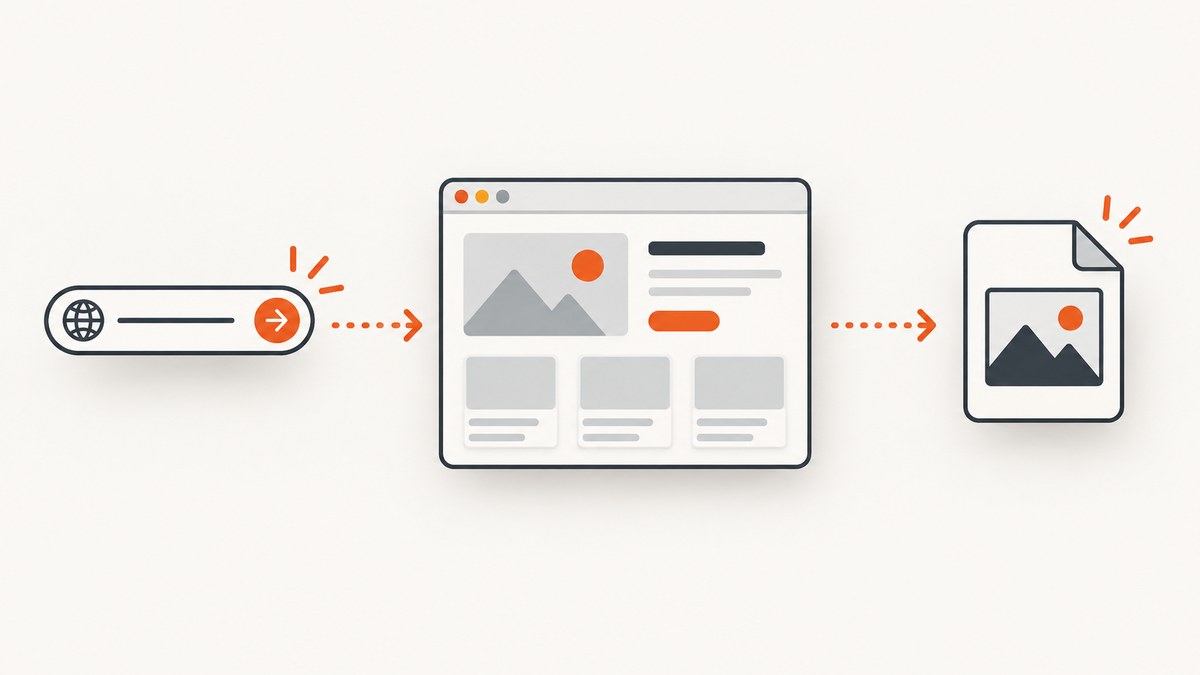
To take a website screenshot with JavaScript or TypeScript, launch a browser with Playwright or Puppeteer, open a page, navigate with goto(), wait for the content you need, call page.screenshot(), and close the browser. Use fullPage: true for the complete scrollable document, or capture a locator when you only need one component.
This guide covers runnable Node.js examples, TypeScript types, viewport and device settings, output formats, dynamic pages, element screenshots, privacy controls, troubleshooting, performance, reliability and cost. If you do not want to operate a browser, the final section shows a one-request ScreenshotNeo alternative.
1. Choose Playwright or Puppeteer
Playwright and Puppeteer both automate a real browser and expose screenshot methods. Playwright can launch Chromium, Firefox or WebKit and provides controls for full-page capture, masking, transparency, animation handling and image scaling. Puppeteer is a high-level JavaScript API for automating Chrome and Firefox through CDP and WebDriver BiDi, including screenshots, PDFs, navigation and UI automation. The documented sources do not provide an apples-to-apples speed benchmark, so choose based on browser coverage, API ergonomics and the rest of your automation stack.
| Need | Good starting point | Reason |
|---|---|---|
| Multiple browser engines | Playwright | One API can launch Chromium, Firefox and WebKit. |
| Chrome-focused automation | Puppeteer | It is designed around Chrome automation and also supports Firefox. |
| Element and locator workflows | Either | Both support selecting an element and taking its screenshot. |
| Masking, transparent backgrounds and scale controls | Playwright | These options are directly documented in its screenshot API. |
2. Install a browser automation library
Playwright
npm install playwright
npx playwright install
The second command downloads the browser binaries. In a container or CI runner, install the system dependencies required by your selected browser as described by your operating system and CI image.
Puppeteer
npm install puppeteerPuppeteer normally downloads a compatible browser during installation. If your environment supplies its own Chrome or Chromium, configure the executable path and verify that the process has permission to launch it.
3. Minimal JavaScript screenshot with Playwright
This is the smallest complete flow: launch, create a context and page, navigate, save a PNG, then close the browser.
const { chromium } = require('playwright');

(async () => {
  const browser = await chromium.launch();
  const context = await browser.newContext();
  const page = await context.newPage();

  await page.goto('https://example.com');
  await page.screenshot({ path: 'screenshot.png' });

  await browser.close();
})();
Replace chromium with firefox or webkit when you need another engine. The official Playwright Page API documents path, fullPage, quality, omitBackground, mask, maskColor and scale. See the Playwright screenshot guide and Page.screenshot API.
4. TypeScript version
TypeScript uses the same browser API. Typing the page parameter is useful when you split capture logic into reusable functions.
import { chromium, type Page } from 'playwright';

async function capture(page: Page): Promise<void> {
  await page.goto('https://example.com', { waitUntil: 'domcontentloaded' });
  await page.screenshot({ path: 'page.png', fullPage: true });
}

const browser = await chromium.launch();
try {
  const page = await browser.newPage({ viewport: { width: 1440, height: 900 } });
  await capture(page);
} finally {
  await browser.close();
}
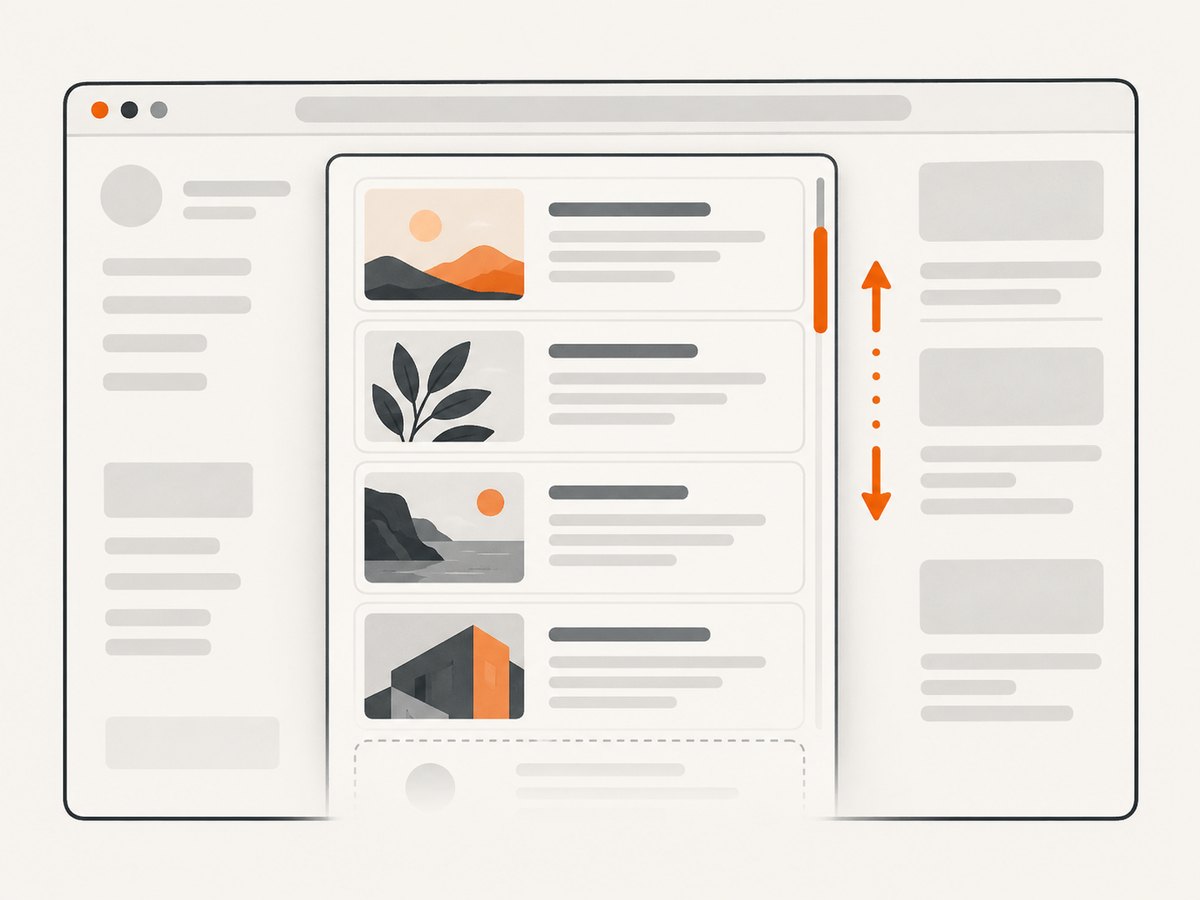
fullPage: true captures the full scrollable document rather than only the current viewport. For a single component, use a locator:
await page.locator('.header').screenshot({ path: 'header.png' });A screenshot can also be returned as a buffer instead of written to disk:
const pngBytes = await page.screenshot({ type: 'png' });
await uploadToStorage(pngBytes);
5. Puppeteer JavaScript and TypeScript patterns
Puppeteer’s documented flow waits for network activity before saving the image:
import puppeteer from 'puppeteer';

const browser = await puppeteer.launch();
try {
  const page = await browser.newPage();
  await page.goto('https://news.ycombinator.com', {
    waitUntil: 'networkidle2',
  });
  await page.screenshot({ path: 'hn.png' });
} finally {
  await browser.close();
}
To capture one element, wait for it and call its screenshot method:
const fileElement = await page.waitForSelector('div');
if (!fileElement) throw new Error('Element was not found');
await fileElement.screenshot({ path: 'div.png' });
Puppeteer returns a Uint8Array by default. Set encoding: 'base64' when a base64 string is more convenient for an API response or data URL. See the Puppeteer screenshot guide and Page.screenshot API.
6. Control the page before capture
Viewport and device scale
Set the viewport before navigation so responsive CSS chooses the intended layout:
const context = await browser.newContext({
  viewport: { width: 1280, height: 800 },
  deviceScaleFactor: 2,
});
In Playwright, scale: 'css' keeps output dimensions close to CSS pixels, while scale: 'device' preserves device-pixel sizing. A larger device scale produces a higher-resolution image and a larger file.
Wait for the state you need
Navigation completion does not guarantee that a chart, font, image or client-rendered component is visible. Combine a navigation wait with a page-specific readiness check:
await page.goto('https://example.com/dashboard', { waitUntil: 'networkidle' });
await page.locator('[data-ready="true"]').waitFor();
await page.evaluate(() => document.fonts.ready);
await page.screenshot({ path: 'dashboard.png', fullPage: true });
Puppeteer documents networkidle2 in its example. For pages with analytics, polling or WebSockets, network idle may never represent visual readiness; wait for the selector or application state that matters instead.
Reduce motion and hide private content
For deterministic images, disable animations with a stylesheet or Playwright’s animation controls. Mask selectors that contain personal or changing data:
await page.screenshot({
  path: 'safe.png',
  fullPage: true,
  mask: [page.locator('.email'), page.locator('.avatar')],
  maskColor: '#999999',
  omitBackground: true,
});
omitBackground enables transparency where the selected format and page permit it. Use a fixed maskColor when pixel comparisons need stable output.
7. Formats, quality and output handling
PNG is lossless and works well for text, diagrams and visual regression. JPEG is smaller for photographic pages but introduces compression. WebP is useful when your downstream systems support it. Playwright accepts format-specific options such as JPEG quality; Puppeteer exposes equivalent screenshot options in its API.
await page.screenshot({ path: 'photo.jpg', type: 'jpeg', quality: 82 });
const webp = await page.screenshot({ type: 'webp' });
When an API endpoint must return the image, keep the bytes in memory and send the correct content type. When processing many pages, stream or upload each result promptly rather than retaining every image in an array.
8. Full-page, element and long-page edge cases
- Lazy images: scrolling can trigger loading. Wait for the images you require, or programmatically scroll before the final capture.
- Sticky headers: a fixed header may appear repeatedly or cover content in a full-page image. Hide it with CSS for documentation captures when appropriate.
- Very tall documents: full-page screenshots can consume substantial memory. Capture sections or use a PDF workflow when the output is intended for printing.
- Missing selectors: use an explicit timeout and produce a useful error rather than saving an incomplete image.
- Cross-origin frames: select the frame through the automation API; page-level selectors cannot see into every iframe automatically.
- Cookie dialogs: dismiss them before capture when your use case allows it, otherwise they will be part of the image.
9. Reliability and performance checklist
- Reuse one browser process and create a fresh context or page per job when capturing many URLs.
- Set navigation and selector timeouts so a broken site cannot occupy a worker forever.
- Close pages, contexts and browsers in
finallyblocks. - Retry transient navigation failures with a bounded retry count and a new page.
- Record the URL, viewport, browser version, wait condition and output format alongside each image.
- Limit concurrency to the CPU and memory available to your runner; each active page consumes resources.
- Use deterministic data, fixed time zones and stable test accounts for visual regression.
There is no universal benchmark showing Playwright or Puppeteer is always faster. Measure your own pages, browser engine, viewport, concurrency and image format. Larger viewports, device scales and full-page captures increase rendering and encoding work.
10. Common errors and fixes
| Error | Likely cause | Fix |
|---|---|---|
Executable doesn't exist |
Browser binaries were not installed. | Run npx playwright install, or install Puppeteer’s browser during package setup. |
| Navigation timeout | The site is slow, blocked or never becomes idle. | Increase the timeout, use domcontentloaded, then wait for a specific selector. |
| Blank or partially rendered image | Client rendering, fonts or lazy resources were not ready. | Wait for the rendered element, document.fonts.ready and required images. |
| Element not found | Wrong selector, iframe or delayed render. | Verify the selector, wait for it, and select the correct frame. |
| Out-of-memory crash | Too many concurrent pages or a huge full-page document. | Lower concurrency, close resources promptly, or capture sections. |
| Different pixels in CI | Fonts, browser versions, animations or device scale differ. | Pin the browser image, install fonts, disable motion and set viewport and scale explicitly. |
11. Or skip the browser setup
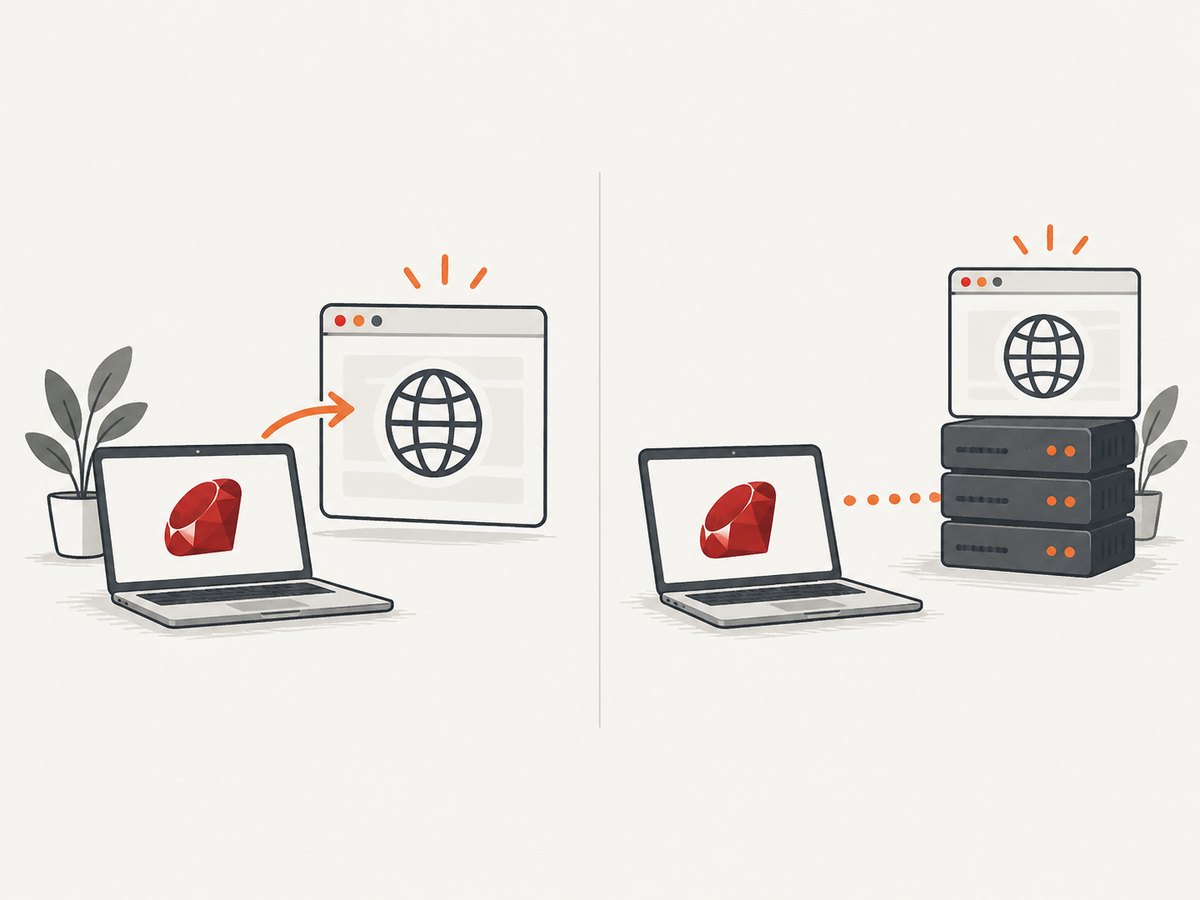
ScreenshotNeo provides a website screenshot API and MCP server. One GET request returns PNG, JPEG, WebP or PDF. The API accepts full-page capture with lazy images loaded, CSS-selector element capture, dark mode, device presets or custom viewports, retina scale, custom CSS and JavaScript, clicks, selector or delay waits, network-idle waits, blocked ads and trackers, custom headers and cookies, user agents, authorization, timezone, geolocation, transparent backgrounds, resizing, caching, signed links, asynchronous jobs with signed webhooks, bulk capture of up to 100 URLs per call, usage data and an OpenAPI specification. Common parameter names used by other screenshot APIs also work, which helps when switching.
curl -G "https://api.screenshotneo.com/v1/shot" -d access_key=YOUR_API_KEY --data-urlencode url=https://stripe.com -o shot.webpSee the ScreenshotNeo documentation for request parameters and response headers. The equivalent Python request is:
import requests

r = requests.get(
    "https://api.screenshotneo.com/v1/shot",
    params={"access_key": "YOUR_API_KEY", "url": "https://stripe.com"},
    timeout=90,
)
r.raise_for_status()
open("shot.webp", "wb").write(r.content)
Node.js can fetch the same image without installing a browser:
const q = new URLSearchParams({ access_key: 'YOUR_API_KEY', url: 'https://stripe.com' });
const res = await fetch(`https://api.screenshotneo.com/v1/shot?${q}`);
if (!res.ok) throw new Error(`Screenshot failed: ${res.status}`);
const bytes = Buffer.from(await res.arrayBuffer());
await require('node:fs').promises.writeFile('shot.webp', bytes);
Cookie banners, newsletter popups and chat widgets are removed before the shot. Bot checks, blank pages, timeouts, failed loads and cache hits are never billed, and the response identifies the result with X-Page-Verdict and X-Billed headers. An MCP server provides take_screenshot, get_page_info and capture_pdf tools for Claude, Cursor and other MCP clients. The Free plan includes 1,000 screenshots each month with no card; paid plans start at $5 for 3,000 shots. Create a free ScreenshotNeo account.
12. Cost and architecture decisions
Self-hosted Playwright or Puppeteer has no per-shot API fee, but you operate browser downloads, CPU, memory, patching, queues, retries and storage. A managed API trades that operational work for request pricing and service limits. For a small script, local automation is straightforward. For scheduled captures, user-submitted URLs or large batches, compare browser infrastructure cost, failure handling and the value of features such as caching, signed links and webhooks.
FAQ
Can Node.js screenshot a page without Chrome installed?
Playwright and Puppeteer need a browser binary somewhere. Install their managed browser or point them at a system browser. ScreenshotNeo performs the browser capture through its API.
How do I screenshot only a div?
Use page.locator('selector').screenshot() in Playwright or page.waitForSelector('selector') followed by the returned element’s screenshot() in Puppeteer.
What wait condition should I use?
Use navigation completion plus a page-specific selector or application state. Network idle is useful when it matches the page, but polling and WebSockets can keep a page active indefinitely.
Can screenshots be returned instead of saved?
Yes. Playwright returns a buffer, and Puppeteer returns a Uint8Array by default or base64 when requested.
Which option captures the entire page?
Set fullPage: true in Playwright. Puppeteer supports the corresponding full-page screenshot option in its screenshot API.


