How to Capture Website Screenshots for Legal Evidence
Capture a webpage with its URL, time, context, and original file intact. Learn what a screenshot can support, where it falls short, and how to preserve it.

A website screenshot can record what appeared on a page when someone viewed it. To make that capture easier to explain later, preserve the original file, record the complete URL and capture time with its time zone, keep relevant page context, and write down who captured it and how. A screenshot alone does not necessarily establish when the page was online, whether the image is complete and accurate, or who published the content.
For example, U.S. Federal Rule of Evidence 901 asks whether there is evidence sufficient to support a finding that an item is what its proponent claims it is. It gives examples such as testimony from someone with knowledge and evidence about a process that produces an accurate result. That is a U.S. federal example, not a universal rule or a guarantee that a particular screenshot will be admitted. Check the rules for the court and matter involved. Federal Rule of Evidence 901
1. What a website screenshot can show—and what it cannot
A screenshot can help document visible page content and its surrounding context. Whether it supports a claim depends on what is being claimed and what other evidence explains the capture. A screenshot may not show the full page, the address bar, the page’s author, how long the content was available, or whether the image was later changed.
U.S. Courts Evidence Rules Committee material about website evidence points to three practical questions: what was actually on the website, whether the exhibit or testimony accurately reflects it, and whether the content can be attributed to the website owner. These are useful questions for preparing an exhibit, not a binding checklist or a promise of admissibility. U.S. Courts committee material on internet and website evidence
| Question | What to preserve or explain |
|---|---|
| What page is this? | Complete URL, visible title or identifying details, and enough context to distinguish the page. |
| When and how was it captured? | Date, exact time and time zone, capturer, browser or capture method, and relevant access steps. |
| Is this a faithful record? | The original file, how the capture was made, and a clear account of any later edits. |
| Who is responsible for the content? | Evidence connecting the page and its content to the person or organization alleged to have published it. A screenshot may not answer this by itself. |
2. A repeatable capture and preservation workflow
Step 1: Identify the target and the relevant context
Open the page you need to document. Record the complete URL as displayed in the browser, including the path and query parameters when relevant. Note the page title or other visible details that identify it, and why the page matters. If a linked page, thread, or sequence explains the relevant statement, consider preserving that context too. Avoid cropping away details needed to understand where the image came from.
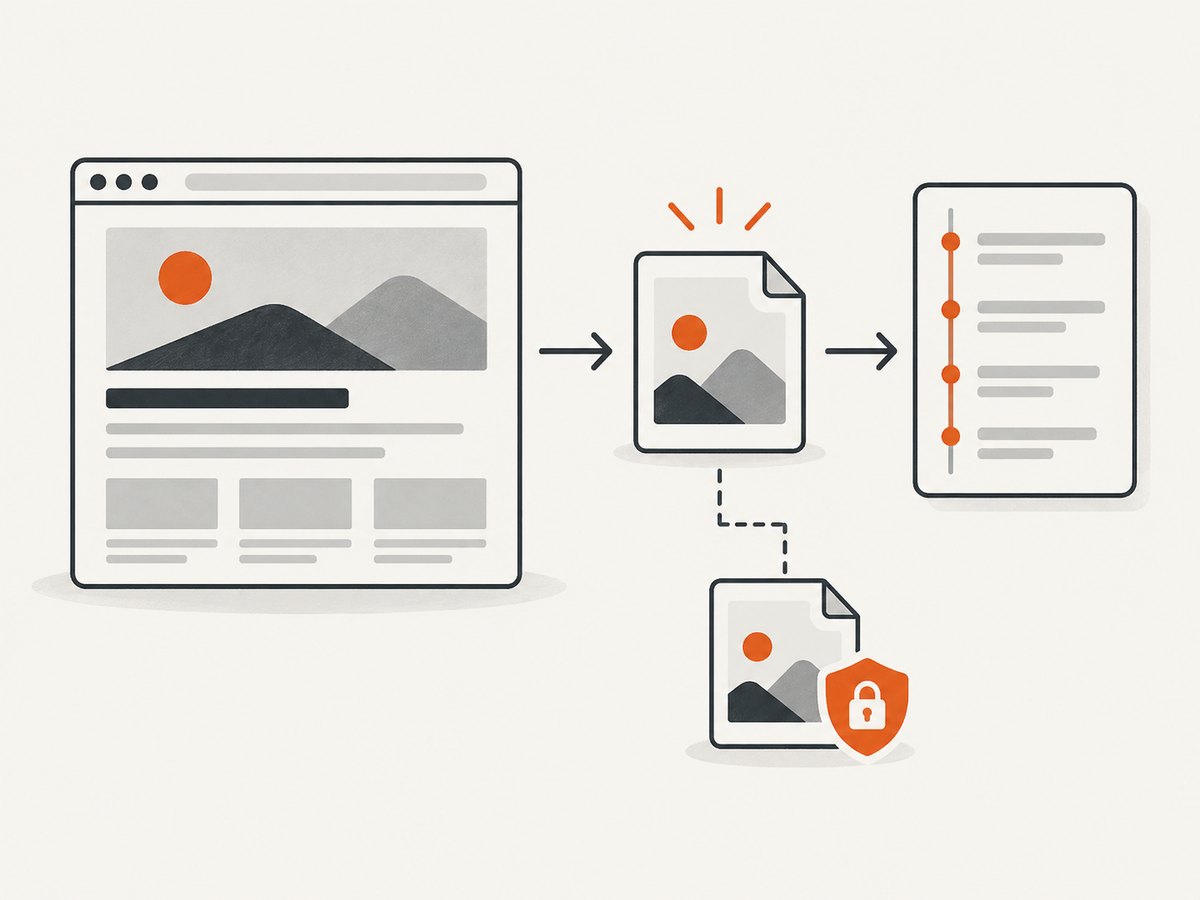
Decide whether you need a viewport screenshot or the entire relevant page. A viewport capture records what was visible in the browser window. A full-page capture can include content below the fold, but may represent the page as assembled by a capture tool rather than as a single screen view. If layout, dynamic content, or sequence matters, note what you captured and how.
Step 2: Record the capture event
Make a contemporaneous note in a separate log. Include:
- The complete URL and visible page title or identifying details.
- The date and exact time, including the time zone.
- The name of the person who performed the capture.
- The browser, device, and capture method or software used.
- Any steps needed to reach the page, such as navigation or access through a link.
- What was visible, what was not captured, and whether the page appeared to load normally.
This log makes the process easier to explain; it does not independently prove that the page was online at that time or that the content is true. In U.S. federal proceedings, Rule 901 includes witness testimony and process evidence among possible ways to authenticate an item. The appropriate foundation depends on the circumstances.
Step 3: Save the original capture unchanged
Keep the screenshot file as captured. Do not overwrite it with a cropped, highlighted, annotated, resized, or redacted version. If you need to prepare a clearer exhibit, create a separate derivative, label it as edited, record what changed, and retain the original. Keep related original files and notes together in a controlled location, with a separate protected copy if appropriate.
UK criminal justice image-handling guidance describes keeping a documented master copy protected against alteration or accidental erasure. It is a preservation reference for its stated professional context, not a requirement for every litigant or civil case. UK Digital Imaging and Multimedia Procedure v3.0
Step 4: Preserve metadata and useful context
Retain the original digital file and any associated metadata that exists. Keep your capture log separately instead of writing explanatory notes onto the only image. A printout may omit metadata and surrounding context, so do not make it the only preserved version.
Local rules can address these details in particular settings. England and Wales Practice Direction 31B, for example, addresses preserving electronic documents when litigation is contemplated, metadata, native-format copies, and retaining originals when altered copies are supplied. Massachusetts Guide to Evidence §1119 says digital evidence should generally be copied for court and party inspection and that printed screenshots should include relevant image information, such as name, time, and date. Neither source creates a universal capture procedure. England and Wales Practice Direction 31B · Massachusetts Guide to Evidence §1119
Step 5: Consider changing or disputed content promptly
Webpages can change or disappear. If the content is volatile or a dispute is likely, preserve it promptly and ask counsel or a qualified digital-evidence practitioner what additional steps fit the matter and jurisdiction. The sources cited here do not establish one universally sufficient timestamping, hashing, archiving, or third-party capture method. Storage—whether local, cloud-based, or on an optional external drive—can help retain a copy, but does not authenticate the screenshot.
Step 6: Be ready to explain the exhibit
Keep enough information to explain what address you entered, when you viewed it, what you observed, how you made the capture, where the original is kept, and whether the file or a derivative was modified. Website evidence can raise separate questions about visible content, accurate representation, and attribution. A capture service may help produce an image, but its output alone does not settle those questions.
Step 7: Check filing and preservation requirements
Before submitting anything, check the rules and orders for the actual court and proceeding. Confirm whether you need a witness statement or declaration, exhibit labels, a specific electronic format, service on other parties, or additional foundation. Preservation duties can also apply before a case is filed. For England and Wales civil disclosure, Practice Direction 31B says legal representatives must notify clients to preserve disclosable documents when litigation is contemplated; its scope is specific to that procedural setting. Practice Direction 31B
3. Capture methods and a practical selection checklist
There is no single capture product or method established by the cited sources as best for every dispute. Choose a method by considering whether it preserves the relevant visible content and context, whether another person can understand and repeat the process, whether the original and associated metadata are retained, whether URL and capture time are recorded, and whether the effort is proportionate to the likelihood of change or dispute. These are practical evaluation criteria, not universal legal tests.
- Manual browser capture: Useful when you want to observe the page directly and record the steps. Ensure the URL and surrounding identifying details are preserved in the image or log.
- Browser automation or a capture API: Can make repeated captures more consistent. Record the tool and relevant settings, and preserve the returned original. Automation may render a page differently from an ordinary visit, so note the method.
- Print-to-PDF: Can retain multiple pages or text layout in one file, but may not preserve interactive behavior, complete metadata, or the exact screen appearance. Retain the source files and explain the method.
For consequential disputes, technical convenience should not replace advice about the evidence foundation and preservation steps appropriate to the case.
4. Automating a capture with code
A developer can use browser automation to save an image and log the capture settings. The following Python example uses Playwright. Install it with python -m pip install playwright, then install Chromium with python -m playwright install chromium. This is a technical capture example, not a legal certification. Save the original output and maintain a separate contemporaneous log.

from datetime import datetime, timezone
from pathlib import Path
import json
from playwright.sync_api import sync_playwright

url = "https://example.com/page"
output = Path("capture.png")
log_path = Path("capture-log.json")

with sync_playwright() as p:
    browser = p.chromium.launch(headless=True)
    page = browser.new_page(viewport={"width": 1440, "height": 1000})
    response = page.goto(url, wait_until="networkidle", timeout=60000)
    page.screenshot(path=str(output), full_page=True)
    record = {
        "url_requested": url,
        "url_final": page.url,
        "title": page.title(),
        "captured_at_utc": datetime.now(timezone.utc).isoformat(),
        "method": "Playwright Chromium; full-page PNG; networkidle",
        "http_status": response.status if response else None,
        "output_file": str(output),
    }
    log_path.write_text(json.dumps(record, indent=2), encoding="utf-8")
    browser.close()
The timestamp in this example is the script’s system clock in UTC. It records when the script wrote the log; it does not independently prove when the page was published or accessed. For a capture log intended to explain an event, have the person running the process record their identity and any access steps as well.
Useful automation choices
full_page=Truecaptures the page beyond the viewport; omit it when only the visible viewport is relevant.wait_until="networkidle"waits for network activity to settle, but some pages keep connections open. For those, wait for a relevant selector or a documented delay instead.- Set viewport dimensions deliberately and record them. Responsive layouts can show different content at different sizes.
- If a page requires authentication or interaction, document the steps. Do not assume that automated rendering represents what every visitor saw.
- Preserve the unmodified PNG and JSON log. If you make an exhibit copy, create a separate file and document the transformation.
Or skip the browser setup
ScreenshotNeo provides a website screenshot API; see the ScreenshotNeo API documentation. Example cURL request:
curl -G "https://api.screenshotneo.com/v1/shot" -d access_key=YOUR_API_KEY --data-urlencode url=https://example.com/page -o shot.webpEquivalent Python and Node.js requests:
import requests
r = requests.get("https://api.screenshotneo.com/v1/shot", params={"access_key": "YOUR_API_KEY", "url": "https://example.com/page"}, timeout=90)
open("shot.webp", "wb").write(r.content)
const q = new URLSearchParams({ access_key: 'YOUR_API_KEY', url: 'https://example.com/page' });
const res = await fetch(`https://api.screenshotneo.com/v1/shot?${q}`);
if (!res.ok) throw new Error(`HTTP ${res.status}`);
await Bun.write('shot.webp', res);ScreenshotNeo accepts cookie or consent banners like a visitor and removes more than 60 known consent platforms, newsletter popups, and chat widgets before capture; each step can be turned off. Bot checks, blank pages, failed loads, timeouts, and cache hits are not billed, and the response identifies the page verdict and billing status in headers. Its MCP server gives AI agents tools for screenshots, page information, and PDF capture. The free plan includes 1,000 screenshots per month without a card; paid plans start at $5 for 3,000. See ScreenshotNeo for product details and the documentation for API options. A capture service is a technical method; keep the original response and capture context, and do not treat the service as proof of authorship, publication time, completeness, or admissibility. Sign up for 1,000 free screenshots a month, no card required.
5. Common problems and fixes
| Problem | Likely cause | Practical fix |
|---|---|---|
| The screenshot omits the URL or source context. | The browser chrome was excluded or the page was cropped. | Record the complete URL and page identifiers in the separate log; capture relevant context without replacing the original. |
| Only the top of the page appears. | A viewport screenshot was used, or content below the fold was not rendered. | Use a full-page capture when the whole page matters; note that setting and inspect the saved file. |
| Content is missing or still loading. | Dynamic content, lazy loading, scripts, or a slow response. | Wait for a relevant element or documented delay, then capture; record the wait method and any missing content. |
| The page differs from what a person saw. | Responsive layout, region, session, personalization, or automation behavior changed the rendering. | Record device, viewport, access steps, and capture method. If the difference matters, preserve the observed state promptly and seek case-specific guidance. |
| The file was annotated or resized and the original is gone. | The working copy overwrote the source capture. | Keep originals read-only or in protected storage; make labeled derivatives and log each change. If the original is lost, do not describe the derivative as unaltered. |
| A printed screenshot lacks useful details. | Print output omitted digital metadata or context. | Retain the original digital file and relevant metadata; include identifying information on printouts where local guidance requires it. |
| The image is challenged as proof of who posted the content. | A screenshot depicts page content but may not establish who controlled or published it. | Preserve relevant surrounding context and consult counsel about additional attribution evidence and the applicable foundation. |
6. Reliability, performance, and cost considerations
For evidence preservation, reliability means being able to explain what was captured and retain the original—not merely obtaining an image quickly. Record automation settings such as browser, viewport, wait condition, and output format. A repeatable script can reduce variation across captures, while manual observation can help document access context. Neither method proves that a capture is complete or legally sufficient.
Full-page capture and waits for dynamic content can take longer and produce larger files than viewport captures. A network-idle wait may be unreliable on pages with continuous network activity; waiting for a specific element can be more targeted if that element is the relevant content. Keep the technical settings in the log so another person can understand the method.
Direct browser automation may avoid per-capture API charges but requires maintaining a browser environment, code, and storage. A hosted capture API can reduce setup and supports repeated requests, but entails account and plan costs. ScreenshotNeo’s listed plans are Free: 1,000 shots/month; Starter: $5 for 3,000; Growth: $15 for 15,000; Pro: $39 for 60,000; Scale: $99 for 250,000; and Business: $249 for 1,000,000. Yearly billing gives two months free, and every feature is on every plan. These are product prices, not legal-evidence guarantees. For a consequential matter, choose the capture method and preservation controls based on the dispute and applicable rules, not price alone.
7. Short FAQ
Does a screenshot by itself prove when content was online?
Not necessarily. A recorded capture time describes the capture event, and a screenshot alone may not establish when the content first appeared or how long it was available. Ask counsel what additional evidence or method is appropriate.
Should I add a timestamp or hash to the image?
The sources here do not establish either as universally sufficient. Preserve the original and ask a qualified practitioner about methods suited to the jurisdiction and dispute.
Can I crop or highlight the screenshot for an exhibit?
Make a clearly identified derivative and retain the untouched original. Document what changed and follow the court’s exhibit requirements.
Will a court accept an API-generated screenshot?
No capture method guarantees acceptance. Be prepared to explain how the page was accessed and captured, preserve the original output, and check the requirements for the specific court and matter.
8. Final preparation checklist
- Complete URL and identifying page context recorded.
- Capture date, exact time, and time zone recorded.
- Capturer, browser/device, method, and access steps noted.
- Original digital capture retained separately from derivatives.
- Relevant metadata and a contemporaneous log preserved.
- Any missing context, dynamic behavior, or edits disclosed.
- Local court, proceeding, disclosure, and preservation requirements checked.
These steps help make a web capture understandable and preserve it for review. They do not decide authenticity, attribution, admissibility, or the truth of what the page said. For a consequential dispute, get advice specific to the court, jurisdiction, and evidence at issue.


