How to Create Website Screenshots from the Linux Command Line
Use Playwright from a Linux terminal to capture viewport, full-page, and element screenshots, then automate reliable website images.
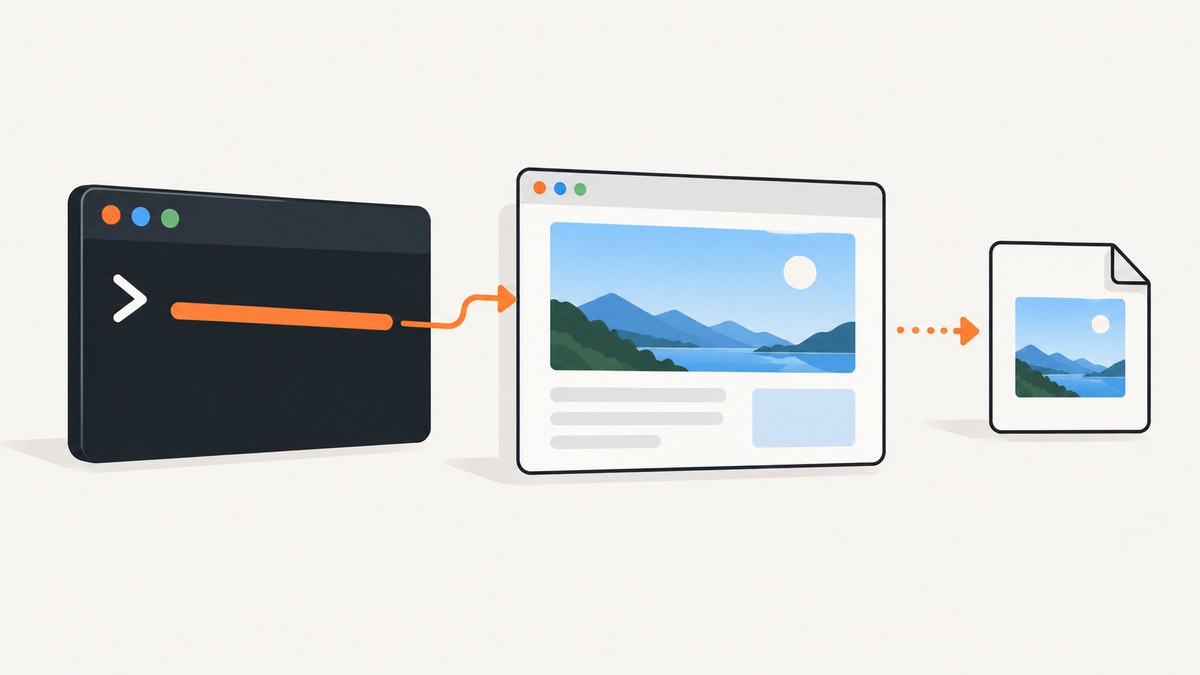
Yes. You can create website screenshots directly from a Linux terminal with Playwright CLI. Install the CLI, open a URL, and run playwright-cli screenshot. The default capture is the current viewport; add --full-page for the entire scrollable page.
1. Install Playwright CLI
Playwright documents this global installation command:
npm install -g @playwright/cli@latestSee the Playwright CLI getting-started guide for current setup details. The CLI runs headless by default, so it works from an SSH session or a server without a desktop.
2. Capture a viewport screenshot
Open the page and capture the visible browser area:
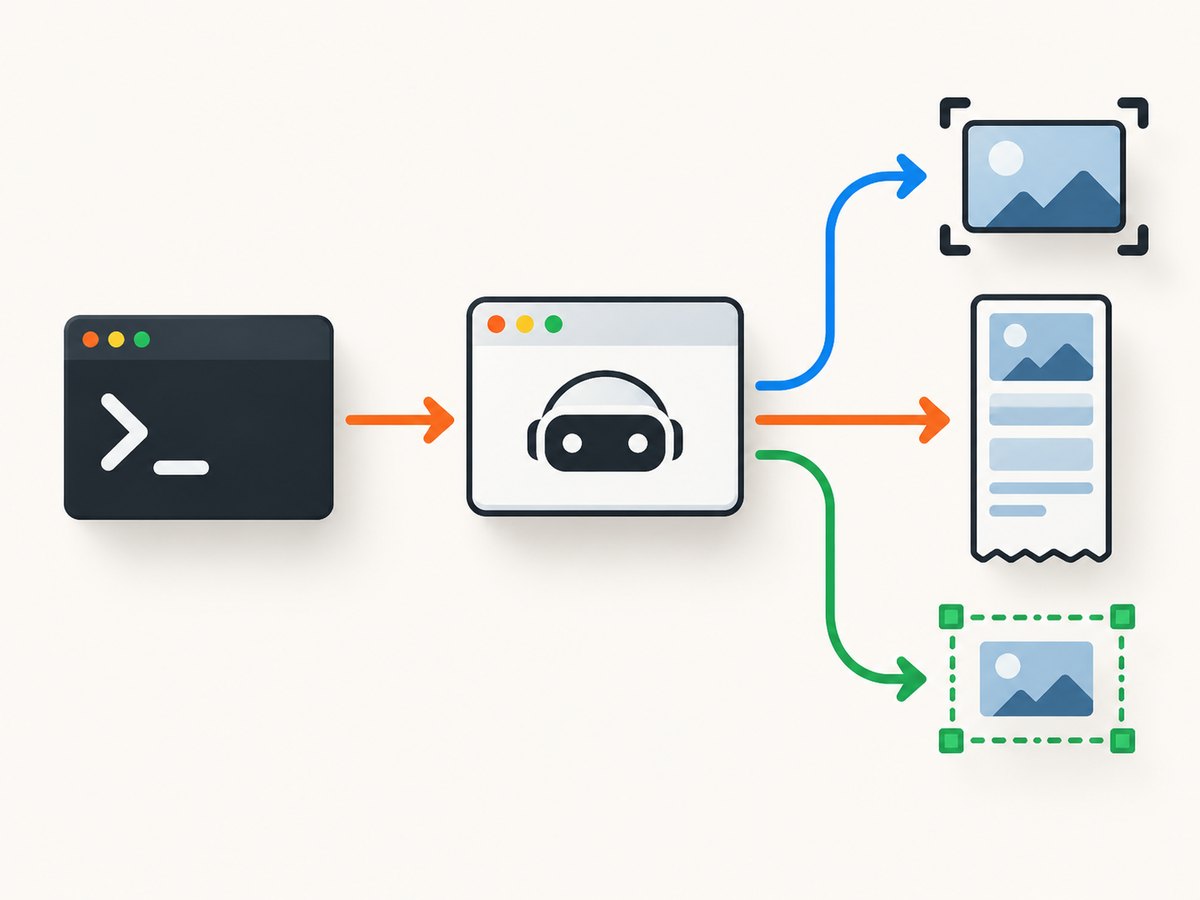
playwright-cli open https://example.com
playwright-cli screenshot --filename=page.png
The result is a screenshot of the viewport currently rendered by the browser. This is useful for first-screen previews, fixed-height comparisons, and monitoring a known viewport.
3. Capture the entire webpage
Use the full-page option when content below the fold must appear in one image:
playwright-cli open https://example.com
playwright-cli screenshot --full-page --filename=full-page.png
Full-page images can become very tall and large on long pages. If the output will be stored or sent over a network, check the resulting dimensions and file size before choosing this mode for every page.
4. Choose a format and filename
Playwright CLI documents PNG, JPEG, and WebP output. The filename extension is used when available; PNG is the default when no type is specified. Examples:
playwright-cli screenshot --filename=page.png
playwright-cli screenshot --filename=page.jpg
playwright-cli screenshot --filename=page.webp
PNG is commonly chosen for crisp interface text. JPEG and WebP can reduce storage for photographic or large captures. The documentation establishes the available formats, not a universal quality ranking.
5. Capture one element instead of the whole page
Element capture is useful for a pricing card, form, chart, or product panel. The CLI documentation includes element targeting. For repeatable selector-based work, the Page API makes the target explicit:
const { chromium } = require('playwright');

(async () => {
  const browser = await chromium.launch();
  const page = await browser.newPage();
  await page.goto('https://example.com', { waitUntil: 'networkidle' });
  await page.locator('main').screenshot({ path: 'main.webp', type: 'webp' });
  await browser.close();
})();
Replace main with a stable CSS selector. Prefer an ID or a semantic component selector over a class name generated by a framework. The Playwright Page API reference documents scripted screenshots, full-page capture, and device-pixel scaling.
6. Use the Page API for repeatable scripts
CLI commands are convenient for one-off captures. Use a script when you need loops, authentication setup, selector checks, custom filenames, or error handling:
const { chromium } = require('playwright');

(async () => {
  const browser = await chromium.launch();
  const page = await browser.newPage({
    viewport: { width: 1440, height: 900 },
    deviceScaleFactor: 1
  });

  await page.goto('https://example.com', { waitUntil: 'networkidle' });
  await page.screenshot({
    path: 'example-full.png',
    fullPage: true,
    type: 'png'
  });

  await browser.close();
})();
The viewport dimensions are CSS pixels. A higher device-pixel scale produces more image pixels and usually a larger file; coordinates measured from the resulting image can therefore differ from CSS-pixel coordinates.
7. Select a browser, viewport, or device profile
A screenshot represents the page under a particular browser engine, viewport, device scale, and page state. Playwright documents Chrome as the default and provides examples for Firefox, WebKit, and Microsoft Edge. Its configuration documentation also covers headed mode and device or mobile emulation.
- Chrome: a practical default for general web captures.
- Firefox or WebKit: use when you need evidence from that rendering engine.
- Edge: use when the target environment specifically requires it.
- Mobile emulation: use to capture responsive layouts at a device profile.
- Headed mode: useful while diagnosing layout or interaction problems on a machine with a display.
- High-resolution mode: useful for dense or print-oriented output, with a corresponding increase in image dimensions and storage.
Do not treat one browser’s screenshot as a universal rendering of the site. Font availability, browser behavior, viewport size, device scale, and responsive breakpoints can all change the pixels.
8. Handle page state before the capture
Many pages are not visually complete at the instant navigation returns. Common causes include lazy images, client-side rendering, animations, cookie dialogs, login gates, and content loaded after the initial response.

- Navigate to the final URL.
- Wait for the page condition your capture requires, such as a known selector or application-specific network completion.
- Perform any required interaction, such as opening a tab or dismissing a dialog.
- Capture the viewport, full page, or target element.
For a scripted workflow, encode these conditions in the Page API instead of relying only on a fixed sleep. A fixed delay can be too short on a busy run and unnecessarily slow on a fast one. The reviewed Playwright references describe the screenshot mechanisms but do not prescribe one universal wait strategy for every site.
9. Linux batch capture example
A shell loop can capture a small list of URLs. Quote each URL so query strings and shell metacharacters remain intact:
#!/usr/bin/env bash
set -eu

while IFS= read -r url; do
  [ -z "$url" ] && continue
  name=$(printf '%s' "$url" | sed 's#https\?://##; s#[^A-Za-z0-9._-]#_#g')
  playwright-cli open "$url"
  playwright-cli screenshot --full-page --filename="${name}.png"
done < urls.txt
For a production batch, add logging, a retry policy, bounded concurrency, and a check that the output file exists and is non-empty. Keep concurrency within the memory and CPU capacity of the Linux host.
10. Troubleshooting
| Symptom | Likely cause | Fix |
|---|---|---|
| Command not found | The CLI is not installed globally or its npm bin directory is not on PATH. |
Run the documented npm installation command and verify the shell can resolve playwright-cli. |
| Browser does not start on a server | The selected browser or its runtime dependencies are unavailable. | Use the Playwright setup instructions for the Linux host, then retry with the default browser before changing engines. |
| Only the top of the page appears | The command created a viewport screenshot. | Use --full-page or the Page API’s fullPage: true. |
| Images or text are missing | Content is lazy-loaded or rendered after navigation. | Wait for a page-specific selector or completion condition before calling screenshot. |
| Cookie banner covers the page | The banner is part of the rendered page state. | Dismiss it through the same interaction a user would perform, then capture. |
| Mobile layout is not shown | The viewport is still a desktop size. | Configure a mobile or device emulation profile, or set a mobile-sized viewport. |
| Text wraps differently between runs | Browser engine, fonts, viewport, or device scale changed. | Pin those conditions and use the same Linux image or runner for comparisons. |
| Output is unexpectedly large | Full-page or high-resolution capture creates many image pixels. | Capture only the needed element or viewport, lower device scale, or choose a compressed format where appropriate. |
| Navigation never reaches the expected state | The site may contain a long-lived request, bot check, authentication gate, or application error. | Inspect the page state, choose a concrete readiness condition, and handle failure explicitly in the script. |
11. Performance, reliability, and cost
- Performance: Browser startup is often a significant part of a one-off capture. Reusing a browser process for multiple pages can reduce repeated startup work in a script.
- Memory: Full-page and high-resolution captures require more memory than viewport images. Long pages should be measured on the target host.
- Reliability: Pin the browser choice, viewport, device scale, fonts, and page readiness rule when screenshots are used for visual regression or archival evidence.
- Failure handling: Record the URL, browser mode, elapsed time, and error. Retry transient navigation failures with a limit rather than retrying indefinitely.
- Cost: Playwright itself is software you run on your Linux machine or server. Your practical costs are the host, storage, bandwidth, and any browser infrastructure you operate.
Or skip the browser setup
ScreenshotNeo provides a website screenshot API and MCP server. One GET request returns a PNG, JPEG, WebP, or PDF. Cookie and consent banners are accepted before capture, then more than 60 known consent platforms, newsletter popups, and chat widgets are removed. Bot checks, blank pages, timeouts, failed loads, and cache hits are not billed, and the response identifies the result with X-Page-Verdict and X-Billed headers.
See the ScreenshotNeo API documentation for parameters and options.
curl -G "https://api.screenshotneo.com/v1/shot" -d access_key=YOUR_API_KEY --data-urlencode url=https://stripe.com -o shot.webpimport requests
r = requests.get("https://api.screenshotneo.com/v1/shot", params={"access_key": "YOUR_API_KEY", "url": "https://stripe.com"}, timeout=90)
open("shot.webp", "wb").write(r.content)const q = new URLSearchParams({ access_key: 'YOUR_API_KEY', url: 'https://stripe.com' }); const res = await fetch(`https://api.screenshotneo.com/v1/shot?${q}`);ScreenshotNeo also supports full-page and element capture, dark mode, device presets and custom viewports, retina scale, PDF output, custom CSS and JavaScript, clicks, selector or network-idle waits, request blocking, headers, cookies, user agents, authorization, timezone, geolocation, transparent backgrounds, resizing, TTL caching, signed image links, asynchronous jobs, webhooks, bulk capture, usage reporting, and an OpenAPI specification. Its MCP server provides take_screenshot, get_page_info, and capture_pdf tools for Claude, Cursor, and other MCP clients.
Plans include 1,000 shots per month free with no card; paid plans start at $5 for 3,000 shots. Create a free ScreenshotNeo account.
FAQ
Can I take a screenshot without a desktop environment?
Yes. Playwright CLI runs headless by default, so a Linux server or SSH session can capture pages without opening a visible browser window.
What is the difference between viewport and full-page capture?
Viewport capture records the currently visible browser area. Full-page capture includes the page’s scrollable content in one image.
Why does a screenshot differ from what I see locally?
The browser engine, viewport, device scale, fonts, page state, and responsive breakpoints may differ. Pin those conditions when comparing images.
When should I use an element screenshot?
Use it when the deliverable is a component such as a chart, form, card, or navigation panel rather than the entire document.
Can I create PDFs with the Linux CLI workflow?
Playwright’s referenced screenshot command documentation covers screenshots and PDF commands. Choose the PDF workflow when the output must preserve paginated print layout rather than a single image.


