How to Take Website Screenshots in Make.com
Capture a website in Make.com, route the image to storage or email, and choose the right method for JavaScript-heavy pages, page elements, and APIs.
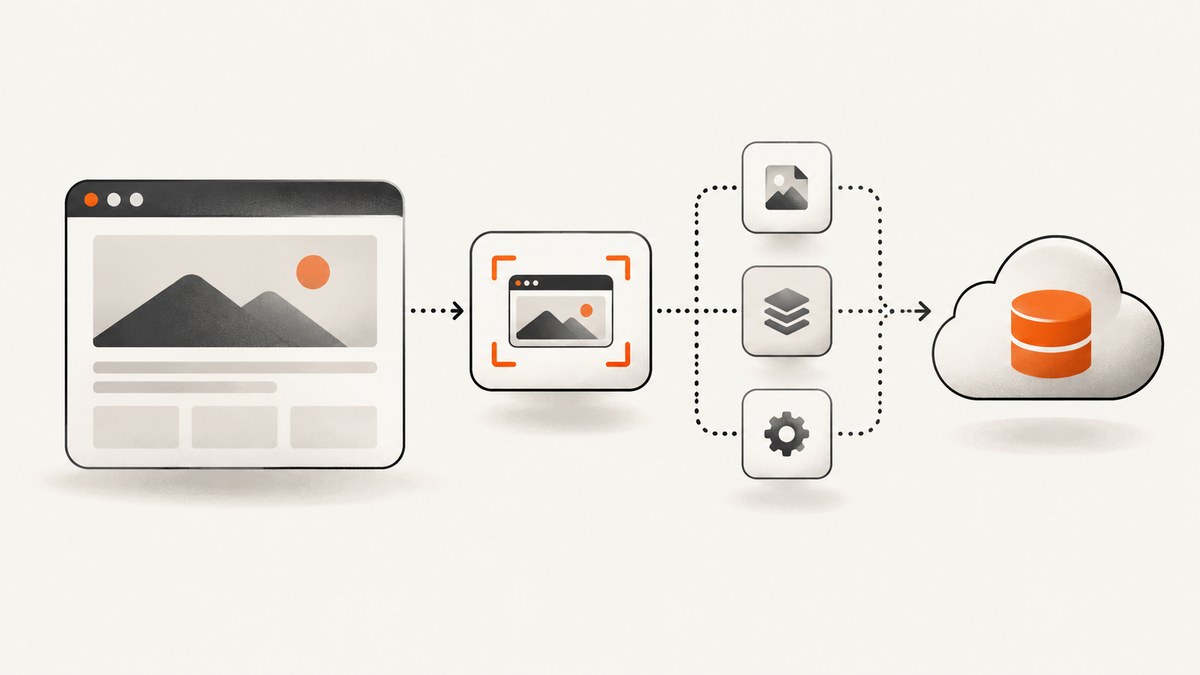
To take a basic website screenshot in Make.com, create a scenario, add HTML/CSS to Image → Create a Screenshot of a URL, map the URL from your trigger, then send the returned image to a storage, email, database, or messaging module. Make describes this action as taking a screenshot of any website. Make’s HTML/CSS to Image integration is the shortest route when you only need to capture a URL. [c002]
For element screenshots or email delivery, use the separate GetScreenshot app. For pages that depend on JavaScript, login, or browser interaction, choose a browser-automation integration such as Custom JS or Anchor Browser Agent. Make’s HTTP app can call an external screenshot API or download its output; its documented modules do not make it a screenshot renderer by themselves. [c001][c003][c004][c005]
1. Build a basic URL screenshot scenario
- Choose a trigger. Start with a webhook, spreadsheet row, database record, or schedule that provides the page URL. A URL field makes the scenario reusable across pages.
- Add the capture action. Add the HTML/CSS to Image app and choose Create a Screenshot of a URL. Map the URL value from the trigger into the action’s URL input. [c002]
- Route the image output. Connect a destination such as cloud storage, email, chat, or a database. Map the returned image/file data to the destination’s file input. The exact field names depend on the modules and accounts you configure in Make.
- Keep useful metadata. Store the source URL and capture time with the image. If multiple pages feed the same destination, include a stable record identifier or a filename derived from the source record.
- Run one controlled execution. Inspect the captured image and the destination record before enabling a recurring schedule. This is a practical setup recommendation; no live scenario execution was performed for this guide.
The flow is: trigger supplies a URL → screenshot action returns an image → destination stores or sends it. Make’s integration page also lists Get an Image and Make an API Call actions for HTML/CSS to Image. [c002]
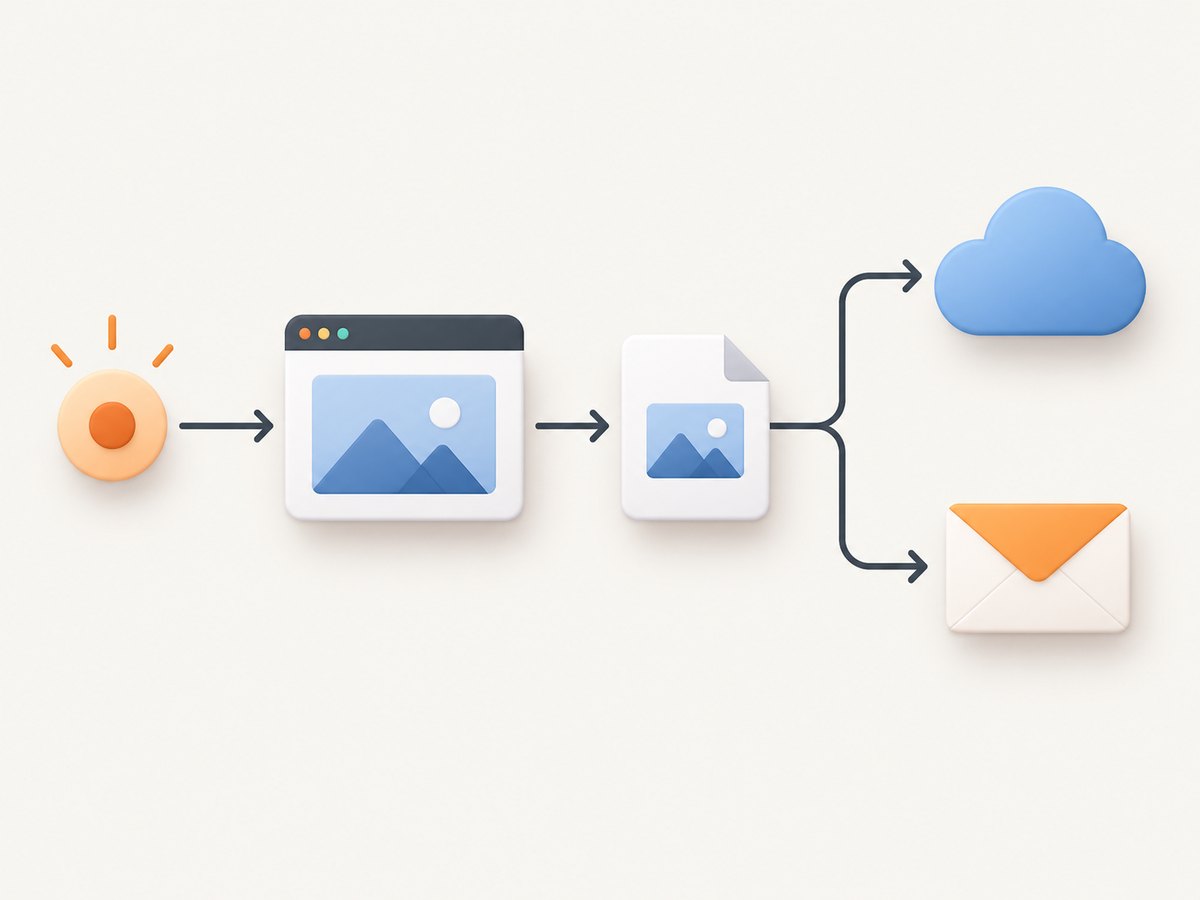
Save a screenshot to cloud storage
Connect the screenshot action to your storage module. Map the returned image data to the file input, and provide a filename and destination folder if that module requests them. Include a timestamp or source-record identifier in the filename when each run should create a distinct artifact. If your intended behavior is to replace the latest screenshot, use a stable filename and confirm that the storage module’s overwrite behavior matches your needs.
Email or message the screenshot
Connect the returned image to an email or messaging module that accepts attachments or files. Map the image as an attachment rather than pasting a temporary internal reference as message text. Add the source URL and capture time to the message so recipients can identify what they are viewing.
2. Pick the capture method that fits the page
| Need | Make route | What to know |
|---|---|---|
| Basic screenshot of a URL | HTML/CSS to Image | Includes the native “Create a Screenshot of a URL” action. [c002] |
| Capture a page element or deliver by email | GetScreenshot | Its listed actions include Take Screenshot, Take Element Screenshot, email variants, usage lookup, and Make an API Call. The element action requires a selector. [c003] |
| JavaScript-heavy rendering or browser automation | Custom JS | Its official Make documentation lists “Take Website Screenshots via Browser Automation.” A Custom JS account and API-key connection are required. [c001] |
| Interactive or authenticated browser session | Anchor Browser Agent | Its Make listing describes Chromium screenshots plus navigation, clicking, typing, and session modules. Public documentation is limited. [c004] |
| Call an external screenshot endpoint | Make HTTP + screenshot API | HTTP is useful for API requests and file downloads. Make documents request, download, and URL-resolution modules, not a browser screenshot renderer. [c005] |
A plain HTTP request can retrieve a page’s HTML without executing the browser behavior that produces its final appearance. If the page relies on scripts, user interaction, login, or a CSS selector to define the capture target, select a browser automation or screenshot-specific integration. [c001][c004][c005]
Capture one element with GetScreenshot
Choose GetScreenshot when the target is a specific element rather than the whole page. Add its Take Element Screenshot action and provide the page URL and an element selector. Its documentation says the action captures an element and requires a selector. [c003] The selector must match the page’s actual markup; a changed class or ID can cause a capture failure or target the wrong content.
GetScreenshot is marked as a verified Make app, and its listing identifies Rasterwise as the official vendor. It also lists actions for taking a normal screenshot, sending either type by email, checking API usage, and making an API call. [c003]
Capture JavaScript-rendered or interactive pages
Use a browser-automation route when the page needs JavaScript rendering, navigation, clicks, typing, or an authenticated session. Custom JS’s Make documentation explicitly describes website screenshots via browser automation. Make’s setup instructions require a Custom JS account, an API key, a Custom JS module, and a connection configured with that key. [c001]
Anchor Browser Agent’s Make listing describes Chromium screenshots together with navigation, clicking, typing, and session modules. Its public documentation is limited, so verify its available inputs and session behavior in the integration before building a production workflow. [c004]
3. Call a screenshot API from Make HTTP
Use Make’s HTTP app when you already have a screenshot endpoint to call. Configure the request according to that API’s method, parameters, and response format, then route or download the returned file. Make’s HTTP documentation lists API key, Basic Auth, OAuth 2.0, and no-authentication configurations; it advises placing credentials in the dedicated Credentials field. [c005] HTTP handles the request and response. The external screenshot service performs the browser rendering.
For example, ScreenshotNeo’s API accepts a GET request with a URL and returns an image or PDF. The following cURL request is useful for understanding the endpoint; in Make, configure equivalent query parameters in the HTTP module and keep the API key in its credential field. See the ScreenshotNeo API documentation for request options.
4. Or skip the browser setup
If you want a single API call instead of configuring a browser workflow, ScreenshotNeo returns a website screenshot with one GET request. Replace the target URL with the page you need and use your API key:
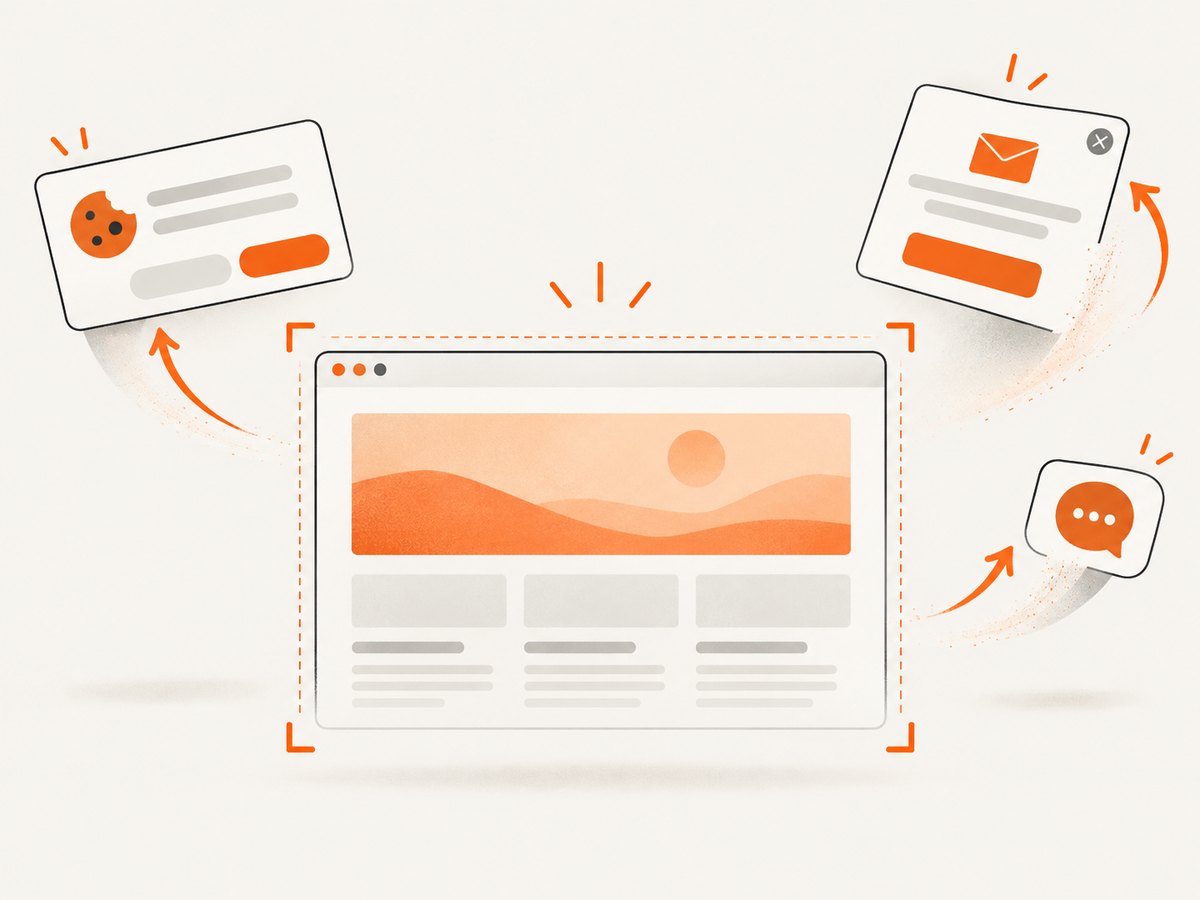
curl -G "https://api.screenshotneo.com/v1/shot" -d access_key=YOUR_API_KEY --data-urlencode url=https://stripe.com -o shot.webpIn Make, send the same request through the HTTP module, map the URL and access key as query parameters, and route the returned file to your destination. Put credentials in Make’s dedicated credential field where the module supports it. [c005] ScreenshotNeo’s documentation covers its API parameters.
- Cookie banners, newsletter popups, and chat widgets are removed before the shot; each cleanup step can be turned off.
- Bot checks, blank pages, timeouts, failed loads, and cache hits cost nothing. Response headers report the page verdict and billing status.
- An MCP server provides
take_screenshot,get_page_info, andcapture_pdftools for Claude, Cursor, and other MCP clients. - The free plan includes 1,000 screenshots a month with no card. Paid plans start at $5 for 3,000 screenshots.
Create a free ScreenshotNeo account to get 1,000 screenshots a month with no card.
5. Make HTTP setup details and options
When connecting an external screenshot API, the endpoint determines which parameters are available. The Make HTTP module supplies the request plumbing; it does not add browser rendering options on its own. Configure the module in this order:
- Choose the HTTP method and endpoint specified by the screenshot API. For a GET endpoint, map URL and other parameters as query values.
- Set authentication using the supported method. Make documents no authentication, API key, Basic Auth, and OAuth 2.0. Use the module’s Credentials field for secrets rather than embedding them in ordinary scenario text. [c005]
- Check response handling. A screenshot endpoint may return binary image data or another response representation. Configure the following module to consume the response as a file, or use the HTTP download module when the service returns a downloadable URL. Make documents request and download actions. [c005]
- Map the output into storage, email, or another destination. Preserve the originating URL and execution context alongside the image for traceability.
For services that return a job identifier instead of an image immediately, follow that service’s documented polling or callback workflow. Do not assume every endpoint returns a finished image in the initial response.
6. Reliability, performance, and cost
Make reliability
Run a controlled execution before scheduling a scenario, then inspect both the image and its destination. For recurring workflows, decide how to handle a failed capture: keep the prior successful image, mark the record as failed, or retry according to the module and service behavior. Store enough metadata to distinguish a fresh capture from an older file. These are workflow design recommendations, not guarantees about any vendor’s retries or quotas.
Performance
Capture only the pages and page regions you need. A browser automation step generally has more work to do than a simple API request because it must render and possibly interact with a page; the exact duration depends on the page and provider. Avoid scheduling duplicate captures when the source has not changed unless a fresh image is required. For large batches, account for the number of scenario operations and the external service’s documented limits.
Cost and quotas
The research sources do not provide current prices or quotas for the Make integrations listed here. Check the relevant vendor and Make plan details before setting high-frequency schedules. GetScreenshot exposes a usage action, but its listing alone does not establish any quota or price. [c003] For external APIs, track the provider’s billing and usage separately from Make scenario usage.
7. Troubleshooting
| Symptom | Likely cause | What to check |
|---|---|---|
| No image reaches the destination | The destination expects a file field, but the scenario mapped text or a URL. | Inspect the capture action’s output and map its image/file data to the destination’s attachment or file input. |
| The image shows an incomplete page | The page renders content after initial HTML load, or needs browser behavior. | Use a browser-automation route for JavaScript-heavy content. Custom JS documents a browser-automation screenshot module. [c001] |
| Element capture fails or selects the wrong content | The CSS selector is missing, invalid, or no longer matches the page. | Check the current page markup and selector. GetScreenshot requires an element selector for its element action. [c003] |
| A protected page is not captured as expected | The workflow lacks the required authenticated browser session or interaction. | Use a browser-based integration that supports the needed navigation and session steps; Anchor Browser Agent lists interaction modules, though public documentation is limited. [c004] |
| HTTP returns HTML instead of an image | The request targeted the website rather than a screenshot endpoint, or the endpoint returned an error page. | Confirm the URL is a screenshot API endpoint and inspect the response status and content type. Make HTTP is an API caller, not a documented renderer. [c005] |
| Authentication fails | The key is missing, invalid, or placed in the wrong request field. | Check the service’s authentication instructions and Make’s credential configuration. Make supports API key, Basic Auth, OAuth 2.0, and no-auth options. [c005] |
| Scenario stores an old screenshot | The filename or destination key reuses an earlier object. | Review overwrite behavior and include a timestamp or source record ID when you need distinct files. |
| Scheduled workflow consumes more operations than expected | The scenario runs more often or processes more records than intended. | Review the trigger schedule and incoming bundle count, then check Make and provider usage information. |
8. FAQ
Can Make.com take a full-page website screenshot?
The HTML/CSS to Image integration provides a URL screenshot action, but the research dossier does not specify its full-page controls. Check that app’s current action fields for the exact option. [c002]
Can I save a screenshot to Google Drive?
Yes. Connect a cloud-storage module after the screenshot action and map the returned image file into it. Confirm the destination folder and filename behavior in your chosen storage module.
Can Make screenshot only part of a page?
GetScreenshot lists a Take Element Screenshot action that requires a selector. Use it when the desired capture target is a specific page element. [c003]
Does the Make HTTP module render websites?
Make documents HTTP actions for requests, downloads, and URL resolution. Use it to call a screenshot API; choose a screenshot or browser-automation integration to render the page. [c005]
Which option should I start with?
Start with HTML/CSS to Image for a straightforward URL capture. Move to GetScreenshot for element capture, or browser automation when scripts, login, or interaction are central to the page. [c001][c002][c003]


