Add Website Screenshots to n8n Workflows
Capture a web page in n8n, pass its image to later workflow steps, and handle credentials, formats, failures, and alternatives.
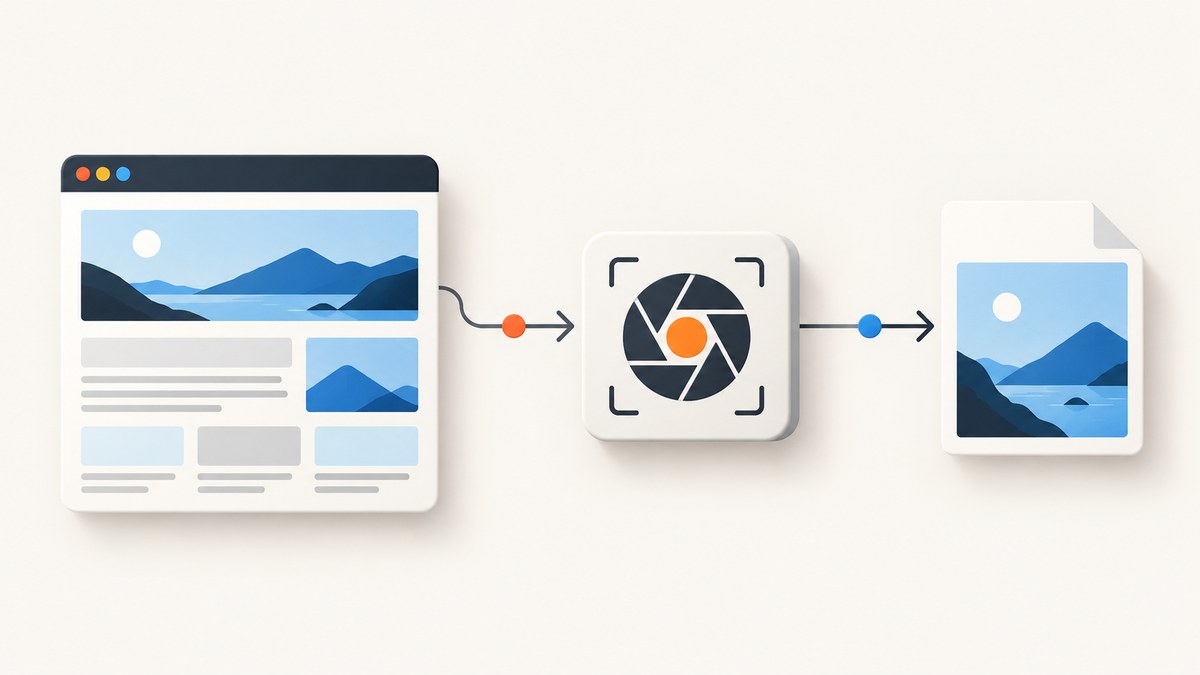
To add a website screenshot to an n8n workflow, connect a trigger to an HTTP Request node that calls a screenshot API, then pass the returned image data to the next node. A documented Browserless setup uses a Manual Trigger and an HTTP POST request to its /screenshot endpoint. The request includes the target URL and optional capture settings; authenticate with a token, and configure the response as an image buffer so later nodes can store, send, or analyze it.
The general flow is trigger → screenshot request → image binary → next workflow action. You do not need to run a browser inside n8n for this pattern. The screenshot service runs the browser and returns the result. This guide builds the workflow, explains how to handle the binary output, and covers a second documented integration route through ScreenshotOne.
1. Choose the workflow shape
Start with the smallest workflow that proves the handoff. Use a Manual Trigger while configuring it, then replace or supplement that trigger with the event that should start the real process. The screenshot node should produce binary image data, not just JSON metadata, if the next step needs the actual picture.
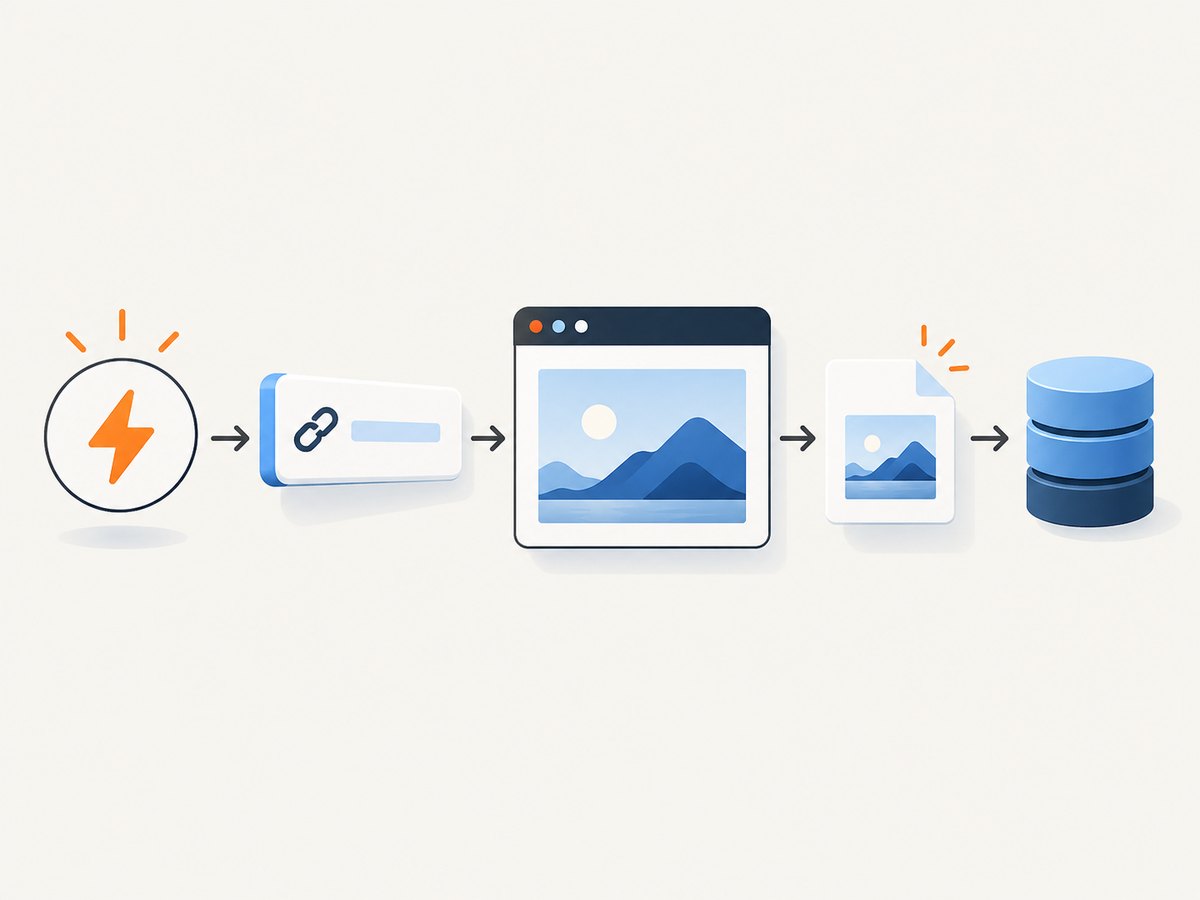
| Workflow part | Purpose | Example |
|---|---|---|
| Trigger | Starts the run | Manual Trigger, schedule, webhook, or another event node |
| HTTP Request | Sends the page URL and capture options to the API | POST to Browserless /screenshot |
| Binary consumer | Stores or forwards the returned image | File storage, email, or an image-aware service |
Decide where the URL comes from before building the request. It may be a fixed page, a field from a previous node, or a list of pages split into individual items. For dynamic URLs, validate or constrain the input to the sites your workflow is meant to capture. A workflow that accepts arbitrary URLs should be designed with the same care as any system that fetches user-controlled addresses.
2. Configure Browserless with an HTTP Request node
- Add a Manual Trigger node and connect it to an HTTP Request node.
- Set the request method to
POSTand the URL to your Browserless screenshot endpoint, using its documented/screenshotroute. - Configure authentication with the Browserless token query parameter. Store the token in n8n Credentials or another supported secret store, then reference it from the node; do not put a real token in an exported workflow or shared example.
- Set the body to JSON and include the target page URL. Add only the screenshot options the workflow needs.
- Set the response handling to return a file/binary response, and give the binary property a clear name such as
data. The documented n8n example describes the response as an image buffer. - Run the node with a public page that you are permitted to capture. Inspect the node output and confirm it contains binary data before adding downstream actions.
Browserless documents PNG, JPEG, and WebP output according to the options.type setting. For example, the JSON request body can express a full-page PNG capture like this:
{
  "url": "https://example.com",
  "options": {
    "fullPage": true,
    "type": "png"
  }
}
In n8n, put that object in the HTTP Request node’s JSON body. The exact fields exposed by the service are the API’s settings; consult its current screenshot documentation when adding other capture settings. This example illustrates the request shape and the documented format/full-page concepts. Do not copy an API token into the JSON body unless the provider explicitly specifies that authentication method.
Use a dynamic URL
If a previous node produces a field called url, use an n8n expression for the request body’s URL value, such as {{ $json.url }}. Make sure each incoming item represents the intended page and that the field is a complete URL. A missing field can result in a malformed request; a valid URL can still produce a blank result if the site blocks browser automation or renders differently to automated browsers.
Pass the image onward
n8n keeps file data as binary data attached to an item. In the next node, select the binary property returned by the HTTP Request node. To save the image, configure a file or storage node to use that property and choose a filename and destination. To attach it to a message, select the same binary property in the message node’s attachment field. For an image analysis step, pass the binary property through the integration’s supported image input.
When the workflow returns several items, each item may carry its own image. Keep the item-to-image relationship intact when adding merge, loop, or aggregation steps; otherwise, a later action may use the wrong URL or image. For a simple test, capture one page first and verify its content and file format before scaling the workflow to a list.
3. Set up an alternative with ScreenshotOne
ScreenshotOne documents two ways to call its API from n8n: use the official community node, or make an HTTP Request. The community node offers a service-specific configuration path. The generic HTTP Request approach keeps the workflow centered on n8n’s built-in node and the provider’s API. Choose according to how much provider-specific configuration you want in the workflow and what output the following node needs.
For the HTTP Request route, ScreenshotOne accepts GET or POST requests; POST options go in a JSON body. Authenticate with an access key, and use HTTPS. Its documentation specifies a maximum POST request body of 100 MiB. Store the access key as a credential and reference it from the node rather than including the secret in a workflow export.
The same basic handoff applies: request a capture, configure n8n to handle the response as a file where appropriate, inspect the binary output, and connect the next action. The API documentation, rather than a generic n8n example, is the authority for each provider’s supported parameter names and response behavior. Do not assume the Browserless endpoint, authentication fields, or body schema apply unchanged to ScreenshotOne.
4. cURL, Python, and Node.js request examples
These examples help isolate whether a problem is in the API request or in the n8n node configuration. Use the provider’s current API documentation for the endpoint and request body. Keep credentials in environment variables or a secret manager in real workflows; the placeholders below are not working credentials.
Browserless cURL shape
curl -X POST \
  'https://YOUR-BROWSERLESS-ENDPOINT/screenshot?token=YOUR_TOKEN' \
  -H 'Content-Type: application/json' \
  --data '{"url":"https://example.com","options":{"fullPage":true,"type":"png"}}' \
  --output screenshot.png
Replace the endpoint with the Browserless endpoint supplied for your account. The documented integration authenticates using a token query parameter and sends the URL and optional settings in the POST body. Save the response to a file when running the request from a shell.
Python request shape
import os
import requests

endpoint = os.environ["BROWSERLESS_SCREENSHOT_ENDPOINT"]
token = os.environ["BROWSERLESS_TOKEN"]
payload = {
    "url": "https://example.com",
    "options": {"fullPage": True, "type": "png"},
}

response = requests.post(
    endpoint,
    params={"token": token},
    json=payload,
    timeout=90,
)
response.raise_for_status()
with open("screenshot.png", "wb") as image_file:
    image_file.write(response.content)
Node.js request shape
const endpoint = process.env.BROWSERLESS_SCREENSHOT_ENDPOINT;
const token = process.env.BROWSERLESS_TOKEN;

if (!endpoint || !token) {
  throw new Error('Set BROWSERLESS_SCREENSHOT_ENDPOINT and BROWSERLESS_TOKEN');
}

const response = await fetch(
  `${endpoint}?token=${encodeURIComponent(token)}`,
  {
    method: 'POST',
    headers: { 'Content-Type': 'application/json' },
    body: JSON.stringify({
      url: 'https://example.com',
      options: { fullPage: true, type: 'png' },
    }),
  },
);

if (!response.ok) {
  throw new Error(`Screenshot request failed: ${response.status}`);
}

const image = Buffer.from(await response.arrayBuffer());
// Write or pass `image` to the next step in your application.
These are request-shape examples, not substitutes for the provider’s current endpoint details. If your endpoint already includes an authentication component or uses a different account-specific host, follow the provider’s instructions. Never log a complete URL containing a live token.
5. Options and configuration to consider
| Decision | What to configure | Why it matters downstream |
|---|---|---|
| Image format | Browserless documents PNG, JPEG, or WebP through the options.type setting. |
Choose a format accepted by the storage, email, or analysis node. |
| Page extent | Set full-page capture when the whole document is needed; otherwise use the provider’s default capture behavior. | Full-page images can be much larger than viewport captures. |
| Request method | Browserless screenshot flow uses POST; ScreenshotOne documents GET and POST. | POST makes a structured options body convenient, but follow the provider’s endpoint schema. |
| Authentication | Browserless token query parameter; ScreenshotOne access key. | Store secrets in n8n credentials and avoid exposing them in exported workflow JSON. |
| Binary response | Tell n8n to handle the image response as file data. | Downstream nodes need a binary property, not a JSON string. |
| Timeout and retries | Set an execution/request timeout that fits the slowest pages you expect; retry only transient failures. | Pages vary in render time, and a retry can duplicate downstream side effects. |
Start with the minimum settings. Add capture options only after confirming the default output and the receiving node’s requirements. Do not choose a format solely because it is smaller: check that all later systems can read it and that visual detail is adequate for the task.
6. Reliability, performance, and cost
A capture depends on both the target site and the screenshot service. Browserless warns that a site may block browser automation, producing a blank or unexpected screenshot. Treat every capture as fallible: check the HTTP result, confirm that binary data exists, and where the workflow matters, inspect the output or validate it before treating the run as successful. No provider documentation cited here establishes that every site will render successfully.
Page complexity and full-page capture affect how much work the browser must do and how large the response becomes. Keep image payloads only as long as needed, and avoid sending a full-page image through unnecessary workflow steps. When processing many URLs, control concurrency or split the workload into manageable batches so a burst of browser requests does not overwhelm the workflow or hit provider limits. Verify the provider’s current rate limits and pricing before setting production volume; the research sources do not establish comparative performance or pricing for Browserless and ScreenshotOne.
Retries can help with intermittent network errors, but they are not a cure for site blocking, invalid URLs, or a consistently slow page. Use a bounded retry policy and avoid repeating later actions such as sending emails or creating records when only the capture needs retrying. Consider routing failed items to an error branch with the URL and failure details, while keeping credentials out of logs. Test with pages representative of your actual targets, because a successful capture of one public page does not prove all sites will behave the same way.
7. Troubleshooting
| Symptom | Likely cause | Fix |
|---|---|---|
| 401/403 or authentication error | Missing, invalid, or incorrectly placed token/access key. | Confirm the provider’s required authentication method and reference the secret from n8n Credentials. |
| 400 response | Malformed JSON, missing URL, or unsupported option. | Inspect the resolved request body, verify a complete URL, and remove options until the minimal request works. |
| HTTP node succeeds but there is no usable image | Response is being interpreted as JSON/text instead of a file, or the response is an error payload. | Set response handling to file/binary, inspect the status and response content type, and check the provider’s response behavior. |
| Blank or unexpected screenshot | The target blocks browser automation, or the page has not rendered as expected. | Try a permitted, simpler page to isolate the issue; inspect the target’s behavior and provider guidance. Do not assume every site permits automated capture. |
| Request times out | The page is slow, the workflow timeout is too short, or the service cannot complete the capture. | Allow a suitable timeout, simplify the capture if possible, and retry only transient failures with a limit. |
| Screenshot cannot be opened downstream | Wrong binary property, unsupported format, or an error body saved as an image. | Verify the binary property name and actual response, choose a supported format, and branch on failed status codes. |
| ScreenshotOne POST rejected | Body exceeds its documented 100 MiB maximum or does not match the API schema. | Reduce the request body and compare its JSON fields with the current ScreenshotOne documentation. |
| Secret appears in workflow export or logs | Credential was entered directly in a visible field or full request URL was logged. | Move it to n8n Credentials, remove the exposed copy, and rotate the key if it was shared. |
8. Or skip the browser setup
ScreenshotNeo is a website screenshot API and MCP server from Yorker Media. One GET request returns a screenshot or PDF. Its cleanup steps accept cookie/consent banners and remove 60+ known consent platforms, newsletter popups, and chat widgets before capture; each step can be turned off. Bot checks/CAPTCHAs, blank pages, timeouts, failed loads, and cache hits cost nothing, and response headers say which outcome occurred. Its MCP server gives AI agents tools for screenshots, page information, and PDF capture.
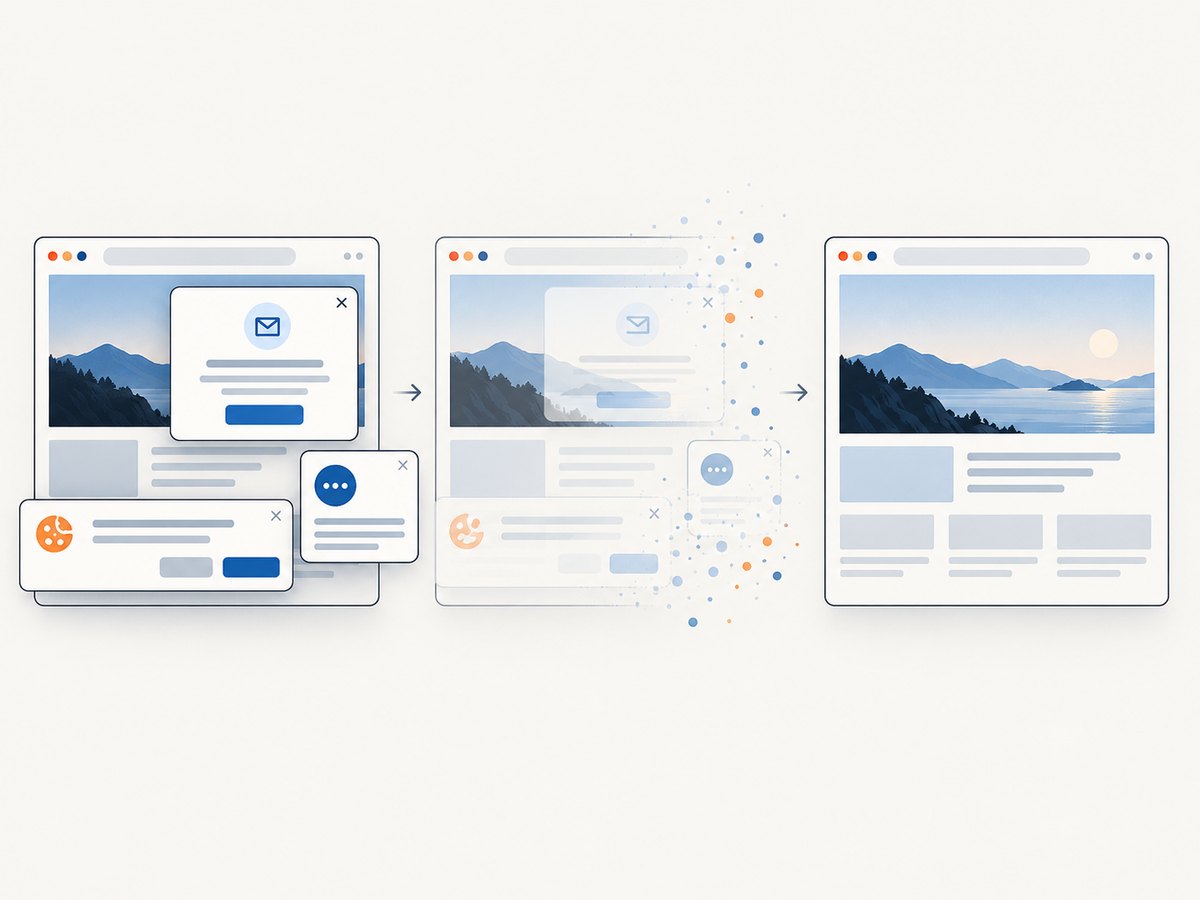
For an n8n HTTP Request node, use GET with the API URL and query parameters below. Store your key in n8n Credentials and set access_key from that secret; do not save a live key in the workflow body. See the ScreenshotNeo documentation for the API options.
curl -G "https://api.screenshotneo.com/v1/shot" \
  -d access_key=YOUR_API_KEY \
  --data-urlencode url=https://stripe.com \
  -o shot.webp
In n8n, set the request URL to https://api.screenshotneo.com/v1/shot, method to GET, and add access_key and url as query parameters. Configure the response as file/binary data so it can flow to the next node. The same one-call request can be made from Python or Node.js:
import requests

r = requests.get(
    "https://api.screenshotneo.com/v1/shot",
    params={"access_key": "YOUR_API_KEY", "url": "https://stripe.com"},
    timeout=90,
)
open("shot.webp", "wb").write(r.content)
const q = new URLSearchParams({ access_key: 'YOUR_API_KEY', url: 'https://stripe.com' });
const res = await fetch(`https://api.screenshotneo.com/v1/shot?${q}`);Cookie banners, popups, and chat widgets are removed before the shot. Bot checks, blank pages, and failed loads are never billed. An MCP server lets AI agents take screenshots. The free plan includes 1,000 screenshots a month with no card; paid plans start at $5 for 3,000. Sign up for 1,000 free screenshots a month, with no card.
9. FAQ
Can the screenshot URL come from an earlier n8n node?
Yes. Map the earlier node’s URL field into the request body or query parameter using an n8n expression, then confirm the resolved value in a test execution.
Can one workflow capture multiple pages?
Yes. Pass multiple n8n items through the request node or loop over a list, while controlling concurrency and preserving which image belongs to each URL.
Does an API request guarantee a screenshot of every site?
No. Browser automation can be blocked, and pages can fail or render unexpectedly. Validate results for workflows where a bad image would cause a consequential action.
Should I use a community node or HTTP Request?
Use the documented ScreenshotOne community node if its service-specific setup fits your workflow. Use HTTP Request when you want to configure the API call directly in n8n’s generic node.


