Why Are My Website Screenshots Not Updating?
Find out whether a stale screenshot comes from a saved file, screenshot-service cache, CDN, or page rendering—and how to fix the right layer.
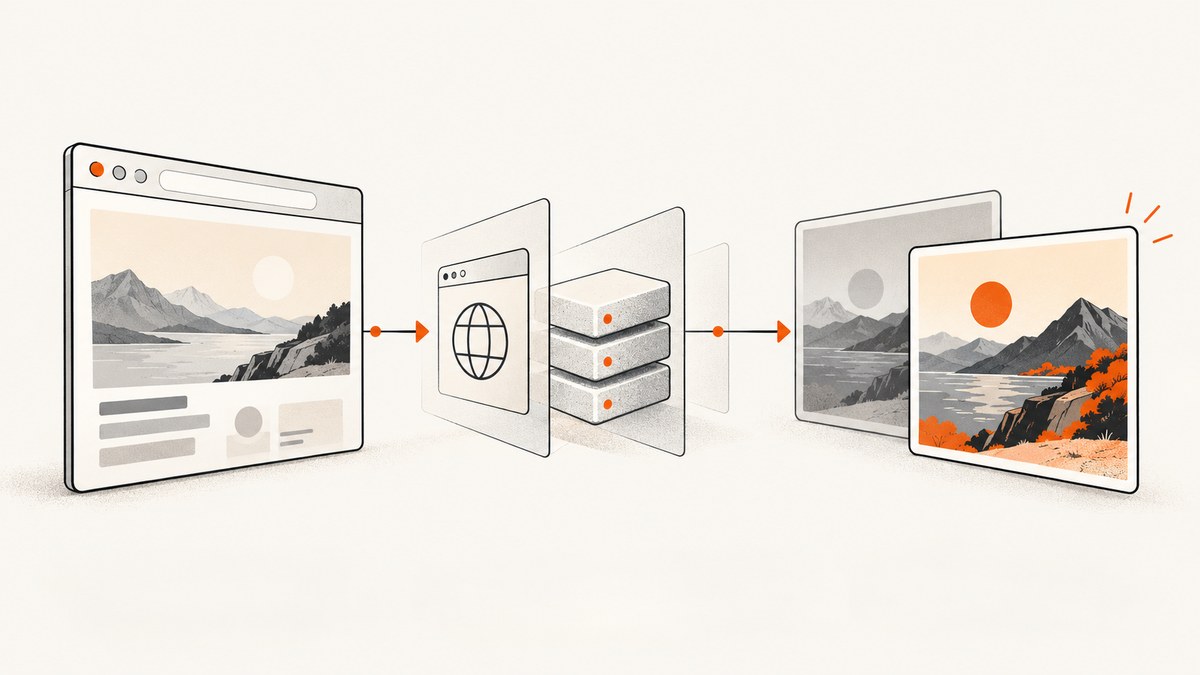
A website screenshot can look out of date for several different reasons: you may be viewing a file captured earlier, a screenshot service may be returning a cached image, the site or its CDN may still be serving old content, or the browser may have captured the page before its latest content finished rendering. Identify which layer produced the stale result before clearing caches or changing settings.
For a saved screenshot, take a new capture. For an automatically generated screenshot, check the service’s documented cache controls and status first. If the service made a fresh capture, check what the page serves and whether the capture waited long enough for JavaScript, animations, or lazy-loaded content. Cache behavior and parameter names are provider-specific.
1. Identify which screenshot is stale
Start by tracing the image to its source. The fix depends on whether it is a file you saved, an image embedded in documentation, a preview thumbnail, or a response from a screenshot API. Keep the exact page URL, image URL, capture options, and approximate capture time; those details help distinguish a reused image from a new render.
| What you see | Likely first check |
|---|---|
| A PNG or JPEG on your computer | The file is a saved snapshot. Capture the page again and save to a new filename or replace the old file. |
| An image embedded in docs or a README | Check the image file in the repository, then the docs site’s build and delivery cache. |
| A generated preview or thumbnail | Check whether the preview service caches results and offers a refresh control. |
| An image returned by a screenshot API | Check the API’s cache policy, response headers, and capture settings. |
A screenshot is an image, not a live view of the page. Changing the website does not modify screenshots already saved or published. Likewise, replacing an image at the same URL may not immediately replace copies held by a docs host, browser, proxy, or CDN.
2. Check the screenshot service’s cache
When an API or preview tool generates the image, first determine whether it actually rendered the page. Some services reuse a previous capture when the URL and relevant options match. The cache key and bypass mechanism vary by provider, so consult that provider’s current documentation instead of guessing parameter names.
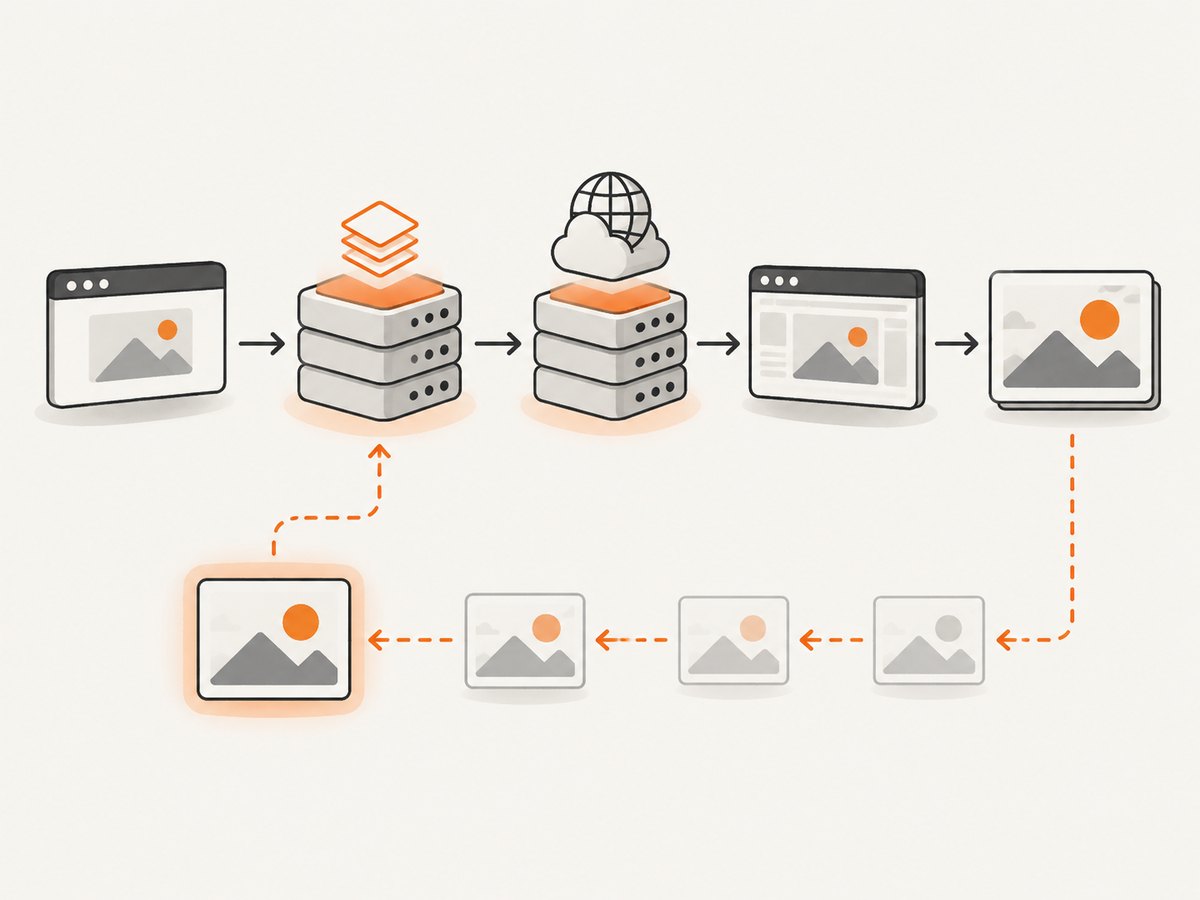
For example, ScreenshotEngine documents a 24-hour in-memory cache for matching capture options, though entries may disappear earlier after an instance restart. It documents a POST request with cachePolicy: "no-cache" to bypass cache lookup and storage; its X-Cache response header can report HIT, MISS, or BYPASS. These are ScreenshotEngine-specific details, not general screenshot API conventions. [ScreenshotEngine documentation]
Use the service’s own status header or dashboard if available. A cache hit means the service reused an image according to its policy; it does not tell you whether the website itself is current. A miss or bypass suggests a new capture was attempted, but the page renderer can still receive stale HTML or assets from the site’s delivery path.
- Record the exact request URL and all capture options. Options such as viewport and device scale may be part of a cache key.
- Inspect the response’s documented cache status, if the service provides one.
- Use only the documented refresh or bypass control for that service.
- Compare the result with a capture made after a known page update, keeping other options the same.
Do not assume a GET parameter works if the provider only documents a POST cache policy, or that a query parameter called fresh has the same effect elsewhere. ShotPilot, for example, documents a fresh option that bypasses its cached entry and writes the new capture back to cache. [ShotPilot documentation]
3. Confirm the page and its assets are current
A new screenshot can faithfully capture an old page. The screenshot renderer requests your site just like a browser, and it may receive content from the origin, a CDN edge, or another cache in front of the site. Check the page and the specific changed asset through the same public URL the screenshot tool uses. If the origin has been updated but a CDN point of presence still returns an older copy, follow the CDN provider’s invalidation or refresh procedure for the affected URL or content.
Huawei Cloud’s CDN troubleshooting guidance recommends checking for outdated copies at CDN points of presence after origin content changes, then checking the browser cache. The exact controls depend on your CDN account and configuration. [Huawei Cloud CDN troubleshooting]
Avoid starting with a global purge. Establish which resource is stale first: HTML, a CSS or JavaScript bundle, an image, or the screenshot result itself. If only one asset is outdated, an appropriately scoped invalidation or a new versioned asset URL may be enough. Follow your site and CDN’s documented caching rules.
4. Wait for dynamic content and lazy loading
A screenshot may be new but incomplete. Modern pages often update after initial HTML arrives: scripts fetch data, animations reveal content, and images load only as the page scrolls. A capture taken too early can show yesterday’s-looking content, missing sections, placeholders, or blank image areas even when the service did not reuse an old screenshot.
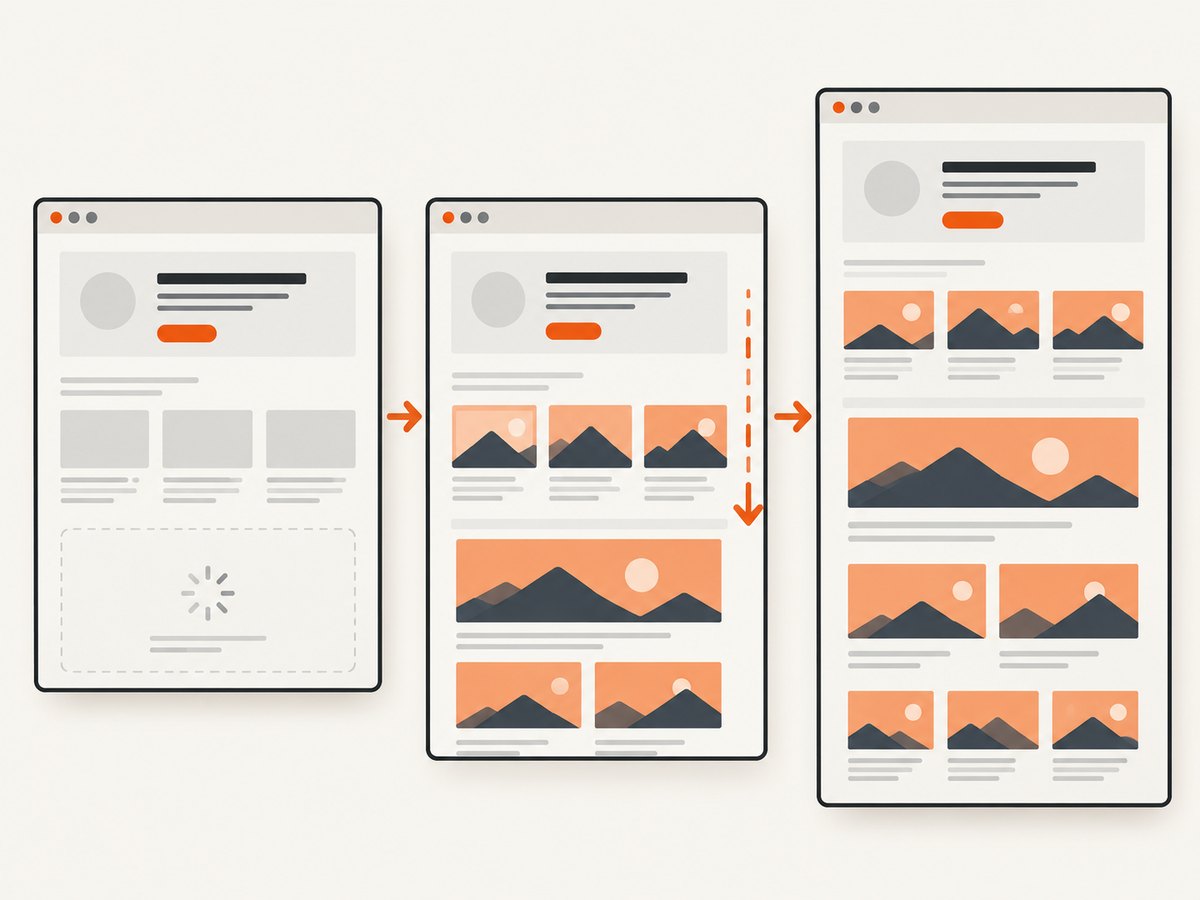
Cloudflare’s Browser Rendering screenshot endpoint processes HTML and JavaScript before capture. ShotPilot documents a delay after network idle and auto-scrolling for lazy-loaded images and reveal animations. These examples show why timing and scrolling controls matter, but the available controls differ by service. [Cloudflare Browser Rendering documentation] [ShotPilot documentation]
For a self-managed browser capture, explicitly wait for the application state you need. A fixed delay is simple but can be slow on every page and still fail when load time varies. Waiting for a selector or a known application-ready signal is usually more reliable. For full-page captures, scroll through the page if lazy content loads only when it enters the viewport.
5. Reproduce a fresh capture with Playwright
This minimal Node.js example launches Chromium, opens the target page, waits for the network to quiet, allows a short rendering delay, and saves a full-page PNG. Install Playwright and its browser once, then run the script. Replace the URL with the page you need to capture.
npm install playwright
npx playwright install chromium
// screenshot.mjs
import { chromium } from 'playwright';
const url = process.argv[2] ?? 'https://example.com';
const browser = await chromium.launch({ headless: true });
try {
const page = await browser.newPage({
viewport: { width: 1440, height: 1000 },
deviceScaleFactor: 1,
});
const response = await page.goto(url, {
waitUntil: 'networkidle',
timeout: 60_000,
});
if (!response || !response.ok()) {
throw new Error(`Navigation failed: ${response?.status() ?? 'no response'}`);
}
// Allow brief post-load rendering. Prefer a meaningful selector when available.
await page.waitForTimeout(500);
await page.screenshot({ path: 'shot.png', fullPage: true });
} finally {
await browser.close();
}Run it with node screenshot.mjs https://example.com. For an application with a known readiness marker, replace the delay with await page.locator('[data-app-ready="true"]').waitFor(), using a selector that really exists on your page. For a section that appears only after scrolling, scroll it into view before capture. Pages with long-lived network connections may never satisfy networkidle; in that case wait for a meaningful selector or use a suitable load event and explicit readiness condition.
Capture a specific element instead of the whole page
If only one widget or panel is stale or incomplete, capture that element to make diagnosis easier. The locator must match an element after the page has rendered.
const card = page.locator('.pricing-card').first();
await card.waitFor({ state: 'visible', timeout: 15_000 });
await card.screenshot({ path: 'pricing-card.png' });
For a full-page capture with lazy images, auto-scroll before taking the screenshot. A basic helper can scroll in viewport-sized steps; application-specific lazy loading may still require waiting after each step.
await page.evaluate(async () => {
  const step = Math.max(300, window.innerHeight);
  for (let y = 0; y < document.body.scrollHeight; y += step) {
    window.scrollTo(0, y);
    await new Promise(resolve => setTimeout(resolve, 150));
  }
  window.scrollTo(0, 0);
});
await page.screenshot({ path: 'full.png', fullPage: true });
6. Verify settings that change the appearance
Two captures can both be fresh yet differ because they used different rendering conditions. Before diagnosing a cache problem, compare the capture configuration with the image you expect.
- Viewport: responsive layouts change at breakpoints, so width and height affect layout and visible content.
- Device scale: a higher device scale changes pixel dimensions and can affect image sharpness.
- User agent: some sites serve different markup or assets to mobile, desktop, or automated browsers.
- Locale and timezone: localized text, dates, and time-sensitive content may differ.
- Authentication and cookies: a capture without the right session may show a sign-in page or a different account state.
- Animation: a capture can land on a different frame. Disable animation or wait for a stable state when comparing images.
- Full-page versus viewport: full-page stitching and viewport-only capture show different portions of a document.
Cloudflare’s documentation notes device-scale and user-agent considerations. Check the settings actually sent to your renderer instead of assuming a visual difference means its cache is stale. [Cloudflare Browser Rendering documentation]
7. Update screenshots in documentation
Documentation images add a publishing step after capture. Regenerating the PNG locally does not guarantee the public page will show it. Use this sequence:
- Generate the replacement image and open it locally to confirm its contents.
- Check that the intended file path and filename were updated in the repository or CMS.
- Commit or publish the image and confirm the docs build includes it.
- Open the image’s public URL directly. If it is still old, check the docs host or CDN delivery cache.
- Reload the documentation page after confirming the image URL returns the new file. If an old copy persists at the same URL, use the platform’s documented cache refresh or publish a new versioned image path.
This separates a capture problem from a build or publishing problem. A user discussion about keeping documentation images up to date reflects that workflow question, but it is not a universal technical specification. [GitHub Community discussions]
8. Troubleshooting common symptoms
| Symptom | Likely cause | What to do |
|---|---|---|
| The image is byte-for-byte unchanged after a request | The screenshot service may have returned a cache hit, or the page is unchanged. | Inspect the provider’s cache status and use its documented bypass. Then verify the page itself is current. |
| The page looks old, but the response says cache miss | The renderer may have received stale HTML or assets from a site/CDN cache. | Check the page and changed assets through the same URL; follow the CDN’s scoped invalidation process if needed. |
| New text is missing but the layout is current | Client-side data or a delayed script was not ready at capture time. | Wait for a page-specific readiness selector or state; do not rely on an arbitrary short delay. |
| Images lower on the page are blank | Lazy loading did not run because the page was not scrolled. | Scroll through the page, wait for images to load, then capture. |
| The screenshot differs from your browser | Viewport, user agent, device scale, cookies, locale, or animation state differs. | Match those settings and confirm the same URL and logged-in state. |
| The API times out waiting for network idle | The page has ongoing requests, such as polling or streaming. | Wait for a specific selector or app-ready signal instead of requiring all network activity to stop. |
| Local docs image is new but published one is old | The build, upload, or CDN cache has not updated. | Inspect the public asset URL, rebuild or republish, then refresh only the relevant delivery cache. |
| Bypass option appears ignored | The parameter may be unsupported for that method or request type. | Check the provider’s current API docs for supported HTTP method, parameter spelling, and response semantics. |
9. Performance, reliability, and cost
A cache bypass typically asks the service to render again, which can add browser work and make requests slower than a cache hit. Use fresh captures when the page’s update cadence requires them; for stable pages, a documented cache policy can reduce repeated work. ScreenshotOne says its cache is intended to save rendering costs, rather than to act as a CDN-like delivery layer. Treat each provider’s retention and billing behavior as provider-specific. [ScreenshotOne documentation]
For recurring jobs, make the capture reproducible: keep URL, viewport, device scale, user agent, wait condition, and cache policy consistent. Record the request time and response cache status. This makes it possible to tell an old result from a different rendering setup. For dynamic sites, wait on a stable page condition and set sensible timeouts; overly long fixed sleeps waste time, while overly short sleeps produce partial images.
Do not infer that a screenshot cache hit means the origin is healthy or current. Nor should you assume a cache miss guarantees fresh origin content. The screenshot-service cache, site cache, and browser rendering lifecycle are separate layers. Verify the layer that produced the stale image before spending time or incurring work to refresh unrelated caches.
10. Or skip the browser setup
ScreenshotNeo is a website screenshot API and MCP server for developers. One GET request returns a PNG, JPEG, WebP, or PDF. Its clean-shot flow accepts cookie and consent banners like a visitor, then removes 60+ known consent platforms, newsletter popups, and chat widgets; each step can be turned off. Only clean shots are billed: bot checks/CAPTCHAs, blank pages, timeouts, failed loads, and cache hits cost nothing, and responses identify the page verdict and billing status in X-Page-Verdict and X-Billed. [ScreenshotNeo] [API documentation]
Use this cURL example to capture a page. Replace the URL with your target and set your API key. See the ScreenshotNeo API docs for parameters and formats.
curl -G "https://api.screenshotneo.com/v1/shot" \
  -d access_key=YOUR_API_KEY \
  --data-urlencode url=https://stripe.com \
  -o shot.webp
Equivalent Python:
import requests

r = requests.get(
    "https://api.screenshotneo.com/v1/shot",
    params={"access_key": "YOUR_API_KEY", "url": "https://stripe.com"},
    timeout=90,
)
open("shot.webp", "wb").write(r.content)
Equivalent Node.js:
const q = new URLSearchParams({
  access_key: 'YOUR_API_KEY',
  url: 'https://stripe.com'
});
const res = await fetch(`https://api.screenshotneo.com/v1/shot?${q}`);
Beyond a one-call screenshot, ScreenshotNeo supports full-page capture with lazy images loaded, CSS selector element capture, dark mode, 12 device presets and arbitrary viewports, retina scale, PDF output and page settings, HTML/CSS rendering, custom CSS and JavaScript, pre-capture clicks, hidden selectors, selector/delay/network-idle waits, blocking ads, trackers, requests or resource types, custom headers, cookies, user agent, Authorization, timezone and geolocation, transparency, resizing, caching with a chosen TTL, signed links for public image tags, asynchronous jobs with signed webhooks, batches of up to 100 URLs per call, a usage API, and an OpenAPI spec. Parameters used by other screenshot APIs also work to simplify switching.
Its MCP server provides take_screenshot, get_page_info, and capture_pdf for Claude, Cursor, and other MCP clients. Pricing is Free for 1,000 shots/month with no card; Starter is $5 for 3,000, Growth $15 for 15,000, Pro $39 for 60,000, Scale $99 for 250,000, and Business $249 for 1,000,000. Yearly billing gives two months free, and every feature is on every plan. Try ScreenshotNeo free: 1,000 screenshots a month, no card required.
11. FAQ
Does renaming the screenshot force it to update?
It can help when a documentation host or browser caches an image by URL, but renaming does not fix a stale screenshot-service result or stale page response. First identify which URL or layer is serving the old content.
Should I add a timestamp to every screenshot URL?
Only if your publishing or image workflow supports versioned URLs and you need a new asset identity. A timestamp does not guarantee the screenshot renderer bypasses its own cache; use the provider’s documented policy.
Why does a manual browser screenshot look current while the API image does not?
The browser and API may reach different CDN edges, use different cookies or user agents, or wait for different page states. Compare the URL, session, viewport, and readiness conditions, then check the API response’s cache indicators.
How often should I refresh generated screenshots?
Choose a refresh schedule based on how often the page changes and how quickly readers need to see the change. For highly dynamic pages, refresh after relevant deployments; for stable pages, a longer provider-supported cache policy may save repeated rendering work.


