How to Take Website Screenshots in PHP
PHP needs a browser or rendering service to capture a website. Compare three PHP options, install the tools, and save viewport, full-page, or element screenshots.
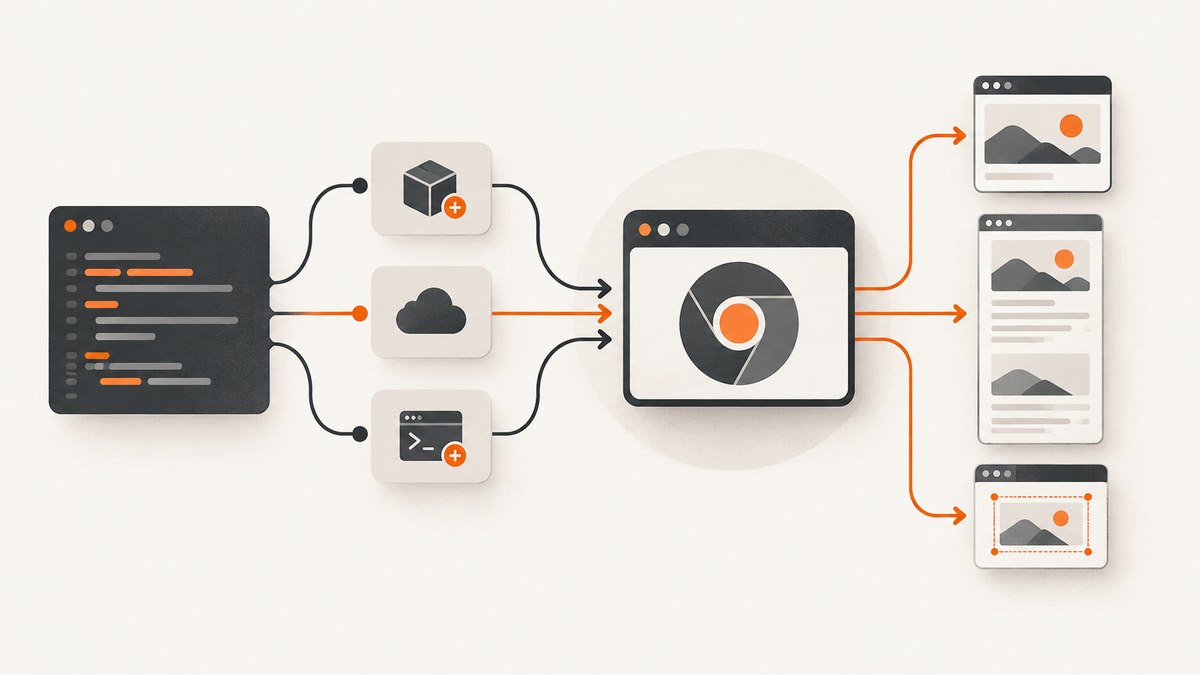
PHP does not render modern websites by itself. To take a website screenshot in PHP, use PHP to control a browser or rendering layer: navigate to the page, wait for the state you want to capture, take a viewport, full-page, or element screenshot, and save the resulting image.
For browser automation, Playwright PHP provides navigation and screenshot APIs. For direct Chrome or Chromium control, consider chrome-php/chrome. For a more abstract HTML-to-image or PDF workflow, consider Spatie Browsershot. The right choice depends on your runtime, browser-control needs, and capture scope; the reviewed documentation does not establish a universal speed or reliability winner.
1. Choose a PHP screenshot approach
| Approach | Documented use | Consider it when |
|---|---|---|
| Playwright PHP | Browser automation, page navigation, page and element screenshots, and related artifacts. | You need interactions, state checks, and capture as part of a larger browser workflow. |
| chrome-php/chrome | Direct control of Chrome or Chromium, including screenshots, clipped regions, and full-page capture. | You want to drive Chrome or Chromium from PHP and can manage the browser executable in your environment. |
| Spatie Browsershot | A wrapper for converting HTML to an image, PDF, or string. | A simpler rendering interface fits your task. Check the release documentation: the Browsershot README notes that its older v2 approach used Chrome’s headless CLI and is not maintained. |
Check the current installation instructions and requirements for the exact release you choose. The reviewed Playwright PHP examples report PHP 8.2 or newer and Node.js 20 or newer, with browser binaries installed through the project’s installer. The chrome-php/chrome repository reports PHP 7.4–8.5 and Chrome/Chromium 65 or newer; treat that as a repository claim to verify against the release you install, not a guarantee for every environment.
2. Install Playwright PHP and its browser
The following outline follows the project’s documented PHP API. Check the package’s current README for the exact Composer package name and browser-install command for the version you use. The docs describe installing Chromium binaries and say the Node server starts automatically.
- Confirm the PHP and Node.js versions required by your selected package release.
- Install the Playwright PHP package using the Composer command in its current README.
- Install the browser binaries using the installer documented for that release.
- Run the capture in an environment where the PHP process can launch the browser and write to the destination directory.
Here is the basic capture shape, adapted from the project README. It navigates to a page and saves a screenshot:
<?php
require __DIR__ . '/vendor/autoload.php';

use Playwright\Playwright;

$context = Playwright::chromium(['headless' => true]);
try {
    $page = $context->newPage();
    $page->goto('https://example.com');
    $page->screenshot(__DIR__ . '/screenshot.png');
} finally {
    $context->close();
}
The example shows the API outline; it is not a claim that it was executed for this article. Before relying on a capture, add the waits, assertions, viewport, and error handling appropriate to your application. Use a writable, predictable output path, and close the browser context even if navigation or capture throws an error.
3. Make the page state explicit
A screenshot records a rendered browser state. If the application has not finished loading, or the expected content is not visible, the image may capture a spinner, skeleton, or intermediate state. Navigate to the intended URL and wait for the particular state the screenshot is meant to show. Prefer a meaningful selector or assertion over an arbitrary delay when your chosen API supports it.
Do not assume that every page is ready when the initial navigation returns. A page may fetch data after its initial document loads, reveal content after an interaction, or render images lazily as the page scrolls. Decide what “ready” means for your capture: for example, an expected heading is visible, a report panel has appeared, or a loading indicator has disappeared. Then assert or wait for that condition before saving the image.
Keep the screenshot in its proper role. It is useful visual evidence and debugging context; it does not prove that a button works or that the page has the correct accessible name. Use locator assertions for text, visibility, enabled state, counts, or accessible names. For diagnosing an action sequence or network problem, a trace may explain more than one still image. For documenting motion, consider whether video is the more suitable artifact.
4. Choose viewport, full-page, or element capture
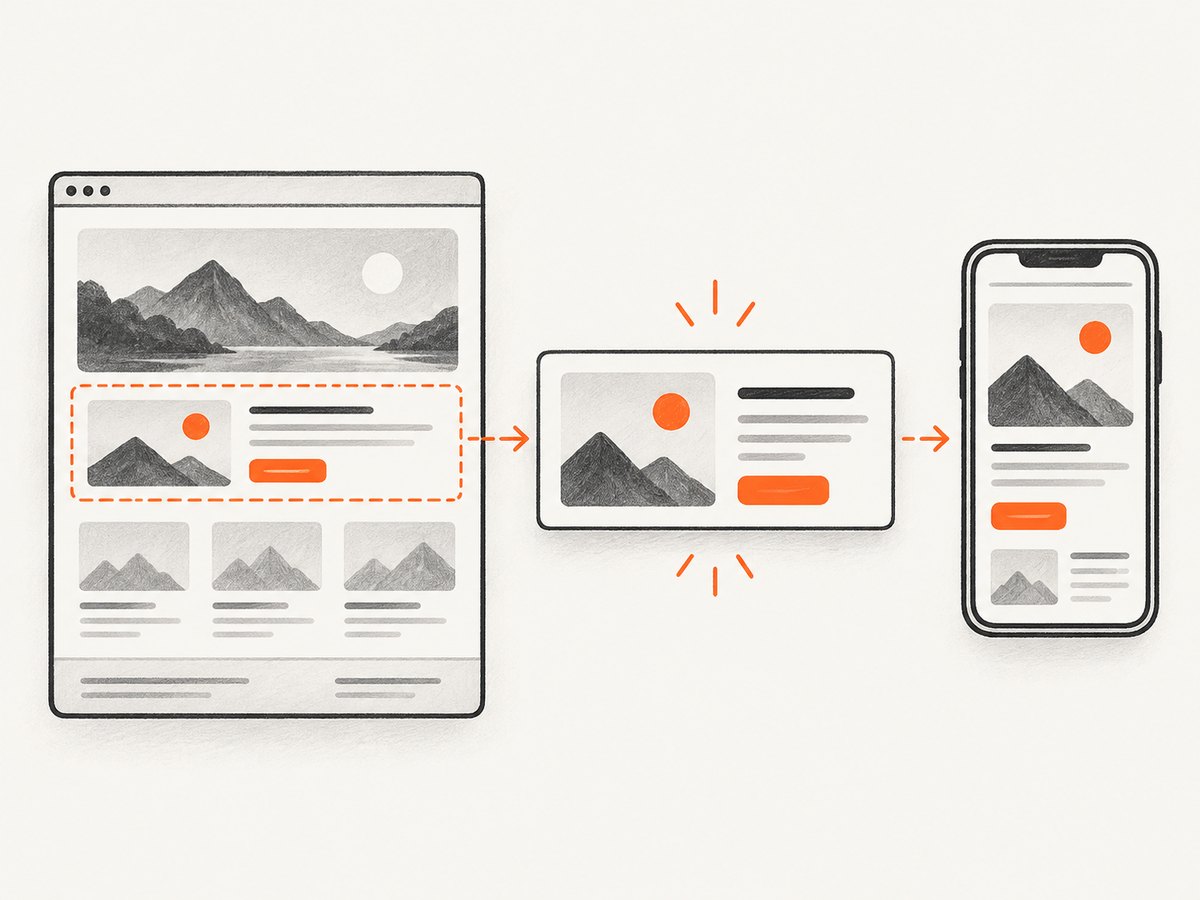
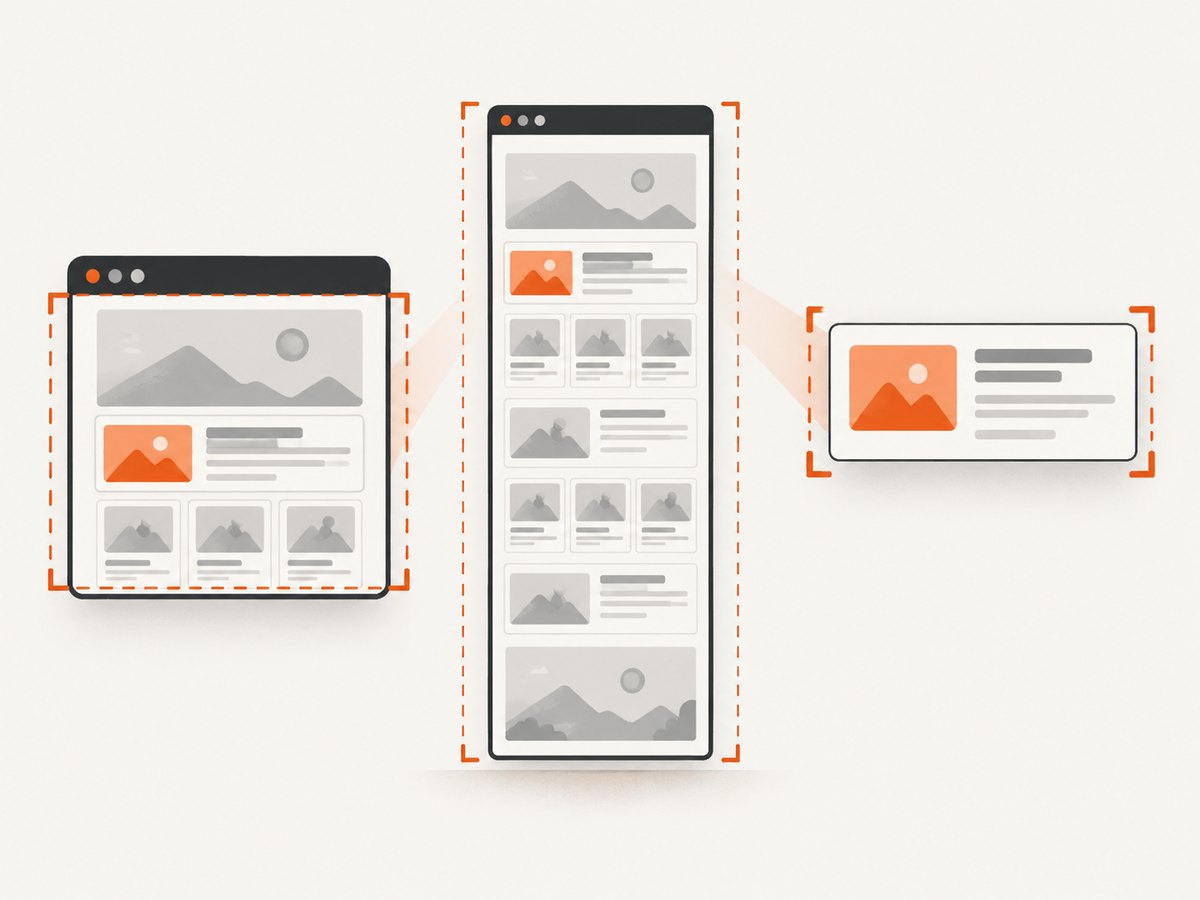
- Viewport: captures what is visible at the current viewport. Use it to document a user-visible screen or a specific moment. Set the viewport deliberately so runs are comparable.
- Full page: includes content below the fold. Use it when the complete scrollable page is relevant. Very long pages can create large images and expensive-to-inspect artifacts; avoid making full-page capture your default without a reason.
- Element: captures a selected region such as a chart, widget, or card. It reduces unrelated visual content and can make reviews easier.
Playwright PHP’s screenshot guide documents viewport, full-page, and element screenshots, and recommends thinking about the question a screenshot answers. Its guide puts it this way: “Screenshots answer one question well: what did the page look like at this moment?” See the Playwright screenshot guide for the capture concepts and the assertions guide for checking page behavior. Match the exact API syntax to the PHP package version installed; the JavaScript documentation is not a substitute for the PHP API reference.
5. Alternatives: direct Chrome control and Browsershot
chrome-php/chrome
The chrome-php/chrome repository documents controlling Chrome or Chromium from PHP. Its examples include PNG, JPEG, and WebP output, clipped-region capture, and full-page layout capture. This can fit a project that wants direct browser control. You still need a compatible browser executable, and its location and version must work in the deployment environment. Consult the current repository README for installation and API details rather than copying an example from a different release.
Spatie Browsershot
Spatie Browsershot describes converting HTML to an image, PDF, or string. It can be a useful higher-level interface when that rendering workflow is enough. Check which maintained release applies to your project and what it requires; do not use the README’s older v2 CLI approach as if it were a current recommendation.
These tools solve related but not identical problems. Compare their current installation requirements, the amount of browser interaction you need, the capture modes supported by the version you select, and how the browser will run in your environment. The reviewed sources provide no controlled benchmark, so claims that one is fastest or most reliable would need separate evidence.
6. Or skip the browser setup
If your goal is simply to capture a public page from PHP, ScreenshotNeo is a website screenshot API and MCP server. One GET request returns an image or PDF, so you do not have to install or manage a browser in your PHP runtime. See the ScreenshotNeo API documentation for request options.
<?php
$accessKey = 'YOUR_API_KEY';
$url = 'https://stripe.com';

$response = file_get_contents(
    'https://api.screenshotneo.com/v1/shot?access_key=' . rawurlencode($accessKey)
    . '&url=' . rawurlencode($url)
);

if ($response === false) {
    throw new RuntimeException('Screenshot request failed');
}

if (file_put_contents(__DIR__ . '/shot.webp', $response) === false) {
    throw new RuntimeException('Could not write screenshot file');
}
For production code, configure PHP’s HTTP client with a finite timeout and inspect the response status and headers before saving the body as an image. Store the API key outside source control. ScreenshotNeo removes cookie banners, popups, and chat widgets before capture; bot checks, blank pages, and failed loads are never billed. Its MCP server lets AI agents take screenshots. The free plan includes 1,000 screenshots a month with no card, and paid plans start at $5 for 3,000. Sign up for 1,000 free screenshots a month with no card.
7. Troubleshooting
| Symptom | Likely cause | What to check |
|---|---|---|
| Browser does not launch | Browser binaries are missing, the executable is not where the package expects it, or the installed version is incompatible. | Run the install step for your package release; confirm the browser path and version; check the deployment user’s permissions. |
| Package or runtime errors during setup | The installed package release requires a different PHP, Node.js, or browser version. | Compare your runtime with that release’s current installation documentation. Do not assume requirements from another version still apply. |
| Screenshot is blank or incomplete | Capture happened before the intended content appeared, navigation failed, or the page rendered an error state. | Check navigation errors and response state; wait for an expected element or application-specific ready condition; inspect the saved artifact. |
| Only the top of a long page appears | The selected capture mode may be viewport rather than full page, or the page has not loaded its lower content. | Select full-page capture where supported. For lazy-loaded pages, ensure relevant content has loaded before capture and verify the result. |
| Element capture misses or clips content | The selector matched the wrong element, the element was not visible, or its size changed before capture. | Use a specific selector, wait for visibility, and verify the element’s final layout before saving. |
| Image differs between runs | Browser version, viewport, fonts, animations, data, or environment changed. | Control these inputs where possible. Avoid treating a pixel comparison as meaningful when rendering conditions differ. |
| Cannot save the output | The destination directory is missing or not writable by the PHP process. | Use an absolute path, create the directory, and check filesystem permissions and available space. |
8. Performance, reliability, and cost
With a self-managed browser, each capture depends on launching or reusing browser resources, loading the target, and writing an artifact. The reviewed sources do not quantify these costs or establish a generally faster library. Measure your own workload if capture volume or latency matters, using the same browser version, viewport, pages, and runtime conditions you expect in deployment.
For repeatable captures, keep the browser and runtime versions controlled, set a consistent viewport, use stable test data, and wait for an explicit page state. Close browser resources in a finally block so an exception does not leave them running. Bound navigation and process time in production, handle failures explicitly, and decide whether a failed capture should be retried. A retry can help with a transient failure, but it can also repeat a slow or costly operation; use a limit and record enough context to diagnose it.
Plan storage as well as rendering: screenshots can consume disk and CI artifact space, especially for full-page images. Keep only artifacts that answer a real debugging, review, or documentation question. If browser installation and upkeep are disproportionate to the task, a hosted screenshot API is another operating model. ScreenshotNeo’s stated billing policy charges only for clean shots; bot checks/CAPTCHAs, blank pages, timeouts, failed loads, and cache hits cost nothing, with the response indicating the page verdict and billing status in headers. Review the product’s current documentation and plan details before integrating it.
9. FAQ
Can PHP take a screenshot without a browser?
PHP alone does not render a modern website into its browser appearance. Use browser automation, a rendering wrapper, or a screenshot service that performs the rendering for you.
Should I use a screenshot to test that a button works?
No. Assert the button’s behavior or state with an appropriate locator or functional check. A screenshot can accompany that check with visual context.
Is full-page capture always more useful?
No. A viewport or element capture may answer the question with a smaller, clearer artifact. Use full-page mode when below-the-fold content matters.
Can I rely on old PHP screenshot examples?
Only after checking their package version and runtime requirements. A community question about PHP 5.6, for example, does not establish that a current package supports PHP 5.6.
10. Capture checklist
- Choose a package release whose PHP, Node.js, and browser requirements fit your environment.
- Install the browser using that release’s documented method.
- Navigate to the intended URL and wait for the page state you want to record.
- Choose viewport, full-page, or element capture deliberately.
- Use assertions for behavior and screenshots for visual evidence.
- Save to a writable path, handle failures, and always close browser resources.
- Control viewport, browser version, fonts, data, and other inputs when comparing captures.
For a PHP-managed browser workflow, Playwright PHP, chrome-php/chrome, and Browsershot each offer a different level of browser control. Check the current release documentation, then build the capture around an explicit page state and a deliberate capture area.


